Lead the comparison and blog writing teams at Tech4Gamers.
Oversee teams with a keen eye for detail and precision.
Ensure hands-on writing, with benchmarks and testing as guiding principles.
Guarantee the delivery of the best possible results in concise yet impactful tech tales.
Story Highlights
New high-speed ports and optimized drivers make eGPUs practical today.
eGPUs act as a bridge to cover the gap between desktop-level performance and portability.
Improved compatibility and falling prices have made the eGPUs more common and practical.
They help laptops work efficiently for longer periods.
External GPUs (eGPUs) sounded like a great idea for years. Early adopters loved the concept of combining laptop portability with desktop-level performance. But it couldn’t work well due to higher costs, poor connections, driver issues, and disappointing results.
In 2025, this dream became a reality with the help of advanced hardware and software, faster connections and ports (like Thunderbolt 5/USB4 v2). External GPUs are finally delivering long-promised features, becoming the best option for professionals as well as for students and gamers.
Looking Back at Struggles
The idea behind external GPUs isn’t new. Many tech enthusiasts tried experiments with external enclosures and docking stations in 2010, but couldn’t succeed. They used Thunderbolt 3, which didn’t provide enough speed due to its limited bandwidth and driver instability. Due to these limitations, investing in high-end laptops or sticking with desktops remained a better option.
External GPU Setup – Image Credits (Techtipsy)
The Game Changers
The arrival of Thunderbolt 5 and USB4 v2 ports was the turning point for eGPUs’ success. The old Thunderbolt 3 was giving only 10Gbps of bandwidth, while the current Thunderbolt 5 allows up to 80Gbps, a huge jump from the older standards. It means, now an external graphics card performs the same as it would inside a desktop computer.
You don’t need to mess with complicated settings anymore. Modern operating systems like macOS Sequoia, Windows 12, and Linux can detect eGPUs automatically. You just need to plug in the enclosure, and it will work.
One of the biggest selling points of laptops is their portability, but high-end laptops are often big and heavy. They often get heated up while getting the power needed for gaming and video editing.
EGPUs have changed the game, letting people carry a slim and lightweight laptop for travel or classes. Then you can dock into a powerful GPU to get extra power needed for heavy tasks such as 3D design or gaming, when you are in the office or at home.
Affordability
Another reason for eGPU’s success is its cost at the current time. A few years ago, it was so expensive – even just the enclosure could cost you more than 300$ without any graphics card. But thanks to the wider adoption and manufacturing competition, now you can get good-quality enclosures under 150$. Many enclosures come with multiple ports like USB, HDMI, etc, acting as docking stations too.
Wider Adoption
Apart from gaming and casual use, eGPUs are now making their way into the professional industry as well. They have eliminated the need for carrying around bulky workstations, which was a hassle for most of us. Now, all you need is a laptop and an eGPU to handle all kinds of work. Video editors, 3D modelers, AI researchers, and Architects have adopted the tech to handle their demanding workloads.
eGPU Attached to MacBook – Image Credits (Pinterest)
This flexibility allows for a single slim laptop to act as both a portable device and a full-fledged creative and technical device when connected to an eGPU.
Compatibility is Key
A few years back, eGPUs had multiple issues, such as system crashes, driver errors, and performance drops. However, this is no longer the case. Today, both operating systems (Windows and macOS) support eGPUs by default.
Now, software drivers automatically detect if an eGPU is plugged in and adjust system settings accordingly. It’s now very easy for systems to shift from integrated GPUs to external ones. Think of it as plugging in an external mouse to your laptop; the device picks it up instantly.
Future Proofing
Another major advantage of eGPUs is how they increase the lifespan of laptops. Instead of purchasing a whole new setup when the old one becomes outdated, users can simply upgrade the eGPU. This helps to significantly reduce e-waste as gamers, professionals, and such can upgrade their setup at their own pace, allowing them to use the same laptop for much longer.
Currently serving as a News Reporter at Tech4Gamers, I have the privilege of combining my love for gaming with the art of storytelling. My role involves crafting engaging narratives that keep our audience abreast of the latest developments in the gaming world.
Story Highlight
Battlefield 6 debuts a new live-action trailer featuring big Hollywood celebrities, including Zac Efron and more.
These stars are killed just seconds into the trailer, which is a direct shot at Call of Duty, a franchise notorious for the most unorthodox collabs.
Battlefield 6 will remain a true military experience with no room for goofy and silly skins.
Only a few days till Battlefield 6 is released, and it seems that EA is going full throttle into the game’s marketing. A new live-action trailer for the game has now been released, featuring big Hollywood celebrities such as Zac Efron, Jimmy Butler, and more.
While EA was seemingly taking the Call of Duty approach with these big stars, the case was quite the opposite. Halfway through the trailer, they made it clear that they’re taking shots at their rival Call of Duty instead of following in their footsteps.
Why it matters: It took several years for Battlefield to finally catch up to Call of Duty, and now the distance between the two franchises is massive. Activision’s flagship franchise has suffered a severe decline in quality, and it was only right for them to receive this treatment.
The trailer opens with Zac Efron, Jimmy Butler, Morgan Wallen, and Paddy Pimblett all representing four of each class for the game and dropping into the battle. However, soon, a missile hits and wipes them out completely, with actual soldiers now replacing these celebrities.
This is clearly a shade thrown at Call of Duty, which has notoriously collaborated with major brands, celebrities, and characters, resulting in some of the most goofy and silly-looking skins — somewhat absurd for a military FPS like this.
EA made it crystal clear that they wouldn’t walk the same path and would remain authentic to the real military experience. This trailer is just them doubling down on their previous statement.
Previously, the former Blizzard boss predicted that Battlefield 6 would ‘boot stomp‘ Black Ops 7 this year. It appears that Mike Ybarra’s statement may be true after all, as 62% of Call of Duty players have wishlist Battlefield 6.
I’ve previously worked for eXputer as a Senior News Writer for several years. Now with Tech4Gamers, I love to devoutly keep up with the latest gaming and entertainment industries. I have a Bachelor’s Degree in Computer Science and years of experience reporting on games and breaking exclusive stories. Besides my passion for gaming journalism, I love spending my leisure time farming away in Stardew Valley. VGC, IGN, GameSpot, Game Rant, TheGamer, GamingBolt, The Verge, NME, Metro, Dot Esports, GameByte, Kotaku Australia, PC Gamer, and more have cited my articles.
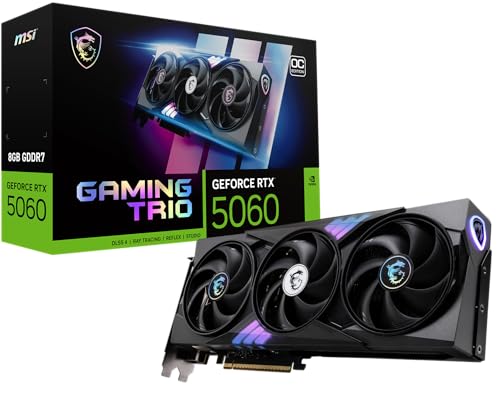
Nvidia’s latest 5000 GPU series is renowned for pushing the boundaries, but the high price tags left gamers equally astounded. This has resulted in a build-up of stock and low sales, leading Nvidia to start lowering prices of various 50xx GPUs. We might be seeing exactly that with the MSI Gaming RTX 5060, which has just hit a record-low price on Amazon since its arrival earlier this year.
Based on the latest Blackwell architecture, the RTX 5060 is already a popular choice for budget-conscious gamers. It delivers an excellent price-to-performance ratio, and the new 22% off sale has made that truer than ever. MSI’s 8 GB GPU boasts a maximum boosted clock speed of 2640 MHz and a 128-bit memory bus width, enabling impressive gaming performance.
$90 being slashed makes it one of the most appealing offers on Amazon right now for gamers chasing the best frame rates and visuals in AAA games at 1080p or 1440p with DLSS 4. The dedicated ray tracing cores will let you experience ray-traced visuals on a budget.
TORX Fan 4.0: A masterpiece of teamwork, fan blades work in pairs to create unprecedented levels of...
Additionally, the RTX 5060 supports high refresh rates and resolutions with 3x DisplayPort 2.1 and 1x HDMI 2.1b, and PCIe 5.0 support means fast data transfers between the GPU and motherboard.
The MSI Gaming Trio OC variant stands out for its advanced cooling, with TORX Fan 4.0 technology featuring fan blades that work in pairs to create focused air pressure for better cooling. The precision-crafted heat pipes ensure maximum contact with the GPU and spread heat efficiently, and the airflow control directs air exactly where it’s needed for optimal thermal management.
MSI Gaming RTX 5060 Amazon price history | Source: Camelcamelgo.
The variant also features premium build quality, with reinforced metal backplates equipped with thermal pads and airflow vents to further boost cooling. It is quite a looker with the Mystic Light RGB design for customizable and aesthetic lighting.
All these features are now available under a respectable $329 price instead of the usual $419 in this limited-time jaw-dropping sale.
I intitally started by writing CPU comparisons and since then have written articles of all kinds, from Wikis and How-Tos to dedicated CPU reviews. Currently, I test and review CPUs, motherboards, and sometimes, RAM.
We have tested a lot of B850 motherboards. Now, we’re almost in the Q4 of 2025, and ASRock has just dropped two new motherboards for its Challenger series. One of them is called ASRock B850 Challenger WiFi White, and this is exactly what we’re going to review today.
Why Trust Tech4Gamers
Ali Touseef is our hardware reviewer who tests and reviews different components, including coolers, RAM, motherboards, and processors.
40+ motherboards tested and reviewed by our team of hardware experts (Tech4Gamers Team).
800+ hours spent testing different motherboards for our reviews.
At Tech4Gamers, ensuring you get reliable information is our priority. That’s why every hardware round-up undergoes a meticulous review process by our team of experts and editors. Each review is carefully examined against our strict editorial guidelines, guaranteeing you trustworthy insights you can depend on.
Key Takeaways
The ASRock B850 Challenger WiFi is designed for gamers and users with white-themed builds in mind. The board looks great with plenty of ports and performance to make the experience worth it.
It’s a great choice for gamers with a strict budget in mind, as the gaming performance is favorable on this board.
It’s better to stay away if you wish to use the PC for synthetic workloads, since the board doesn’t perform that well.
These are the motherboard’s on-paper specifications:
1x 2.5G LAN, 1x 802.11be 2x2 WiFi 7, Bluetooth 5.4
USB Ports
19 USB ports
Size
ATX Form Factor: 305mm x 244mm
MSRP
$179
As evident from the chart, the motherboard offers a total of 19 USB ports as well as two M.2 slots for storage. Moreover, the board also comes with two PCIe slots for a graphics card, with a dedicated four-slot GPU space in between.
[toc]
Packaging & Unboxing
We get a pretty simple-looking packaging for the ASRock B850 Challenger WiFi White motherboard. It has the motherboard itself printed right along the name of the motherboard. Moreover, there’s nothing extraordinary drawn onto the board except triangle-like shapes in white, blue, and gray colors.
ASRock B850 Challenger WiFi White – Box Front
The front side of the box also has a few certified tags on its bottom area, which include ASRock’s very own RGB software “Polychrome Sync”. Other than that, you can see the HDMI, WiFi 7, and AMD Ryzen 9000 Desktop Ready branding as well.
ASRock B850 Challenger WiFi White – Accessories
Here’s all the stuff that you get inside the box besides the motherboard:
2x SATA Data Cables
2x WiFi Antennas
1x Sticker Sheet
1x ASRock Badge
1x Regulatory Notice
1x Quick Installation Guide
While there aren’t many accessories bundled with the motherboard, ASRock did, however, include a few extras that serve no functional purpose, but certainly add to the customer experience.
Design
ASRock B850 Challenger WiFi White – Design
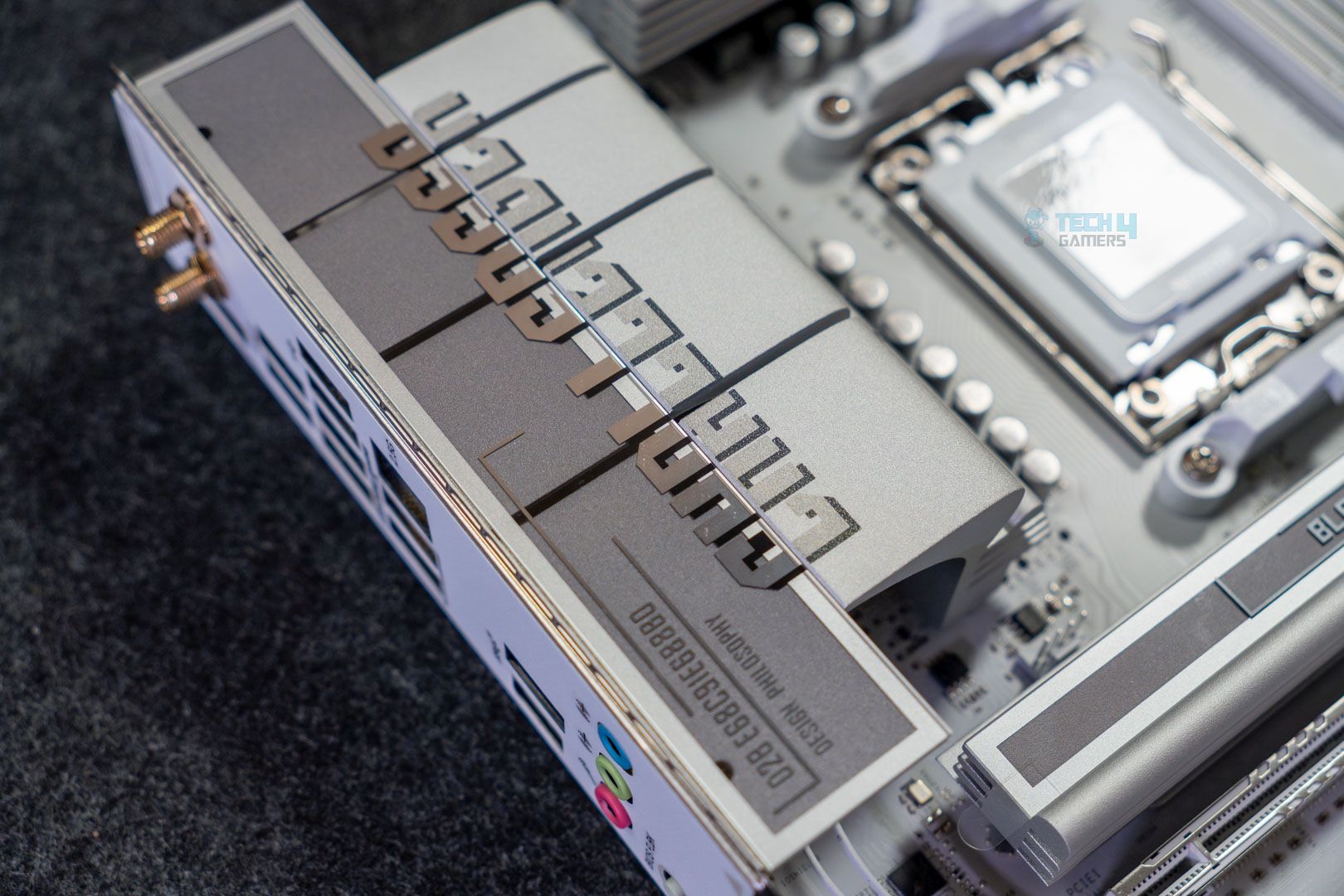
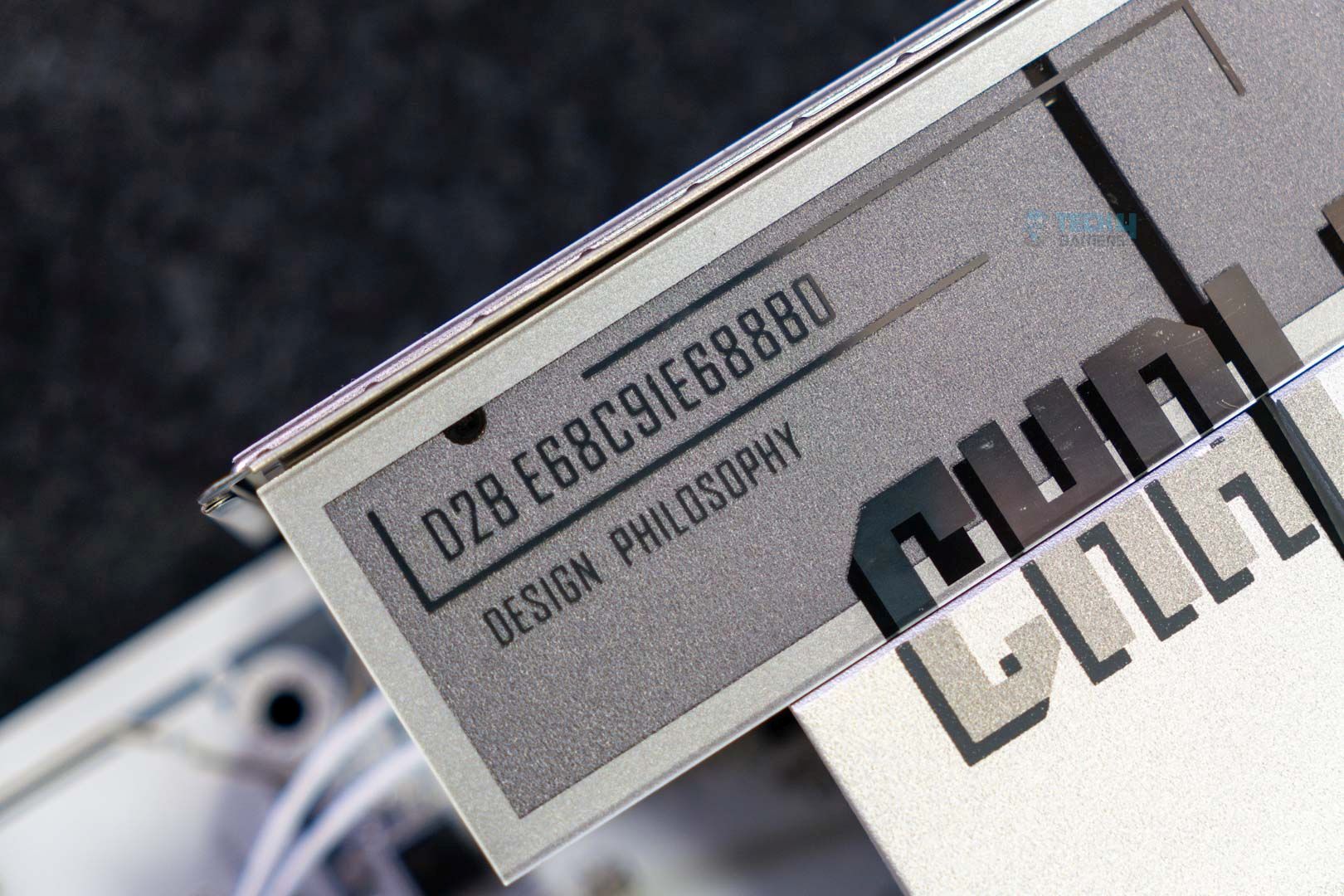
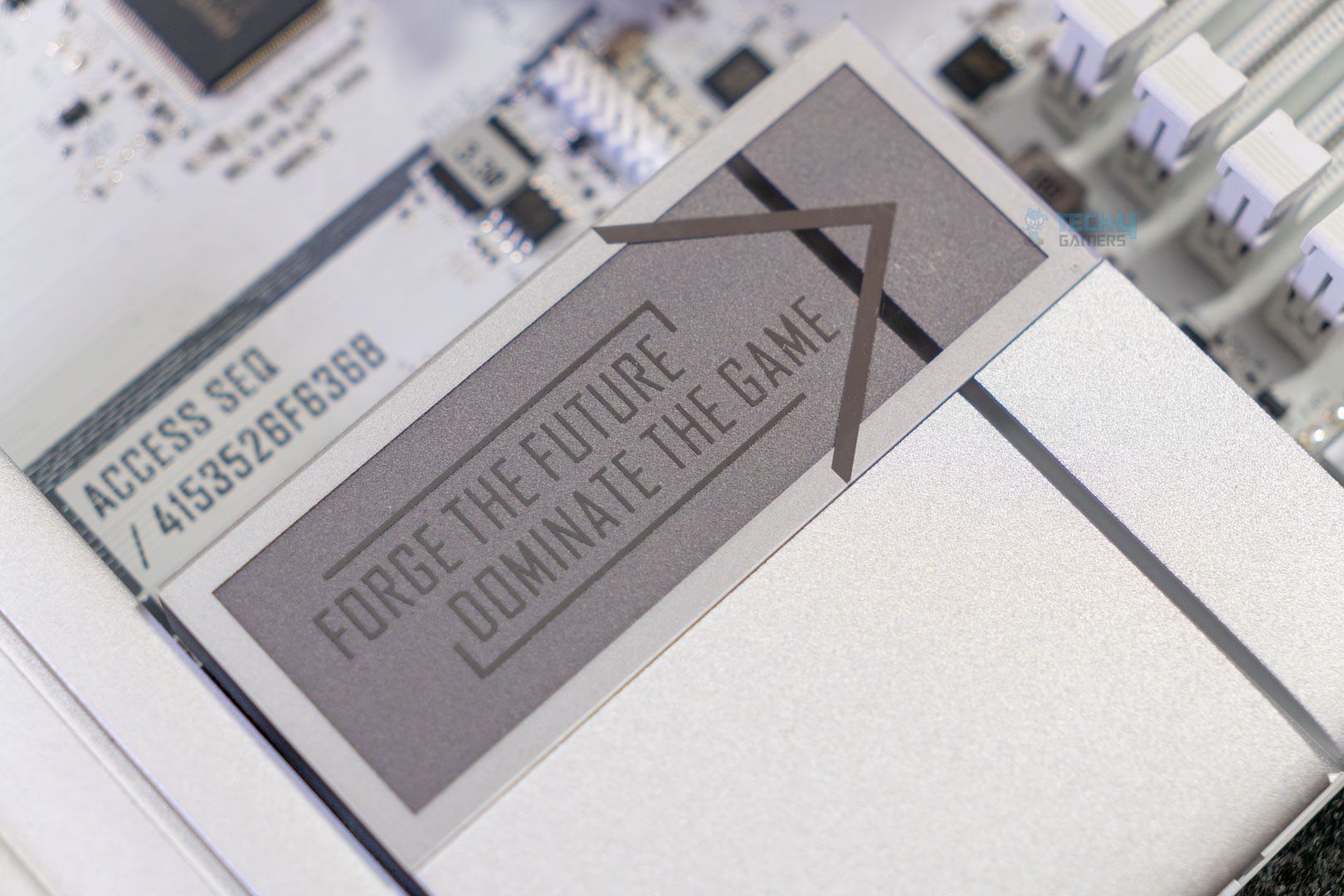
After unwrapping everything, you can see a white-themed motherboard with gray accents in a metallic finish on heat spreaders. The board looks absolutely breathtaking, with the branding of various features and its name over the heatsinks further enhancing its appearance. To be honest, I’d give it a solid 9/10 for the looks.
Close up Pictures of Its Design
1 of 3
I/O Heatsink Design
Typography Over Heatsink
Chipset Cover
Moreover, the board is built on the same structure as the other similarly priced motherboards, which is an 8-layer PCB design. It is more than sufficient for mild overclocking without experiencing major instability issues, as voltages would pass through normally. Similarly, the abundance of heat sinks will also ensure that the VRMs don’t go too high in terms of temperature levels during OC tweaking.
Block Diagram of the Motherboard
As per the block diagram provided by ASRock, the chipset provides power to the SATA ports, M.2_2 slot, 2.5G Ethernet port, Key E WiFi, PCIe2 & 3 x1 slots, front USB 2.0 & 3.2 Gen1 ports, and rear USB 3.2 Gen1 port. Meanwhile, the CPU powers the PCIe1 x16 Gen5, PCIe4 x4 Gen4 slot, Flash ROM, SIO NCT6796D-S I/O controller, DDR5 RAM slots, HDMI port, audio codec, and the rest of the rear and front USB ports.
Power Delivery System
VRM Structure
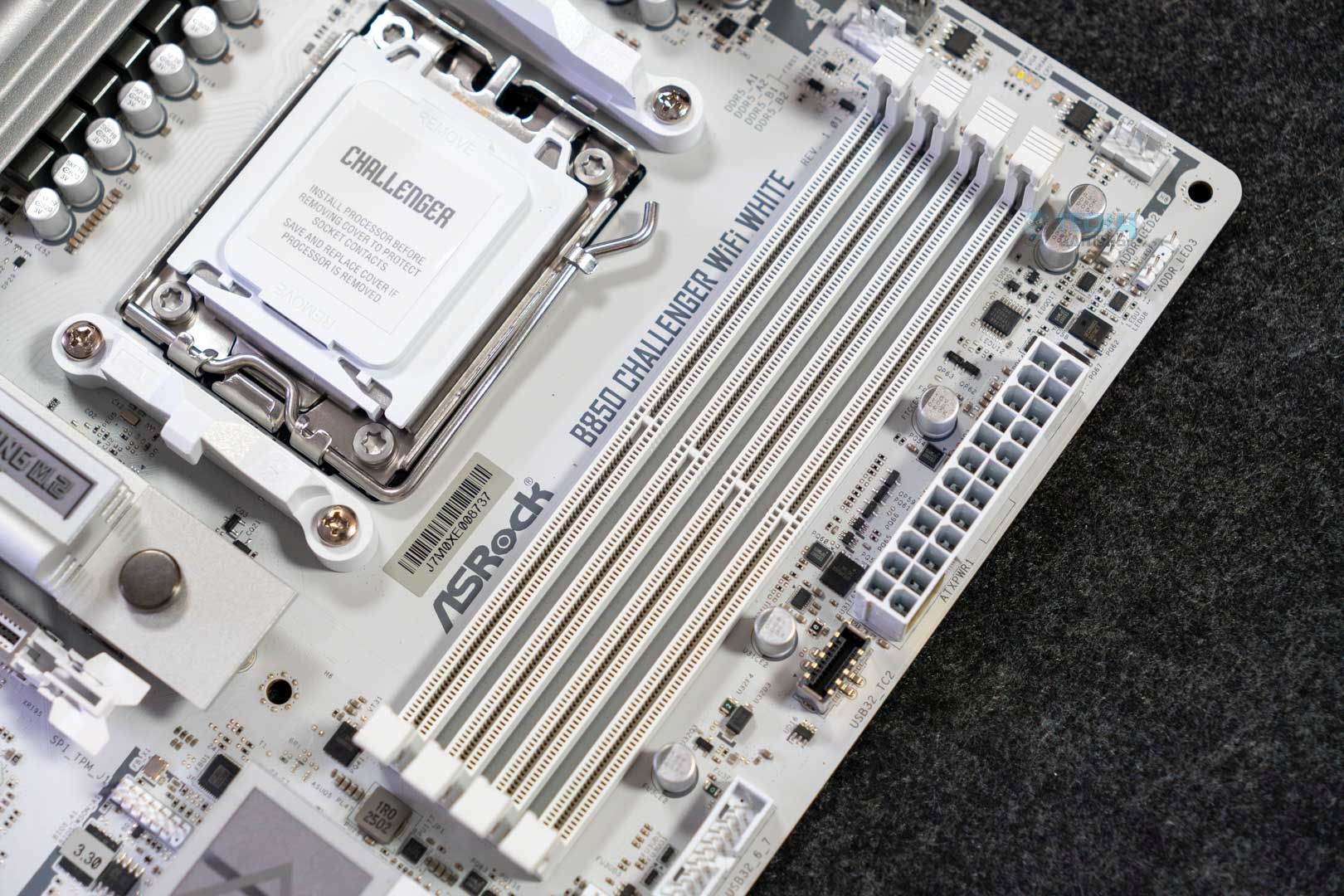
Taking a look at the power delivery on this ASRock B850 Challenger WiFi White reveals that it incorporates a 12+2+1 phase VRM design with Dr.MOS for VCore, SOC, and MISC. So, according to the spec sheet and our testing, this power delivery system is enough to let you overclock almost any AMD processor to a certain level. Don’t expect extreme overclocking, though, as it can only do so much being an entry-level board.
Top Design & CPU connector
Unlike the ASRock B850 LiveMixer WiFi, which has an 8+4-pin CPU connector design. This board has 2x 8-pin 12V connectors that come with ASRock’s Hi-Density Power design to help them withstand higher-than-usual voltages during overclocking without any issue.
VRM Heatsinks
The heatsink features the vertically stacked fin design that serves its purpose of cooling down the VRMs quite well. The main heatsink also has the “Challenger series” branding on top of it. However, there’s no heat pipe in sight to connect both heatsinks and further improve the cooling capabilities.
DIMM Slots
DIMM Slots
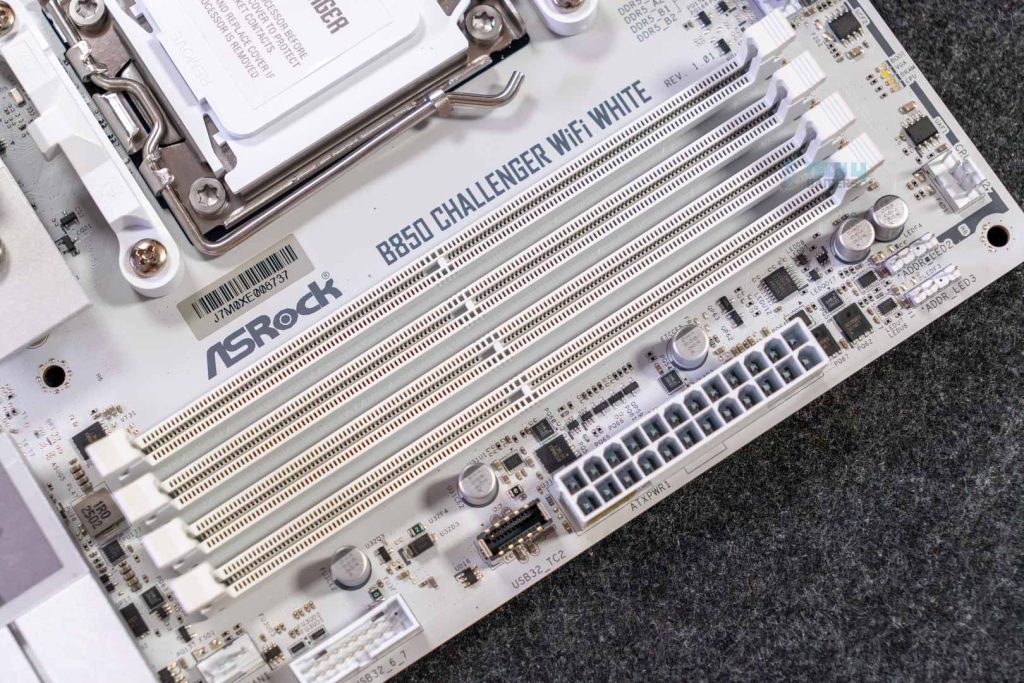
The motherboard offers four DDR5 DIMM slots same as other ATX boards, and can support up to 256 GB of memory running at 8000 MT/s. Moreover, support for both Intel XMP and AMD EXPO is available to use pretty much any DDR5 memory on the market.
PCIe Slots
PCIe Slot Pictures
1 of 2
ASRock B850 Challenger WiFi White - PCIe Slots (Image by Tech4Gamers)
Rest of the PCIe Slots (Image by Tech4Gamers)
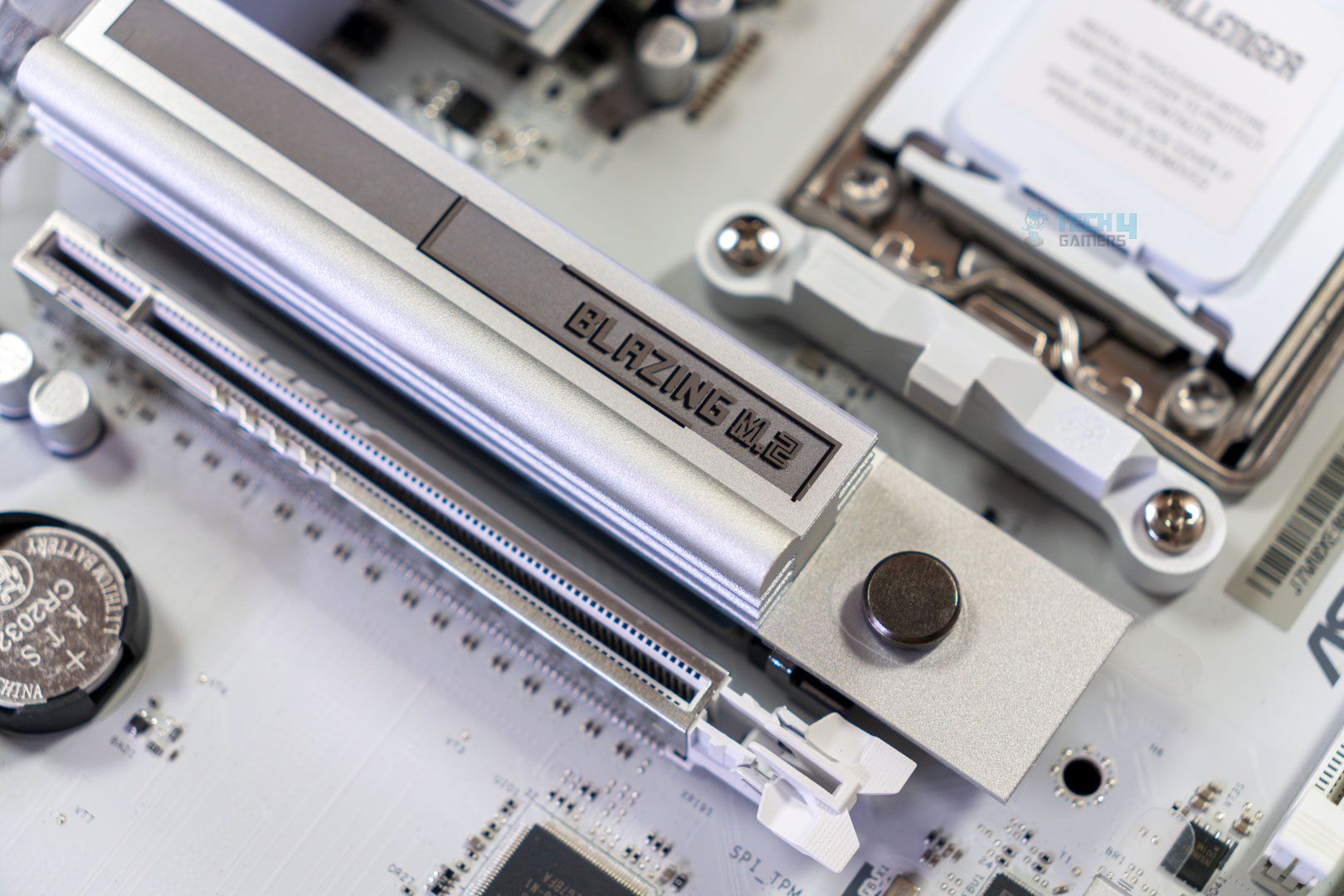
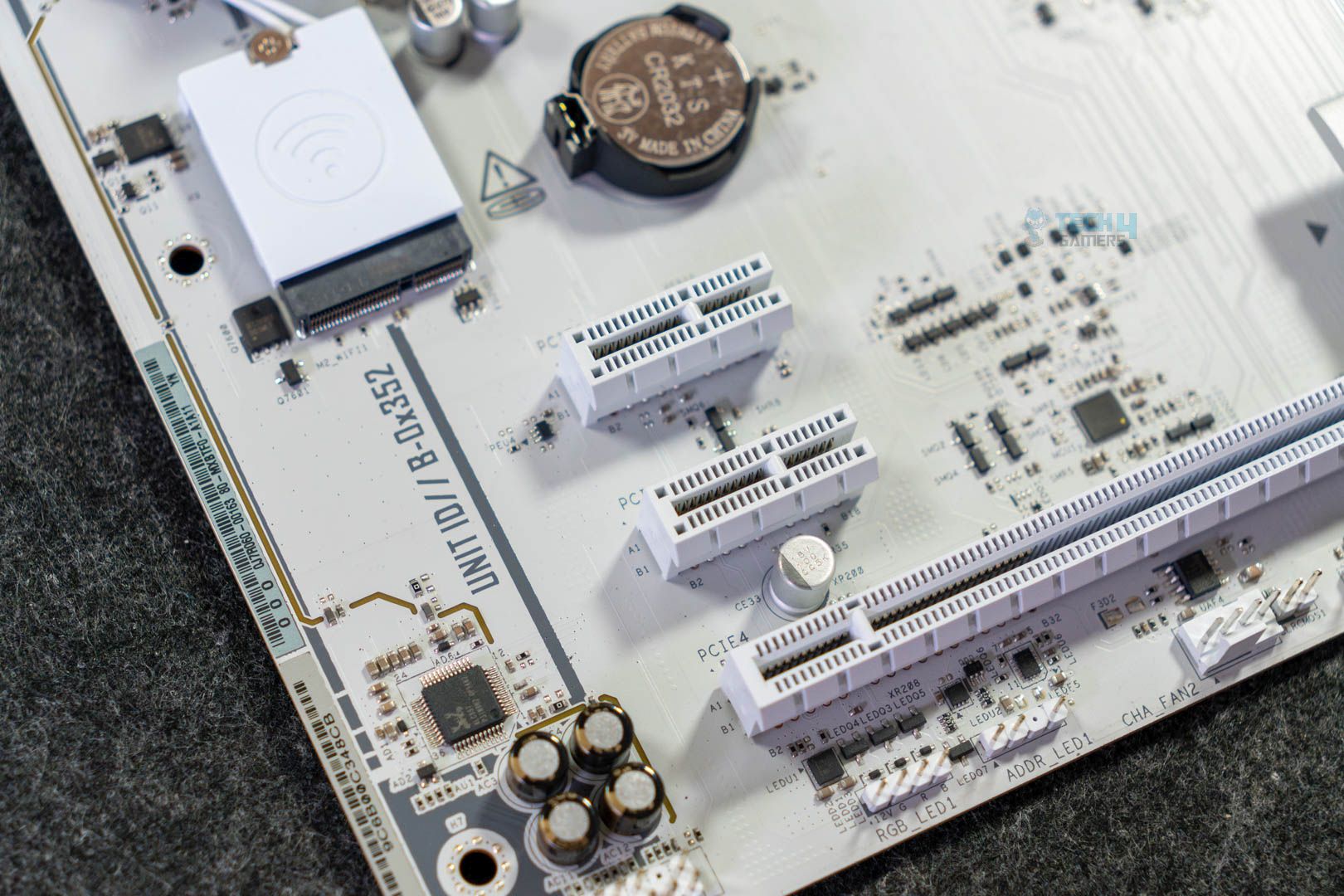
We get two PCIe x16 slots on this motherboard, where the PCIe1 is Gen5 in x16 mode, while the PCIe4 is Gen4 in x4 mode. The PCIe1 slot has four-slot GPU space, so you can install even the beefiest graphics card models. Moreover, the PCIe1 slot also has an EZ latch system in place, as well as the reinforced steel standard for better reliability.
Other than these, there are two more PCIe x1 slots with open ends, meaning that you can install any full-sized x16 expansion card if it can perform decently on PCIe 4.0 x1 mode.
Storage
M.2 Slots
As far as the storage side is concerned, the motherboard comes with two M.2 slots, where the M.2_1 is PCIe Gen5x4, while the M.2_2 is PCIe Gen4x4. Both of these M.2 slots have heatsinks with thermal pads to dissipate the heat, so that’s great to see here. Another thing that’s worth mentioning is that the M.2_1 slot has thermals on both sides, while the M.2_2 has one. Here’s an image of heatsinks removed so you can take a look at the double-sided thermal pads of the M.2_1 slot.
Heatsinks Removed Closer
Besides the M.2 drives, there are 4x SATA3 6 Gb/s connectors as well. Two at the bottom and two under the chipset heatsink. Not to forget, the M.2_1 will be limited to Gen4x4 speeds if you decide to use any Ryzen 8000 series processor.
USB Connectivity
The ASRock B850 Challenger WiFi White motherboards come with a total of 19 USB ports:
1x USB 3.2 Gen2 Type-C (Rear)
1x USB 3.2 Gen2 Type-A (Rear)
4x USB 3.2 Gen1 Type-A (Rear)
4x USB 2.0 (Rear)
4x USB 3.2 Gen1 Type-A (Front)
1x USB 3.2 Gen1 Type-C (Front)
4x USB 2.0 (Front)
All the USB ports come with ESD protection, so none of the connected devices receive any damage due to a sudden flow of power. Though, it would have been great if any of the Type-C ports had PD charging support.
Network & Connectivity
WiFi 7 module
The motherboard doesn’t have any 5G LAN port; however, it does have the standard 2.5G LAN, which is fine enough. Nevertheless, the board does have a WiFi 7 & Bluetooth 5.4 module installed, which is great, and the addition of the MLO (Multi-link Operation) feature is even better. Simply because it helps in reducing the latency with the use of multiple bands and channels. Also, the module is installed right where you can see it and has no cover or anything, so you can easily swap it for an upgrade later on if needed.
Audio Solution
ALC897 Audio Codec
The ASRock B850 Challenger WiFi White boasts the Realtek ALC897 audio codec with Nahimic enhancements on top. This specific audio codec is common in entry-level and mid-range motherboards and serves its purpose quite well if you’re a casual user or gamer. The codec doesn’t have any DAC features in it, so professional-level stuff won’t be possible.
Internal Connectors
I’ve listed all the connectors that you can find on this ASRock B850 Challenger WiFi White below:
1x SPI TPM Header
1x Power LED and Speaker Header
1x RGB LED Header
3x Addressable LED Headers
2x CPU Fan Connectors (4-pin) (Smart Fan Speed Control)
3x Chassis Fan Connectors (4-pin) (Smart Fan Speed Control)
1x AIO Pump Fan Connector (4-pin) (Smart Fan Speed Control)
1x 24-pin ATX Power Connector
2x 8-pin 12V Power Connectors (Hi-Density Power Connector)
1x Front Panel Audio Connector
2x USB 2.0 Headers (Support 4 USB 2.0 ports)
2x USB 3.2 Gen1 Headers (Support 4 USB 3.2 Gen1 ports)
1x Front Panel Type C USB 3.2 Gen1 Header
Connectors & PSC LEDs Pictures
1 of 2
Internal Connectors
PSC LEDs
The motherboard has support for up to three addressable RGB strips and can provide up to 15W of power. Besides that, you can obviously see the 24-pin motherboard power connector, and right with that, there’s the USB 3.2 Type-C header. Similar to the 8+8-pin 12V connectors, the 24-pin ATX connector also features the ASRock Hi-Density Power design.
Additionally, the board does have a Post Status Checker that proves to be useful while troubleshooting your way through, in case you encounter any problem. The PSC includes four distinctive small LEDs with different colors that, if they stay solid, mean there’s an issue with that specific component. Like, the solid red is for CPU, solid white for GPU, solid yellow-green for boot drives, and solid yellow for DRAM.
Super I/O controller
With so many connectors and headers all over the motherboard, it requires an equally capable I/O controller to handle everything swiftly. So for that, the Nuvoton NCT6796D-S I/O is in place here, which controls and monitors everything just fine.
Rear I/O Panel
Rear I/O
2x Antenna Ports
1x HDMI Port
1x USB 3.2 Gen2 Type-A Port (10 Gb/s)
1x USB 3.2 Gen2 Type-C Port (10 Gb/s)
4x USB 3.2 Gen1 Ports
4x USB 2.0 Ports
1x 2.5G LAN Port
1x BIOS Flashback Button
HD Audio Jacks: Line in / Front Speaker / Microphone
The rear I/O on this isn’t too flashy, but it has all the required ports. Features include a USB 3.2 Gen2 Type-C port, two USB 3.2 Gen1 Type-A ports, and a USB 3.2 Gen2 Type-A port. Moreover, there’s also a BIOS flashback button located near the audio jacks, which can be used to update the BIOS using only a USB drive containing the latest BIOS files.
Motherboard without covers
Here’s a quick and last look at the motherboard before we move forward to benchmarking without all the covers that keep the motherboard aesthetically pleasing and cool.
Test Bench
Here’s the test bench I used to test the motherboard on:
Let’s start with synthetic benchmarks and see how the motherboard stacks up:
Blender 4.0.2 renders
The ASRock B850 Challenger WiFi White takes about 53 seconds to complete a Blender run. The result is the same as the ASRock B850 LiveMixer WiFi, which is better than the ASRock B850I Lightning WiFi and ASRock B850M Pro RS WiFi.
Cinebench 2024 scores.
During the Cinebench 2024 run, the result wasn’t that impressive as the board fell behind all other competitors. Although that doesn’t mean the difference is huge, however, it’s worth mentioning. As for actual numbers, it managed 138 scores on single-core and 2285 in multicore, right behind the LiveMixer model by 3 scores.
Corona 11 render.
The Corona render test isn’t that great either, but it’s surely better than Cinebench, as the ASRock B850 Challenger WiFi White is performing better than LiveMixer and Pro RS WiFi by a small margin of 0.1 and 0.6 seconds.
Geekbench 6 score.
This time around, the motherboard is going head-to-head with the ASRock B850 LiveMixer WiFi as both scored 21,684 points. However, it’s not anything great as they both are still at the end of the result list of Geekbench 6.
V-Ray scores.
The board was able to save itself from being last in the last one again, as it scored 48,715 points in the V-Ray benchmark. The overall result isn’t too impressive when it comes to synthetic benchmarks, but then again, they’re not too terrible either.
Gaming Benchmarks
Now is the time to see how the motherboard fares in the gaming benchmarks against the other boards:
Cyberpunk 2077.
We’re off to a great start here as the motherboard performs similarly to the majority of other boards, with 108 minimum and 143 average FPS.
Starfield.
The story is slightly different when it comes to Starfield, as here we saw the ASRock B850 Challenger WiFi White to actually perform better than many of the boards, with 79 as the minimum and 110 as the average FPS.
Far Cry 6.
Lastly, we picked Far Cry 6 to test out the motherboards. Here, the story is pretty much the same as it performed the same as almost every other board except for only one. The ASRock B850 Challenger WiFi White and many other boards did 139 as a minimum and 183 as an average FPS.
So, in conclusion, the gaming results are pretty solid on this motherboard, whether it’s the 0.1% lows or average frames.
Power Consumption And VRM Temperatures
We collected these power consumption and temperature results after stressing out the system using Cinebench 2024:
Average power consumption.
The motherboard has one of the highest power consumptions when it comes to the 100% load, where it’s consuming 378W. Whereas, it idles out at 105W and consumes around 118W while gaming.
VRM temperatures.
The board runs slightly on the warmer side as the VRM temperatures were recorded at 67°C, which isn’t too bad for an entry-level board.
Boot Times
Boot times.
The boot times are also not terrible and certainly not last in the result sheet. With the 22-second boot time, it places itself among the majority of other boards.
Should You Buy It?
Here’s how you can decide whether this board is for you or not:
Buy It If
✅ You need an affordable white motherboard: If you’re building a white-themed PC, and also don’t have the budget to pay the premium to just get a white edition. Then this board is a great fit with white aesthetics for an affordable price.
✅ You need to install a beefy graphics card: One of the key highlights of this board is its space for a four-slot graphics card. Meaning that you install a chunky GPU without overshadowing the 2nd PCIe slot.
✅ You want a gaming-centric board: This motherboard performs impressively when it comes to gaming, so if you’re only building a PC to do gaming. Then this could be your pick.
Don’t Buy It If
❌ You can’t compromise on synthetic performance: The motherboard falls short when it comes to synthetic performance, so if you’re going to use your PC for that purpose. Then this board isn’t for you.
My Thoughts
Coming to the end of our review, let’s go through everything for the last time to actually give you my honest opinion of the motherboard. The board, first of all, has all the bells and whistles that make it an aesthetically pleasing option, especially for those who prefer white aesthetics. Not only that, the board is also impressive when it comes to offering competitive performance in games.
The one thing that I found lacking was the support for PD charging, which isn’t that big of a deal, but it’s nice to have when the board already has Type-C ports. On top of that, the synthetic performance was quite lackluster as well. So, in conclusion, I would recommend this board to the budget-oriented gamers and casual users, as only they can benefit the most from this ASRock B850 Challenger WiFi White motherboard.
At Tech4Gamers, I’m the PC Hardware Specialist, primarily contributing to the “Best-Ofs” section. I provide thoughtful buying advice based on thorough testing and personal expertise. I also review hardware products and games to keep things fresh.
If you’ve followed the ASRock motherboard reviews we’ve covered for the current generation, you probably know that we’ve been very happy with them. Well, we’ve got another one in store today: the ASRock Phantom Gaming X870 Nova WiFi. While the PG X870E Nova WiFi was released last year, ASRock took its time with this one.
Why Trust Tech4Gamers
Ali Touseef is our hardware reviewer who tests and reviews different components, including coolers, RAM, motherboards, and processors.
40+ motherboards tested and reviewed by our team of hardware experts (Tech4Gamers Team).
800+ hours spent testing different motherboards for our reviews.
At Tech4Gamers, ensuring you get reliable information is our priority. That’s why every hardware round-up undergoes a meticulous review process by our team of experts and editors. Each review is carefully examined against our strict editorial guidelines, guaranteeing you trustworthy insights you can depend on.
Now, if you’re familiar with the difference between X870 and X870E, you’ll know that the X870 chipset has fewer usable PCIe lanes. This will be represented in the lane sharing among the M.2 slots and the USB4 ports, something we’ll get to in the review. There’s a $50 price difference between the X870 and X870E models.
Key Takeaways
The ASRock Phantom Gaming X870 Nova WiFi is an excellent mid-range motherboard, offering a great design, a wealth of features, and good performance.
You should buy this motherboard if you want the best I/O, prefer flashy designs, and/or want some overclocking headroom.
Don’t buy this motherboard if you don’t want to deal with the potential lane-sharing hassle between the M.2 slots and the other I/O.
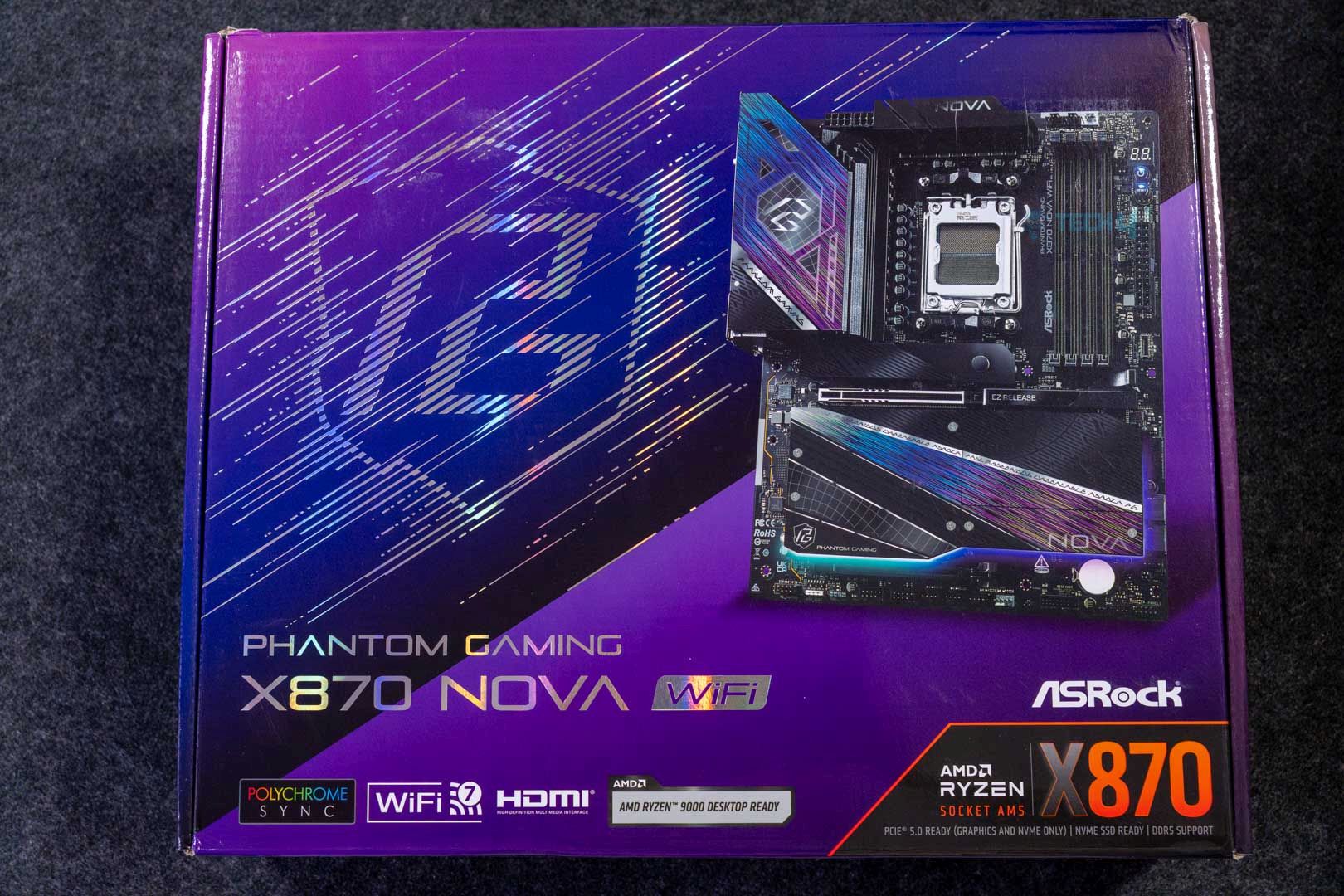
The motherboard comes in a cardboard box with a futuristic design. On the front of the box, you get some of the key features and the motherboard model.
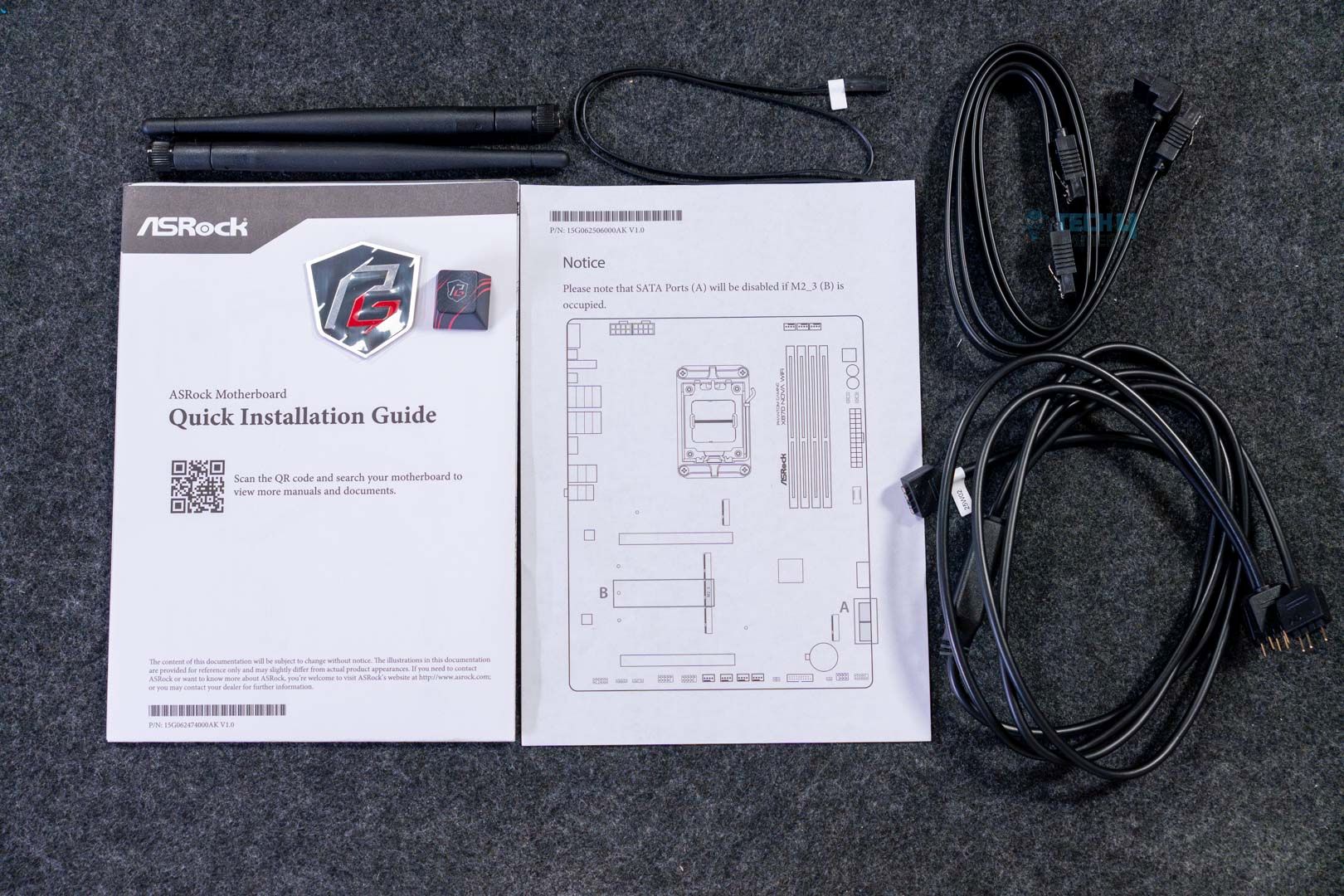
As for accessories, this is all that we found inside:
2x SATA data cables
2x WiFi antennas
1x ARGB splitter cable
1x thermistor cable
A quick installation guide
Nothing out of the ordinary here. We saw the addition of a thermistor connector in many other motherboards of this generation.
Design
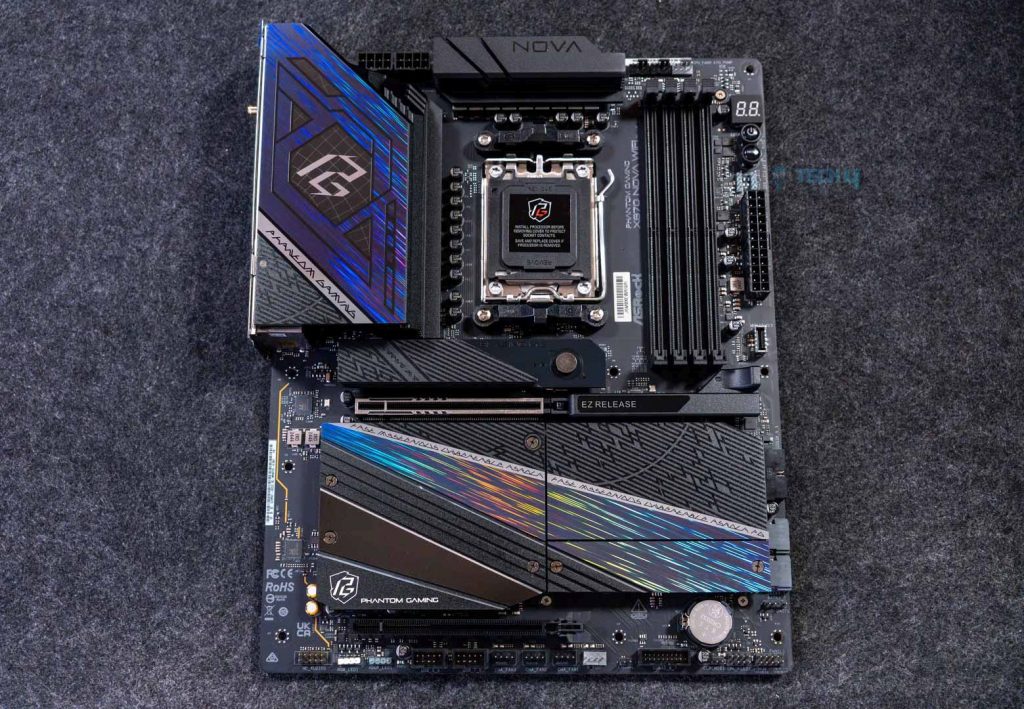
Aerial look (Image by Tech4Gamers)
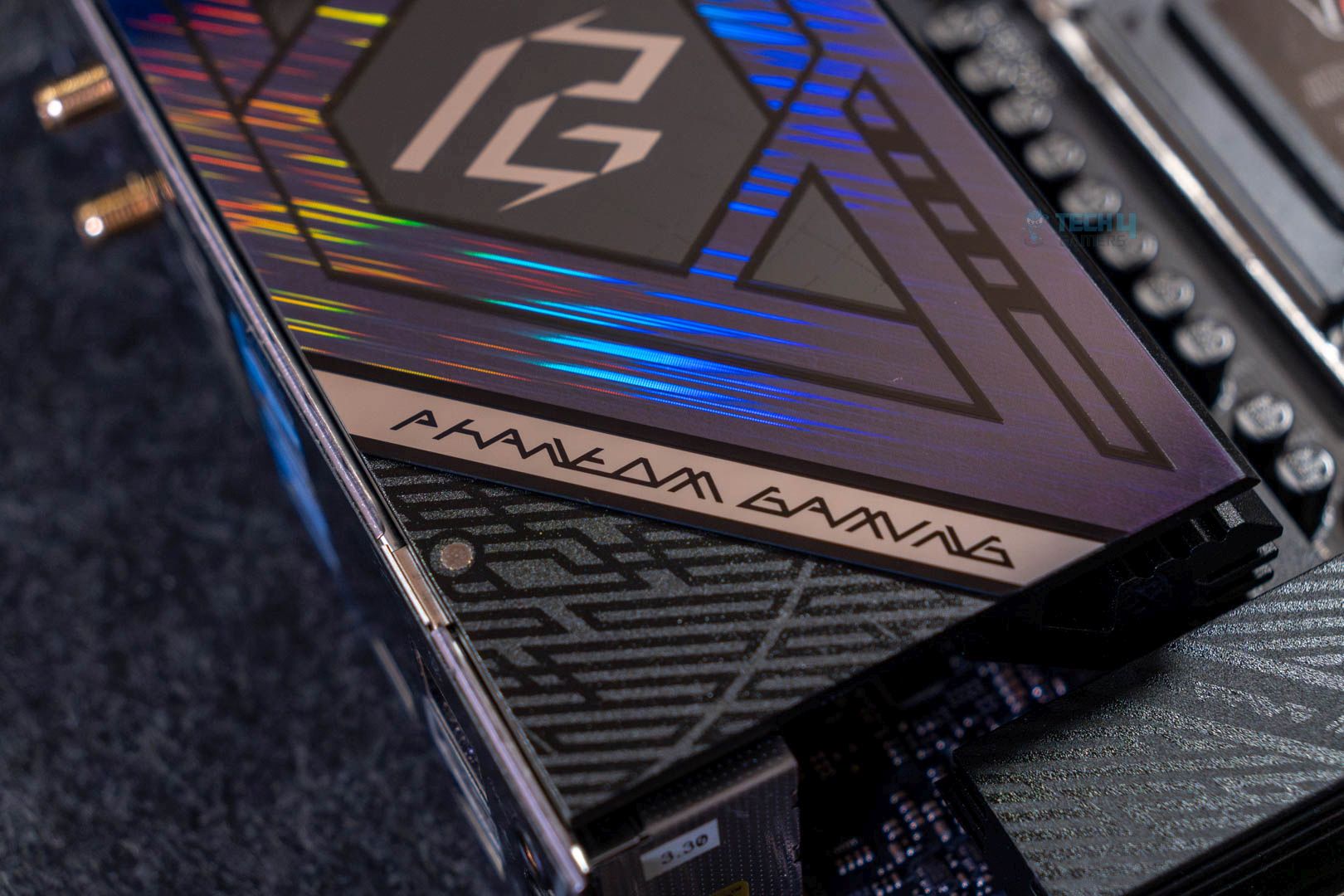
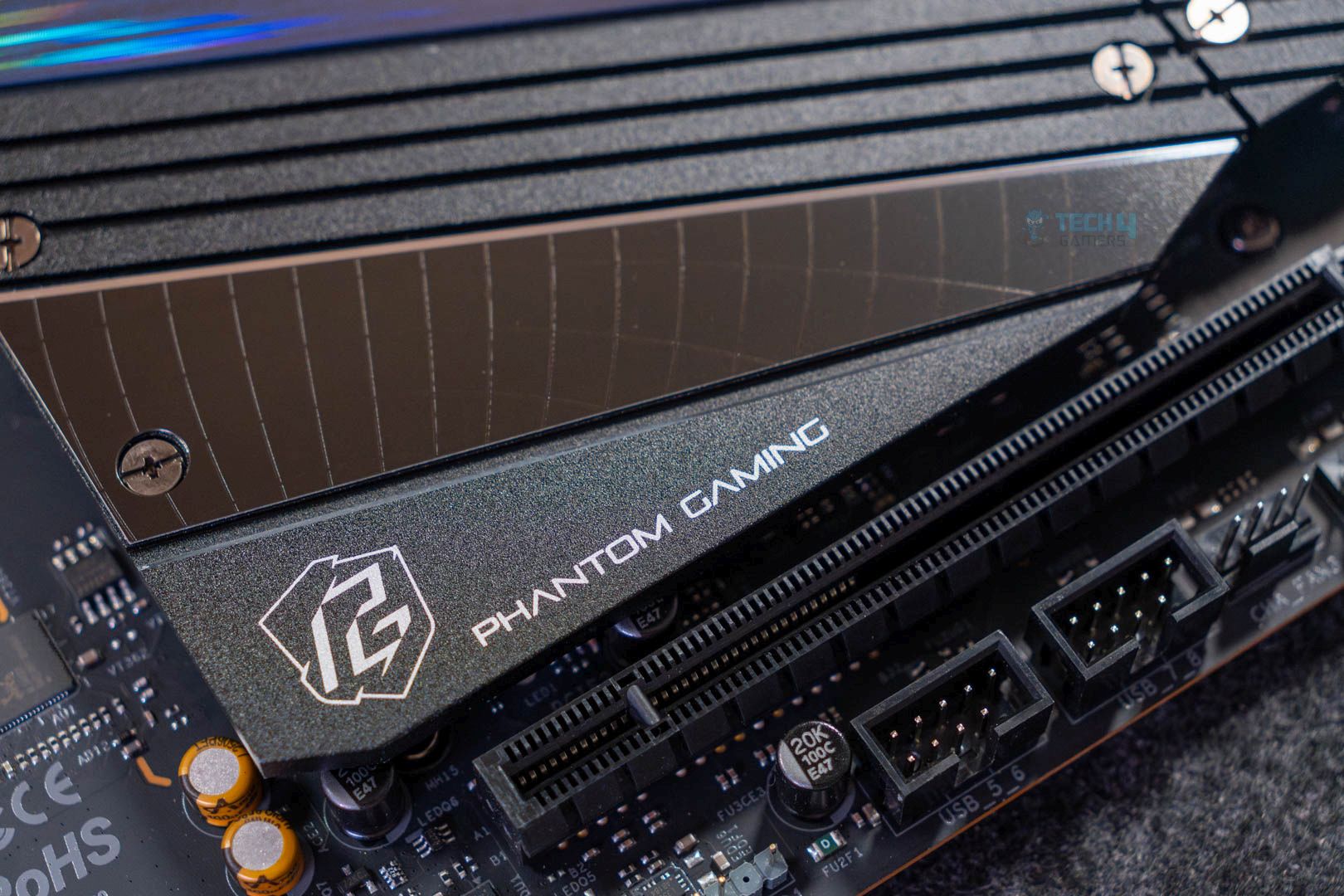
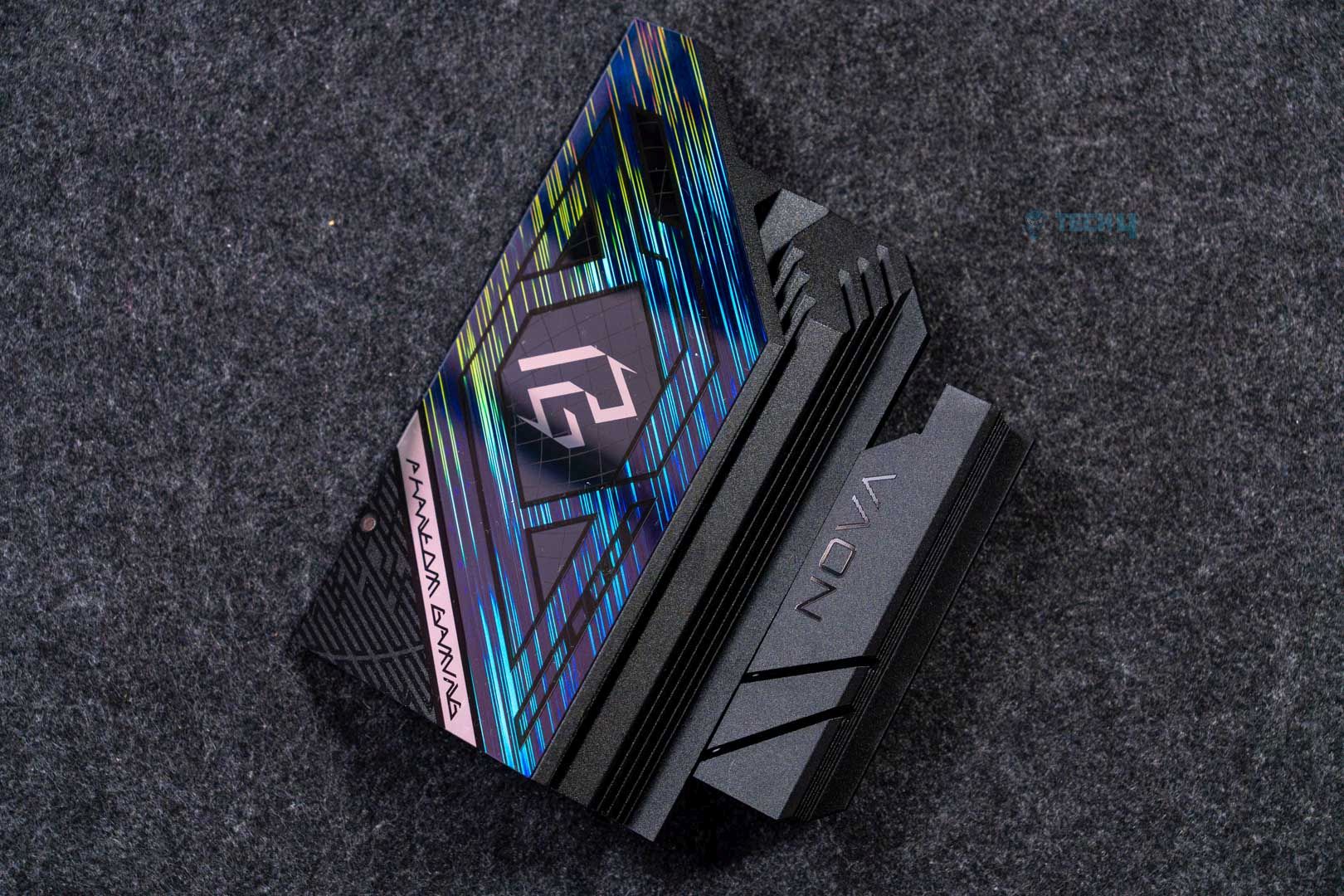
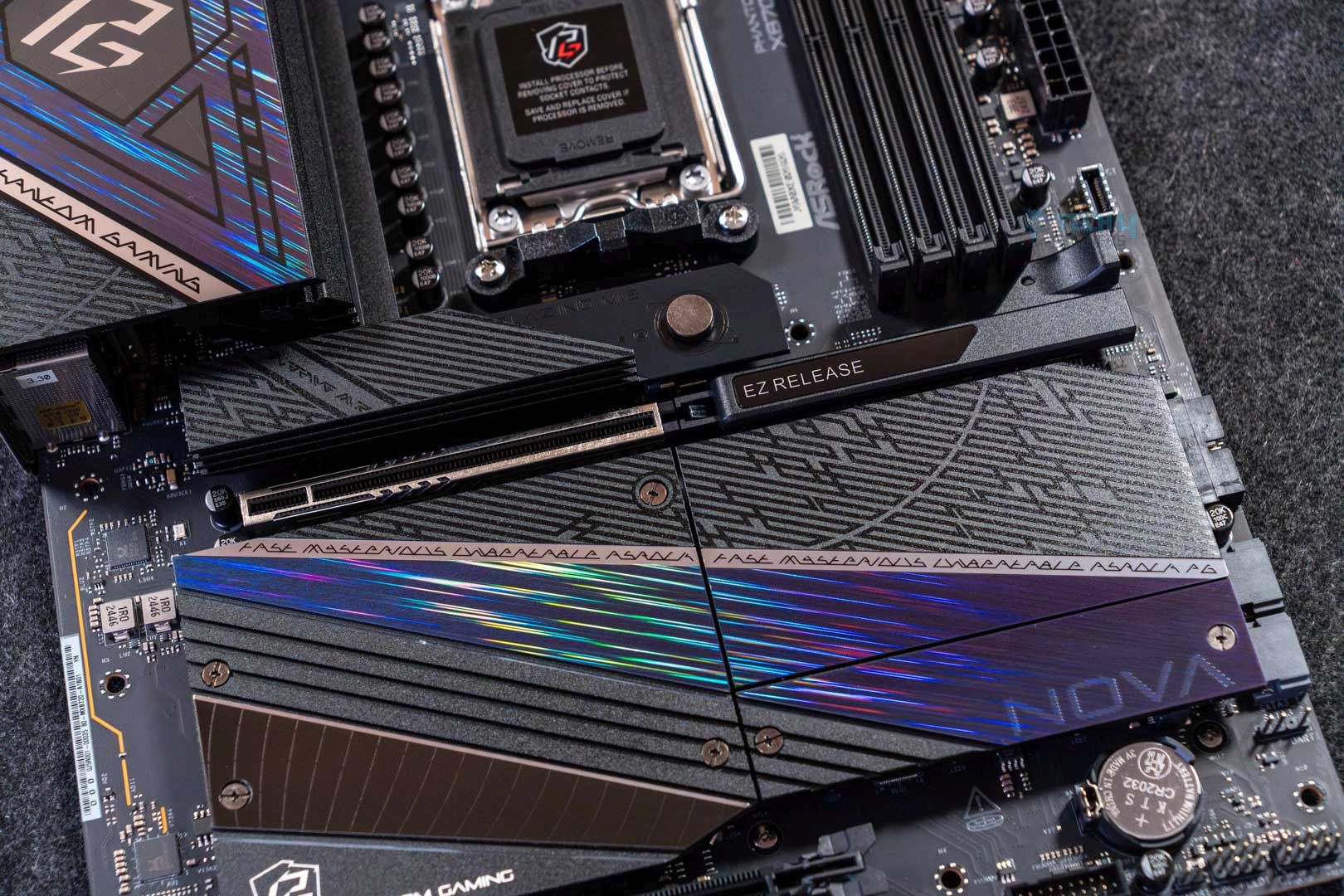
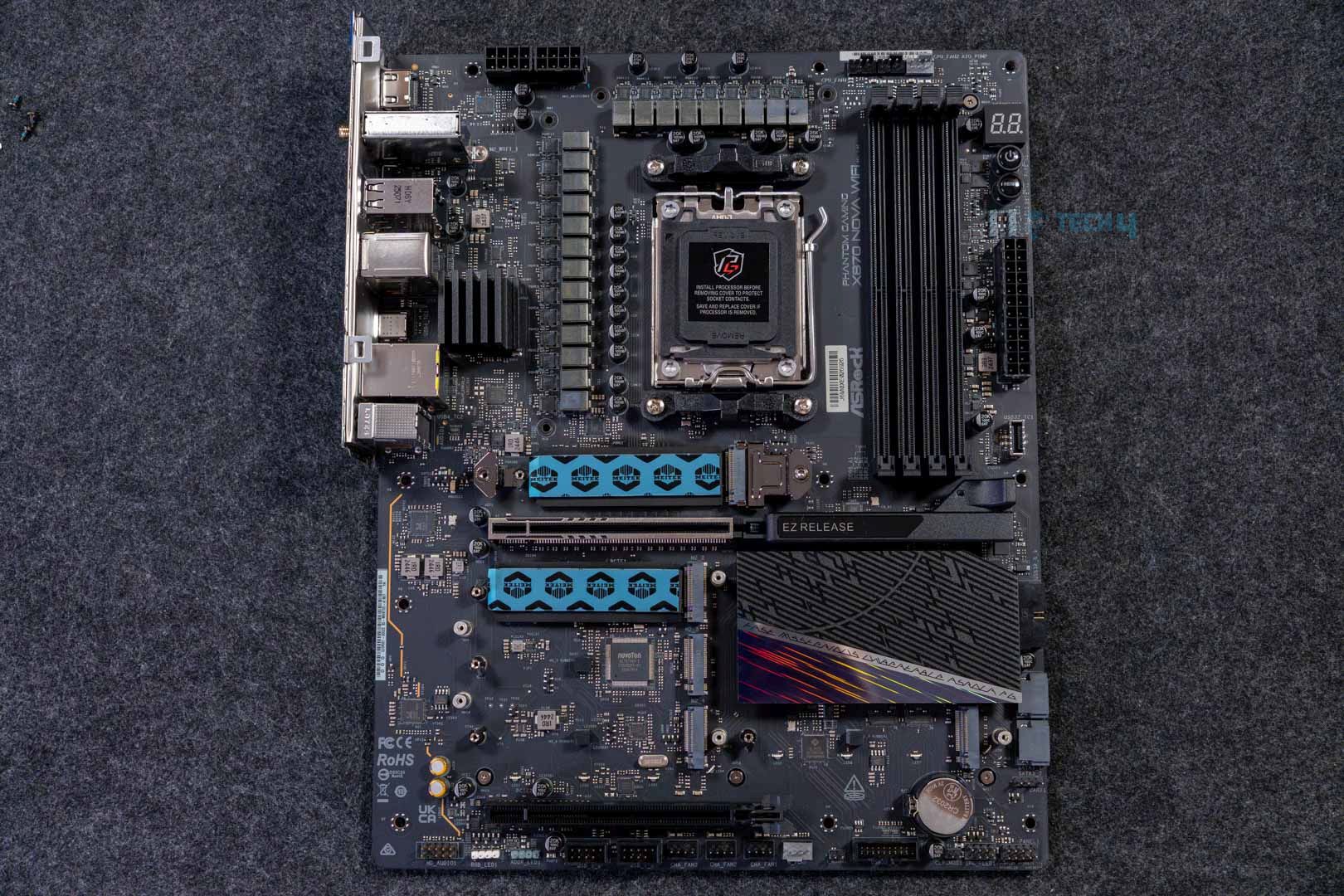
The PG X870 Nova WiFi has a fairly flashy, gaming-inspired design. A large part of the motherboard is covered with heatsinks, on which we see several shapes and designs. The Phantom Gaming branding can be seen on the rear I/O cover and M.2 heatsinks. We also have holographic streaks running through them, giving off a futuristic look. Integrated RGB is found under the large M.2 heatsink, providing a fair bit of illuminance.
Rear I/O cover
M.2 heatsink
The motherboard has an 8-layered PCB with 2oz copper.
Block diagram
The CPU provides the DDR5 memory, PCIe Gen 5, USB4, and some of the USB connections. Meanwhile, the chipset adds the remaining USB ports, M.2 slots, and PCIe 4.0, as well as audio, WiFi, and LAN.
CPU Socket and Power Delivery
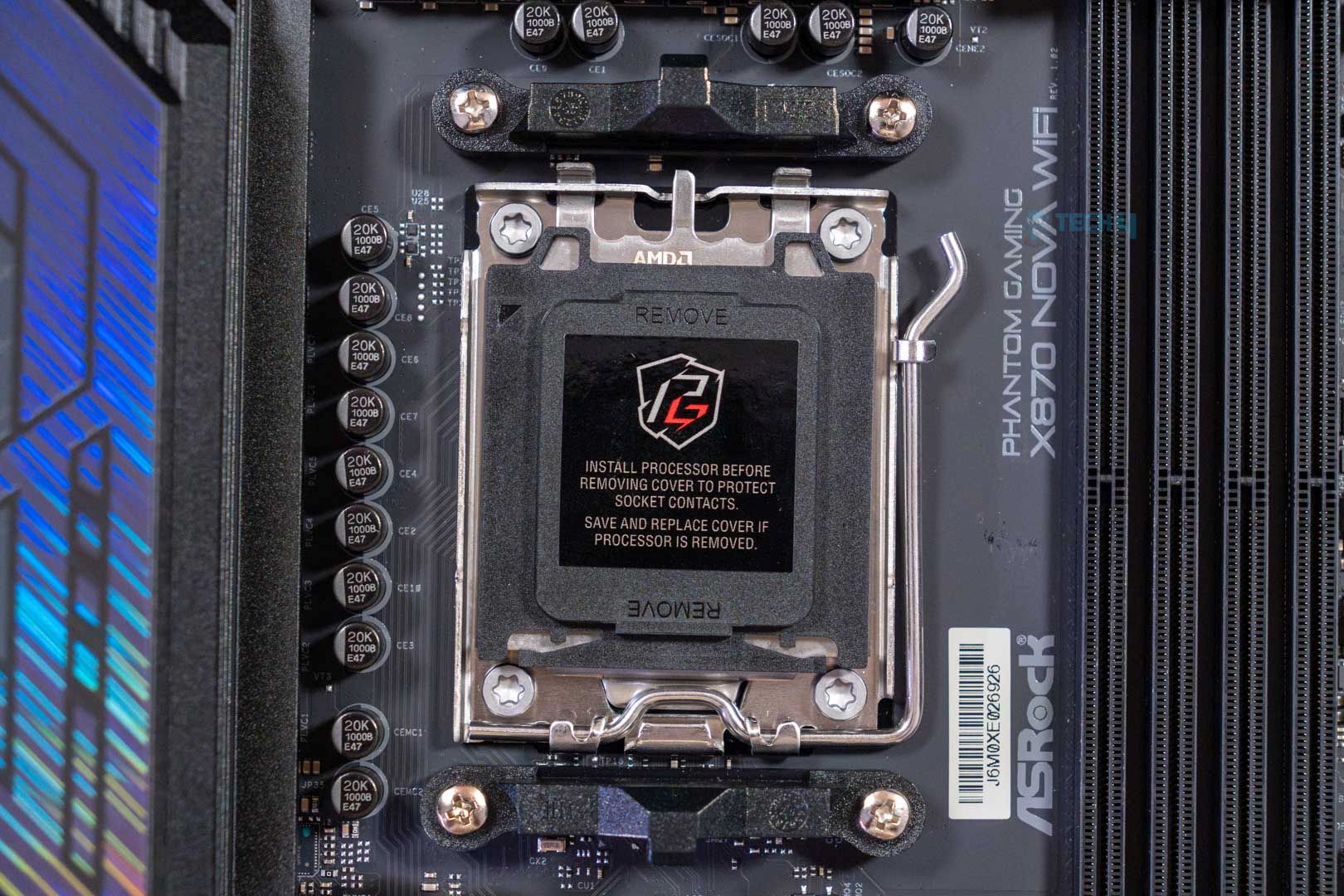
CPU socket
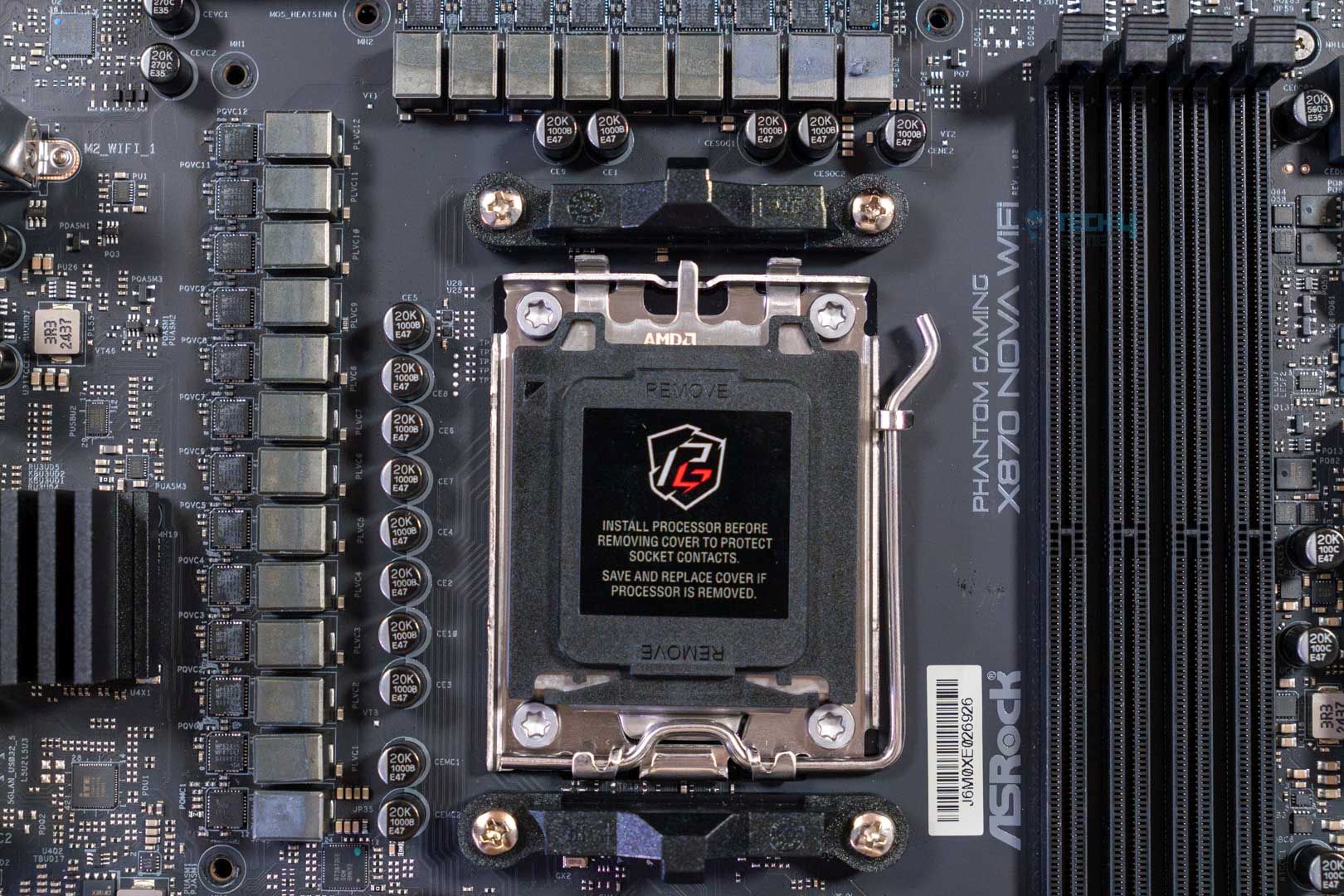
VRMs
The X870 Nova WiFi uses the AM5 (LGA1718) socket, with support for Ryzen 7000, 8000, and 9000 series CPUs. Power is provided by an 18+2+1 phase VRM system, including 18x 80A SPS for the VCore. The total current for the CPU is 1440A, plenty for any supporting Ryzen CPU, even if you overclock.
A closer look at the VRMs reveals that the VCore is using MPS’ MPS2425 MOSFETs, managed by the MPS2434/MP2857 PWM controller. ASRock is using “upgraded” capacitors with a 20,000-hour lifespan and 1000μF capacitance.
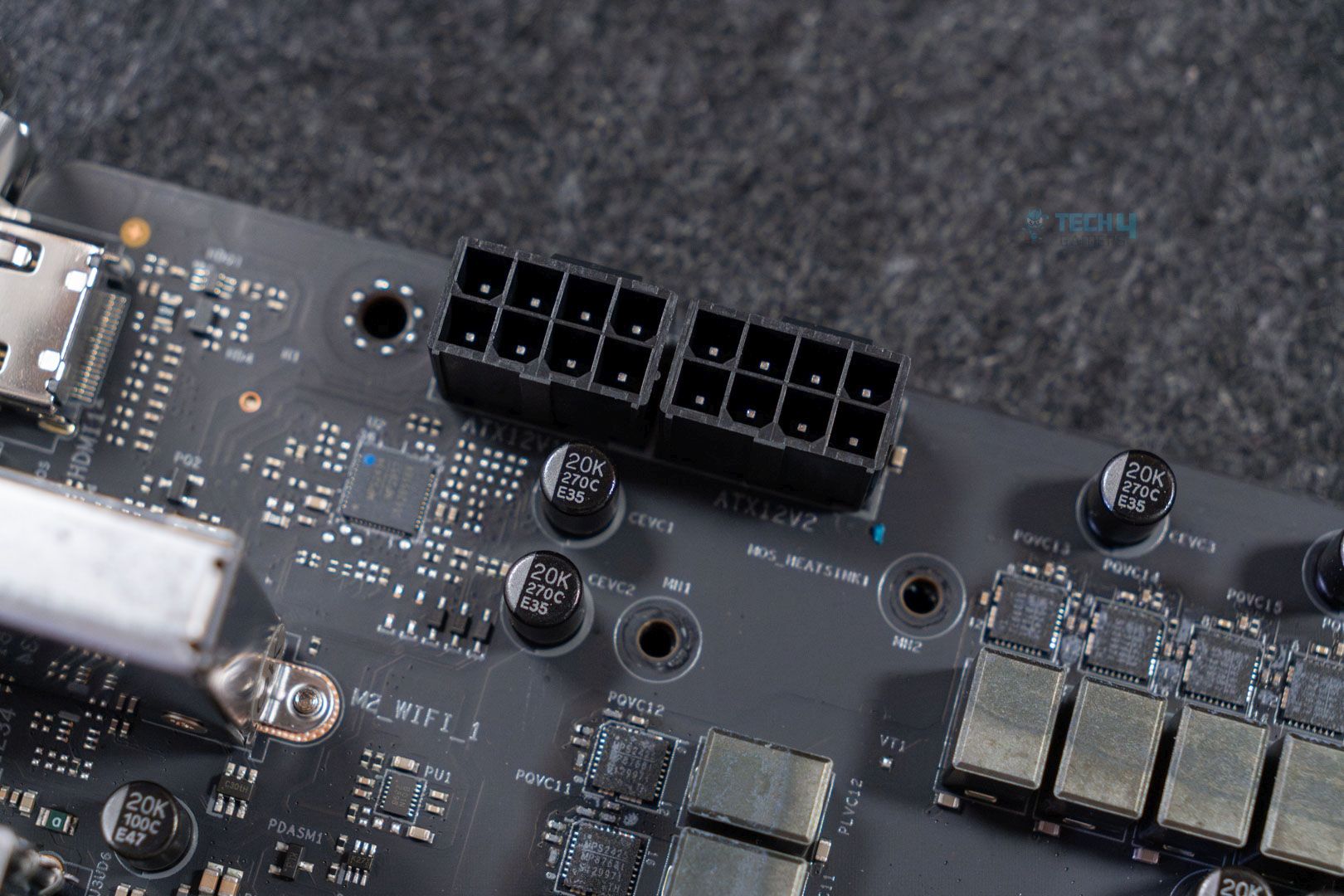
EPS connectors
VRM heatsink
Power to the CPU comes from 2x 8-pin EPS “Hi-density” connectors, capable of providing up to 300W in total.
The heatsinks tasked with cooling the VRMs have a stacked fin design and thermal pads. There’s no heatpipe connecting the heatsinks.
DIMM Slots
The ASRock Phantom Gaming X870 Nova WiFi can run up to 256 GB of DDR5 RAM across the four DIMM slots. For speed, the maximum support is 8400+ MT/s. (OC)
Editor`s Note
As always, it’s important to note that the recommended memory speed for Ryzen 9000 CPUs is 6400 MT/s. Beyond this, the memory controller can’t sync with the RAM anymore and switches to a 1:2 mode. If you really want to push beyond 6400 MT/s, you’ll need speeds upwards of 8000 MT/s to see any notable results.
– Dr. Usman Saleem
PCIe Slots
PCIE slot
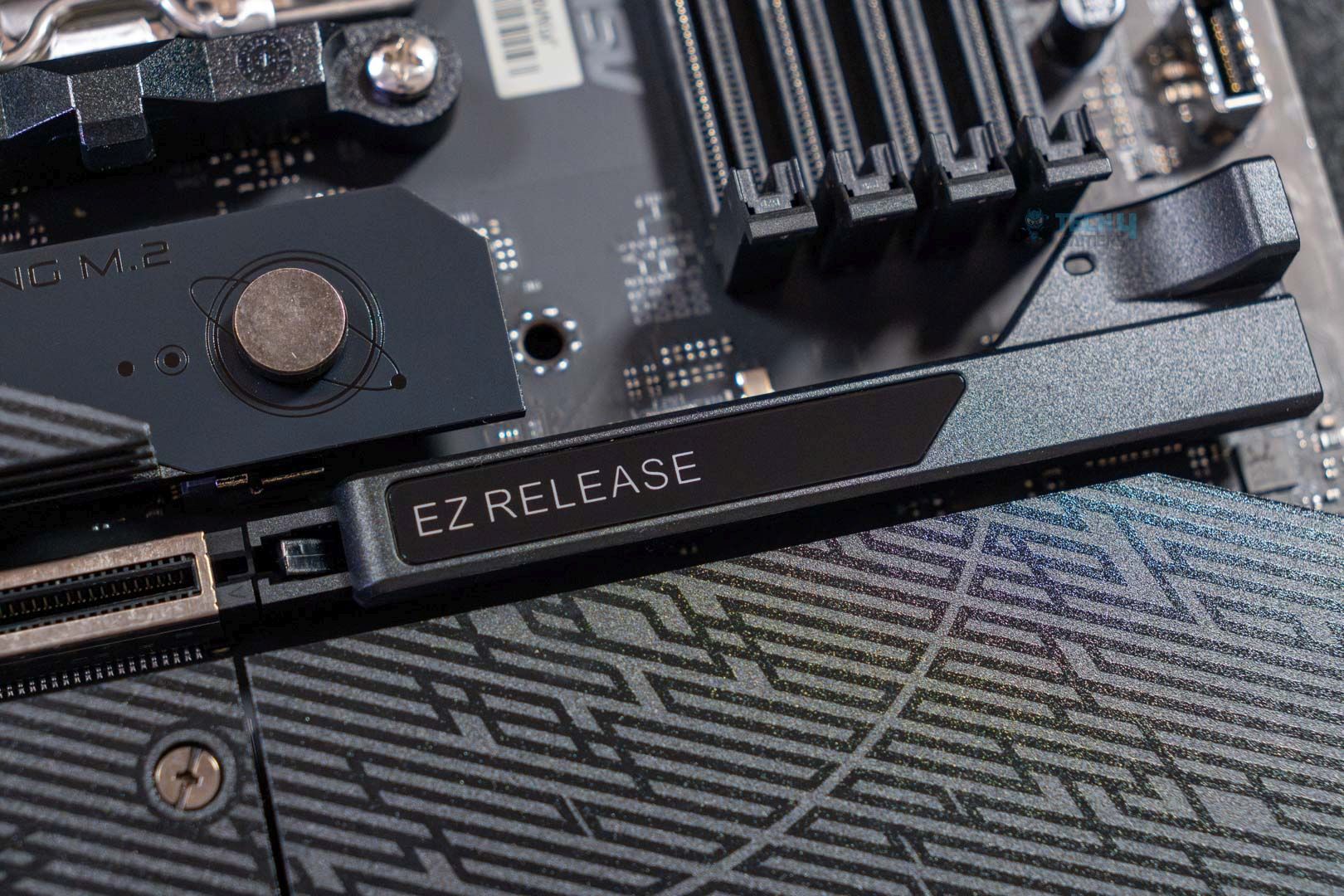
PCIe EZ Release
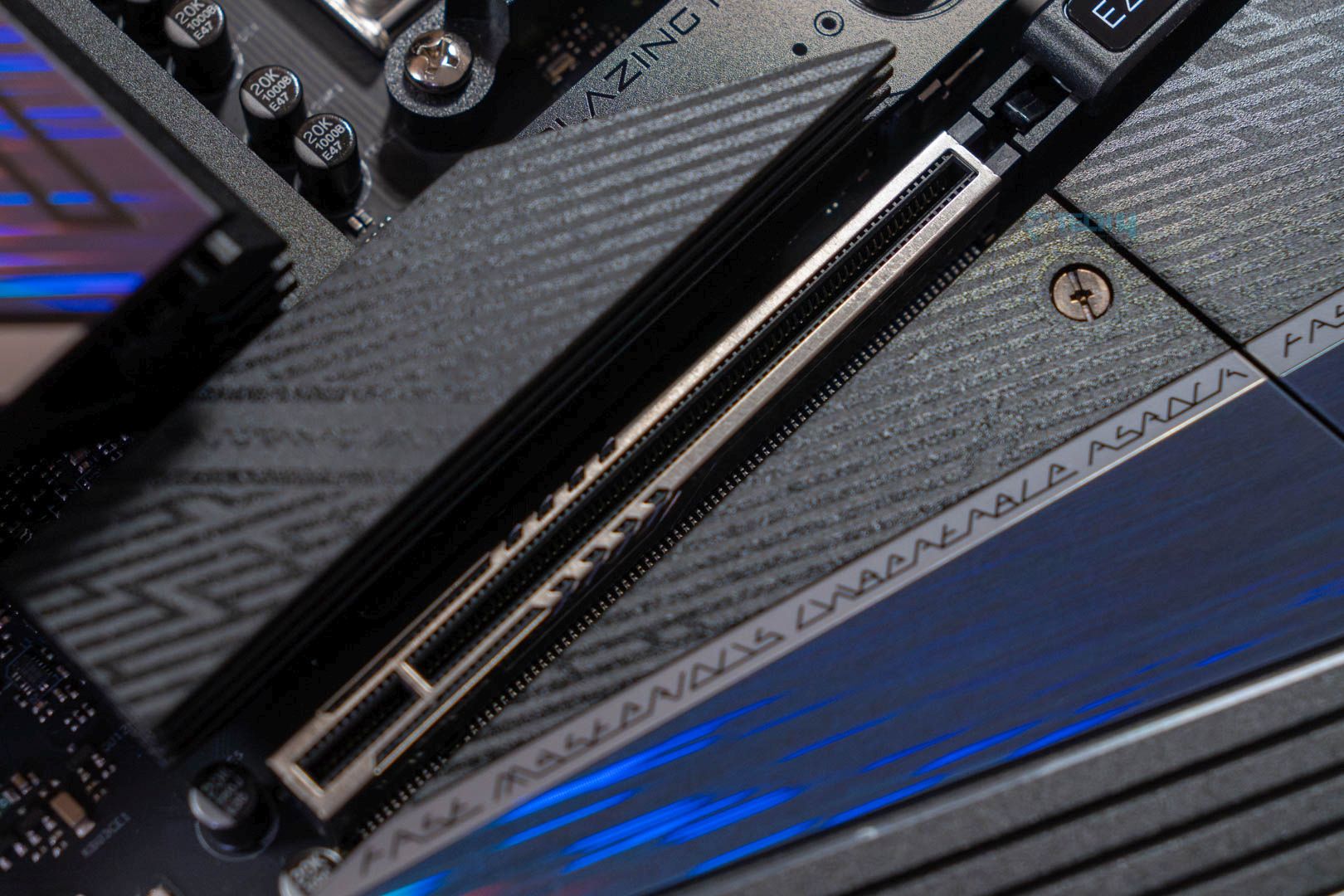
The motherboard has two PCIe slots, with the main slot offering full PCIe 5.0 x16 bandwidth. While the secondary slot is also 16 lanes, it only supports x4 mode. The slot downgrades to x2 mode if the M2_5 slot is occupied. There is also a vertical M.2 slot, which runs the WiFi antenna provided in the package.
The PCIe 5.0 slot is surface-mounted by SMT and steel-reinforced. This should allow it to withstand the weight of bulky cards without damage, but we still recommend using a support bracket with high-end cards.
Removing your graphics card is easy thanks to the EZ Release mechanism on the Gen 5 slot. Simply pull the latch away from the card’s direction and remove the card.
Storage
M.2 heatsink
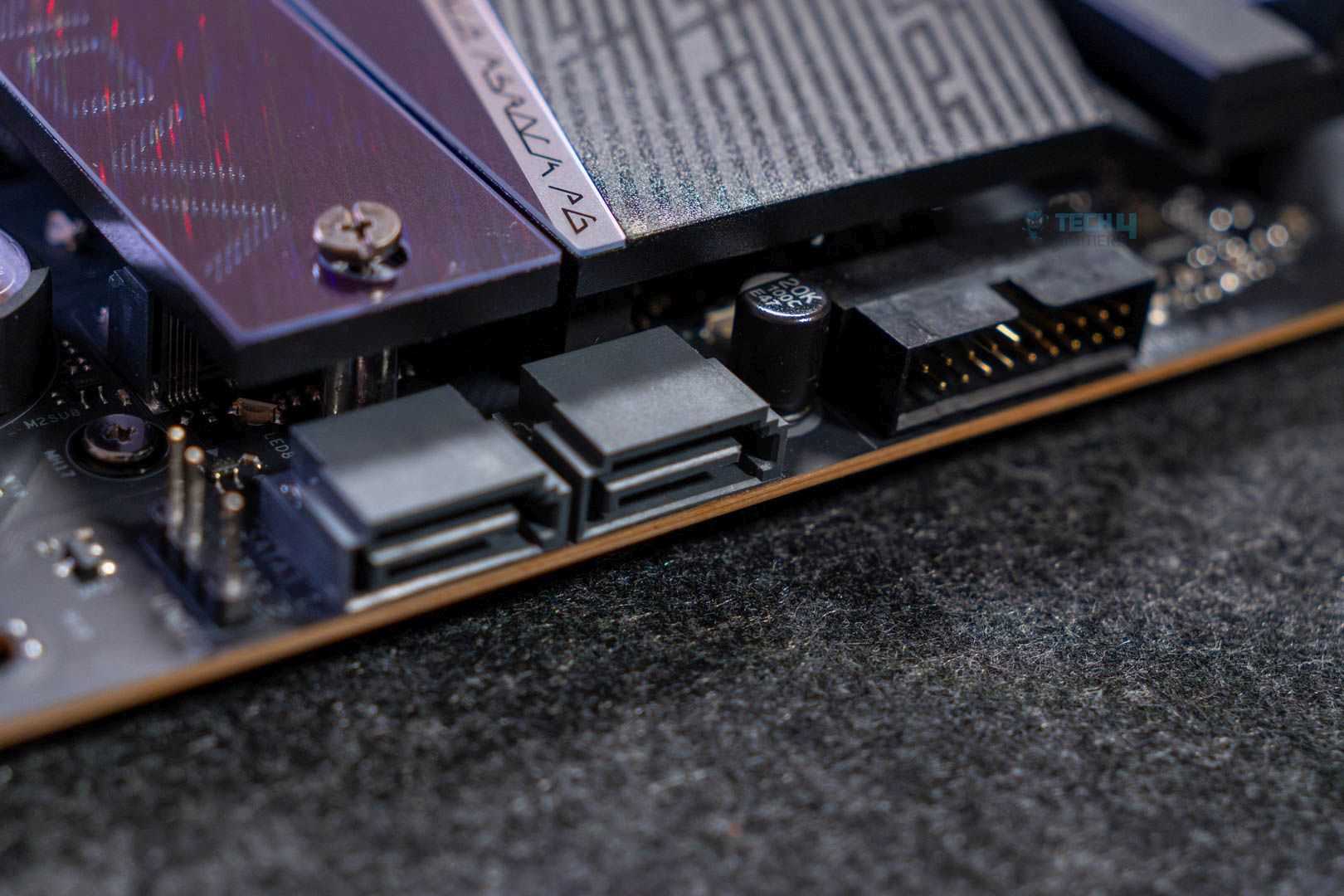
SATA ports
Storage options on the board include a whopping five M.2 slots (two PCIe 5, two PCIe 4, one PCIe 3×2) and two SATA 6 GB/s ports. However, due to the limited number of usable PCIe lanes, there is bandwidth between the M.2 slots, PCIe slots, SATA ports, and the USB4 ports. Specifically, occupying M2_2 mode disables both USB4 ports (you can set it to x2 (64 Gbps), and that will mean USB4 will run at half the bandwidth, too). Occupying M2_3 disables both SATA ports, and using M2_5 means the second PCIe slot downgrades to x2 mode.
It’s great that ASRock decided to provide this many M.2 options, but the bandwidth sharing complications don’t help casual users. Make sure you evaluate your needs, considering how many M.2 slots you need and whether or not you’re willing to sacrifice USB4, SATA ports, and PCIe 2 for the extra M.2 slots. All M.2 slots support type 2280 SSDs, and the third M.2 slot (M2_3) can also run SATA SSDs.
M.2 heatsinks removed (Image by Tech4Gamers)
Cooling the Gen 5 slot is its own large heatsink. The three M.2 slots directly below it share another heatsink, and M2_5 has a separate heatsink. Above M2_5 lies the chipset heatsink. All the heatsinks come off easily owing to toolless removal mechanisms.
Removing the heatsinks, we are greeted with double-sided thermal pads (thermal pads on the base of the slot as well as on the heatsink itself) for the Gen 5 slots. The remaining slots are single-sided. (thermal pads only on the heatsink)
WARNING: Be sure to remove the protective covering over the thermal pads on the heatsink if you’re occupying that particular slot.
The M2_1 slot uses a toolless mechanism for drive installation and removal. For the remaining slots, we have the latch mechanism, which is also straightforward to work with.
USB connectivity
There are 20 USB ports on the ASRock Phantom Gaming X870 Nova WiFi:
USB 3.2 Gen 2×2 connector (Image by Tech4Gamers)
2x USB4 Type-C (Rear)
1x USB 3.2 Gen2x2 Type-C (20Gbps)(Front)
2x USB 3.2 Gen2 Type-A (Rear)
7x USB 3.2 Gen1 Type-A (3x Rear, 4x Front)
8x USB 2.0 (4 Rear, 4 Front)
All the ports have ESD protection. The 20Gbps port supports 36W charging, while the USB4 ports support 15W charging through PD 3.0. USB4 supports up to 8K 30Hz output through HDCP 2.3.
ASRock gives special mention to “Lightning Gaming Ports,” which use separate interfaces so that there’s no interference between the mouse and keyboard connections. We also have the “Ultra USB Power” ports that provide stable 5V power by converting the PSU’s 12V power, instead of using the 5V line. This could be helpful for those using external DACs and USB audio devices.
Network and Connectivity
The motherboard sports 5G LAN, WiFi 7, and Bluetooth 5.4. WiFi 7 and Bluetooth 5.4 is enabled through the provided antenna and are only supported on Windows 11 24H2 and above.
Audio Solution
The ASRock Phantom Gaming X870 Nova WiFi uses Realtek’s ALC4082 chip, which supports 7.1 surround sound. With the left and right audio tracks present on different PCB layers, interference is minimized.
ASRock provides Nahimic audio drivers in collaboration with Steelseries, which provide features like echo cancellation and stationary noise suppression.
Internal Connectors and Components
Here’s what we get on the motherboard in terms of connectors:
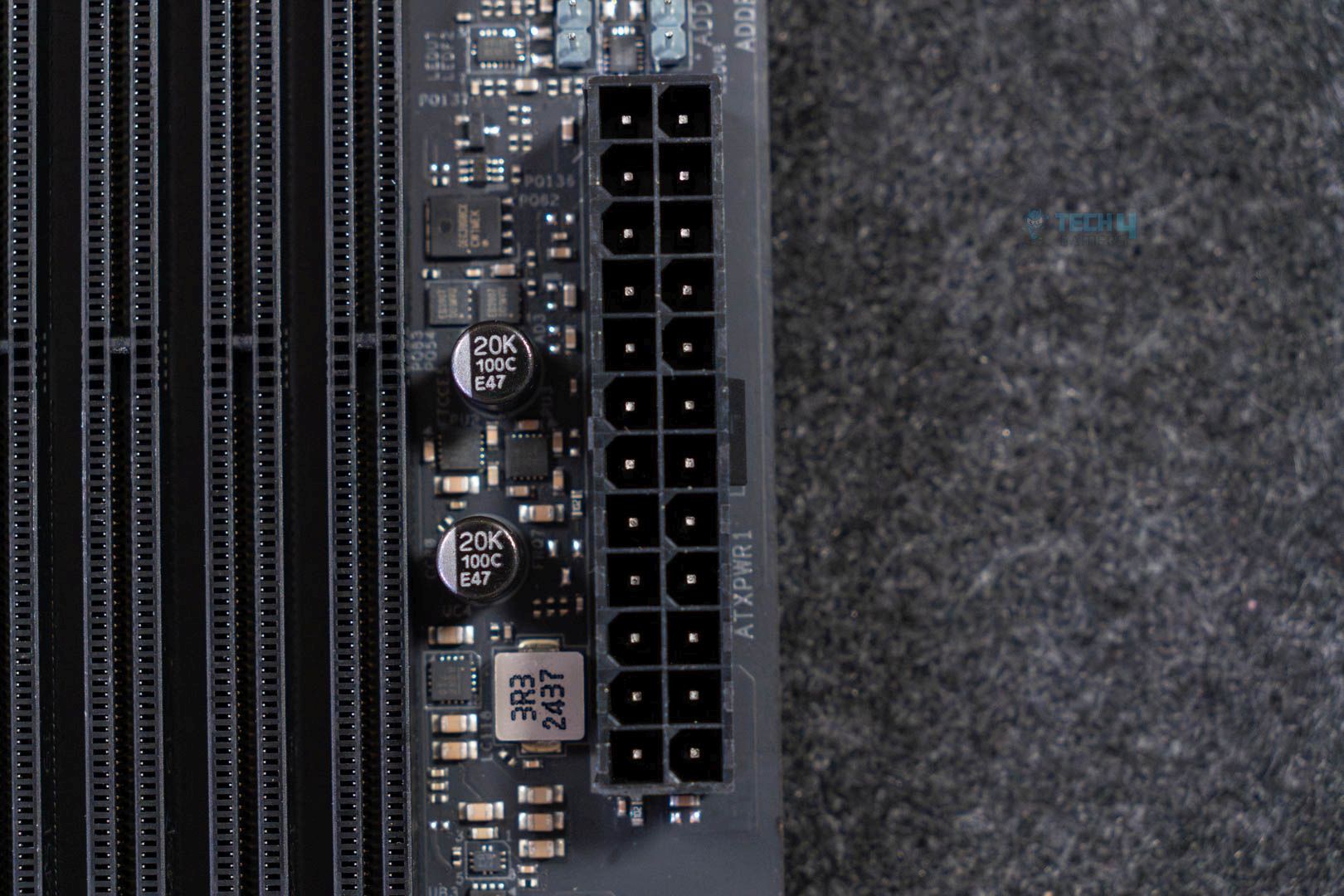
ATX connector
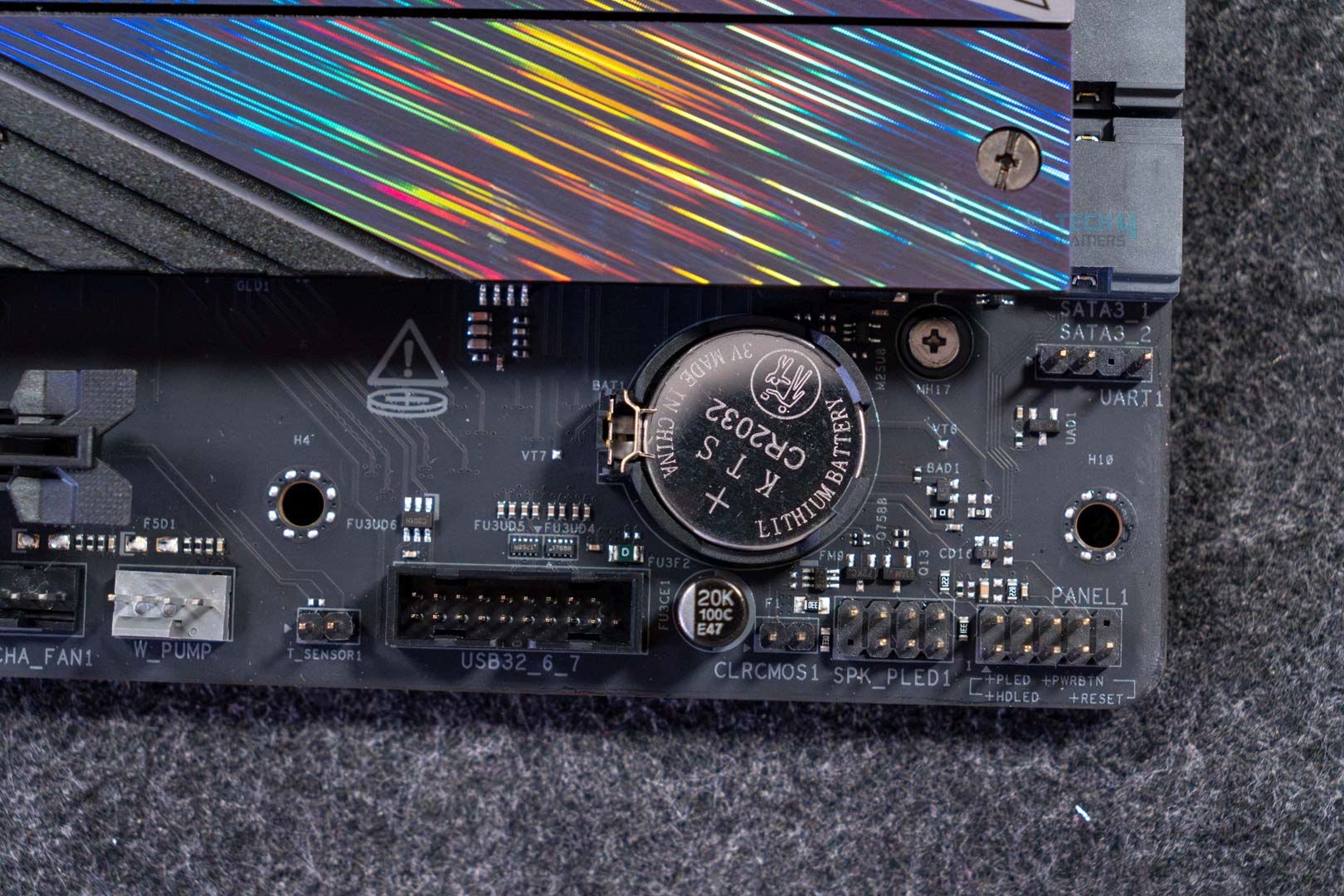
Bottom-right headers
1x Thermistor Cable Header
1x Power LED and Speaker Header
1x RGB LED Header
1x Addressable LED Headers
2x CPU Fan Connector (4-pin)
3x Chassis Fan Connectors (4-pin)
1x AIO Pump Fan Connector (4-pin)
1x Water Pump Fan Connector (4-pin)
1x 24-pin ATX Power Connector
2x 8 pin 12V Power Connectors
1x Front Panel Audio Connector
2x USB 2.0 Headers (Support 4x USB 2.0 ports)
2x USB 3.2 Gen1 Headers (Support 4x USB 3.2 Gen1 ports)
1x Front Panel Type C USB 3.2 Gen2x2 Header (20 Gb/s)
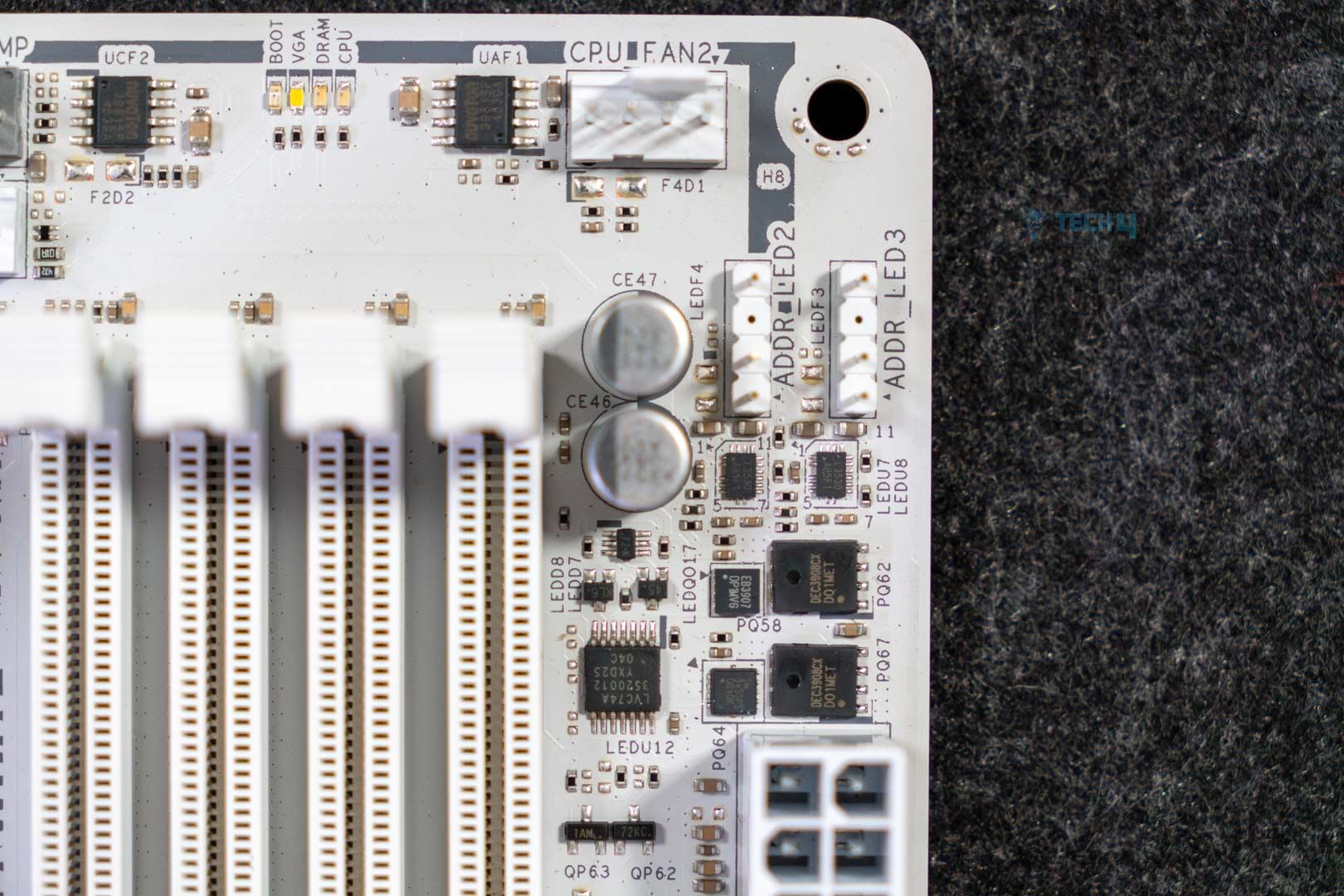
1x Dr. Debug with LED
1x Power Button with LED
1x Reset Button with LED
The RGB leader header provides up to 12V/3A (36W), while the LED headers provide 5V/3A (15W). The CPU fan has a 1A/12W output, while the remaining fan connectors and pump connectors output 3A/12W.
Debug LED panel, power, and reset buttons (Image by Tech4Gamers)
We have a debug code LED panel on the top-right side for troubleshooting booting problems. This is not accompanied by debug LEDs, though. Below that are Power and Reset buttons, which will function once you connect to the bottom right-hand corner of the board.
Super I/O controller (Image by Tech4Gamers)
The board uses Nuvoton’s NCT6796D-S controller for fan control and temperature monitoring.
Rear I/O Panel
Here’s what we have on the back:
Rear I/O (Image by Tech4Gamers)
2x Antenna Ports
1x HDMI Port
1x Optical SPDIF Out Port
2x USB4 Type-C Ports (40 Gbps)
2x USB 3.2 Gen2 Type-A Ports (10 Gbps)
3x USB 3.2 Gen1 Type-A Ports (5 Gbps)
4x USB 2.0 Ports
1x RJ-45 LAN Port
1x Clear CMOS Button
1x BIOS Flashback Button
1x Line Out Jack
1x Microphone Input Jack
The I/O shield comes pre-installed. A standard set of rear I/O connections is on display. The yellow colored USB ports (5 Gbps) are the Lightning Gaming ports, while the dark blue ones (10 Gbps) are the Ultra USB Power ports.
Heatsinks Removed
Board without heatsinks
USB4 heatsink
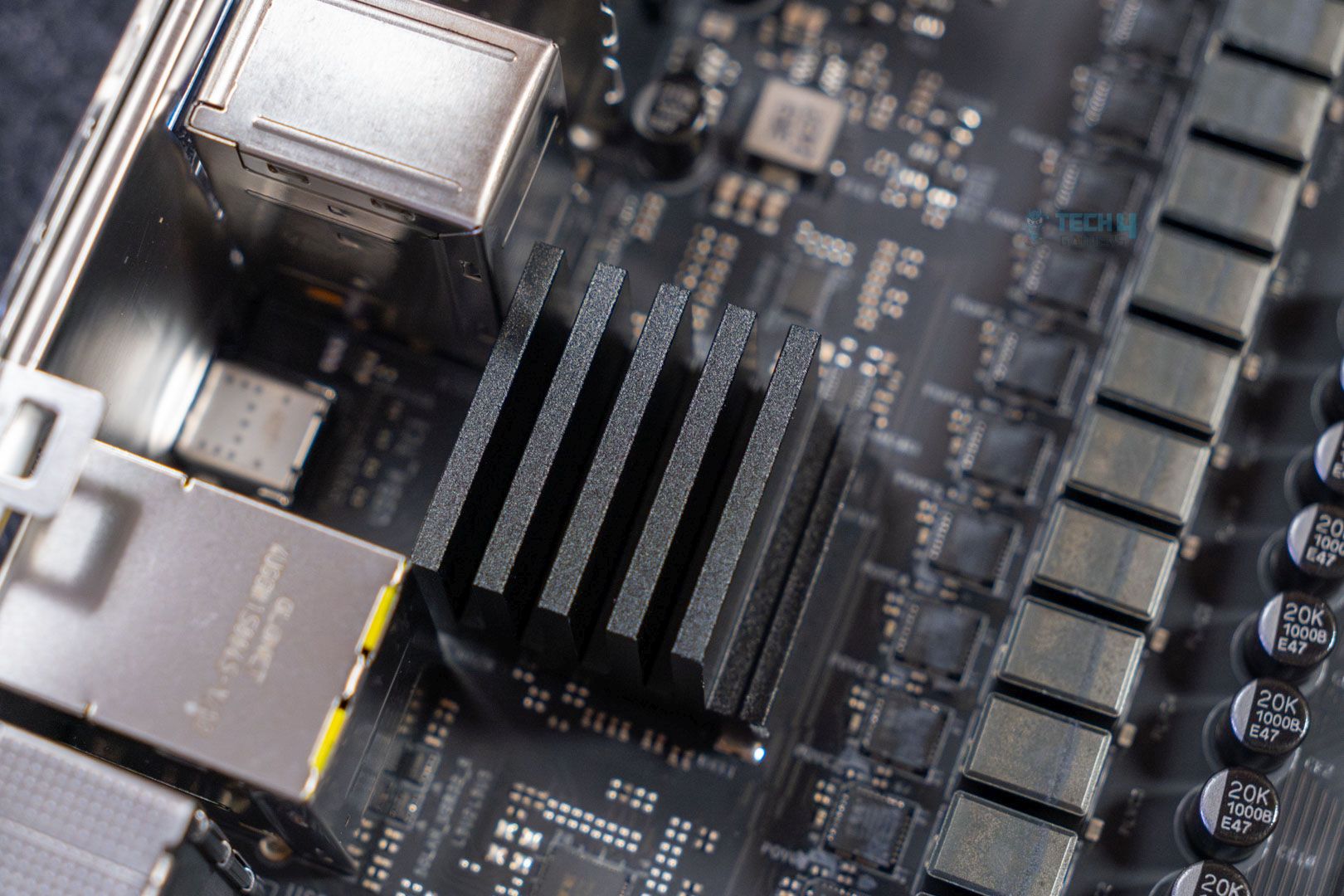
Above is a look at the board with all the heatsinks (except the chipset heatsink) removed. Under the VRM heatsink, we spot another heatsink that is dedicated to cooling the USB4 controller.
Backside
Backside (Image by Tech4Gamers)
The backplate is a nice addition in this price segment. It’s a plus one for the build quality and sturdiness.
The Geekbench 6 multi-core test saw the PG X870 Nova WiFi score 21718 points.
V-Ray benchmark (Image by Tech4Gamers)
Finally, the V-Ray render test ended with a score of 48905 for our ASRock board.
Gaming Benchmarks
We’re testing two AAA titles next.
Cyberpunk 2077 (Image by Tech4Gamers)
The board showed par numbers in Cyberpunk 2077 at 1080P.
Starfield (Image by Tech4Gamers)
In Starfield, we saw an average FPS of 112 with a minimum of 82.
Power Consumption and VRM Temperatures
Let’s look at the board + CPU power consumption numbers. Note that we’re using the Cinbench 2024 multi-core test for the “Load” testing.
Power consumption (Image by Tech4Gamers)
Only the ASRock X870 Steel Legend WiFi consumed less power than the PG X870 Nova WiFi under load. The gaming and idle power consumption were 114W and 108W, respectively.
VRM temperatures (Image by Tech4Gamers)
The board’s VRM setup does an excellent job, just like we saw with the X870E counterpart. It maxed out at 52°C, a degree cooler than the X870E model.
Boot Times
Boot times (Image by Tech4Gamers)
Finally, the boot time in Windows 11 was 22 seconds with the WD SN850 SSD.
Should You Buy It?
Buy It If:
✅You want more for less: The board combines the features of costlier competitor boards for a lower price. This includes features like 5G LAN, 5x M.2 slots, and a debug code LED panel.
✅A flashy design is important: With its gaming-inspired design and integrated RGB, the board has a distinct, flashy aesthetic.
✅You want to overclock: Its VRM setup with 18x 80A SPS for the VCore and excellent VRM cooling means at least a fair bit of overclocking is possible with any Ryzen CPU.
Don’t Buy It If:
❌You don’t want to deal with M.2 bandwidth sharing complications: Depending on which and how many M.2 slots you occupy, you may have to share bandwidth with the SATA or USB ports, or the PCIe_2 slot.
Final Thoughts
The ASRock Phantom Gaming X870 Nova WiFi is another excellent value offering by the Taiwanese manufacturer. It starts with a nice gaming-inspired design with integrated RGB. The VRM setup is quite good for the price, and the heatsink keeps things cool (well, warm) under load. Overclocking is possible, even with the 170W Ryzen counterparts.
Other than these, the board has some other great features: we get 5x PCIe slots (including 2x Gen 5), 5G LAN, 20 USB ports (including dual USB4), and DDR5 support up to 8400 MT/s. The board uses Realtek’s ALC4082 audio chip. WiFi 7 and Bluetooth 5.4 are also part of the connectivity setup. The main M.2 slot uses a toolless mechanism for both the SSD and the heatsink. All the M.2 slots are adequately cooled with thermal pads and heatsinks.
Some other features include the debug code LED panel, 36W charging through the 20Gbps port, and the thermistor header (thermistor cable included). Our only complaint, really, is the lane sharing between the M.2 slots and the other components of the board. The bandwidth is limited, we get it, but it’s not great for users who don’t understand how lane sharing works (though we tried to break it down in simple terms). If you do understand how it works and can work out your requirements, great!
The board is priced around the $300 mark, which is quite good for what’s on offer.
As a Senior Hardware Reviewer at Tech4Gamers with over a decade of hands-on experience, I dive deep into benchmarking GPUs, CPU coolers, and motherboards, pushing hardware to its limits. Passionate about overclocking and fine-tuning performance.
Ocypus is a relatively new player in the computer industry, founded in 2023 and based in Shenzhen. If you’re wondering, like me, why they have chosen the name Ocypus, well, the brand draws inspiration from the insect Ocypus Olens, but not for the odd reasons; the name symbolizes the aggressiveness and speed.The brand embodies these qualities, reflecting its understanding of gamers’ needs andfusing them with innovation, as the brand claims. This is very interesting to see, as I’ve been reviewing PC hardware for a long time and haven’t seen the brand take such a deep approach to its name.
Why Trust Tech4Gamers
Usman Sheikh is one of our most senior and experienced hardware reviewers. He loves spending hours (sometimes days) in his lab, testing and comparing different GPUs, CPUs, coolers, and more.
80+ CPU coolers tested and reviewed by our team of hardware experts (Tech4Gamers Team).
900+ hours spent testing different coolers for our reviews.
At Tech4Gamers, ensuring you get reliable information is our priority. That’s why every hardware round-up undergoes a meticulous review process by our team of experts and editors. Each review is carefully examined against our strict editorial guidelines, guaranteeing you trustworthy insights you can depend on.
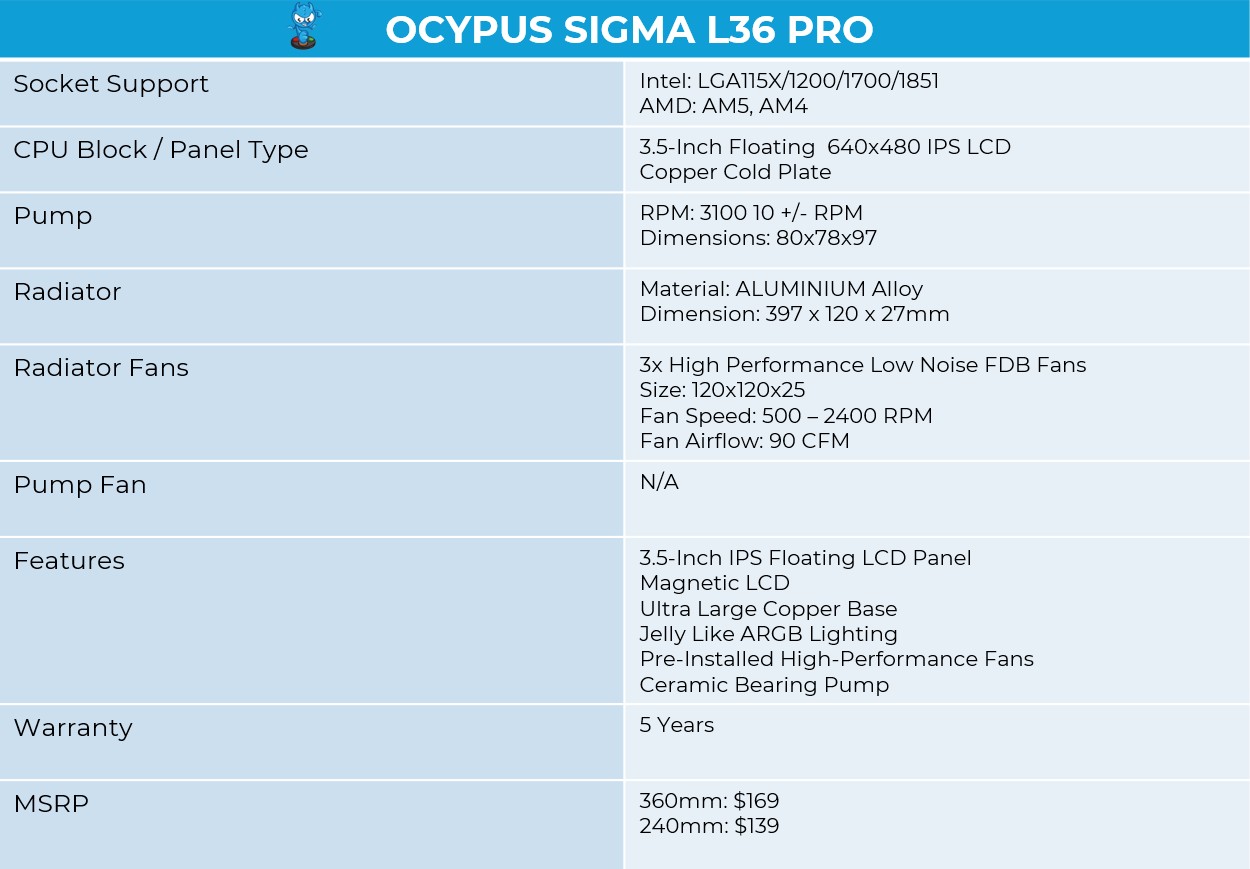
Anyway, we are taking a look at their brand-new cooler, the Sigma L36 Pro, a 360mm All-in-one liquid cooler that features a massive 3.5-inch, 640×480 LCD with a floating design. It comes with high-performance FDB fans that spin at 2400 RPM. The fans aren’t ARGB. The cooler comes in two colors: black and white.
Let’s start with the specifications
Ocypus Sigma L36 Pro Specifications
[toc]
What Makes Ocypus L36 Pro Sigma Different?
The Ocypus L36 Pro Sigma marks the brand’s first entry into the LCD cooler lineup. Previously, they had launched the Lota L36, which received a very good reception in terms of performance. The Sigma series features floating, customizable screen technology, as well as slightly higher cooling capability, at 310W, compared to the previously 300W in the Lota 36. The fans are more powerful this time, and there are several changes to the pump design as well. The pump has increased in size, and the copper base has also been enlarged this time.
Packaging
Let’s take a look at the packaging!
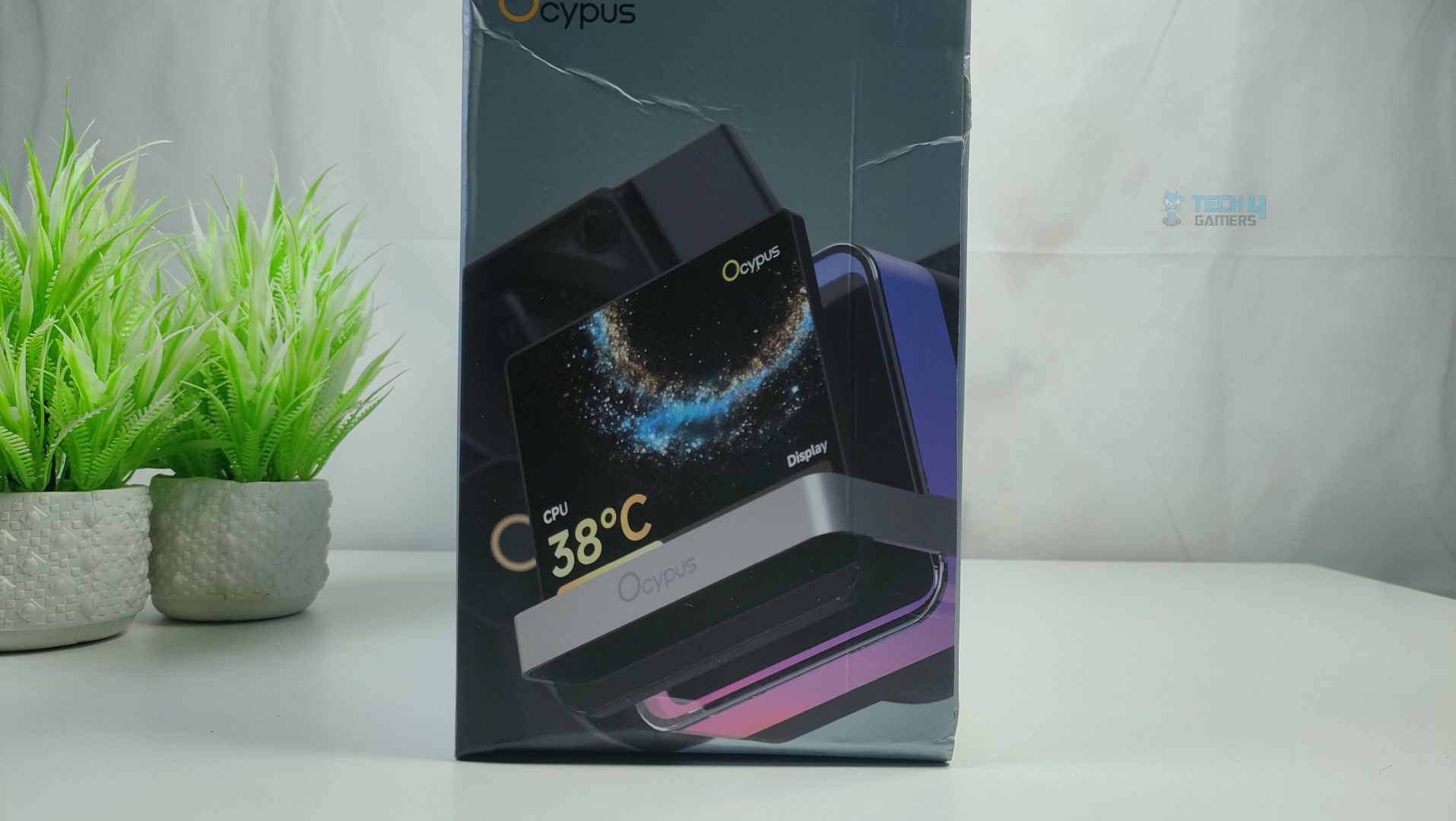
Front – Ocypus Sigma L36 Pro
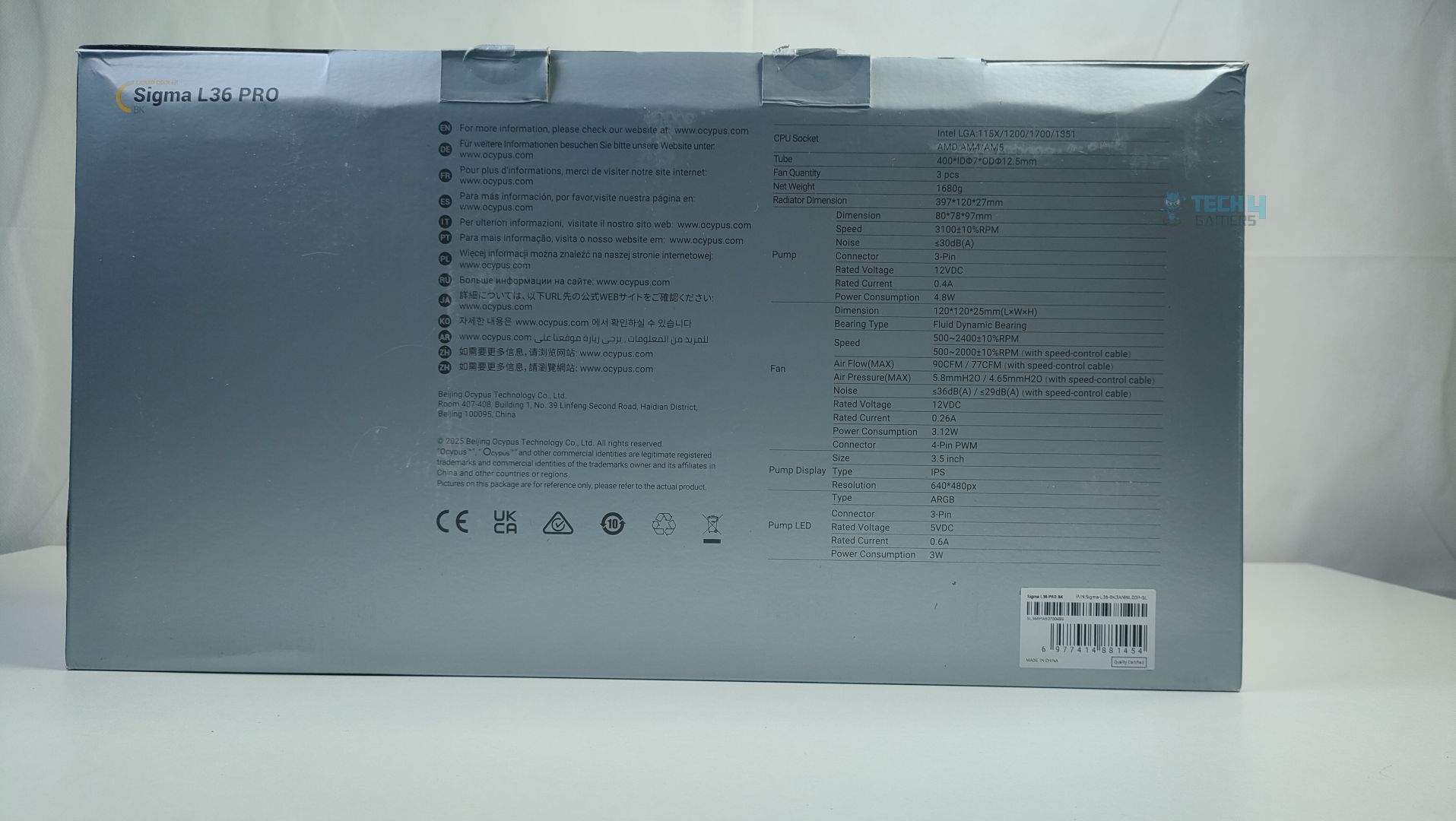
Back – Ocypus Sigma L36 Pro
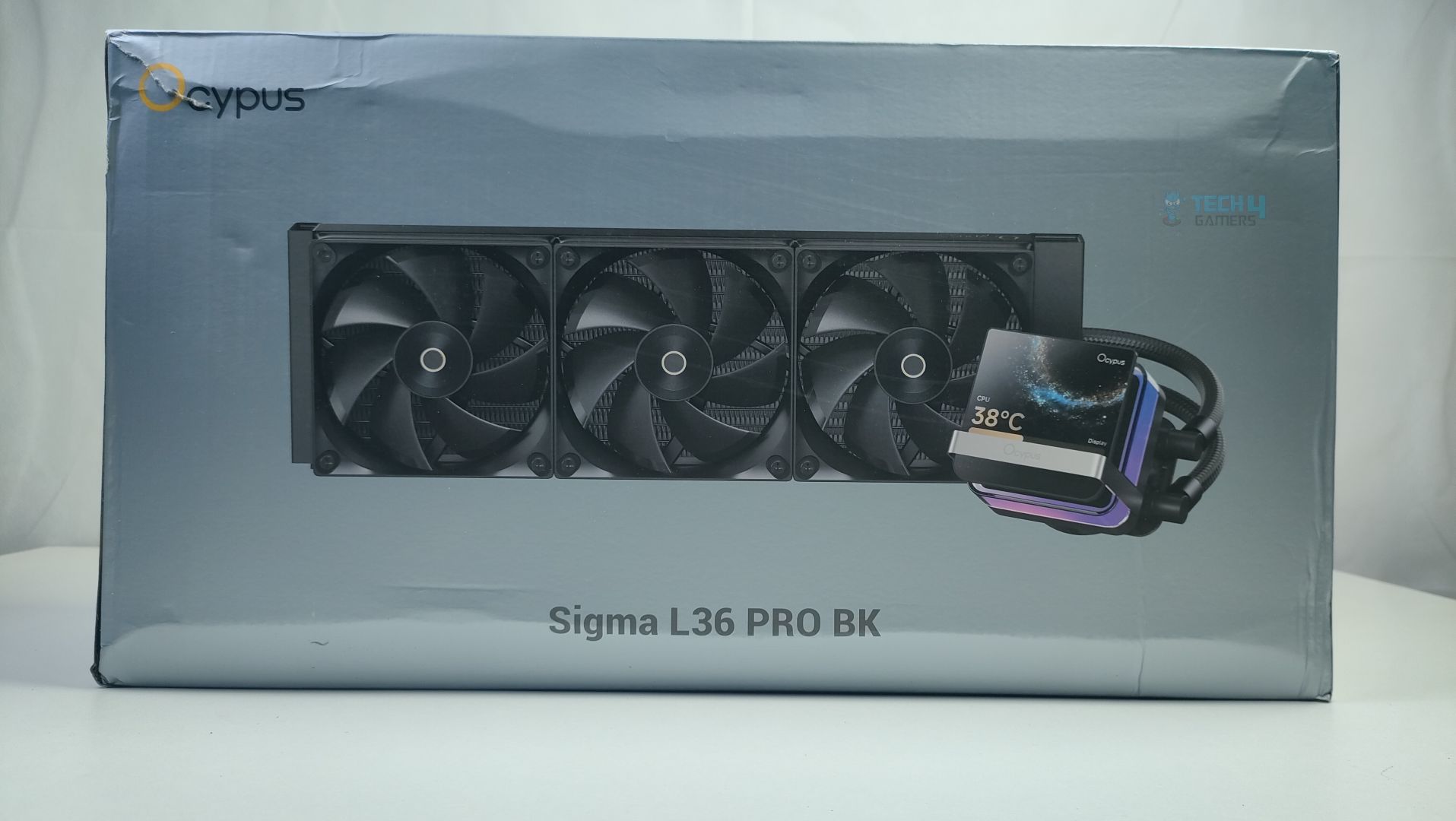
The packaging is very standard; the box features a gray color scheme with the Sigma L36 Pro shown alongside the Ocypus Logo. On the left side of the box, you will find the LCD displaying the CPU temperatures, accompanied by ARGB lighting on the block. In the back, you will find the full specifications of the cooler.
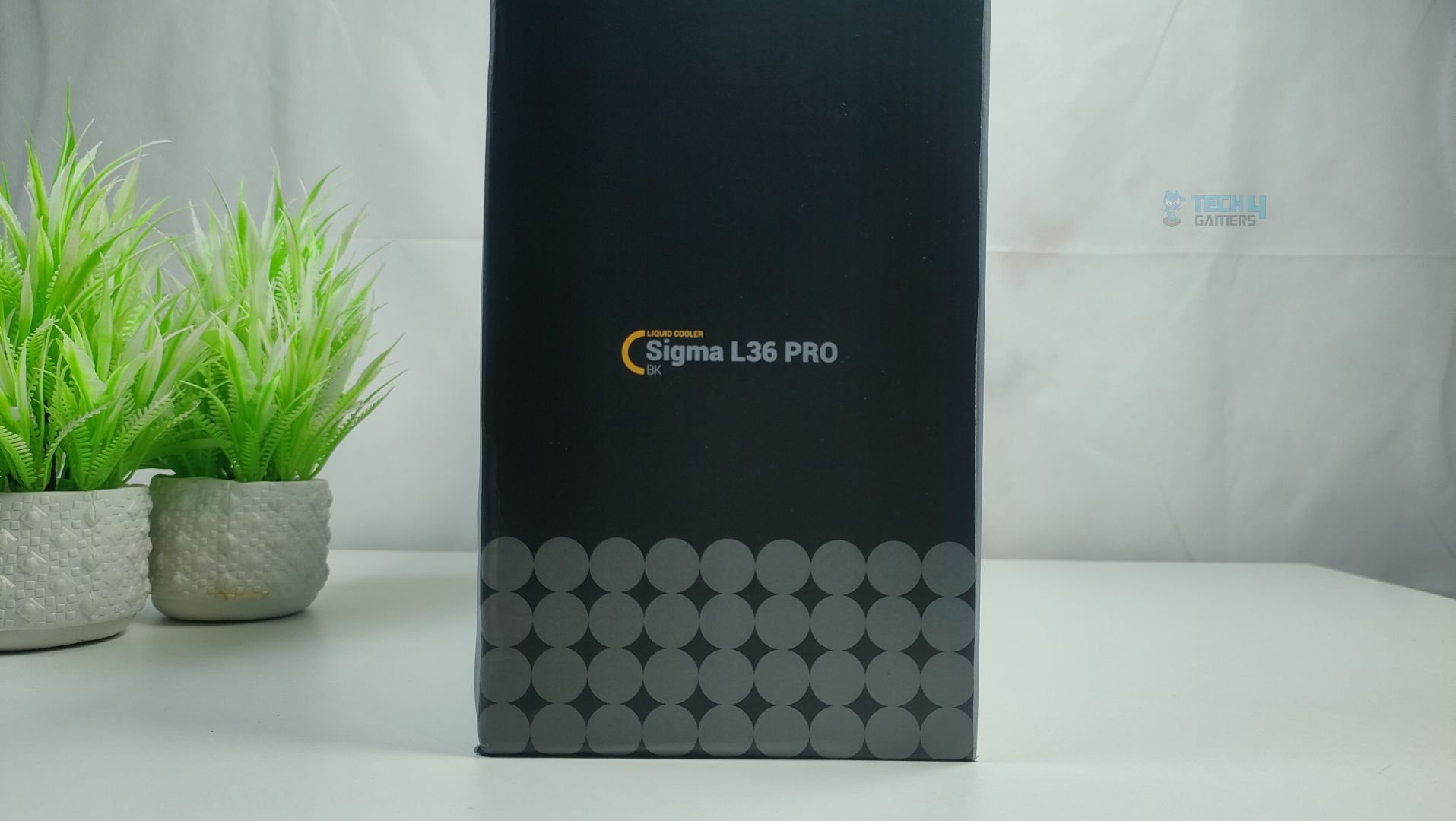
Side – Ocypus Sigma L36 Pro
Side – Ocypus Sigma L36 Pro
If we look at the other sides of the box, there is nothing fancy; it simply showcases the product name and the brand logo. They have left so many empty spaces in the packaging; they could have at least mentioned the warranty, as we have seen in different coolers. Anyway, the packaging is very simple and clean.
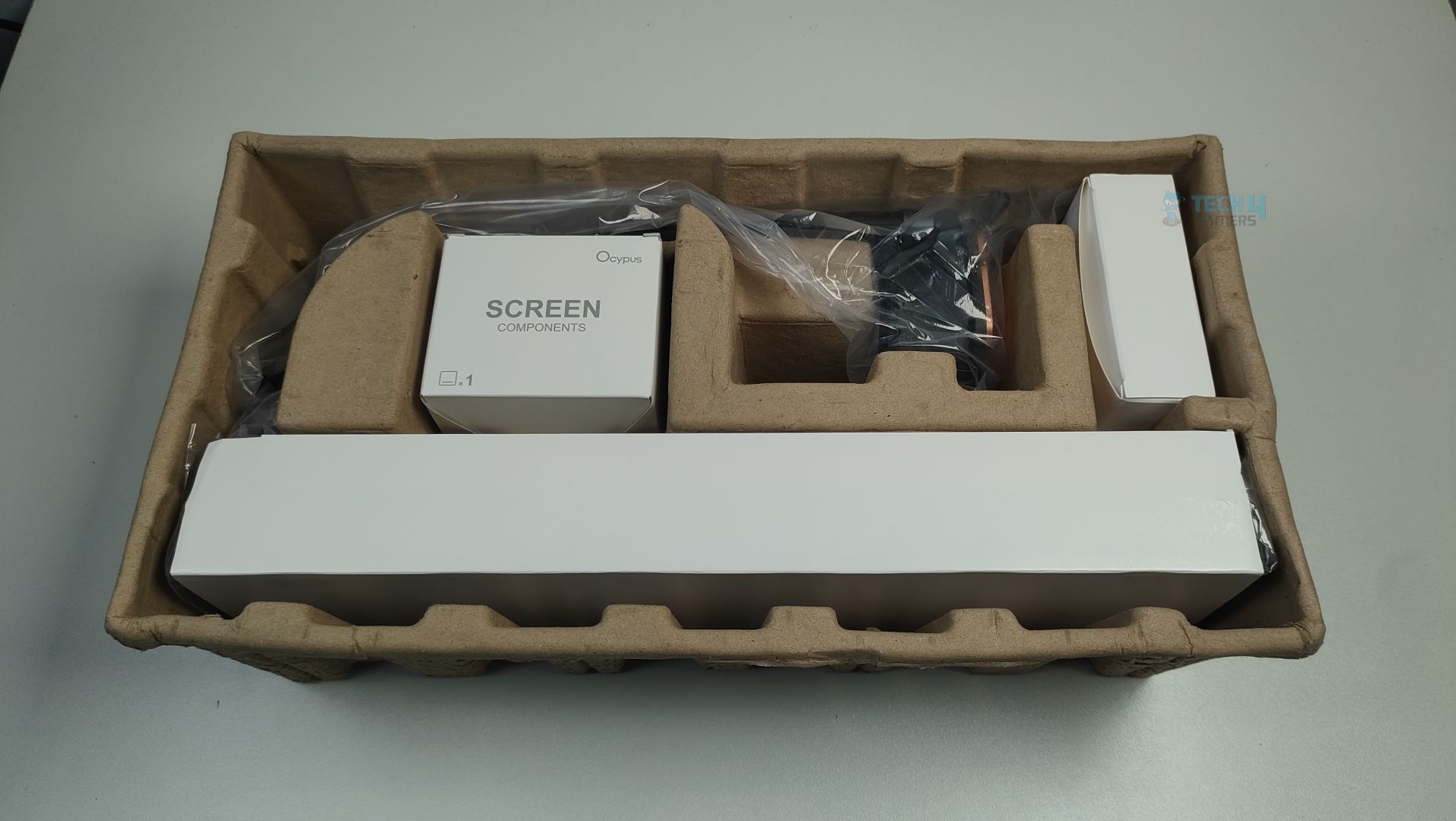
Unboxed – Ocypus Sigma L36 Pro
Upon Unboxing, The Cooler is well-protected by a cardboard tray. The magnetically-mounted display is in a separate box, and you don’t get much foam in the packaging.
Accessories
Let’s take a look at accessories
Accessories
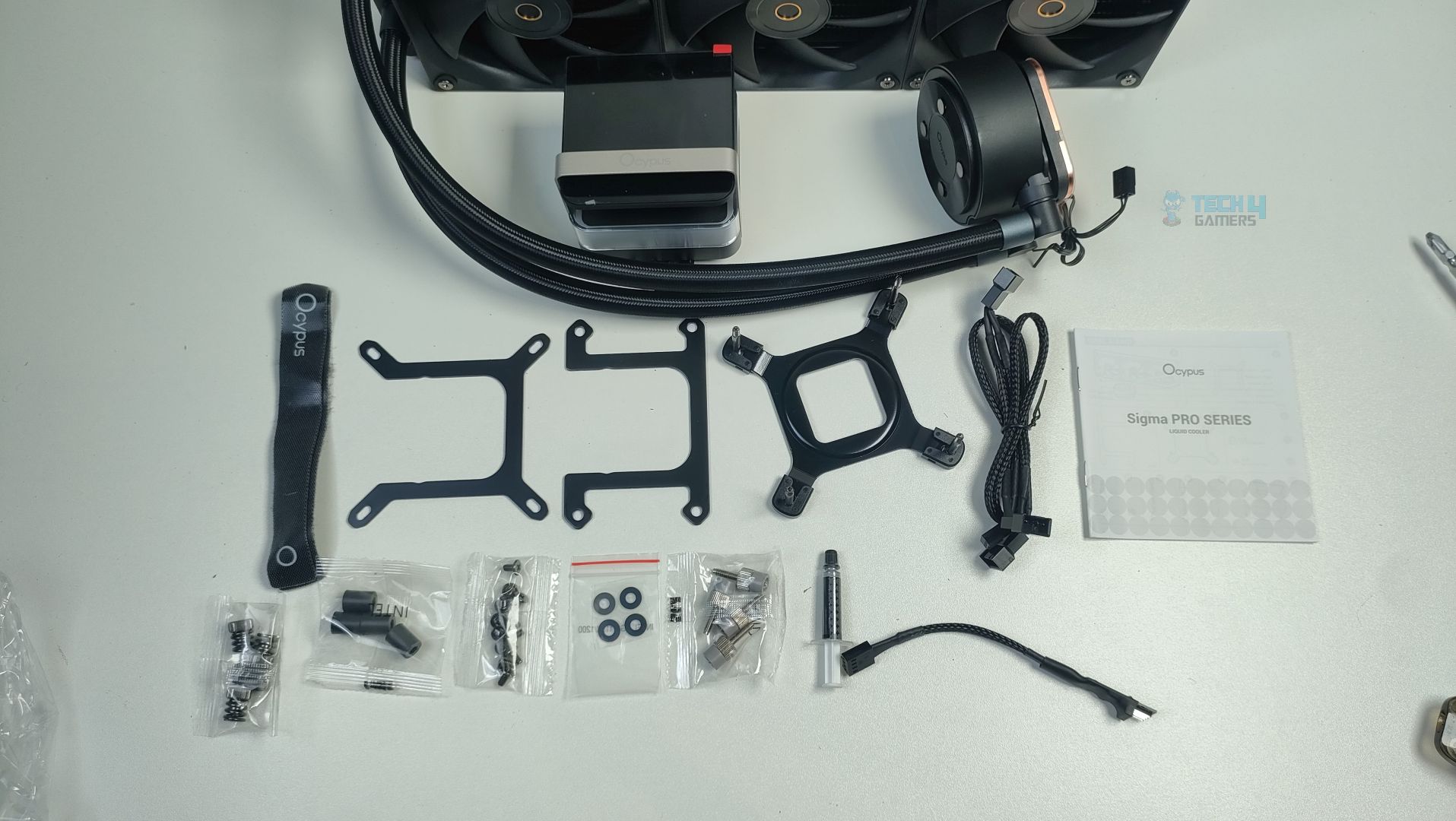
The LCD Panel does not come installed on the cooler; it’s in a separate box with the instructions. Additionally, it’s great to see that they offer numerous compatibility options for the wide range of sockets on the Intel and AMD platforms. Since the thermal paste does not come pre-applied, they have also provided a tube of thermal paste. Additionally, the bonus includes velcro ties and a fan extension cable.
Here is the structured table of what you get inside the box:
Accessories
Quantity
L36 Fan
3x
Intel Mounting Bracket
1x
AMD Mounting Bracket
1x
Intel Stands Off (LGA1700/1851)
4x
Intel Stands Off (LGA115X/1200)
4x
AMD Stands Off
4x
Thumb Screws
4x
Radiator Screws
12x
Fan Extension Cable
1x
Low Noise Fan Cable
1x
Thermal Paste Tube
1x
LCD Screen
1x
Close Look At The Radiator and Assembly
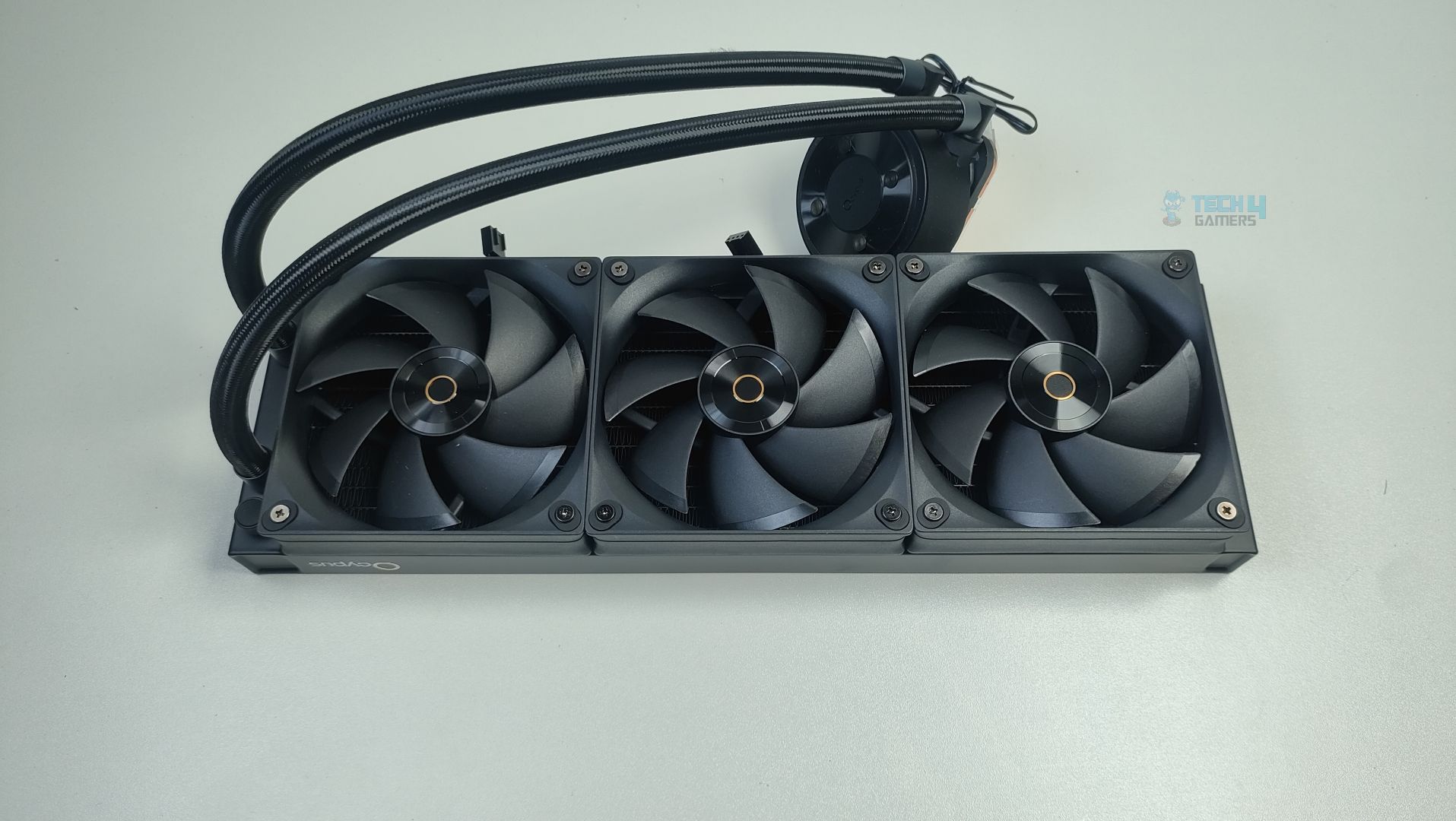
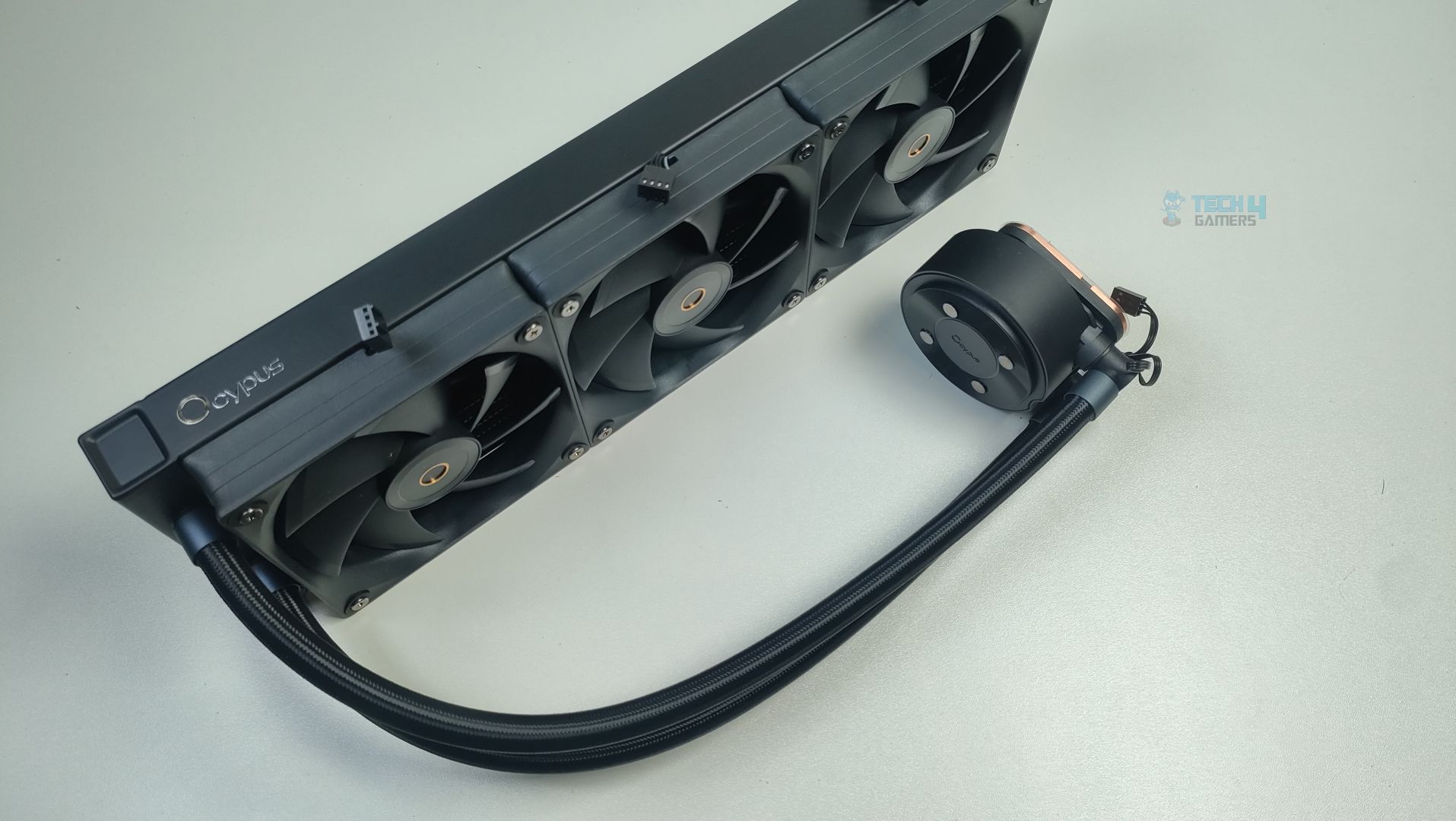
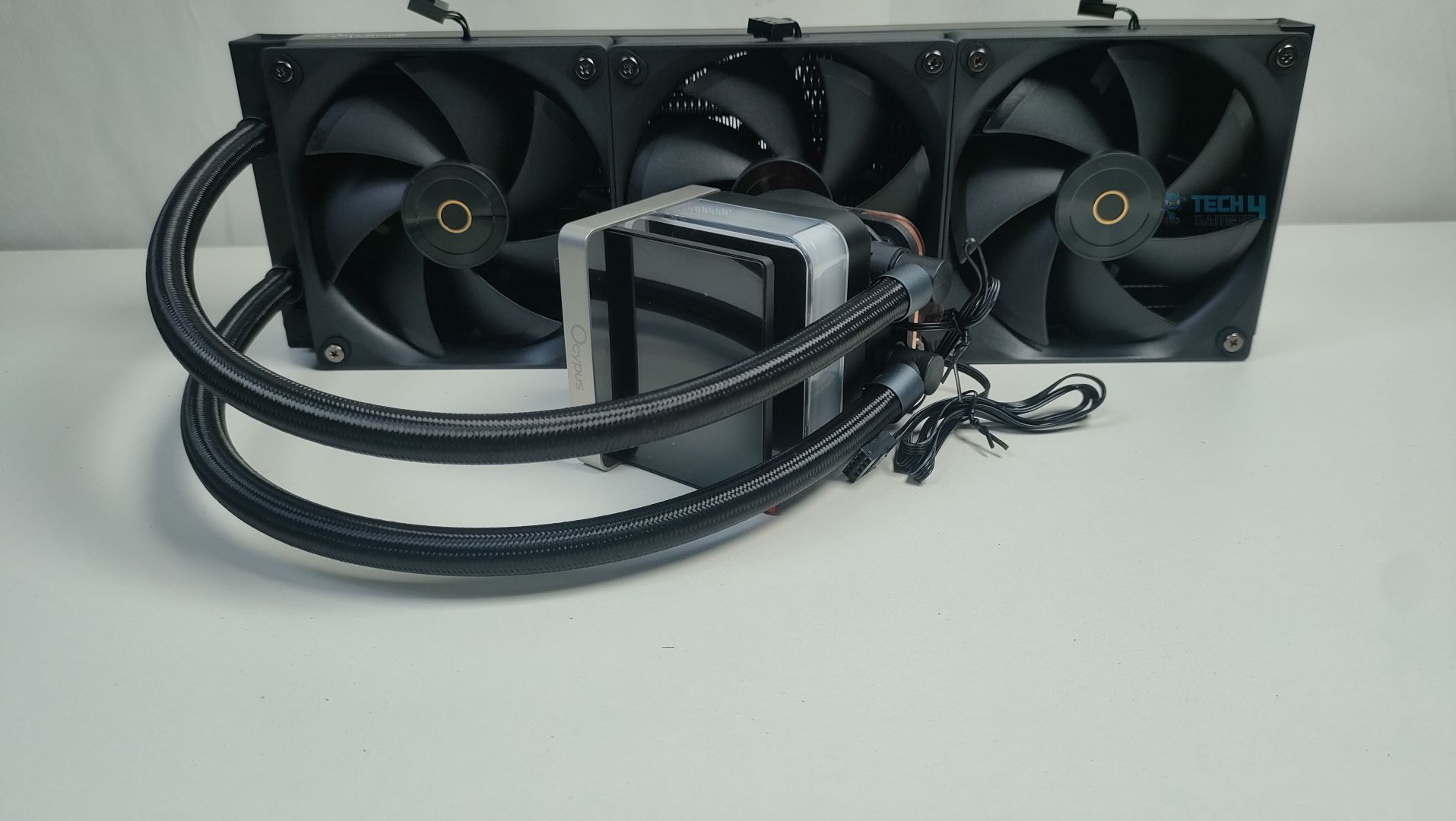
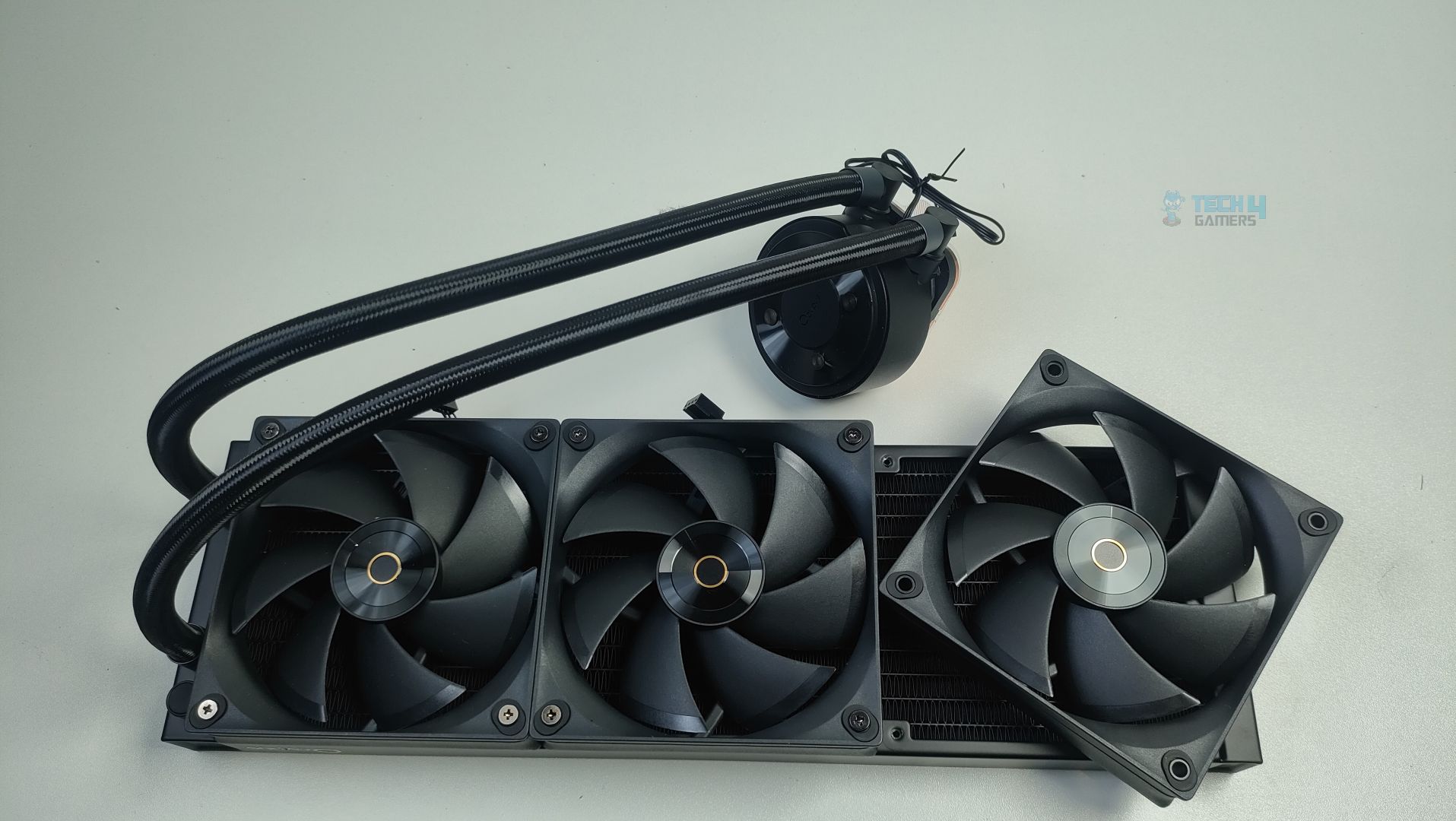
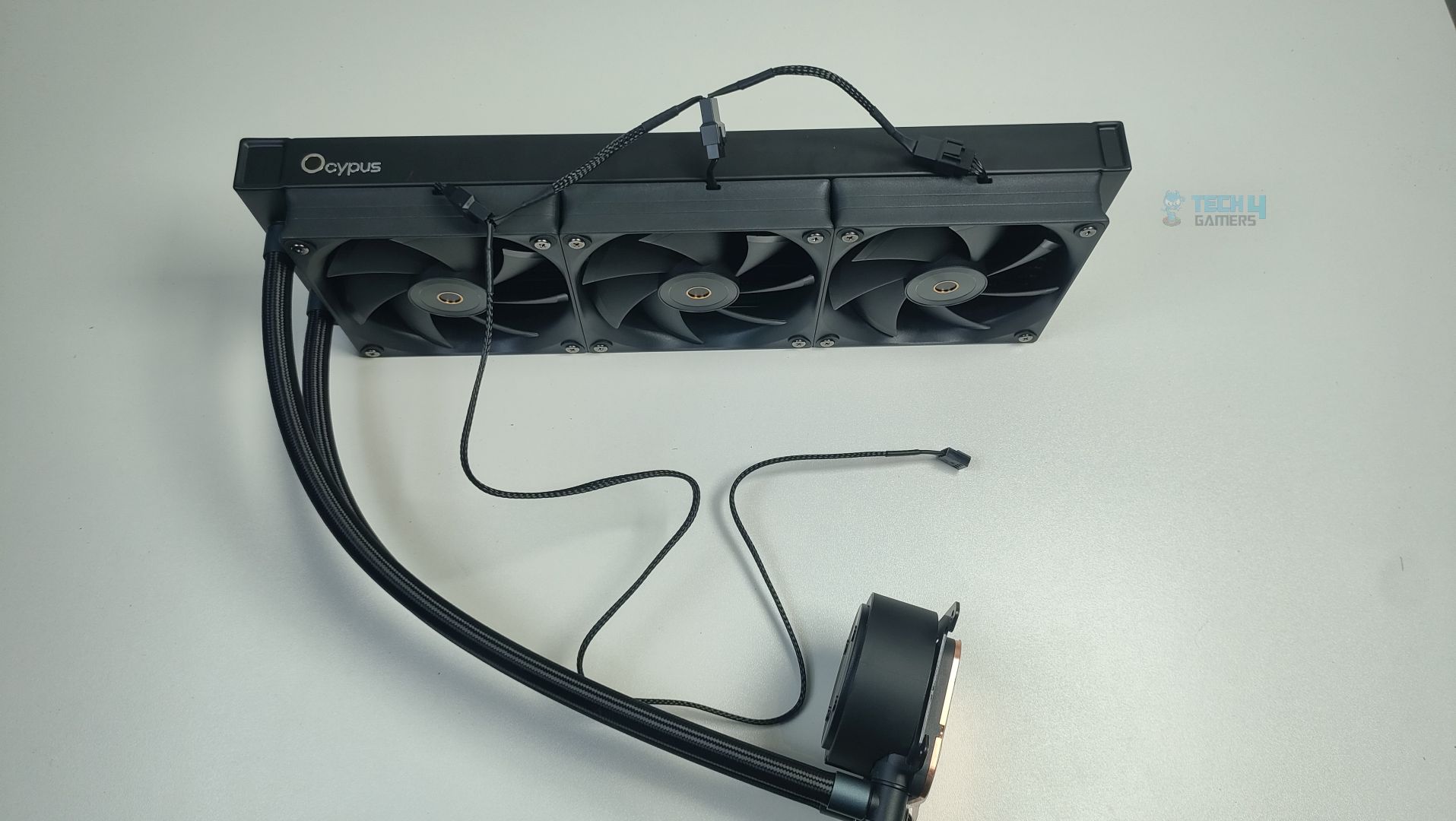
First, we are studying the assembly, the fans are preinstalled on the radiator, which can be daisy-chained, and they are not ARGB. The fans all have the OCYPUS branding in the middle. The LCD panel is in a separate provided box, so you have to install it manually. The pump housing is round and feels very solidly built. The material that is used on the pump is ABS plastic. Overall, the assembly is very standard and clean. The block also does not feature the preinstalled bracket, as most of the brands are going this approach nowadays
Assembly – Ocypus Sigma L36 Pro
Assembly – Ocypus Sigma L36 Pro
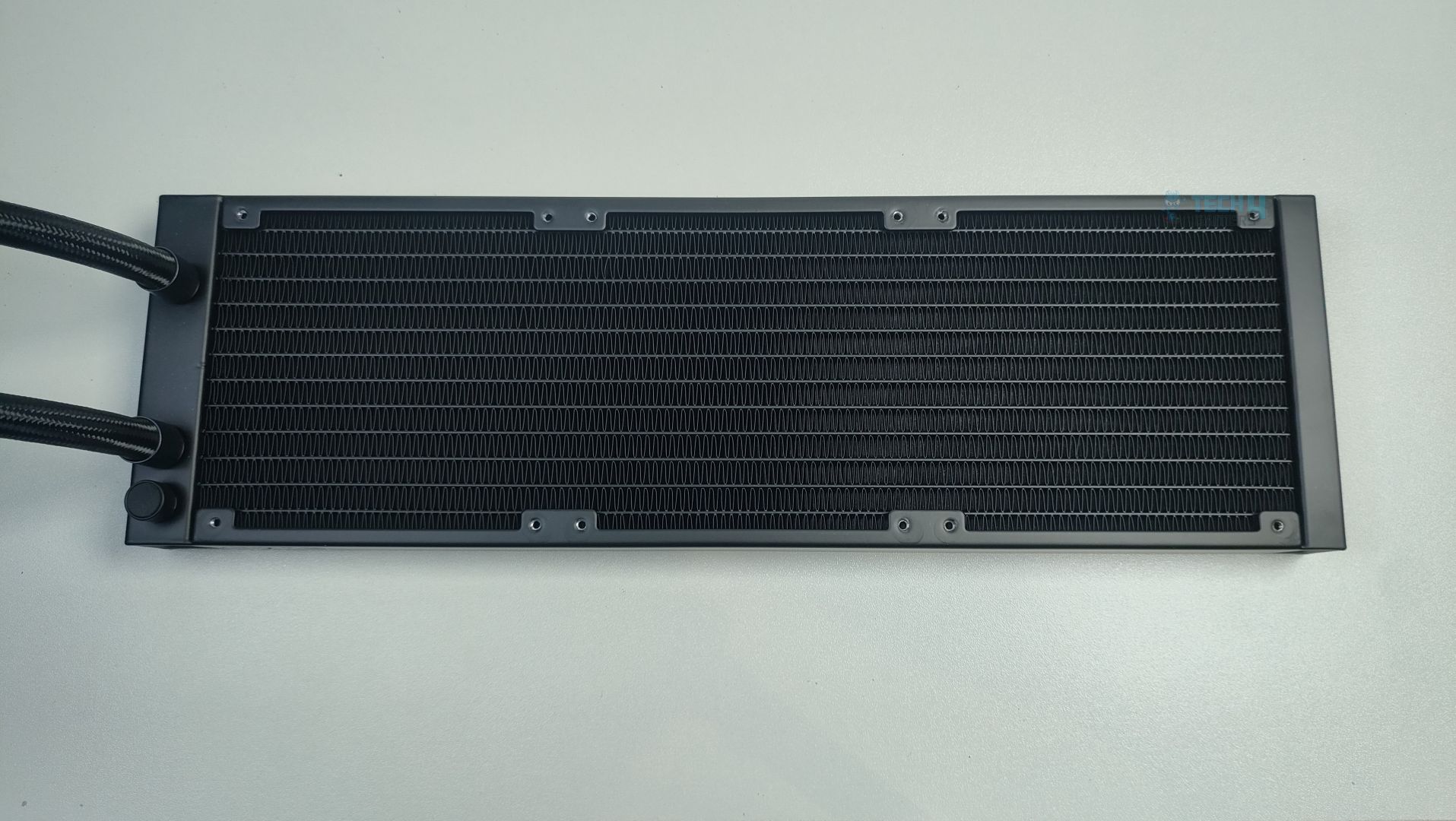
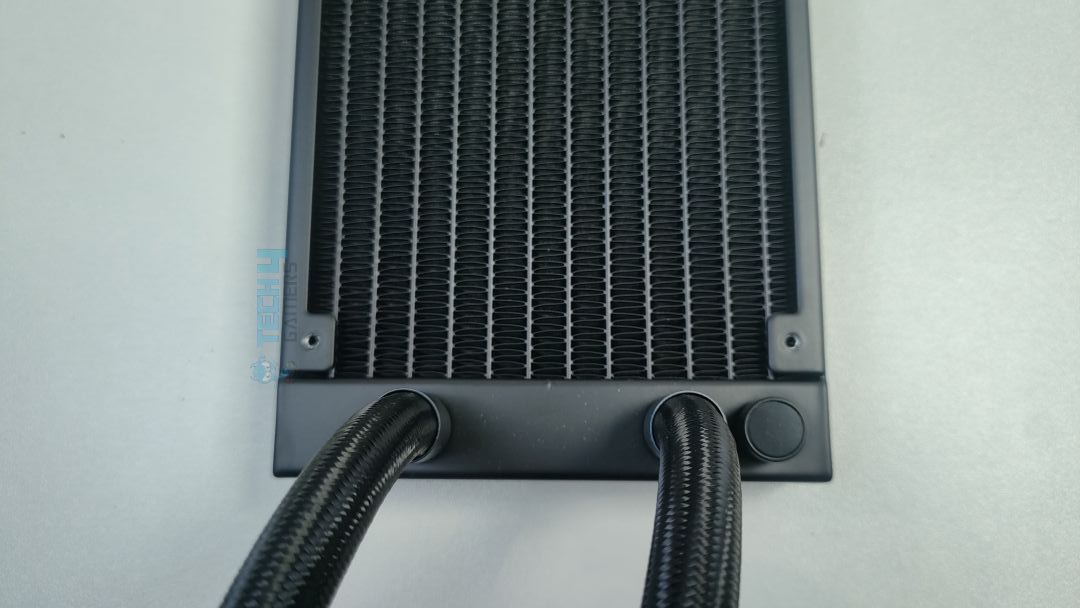
The radiator is aluminum-built with dimensions of 397x120x27mm (LxWxH), which is again very standard, as you can see on the other 360 liquid coolers. If the fans are installed, the total height would be 52mm, which will easily fit in most cases.
Radiator
The radiator has 12 water flow channels, and the FPI (Fins per inch) is 20. On the side, there is also a large Ocypus branding on the side of the radiator.
Radiator
The tube length is 400mm in total and uses metal clamps to secure the tubes and the fittings. The sleeves are nylon braided.
Pump Design / Housing
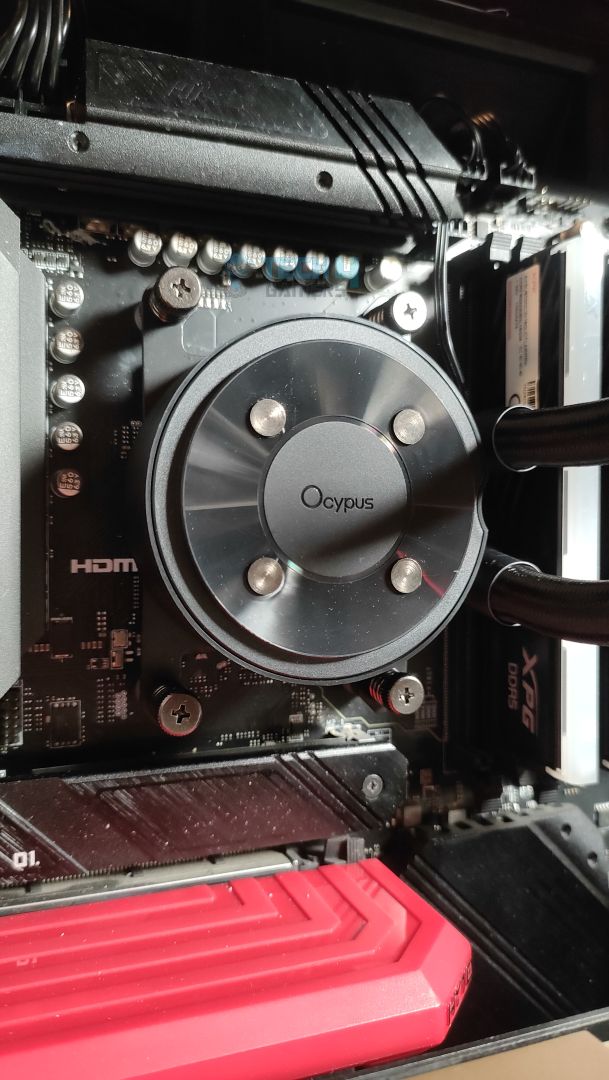
The pump design is also straightforward; here, you don’t see much fancy flow curves, which is fine, as the LCD sits on the four magnets on the block. According to Ocypus, ceramic bearings are used in the pump, which ensures durability under continuous high-rpm loads and are less prone to corrosion. The pump is rated for 3100 RPM at a noise level of 27dB(A). However, the pump is not PWM regulated.
Pump – Ocypus Sigma L36 Pro
Pump – Ocypus Sigma L36 Pro
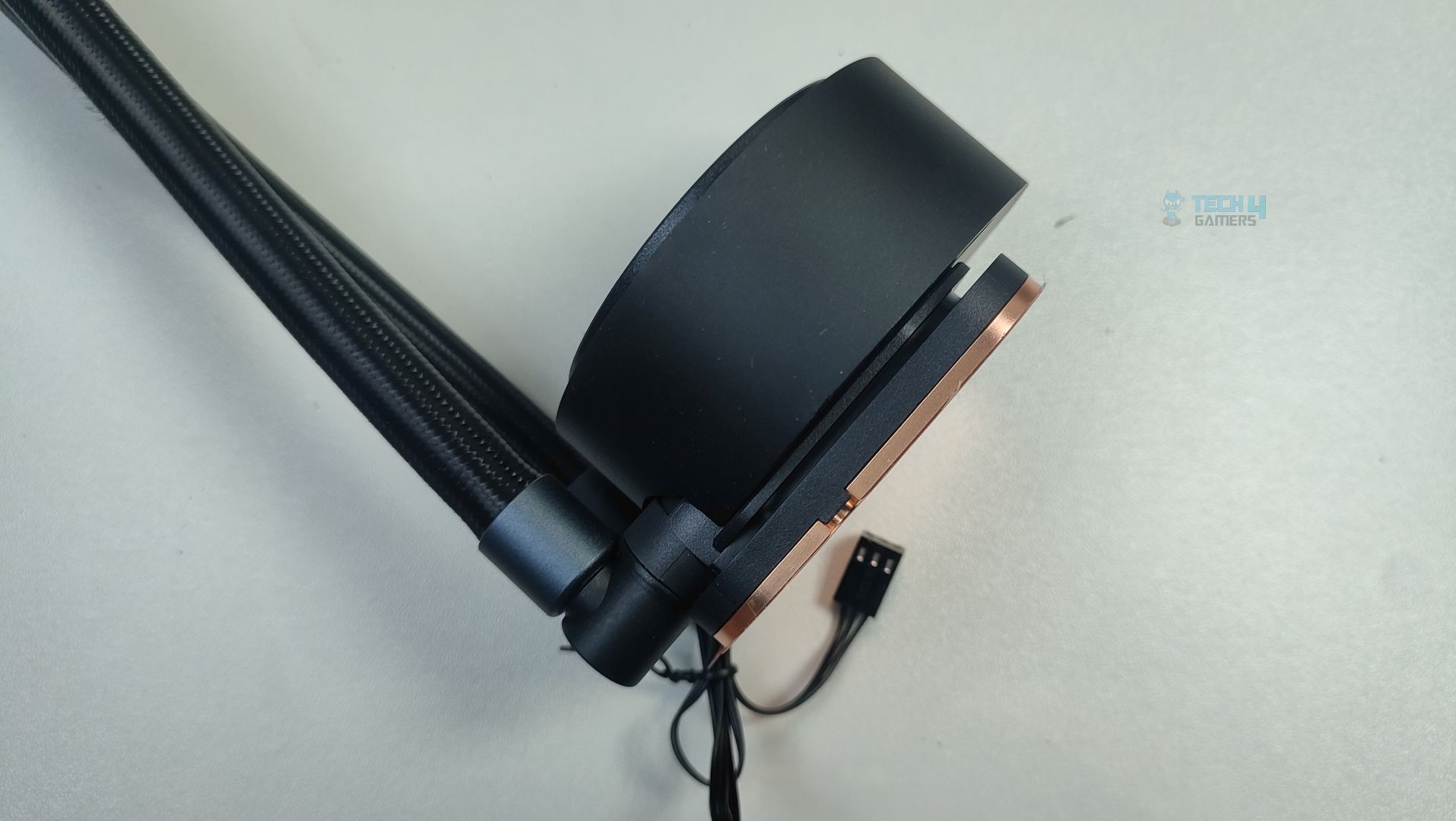
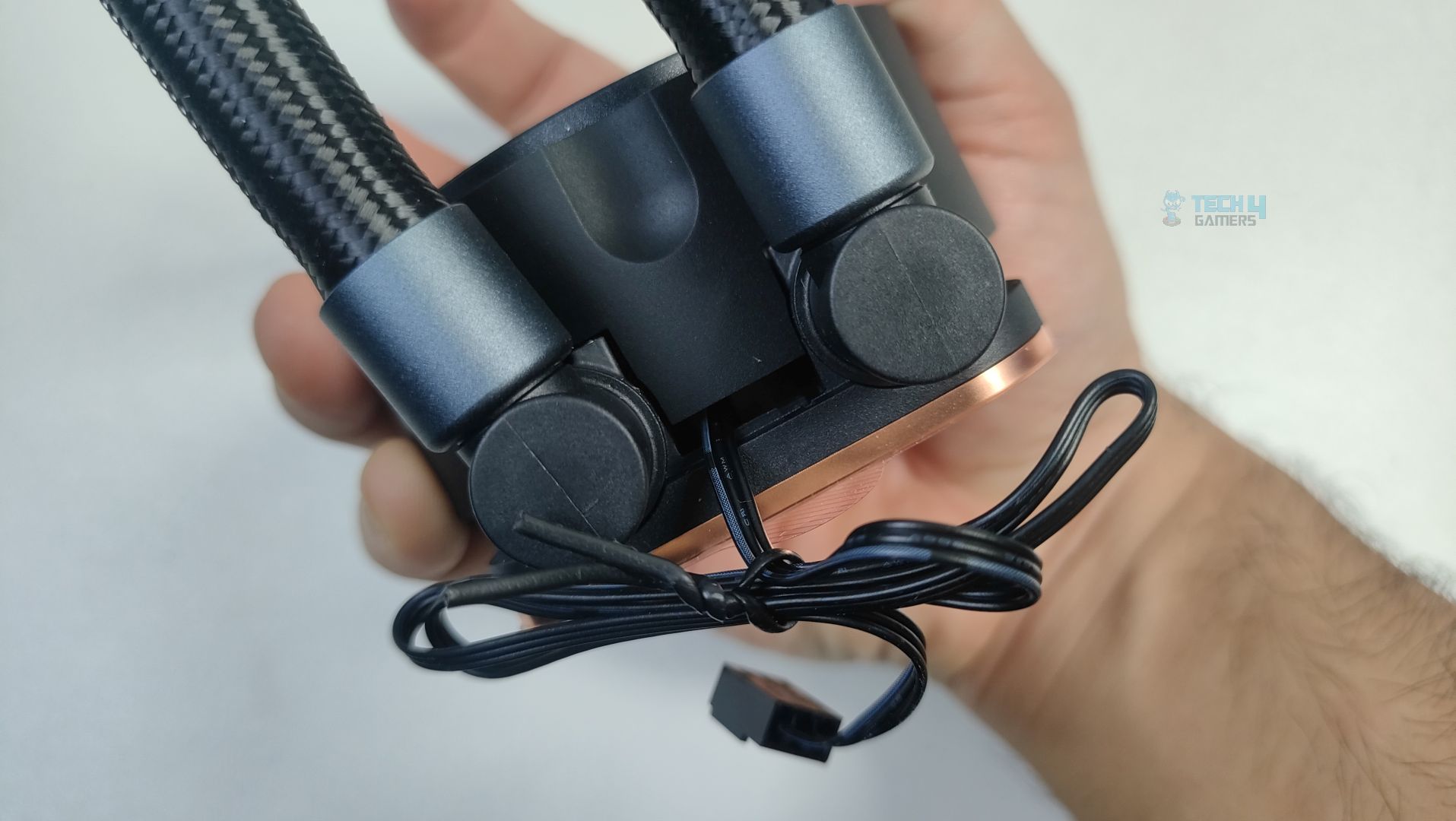
The pump power cable exits near the tubes, which does not get in the way. I wish the Ocypus had taken the hidden cable approach, with the pump cable exiting from the radiator tubes fitting, which would have looked way nicer. However, this would still not have totally removed the wires from the equation, as the LCD comes with multiple connections and is detachable, unlike the Lian-Li Hydroshift, which is fixed on the block.
Pump Connection
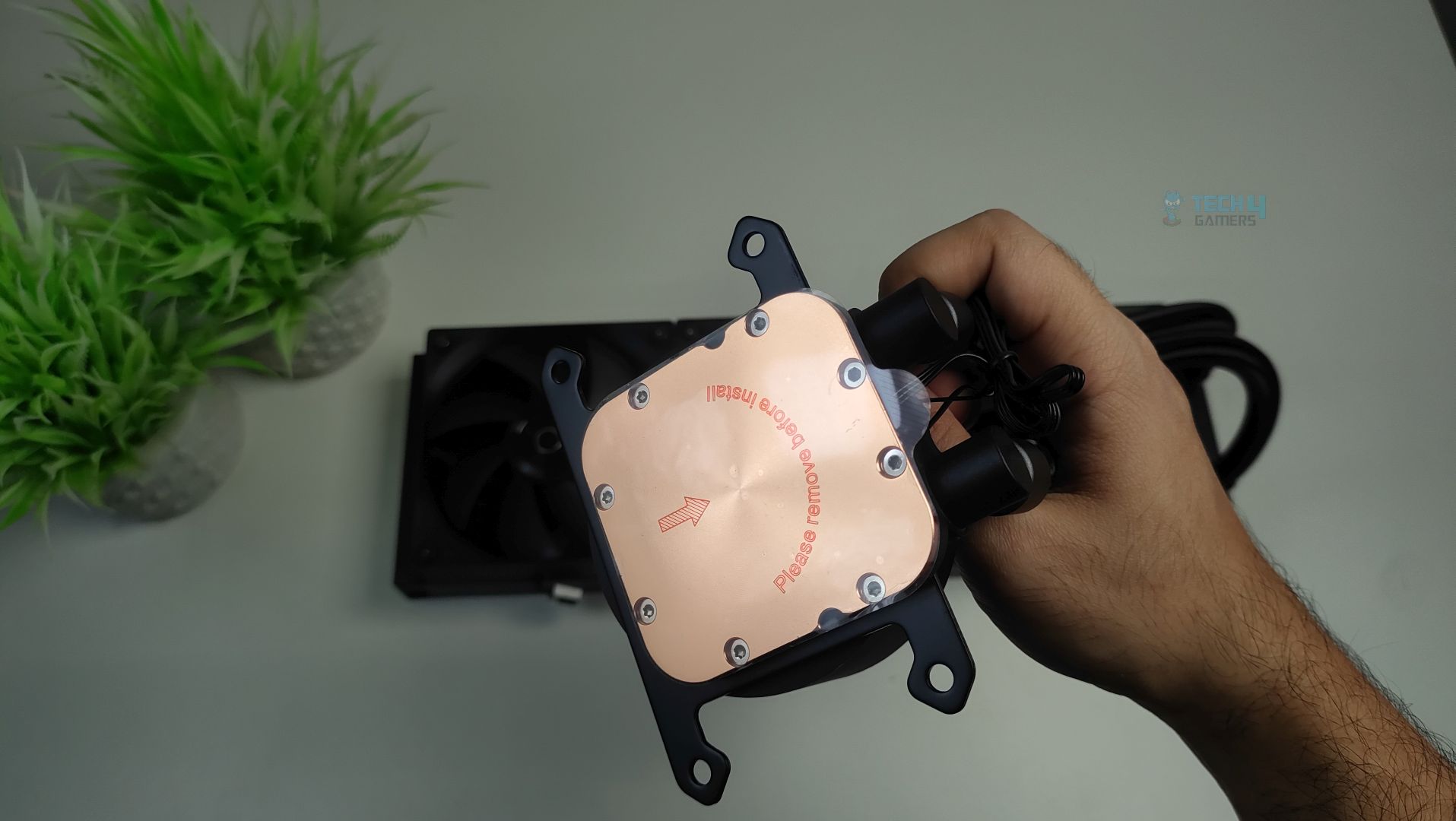
Another prominent feature of the pump is its large copper base, which features a 0.1mm micro-channel architecture that enhances heat transfer.
Base
The cold plate is 33% larger than the standard copper base found in most all-in-one liquid coolers, measuring 3700mm² in size. However, it’s still not large enough to fit on HEDT platforms, such as AMD Ryzen Threadripper, but would easily mount on supported mainstream platforms.
Display
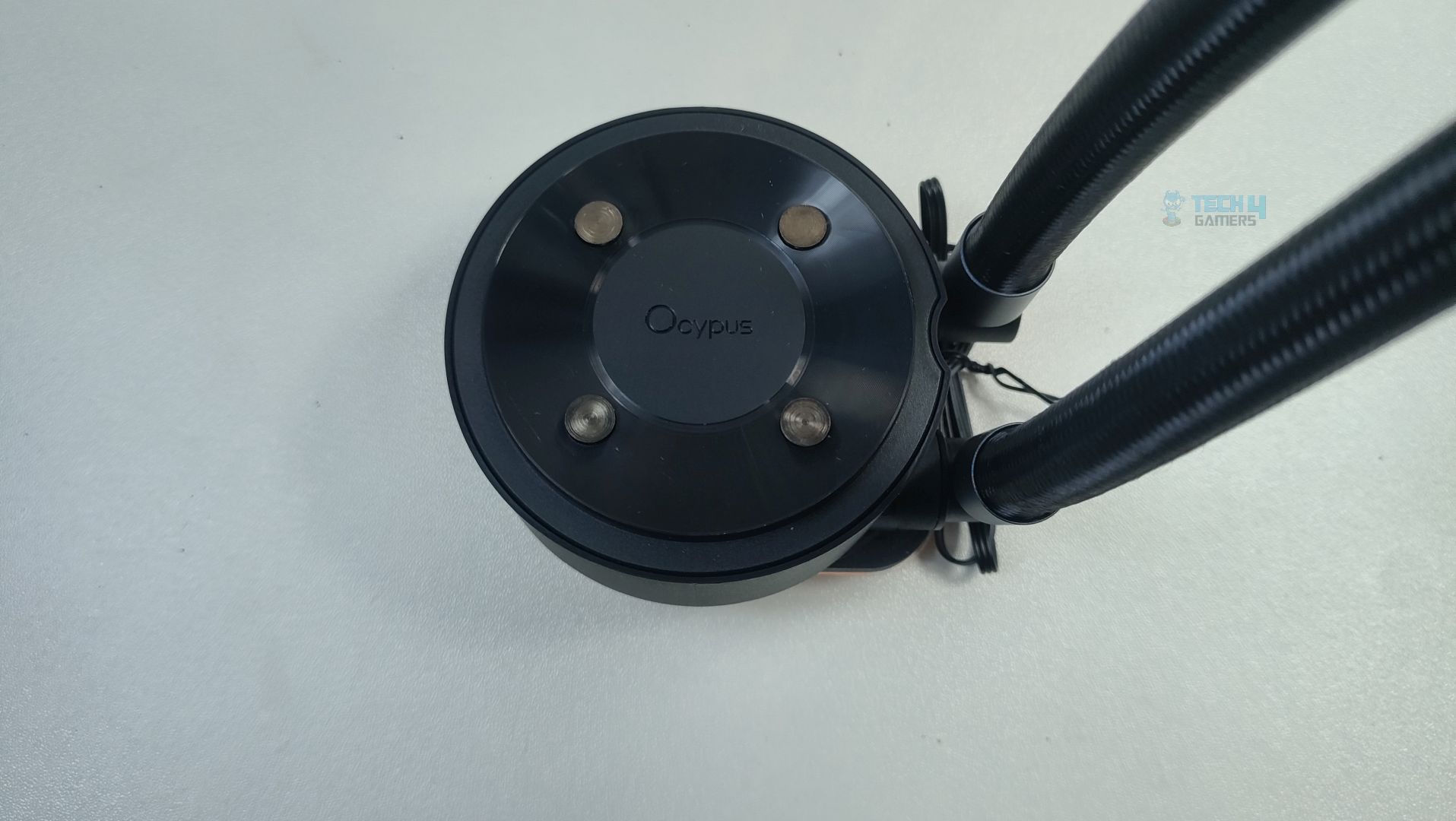
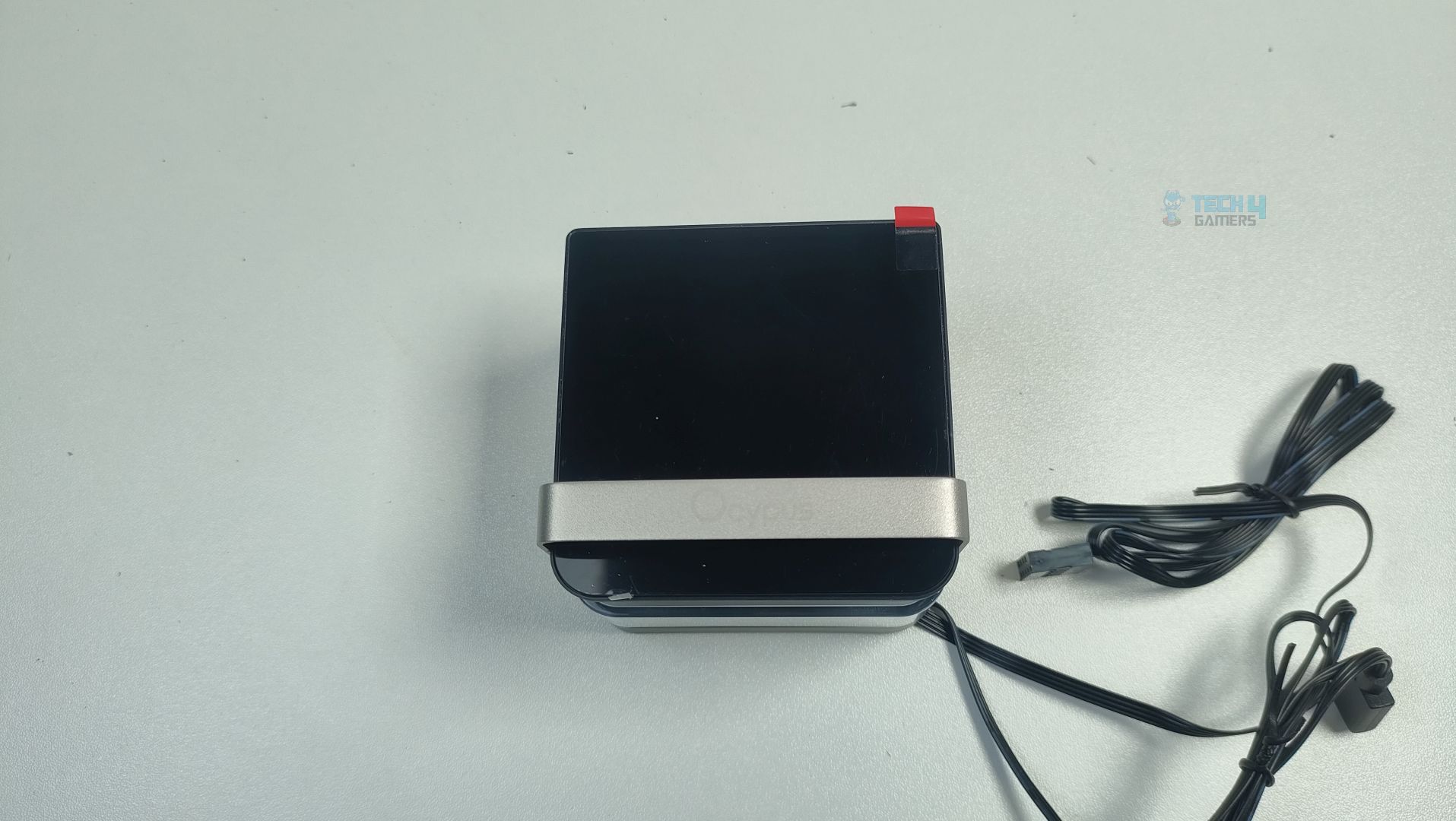
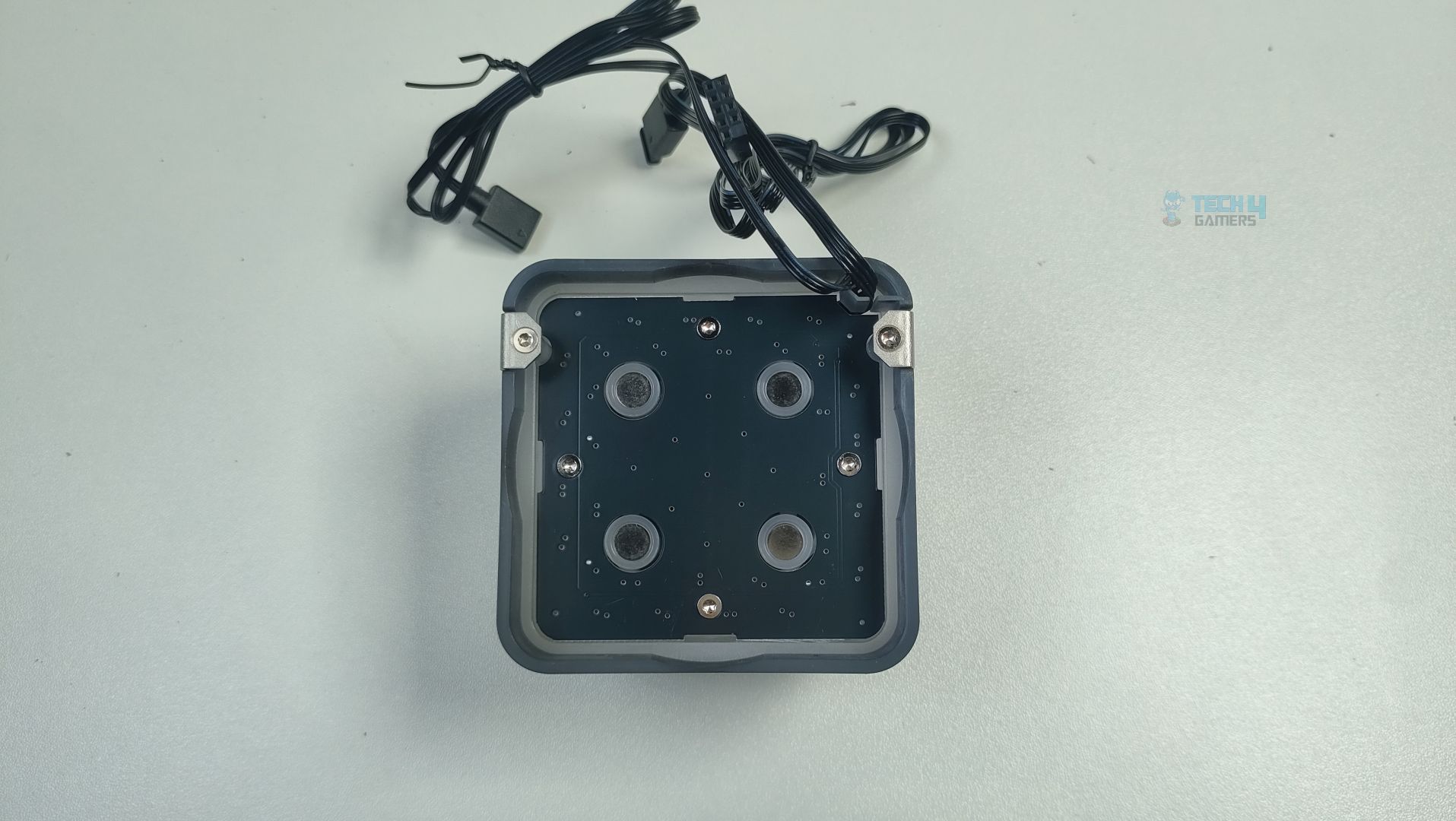
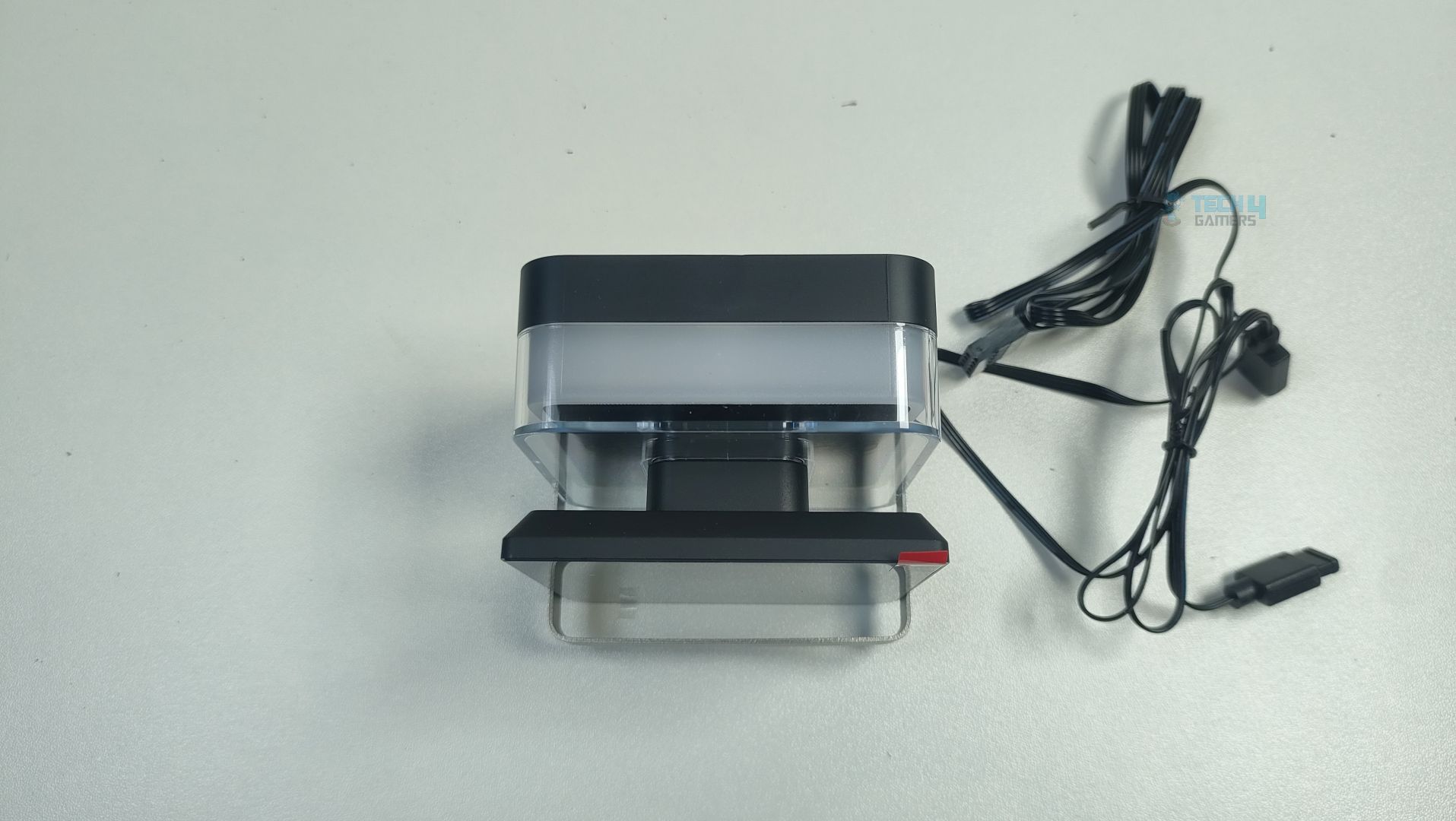
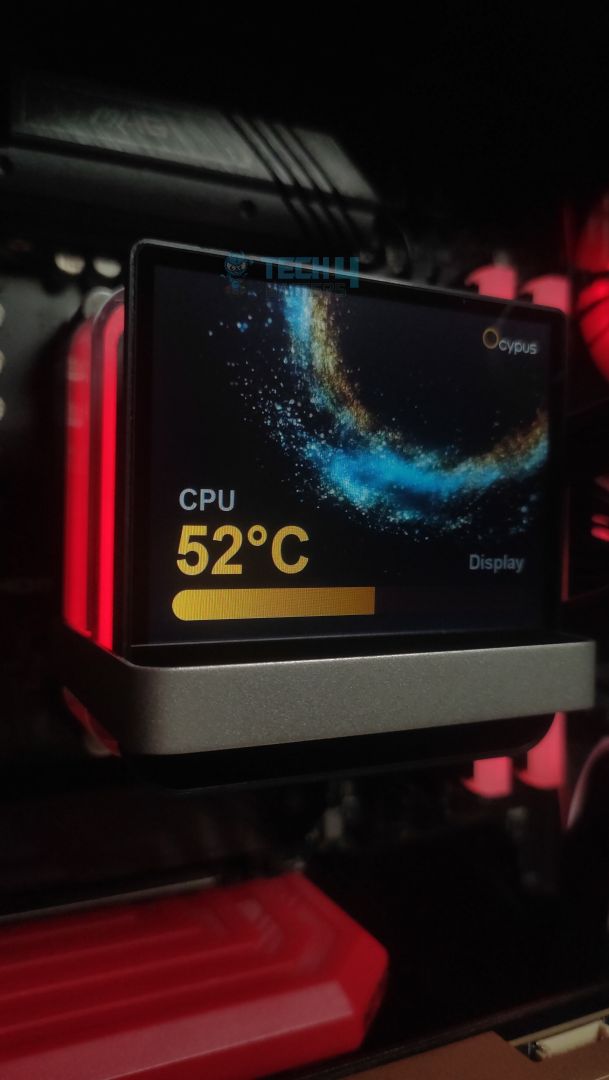
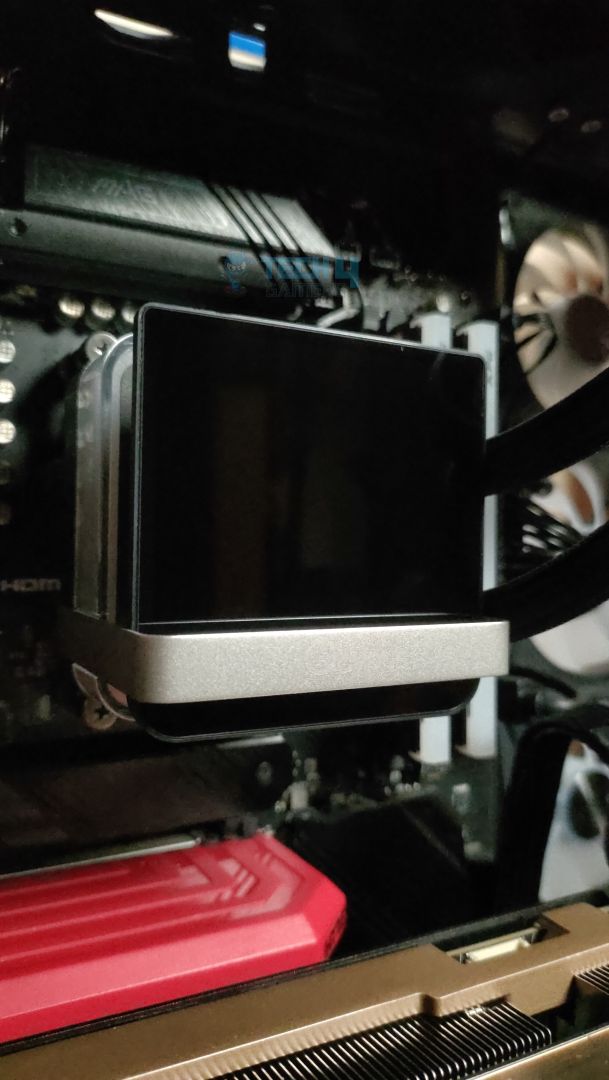
The LCD is a 3.5-inch IPS display, which is quite large compared to the standard LCD all-in-one liquid coolers, featuring a resolution of 640x480p. Underneath the LCD housing, you will find the four magnets that attach to the block for seamless installation.
LCD – Ocypus Sigma L36 Pro
LCD Magnets – Ocypus Sigma L36 Pro
The panel features the Ultra Narrow Bezel design, which makes the LCD look more premium.
Ultra-Narrow Bezel design
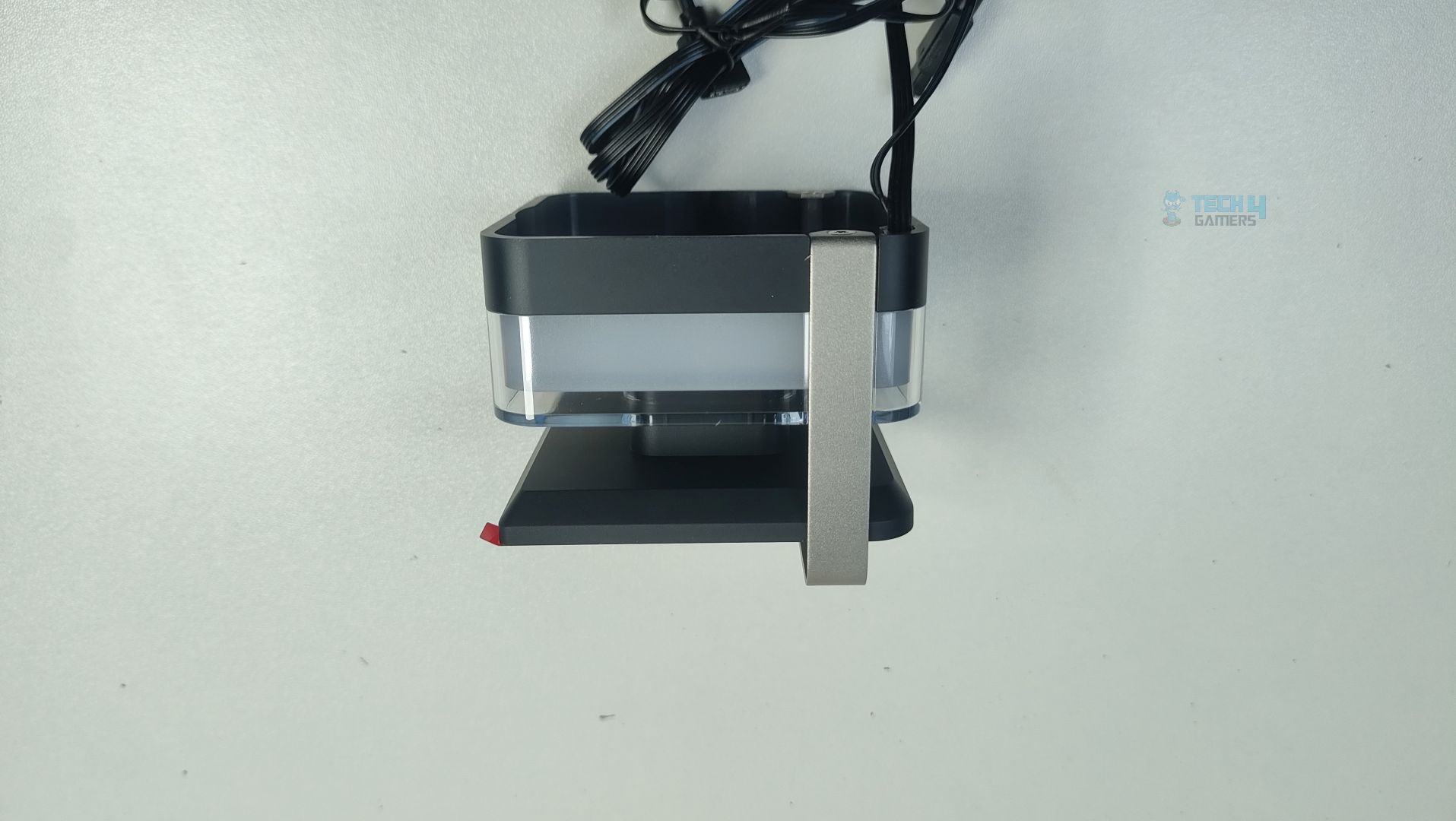
The ARGB lighting is housed in a glass diffuser, which softens the ARGB appearance, making it appear more subtle rather than sharp or crisp. I like this approach of placing the lighting underneath the LCD, as it won’t interfere with the display and cause any bleeding effect.
Glass Defuser for ARGB
The display slides down on the top of the pump thanks to the magnets for effortless installation.
LCD Installed
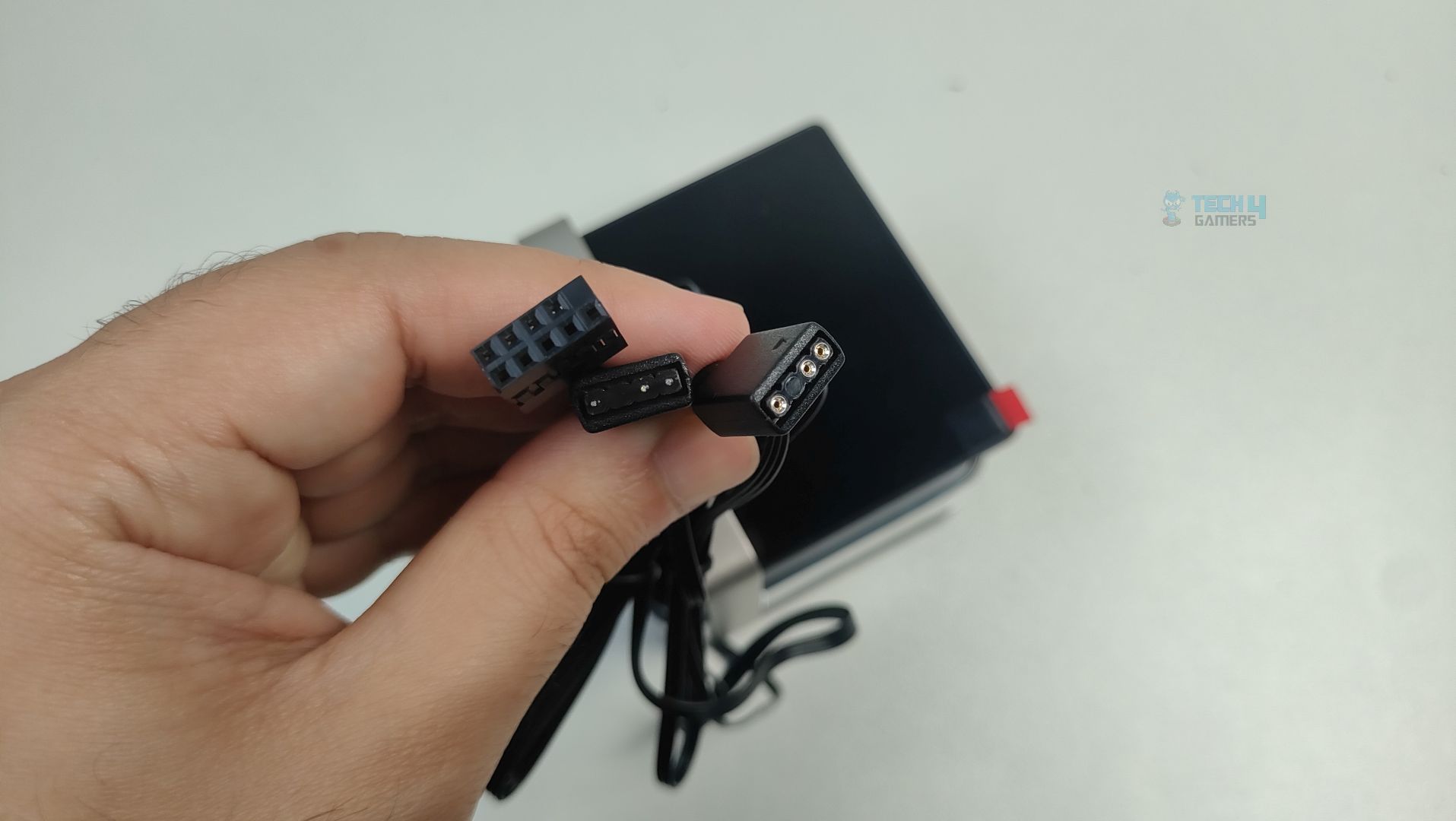
For connectivity, we have a 9-pin USB cable that connects to the motherboard and an ARGB cable for the lighting effects around the LCD.
LCD Connections – Ocypus Sigma L36 Pro
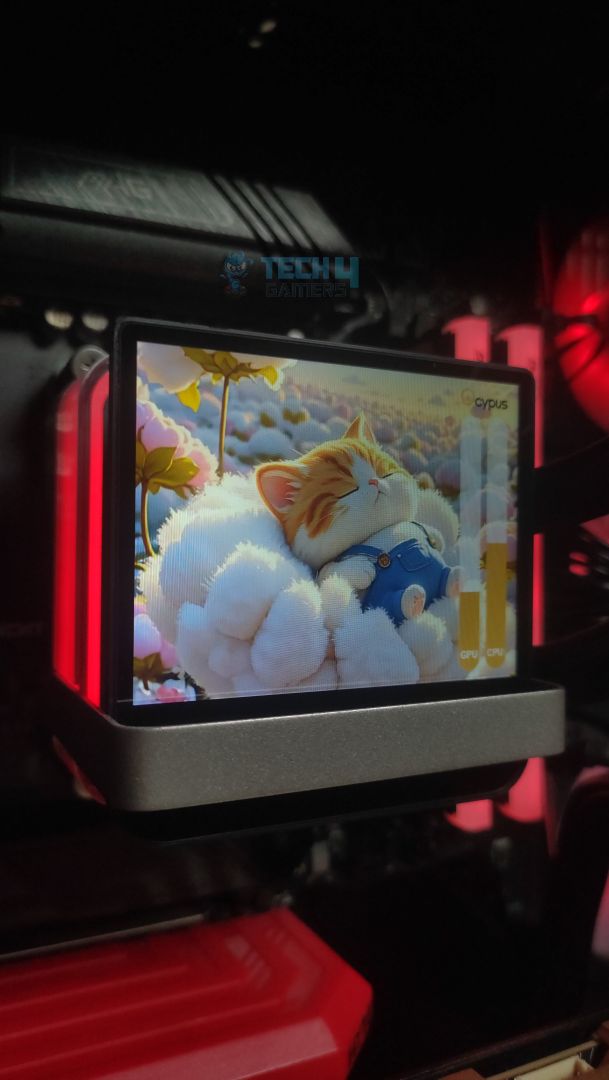
The display is highly customizable and supports real-time sensor reporting. There are also layouts and widgets provided that you can customize to your own liking. It also supports the MP4, JPEG, BMP, PNG, and GIF formats on the display panel.
Cat Theme – Ocypus Sigma L36 Pro
Space Theme – Ocypus Sigma L36 Pro
Here, we have tested some predefined layouts on the LCD screen. The software comes with six already configured themes.
Software Features
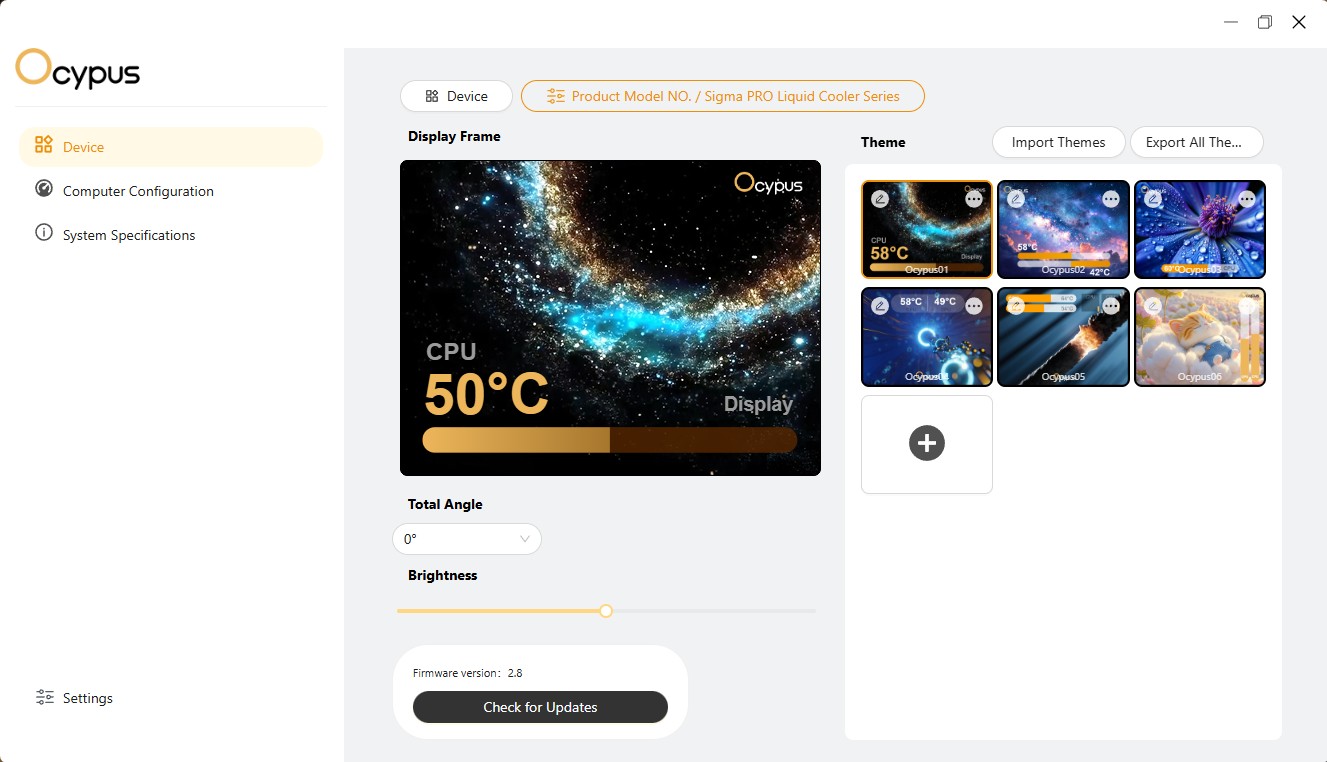
To control all the features of the LCD, it is mandatory to download the Ocypus software, which is a lightweight application. The software comes with six predefined themes and can be customized to your liking. The brightness of the panel can also be adjusted, and the software also offers four different orientations, meaning you can rotate the panel display as you want.
Software Dashboard – Ocypus Sigma L36 Pro
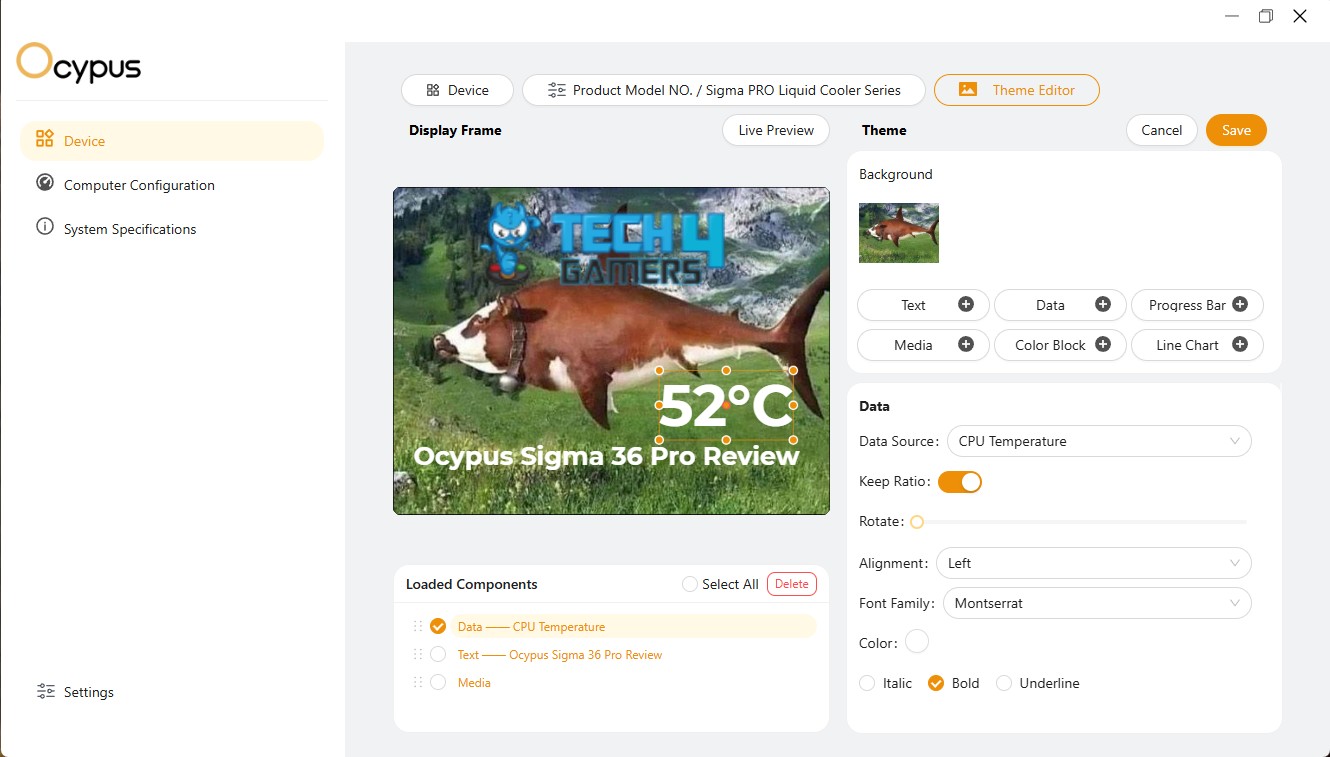
Theme Editor – Ocypus Sigma L36 Pro
You can also create your own theme with six customizable options, including text, data, progress bar, media, custom color block, and line chart.
Software Usage
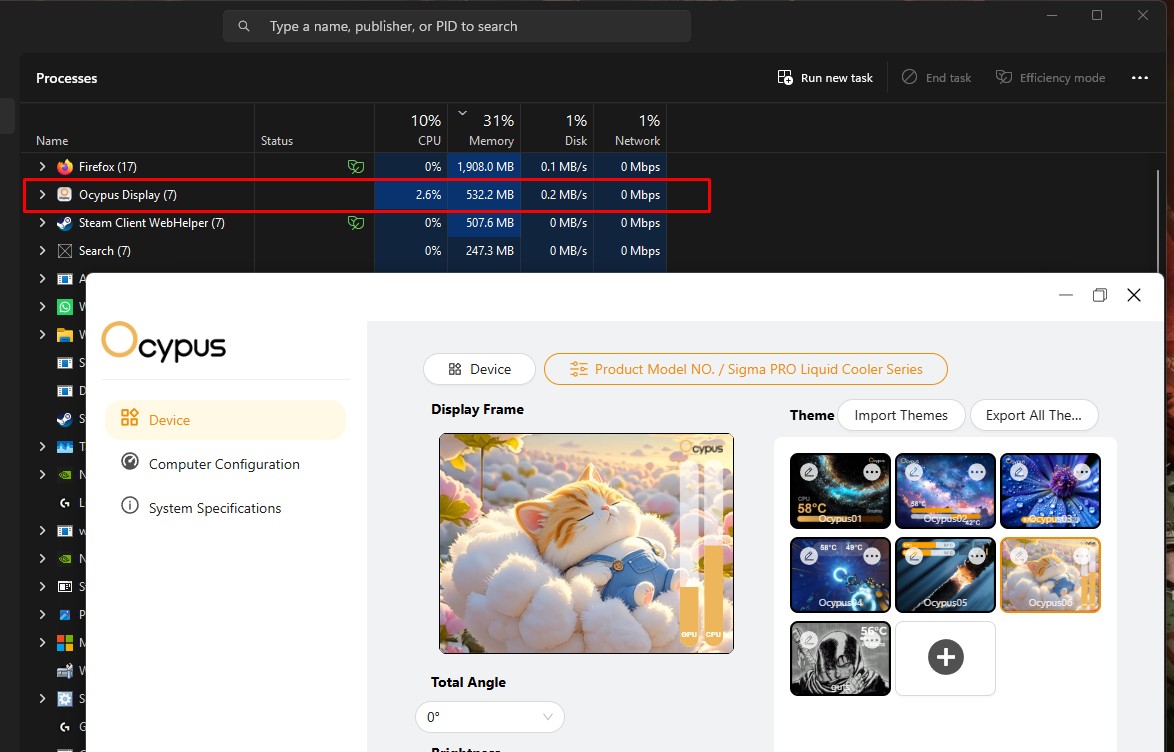
We have set one of the preconfigured layouts that is already available in the software. The software utilizes 500 to 550 MB of memory, and CPU utilization ranges between 2% and 5%.
Software Usage – Ocypus Sigma L36 Pro
We have noticed that CPU utilization can increase to 9% if you have set manual themes and loaded a few sensors for GPU and CPU usage, which I feel the software still needs some refinement in terms of resource allocation.
Fans
Let’s talk about fans.
Fans – Ocypus Sigma L36 Pro
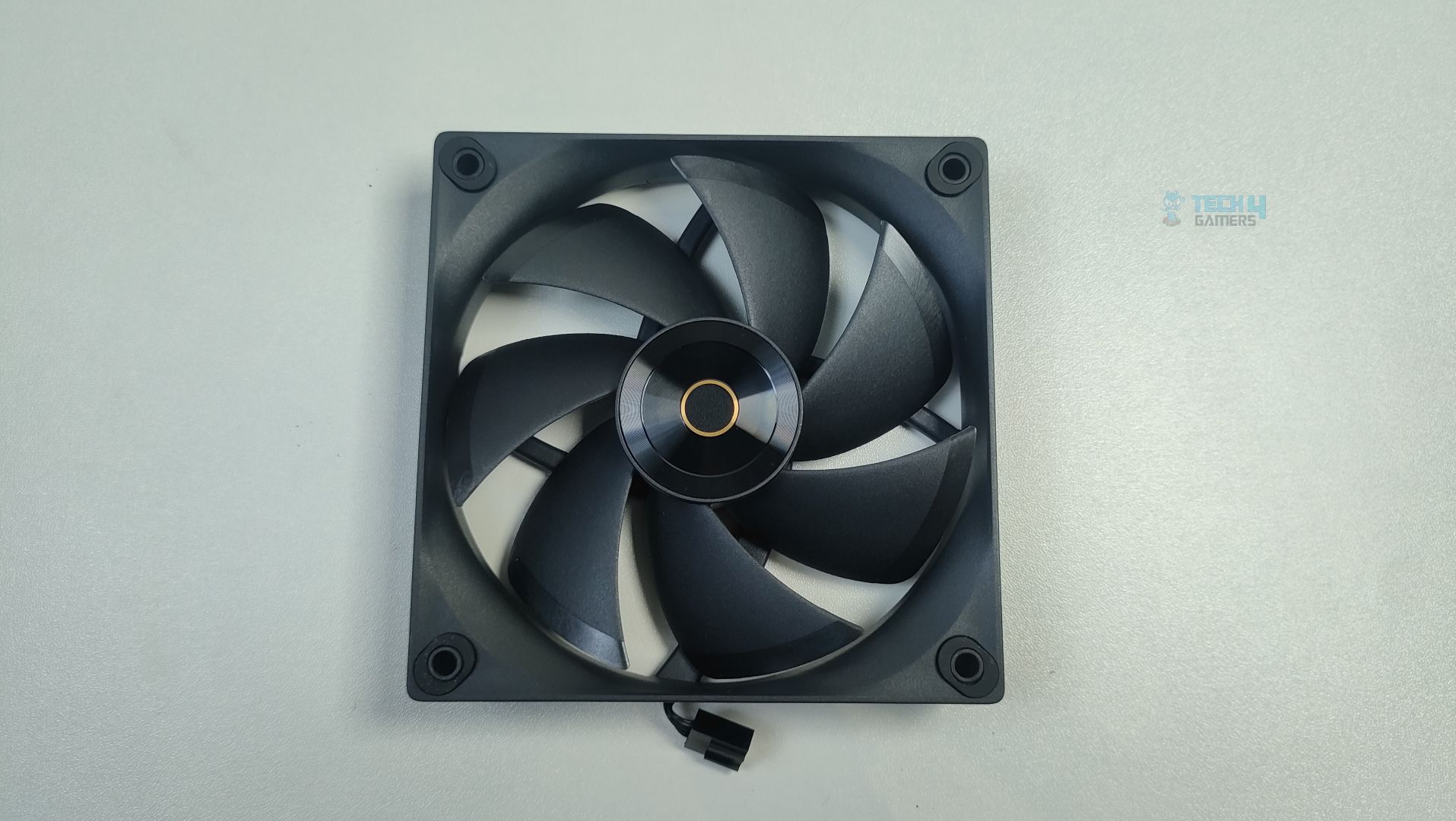
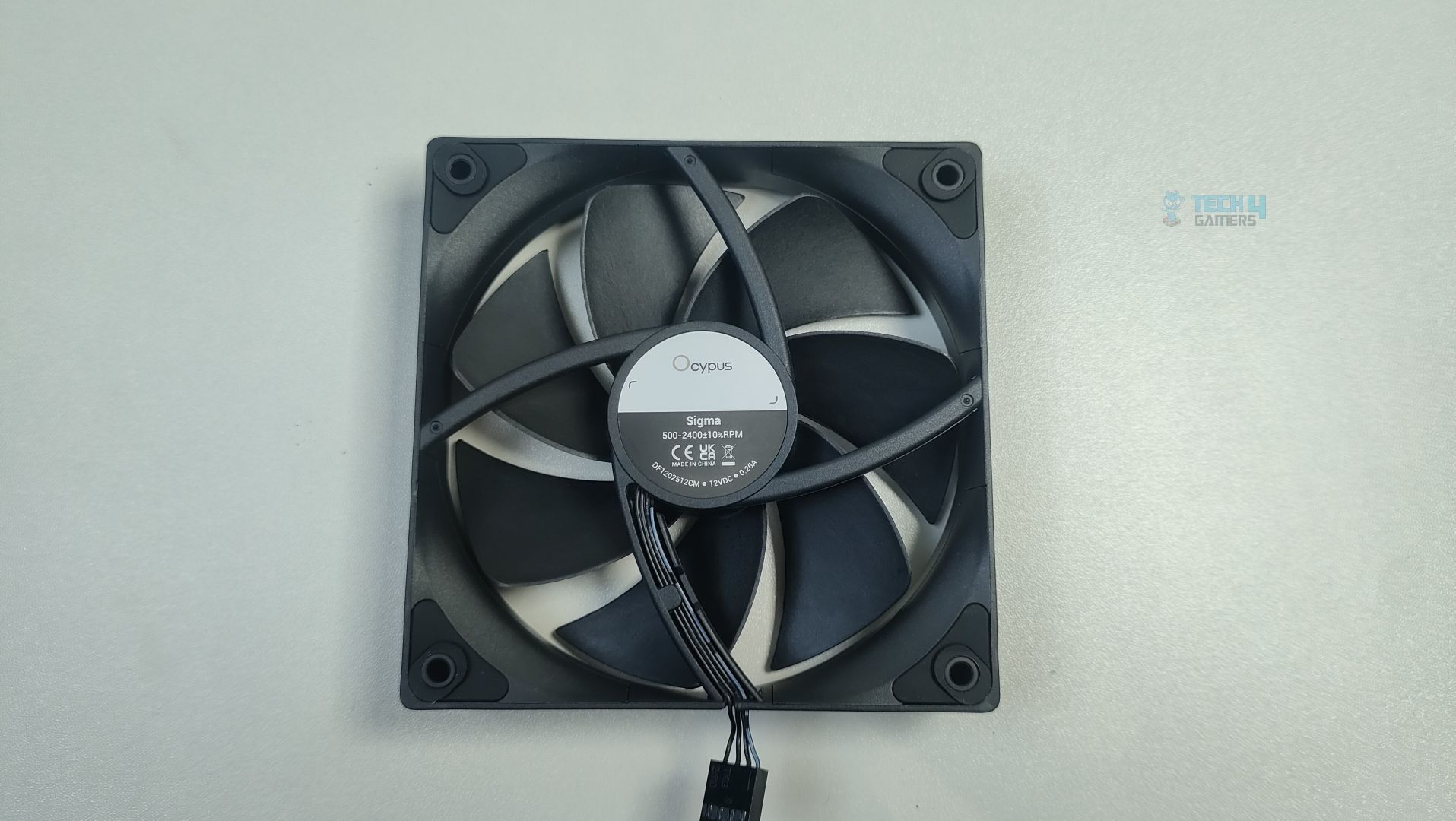
The fan nails a stealthy and industrial design. There is a golden ring on the impeller hub housing. The blades are also curved at the edges, which can improve the static pressures.
Fan Front Look – Ocypus Sigma L36 Pro
Fan Back Look – Ocypus Sigma L36 Pro
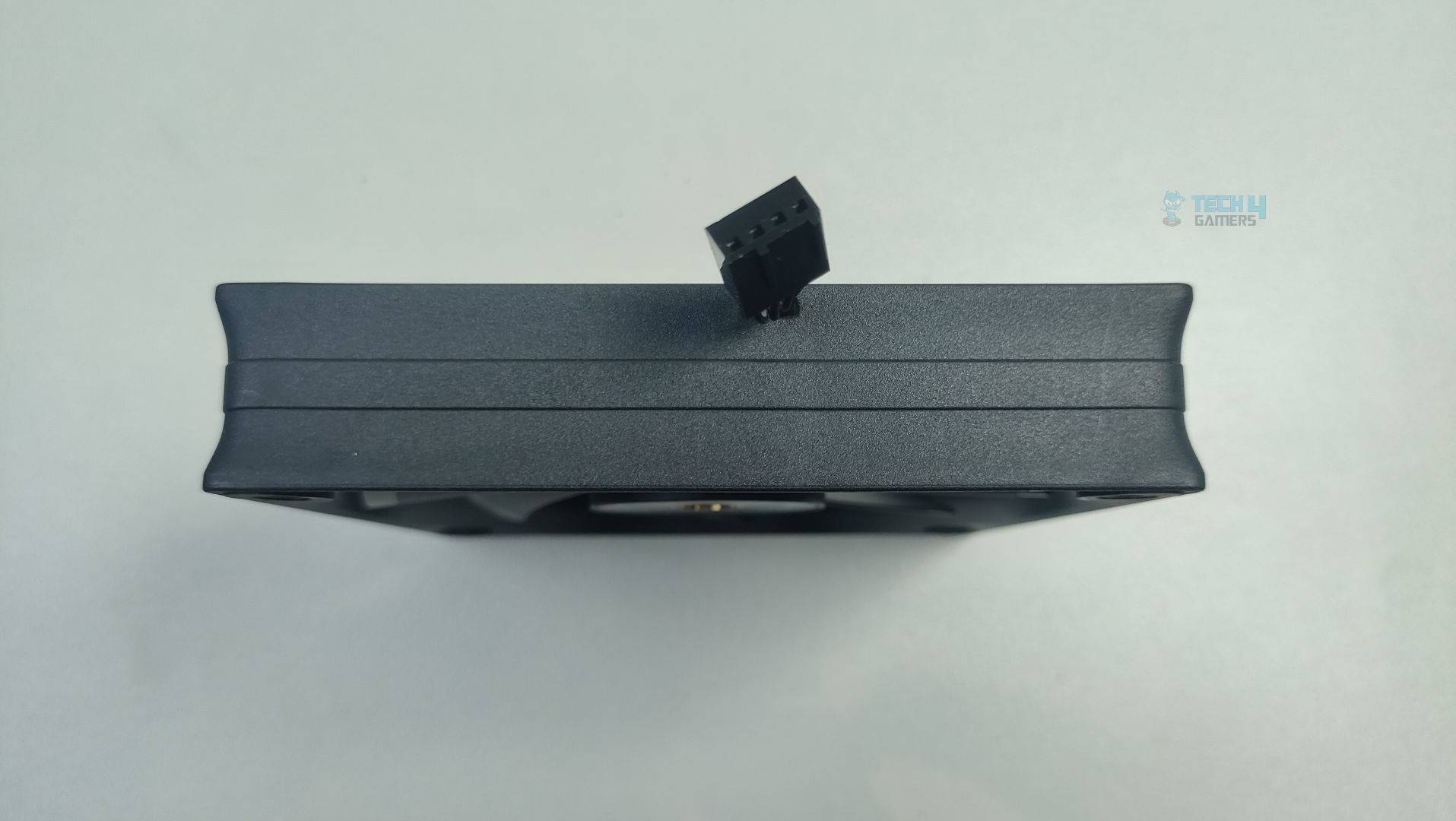
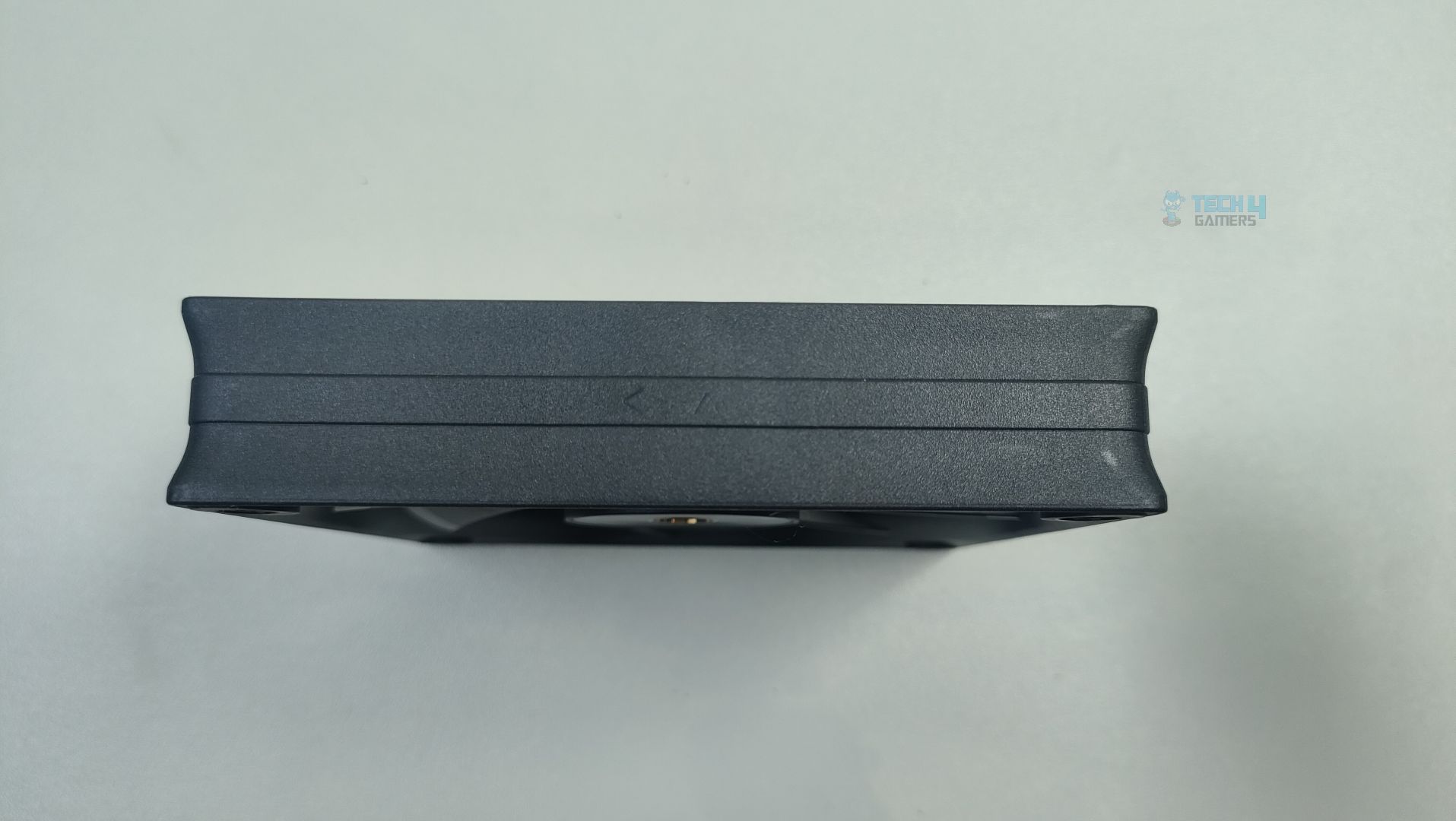
The fans do not feel cheap at all, as they are equipped with a thick, rigid plastic material. If you notice the sides of the frame, there is a subtle curve at the top and bottom, corresponding to the airflow directions.
Fan Side Look – Ocypus Sigma L36 Pro
Fan Side Look – Ocypus Sigma L36 Pro
The fans are 25mm thick and can spin at 2500 RPM. You also get the fan-speed reduction control that can reduce the fan speed and the noise levels. The fans do not support ARGB, which would disappoint many users. The fans have a total of seven blades and utilize a 4-Pin PWM for control. The fans also employ the FDB bearing.
Streamline Daisy Chain Connections
The fans are powered by a 1×3-way PWM extension cable, which streamlines fan connectivity, reducing cable clutter. Thumbs up for Ocypus here.
Here are the specifications for the fans:
Ocypus Sigma L36 Pro Fan
Specifications
Dimensions (W x D x H)
120 x 120 x 25 mm
Air Flow
90 CFM
Bearing Type
Fluid Dynamic Bearing (FDB)
Speed
500~2500 RPM
Acoustic Noise
≤36dB(A)
Input Power
3.12W
Rated Voltage
12V DC
PWM Control
Yes
Connector
4-Pin PWM
Installation
It’s time to install the cooler.
Prepare the socket
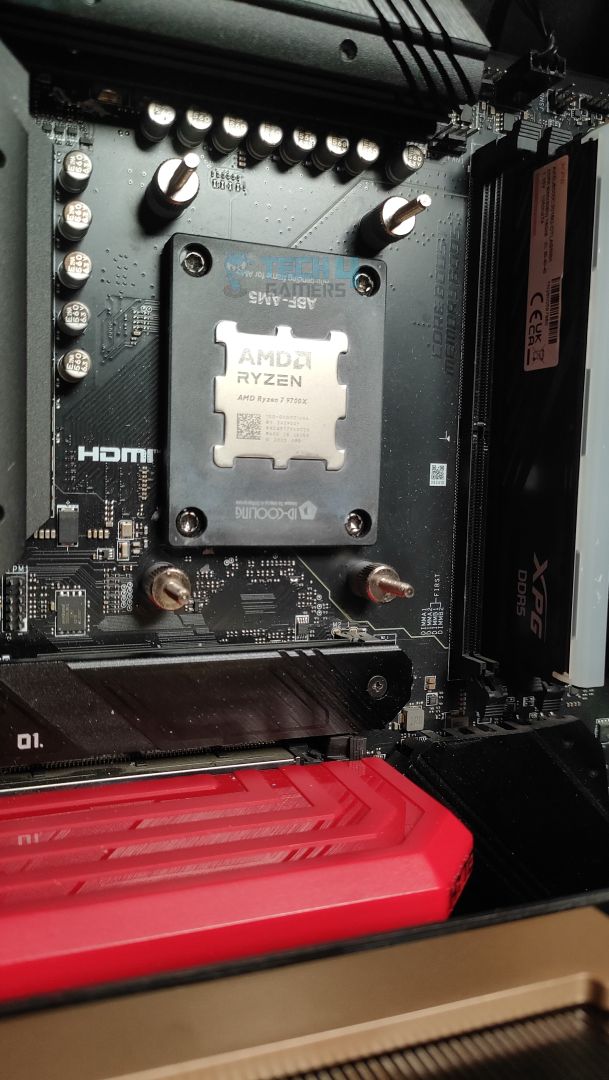
We’re using the AMD system. The first step is to remove the AMD stock retention brackets that come pre-installed on the motherboard. Now, install the AMD bracket on the cooler. The bracket attaches to the cold plate and then screws into the threaded holes of the AMD backplate that is pre-installed on the AM4/AM5 motherboards.
Stands Off Installed – Ocypus Sigma L36 Pro
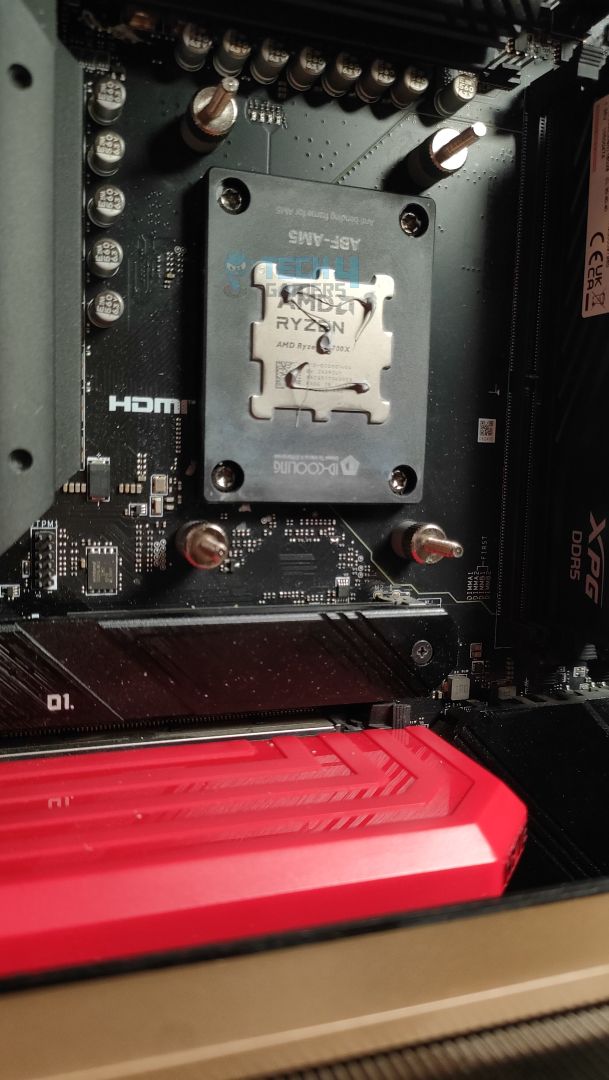
Thermal Paste Applied – Ocypus Sigma L36 Pro
Install the standoff and then apply thermal paste to the processor. We use ID-Cooling X45 on all our coolers. Put the block on a CPU and secure it with the spring-loaded screws diagonally for even pressure. Now you can slap the magnetic LCD on the block head.
Block Head Installed – Ocypus Sigma L36 Pro
LCD Panel Sits on Block- Ocypus Sigma L36 Pro
Now that the cooler is fully installed, it’s time to connect the cables before you begin to boot your system.
Cabling
The installation was straightforward, but now you have to connect the cables. The pump is powered by the 3-pin DC cable that needs to be installed on the AIO_Pump header. For the fans. OCYPUS has provided a 1×3-way PWM extension cable.
Streamline Daisy Chain Connections
Now, prepare the fans by connecting each fan to the corresponding connector on the extension cable and plugging it into the CPU_Fan or CPU OPT header.
All the mandatory cables have now been installed. It’s time to install the panel. The LCD panel comes with a 9-pin USB that plugs into the USB header and a 3-pin ARGB cable, which will be installed on the 3-pin ARGB header on the motherboard to control the lighting effects on the block.
Testing Methodology
CPU Configuration:
For the Noise Normalized Testing, we have fixed the CPU at a fixed voltage and frequency. The noise levels are set at the desired levels of 40 to 45 dB(A). Then we test the cooler at the maximum speed possible.
Controlled Environment:
We have eliminated the influence of ambient temperatures in our data, and all results are presented as deltas over the ambient conditions. The tests were done in a controlled environment with a room temperature of 25°C.
Preparing System:
Since we don’t have a separate open test bench, all the coolers are installed in our primary test case, which is the HYTE Y70, but all the panels have been removed.
All the case fans are operating at the minimum PWM level possible to avoid interfering with any noise results. All coolers are tested at the fixed configurations. Only the coolers are swapped in the whole scenario.
We are using ID-Cooling X45 thermal paste for all coolers.
Software:
We have ensured that no other software is running on the computer that could influence the CPU load.
We’ll be using the Cinebench R23 Loop for 15 minutes.
Windows Version: Windows 11 24H2 (OS Build 26100.4652)
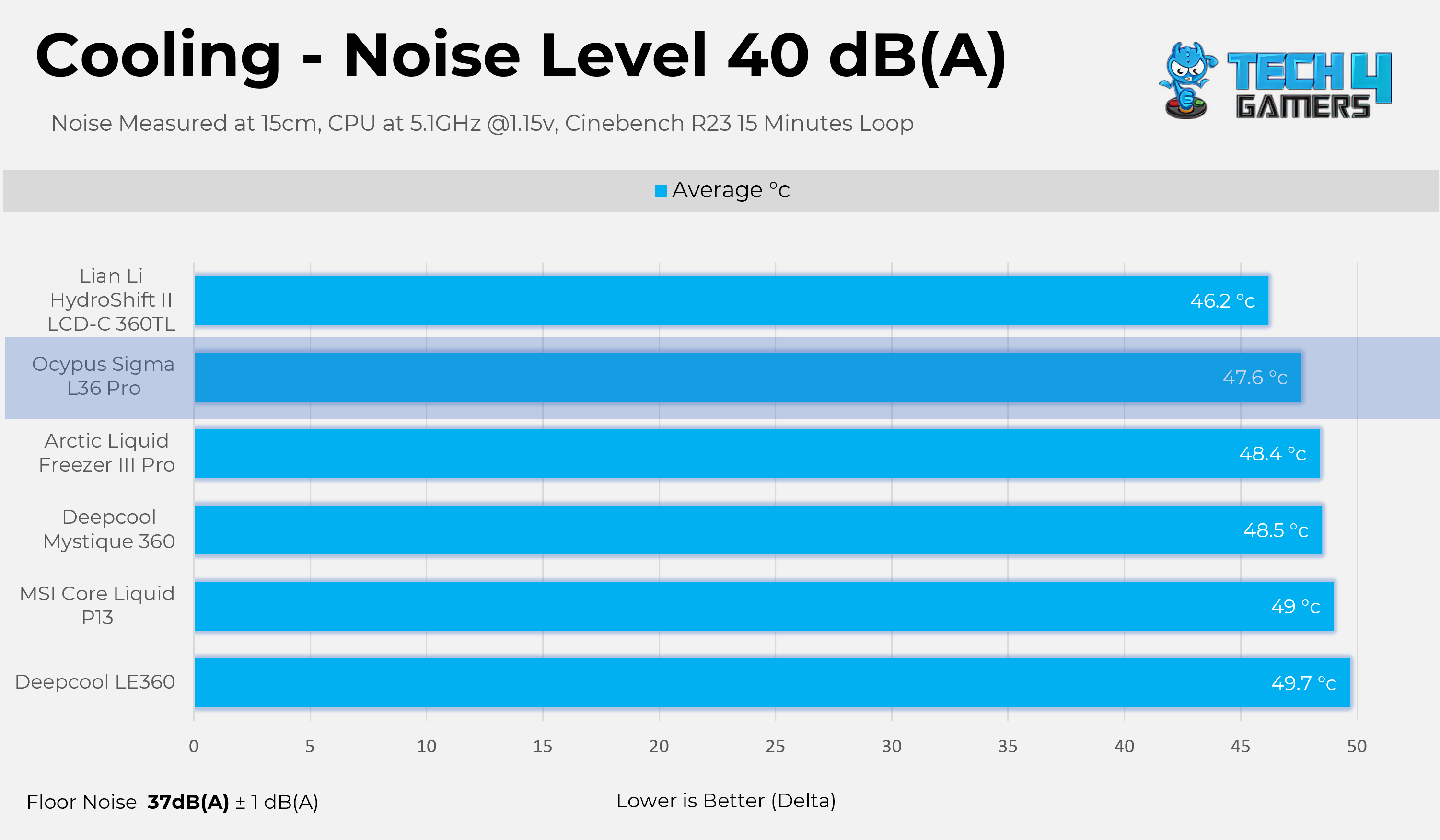
Thermals – Noise Normalized 40 dB(A)
Results at the fixed noise level of 40dB(A).
Thermals – 40dB(A)
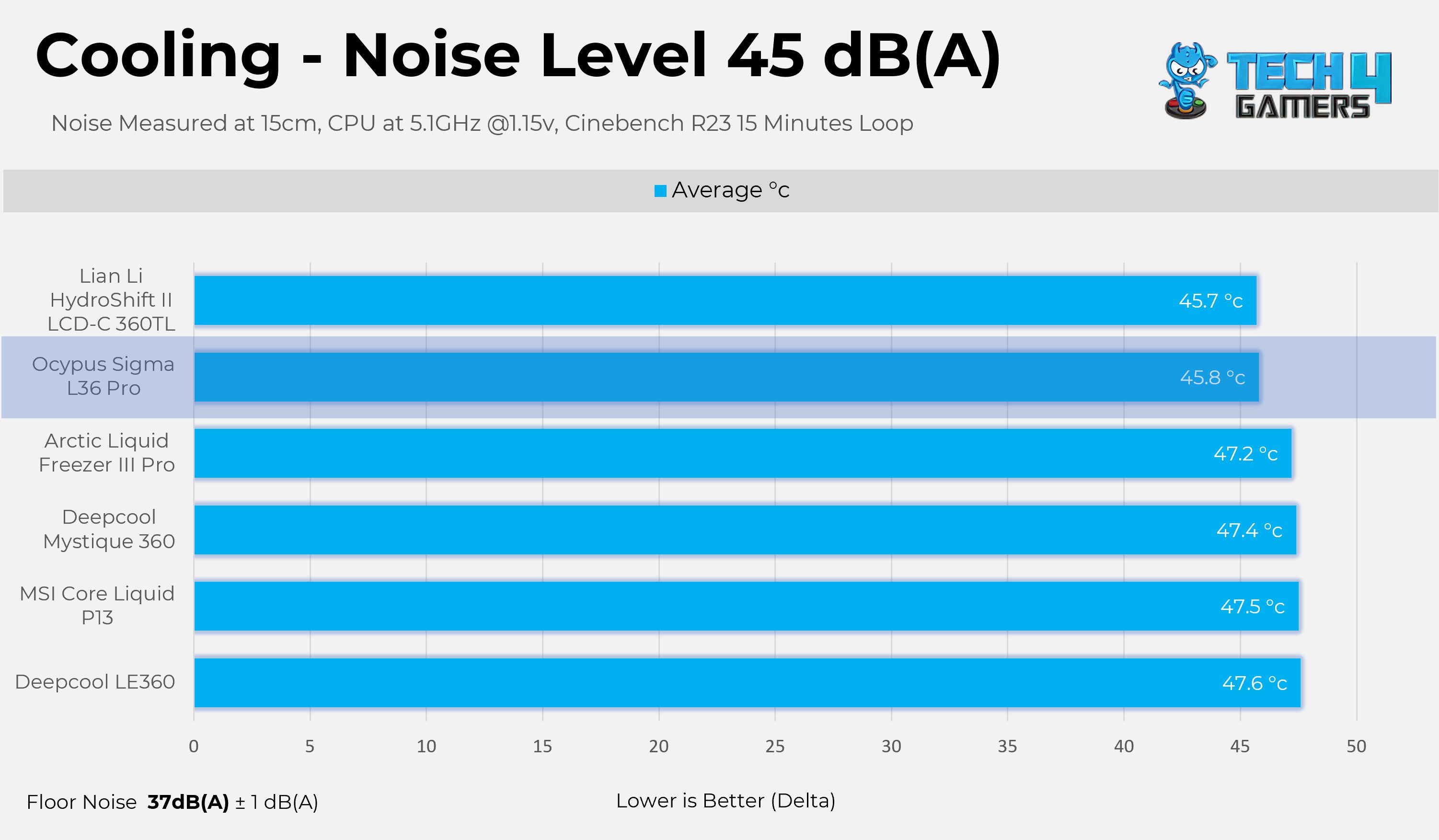
Thermals – Noise Normalized 45 dB(A)
Results at the fixed noise level of 45dB(A).
Thermals – 45dB(A)
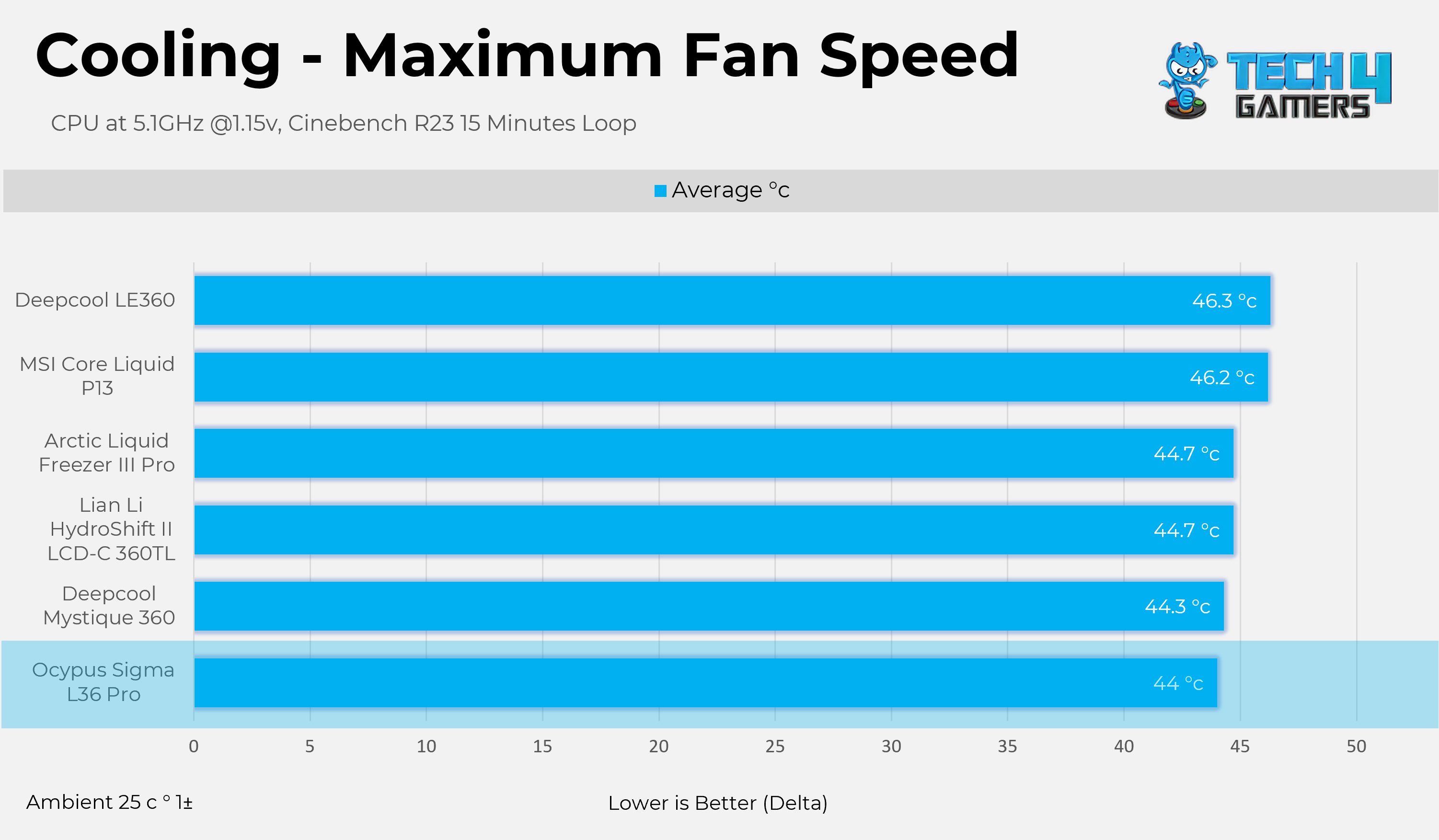
Thermals – Maximum Speed
Results at the Maximum PWM Speed.
Max PWM – Ocypus Sigma L36 Pro
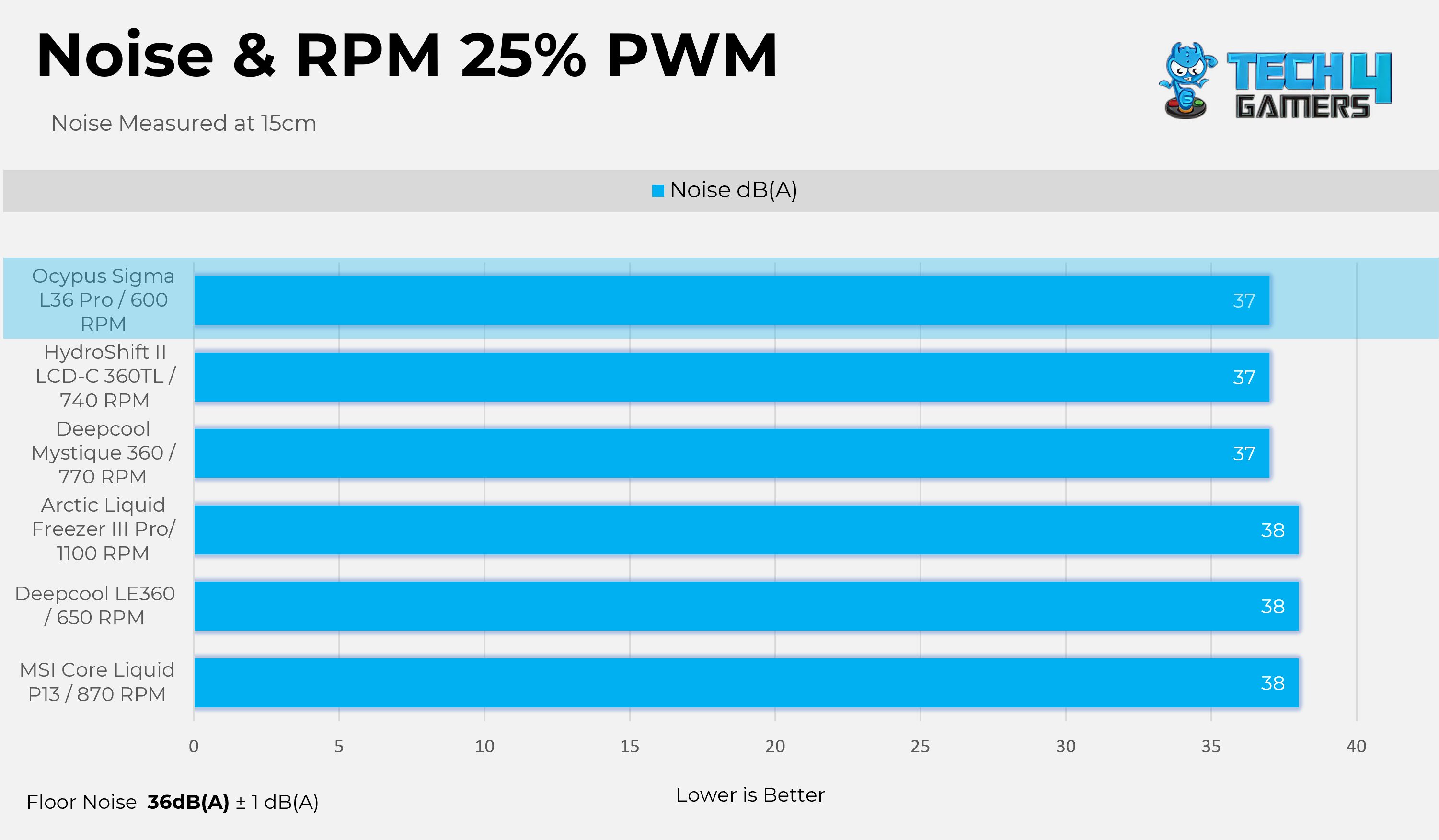
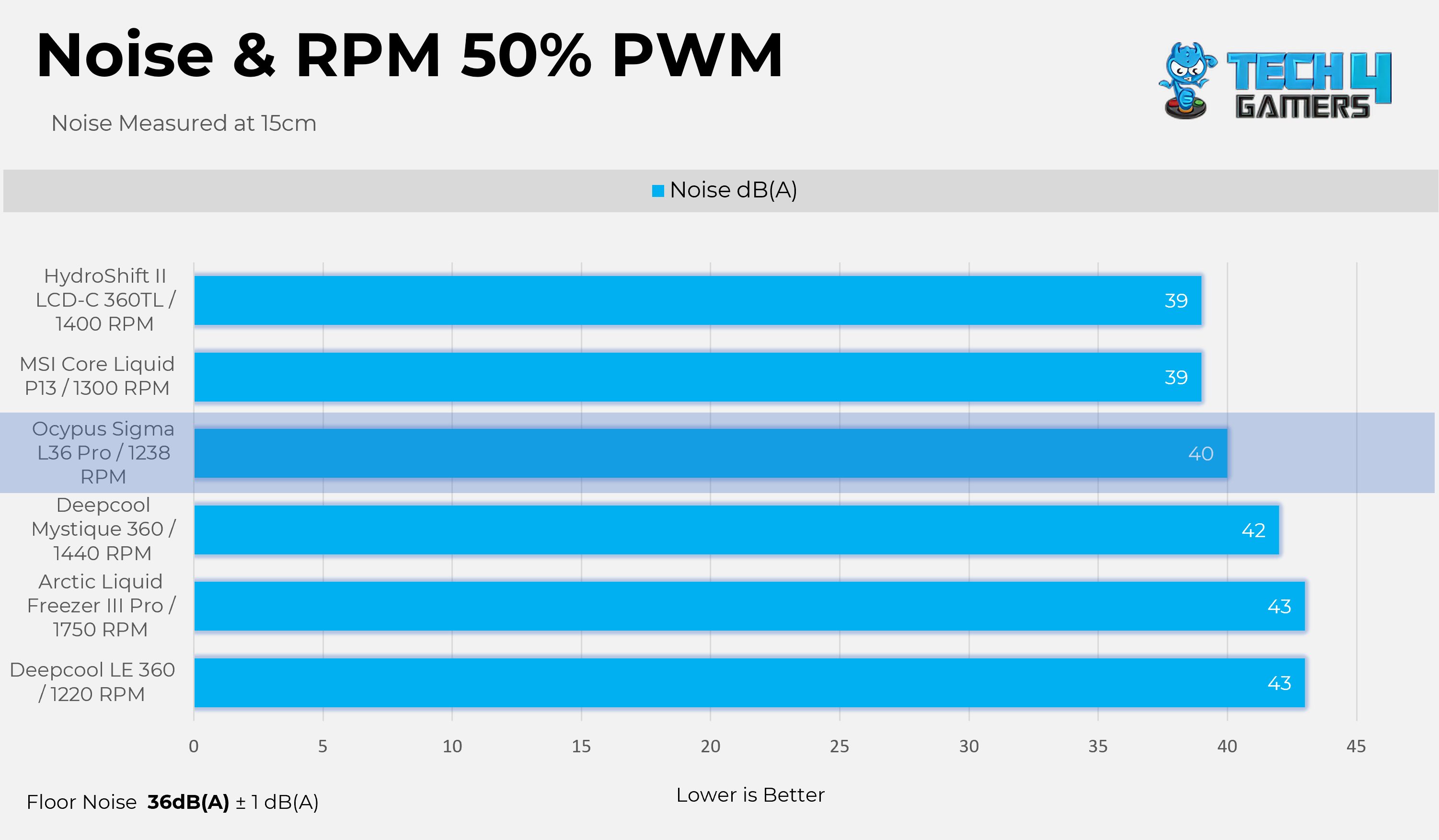
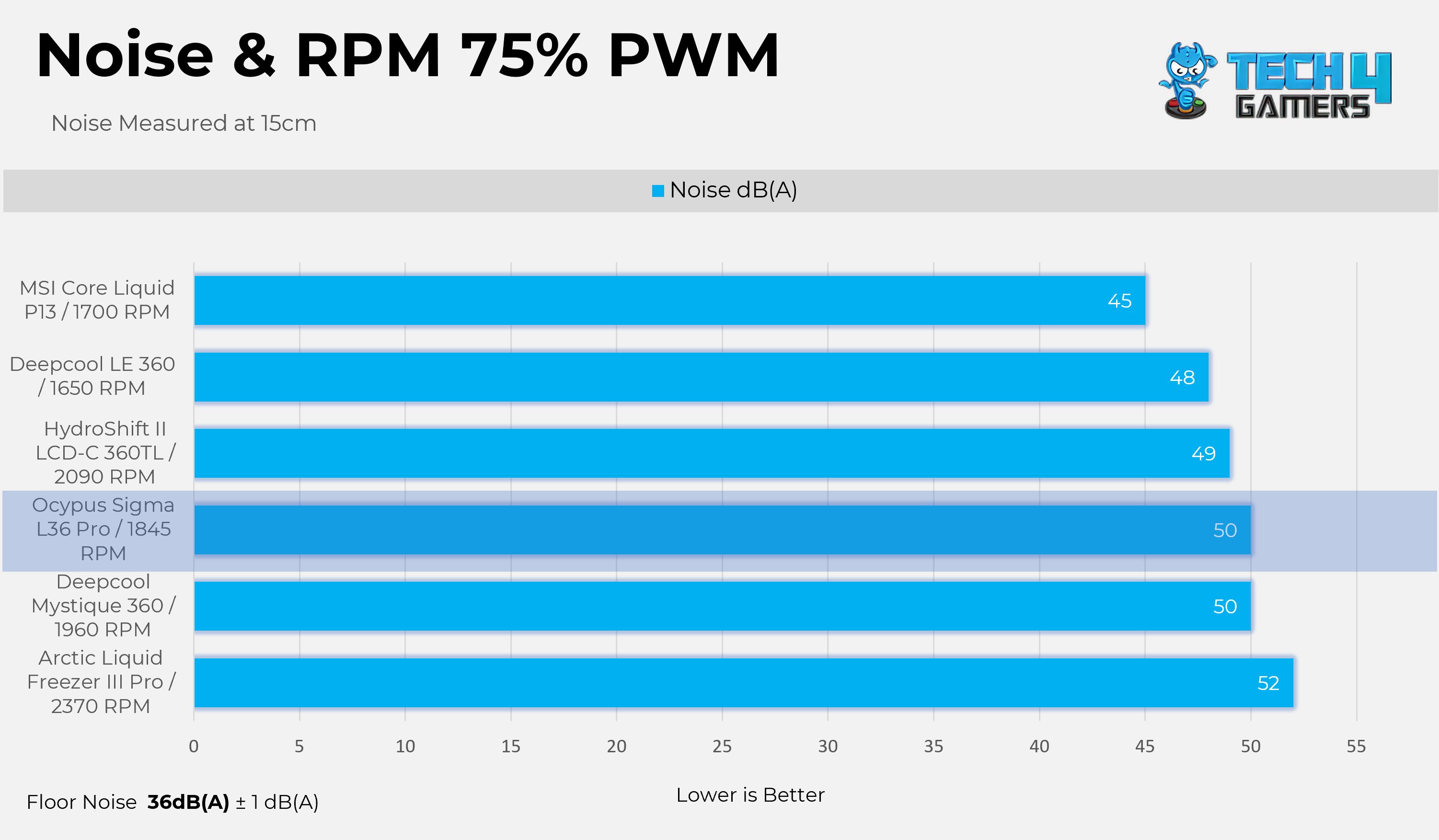
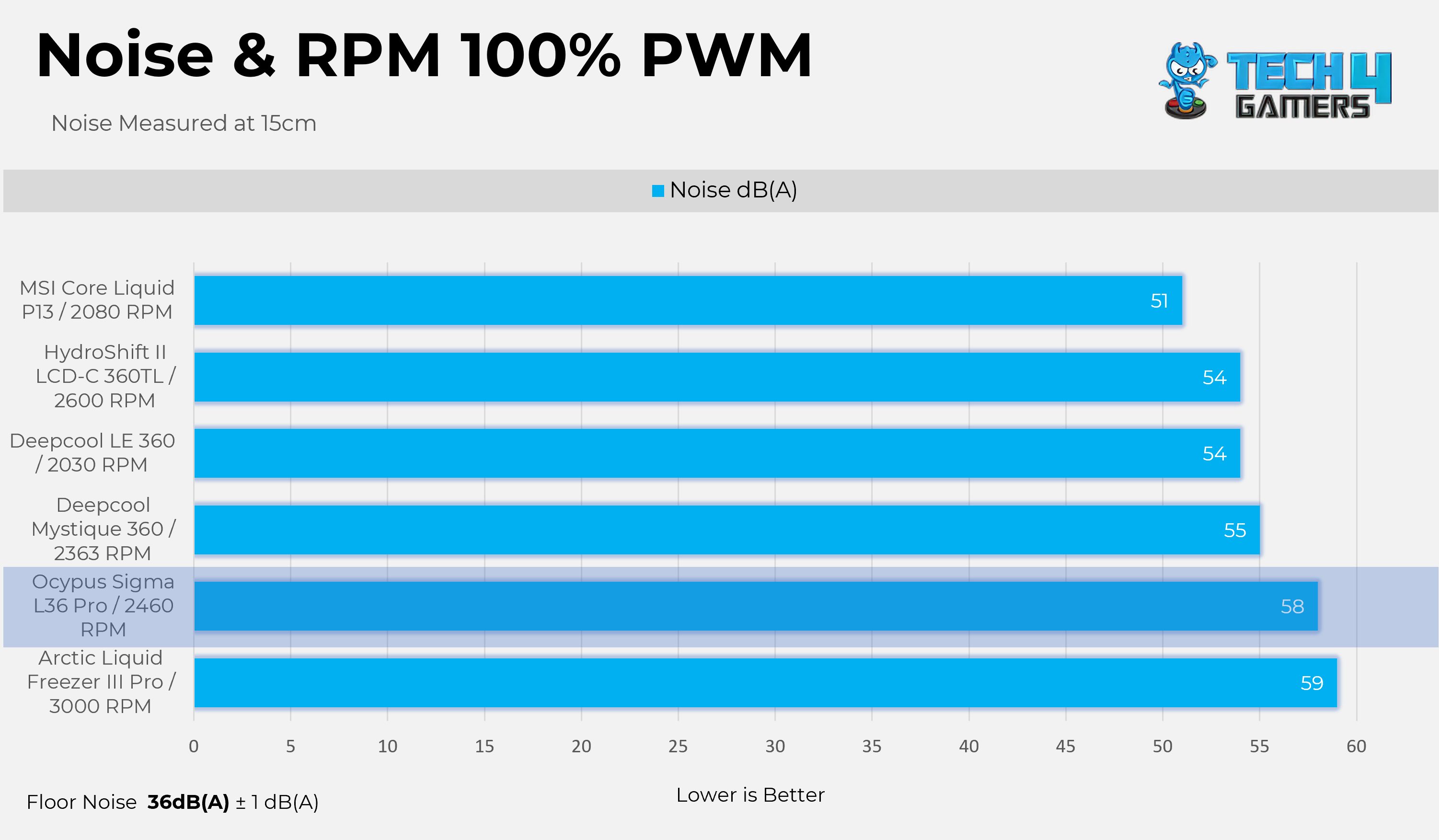
Noise and RPM Readings
Now, let’s examine the fan’s performance, specifically how much noise and RPM it produces at certain PWM levels.
Noise and RPM Results
1 of 4
Noise - 25% PWM
Noise - 50% PWM
Noise - 75% PWM
Noise - 100% PWM
Should You Buy It?
Buy It If
✅ You want decent Cooling: Sigma 36 Pro exhibits strong performance in cooling, compared to expensive coolers.
✅ You want a vibrant and large customizable display: The cooler features a floating 3.5-inch display that is highly customizable.
✅ You want peace of mind: Sigma L36 Pro is backed by a 5-year warranty.
✅ You are on an older platform: This cooler supports an ample number of sockets from Intel, including LGA115X/LGA1200.
Don’t Buy It If
❌The display is not your top priority: Cheaper Cooling Solutions can provide a similar level of cooling performance for much less price.
Final Thoughts
The Ocypus Sigma L36 Pro is like a breath of fresh air in the LCD cooler market, while most of the LCD all-in-one models follow a similar pattern, featuring more circular and rounded designs. Ocypus has done something different here. The Cooler features a futuristic floating design with a massive 3.5-inch display. The colors on the panels are very sharp and crisp. However, I had issues when setting the brightness below 30%. There is a significant color shift, and the blue tint appears more prominent, which means Ocypus needs to perform calibration for the displays at lower brightness levels.
I had one complaint with the LCD coolers, not precisely with the coolers themselves, but with their software. Ocypus has done an excellent job in optimizing its software. The application was snappy while changing themes, and there is also an option to customize your own theme. You can choose your desired background, add sensors, and add extra text layers or graphs, which feels extremely practical.
Cooling Performance And Noise
The OCYPUS Sigma L36 Pro exhibits outstanding thermal performance in our tests, and even emerges as the chart leader when the cooler is operating at 100% PWM. The pump is always running at its full speed, 3400 RPM, and is barely audible. On the other hand, the fans are loud when running at high PWM speeds, such as 75% and 100%. In terms of loudness, it’s very close to the Arctic P12 Pro, which spins at 3000 RPM. If the noise is the issue for you, we suggest users run at the 50-55% PWM speed level. You will lose almost 3 °C, but you will achieve significantly lower noise of up to 18 dB (A), which is a decent exchange.
Build Quality
So far, I’m satisfied with the build quality. The fans utilize FDB (Fluid Dynamic Bearing) with subtle curves on the sides. The fans use a solid, rigid plastic frame that feels premium. They have also streamlined the connections on the fans, which I really like. They have also provided the velcro straps, which is a pleasant addition. The installation was easy on the AMD platform. One thing I have noticed is that the magnetic force on the LCD is not strong enough, and the LCD shifts out of place if your hand accidentally touches it or if you move your PC to another location.
Value
The Ocypus Sigma L36 Pro Black is priced at $169.99, which is slightly on the premium side. The white variant is also available at a similar cost. The price is not bad when compared to other premium options in the segment, which can reach $200, such as Lian-Li models. Still, with the competition rising, the price should have been more competitive, as the MSI Core Liquid P13 has now fallen to $159, and comes with ARGB Fans. I hope OCYPUS slightly adjusts the price or provides the ARGB fans at the same price; that would be much better.
Currently serving as a News Reporter at Tech4Gamers, I have the privilege of combining my love for gaming with the art of storytelling. My role involves crafting engaging narratives that keep our audience abreast of the latest developments in the gaming world.
Story Highlight
Clair Obscur Expedition 33 and Hades 2 have been the biggest hits of this year, with the highest user scores on Metacritic, too.
In comparison, they’ve crushed the majority of AAA releases this year, which is a positive turn for the gaming industry.
For the future, AA and indie games will undoubtedly shape the industry and set the blueprint, forcing studios and publishers to innovate rather than create bland games.
The crumbling state of the gaming industry worries me for the future, especially when we see games with hundreds of millions of dollars being poured into them fail catastrophically.
That said, 2025 has taken a slight shift, and with gamers signalling that they’re not ready to follow in pursuit of the live-service bandwagon that corporations are attaching AAAA tags to, many smaller and mid-sized releases have had the chance to shine.
This year has mainly been about indie and AA releases, and among them, the most standout releases are Clair Obscur Expedition 33 and the more recent Hades 2. Despite smaller budgets, these releases still possessed outstanding qualities, and I believe they will serve as the blueprint for the future of gaming.
Why it matters: As a game scales up, development becomes more complex, and publishers are forced to adopt a higher price tag to recoup their costs. Therefore, multi-hundred-million-dollar games are no longer feasible, at least for most publishers.
Nobody Is Willing To Buy $80 Releases Anymore
The Industry Is Waiting On GTA 6 To Set A New Precedent For Game Pricing.
The current gaming generation has seen a price hike in standard gaming releases twice. While gamers were still adjusting to $70, corporations like Nintendo had already moved towards $80 releases, with Microsoft almost following suit.
However, things didn’t work out well for Team Green as they were forced to backtrack on their decision amidst heavy backlash from gamers. The $80 price tag is still not the golden standard in the industry, but it will eventually become the new norm.
Still, gamers have had enough, and considering how limited buying power is these days due to inflation and economic turmoil, purchasing new releases is becoming increasingly challenging. One poll even suggested that gamers aren’t willing to pay more than $70 for GTA 6, even if it’s the perfect release.
As such, these higher-priced games allow smaller releases such as Clair Obscur Expedition 33 and Hades 2 to stand out. The French-published JRPG was only priced at a reasonable $50, which was endorsed by gamers who were more than glad to pay for it.
On the other hand, the roguelike Hades 2 costs a mere $30 in this economy. Both Clair Obscur and Hades 2 have become the highest-rated games on Metacritic of 2025, which says a lot.
AA And Indie Games Are Keeping The Passion For Gaming Alive
A Game Like Clair Obscur Would’ve Taken More Than 2 Decades To Develop At Ubisoft.
Now, to say that the success of Clair Obscur and Hades 2 was possible due to their lower price tag would be half the truth. In reality, these were passion projects made by gamers for the gamers.
The development budget for Hades 2 is currently unknown, but it’s expected to be similar to that of its predecessor, which was approximately $15 million. In its early access phase, the sequel sold 2 million copies.
Clair Obscur had a development budget similar to that of Mirror’s Edge, which was released 17 years ago. The game is now closing in on the 5 million sale mark, which is expected to be reached soon.
Take Hades, for instance. It is, in my opinion, perhaps the best roguelike game, nailing every aspect: whether it’s the accurate representation of the Greek gods, the voice acting, or the flashy yet mesmerizing visuals, there’s just something about this game that immediately clicked with me.
On the other hand, Clair Obscur made me rethink the conception that turn-based RPGs can be boring. Even Charlie Cox, one of the actors from the game, is now willing to buy a console to play the game.
Forcing Other Developers To Try Better
Most video games are homogeneous these days, and for AAA games, that’s mostly the case. We’ve seen the Ubisoft formula being overused to the point that it has become fatiguing for gamers.
Other than that, the live-service focus still prevails, despite constant pushback from gamers; publishers aren’t ready to adapt. Frankly, there’s a significant disparity between corporations and consumers at the moment.
Games Like AC Shadows Have Caused Open-World Fatigue.
This is where indie and AA games come in. Perhaps the most ambitious and passionate individuals are keeping the essence of video games alive by innovating and introducing new changes.
Clair Obscur blends modern and classic RPG elements, adding a fresh touch to turn-based combat by incorporating real-time mechanics, such as dodging and parrying.
Hades 2, on the other hand, features endless combat variety, deeper progression, captivating art, and some really memorable characters, which have altogether made me fall in love with games for the second time.
If anything, the success of AA games and Indie games will force studios and publishers to actually try for once, now that the competition is healthy.
I’ve been the Journalist & Editorial Writer at Tech4Gamers since July 2022. I spearhead our hardware coverage, including overclocking GPUs, benchmarking CPUs, reviewing peripherals, and fine-tuning custom PC builds for every budget. Daily, I report on breaking gaming news, from major launches and studio updates to the latest industry trends, ensuring our community stays informed. Beyond news briefs, I write in-depth feature articles on gaming culture and emerging technologies. And by collaborating closely with the editorial team on content planning, SEO strategy, and our publishing calendar, I help us consistently hit our traffic and engagement targets.
Corsair’s been in the gaming keyboard scene for a long time. Occasionally, they release something that feels a little experimental. The Vanguard Pro 96 is precisely that. It’s not your average full-size board, but it isn’t a tiny compact either. What makes this keyboard stand out isn’t just the layout, but the switches beneath it, which are their MGX Hall Effect switches.
Moreover, with a built-in LCD screen and Elgato Stream Deck integration, you have a keyboard that is not only aimed at gamers but also suitable for streamers and content creators. Now, I know that you might be thinking that a lot is packed into one keyboard. That’s what I’m trying to find out: whether Corsair has managed to balance all these features without making the Vanguard feel like a gimmick. Let’s dive in!
Why Trust Tech4Gamers
Abdul Hannan is our peripherals expert who has been testing different mice, keyboards, headphones, microphones, and more for years.
130+ peripherals tested and reviewed by our team of hardware experts (Tech4Gamers Team).
500+ hours spent testing different peripherals for our reviews.
At Tech4Gamers, ensuring you get reliable information is our priority. That’s why every hardware round-up undergoes a meticulous review process by our team of experts and editors. Each review is carefully examined against our strict editorial guidelines, guaranteeing you trustworthy insights you can depend on.
Key Takeaways
The Vanguard Pro 96 is designed for competitive esports players, with a primary focus on speed, accuracy, and responsiveness. Its MGX Hall Effect switches allow for fast Rapid Trigger and SOCD, giving you an edge in fast-paced games.
You should consider the Vanguard Pro 96 if you value cutting-edge switch technology, want a compact yet functional layout, and stream or create content.
You should consider skipping the Vanguard Pro 96 if you require wireless flexibility, are budget-conscious, and prefer ultra-light keyboards.
Here are the technical specifications:
Model
Vanguard Pro 96
Form Factor
96%
Top Cover
Aluminium plate
Bottom
Plastic
Sound Absorbing Foam
Poron
Case Foam
Silicone
Wrist Rest
Magnetic cushioned Wrist rest
Colorway
Black
Keycaps
PBT Double shot (BR, SP, ES layout is ABS Paint)
Backlighting
Individually LED-lit and per-key programmable
LED Color
RGB
Key Switches
CORSAIR MGX Hyperdrive Hall Effect pre-lubricated key switches
Connectivity
USB 3.0 Type-A
Matrix
Full key rollover (NKRO) with 100% anti-ghosting
USB Report Rate
Up to 8,000Hz hyper-polling with CORSAIR AXON
Profiles
5 (1 On-board, 4 on WEB HUB)
Media Control
FN shortcuts / Rotary dial
Game Mode
Hotkey*1
Brightness Control
FN shortcuts / Rotary dial
Adjustable Height
Yes
Plug and Play Operation
Yes
Console Compatibility
Xbox One, Xbox Series X|S, PlayStation 4, 5
Cable
1.8m / 6ft, Detachable braided Type-C cable
Dimensions
388(L) x 141(W) x 43(H) mm
Weight
1.095kgs
Warranty
Two years – Local country regulations are applicable
[toc]
What Makes the Corsair Vanguard Pro 96 Different?
The Corsair Vanguard Pro 96 differentiates itself from its predecessors, such as the K70 series, by adopting a 96% layout, which retains the full functionality of a standard keyboard while offering a more compact footprint. Moreover, it caters to both gamers and content creators by integrating features such as a 320×170 LCD screen, a multi-functional rotary dial, and Elgato Stream Deck compatibility.
Packaging & Unboxing
Packaging & Unboxing
1 of 3
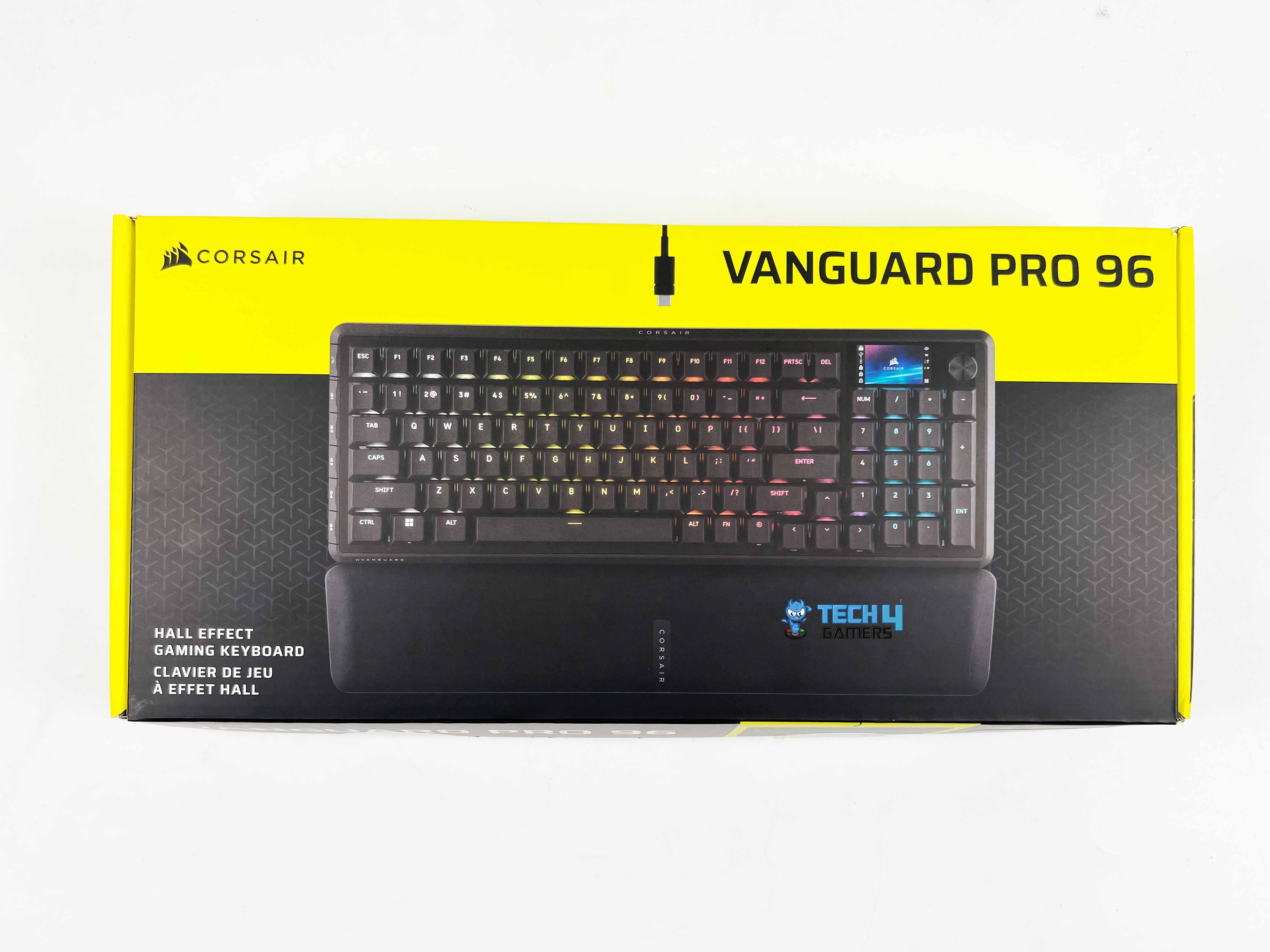
Corsair Vanguard Pro 96 - Frontside of the Box
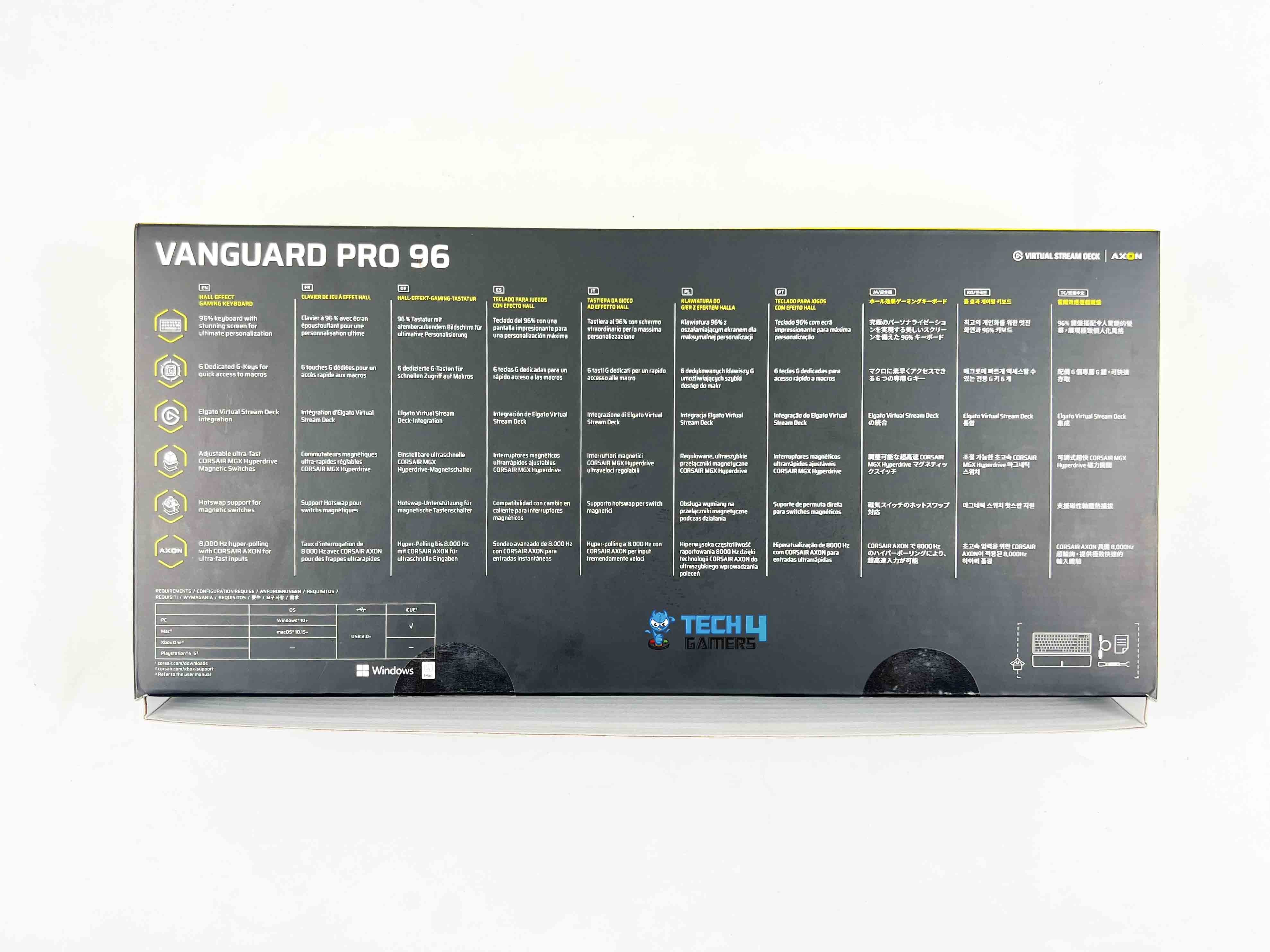
Backside of the Box
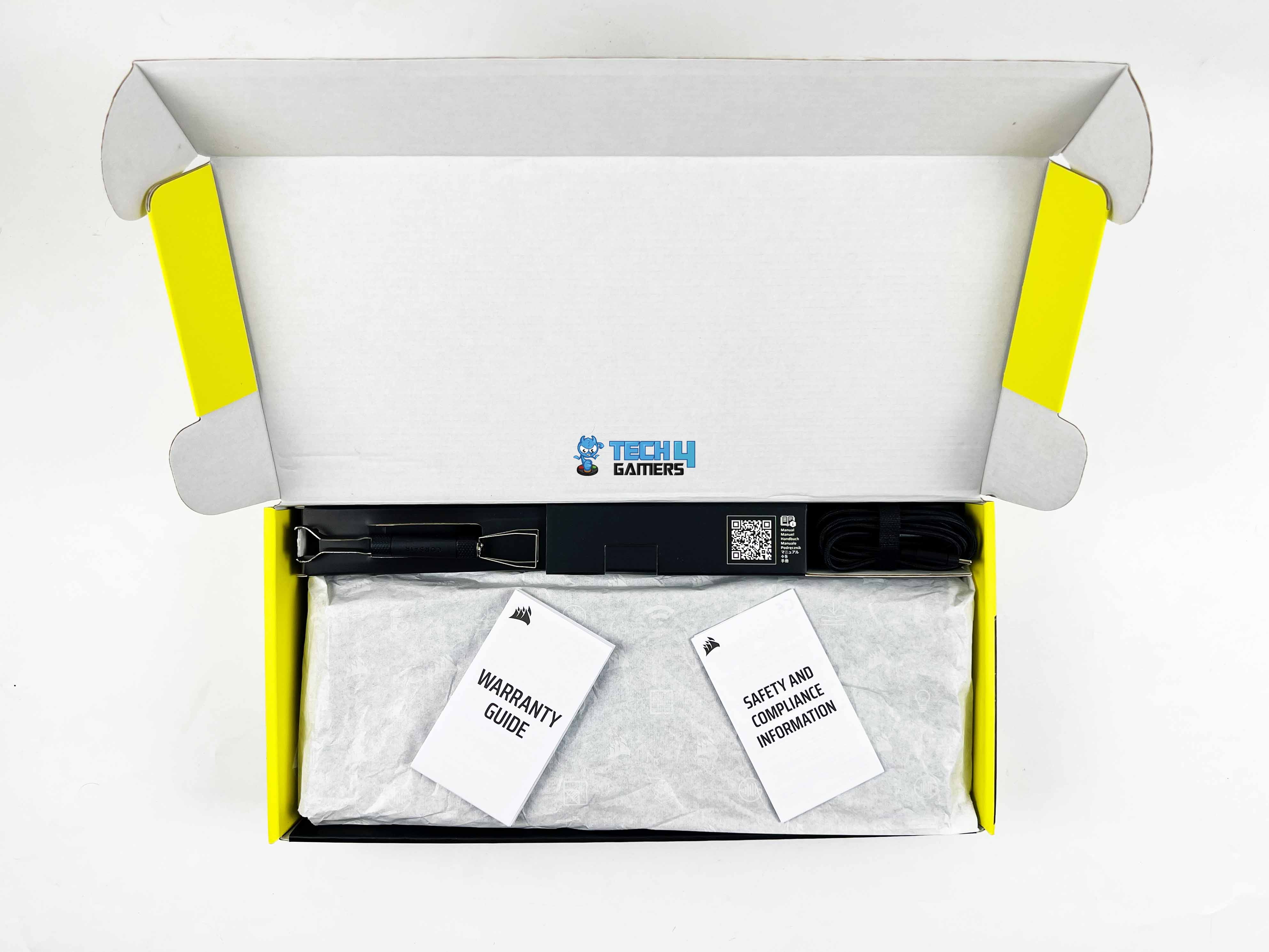
Unboxing
Opening the box, the Vanguard Pro 96 immediately feels premium, and that classic black-and-yellow Corsair color scheme makes it instantly recognizable. Inside, everything is neatly arranged and placed, keeping the keyboard and accessories well-protected. The keyboard’s wrapped in plastic to keep it safe. Additionally, you receive the standard paperwork, along with a couple of accessories to get you started. Finally, you’ll find the magnetic wrist rest placed underneath.
Box Contents
Box Contents
Here is the list of everything that comes inside the box:
Vanguard Pro 96 Hall Effect Gaming Keyboard
Detachable Magnetic Cushioned Palm Rest
Detachable Braided USB Type-C Cable
Safety Leaflet
Warranty Card
2 in 1 Keycap & Switch Puller
Design
Design
Corsair has opted for a clean, modern design with the Vanguard Pro 96. Slim bezels frame the board, topped with a sturdy sheet of aluminum that gives it a solid feel. The accents are subtle without crossing into RGB territory, and the compact frame gives the whole keyboard a tight look, almost as if every key and extra feature had been carefully thought out before being placed.
Since it leans toward a frameless design, the keycaps sit high and exposed, which not only helps the RGB lighting stand out but also adds to that minimalist vibe. Corsair’s usual design language leans towards a gamer-friendly aesthetic, but here it comes across as a bit more refined. You could keep it on your desk in a professional or work setting, and it wouldn’t look out of place.
Layout
G-Keys
The 96% form factor provides an adequate balance between compactness and practicality. You’re getting almost everything from a full-size keyboard, which includes a function row, arrow keys, and even a numeric keypad, without the desk-hogging footprint. It doesn’t feel cramped, given its dimensions of 388mm x 141mm x 43mm.
Compared to a full-size board, it’s clearly smaller, and even next to a TKL, it keeps that lean, streamlined look. That little bit of extra desk space comes in handy if you prefer to move your mouse around extensively in games. There are also six low-profile G-keys located on the side, which can be remapped as desired.
Multi-functional Rotary Dial
Multi-functional Rotary Dial
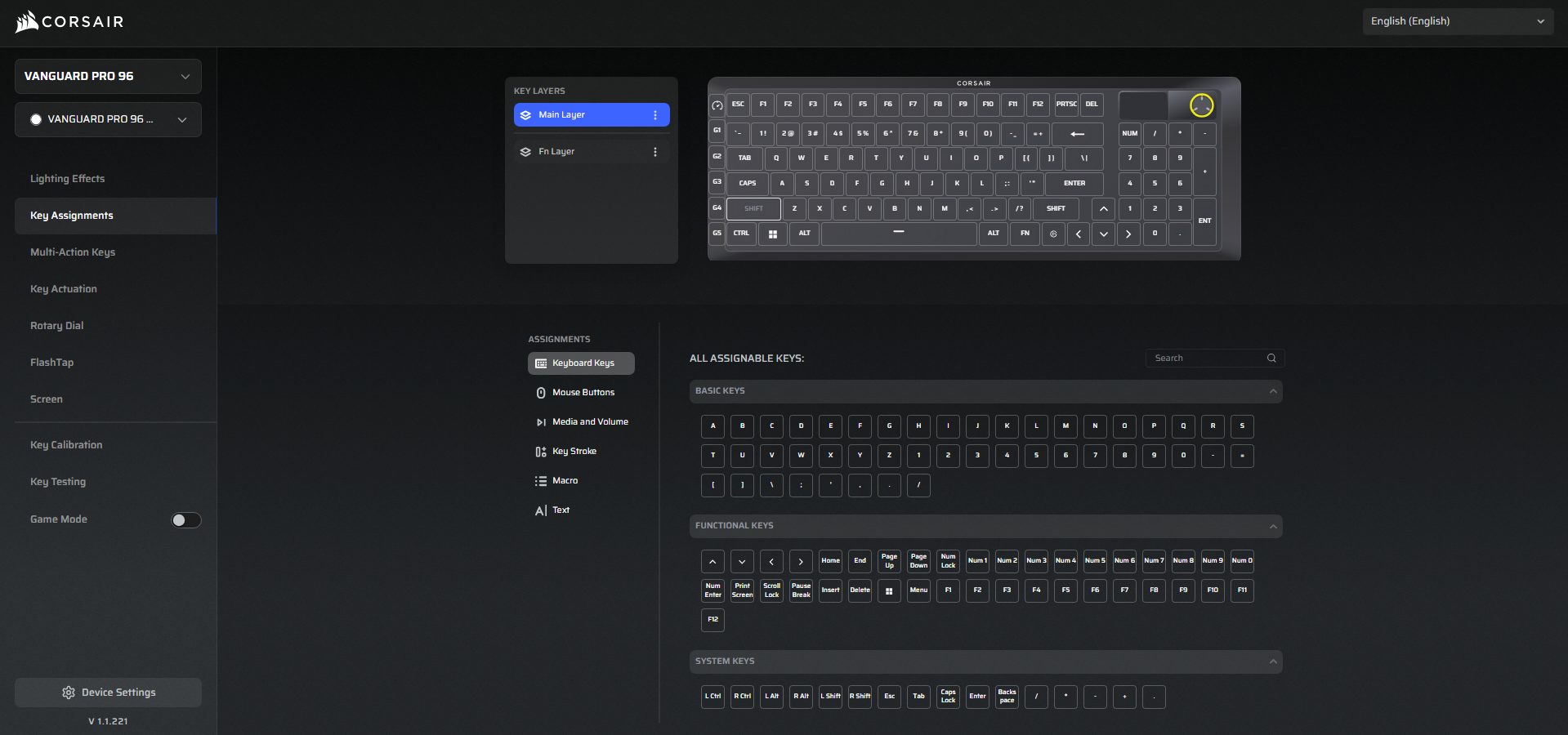
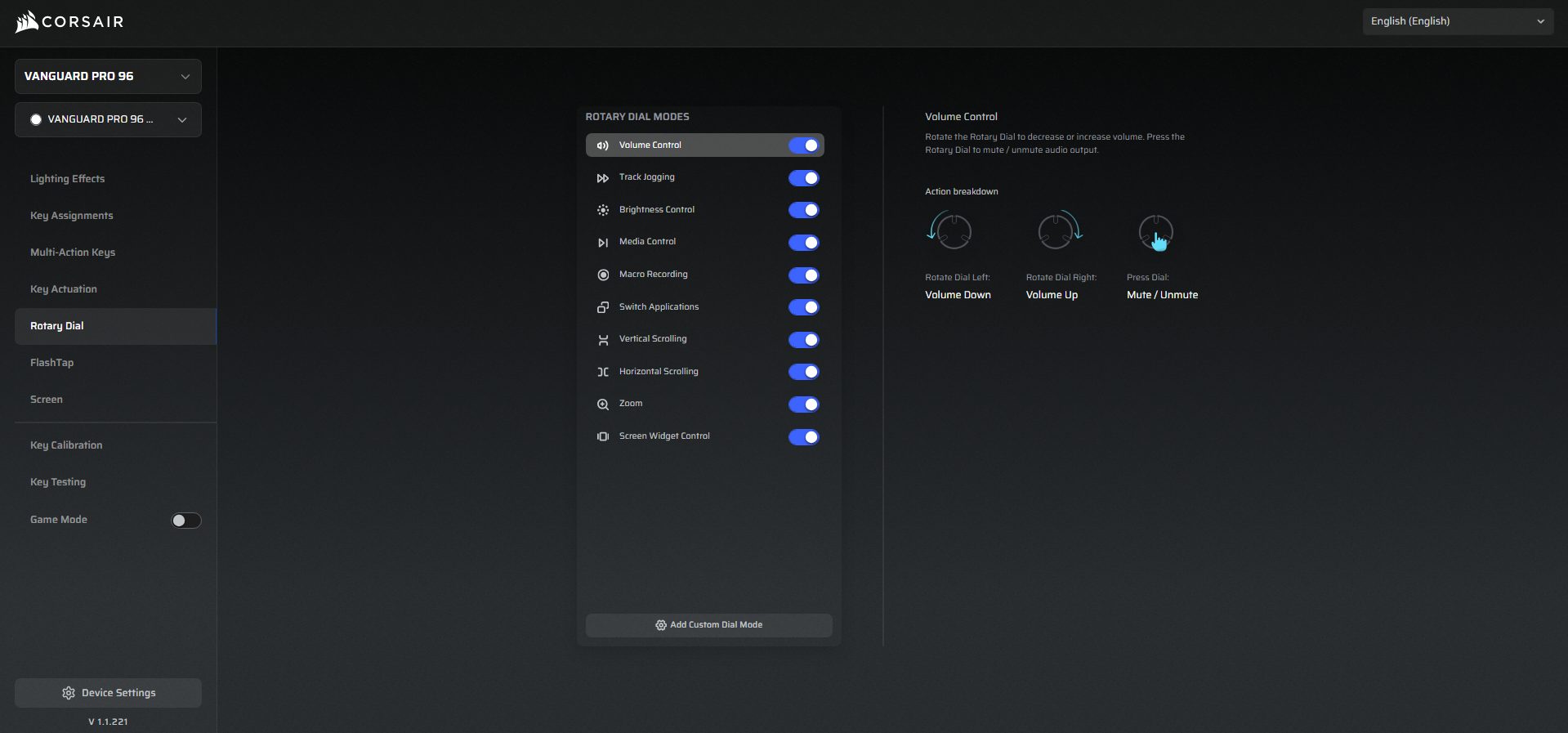
The rotary dial, placed at the left corner, appears to be a simple volume wheel, but Corsair has made it multi-functional. By default, you can control volume, but through Corsair’s Web Hub, you can remap it to perform various tasks, such as media control, track jogging, backlight control, macro recording, scrolling, zooming, switching between apps, and more. It is tactile and provides smooth steps when turned, ensuring a consistent and precise feeling.
LCD Screen
LCD Screen
Sitting right next to the dial is a 320 × 170 LCD screen. You can set custom images, short animations, or keep it practical by displaying system stats, such as temperatures or usage. In terms of responsiveness, the screen refreshes quickly enough that animations appear smooth, and system information doesn’t lag. The lighting remains clear and readable, even under bright room conditions. That matters because a sluggish or dim display would’ve turned this into pure gimmick territory.
Underside
Underside
Flipping it over, and you’ll notice Corsair actually put some thought into the back design. Corsair added routing channels across the underside, allowing you to run the cable in the direction you want, rather than having it protrude awkwardly from one side. At the bottom corners, you’ll find the two wide rubber feet, which do a solid job of keeping the board in place. Moreover, it is paired with flip-out feet at the top corners, which provide a comfortable typing angle that I typed on for several continuous hours without any discomfort.
Build Quality
Build Quality
At roughly 1.09 kg, it has the right balance, being heavy enough to prevent sliding around but not so heavy that it’s a burden to carry around. Fortunately, there is no flex and no hollow spots when pressure is applied, which is always a good sign. The plastic on the underside doesn’t cheapen the experience either. Corsair has effectively mixed different types of materials, resulting in durability without unnecessary weight.
All-metal keyboards can sometimes be challenging to handle, but here the weight feels adequate. It’s put together nicely, with a smooth finish, which adds points to its quality. The wrist rest attaches magnetically, requiring barely any effort. It feels secure when attached, but gets removed just as easily if you want to use the extra desk space. The material is soft and comfortable, providing relief during longer sessions.
Keycaps
PBT Keycaps
Corsair went with double-shot PBT keycaps. They have a nice matte finish that feels premium. The legends are laser-sharp and perfectly centered, which looks good when RGB lighting passes through. Corsair also used their signature modern, gamer-friendly font, and I think it complements the overall design well without being over-the-top. Another notable aspect is their compatibility.
Because this is a 96% layout, you might expect some weird key sizes, but Corsair kept things fairly standard. That means if you ever want to swap to a custom keycap set, you won’t be stuck finding rare sizes. Moreover, Corsair MGX switches use the same stem design as standard Cherry MX switches, so if you have a set of custom keycaps lying around, you can use them.
RGB Lighting
Vibrant RGB Lighting
What makes the RGB lighting pop is how the Corsair MGX switches are built. They don’t house their own LEDs, unlike some switches, but their translucent housing and the transparent panel running through the center allow the PCB-mounted LEDs to shine through without obstruction. The result is an even glow that spreads nicely across the keys, without any weird dim spots.
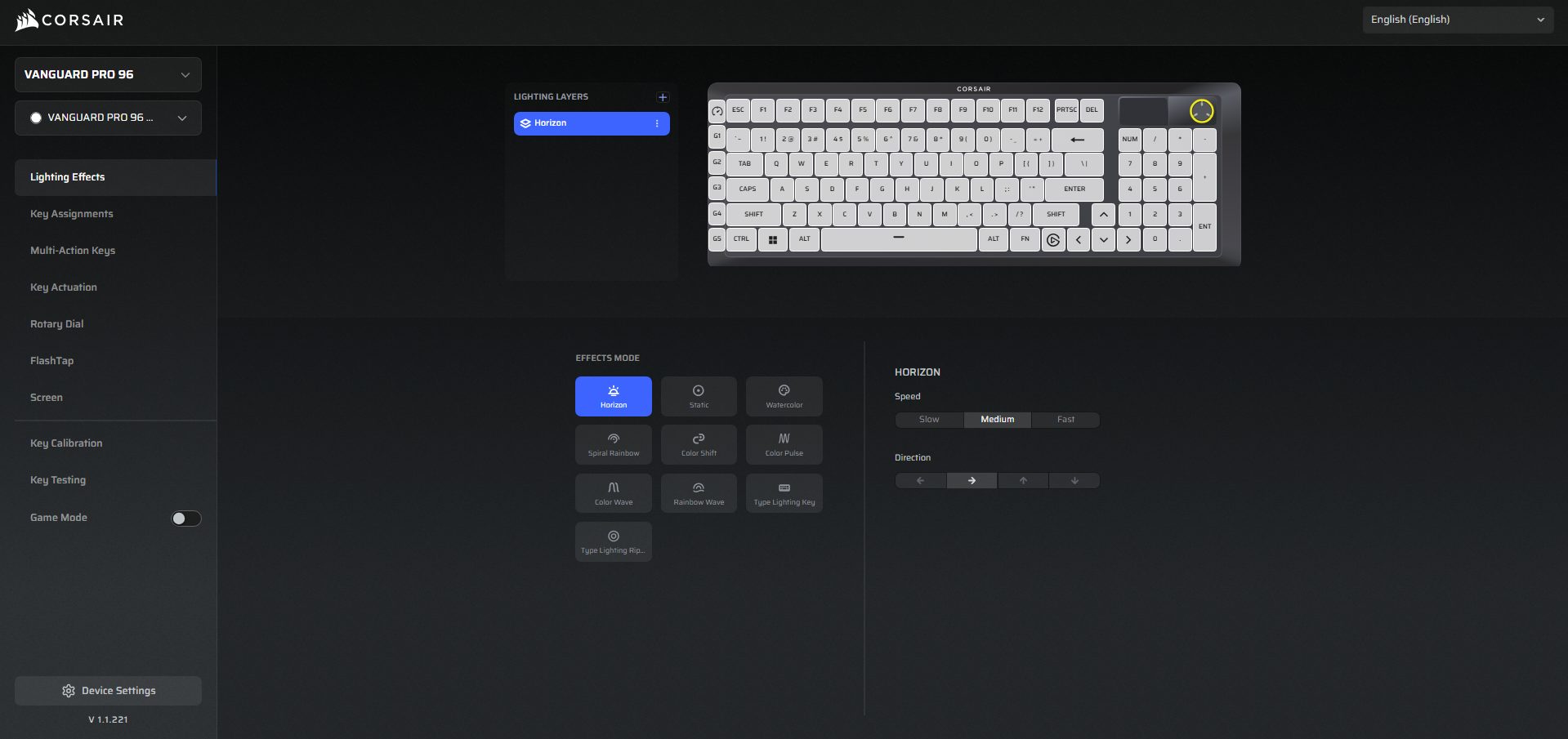
When it is paired with the translucent legends on the double-shot PBT keycaps. The lighting looks consistent and vibrant across the entire keyboard. Combined with per-key programmability, you have endless ways to customize the lighting effects. With Corsair’s Web Hub, you’re not restricted to just the usual rainbow waves, but you can set up reactive typing, game-specific profiles, or sync the lighting with your other Corsair hardware.
Switches
Switches
1 of 2
Switches
Switch Housing
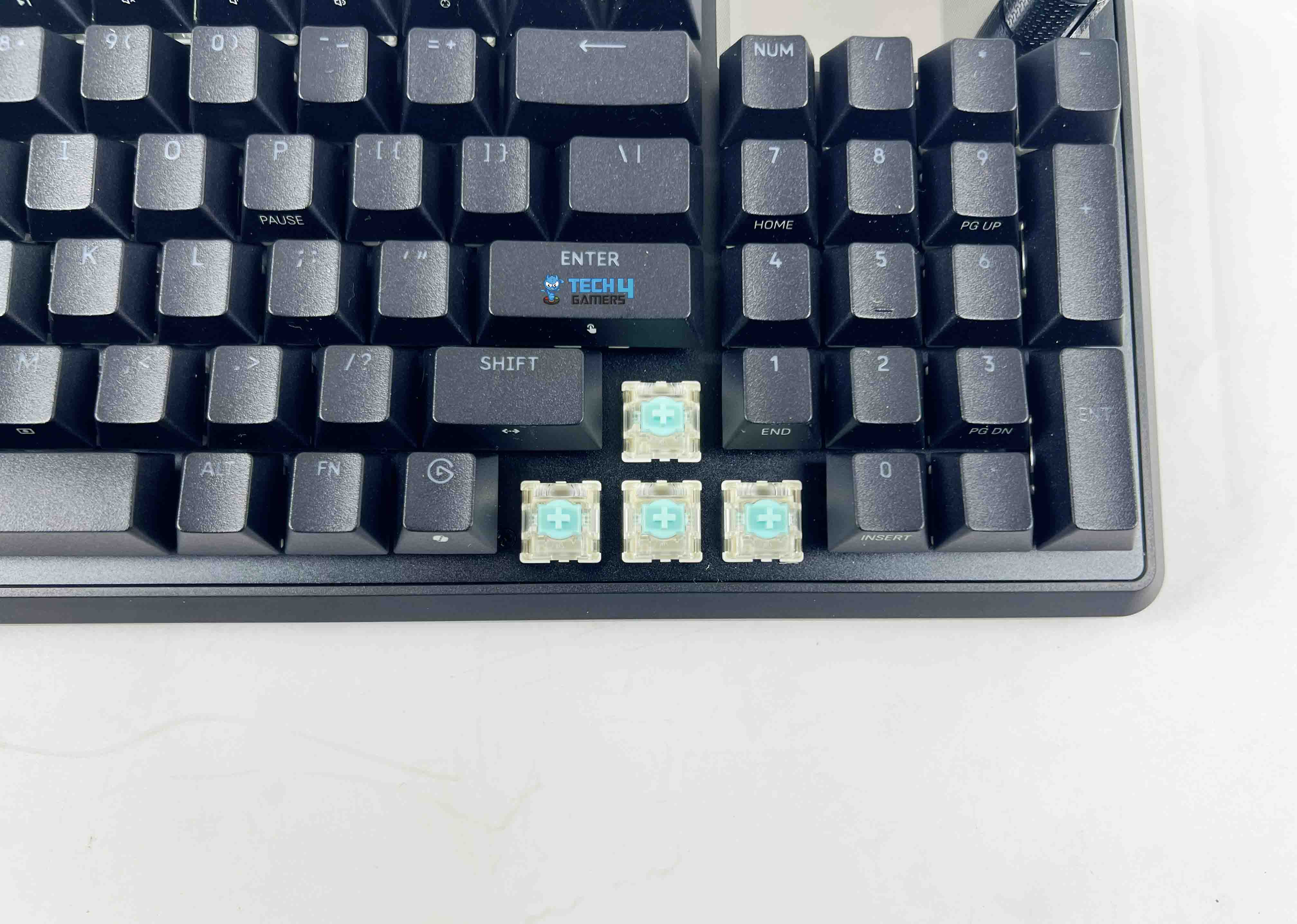
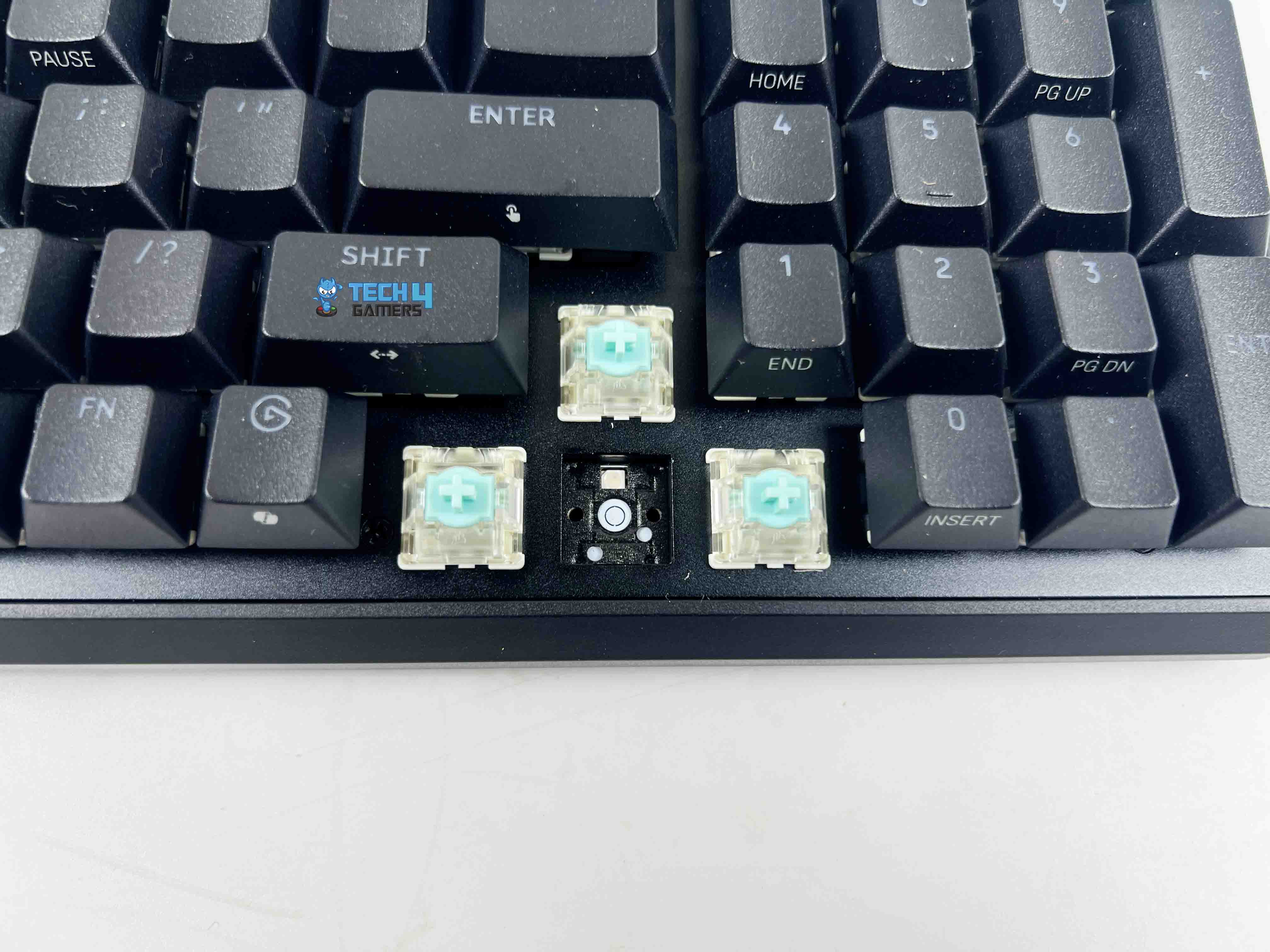
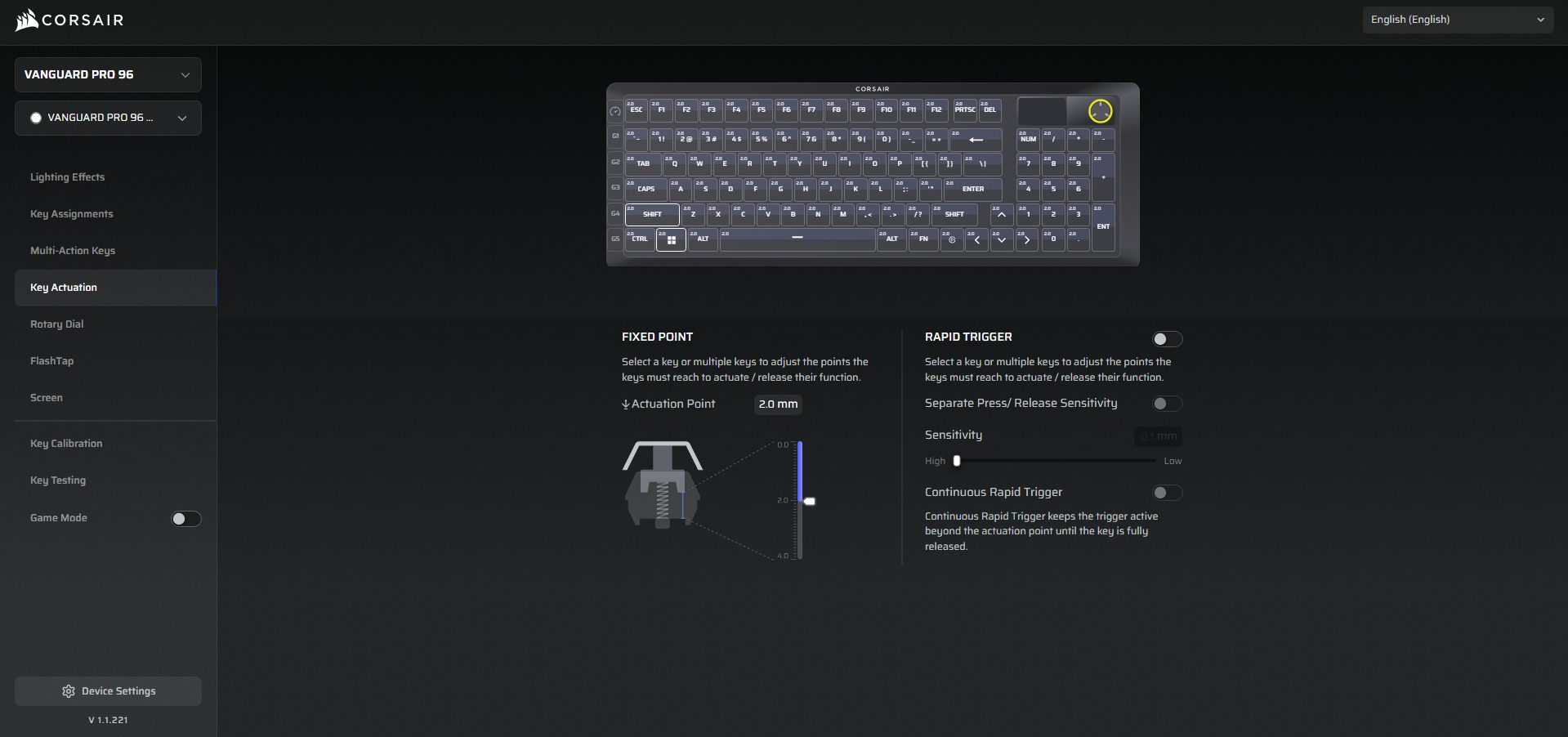
Instead of relying on traditional metal contacts, MGX Hall Effect switches use magnetic sensors to detect actuation. You can customize exactly where you want your keypress to activate and achieve fine control in 0.1mm steps, ranging from an ultra-fast 0.1mm press all the way down to a full 4.0mm press. Moreover, the actuation force changes with depth, ranging from 30g when set shallow to 55g when set deeper. It adapts to how you configure it rather than forcing you to get used to one fixed feel.
You can even set two actuation points on a single key. For instance, pressing “W” lightly to walk and pushing it further down to sprint. The same could apply to crouch vs prone, or skills in an MMO. Lastly, it supports hot-swapping with compatible magnetic switches. That means you’re not stuck with MGX forever, and you can experiment with other Hall Effect options down the line if you want to customize it even further.
Connectivity
Connectivity
For connectivity, the Vanguard Pro 96 sticks to the basics, offering a single USB-C wired connectivity. However, it makes that choice worthwhile with its ultra-responsive 8,000Hz hyper-polling rate. Instead of the standard 1,000Hz most keyboards stick to, this one transmits signals to your PC up to eight times faster. This results in lower input latency and near-instantaneous keystrokes.
Some people might miss having the option of using it in wireless mode, but Corsair clearly focused on speed and stability here. There is no input lag here, which is precisely what you want when gaming. Lastly, the USB-C cable is braided and detachable, making it both durable and flexible enough to move around your desk. Since you can remove it, swapping in a different cable for aesthetics or just for convenience is possible.
Typing Experience
The MGX magnetic switches feel really smooth across all the keys, and they’re pre-lubed straight out of the box. You can even adjust the actuation point on each key, which makes the board feel like it was specifically designed with your preferences in mind. The PBT double-shot keycaps have a grippy texture that feels comfortable under my fingers. Moreover, stabilizers on larger keys, such as the spacebar and Enter, are free of distracting rattles, which makes the overall typing sound more refined.
Corsair opted for a four-layer damping setup, using Poron sound-absorbing foam beneath the plate and silicone case foam within the body. All those layers complement each other to absorb the unwanted ping and clatter, resulting in a quieter, more refined sound. It’s not entirely silent, but instead leans into that refined thock territory, which is quiet yet satisfying and enjoyable with every press. Lastly, there’s a slight bounciness in the keypress that makes the board feel springy, especially at shallower actuation points.
Performance
Wrist Rest
In day-to-day use, the Vanguard Pro 96 feels quick and snappy, especially if you’re coming from a standard mechanical board. It features outstanding features, such as Rapid Trigger, which allows the actuation to reset as soon as the key is released. It made rapid taps, such as quick ability spams in MOBAs, much smoother and faster. Then there’s FlashTap SOCD handling, which comes in handy when you press two opposing movement keys simultaneously.
In FPS titles, it made counter-strafing feel more consistent, and in fighting games, it ensured cleaner directional inputs without weird overlap. Corsair also uses its AXON Hyper-Processing Technology, which facilitates the seamless handling of complex lighting layers and inputs. This means that your keystrokes are registered and processed more quickly. Lastly, there’s the Game Mode button, which you activate by tapping it, and the keyboard would lock itself into a competition-friendly state.
Software
Software
1 of 9
Key Assignments
Lighting Effects
Game Mode
Multi-action Keys
Key Actuation
FlashTap
Rotary Dial
Screen
Key Calibration
Corsair accompanies the Vanguard Pro 96 with its new Web Hub software. Unlike their older iCUE, this one runs entirely through your browser, so there’s no heavy client constantly running in the background. Inside, you get complete control over things like Lighting Effects, key remapping, rotary dial, flash tap, screen, and many more. Compared to iCUE, which often felt cluttered and intimidating due to its numerous menus, Web Hub keeps things simple and straightforward.
For instance, lighting, performance tweaks, and profile management are all logically organized, so you don’t feel like you’re navigating through different layers of UI to find what you need. In my experience, it’s faster and more intuitive, as you spend less time customizing the keyboard. Lastly, it supports Elgato’s Virtual Stream Deck, letting you map Stream Deck functions directly to its six programmable G-keys and it also has a dedicated key for it. You can switch scenes, trigger overlays, control audio, or launch macros all directly from the keyboard.
Should You Buy It or Not?
Buy it if
✅ You value cutting-edge switch technology: The Vanguard Pro 96’s MGX Hall Effect switches offer adjustable actuation points and dual actuation.
✅ You want a compact yet functional layout: Its 96% form factor provides a full function row, arrow keys, and a numeric keypad, saving desk space without sacrificing usability.
✅ You stream or create content: With the built-in LCD screen and Elgato Stream Deck integration, you can manage overlays, switch scenes, or monitor system stats directly from the keyboard.
Don’t buy it if
❌ You need wireless flexibility: The Vanguard Pro 96 relies solely on a wired USB-C connection, so it’s not made for you if you prefer a wireless keyboard.
❌ You’re budget-conscious: While feature-packed, this keyboard is positioned at a higher price point than typical gaming keyboards.
❌ You prefer ultra-light keyboards: At over 1 kg with a solid aluminum frame, it’s heavier than most compact keyboards, which might be less convenient for frequent travelers.
Final Verdict
With the Vanguard Pro 96, Corsair has clearly raised the bar once again, and it is successful in doing so. Building on the legacy of the K70 series, this keyboard sets a new benchmark by combining hall-effect switch technology and creator-focused features in a compact 96% layout. This balance makes it a productive and streaming keyboard, as it is a competitive one. I also like how Corsair featured the extras on it.
The LCD screen and multi-functional knob aren’t just a gimmick, but they’re genuinely helpful. Moreover, for anyone who streams or is into multitasking, the Elgato Stream Deck integration is a real bonus. Obviously, it’s not perfect, since the missing wireless option might be a dealbreaker for some at this price point, and it’s certainly more expensive than typical gaming keyboards. Even so, with its extensive range of features, extensive customization, and focus on both gamers and creators, the Vanguard Pro 96 positions itself as a worthwhile option.
At T4G, my task is to cover the latest news around the gaming globe ASAP and with the utmost precision. I adore all the games and respect all the devs behind the amazing games that we get all year. So, whether it’s a PC or a Console game, I got it all covered.
Story Highlight
Dan Houser says Red Dead Redemption 2 is the best work Rockstar has ever done.
The rest of his favorites include GTA 4, GTA 5, and the original Red Dead Redemption.
Red Dead is still considered the benchmark of open-world story-driven games.
Rockstar is mainly associated with the Grant Theft Auto franchise. However, the company also has some other outstanding IPs, including Max Payne, Bully, L.A. Noire, and more. However, the company executive has a favorite.
According to Rockstar Games co-founder, Red Dead Redemption 2 is the studio’s best work to date. Many fans will agree with this, considering the title is considered one of the finest open-world story-driven games ever.
Why it matters: While GTA itself is a phenomenon, Red Dead 2 is considered the epitome of storytelling and character development, with graphics that still stack up to modern releases.
During an LA Comic Con interview with IGN, Dan Houser went candid and talked about various Rockstar games titles. He talked about why Bully never got a sequel despite the demand, and also what he considers their best work.
Red Dead 2, I think, was the best thing that I worked on, the best single kind of realization of sort of open-world storytelling thematic consistency, and understanding how the games are assembled to take you on an emotional journey.
– Dan Houser
To this day, Red Dead Redemption 2 is played by many and adored by even more. Rockstar has revealed some plans for another entry, but fans have been looking forward to something new in the series for the longest time.
Red Dead Redemption 2 is considered the benchmark of modern storytelling in games
He further praised GTA 4, stating that it was another project where they tried to evolve storytelling. GTA 5 worked great with 3 protagonists as well, but it has its issues that Houser is well aware of.
Anyhow, Rockstar has proved that it is among the best studios in the industry time and time again. Also, we are now closer than ever to the GTA 6 launch, which is all set to take over the gaming world in almost 8 months.
What are your thoughts on Red Dead Redemption being Rockstar’s best work? Let us know your opinions in the comments or join the discussion at the official Tech4Gamers Forum.
At Tech4Gamers, I contribute as a Senior News Reporter, combining my skills and gaming enthusiasm to keep our audience updated on the latest developments.
Story Highlight
The former Blizzard president believes the console business still has potential if done right.
He also suggests that Microsoft is confused about Xbox’s brand identity.
These statements come after PlayStation confirmed the PS5 to be its most successful console generation.
The console industry has supposedly stagnated over the last few generations. Between constant price hikes from PlayStation and Xbox, and the growing appeal of PC gaming, this segment of the industry no longer dominates like it used to.
Xbox seems to have completely given up on its console strategy and has instead chosen to go for a broader appeal. Amid the confusion, former Blizzard president Mike Ybarra has disagreed with the thought that consoles are going out of business.
Mike Ybarra Still Has Faith In Console Industry | Image via Twitter
Replying to a tweet about Sony confirming that it had generated $136 billion in sales over the PS5 generation, Mike Ybarra expressed disagreement with the usual thought of console gaming no longer being a viable business.
He went on to say that it can indeed be successful when done right. The former Blizzard president also replied to a Tweet referring to Microsoft’s ‘Everything Is An Xbox,’ suggesting that the brand is confused about its own identity.
Interestingly, this is not the first time Mike Ybarra has compared PlayStation and Xbox. The ex-Blizzard exec has been known to be quite vocal about his thoughts on the console gaming industry, and his latest tweet is no different.
While it’s clear that console gaming has become more challenging for gaming giants, Mike Ybarra clearly believes there is still potential in this segment of the industry.
What do you think about Mike Ybarra’s opinion? Do you still believe console gaming has more potential? Let’s discuss in the comments and on the Tech4Gamers Forums.
Currently serving as a News Reporter at Tech4Gamers, I have the privilege of combining my love for gaming with the art of storytelling. My role involves crafting engaging narratives that keep our audience abreast of the latest developments in the gaming world.
Story Highlight
An insider suggests that $500 is a reasonable price for the upcoming PS handheld, provided it doesn’t feature an OLED display.
The handheld also features a compact SoC that makes it efficient so that Sony can limit costs on cooling, board, and battery.
For less than half its price, the PS handheld is expected to outperform the Xbox ROG Ally.
Sony is finally set to return to the handheld market with a new PS handheld that is set to release alongside the PS6 console. With recent handhelds like the Xbox Rog Ally X and Lenovo Legion Go 2 priced at more than $1000, the main question arises whether Sony will follow in the rest of the industry’s footsteps.
Fortunately, that won’t be the case for Team Blue. As per a new report, the upcoming PS handheld could be priced at a reasonable $500, given that Sony doesn’t opt for an OLED display.
Why it matters: Handheld consoles have become too expensive, making them a hobby that only a few consumers with higher purchasing power can afford. However, Sony’s PS handheld is said to cost half that of its competitors’ and will be more affordable to a broader audience.
PS Handheld Will Run All PS5 Games Natively
As per Kepler2, a reliable insider when it comes to console development, the SoC on the PS handheld is quite compact and draws less power than the rest of the handhelds. This will allow Sony to cheap out a bit on ‘board/cooling/battery’ and, in return, keep costs under control.
I think $499 is doable unless they go for a higher-end OLED screen.
Furthermore, the insider also implied that ASUS is selling their handheld at a higher profit margin, which won’t be the case with the PS handheld. Gaming giants like Sony and Microsoft are known to sell their consoles at a loss, with little to no profit. The primary profits are generated from game and subscription service sales.
PS6 Set To Release In 2028
However, if Sony does opt for an OLED display, the handheld could easily increase in price by $100. Still, the best option would be to offer two separate models: one with an LCD and the other with an OLED display.
Still, at less than half its price, the upcoming PS handheld is said to outperform the Xbox ROG Ally X. This isn’t surprising at all, since Sony is the pioneer in the handheld market, and it’s only right for them to return with a bang.
At Tech4Gamers, I contribute as a Senior News Reporter, combining my skills and gaming enthusiasm to keep our audience updated on the latest developments.
Story Highlight
Following the release of Bully in 2006, Rockstar never revisited the franchise.
Studio co-founder Dan Houser says that a sequel didn’t happen because Rockstar could only work on limited projects with limited resources.
At the time, the studio was juggling games like GTA 4, Red Dead Redemption, and a lot more.
Other IPs, such as Bully, also remain fan-favorites to this day, with many expressing interest in a sequel. Although Bully 2 has been rumored for quite a while, the studio’s founder says that the game never happened due to bandwidth issues.
Why it matters: Insiders previously revealed that Rockstar was indeed interested in making Bully 2. Unfortunately, the project was cancelled fairly early on in development.
According to Dan Houser, the co-founder of Rockstar, Bully 2 not happening was simply a matter of the studio lacking enough resources. When the original game launched in 2006, Rockstar had its hands full with a slew of different projects.
Between GTA 4, Red Dead Redemption, and more, multiple plans were already in motion by the time the team would have moved on to Bully 2. Dan Houser says that the studio could only do so much at the time with its limited resources.
I think it was just bandwidth issues. If you’ve got a small lead creative team and a small leadership crew, you just can’t do all the projects you want.
It should also be noted that Rockstar was not nearly as big in 2006 as it is today. The studio employs thousands of developers today, largely due to the success brought on by GTA 5 in 2013.
The Future of Bully Remains A Mystery For Now
This is likely why many of Rockstar’s smaller IPs have not been revisited to this day. The likes of Midnight Club and Manhunt are a few more examples of franchises that have been left behind in favor of Red Dead Redemption and GTA.
Still, fans remain interested in Bully 2. Many even believe that Rockstar should branch out to other IPs after GTA 6, with Bully being among the frontrunners for a new release.