I’ve previously worked for eXputer as a Senior News Writer for several years. Now with Tech4Gamers, I love to devoutly keep up with the latest gaming and entertainment industries. I have a Bachelor’s Degree in Computer Science and years of experience reporting on games and breaking exclusive stories. Besides my passion for gaming journalism, I love spending my leisure time farming away in Stardew Valley. VGC, IGN, GameSpot, Game Rant, TheGamer, GamingBolt, The Verge, NME, Metro, Dot Esports, GameByte, Kotaku Australia, PC Gamer, and more have cited my articles.
Story Highlight
Arc Raiders was the best-selling game by revenue on Steam over the holiday period.
The extraction shooter sold more than the Steam Deck, Battlefield 6, and Expedition 33 in the week ending December 30.
GTA 5 also made the top 10 list, once again showing its immense staying power.
The title has also been a sales juggernaut, selling 7 million copies across all platforms, and from the looks of it, this number is about to get a major boost from the holiday period.
Why it matters: A live-service title with responsive developers who pay heed to fan feedback, selling so much, should set an example for the industry.
According to SteamDB, excluding free games, Arc Raiders was the best-selling product by revenue on Steam across the Christmas period. Sales data compiled from December 23 to December 30 shows that the Embark title even surpassed the Steam Deck, which ended up at no. 2 on the list.
Considering that gross revenue rather than unit sales is used to rank this chart, that is a commendable achievement by Arc Raiders. The extraction shooter was also able to beat out Battlefield 6 once again, as the EA title ended up at the number 3 spot on the list.
Game of the Year winner Clair Obscur: Expedition 33 finished behind Arc Raiders, with Baldur’s Gate 3 and EA Sports FC 26 rounding out the top 6. Indie darling Dispatch, which hit 3 million players recently, also made the list, and GTA 5 wrapped up the top 10, showcasing strong sales over a decade from launch.
If Embark plays its cards right, Arc Raiders could be set for a big 2026.
Overall, however, Arc Raiders turned out to be the dominant force once again after months of consistent success. Considering how the extraction shooter was the most Googled video game on Earth in 2025, there is every chance that it will blow up to be as big as Fortnite this year, just like streamers are predicting.
Do you think Arc Raiders is yet to hit its peak? Will it be as big as Fortnite in the future? Tell us in the comments below or head to the Tech4Gamers forum for discussion.
At T4G, my task is to cover the latest news around the gaming globe ASAP and with the utmost precision. I adore all the games and respect all the devs behind the amazing games that we get all year. So, whether it’s a PC or a Console game, I got it all covered.
Story Highlight
Ex-Blizzard boss asks enthusiasts to buy a PS5 Pro instead of an expensive gaming handheld.
He says at that price point, you can get a Pro with a ton of games, which will be a better value.
A traditional console would last 4 more years easily, while handhelds would be outdated soon.
Gaming handhelds are all the hype this year and for good reasons. They have finally become good enough for AAA gaming, so they are becoming more mainstream; however, some people still prefer to spend their money on traditional consoles.
Former Blizzard Entertainment boss says that players should buy a PlayStation 5 Pro for $749.99, instead of getting an expensive handheld like a GPD Win 5 for around $1500, as the former provides a much better value.
Why it matters: Gaming handhelds and home consoles both have their advantages and drawbacks, and it ultimately comes down to the player to decide what they want to compromise on and what they actually want.
Former Blizzard boss states that a PS5 Pro is a better purchase than an expensive handheld
In an X post, Mike Ybarra, former Blizzard boss, replied to a Digital Foundry review on GPD Win 5. He said that he gets the mobile capacity of the handheld, but at that price point, just get a PS5 Pro and a ton of games with it.
Ybarra says that the subsidized console model that we see with PlayStation and Xbox will always be a better buy for enthusiasts, as most can afford a $1500 handheld, and with component prices increasing, it could get worse.
GPD Win 5 performance comparison against the PS4 (Via Digital Foundry)
Another point he raises is that a traditional console like a PS5/PS5 Pro and Xbox Series X could easily last you another 4 years, which gaming handhelds can’t, despite their much higher price tag.
Now, yes, gaming handhelds do provide the worst value, but no one can deny their practicality, especially now. Still, traditional consoles will always be a better purchase as a decent-performing handheld easily costs $1000+.
What are your thoughts on Mike Ybarra saying PS5 Pro is a better purchase than an expensive handheld? Let us know your opinions in the comments or join the discussion at the official Tech4Gamers Forum.
As a Senior Hardware Reviewer at Tech4Gamers with over a decade of hands-on experience, I dive deep into benchmarking GPUs, CPU coolers, and motherboards, pushing hardware to its limits. Passionate about overclocking and fine-tuning performance.
If you’re familiar with CPU cooling, you might know Arctic, a brand that has been manufacturing computer cooling hardware, including CPU and graphics card coolers, as well as case fans, since 2010. The computer cooling has been their primary focus. One of their prominent all-in-one liquid-cooler series is called Freezer, a trademark of Arctic for its line of CPU coolers. Today, we’re taking a look at their Arctic Liquid Freezer III Pro 360 ARGB version to see what it offers in terms of performance, noise, and build quality.
Why Trust Tech4Gamers
Usman Sheikh is one of our most senior and experienced hardware reviewers. He loves spending hours (sometimes days) in his lab, testing and comparing different GPUs, CPUs, coolers, and more.
80+ CPU coolers tested and reviewed by our team of hardware experts (Tech4Gamers Team).
900+ hours spent testing different coolers for our reviews.
At Tech4Gamers, ensuring you get reliable information is our priority. That’s why every hardware round-up undergoes a meticulous review process by our team of experts and editors. Each review is carefully examined against our strict editorial guidelines, guaranteeing you trustworthy insights you can depend on.
Key Takeaways
The Arctic Liquid Freezer III Pro 360 A-RGB is a powerful all-in-one liquid CPU cooler designed for extreme performance and great value.
You should buy the Arctic Liquid Freezer III Pro 360 if you want top-tier cooling performance, plan to overclock, or seek great value for the price.
You should skip the Arctic Liquid Freezer III Pro 360 if you have an older CPU or use unsupported Intel sockets.
Here are the key specs:
Arctic Liquid Freezer III Pro 360 A-RGB Specifications
[toc]
What Makes The Liquid Freezer III Pro Different?
The Pro Version is an improved iteration of the existing Liquid Freezer III series, featuring enhanced fans (P12/P14 Pro) that can reach up to 3000 RPM. Additionally, it includes increased fin density in the radiators, all while maintaining the same 38mm thickness. Also, the pro variant has a better mounting and contact system for the Intel platform. In terms of cooling performance, according to Arctic, the pro version is 2 °C cooler on AMD, while on Intel, the difference is up to 10 °C under noise-normalized conditions, which is massive.
If you’re interested in the non-Pro variants, we’ve also tested, reviewed, and compared the Liquid Freezer III 360, 280, and 240.
Packaging
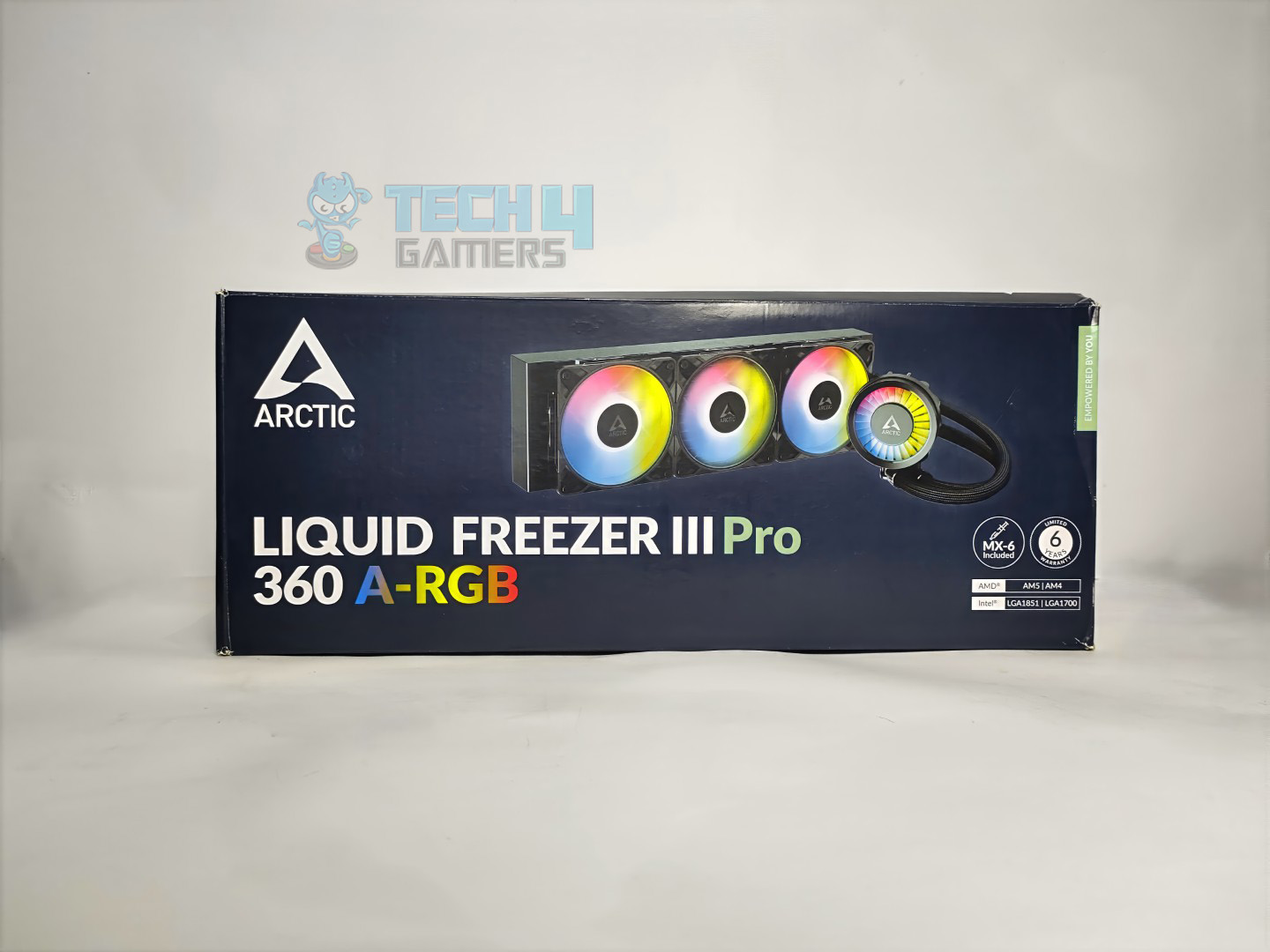
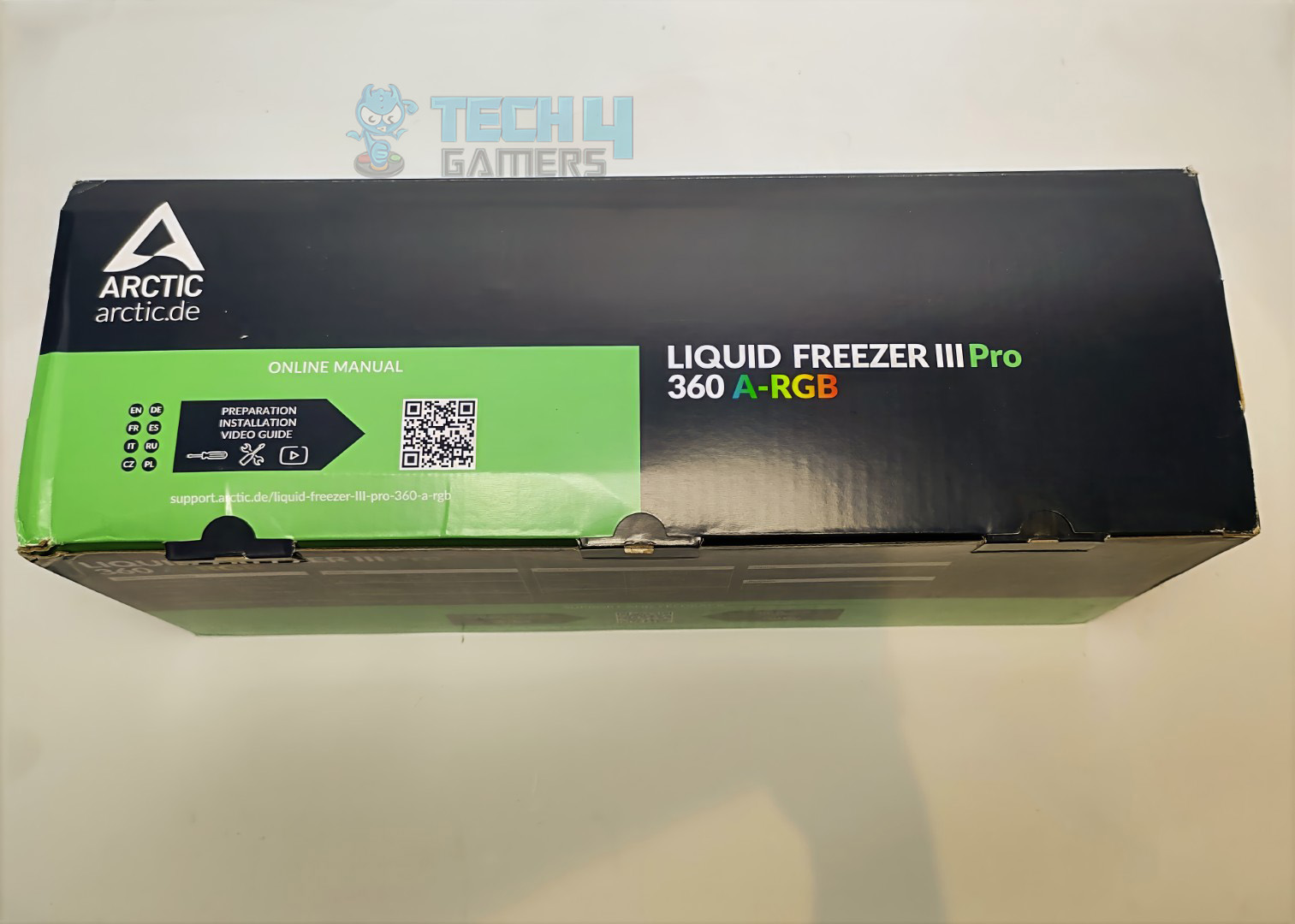
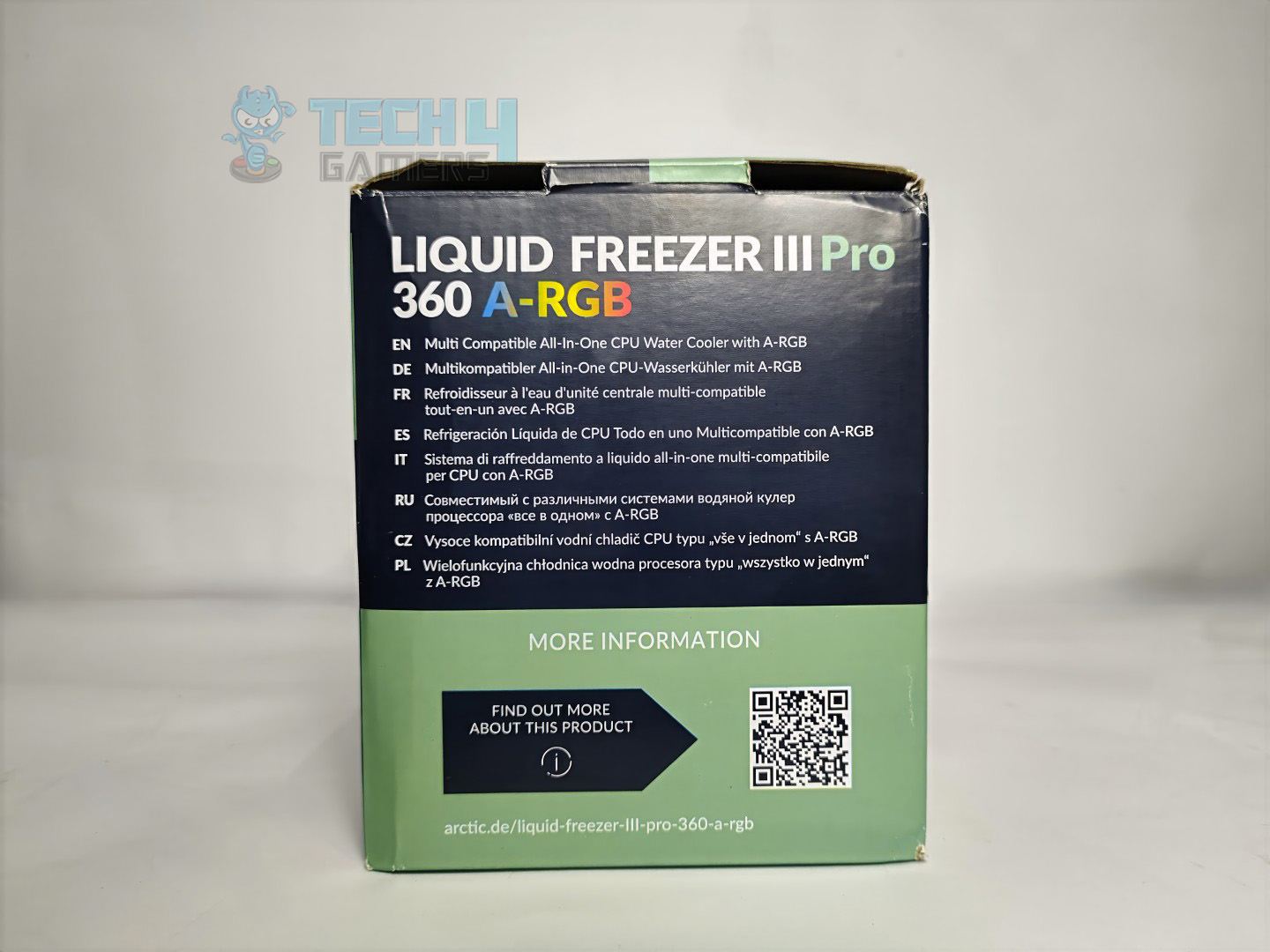
The box is made of cardboard. The cooler itself is prominently shown on the front of the box, and at the bottom, Arctic has also mentioned that the Arctic MX6 is included, alongside the 6-year warranty label.
Packaging
1 of 6
Front
Back
Top
Side
Side
Unboxing
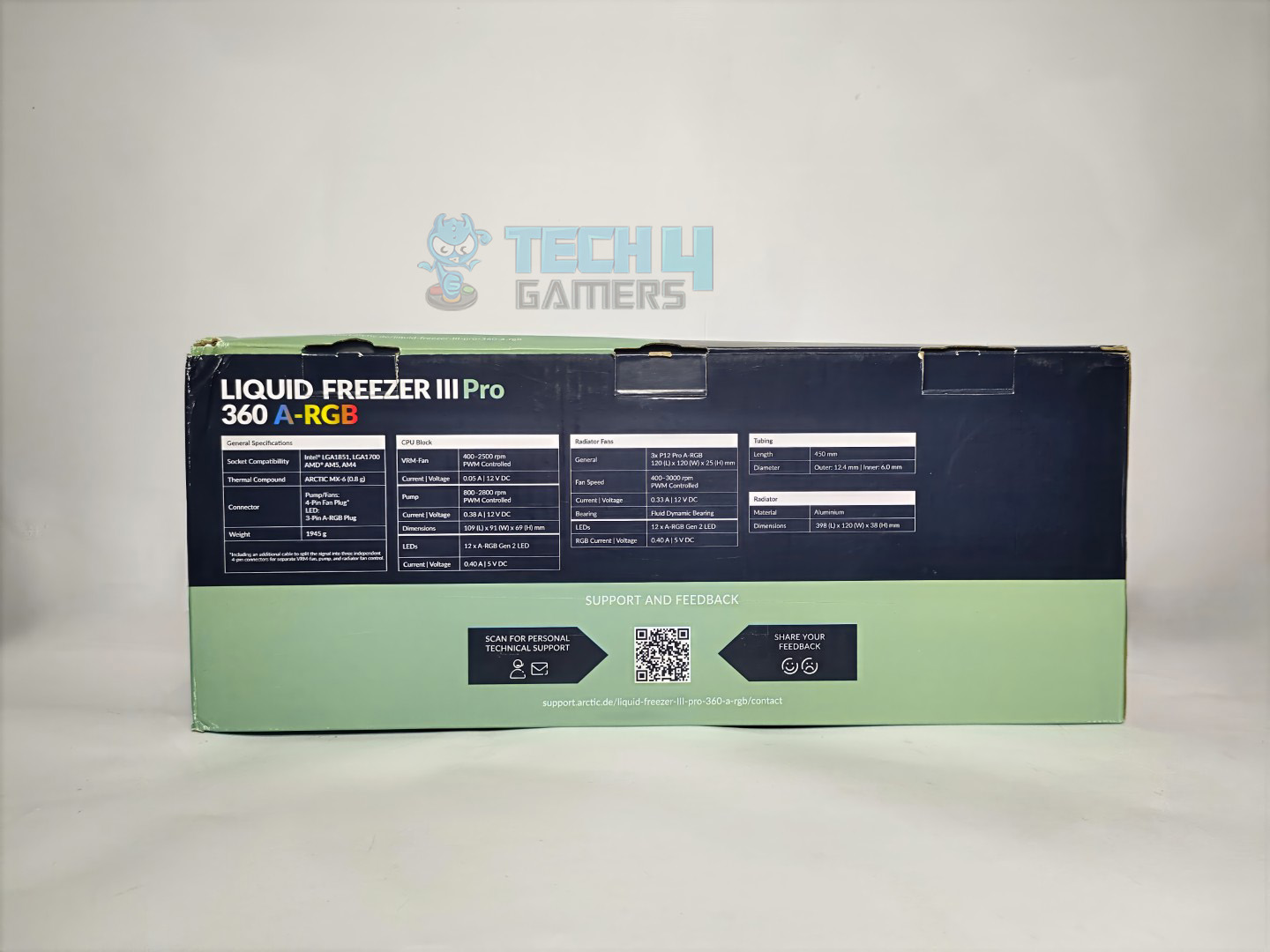
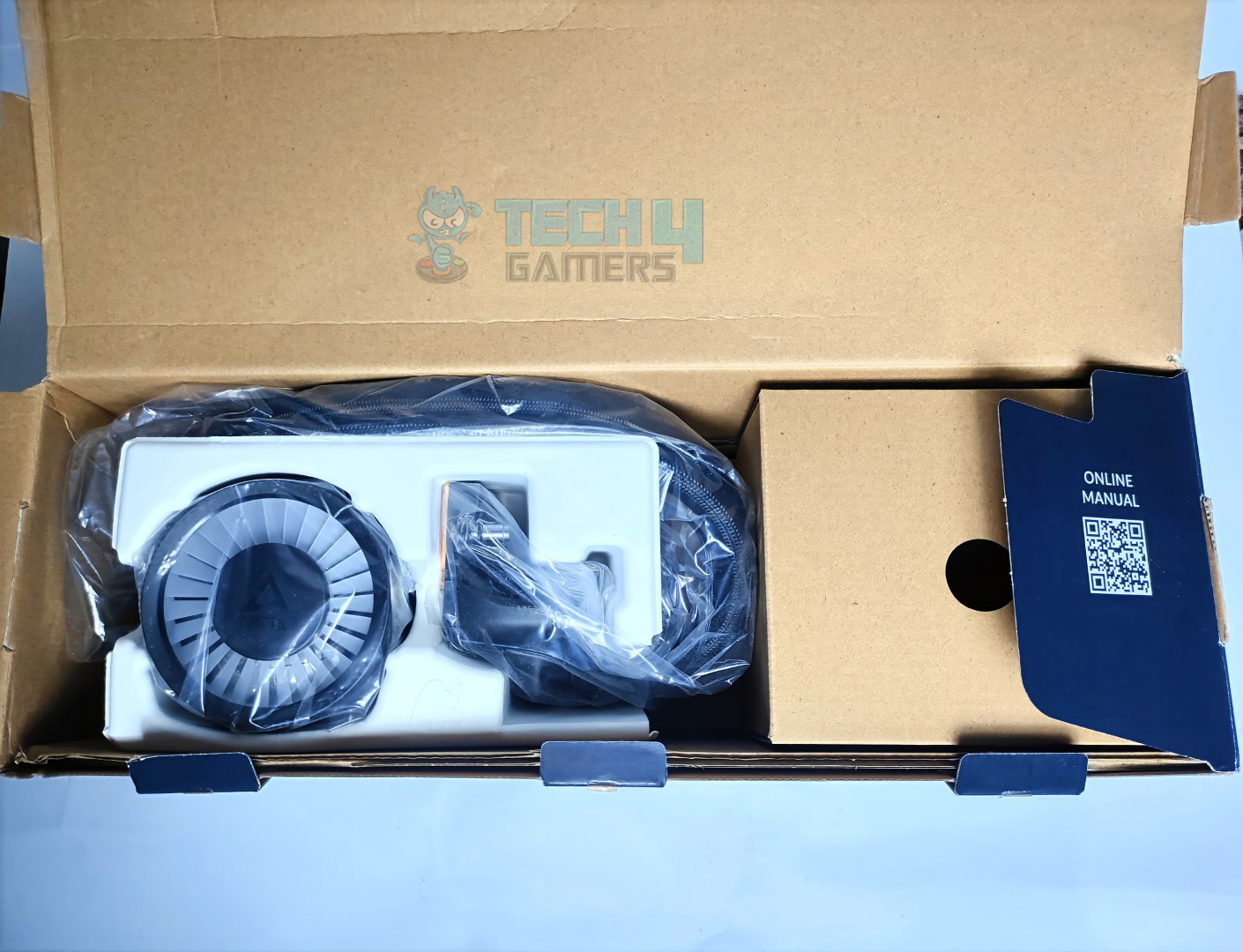
On the rear side of the box, the cooler’s detailed specifications are listed with a QR code for further technical details about the cooler. Overall, the design is very professional and clean, with the product visuals, thermal paste, and warranty highlighted. When you unbox the cooler, you find the block securely wrapped in a plastic bag and cushioned with foam.
Accessories
Let’s take a look at the accessories.
Accessories
The cooler supports all the latest CPUs from Intel, including LGA 1700 and LGA 1851, and AMD’s AM5 and AM4 platforms. If you have the older platform, the cooler is not supported. You are also supplied with the necessary cables, thermal paste, and a contact frame for Intel.
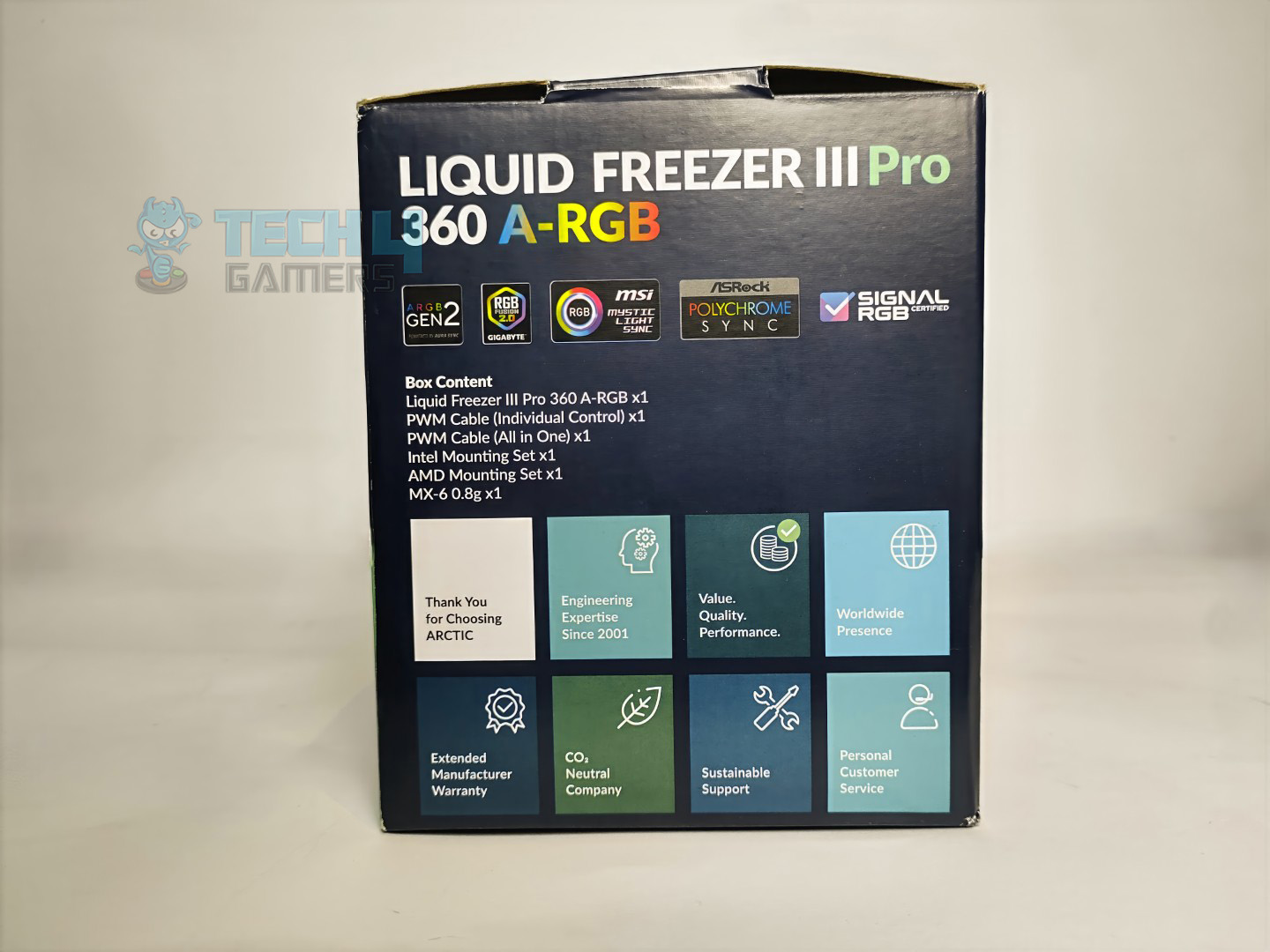
Here is the structured table of what you get inside the box:
Category
Item
Quantity
Cooler
Arctic Liquid Freezer III Pro 360 A-RGB
1
Fans
Pre-Installed Arctic P12 Pro-ARGB
3
Thermal Paste
Arctic MX6 (0.8g)
1
Cooler Accessory
A-RGB VRM Fan Module
1
Cables
PWM Cable (Individual Control)
1
PWM Cable (All-in-One)
1
Screws
Metal Flat Washers
12
Fan Screws
12
Radiator Screws
12
Intel Mounting
CPU Contact Frame
1
T20 Driver
1
CPU Contact Frame Screws
4
AMD Mounting
Mounting Clips Set
1
Spacers for Mounting
4
Screws for Mounting
4
Close Look At The Radiator
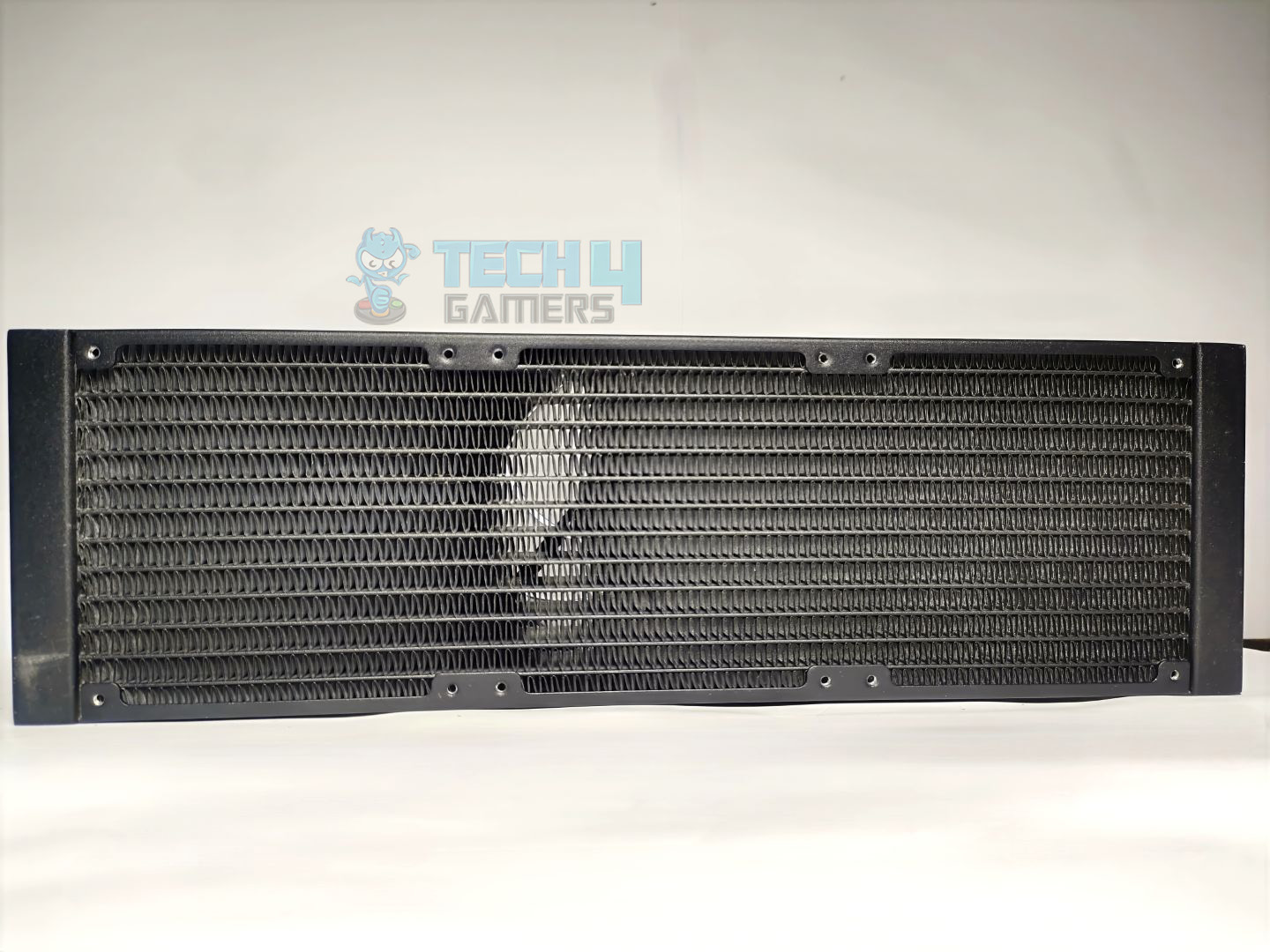
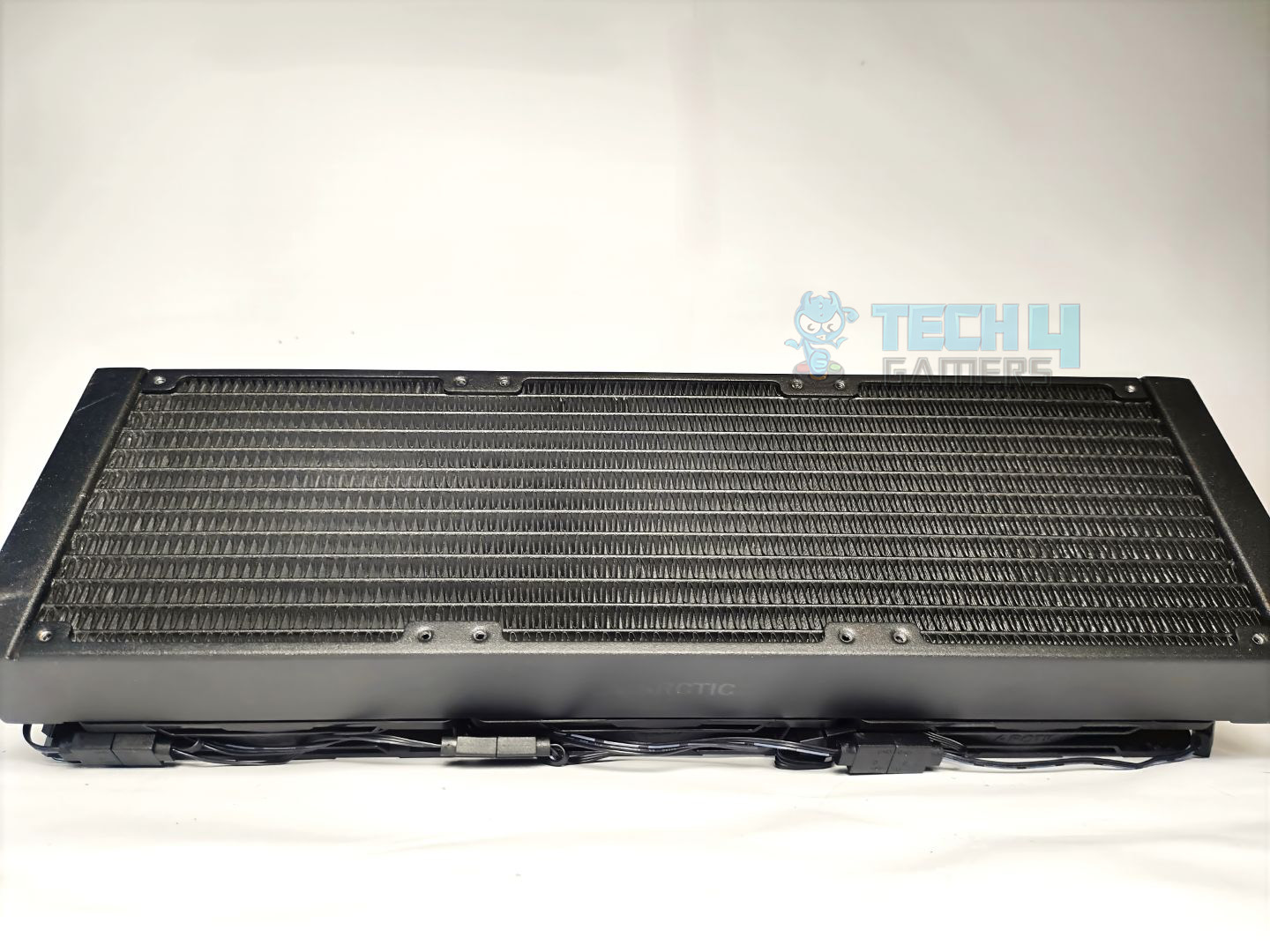
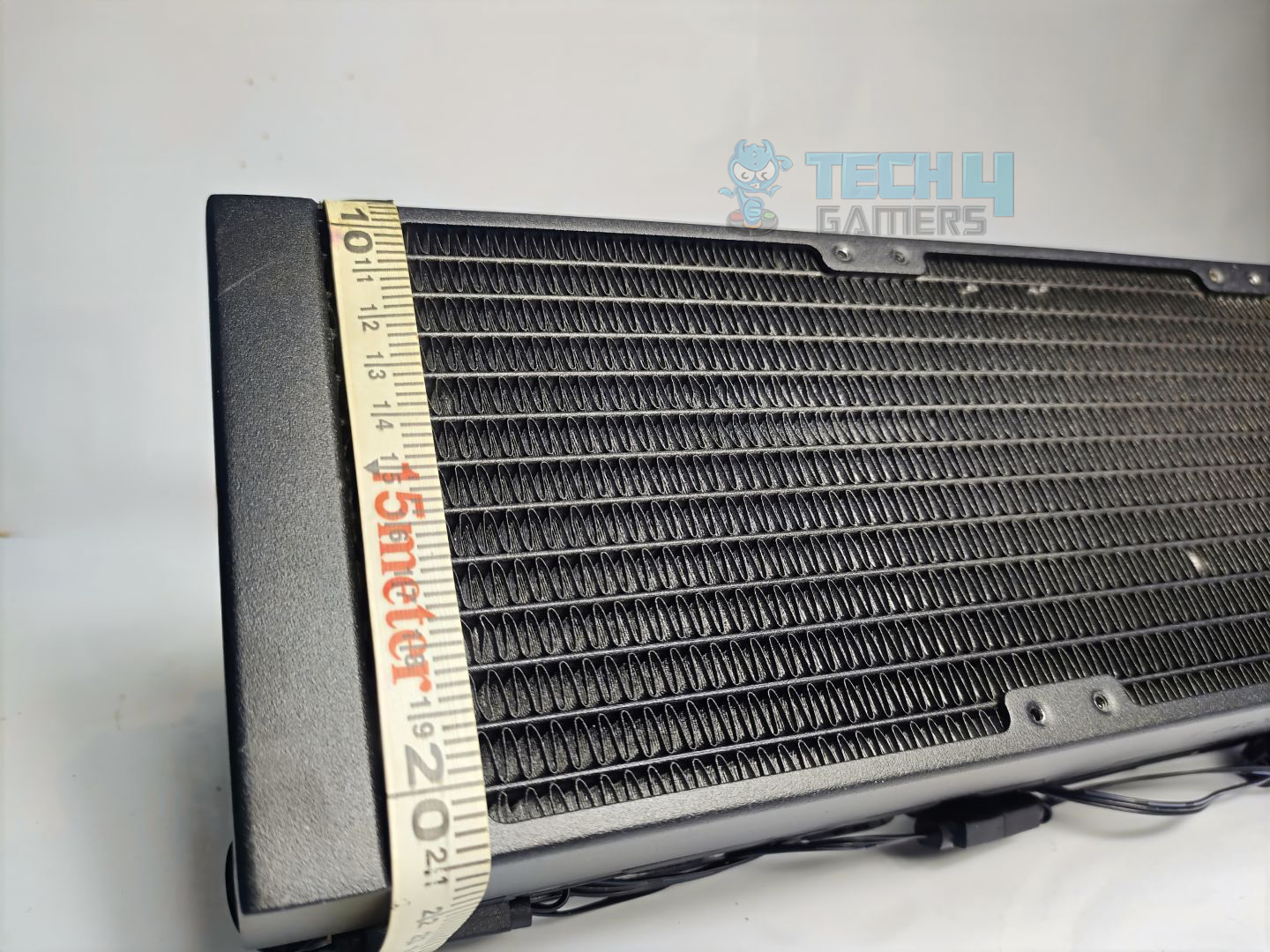
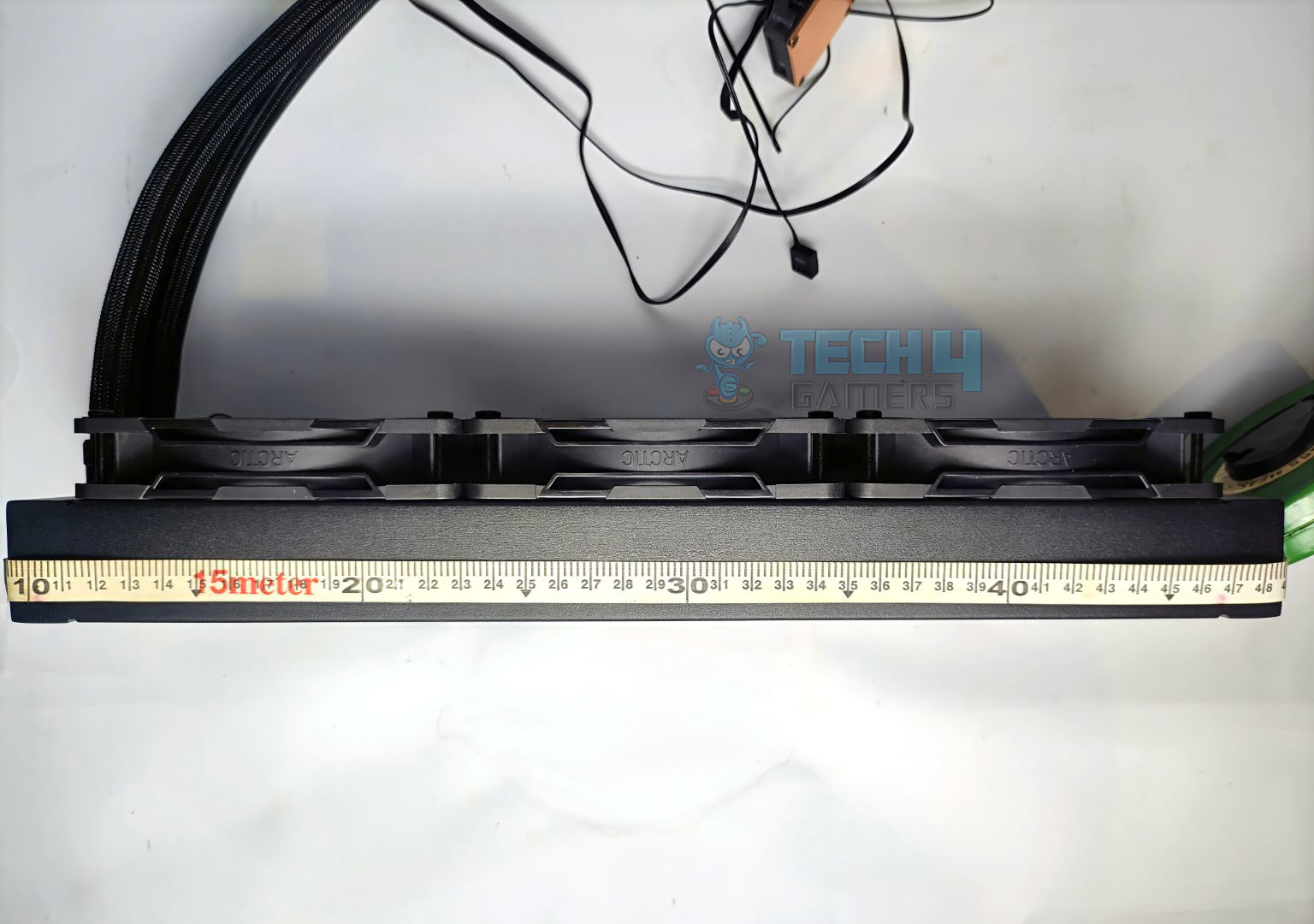
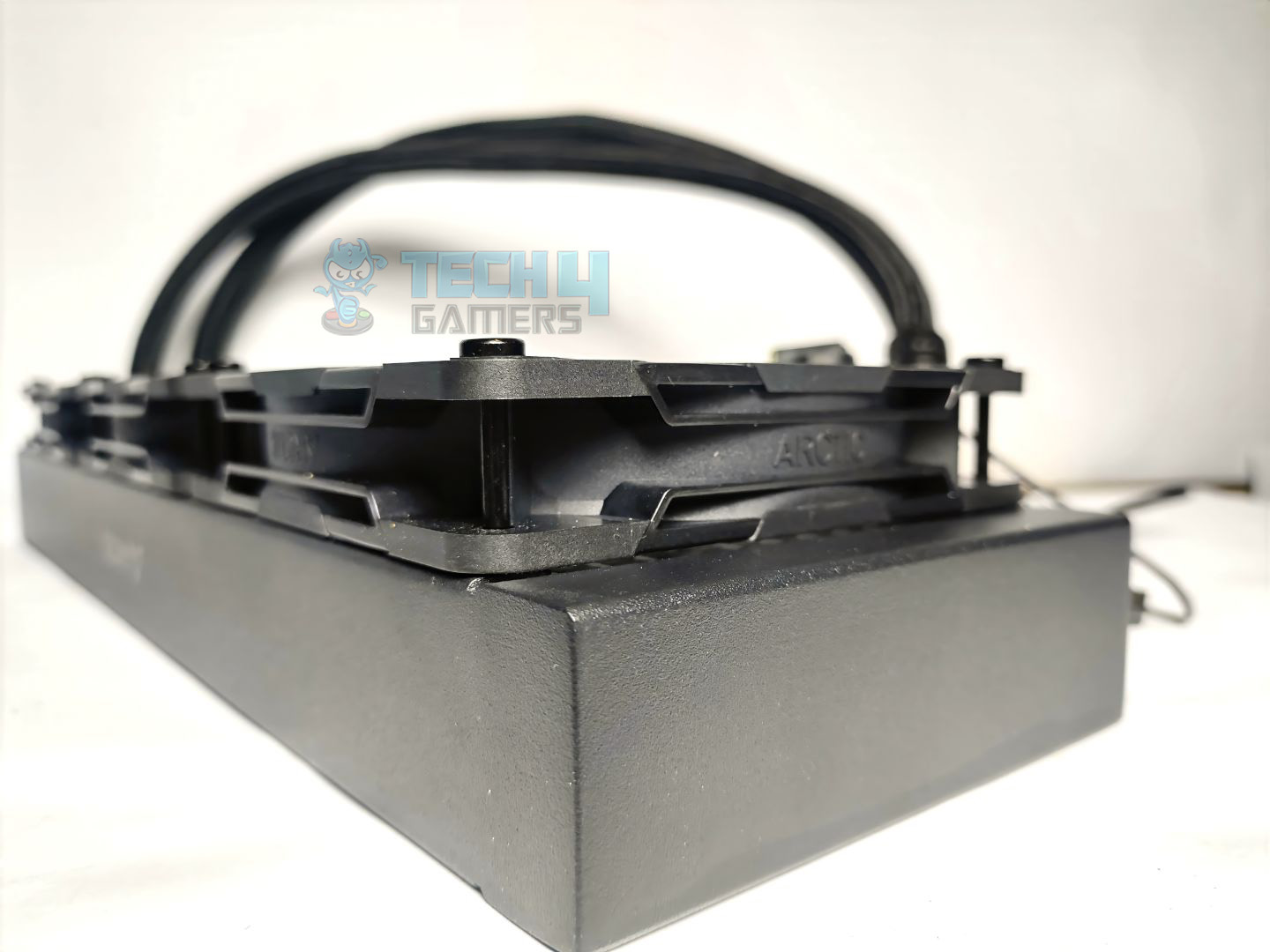
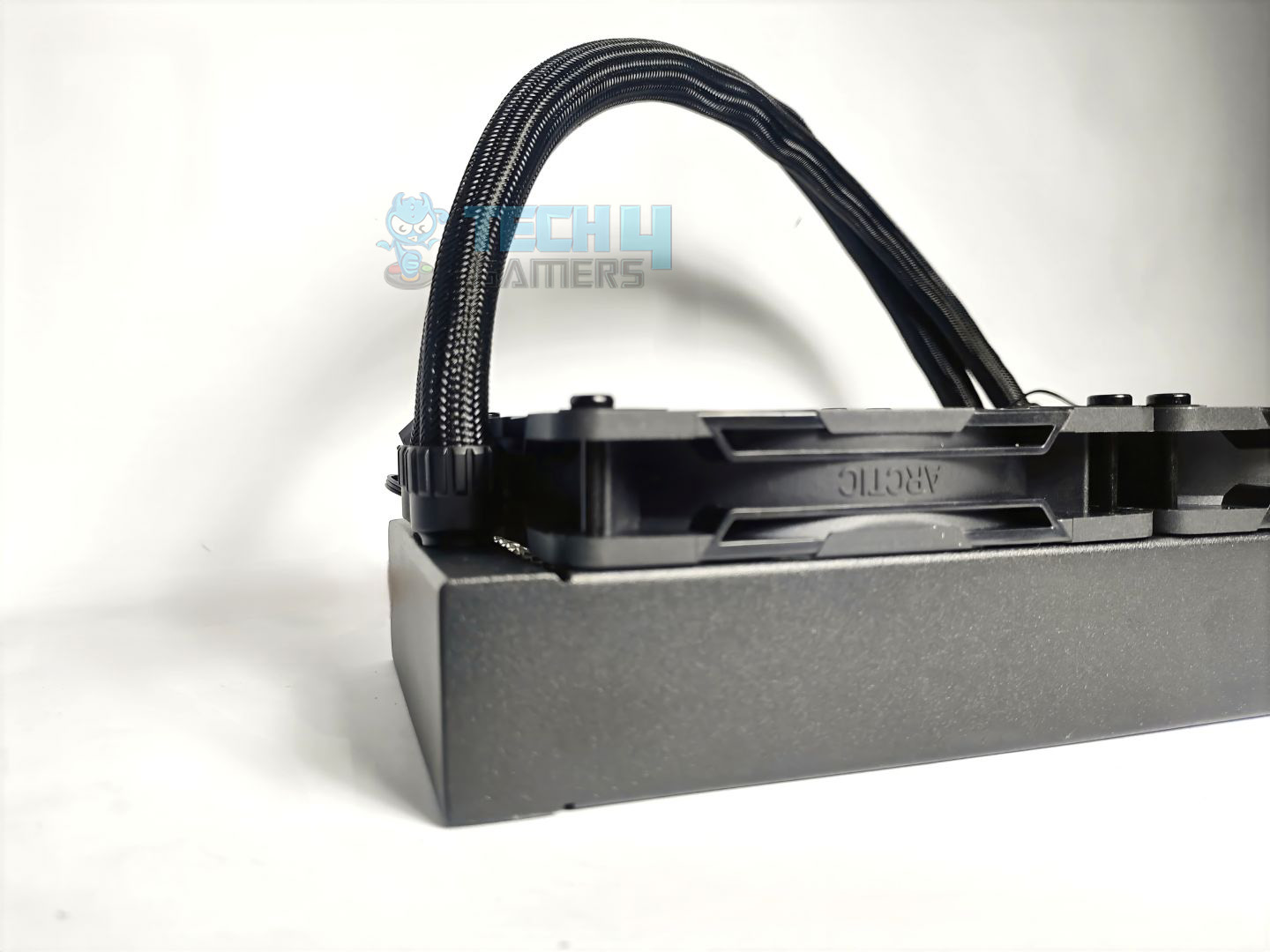
Upon closer inspection, it is notably thick, constructed from aluminium, with a width of 38mm, significantly exceeding the standard radiator thickness of 27mm. Well, this allows more coolant capacity. The radiator has the dimensions of 398 × 120 × 38 mm.
Radiator
1 of 5
Radiator
Side View Radiator
Fins
Radiator Height
Radiator Length
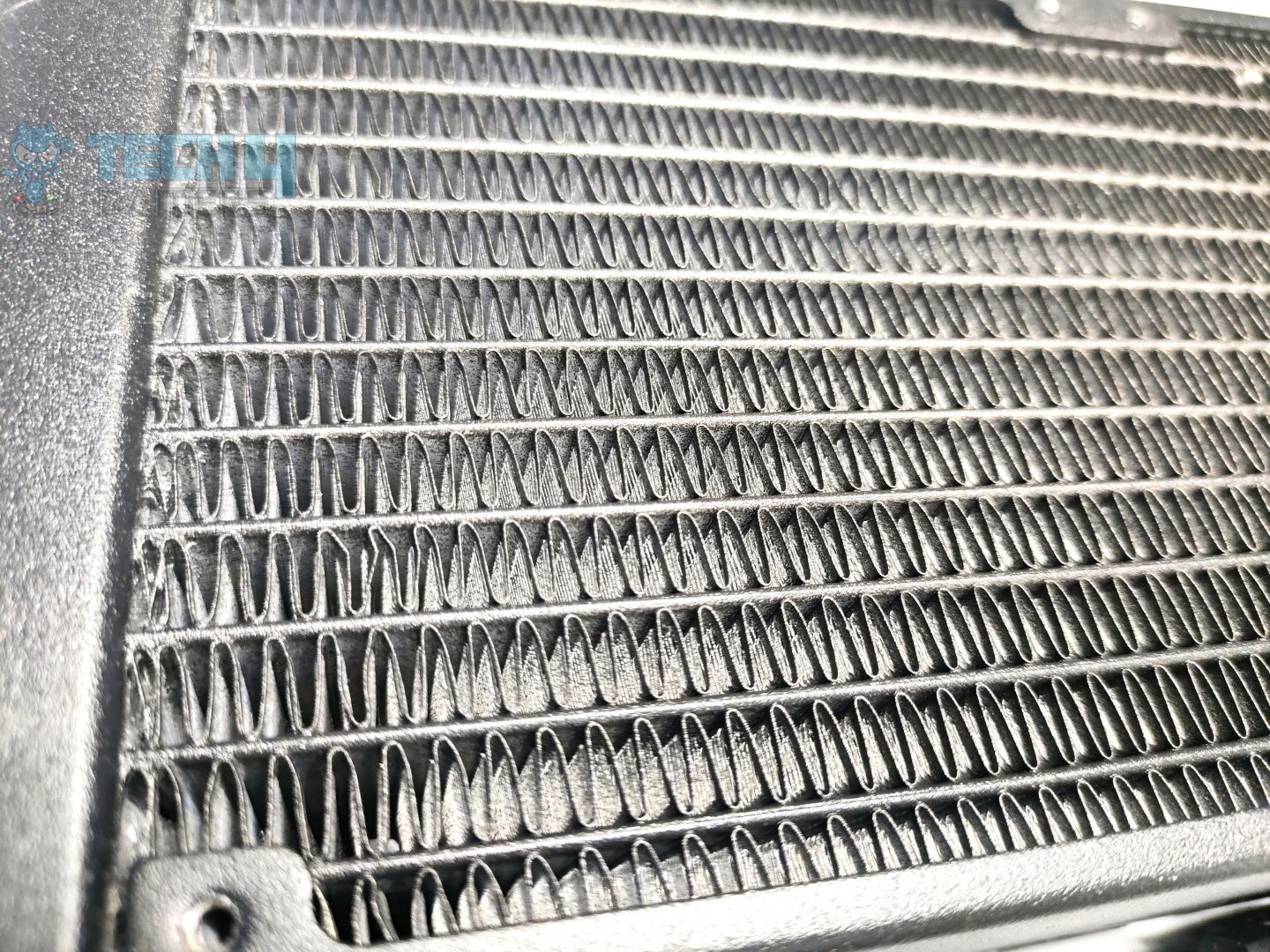
The radiator features 12 coolant flow channels. The FPI (Fins per inch) on the radiator is at 15, which is less compared to the standard liquid-coolers in the market, which have 20-21 FPI (Fins per Inch).
Radiator
1 of 3
P12 Pro On Radiator
Thickness
Thickness
Overall, the radiator is solidly built and massive, so make sure you have enough space in the chassis. If you’re building a PC, we suggest installing the motherboard first and then installing the cooler.
Pump Design / Housing
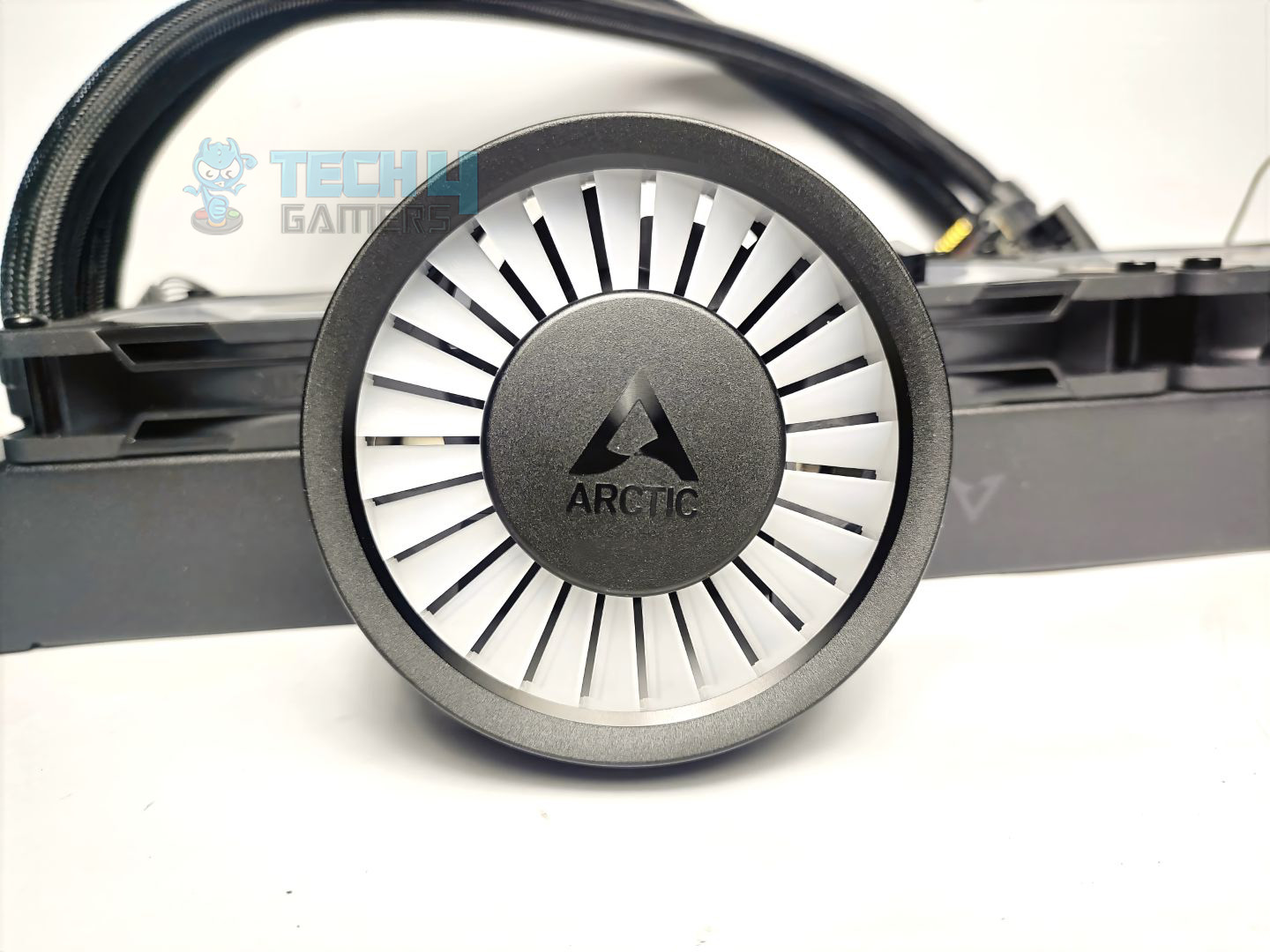
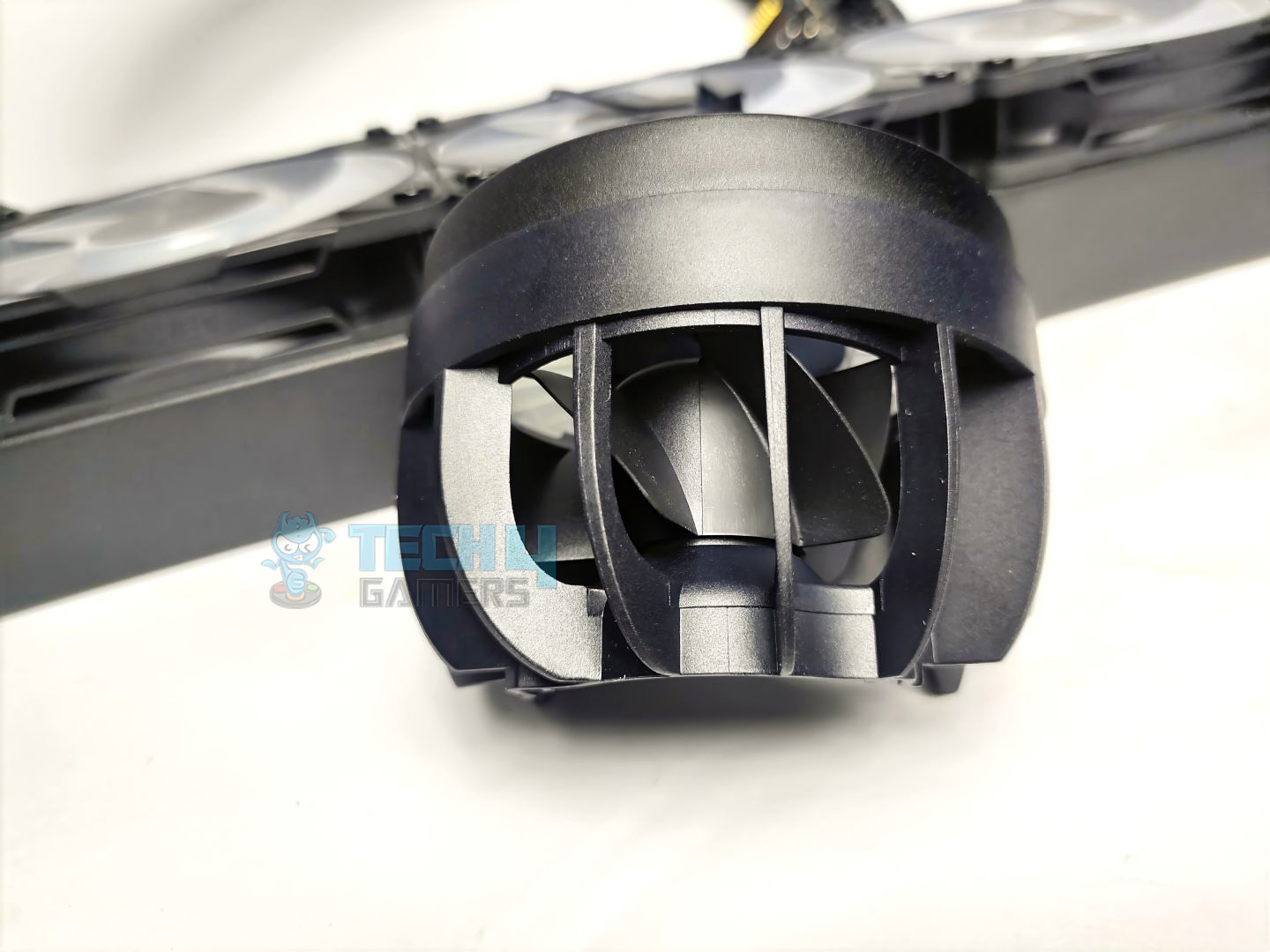
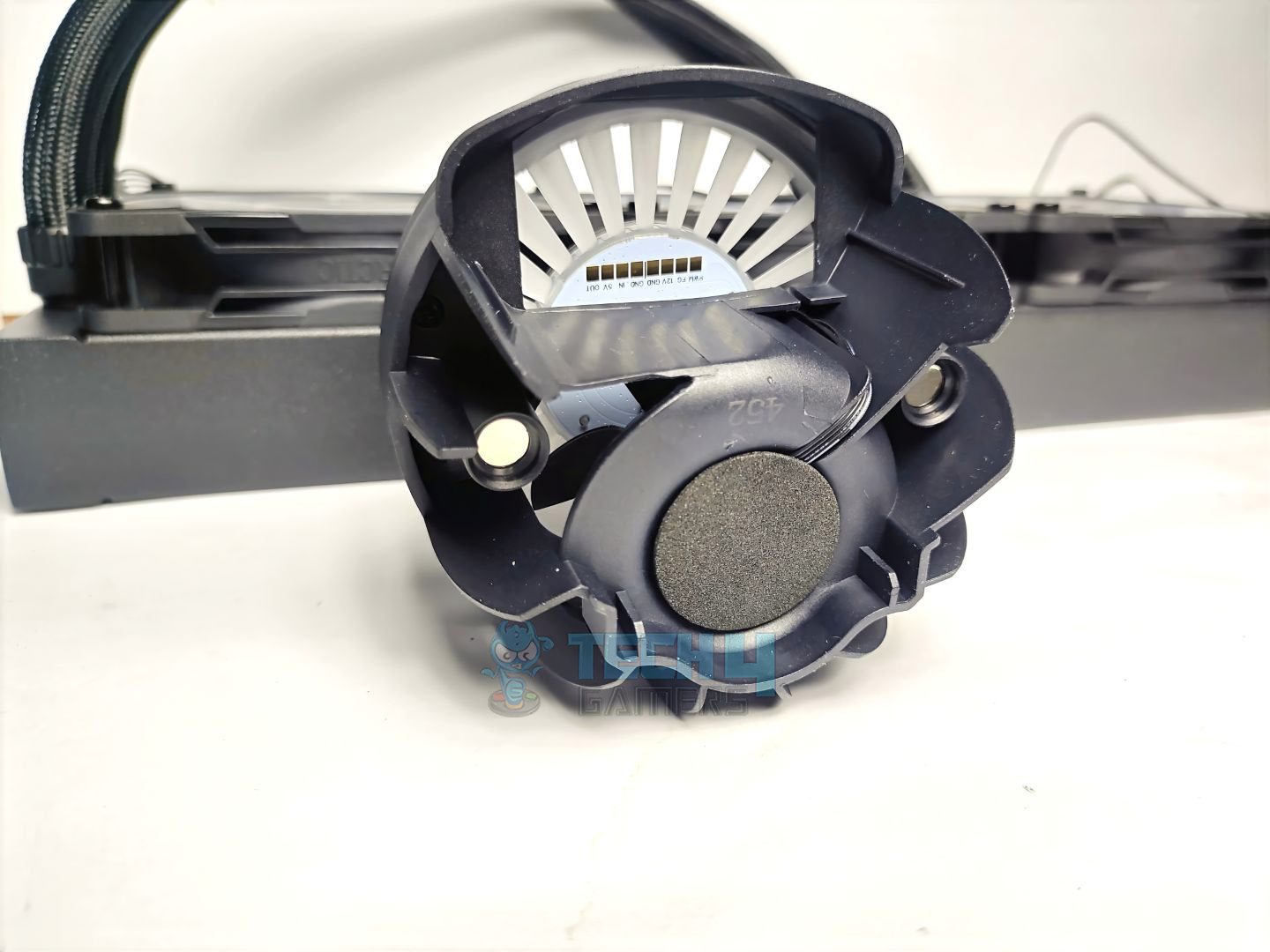
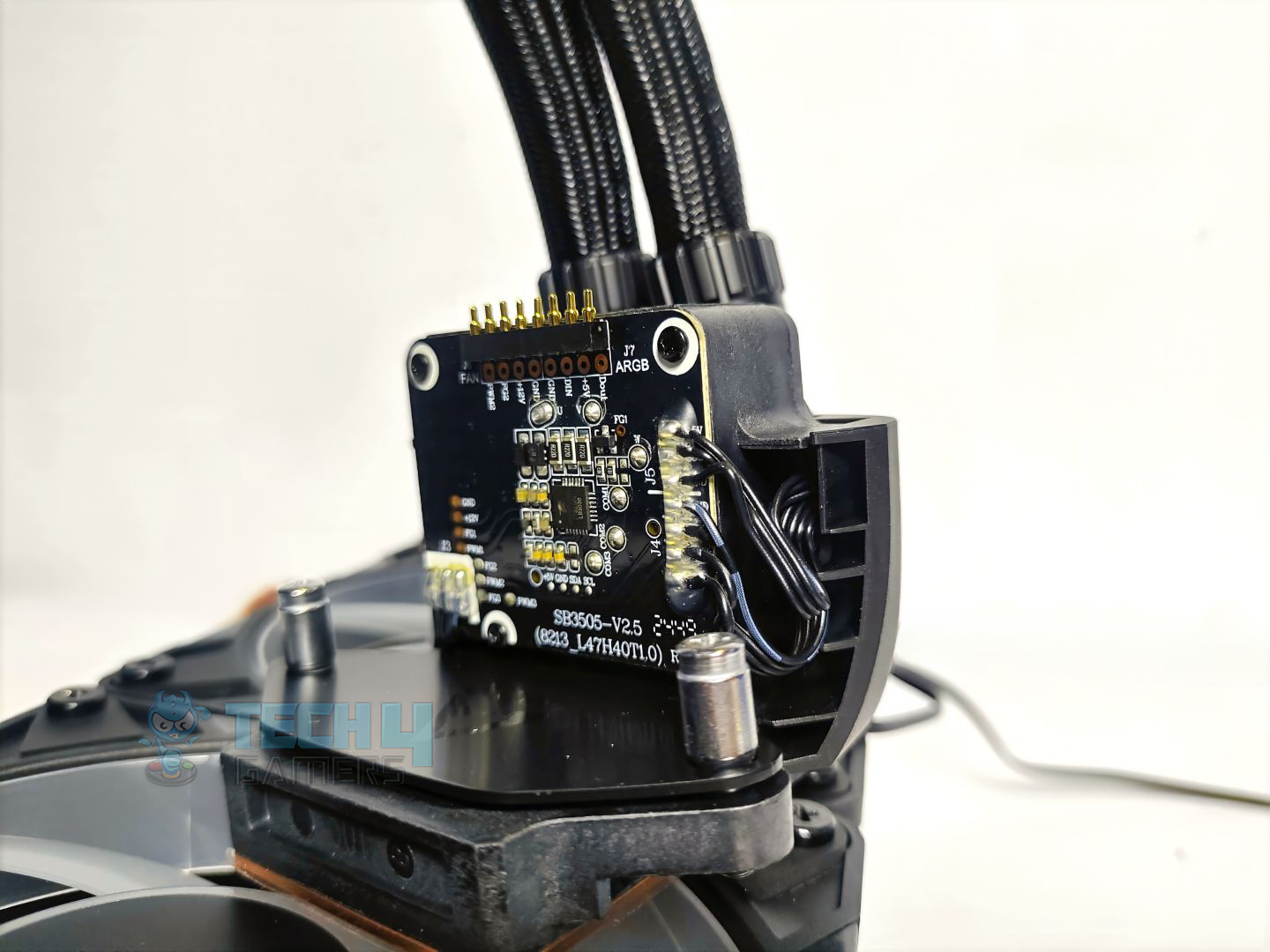
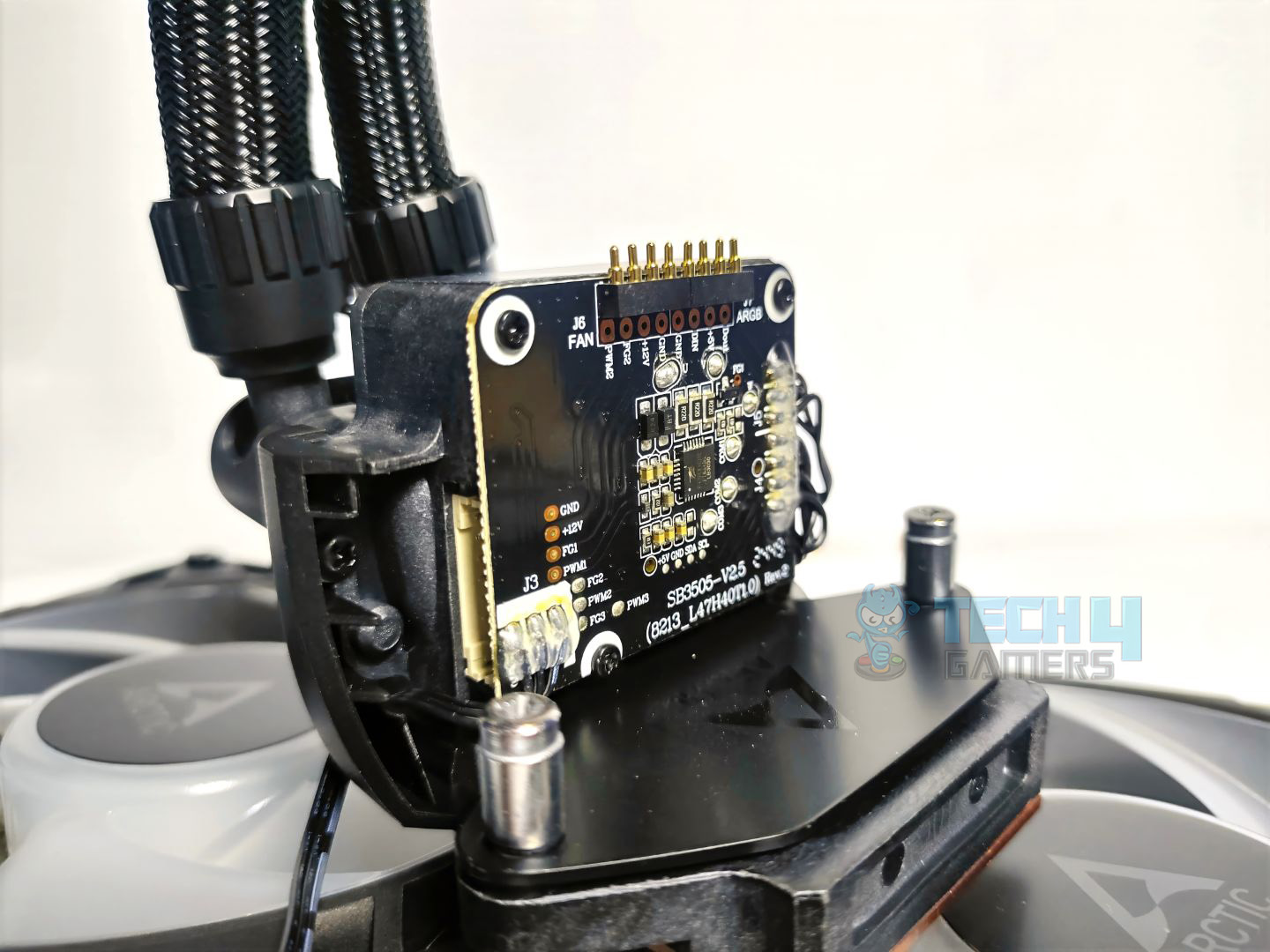
The block features a magnetic/removable cap that carries a 60mm PWM-controlled VRM cooling fan inside, which can be controlled via an all-in-one cable that supports both the fan and radiator fans, or used separately with a provided splitter. The block also has an integrated 3-pin ARGB connector, which controls all the lighting.
VRM Fan
1 of 3
VRM Fan Front
Airflow Channels - VRM Fan
Bottom VRM Fan
Under the hood, you will find a PCB vertically positioned. There are multiple soldered joints on the pump for the connectivity. The seven pins on the PCB at the top are the connection for the Magnetic VRM fan. On the left side of the block, there is a connection for an all-in-one cable, or you could use another provided splitter cable that can individually control the lighting and the CPU fan.
The cold plate is copper and 40x44mm in dimensions. I wish the cold plate had a screw less design to ensure more uniform pressure between the thermal paste and the CPU IHS, which could improve heat transfer.
Cold Plate
The cold plate also has a plastic safety sticker. Make sure to remove it before installation.
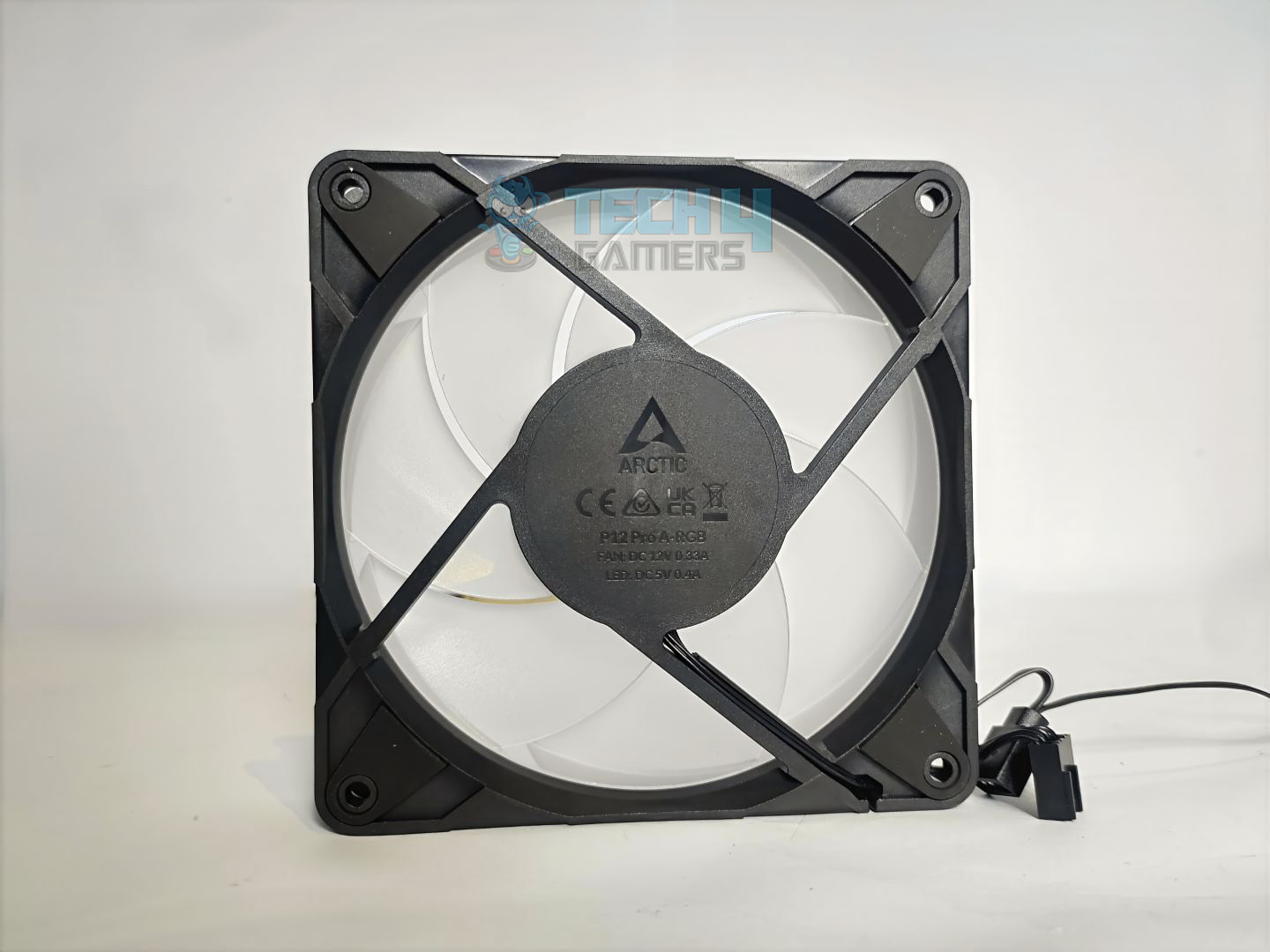
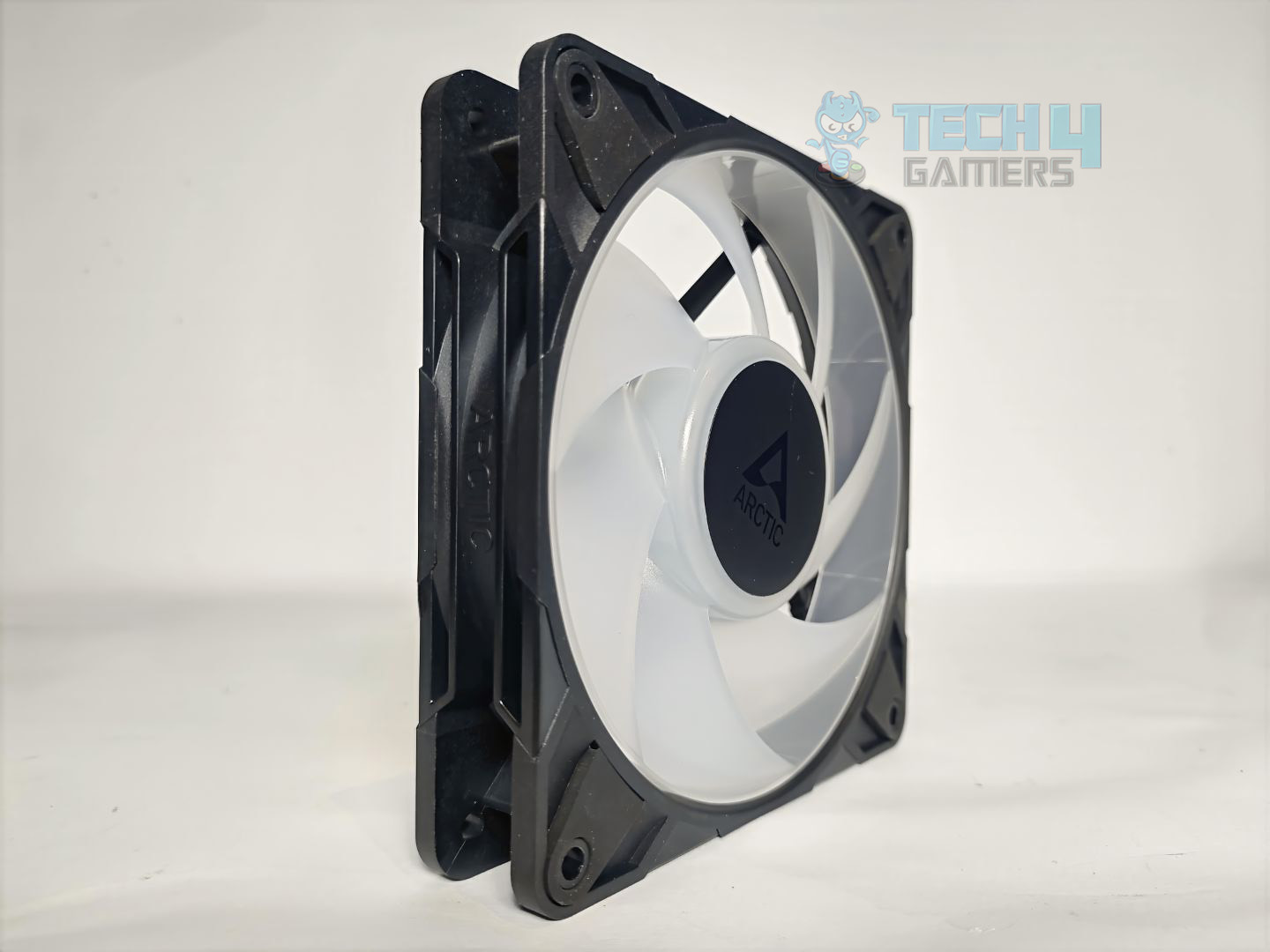
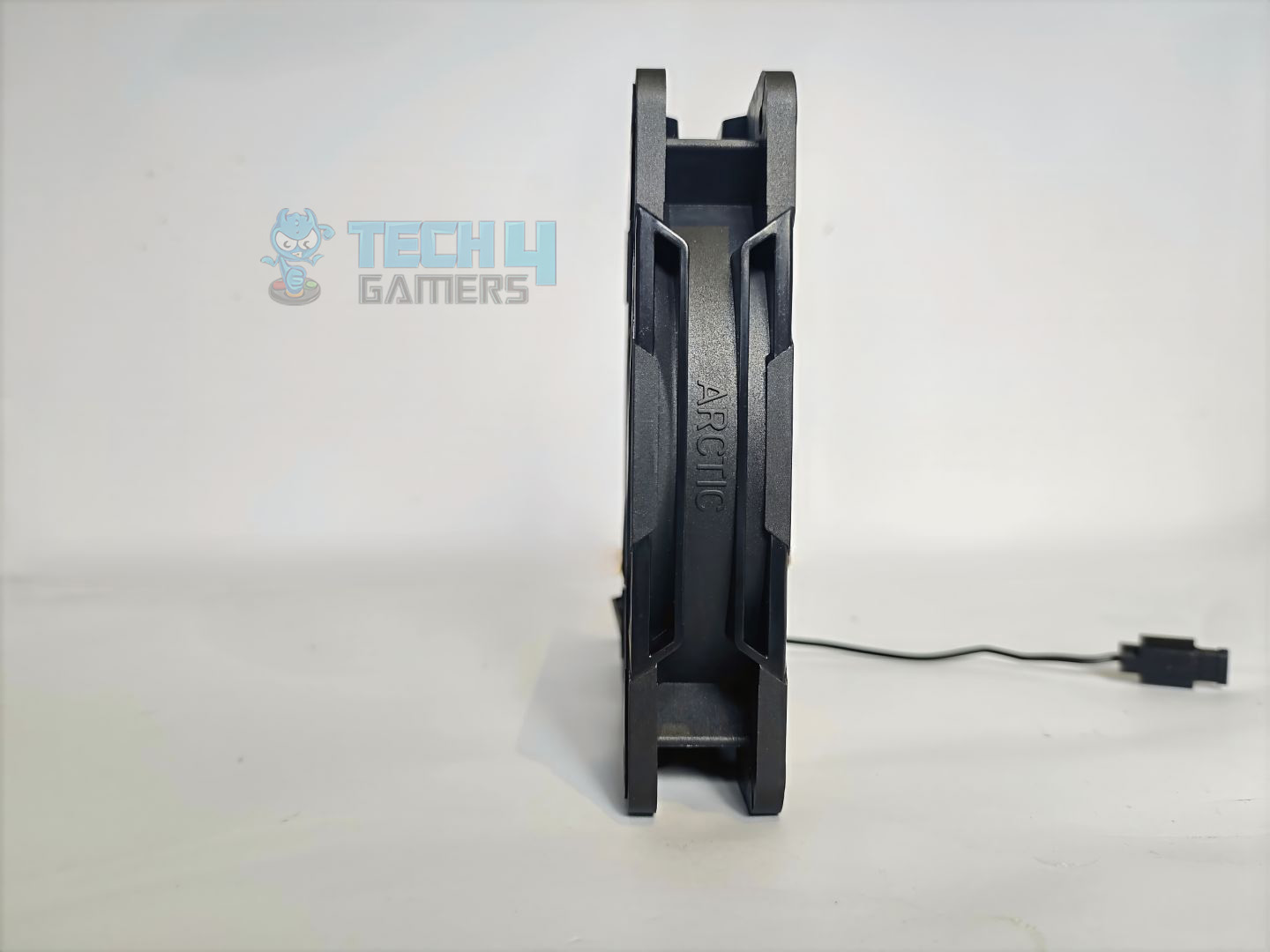
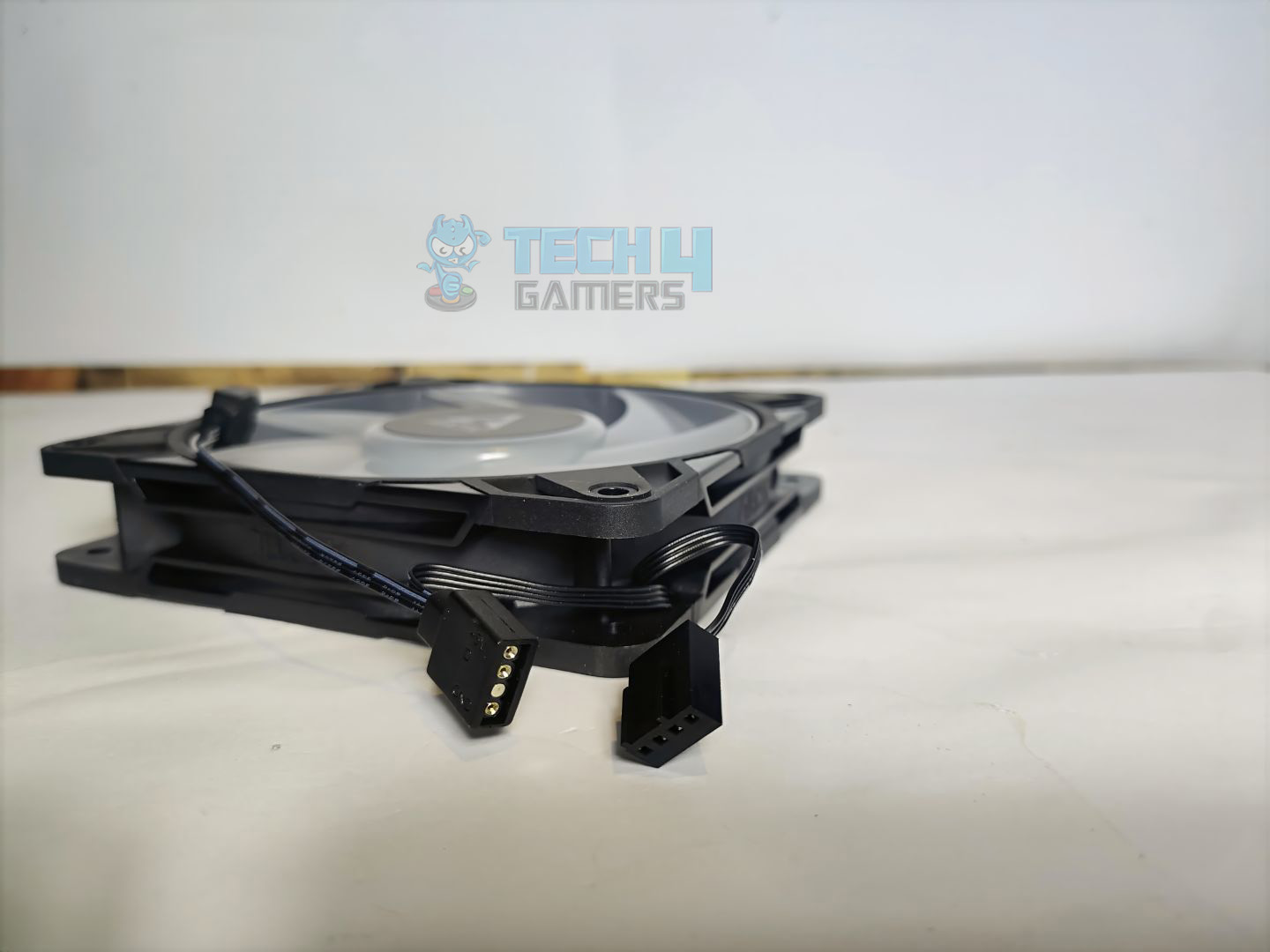
Arctic P12 Pro-ARGB Fans
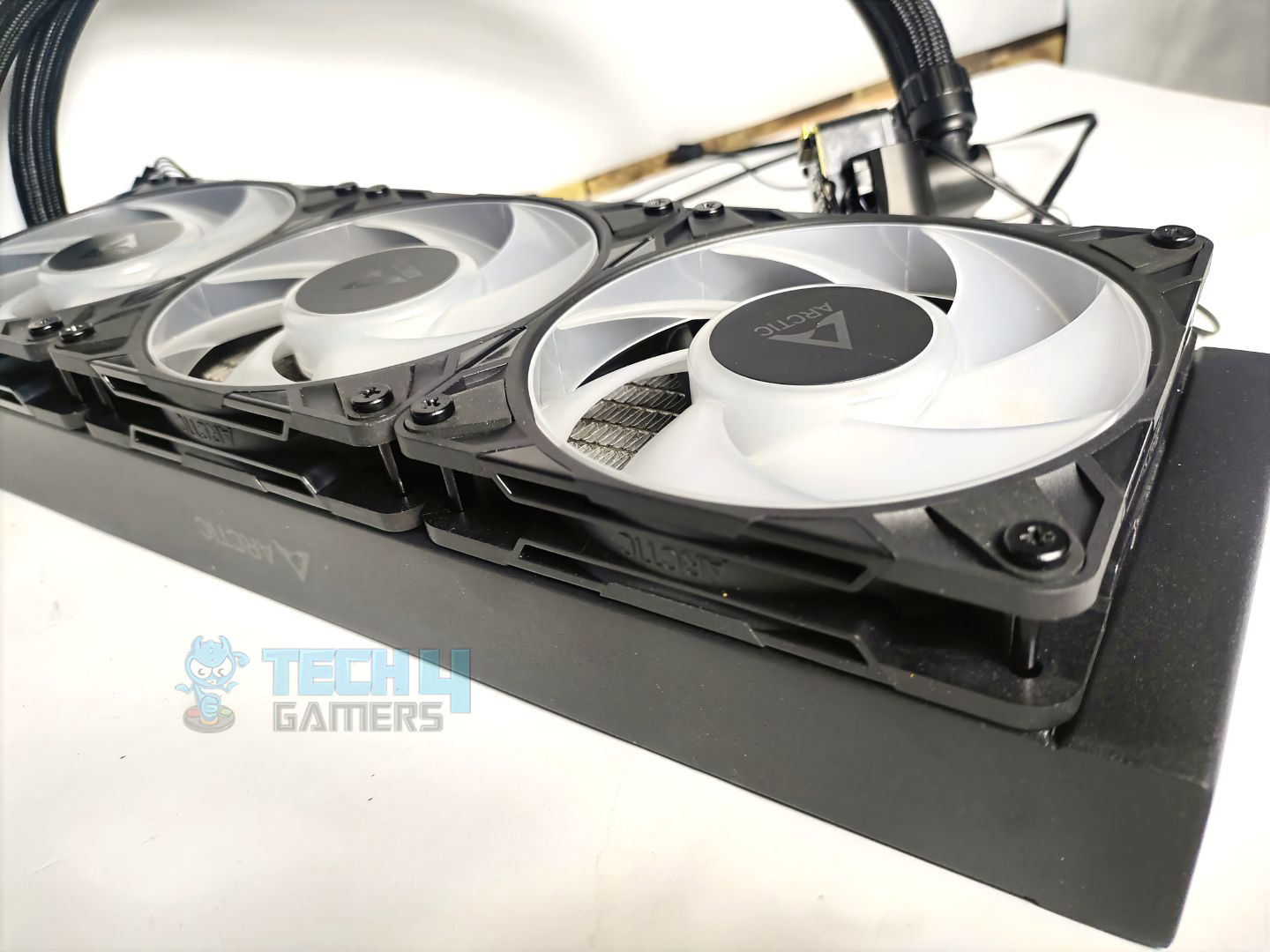
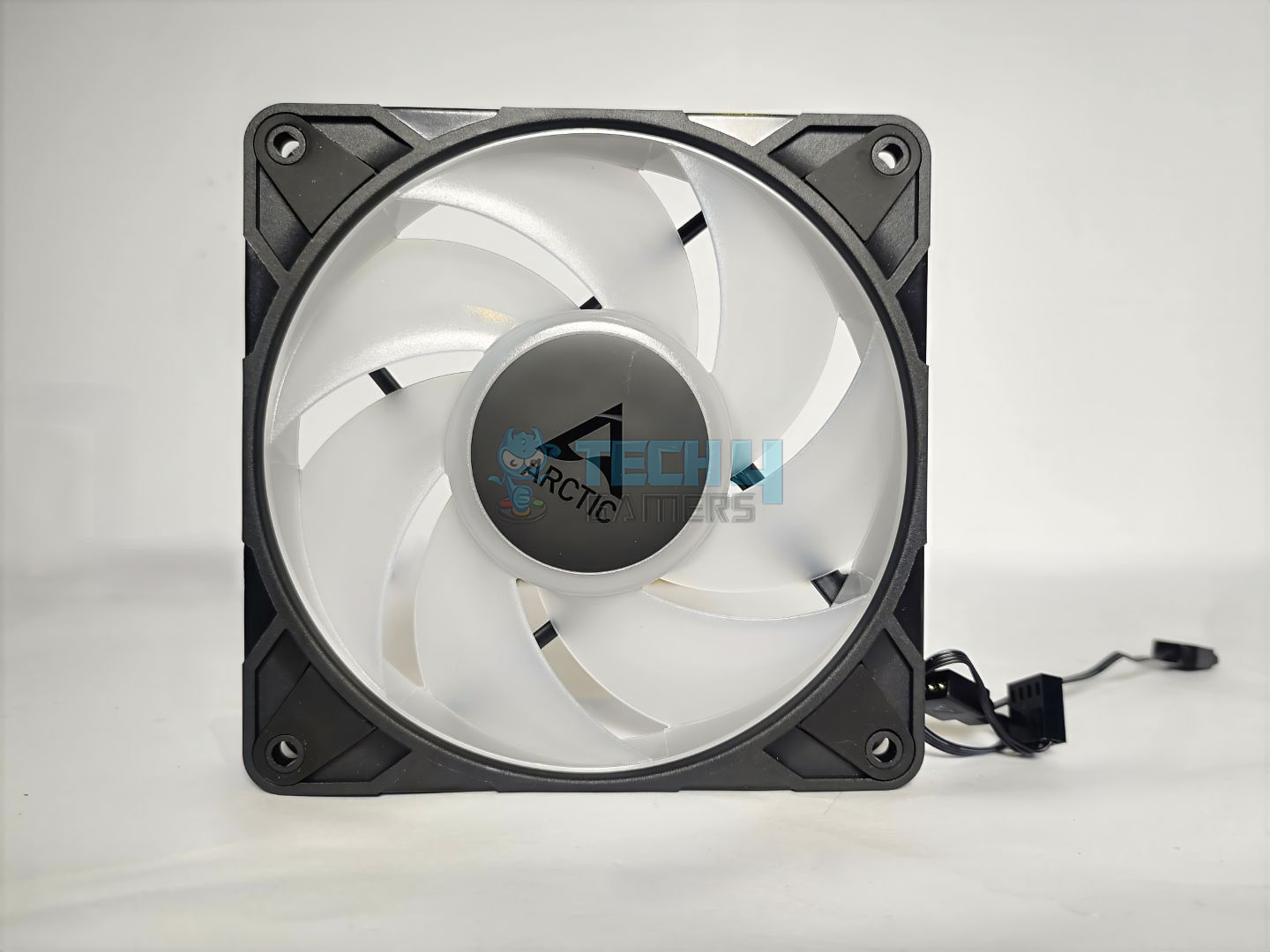
Rather than the standard P12 fans from the non-Pro version, they have provided P12 Pro fans, which feature an aggressive cooling profile that can spin up to 3000 RPM. In our testing, the fans are silent and effective in the noise-normalised testing, but at the maxed-out configuration, the fans are roaring.
Closer Look At Fans
1 of 5
Front Side
Back Side
Side View
Side View
Connectors
The fan features an anti-vibration pad on each side, seven blades in total, and a typical 25mm thickness. However, these fans are daisy-chained. You can also purchase these fans separately for $12.49 in the US.
We’ll be installing the cooler on our AMD AM5 platform.
Cabling
Before we proceed with the installation, it’s your decision whether to use Arctic’s all-in-one provided cable for all connectivity or a separate cable for each component. VRM Fan, Pump, and Radiator have individual connectors for connectivity. We have opted for the separate cables, as shown in the pictures. For a clutter-free experience, we highly recommend the all-in-one cable. Alternatively, if you prefer to keep your component controls separate, the other cable (PWM Cable for Individual Control) option is a good choice.
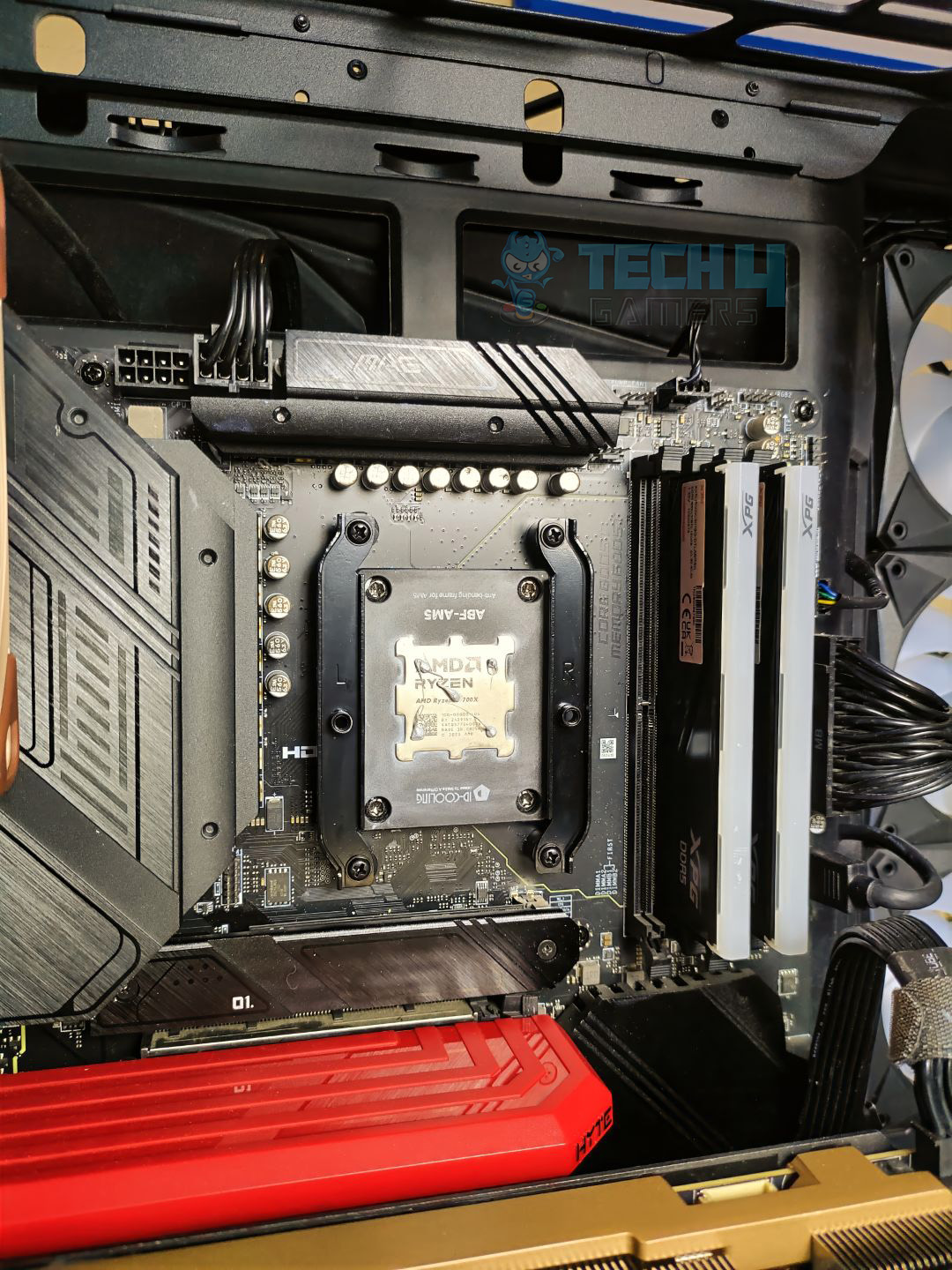
Prepare the socket
Remove the AMD cooler brackets that come preinstalled on the motherboard, and then install the Arctic AMD brackets using the provided screws or spacers. Each bracket is labeled with its installation direction (left or right) to ensure accuracy. Thanks to the Arctic for attention to detail. After you have finished with the mounting brackets, it’s time to apply the new thermal paste
AMD Brackets
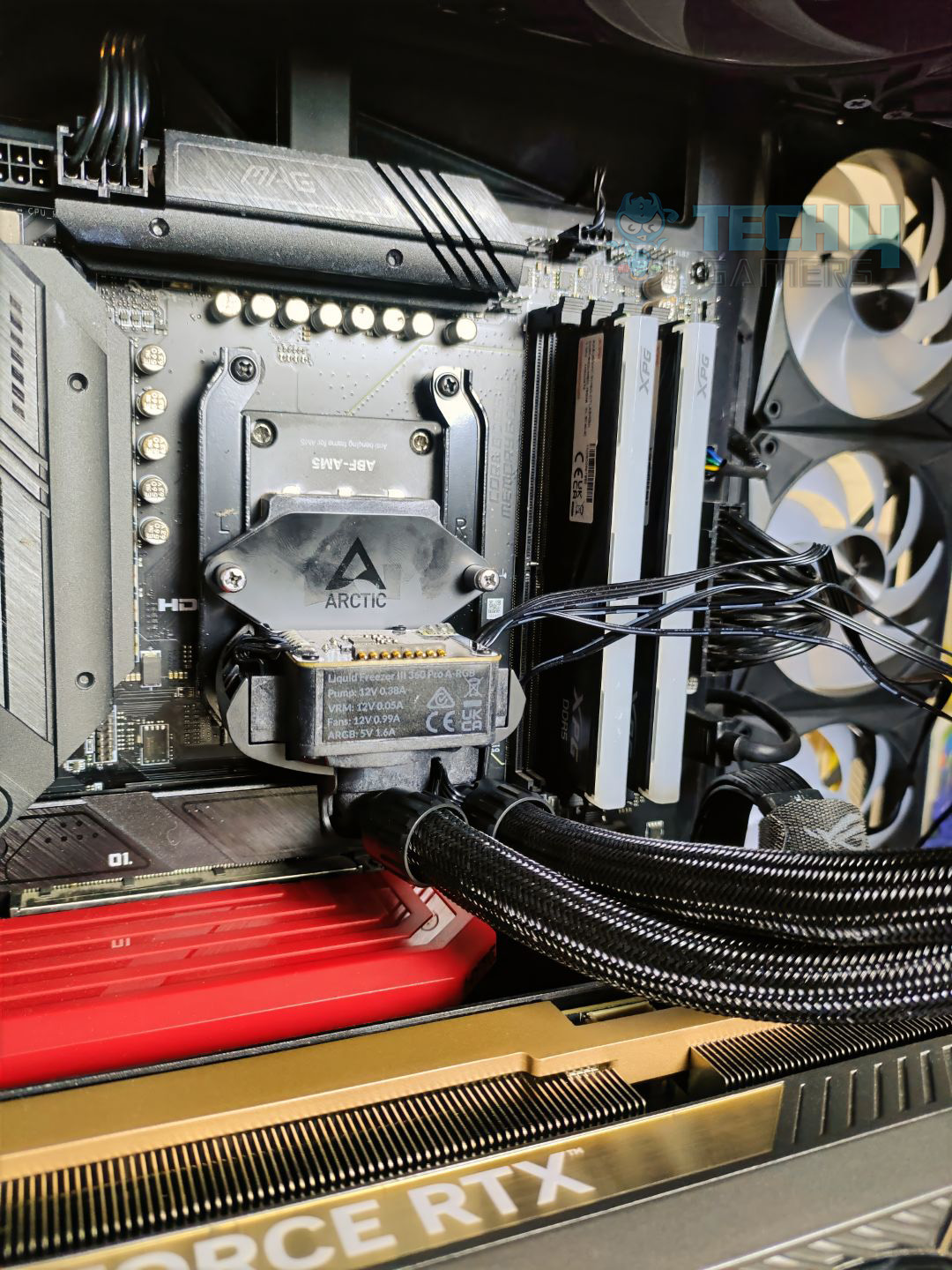
Block Installed
Mount the cooler on the bracket. The block has two screws that sit straight on the bracket. Make sure to align the block with the screws on the bracket. Do not fully tighten all the screw at once; otherwise, that would create non-uniform pressure across the die. Tighten them up little by little on each screw.
Cooler Installed
Once the cooler is fully seated and secured, install the VRM fan. It is magnetic; slide it into the pump.
Testing Methodology
CPU Configuration:
For the Noise Normalized Testing, we have fixed the CPU at a fixed voltage and frequency. The noise levels are set at the desired levels of 40 to 45 dB(A). Then we test the cooler at the maximum speed possible.
Controlled Environment:
We have eliminated the influence of ambient temperatures in our data, and all results are presented as deltas over the ambient conditions. The tests were done in a controlled environment with a room temperature of 25°C.
Preparing System:
Since we don’t have a separate open test bench, all the coolers are installed in our primary test case, which is the HYTE Y70, but all the panels have been removed.
All the case fans are operating at the minimum PWM level possible to avoid interfering with any noise results. All coolers are tested at the fixed configurations. Only the coolers are swapped in the whole scenario.
We are using ID-Cooling X45 thermal paste for all coolers.
Software:
We have ensured that no other software is running on the computer that could influence the CPU load.
We’ll be using the Cinebench R23 Loop for 15 minutes.
Windows Version: Windows 11 24H2 (OS Build 26100.4652)
Artic Freezer III Pro A-RGB on Test Bench
Thermals – Noise Normalized 40 dB(A)
Starting the tests at 40dB(A).
Noise Normalized 40 dB(A) Cooling
Arctic Liquid Freezer III Pro is leading the chart, with an average temperature 1.3 °C cooler than Deepcool Mystique LE360, and similar performance to Deepcool Mystique under fixed noise conditions.
Thermals – Noise Normalized 45 dB(A)
Moving to 45dB(A) Results.
Noise Normalized 45 dB(A) Cooling
All the liquid coolers performed really great at 45 dB(A) of noise output. Keep in mind, these are all 360 liquid-coolers we have tested.
Thermals – Maximum Speed
Let’s test the coolers at the maximum PWM speed.
Maximum PWM Cooling
Maximum PWM Speed thermals are like a drag race; having powerful fans can make a big difference. The Arctic is almost 2 °C cooler than the LE360 and performs identically to the Deepcool Mystique.
Noise and RPM Readings
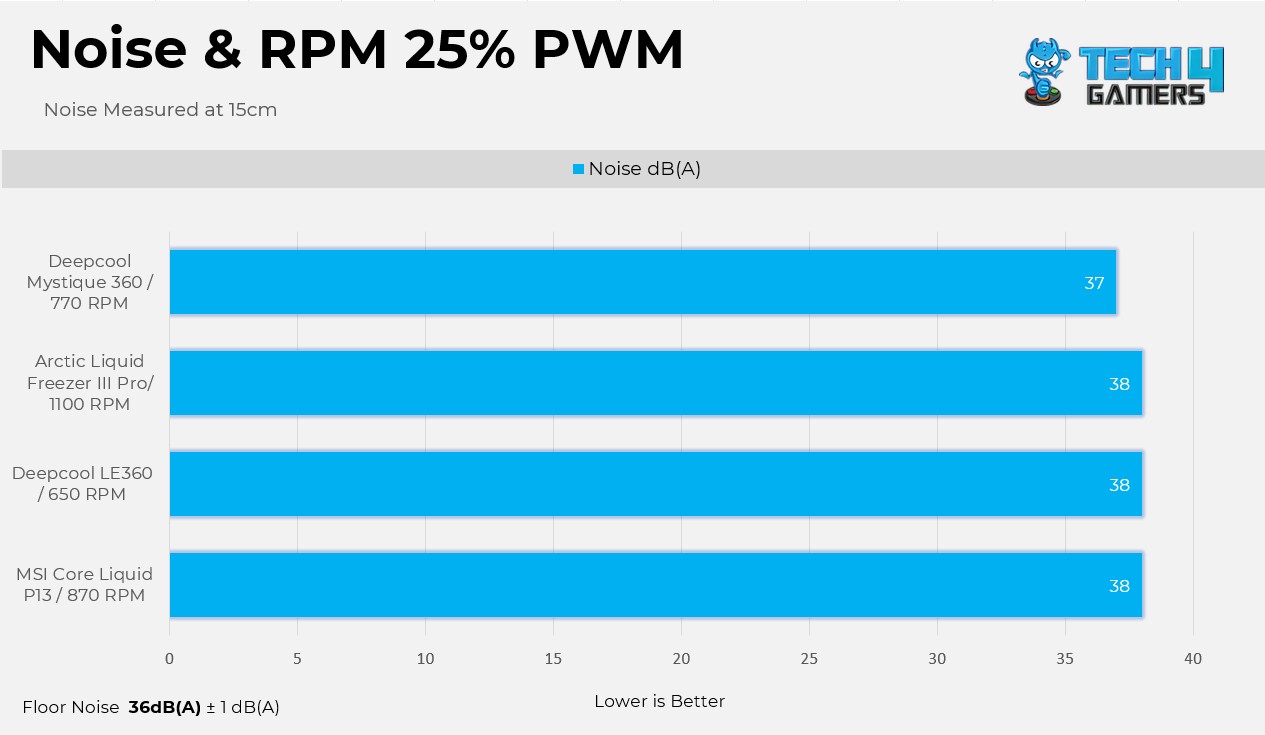
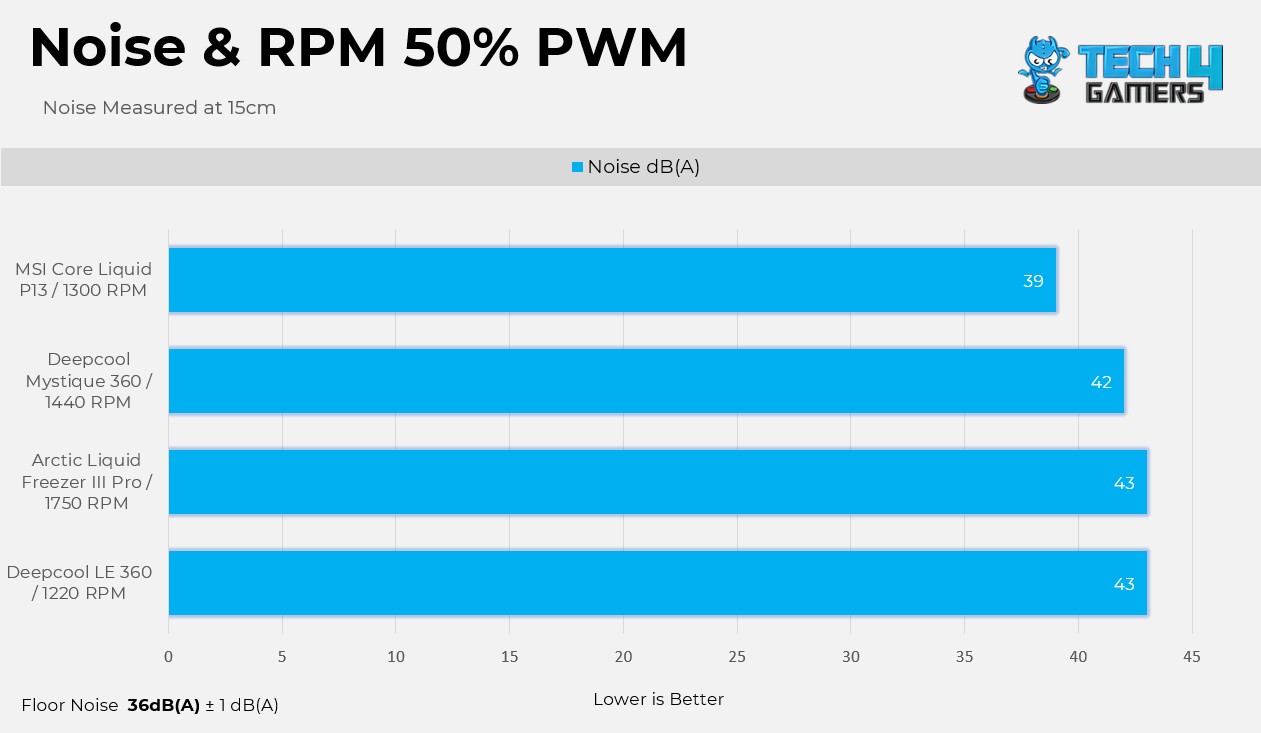
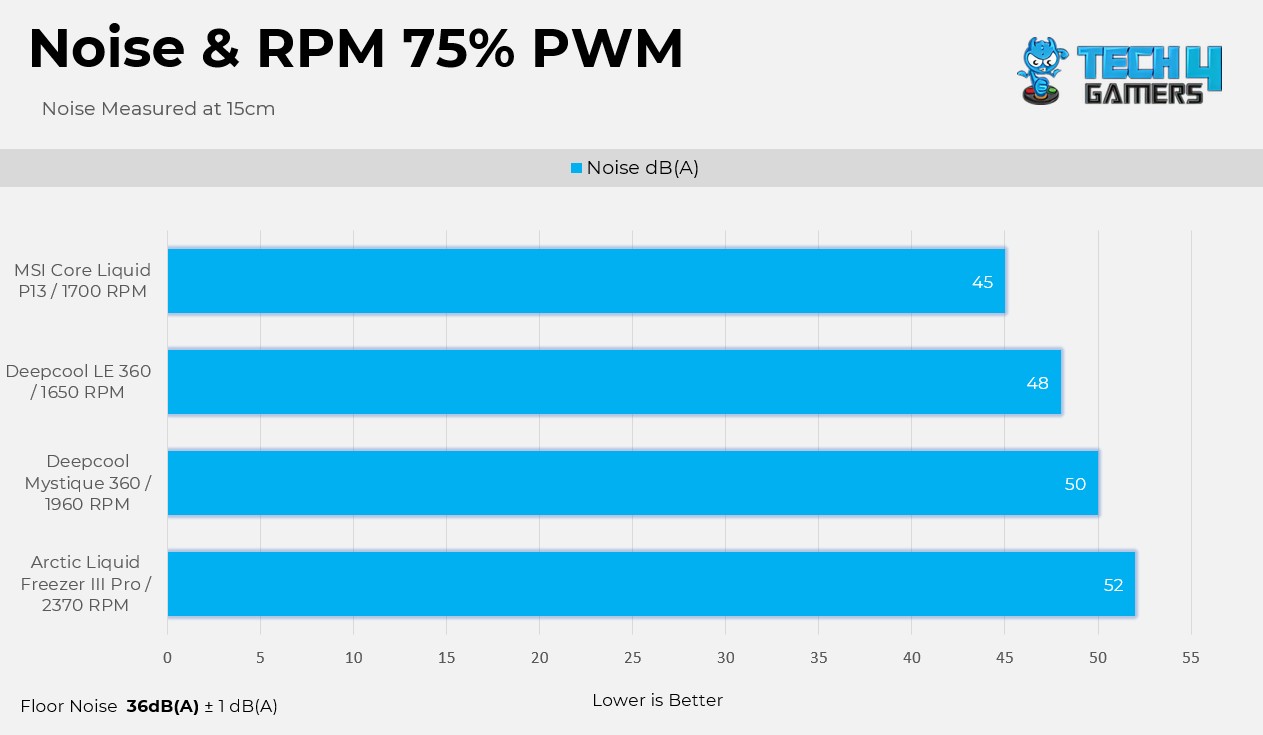
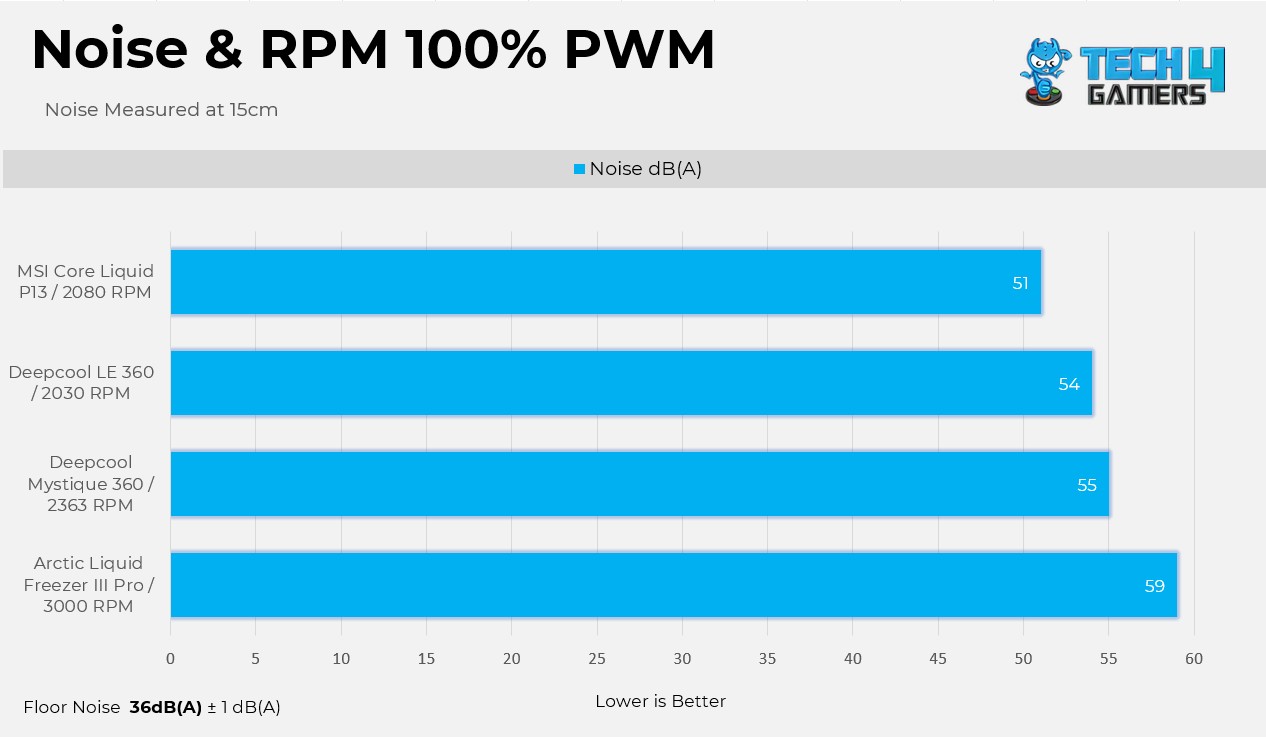
Here are the noise and RPM readings at the 4 PWM levels.
Noise & RPM
1 of 4
25% PWM
50% PWM
75% PWM
100% PWM
I’m impressed with the Arctic P12 Pro Fans; they can run at a faster RPM while producing less noise. Looking at the 50% PWM results, Arctic fans run much faster than the competition while producing similar noise levels. However, at 100% PWM, Arctic becomes very loud.
Should You Buy It?
Buy It If
✅ You Want Extreme Cooling Performance: The cooler exhibits outstanding cooling performance, thanks to its thicker radiator and mighty P12 Pro A-RGB Fans.
✅ You Plan To Overclock: This cooler has the potential to push the CPU to its limits. Additionally, the VRM fan on the block can also cool the VRM on the motherboard.
✅ You Prefer Value: The cooler is currently on sale for $95, making it one of the most value-oriented 360mm AIOs available right now.
Don’t Buy It If
❌ You’ve An Older CPU: Arctic has limited socket support on Intel platforms, meaning the cooler is not compatible with sockets before Intel Core 12th-Generation Processors.
Final Thoughts
There is a lot to talk about this cooler. Arctic Liquid Freezer III Pro has performed well, but there are areas where Arctic could improve. We’ve heard from other reviewers that the installation process on Intel isn’t seamless, requiring users to completely remove the ILM before installing the mandatory mounting bracket. This is something that Arctic needs to take seriously and make easier, especially for users building their PC for the first time. We didn’t have to do that since we are using an AMD platform. Arctic has provided the P12 Pro fans, which are very loud at maximum speed. There is no cable clutter at all, as Arctic provides an all-in-one cable solution for connectivity, which is nice.
Cooling Performance
I’m impressed with its cooling performance, even at the noise-normalized level, as it managed to cool the CPU down far from throttling. However, at the unlocked power, the cooler still efficiently cooled the processor without even reaching 95 °C.
Noise
The fans are the quietest yet the loudest, depending on the scenario. At the noise-normalized conditions, the fans perform better than other coolers on the charts. These fans can spin up to 3000 RPM, generating a noise level of 59dB(A) in our testing. If it’s too noisy for you, I recommend running the fan at 45-55% PWM speed for adequate cooling, which maintains the noise under 45dB(A) but runs 2-3 degrees warmer. On the other hand, I’m impressed with the VRM fan; it’s hardly audible when it’s running.
Build Quality
Arctic is using Reinforced EPDM with a braided sleeve on its tubing, which can reduce the risk of evaporation over time. The aluminum radiator with a thickness of 38mm features a robust fin stack extending the cooling surface without increasing the size of the radiator itself. The provided VRM fan also feels strong and not plasticky or low-grade. The mounting bracket feels very sturdy, and it has clear markings indicating where it goes. When the cooler is installed, it provides a premium look. I’m very impressed with the build quality here!
Value
Arctic Liquid Freezer III Pro A-RGB was launched at the regular MSRP of $144.99. Currently, the cooler is available for a discounted price of $95.99. I recommend purchasing this cooler, given the performance it delivers with the powerful P12 Pro A-RGB fans.
At Tech4Gamers, I take on the role of Hardware Reviewer with pride. My responsibilities involve a thorough examination of essential hardware components like motherboards, graphics cards, processors, PC cases, and CPU coolers, among others, focusing on their complexities and functionalities.
Dr. Usman Saleem
At Tech4Gamers, I’m the PC Hardware Specialist, primarily contributing to the “Best-Ofs” section. I provide thoughtful buying advice based on thorough testing and personal expertise. I also review hardware products and games to keep things fresh.
The Ryzen 9 9950X is AMD’s current flagship CPU. At 170W, it’s the only chip in the new lineup that hasn’t received a lower TDP rating than its predecessor, the 7950X. We have also reviewed the Ryzen 9 9950X ourselves, and while it doesn’t offer a significant jump in gaming, it still performed exceptionally well across our productivity benchmarks. So, naturally, you’ll need a fairly capable motherboard to power this beast. That’s why we tested many AM5 motherboards to find the best picks.
Why Trust Tech4Gamers
Usman Saleem is our hardware tester who loves to put all the latest GPUs, CPUs, RAM, and motherboards for a spin.
40+ motherboards tested and reviewed by our team of hardware experts (Tech4Gamers Team).
800+ hours spent testing different motherboards for our reviews.
At Tech4Gamers, ensuring you get reliable information is our priority. That’s why every hardware round-up undergoes a meticulous review process by our team of experts and editors. Each review is carefully examined against our strict editorial guidelines, guaranteeing you trustworthy insights you can depend on.
So, these are the motherboards I would recommend pairing with the Ryzen 9 9950X:
Motherboard
ASRock Phantom Gaming X870E Nova WiFi
MSI MAG X870 Tomahawk WiFi
ASUS ROG Crosshair X870E Hero
MSI MPG X870E Edge Ti WiFi
ASRock Phantom Gaming B850i Lightning WiFi
Looks
Award
Best Overall Motherboard For Ryzen 9 9950X
Best Value Motherboard For Ryzen 9 9950X
Best Overclocking Motherboard For Ryzen 9 9950X
Best White Motherboard For Ryzen 9 9950X
Best Mini-ITX Motherboard for Ryzen 9 9950X
What We Liked
Solid performance, Low thermals, Looks great
Incredible price-to-performance ratio, DDR5 support up to 8400+ MT/s (OC) Gen5 storage
Incredible OC potential, High-quality VRM structure, Lots of cooling
Great overall performance, Beautiful design with white PCB, Efficient VRM heatsinks with a heat pipe
VRMs, Price, Build quality, Decent set of features
September 9,2025: After testing and going over the results, we replaced the ASRock B650E PG-ITX WiFi with the ASRock Phantom Gaming B850i Lightning WiFi as the best mini-ITX motherboard for the Ryzen 9950X.
[toc]
Best Motherboards For Ryzen 9 9950X
These are my selections:
Best Overall: ASRock Phantom Gaming X870E Nova WiFi
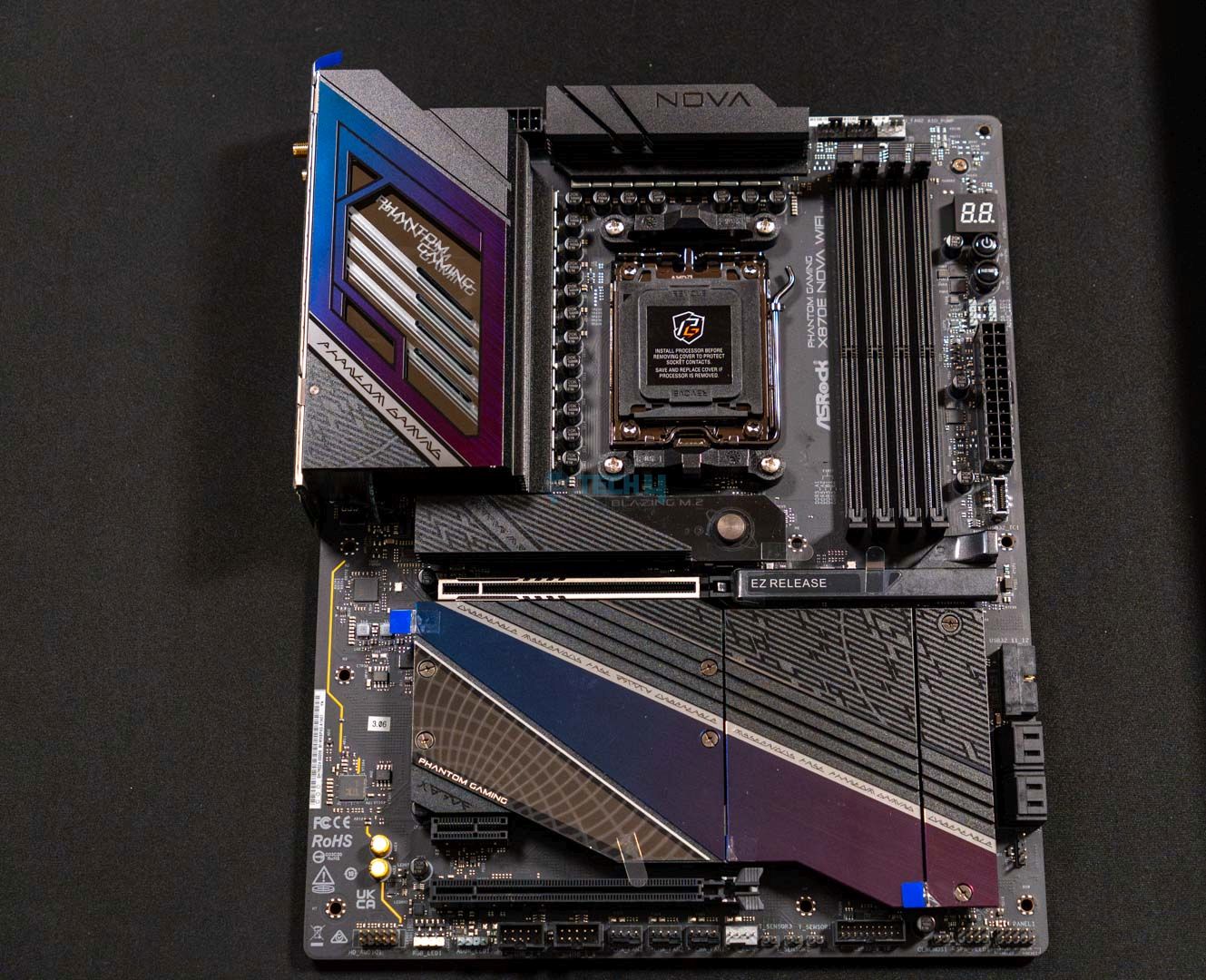
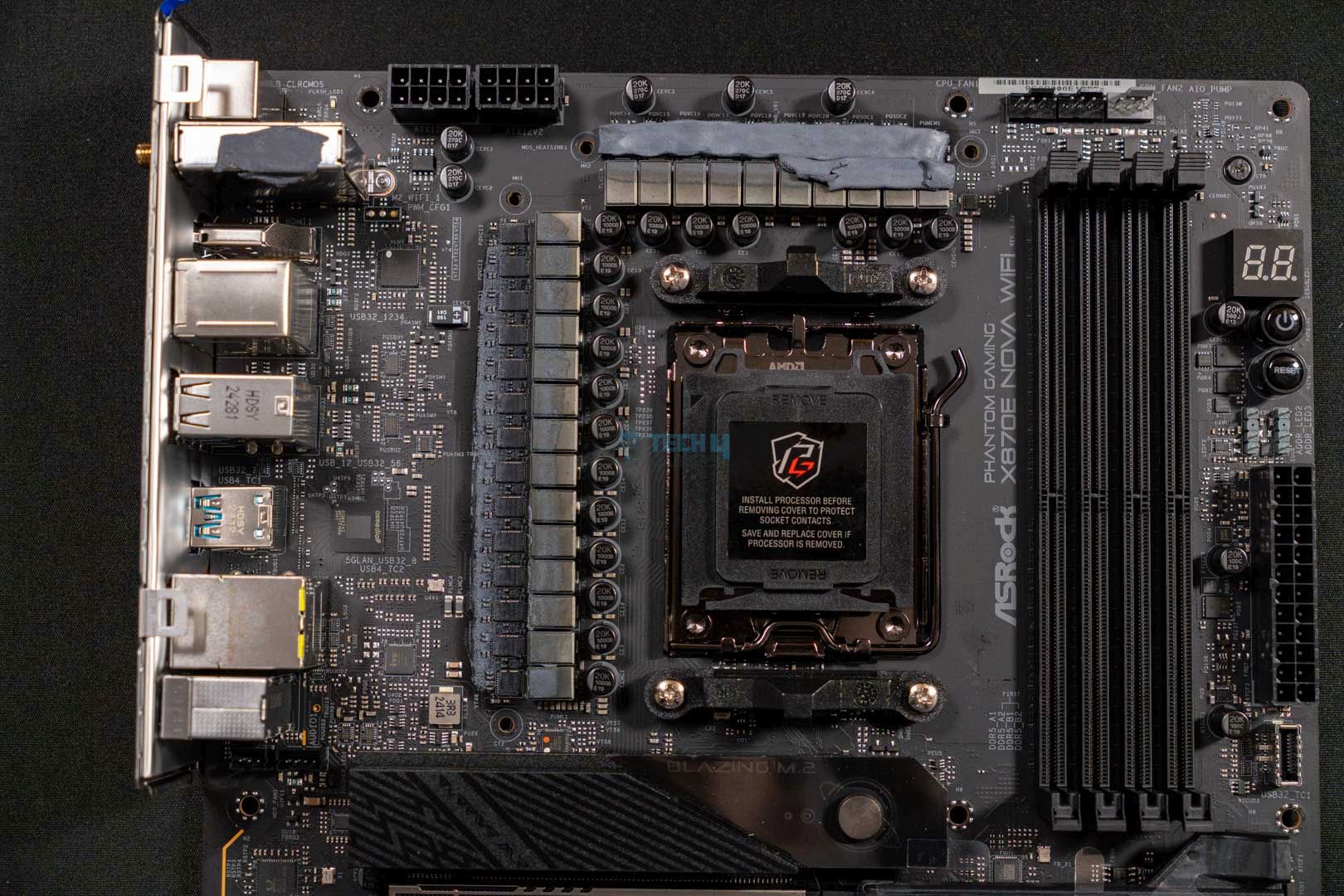
If you don’t have a specific preference and just need a solid all-around motherboard that will not leave you disappointed in any scenario, I suggest you go with the ASRock Phantom Gaming X870E Nova WiFi. For a flagship CPU like the Ryzen 9 9950X, the PG X870E Nova WiFi comes with a 20+2+1 VRM structure with a combined current capacity of around 2200A. This means there is enough room to even overclock the 9950X to the fullest, let alone push it on stock config with just gaming/productivity workloads. In our review, we also paid extra attention to the motherboard’s cooling design, as it can significantly impact its performance, especially in the long run.
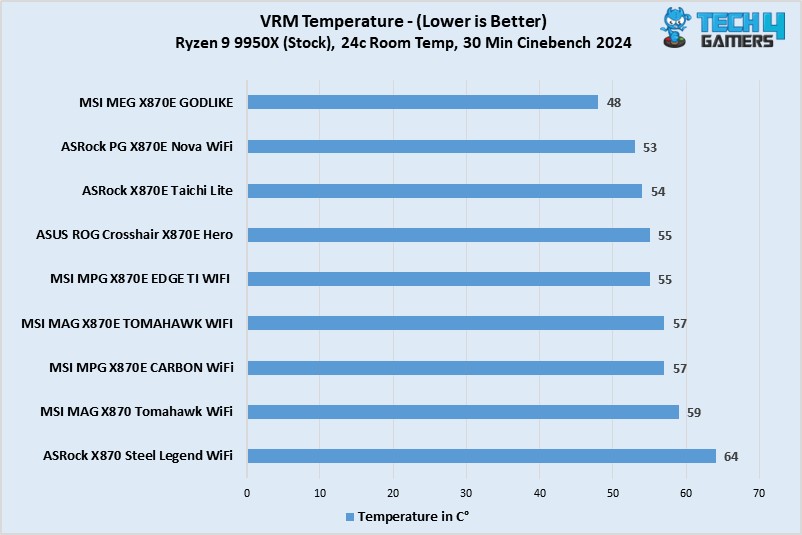
Upon taking off the heatsinks, we saw high-quality thermal pads below them as well as a stacked design to improve overall heat dissipation. The cooling efficiency was further backed by our testing, as we saw the VRM temps rise to around 53°C only (after a 30-minute Cinebench run). Other than that, you also get five M.2 slots for storage (with the top one support PCIe Gen5), two USB4 type-C ports at the back, one USB 3.2 Gen2x2 Type-C port at the front, and plenty of USB 3.2 Gen2 ports (front & back). I also love how ASRock has managed to squeeze in extras like Dr.Debug, Power/Reset buttons, and a toolless design for the M.2 heatsink to improve the overall user experience.
Here’s how Nauman Siddique, our most senior hardware reviewer with years of experience, described the ASRock Phantom Gaming X870E Nova WiFi in his review:
The X870E Nova WiFi packs a solid punch when it comes to both synthetic and gaming benchmarks, and also has very optimal VRM thermals, making it a good choice for overclocking.
✅Buy It If
You want performance without hiccups: Apart from the strong VRM design and Gen5 storage, the board is also capable of running DDR5 memory with up to 8200+ speeds, so if you want great performance, the ASRock PG X870E Nova is the way to go.
You are concerned about cooling: ASRock has invested heavily in the motherboard’s cooling, which is evident in the benchmarks as well. From VRMs to SSDs, the massive heatsinks do a great job at keeping the motherboard at optimal temperatures, which is essential for a build with a flagship CPU like the Ryzen 9 9950X.
❌Don't Buy It If
You plan to use all M.2 and PCIe slots: Honestly, this is a nitpick, and not something that would really be considered a deal breaker. However, one thing that should be mentioned regardless is that the PCIe3 slot is disabled once the M2_5 slot is occupied.
What Makes It The Best Overall Motherboard For Ryzen 9 9950X?
All things considered, the ASRock Phantom Gaming X870E Nova WiFi is an extremely easy-to-recommend motherboard for the Ryzen 9 9950X. It fits the CPU perfectly in terms of performance, features, and overall experience. It performs exceptionally well across all benchmarks, runs cool, looks absolutely beautiful, and has all the bells and whistles you would expect from a flagship chipset. On top of this, the price is relatively good, especially considering what you get for the money, and seeing how it ticks all the boxes, it is hard to pick any other board over the ASRock PG X870E Nova WiFi when it comes to being the best overall pick for Ryzen 9 9950X.
Performance: 9/10
Value: 8/10
Features: 8/10
Design: 9/10
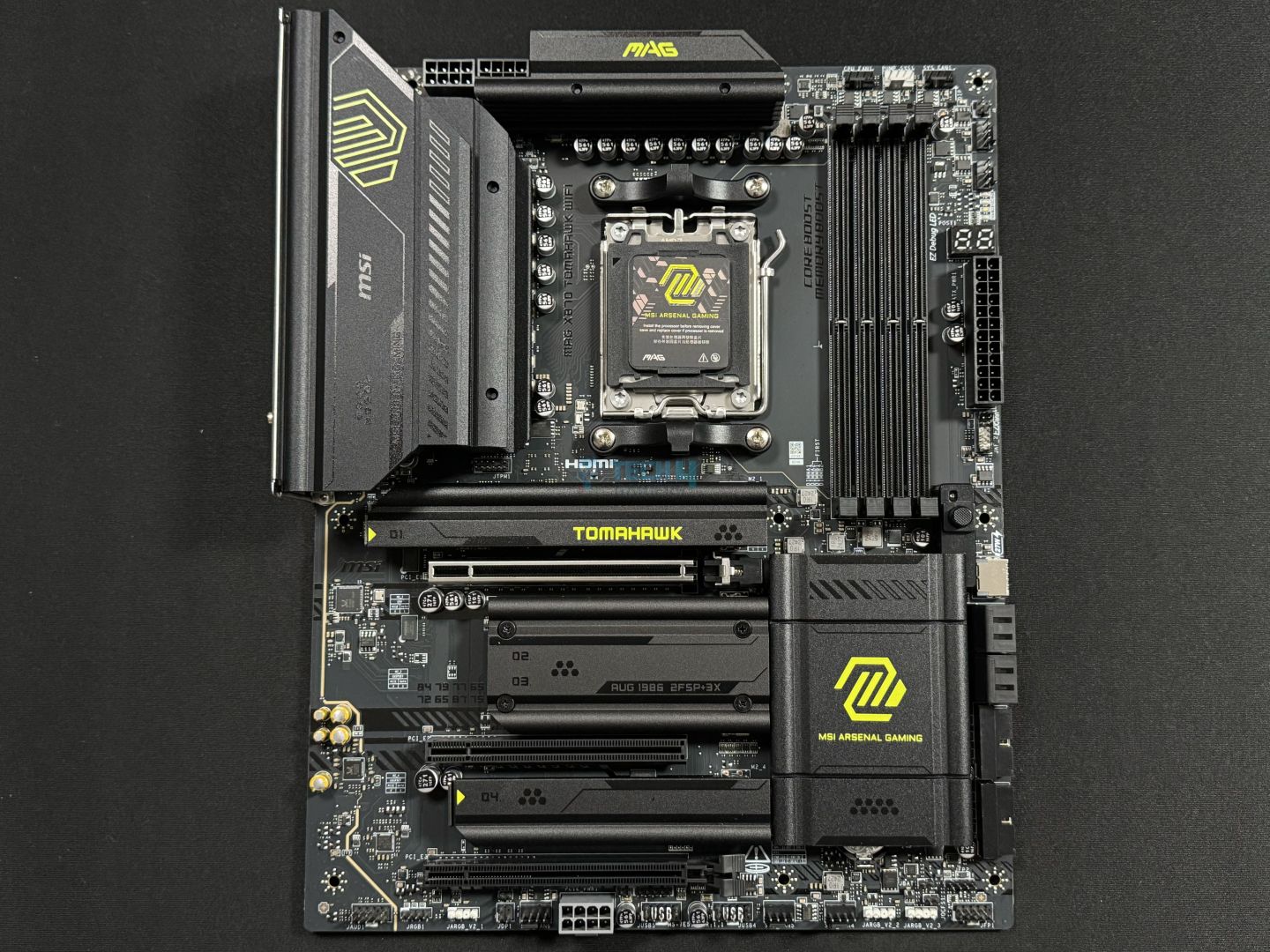
MSI MAG X870 Tomahawk WiFi
Best Value Motherboard For Ryzen 9 9950X
MSI MAG X870 Tomahawk WiFi Pictures From Our Review
1 of 3
MSI MAG X870 Tomahawk WiFi - Main Design. (Image By Tech4Gamers)
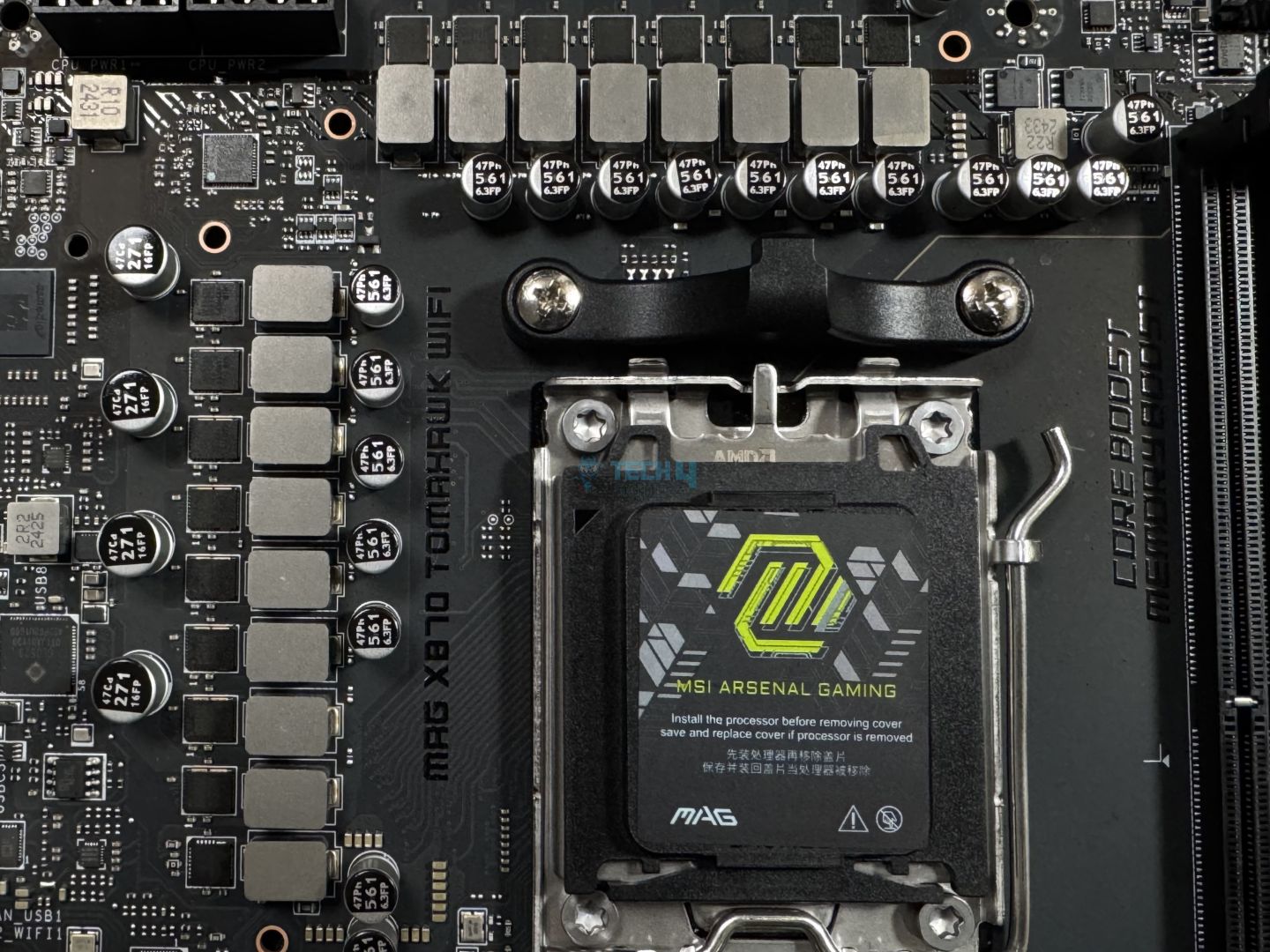
MSI MAG X870 Tomahawk WiFi VRMs (Image By Tech4Gamers)
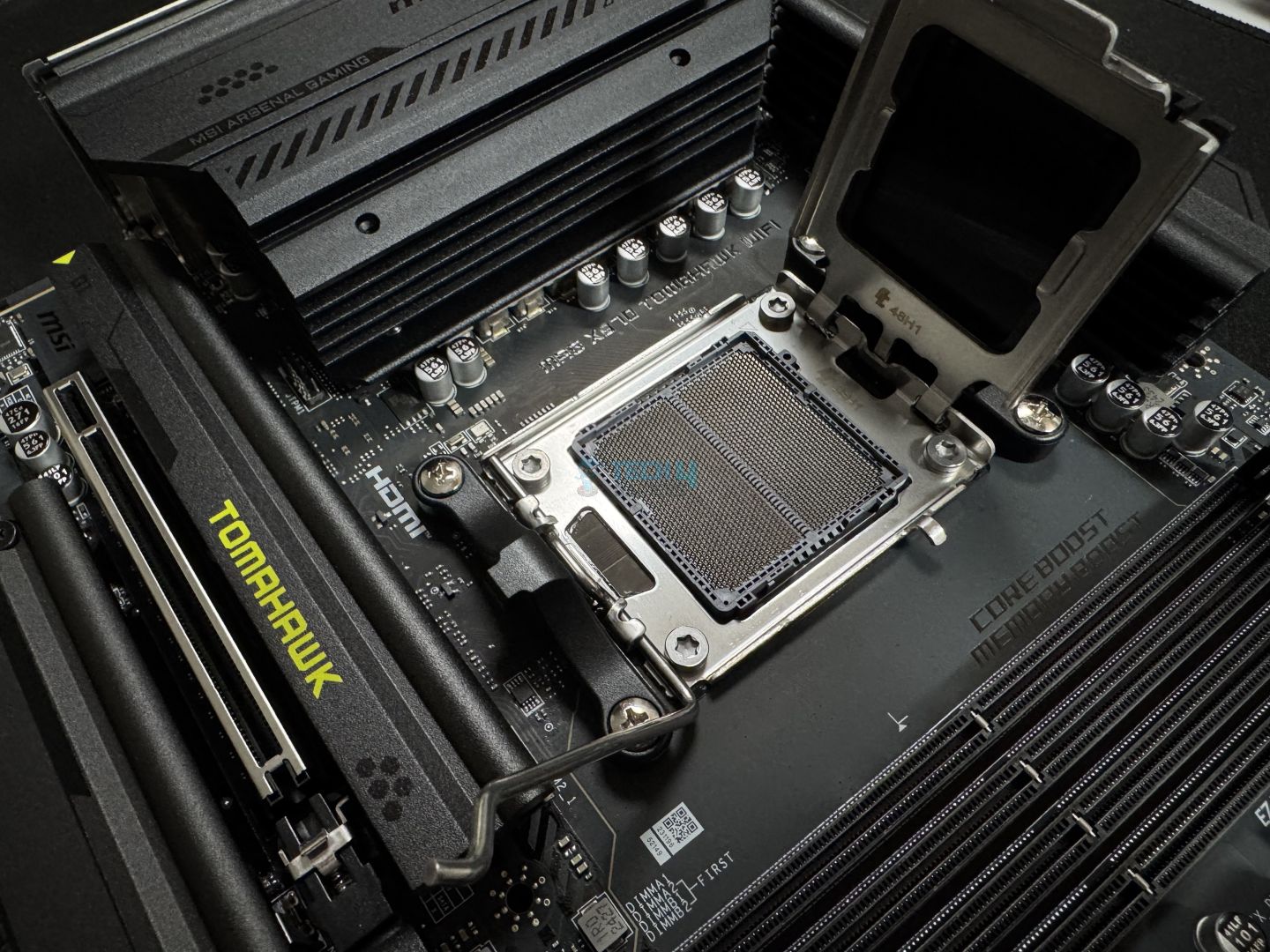
CPU Socket
Chipset: AMD X870 | Memory: DDR5 8,400+ (OC) | VRM: 14+2+1 | Video Outputs: HDMI 2.1, 2x Type-C DisplayPort, USB4 Port, DisplayPort 1.4 | RGB Lighting: No | Network: WiFi 7, Realtek 5G LAN, Bluetooth 5.4 | Storage: 4x M.2, 4x SATA III | USB Ports: 12x Rear, 9x Front
If you’re not interested in flashy design and need a stealthy motherboard that delivers exceptional value for money, the MSI MAG X870 Tomahawk WiFi is the right choice. We’ve personally reviewed this motherboard as well and I have to say it is one of the best X870 motherboards currently available, period. For starters, the 14+2+1 power system with 80A power stages translates to stable and reliable power for the Ryzen 9 9950X. Plus, if you’re into overclocking and don’t want to spend hours manually tuning different aspects, you can rely on EZ OC TUNING to do the job for you.
To keep the VRMs at optimal temperatures, MSI has used a two-piece massive heatsink with thermal pads. While the two heatsinks are not connected via any heat pipes, they still do the job fairly well to the point that you won’t have to worry about running into any issues in that regard. Moving on, it is very impressive to see a total of four M.2 slots out of which two support PCIe Gen5. All four M.2 slots have dedicated heatsinks, with the top Gen5 having double-sided thermal pads as well. As for USB ports, the main highlight is that you get two USB 40Gbps Type-C ports at the back and one Type-C 20Gbps port at the front. There are more ports as well (12x rear and 9x front in total), which is very impressive.
This is what I had to say about the MAG X870 Tomahawk after testing the motherboard thoroughly:
The MSI MAG X870 Tomahawk WiFi is a motherboard costing $299, making it one of the pricier boards so far. For that, it offers reasonably capable VRMs, a minimalist black theme without RGB, a ton of EZ-DIY features to make life easier, and good overall performance. The EZ-DIY features are the highlight for us, but we feel the price tag is still a bit too high, especially given the board’s shared connectivity complications.
✅Buy It If
You want the most out of your money: For the price, MSI has really filled the MAG X870 Tomahawk WiFi to the brim with both attractive features and excellent performance, making it a great value-oriented choice.
You like having fast storage: With two PCIe Gen5 slots (M2_1 and M2_2), the X870 Tomahawk WiFi’s storage selection is very impressive, making it an ideal choice for anyone who doesn’t compromise on storage speeds.
❌Don't Buy It If
You want both PCIe 5 M.2 slots and USB4 ports at full speed: As you can guess, this is again not exactly a major flaw, but since the M2_2 slot shares its bandwidth with the 40Gbps USB Type-C ports at the back, they will reduce speed if the slot is occupied.
What Makes It The Best Value Motherboard For Ryzen 9 9950X?
Simply put, the only real cost-cutting MSI has done with the MAG X870 Tomahawk WiFi is in the overall design. It is not exactly the flashiest board currently available, but this makes sense as the rest of the features and performance make up for it. Plus, considering the competitive pricing, it is hard to beat the value aspect of this motherboard, which is why I am also recommending it as the best value choice for Ryzen 9 9950X.
Performance: 8/10
Value: 9/10
Features: 8/10
Design: 7.5/10
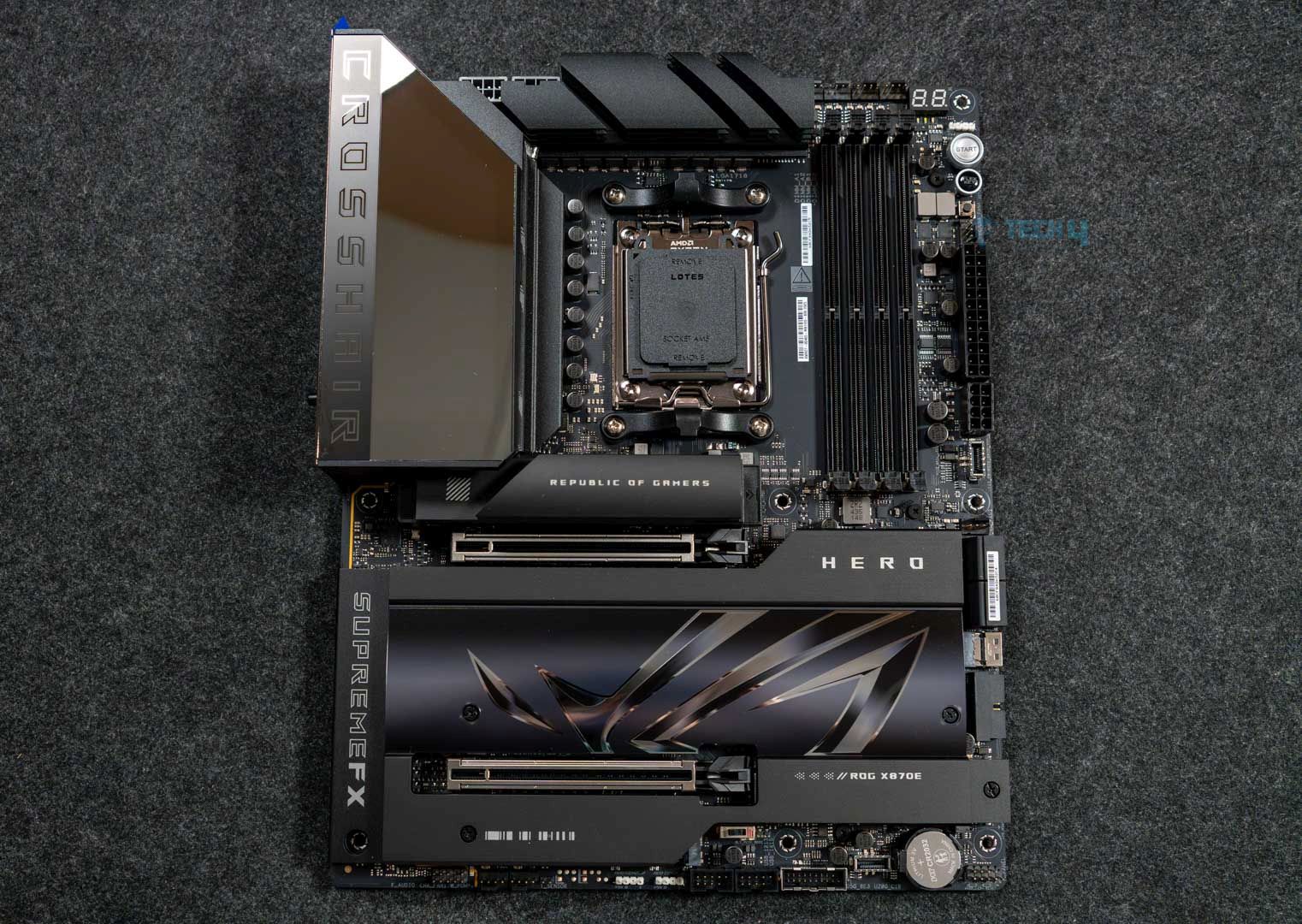
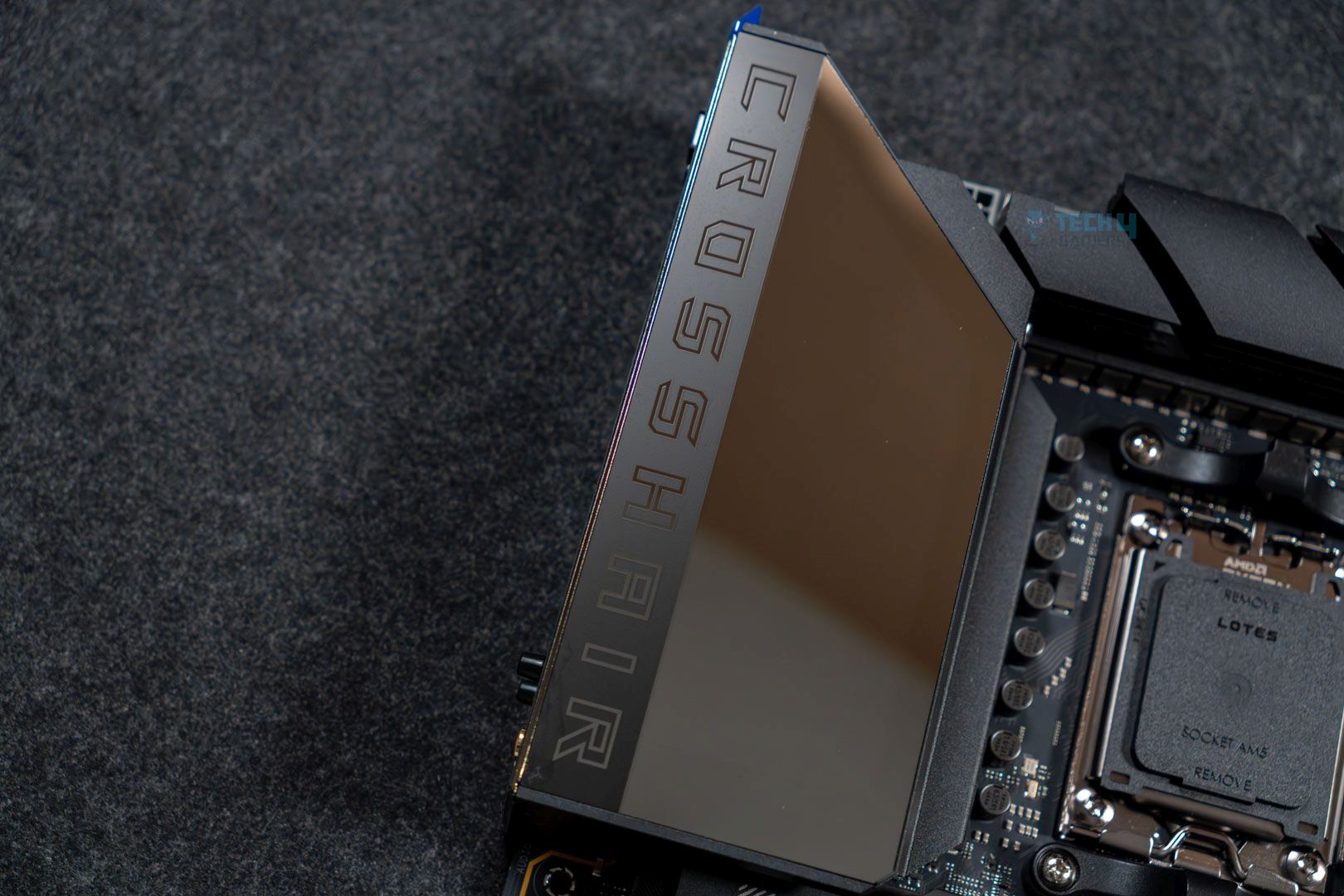
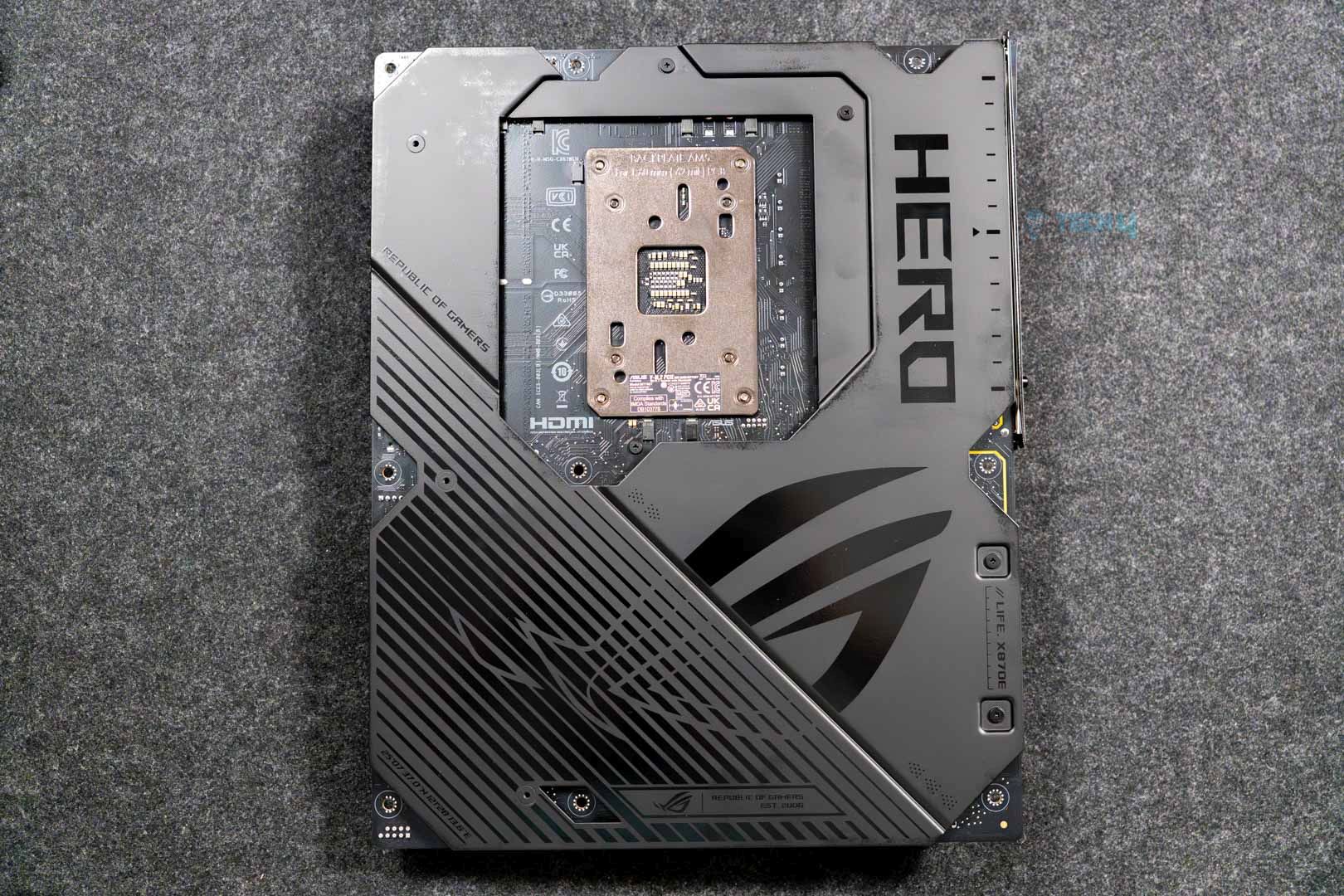
ASUS ROG Crosshair X870E Hero
Best Overclocking Motherboard For Ryzen 9 9950X
ASUS ROG Crosshair X870E Hero Pictures From Our Review
1 of 3
ASUS ROG Crosshair X870E Hero Front View
ASUS ROG Crosshair X870E Hero I/O Top View (Image credit: Tech4Gamers)
Backplate
Chipset: AMD X870E | Memory: DDR5-8600 (OC) | VRM: 18+2+2 | Video Outputs: 1x HDMI 2.1 port, 2x USB4 Type-C display output via DP 1.4a | RGB Lighting: Yes | Network: 1x Realtek 5G LAN, 1x Intel 2.5G LAN, AMD WiFi 7, Bluetooth 5.4 | Storage: 5x M.2, 4x SATA | USB Ports: 10x Rear, 10x Front
Since the Ryzen 9 9950X comes with an unlocked multiplier and fully supports overclocking, you may be interested in pairing it with a motherboard that can really push the processor to its limits. Well, for that, I recommend the ASUS ROG Crosshair X870E Hero. The overclocking potential of a motherboard significantly relies on its VRM design, and the ROG Crosshair X870E Hero is packed with an 18+2+2 VRM structure, totaling 22 phases with combined current support of up to 1980A. As a result, the motherboard can handle even the most extreme power requirements from the 9950X. Of course, being a flagship-level motherboard, it is also rigged with a suite of apps (like Dynamic OC Switcher, Core Flex, Asynchronous Clock, and PBO Enhancement) to improve the board’s overall overclocking experience.
To keep the VRMs cool, ASUS has gone with well-engineered heatsinks for both the VRMs and the rear IO. The two are connected through a heatpipe as well so the heat dissipates quite effectively. As for memory, the board is rated to handle DDR5 kits with speeds of over 8200 (OC) when paired with the Ryzen 9950X, so no issues there. Similarly, it also has five M.2 slots, three of which run at PCIe Gen5 speeds, which is very impressive. There are also 20 USB ports in total (10x front, 10x rear), of which two are USB4 (40Gbps) Type-C ports at the back and a couple are USB 20Gbps connectors at the front. Simply put, no matter how you look at it, the ASUS ROG Crosshair X870E Hero packs an incredible amount of both raw performance and excellent features.
Here’s how we described the ASUS ROG Crosshair X870E Hero in our dedicated review of the motherboard:
The ASUS ROG Crosshair X870E Hero is one of the most premium ($700) offerings for AMD’s most premium chipset. It offers a fresh, all-black design highlighted by the large Polymo Lighting II array, excellent VRMs, five M.2 slots, and 20 USB ports. Dual LAN ports are also on offer, but we would’ve preferred a singular 10G port.
Spoiler title
You want to extract every bit of performance from your Ryzen 9 9950X: From robust VRMs to efficient cooling, the ASUS ROG Crosshair X870E Hero is designed with overclocking in mind, even the software features help tune the processor for ideal performance.
You require plenty of high-speed storage support: With three PCIe Gen5 M.2 slots and two PCIe Gen4 slots, the ROG Crosshair X870E is an ideal choice for content creators or streamers who have high-storage needs without compromising performance.
❌Don't Buy It If
You don’t want to spend $700 on a motherboard: At the time of writing, the ASUS ROG Crosshair X870E Hero will set you back by $700. This is a massive price tag for a motherboard, and unless you require all the performance and bells and whistles it has to offer, other, more affordable, X870/X870E options are fine for the Ryzen 9950X.
What Makes It The Best Overclocking Motherboard For The Ryzen 9 9950X?
If we just talk about overclocking alone, it is the 18+2+2 VRM structure with excellent cooling and software features that combine to make the ASUS ROG Crosshair X870E Hero a great choice for overclocking. However, its storage and connectivity support, audio solution, 60W charging support, and just the overall build quality, layered on top of exceptional overclocking potential, is what makes it the best overclocking motherboard for the Ryzen 9 9950X.
Performance: 10/10
Value: 7/10
Features: 9.5/10
Design: 9.5/10
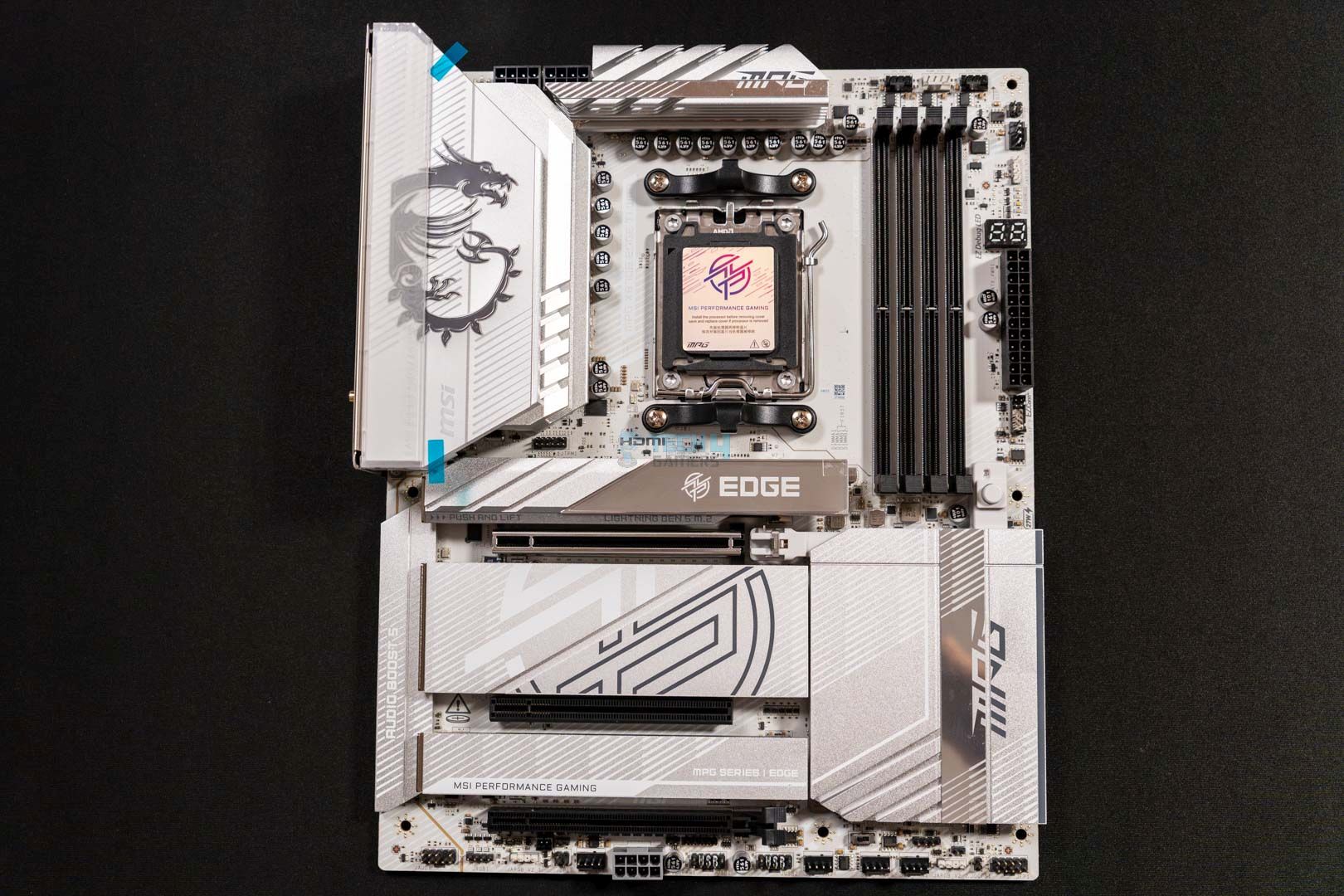
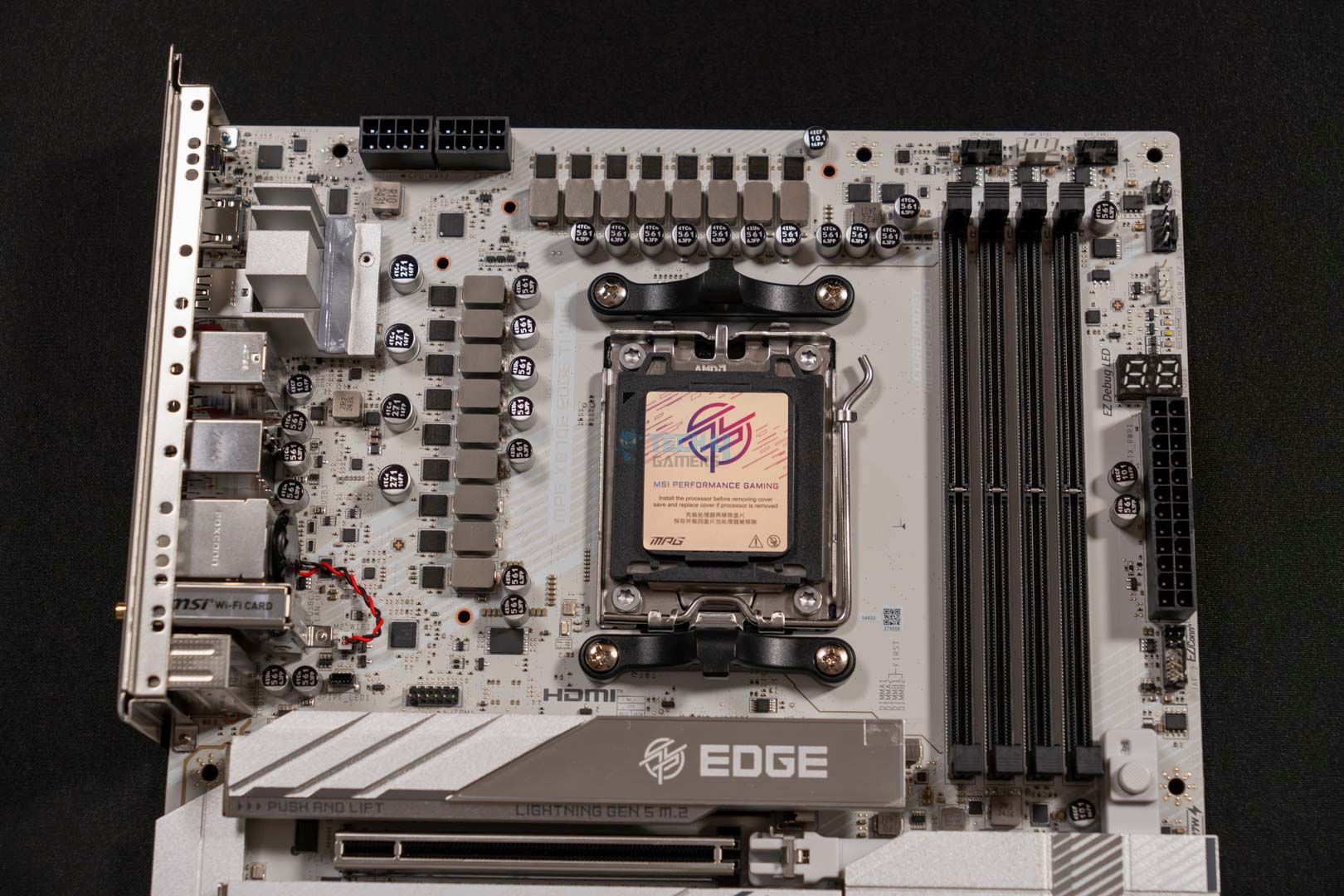
MSI MPG X870E Edge Ti WiFi
Best White Motherboard For Ryzen 9 9950X
MSI MPG X870E Edge Ti WiFi Pictures From Our Review
1 of 3
MSI MPG X870E Edge Ti WiFi Main Design (Image credit: Tech4Gamers)
VRM Covers Removed Close Up
CPU Socket Opened
Chipset: AMD X870E | Memory: DDR5 8,400+ (OC) | VRM: 14+2+1 | Video Outputs: HDMI 2.1, 2x Type-C DisplayPort, USB4 Port, DisplayPort 1.4 | RGB Lighting: Yes | Network: WiFi 7, Realtek 5G LAN, Bluetooth 5.4 | Storage: 4x M.2, 4x SATA III | USB Ports: 12x Rear, 9x Front
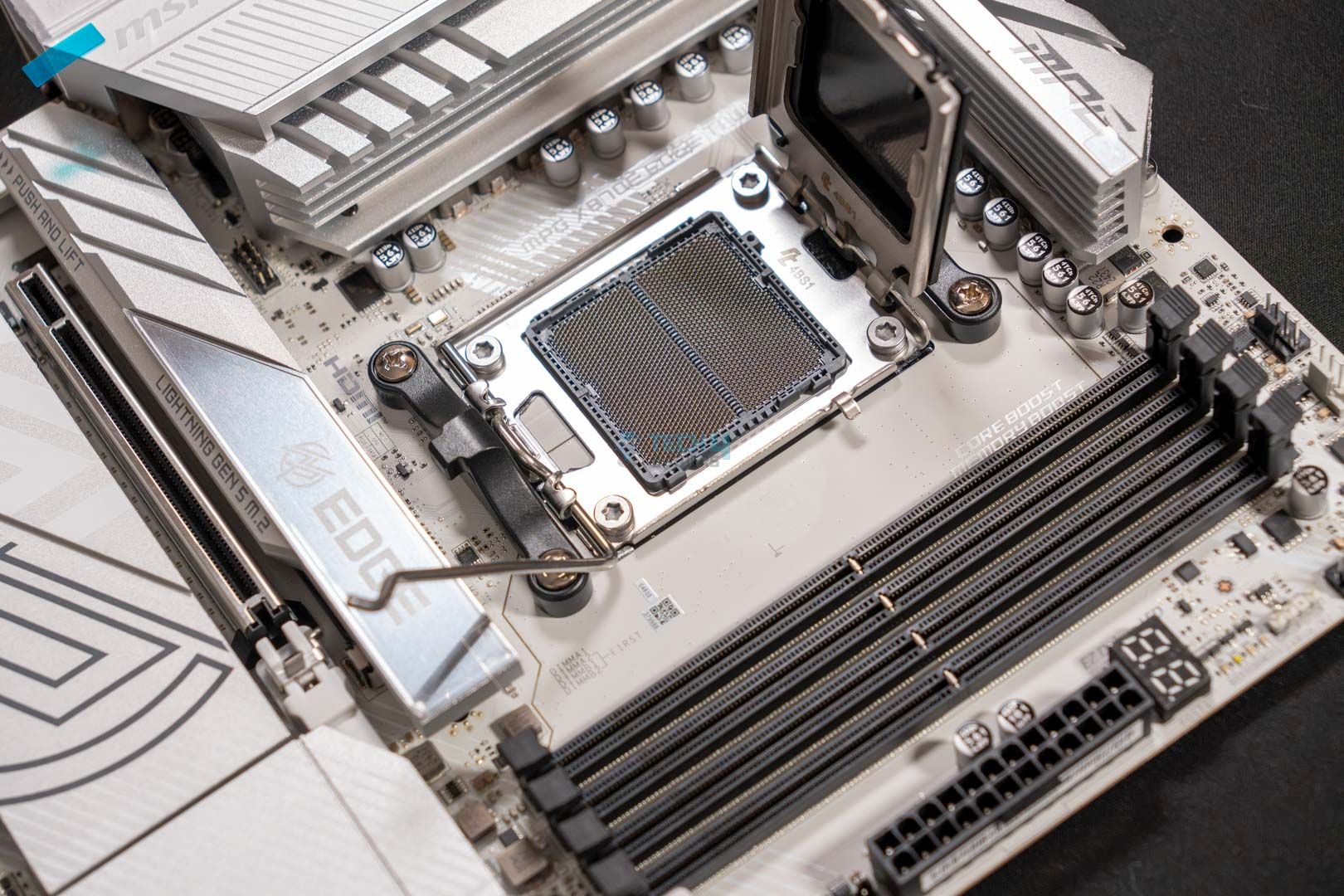
I’ve always been a massive fan of white PC builds, way more than flashy RGB designs. The sleek, minimalistic, and clean looks are simply beautiful, and if you’re like me and want a white motherboard to go along with your Ryzen 9 9950X, going with the MSI MPG X870E Edge Ti WiFi is a no-brainer option. We will get to its style later, but first, in terms of performance, the board features a solid 14+2+1 VRM structure which is more than enough for the 9950X. For cooling, there are two stacked heatsinks with 7W/mK thermal pads and a heat pipe that facilitates heat transfer between them. There are also plenty of heatsinks (with thermal pads) for the M.2 slots and the chipsets.
Speaking of storage, you get four M.2 slots (two PCIe Gen5, two PCIe Gen4), which should be more than enough for most gamers/content creators. The overall USB provision is also impressive, with the board packing a total of 12 ports at the back and 9 at the front. Of course, since this is an X870E motherboard, we get to USB 40Gbps Type-C ports at the back, and there is also a USB 20Gbps Type-C port at the front. Coming back to the design, you get a beautiful silver-on-white finish with a premium texture on all the heatsinks. There are also some gray accents for logos and other design elements. The MSI Dragon mascot on the rear I/O heatsink supports A-RGB and lights up beautifully as well.
After testing, this is how we summarized the MSI MPG X870E Edge Ti WiFi in our review:
The MSI MPG X870E Edge Ti WiFi is a great choice for an X870E chipset that costs you $329.99. This motherboard can also be called the beauty and the beast because of its appealing white aesthetics and powerful VRMs that ensure great performance output. The board also comes packed with an EZ-DIY mechanism all over it. Moreover, the VRMs stay very cool even under intense load, which impressed us quite well.
✅Buy It If
You want both good looks and plenty of performance: While there are many other white motherboards, the MSI MPG X870E Edge Ti WiFi stands out not with just its design but also its performance, cooling, and other features.
You want value for money: Considering what you get for the price tag, the MSI MPG X870E Edge Ti WiFi is a very impressive option as far as value for money goes. So, if you’re a value-oriented person, this board is worth considering.
❌Don't Buy It If
You plan to use both Gen5 M.2 slots and USB4 ports at full speed: The MSI MPG X870E Edge Ti WiFi is a very well-rounded motherboard to the point that it is hard to point out its flaws. As such, the only thing that you should look out for is that if you populate the M2_2 slot and the USB4 ports, they will run at lower speeds.
What Makes It The Best White Motherboard For The Ryzen 9 9950X?
All in all, the MSI MPG X870E Edge Ti WiFi is an excellent choice for pretty much all high-end Ryzen 9000 processors, including the Ryzen 9 9950X. I mean, the design is simply beautiful, there is no denying that, but the performance is also quite impressive, and we witnessed that first-hand when we put the board to the test. Then other aspects give it more value, like plenty of USB ports, EZ DIY features, 27W PD charging support, and DDR5 support with up to 8400+ MT/s (OC), and that’s why I am recommending it as the best white motherboard for Ryzen 9 9950X.
Performance: 8/10
Value: 9/10
Features: 7.5/10
Design: 10/10
ASRock Phantom Gaming B850i Lightning WiFi
Best Mini-ITX Motherboard for Ryzen 9 9950X
ASRock Phantom Gaming X870E Nova WiFi Pictures From Our Review
1 of 3
Rear IO Design (Image By Tech4Gamers)
CPU Socket
Rear I/O panel
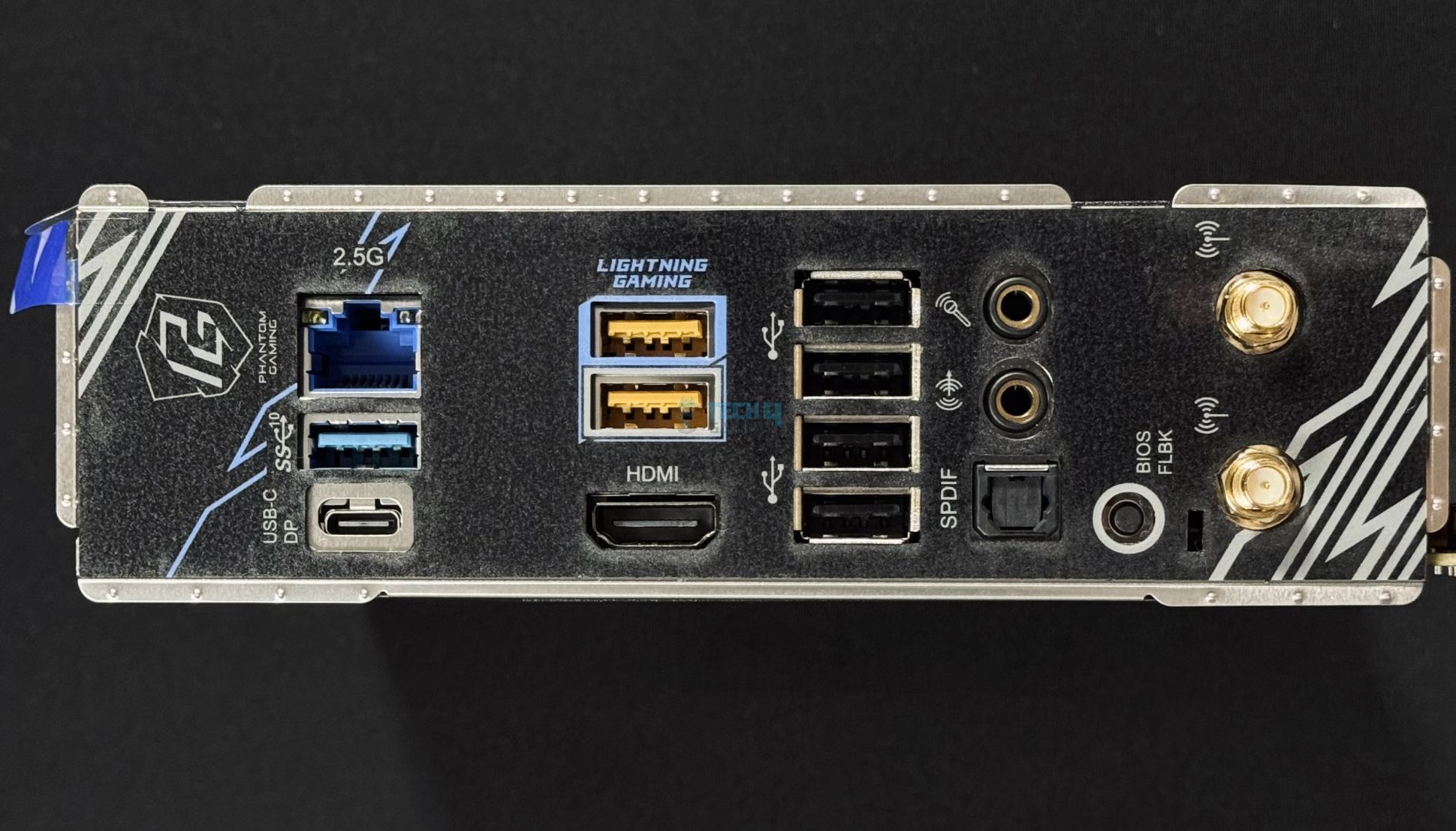
Chipset: AMD B850 | Memory: DDR5-8200+ (OC) | VRM: 10+1+1 | Video Outputs: 1x HDMI 2.1 port, 1 x USB 3.2 Gen2 Type-C Port (supports DP1.4a) | RGB Lighting: No | Network: 1x 2.5G LAN, AMD WiFi 6E, Bluetooth 5.2 | Storage: 1x M.2 Gen 5, 1x M.2 Gen 4, 2x SATA | USB Ports: 7x Rear, 3x Front | MSRP: ~$200
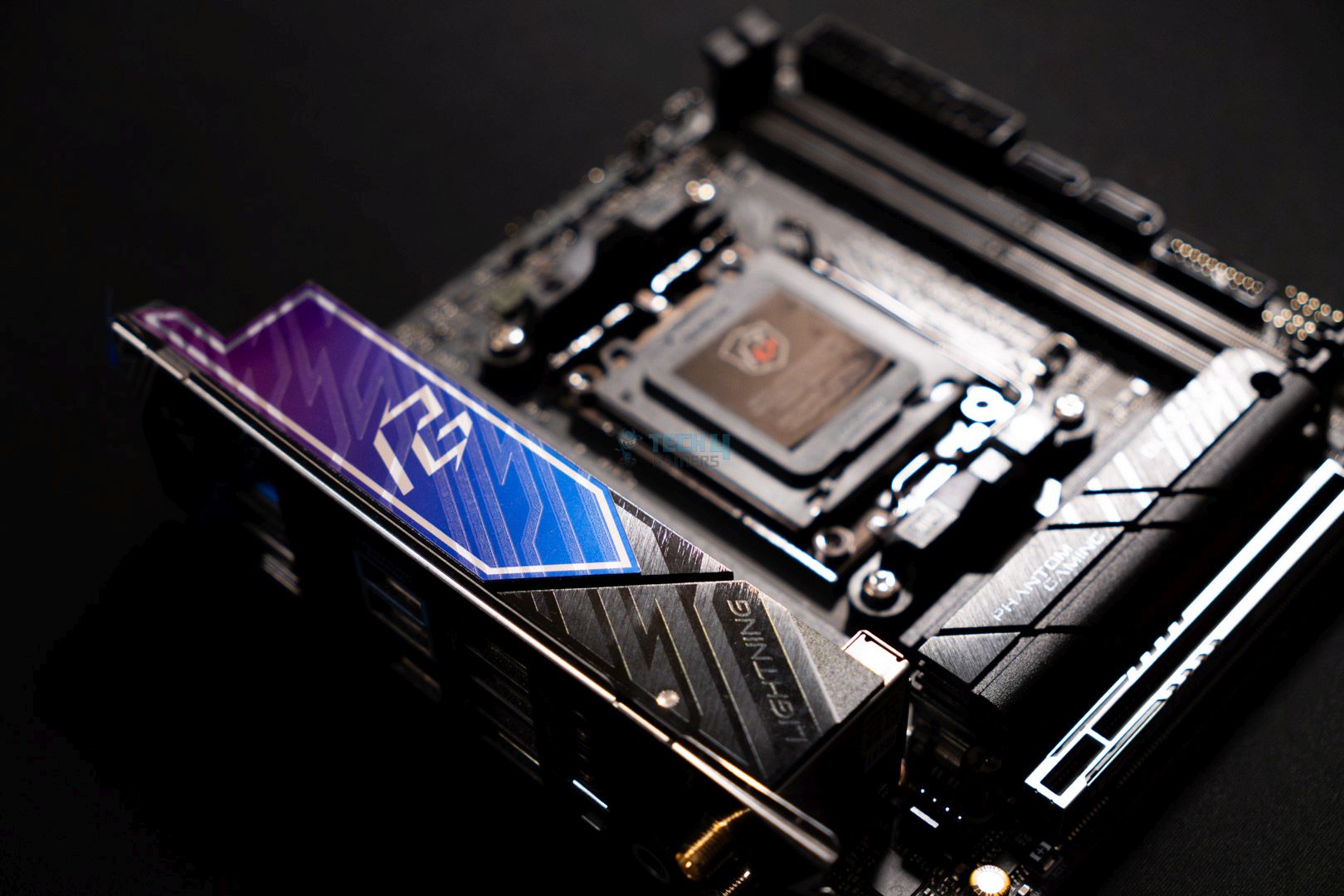
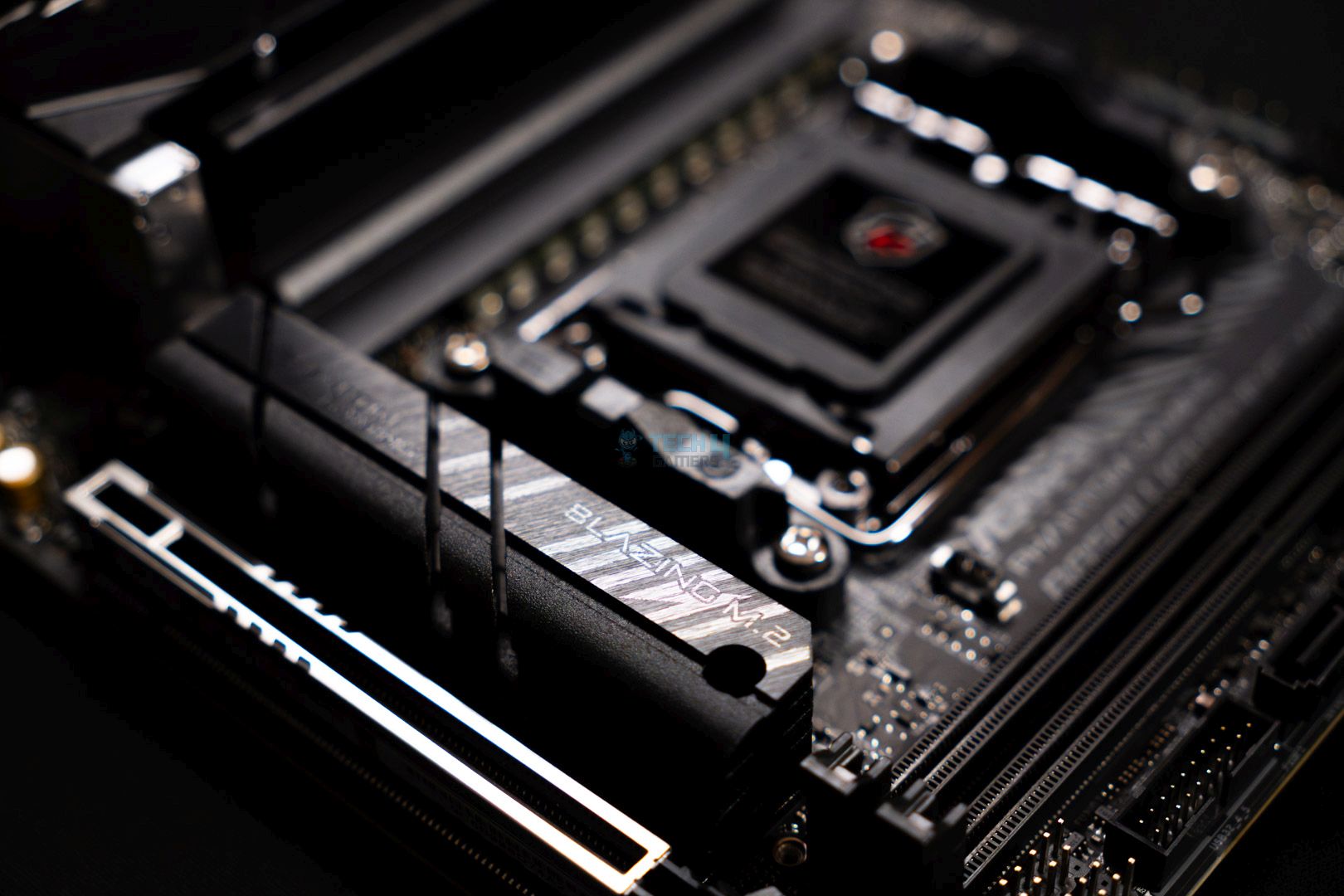
ASRock’s Phantom Gaming B850i Lightning WiFi is another feather in its cap of affordable, excellent motherboards. It stands out with 8 PCB layers and an excellent 10+1+1 setup, with 10x 110A VCore phases, enough to handle the flagship Ryzen 9 9950X. The VRM cooling is not as good due to the size limitation, but it’s good enough to get you by. You also get decent cooling for the Gen 5 M.2 slot.
The design theme for this generation’s PG boards for AMD follows a purple-blue aesthetic. Though you have only the one heatsink following this, and there’s also no integrated RGB lighting. Its key features include a full Gen 5 PCIe slot, 2x M.2 slots, 10 USB ports, a decent audio solution, and 2.5G LAN. There’s also a thermistor header on the board with a cable included in the package. What you may find lacking is the lack of USB4 (with Ryzen 9000) and WiFi 7.
Here’s what reviewer Ali Tauseef had to say after taking the motherboard for a spin:
While the board does cost you $209.99, the motherboard justifies it pretty well with its competitive performance figures that speak volumes for its excellence.
✅Buy It If
You want to run a flagship CPU: The Phantom Gaming B850i Lightning WiFi has a VRM setup capable of running even the beefiest Ryzen 9000 CPUs.
You’re on a budget: At around $200, the motherboard is the cheapest mini-ITX B850 motherboard we’ve reviewed.
❌Don't Buy It If
You require the latest I/O: With WiFi 6E and no USB4, you miss out on some of the latest I/O with this motherboard. Also, the front panel USB is limited to 3.0.
On-board RGB is important: There’s no integrated RGB on show here.
What Makes It The Best Mini-ITX Motherboard For Ryzen 9 9950X?
With a modest ~$200 price tag, the ASRock Phantom Gaming B850i Lightning WiFi mostly cuts down on the right features while retaining the important ones. You get powerful VRMs, a decent design, plenty of USB ports, 2.5G LAN, and a decent audio codec. There’s no WiFi 7, though, and you will also miss out on USB4 with the Ryzen 9 9950X.
Performance: 9/10
Value: 9/10
Features: 8/10
Design: 8/10
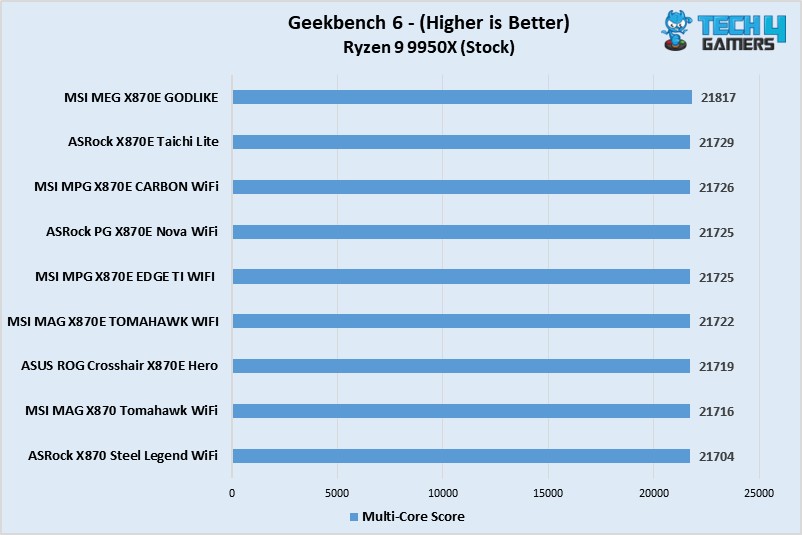
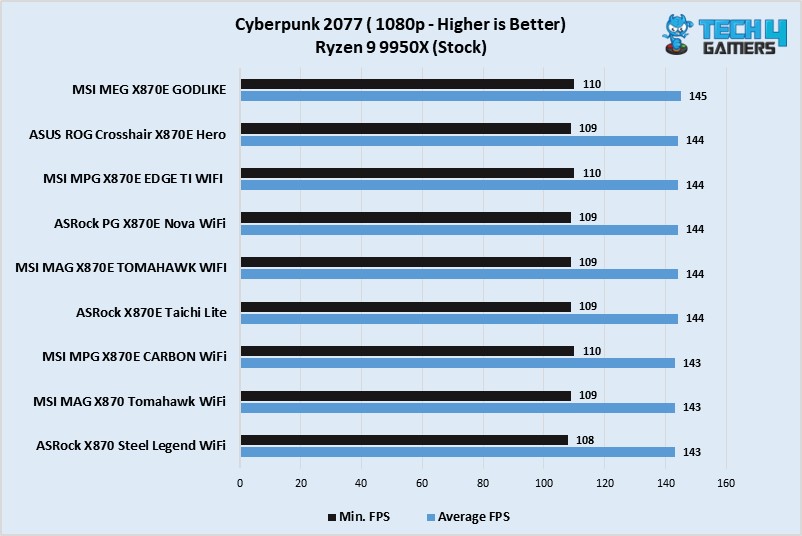
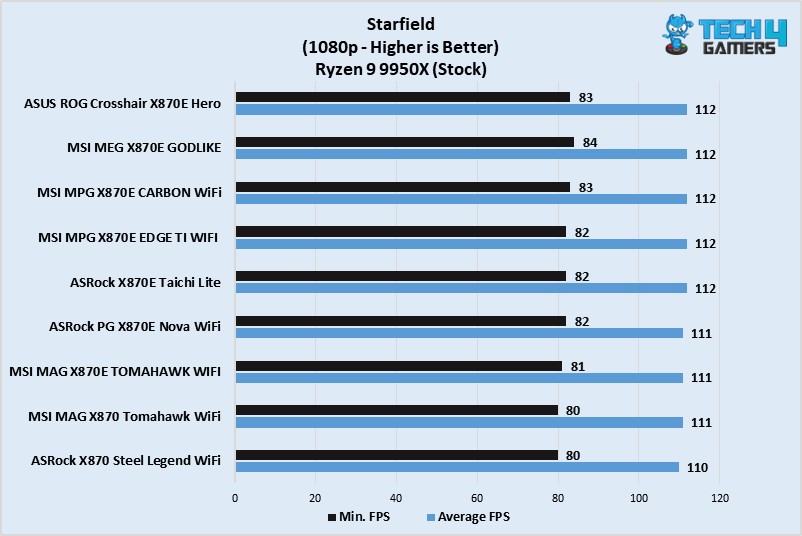
Benchmarks Of Our Tested X870 Motherboards
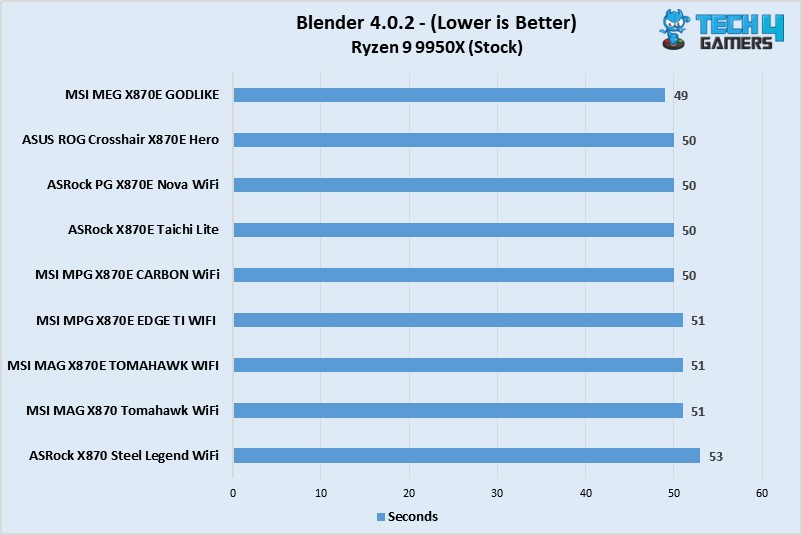
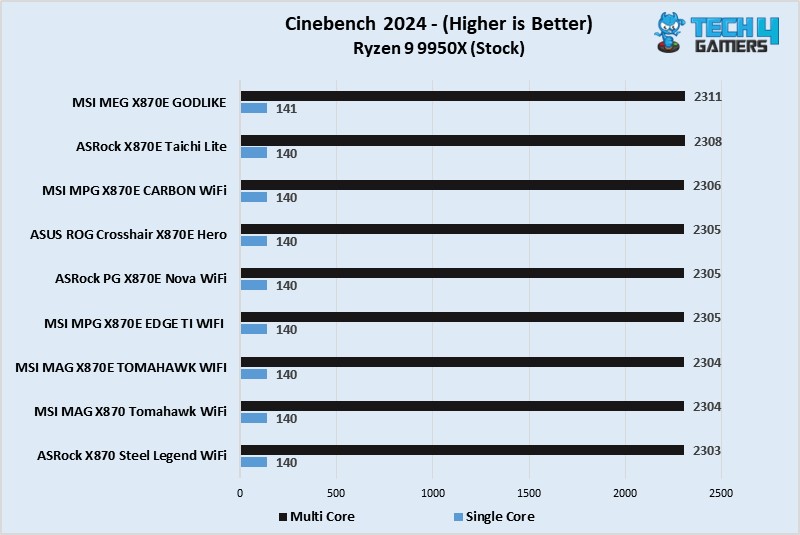
We can’t just recommend a bunch of motherboards out of thin air. We actually went ahead and reviewed several X870 and X870E options from key manufacturers like ASUS, MSI, and ASRock, and then identified the top options that we consider to be the best for the Ryzen 9 9950X.
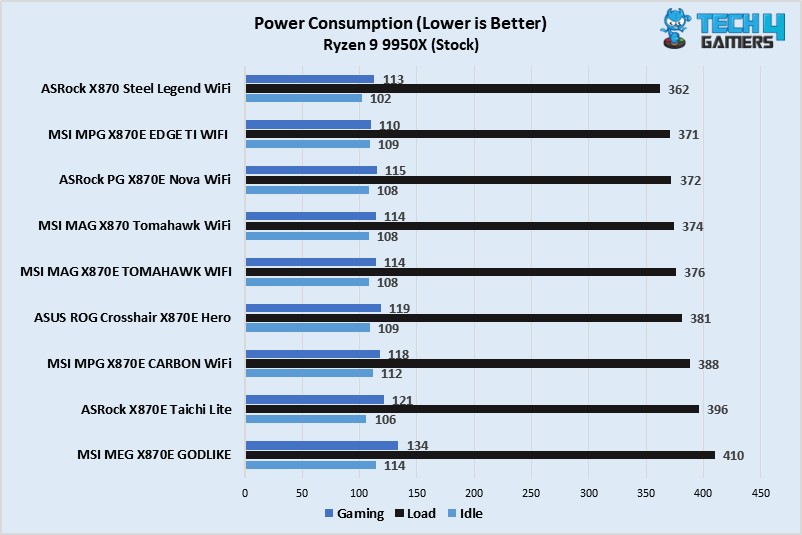
Of course, we didn’t just pick the boards with the best benchmarks; we also considered other features and overall value. In any case, here are some synthetic and gaming benchmarks along with VRM temps and power consumption of some of the best X870/X870E motherboards we have reviewed.
These benchmarks are with the Ryzen 9 9950X processor itself, so this should also give you a fairly good idea of what to consider from your build.
Benchmarks Of Our Tested X870 Motherboards
1 of 7
The Narrow Misses
Some motherboards narrowly missed our list; here’s why.
Asus ROG STRIX B650E-F Gaming WiFi: We loved everything about this motherboard, but would’ve liked a slightly more attractive price (compared to its $254).
Gigabyte X670 Aorus Elite AX: Problems like its budget audio codec, absence of a post-code debug panel, and competing B650E boards (with GPU PCIe 5.0, of course) turned us away.
Specifications Comparison
Here’s how our picks compare in some key specifications:
Motherboard Model
Total Power Phases
Max Memory Speed (MT/s)
No. of M.2 slots
No. of SATA III ports
No. of USB ports (Front)
No. of USB ports (Rear)
ASRock Phantom Gaming X870E Nova WiFi
23
8200
5
4
9
12
MSI MAG X870 Tomahawk WiFi
17
8400
4
4
9
12
ASUS ROG Crosshair X870E Hero
22
8600
5
4
10
10
MSI MPG X870E Edge Ti WiFi
17
8400
4
4
9
12
ASRock Phantom Gaming B850i Lightning WiFi
12
8200
2
2
5
8
Important Terms About Motherboards
VRM: This is the part of the motherboard that ensures your CPU gets a stable voltage, helping maintain reliable performance.
Chipset: The chipset consists of crucial circuits that handle communication between the CPU, RAM, and other components.
Expansion Slots: These are used for adding extra components like graphics cards, sound cards, or network cards to expand your PC’s capabilities.
DIMM Slots: These slots are where you insert RAM modules, giving the CPU quick access to the data it needs to process.
Form Factor: This defines the motherboard’s size and shape, influencing which cases it fits and the number of expansion slots you can use.
How I Rounded Up These Motherboards
My team and I have been trying and testing different motherboards to gain insights into their performances, features, and overall value. During our testing, we focused the most on these aspects:
Overall Performance: I paid close attention to the VRM quality and overclocking capabilities. Motherboards with strong VRMs are crucial for stable overclocking, which is especially valuable for enthusiasts looking to push their systems further. Having a stronger VRM structure also translates to better overall performance.
Features: I looked for motherboards packed with useful features like built-in Wi-Fi, multiple M.2 slots, and plenty of USB ports. For a CPU like 9950X, these are a must-have.
Design: I didn’t overlook the design aspect. I evaluated the visual appeal, RGB lighting options, and overall layout. A good-looking motherboard can make your PC stand out and increase overall satisfaction.
Value: I analyzed whether each motherboard was worth its price. Apart from performance, I considered if the features and capabilities justified the cost, ensuring you get the best bang for your buck.
FAQs
Is it worth getting the Ryzen 9 9950X over the Ryzen 7 7800X3D for gaming?
According to AMD’s senior Technical Marketing Manager, the Ryzen 7 7800X3D will remain the gaming king of its lineup, albeit by little margin.
What memory speed is best for the Ryzen 9 9950X?
According to our tests, the best (and most stable) results were seen while testing the Ryzen 9 9950X with 6400 MT/s memory.
Can I use DDR4 memory with Ryzen 9 9950X?
No. AMD’s AM5 platform only supports DDR5 memory.
Recent Updates
March 27, 2025: Now that we have completed our 800-series motherboard testing, we have updated our recommended motherboards for 9950X with the latest options.
Currently serving as a News Reporter at Tech4Gamers, I have the privilege of combining my love for gaming with the art of storytelling. My role involves crafting engaging narratives that keep our audience abreast of the latest developments in the gaming world.
Story Highlight
The RTX 5090 FE is already selling for $3695 on Newegg.
This is a $1695 raise from the official price, and a further bump is expected soon.
RTX 5090 will cost as much as $5000 in 2026, as revealed by our previous report.
2026 has just started, and we’re about to experience the worst-ever year for gaming as hardware prices soar beyond comprehension. Specifically, newer PC components are expected to cost absurd prices, and the effects have already started to take hold.
Nvidia’s flagship GPU release from the Blackwell lineup, the RTX 5090, has already inflated beyond its MSRP. Currently, the GPU is going for $3695 on Newegg,nearly double its launch price last year.
Why it matters: $3695 for just a GPU, no matter if the strongest is outrageous, and unfortunately, this is just the beginning of what things are about to look like this year.
The RTX 5090 launched at $2000 last year, and this listing is selling for $1695 above the original price. Moreover, this listing is officially from Nvidia, but unfortunately, it’s not surprising, as we’ve already seen situations like this since December of last year.
Over at the official Nvidia website, the RTX 5090 starts from $2500 and goes up to $3719 for the liquid-cooled version. As ridiculous as it may sound, this is the cheapest the GPU will go for in a while, as a further hike is expected soon enough.
With rising memory prices, AMD will announce revised GPU prices likely this month, and for Nvidia, expect official new prices next month, which will raise the RTX 5090’s price to $5000 as per our previous report.
Since manufacturing cost will increase by 80%, giants like AMD, Nvidia, or Intel won’t have a choice but to increase GPU prices to consolidate for the newer memory prices when their contracts with chipmakers get renewed soon.
The RTX 5090 doesn’t even offer a substantial upgrade over its predecessor to justify this high price, but it seems like even consumer GPUs are falling victim to the AI demand, as Chinese modders are customizing Blackwell GPUs to fulfill local AI demand.
Nvidia is closely monitoring this situation and may be inclined to release a Super version of the series, which was previously thought to be canceled because of low sales forecasts.
The console side is experiencing the same situation, and Xbox, PlayStation, and Nintendo devices will cost 10-15% more this year. Also, new console and PC parts releases are expected to be delayed due to the same AI-driven memory shortage.
As Tech4Gamers’ Founder and Editor-in-Chief, I bring over 13 years of PC Hardware Reviewing and 8+ years of IT Project Management experience. Certified in Google IT Support , my focus is on providing honest product reviews and analysis and fostering a strong gaming community with 130k+ members in PPG.
Story Highlight
64MB chips on B850 and X870 boards may lack the space required for future CPU data.
Zen 6 and Zen 7 will likely feature new memory controllers and complex designs that demand larger BIOS files.
While AMD aims for long-term AM5 support, these hardware constraints could prevent current motherboards from running next-gen chips.
In the World of computing and technology, we always look forward to CES 2026, which will take place in a little over a week. There, Intel and AMD will announce new chip generations, as well as new products from all brands.
We know AMD will not announce a new generation of desktop PC CPUs, but it is important to note the flaws with the current generation, as motherboards with 64MB BIOS chips will have compatibility issues with future designs, such as Zen 6 and Zen 7.
While Intel changes platforms frequently, AMD keeps its own for 6-7 years, as we saw with AM4 and will see with AM5. AM5 arrived in 2022 alongside the Ryzen 7000 series; however, the Ryzen 9000 series took two years to come. These did not particularly impress in terms of performance and efficiency, but the X3D processors did, outperforming the previous generation and boosting AMD’s sales, widening the gap with Intel.
When we buy a new PC or upgrade an existing one with the latest components, we expect it to endure for many years, especially in today’s environment where computer prices are continually growing. While AMD claims that AM5 will last for more than five years, which appears to be the case, MLID is skeptical.
This is due to a very unique issue: the 64MB BIOS chips on B850 and X870 motherboards are the primary limiting factor, causing compatibility issues with future generations. It’s worth noting that, as Moore’s Law is Dead stated in a recent video, Zen 6 and Zen 7 will work with AM5, extending its lifespan even further.
While this is wonderful news, he is concerned about the 64MB limit of existing motherboards, as he expects Zen 6 will have similar issues with AM5 to what happened with AM4 and the Ryzen 3000 series. This is because Zen 6 will include a new memory controller, and the 64MB on the X870 and B850 motherboards may not be sufficient.
With AM4 and the Ryzen 3000 series, we discovered that some motherboards did not support the new CPUs, necessitating, at best, a BIOS update. If you weren’t so lucky, chipsets like the X370 and B350 have restricted BIOS capacity, affecting compatibility with future processors, and it appears that this will continue with the next generation.
Fortunately, there is still time to alter it, since, while we don’t have all the facts, if manufacturers know that more memory is needed, they can add larger-capacity BIOS chips or a Refresh version before it’s too late.
If Zen 6 was already problematic, Zen 7 will be considerably more so, as it introduces a new architecture, leading to a larger, more complex BIOS.
I’ve previously worked for eXputer as a Senior News Writer for several years. Now with Tech4Gamers, I love to devoutly keep up with the latest gaming and entertainment industries. I have a Bachelor’s Degree in Computer Science and years of experience reporting on games and breaking exclusive stories. Besides my passion for gaming journalism, I love spending my leisure time farming away in Stardew Valley. VGC, IGN, GameSpot, Game Rant, TheGamer, GamingBolt, The Verge, NME, Metro, Dot Esports, GameByte, Kotaku Australia, PC Gamer, and more have cited my articles.
Story Highlight
Bloober Team posted a mysterious domain on its X account, teasing the reveal of a new game.
The domain points to a countdown that still shows 44 days left until completion.
The developer currently has seven projects in the works, including a remake of Silent Hill 1.
Bloober Team has made a name for itself in the gaming industry thanks to back-to-back hits in the form of Cronos: The New Dawn and the Silent Hill 2 remake. The latter became the best-selling title in the Silent Hill franchise, shipping over 2.5 million copies and helping the Polish developer increase its profit by 680%.
On the other hand, Cronos: The New Dawn also showcased the developer’s potential, selling over 500k copies and garnering positive reviews with only a $27 million budget. As it turns out, Bloober Team is already hard at work on its next game and has started teasing it with an ominous countdown.
Why it matters: In the era of video games taking years to make, a developer releasing solid projects consistently is a big deal.
Konami has confirmed Silent Hill 2 Remake has sold over 2 million units.
In a mysterious marketing move, Bloober Team has posted an unusual domain with a cypher in its title, leading fans to a website that is counting down to a mysterious reveal 44 days away.
Fans in the replies tried to decipher the domain, with many coming up with the tagline “Remove your old dreams, choose seer.” However, the mystery remains intact, as no one can quite figure out what game Bloober Team is teasing in the post.
Do you think Bloober Team is about to announce the remake of a Silent Hill game? Tell us in the comments below or head to the Tech4Gamers forum for discussion.
I’ve been the Journalist & Editorial Writer at Tech4Gamers since July 2022. I spearhead our hardware coverage, including overclocking GPUs, benchmarking CPUs, reviewing peripherals, and fine-tuning custom PC builds for every budget. Daily, I report on breaking gaming news, from major launches and studio updates to the latest industry trends, ensuring our community stays informed. Beyond news briefs, I write in-depth feature articles on gaming culture and emerging technologies. And by collaborating closely with the editorial team on content planning, SEO strategy, and our publishing calendar, I help us consistently hit our traffic and engagement targets.
Most of us grow up typing on flat, straight keyboards and simply adapt to them. Then you see a split keyboard for the first time and think it looks uncomfortable or at least strange. That was more or less my reaction to the Epomaker Split70. I’ve been using it as both a daily typing keyboard and, at times, as a left-side-only gaming setup, and this review is based on that experience.
Why Trust Tech4Gamers
Abdul Hannan is our peripherals expert who has been testing different mice, keyboards, headphones, microphones, and more for years.
130+ peripherals tested and reviewed by our team of hardware experts (Tech4Gamers Team).
500+ hours spent testing different peripherals for our reviews.
At Tech4Gamers, ensuring you get reliable information is our priority. That’s why every hardware round-up undergoes a meticulous review process by our team of experts and editors. Each review is carefully examined against our strict editorial guidelines, guaranteeing you trustworthy insights you can depend on.
Key Takeaways
The Epomaker Split70 is a compact split keyboard that focuses on comfort, quiet acoustics, and flexibility. It pairs a well-damped gasket mount design with tri-mode connectivity and VIA support.
You should buy the Epomaker Split70 if you want a split layout, flexibility in how you use your keyboard, the ability to customize shortcuts, and value in the split keyboard space.
You should skip the Epomaker Split70 if you prefer traditional layouts, want a dedicated function row, conventional arrow key spacing, and care about strong magnet alignment.
11 hours of continued use with the backlight on, and 260 hours of use with the backlight off
Connectivity
2.4Ghz Wireless, Bluetooth, and Cable Wired
Compatibility
Mac/WIN/Android
Keyboard Dimensions
18.4+18.8cm in Length (left+right), 11.8cm in Width, and 4cm in Height
Case Material
ABS Plastic
Plate Material
PC Plate
Flex-Cut
No
Stabilizers
Plate-Mounted Stabilizer
Mounting Structure
Gasket-Mount
Sound Dampening
5 layers including Sandwiched Latex, IXPE Switch Pad, PET Sound-Enhancement Pad, Bottom Sponge, and Bottom Silicone
Keycaps Profile
Cherry Profile
Keycaps Material
PBT Keycap
Keycaps Manufacturing Technique
Dye Sublimation
Hot-swappable
Yes
RGB Backlight
Yes, south-facing per-key LEDs
Polling Rate
1000hz in Wired or 2.4Ghz Wireless Mode and 125hz in Bluetooth Mode
Latency
3ms in wired mode, 5ms in 2.4Ghz wireless mode, and 15ms in Bluetooth mode
Anti-Ghosting
Yes, supports N-Key Rollover
Keyboard Weight
890g
Front Height
2.1cm
Typing Angle
about 7 degrees
Kick-Stand
No
[toc]
What Makes Epomaker Split70 Different?
The Epomaker Split70 takes the idea of a split ergonomic board that we saw in the earlier Split65 and pushes it a bit further with a few thoughtful changes that show Epomaker listened to feedback. Where the Split65 used a four-layer sound-dampening setup, the Split70 provides five cushioning layers under the keys. The switches have been updated as well, with the factory-lubricated Wisteria Linear V2s replacing the older V1s.
Packaging & Unboxing
Packaging & Unboxing
1 of 3
Frontside of the Box
Topside of the Box
Backside of the Box
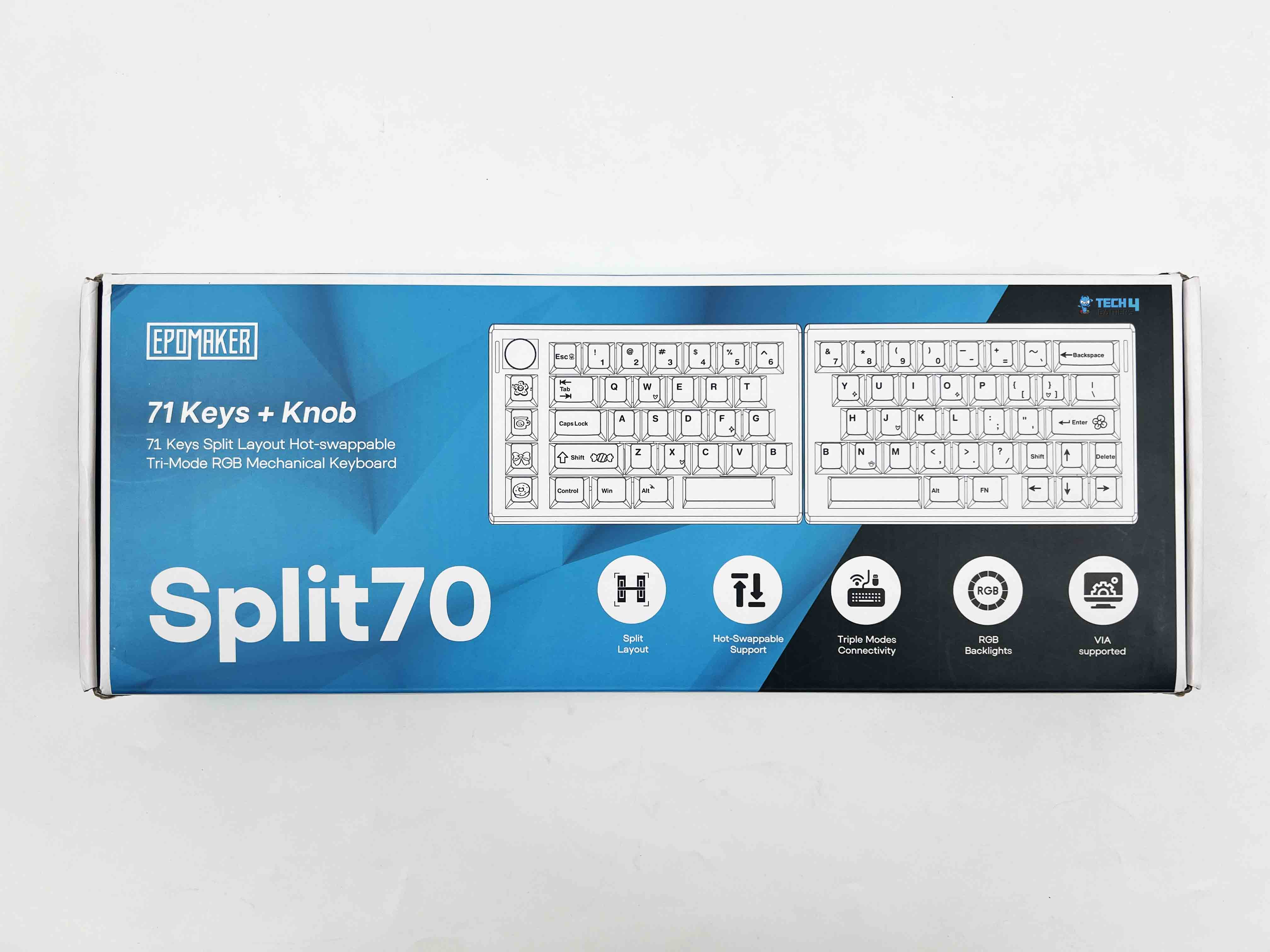
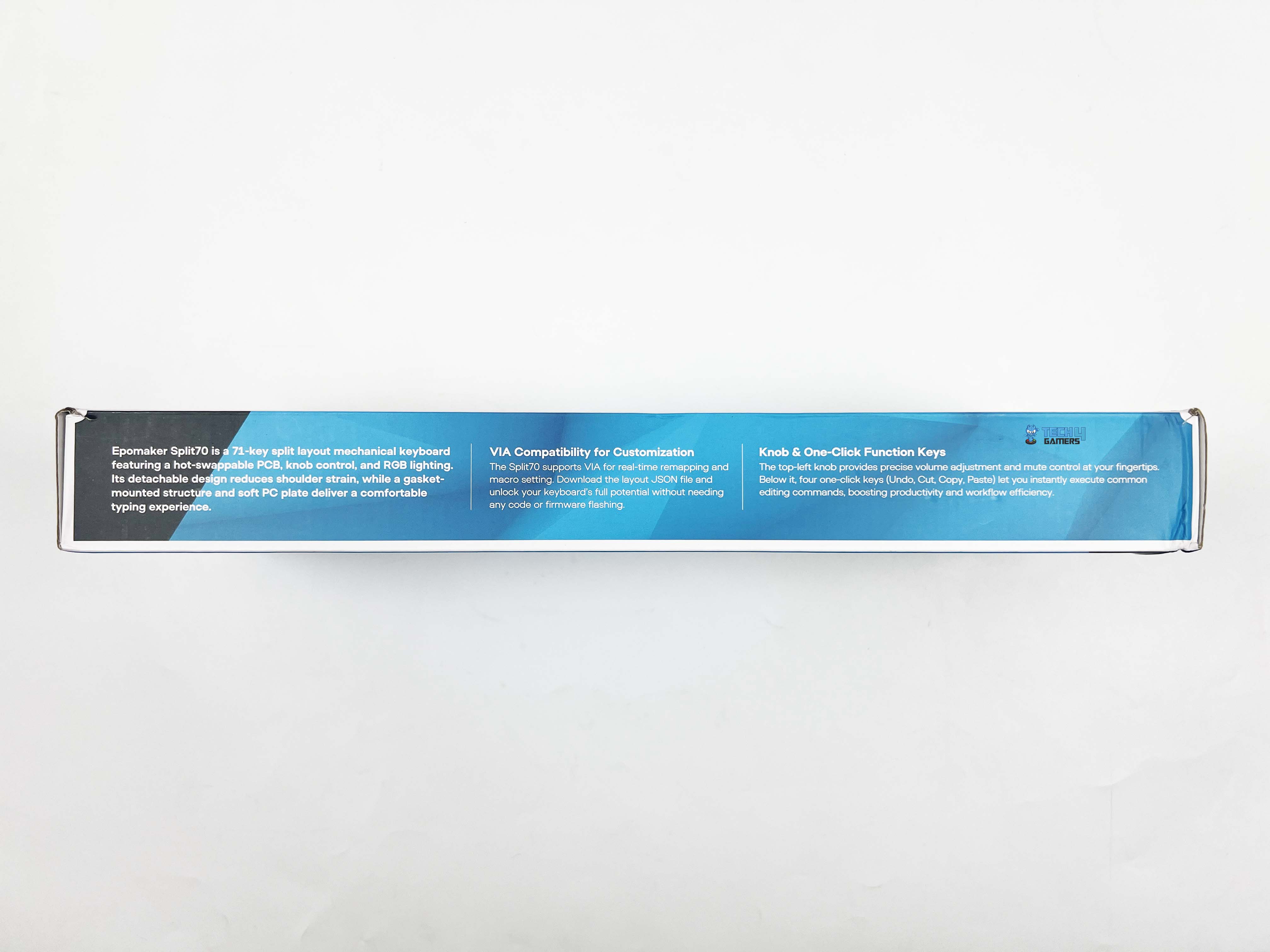
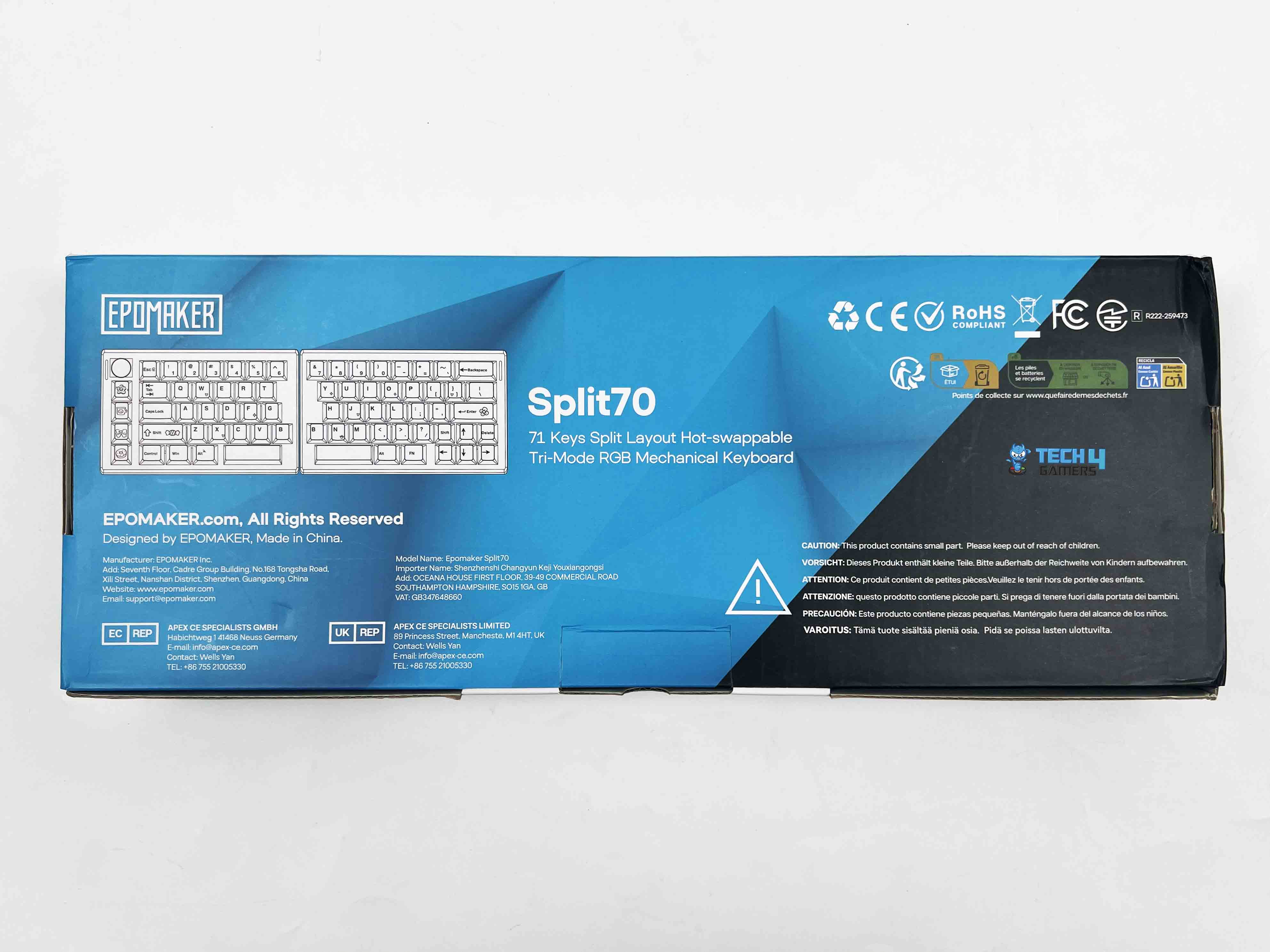
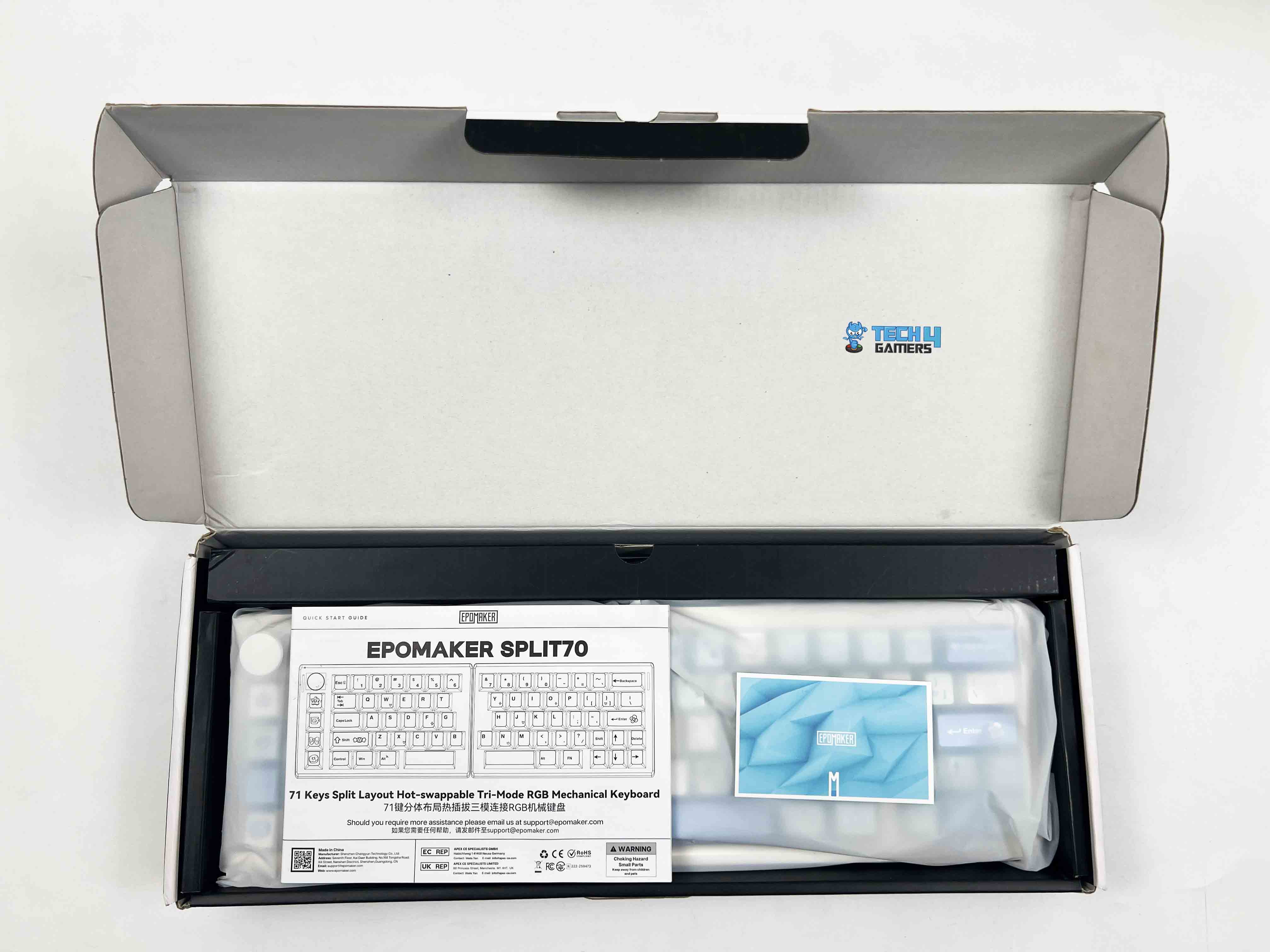
The Epomaker Split70 arrives in simple packaging with a dual-color black-and-cyan theme. On the front, it shows only the product name, a picture of the keyboard, the usual Epomaker branding, and a list of notable features. After opening the box, the first thing you notice is that each half of the keyboard is wrapped in a plastic sleeve beneath the accessories compartment.
Unboxing & Box Contents
1 of 2
Unboxing of the Box
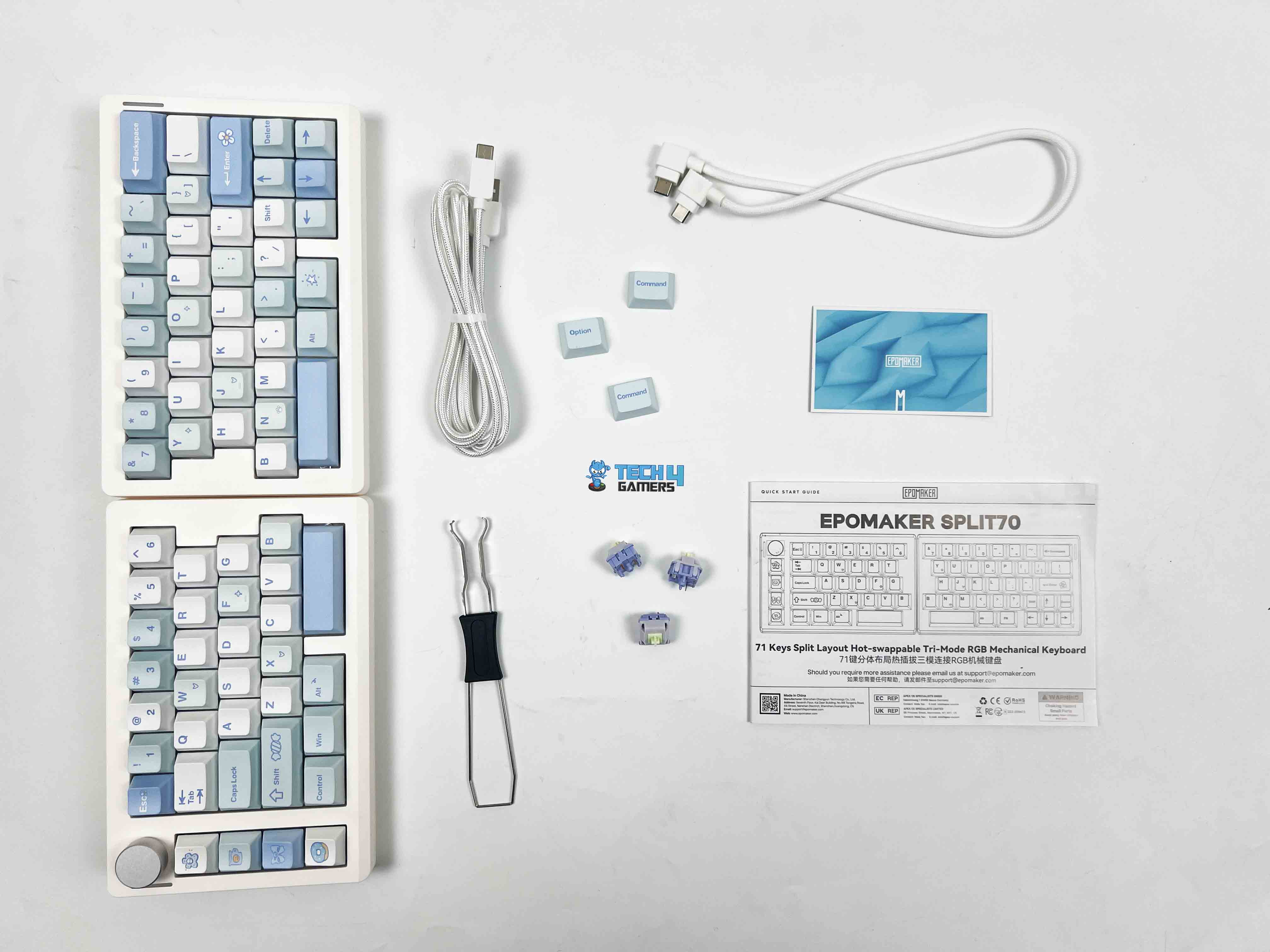
Box Contents
Split70 Mechanical Gaming Keyboard
Multilingual Manual
Quick Start Card
Keycaps for Mac
Extra Switches
2-in-1 Switch-and-Keycap Puller
USB A-to-C Cable (Device to Keyboard)
USB C-to-C Cable (Left Half to Right Half)
Design
Design
1 of 2
Design
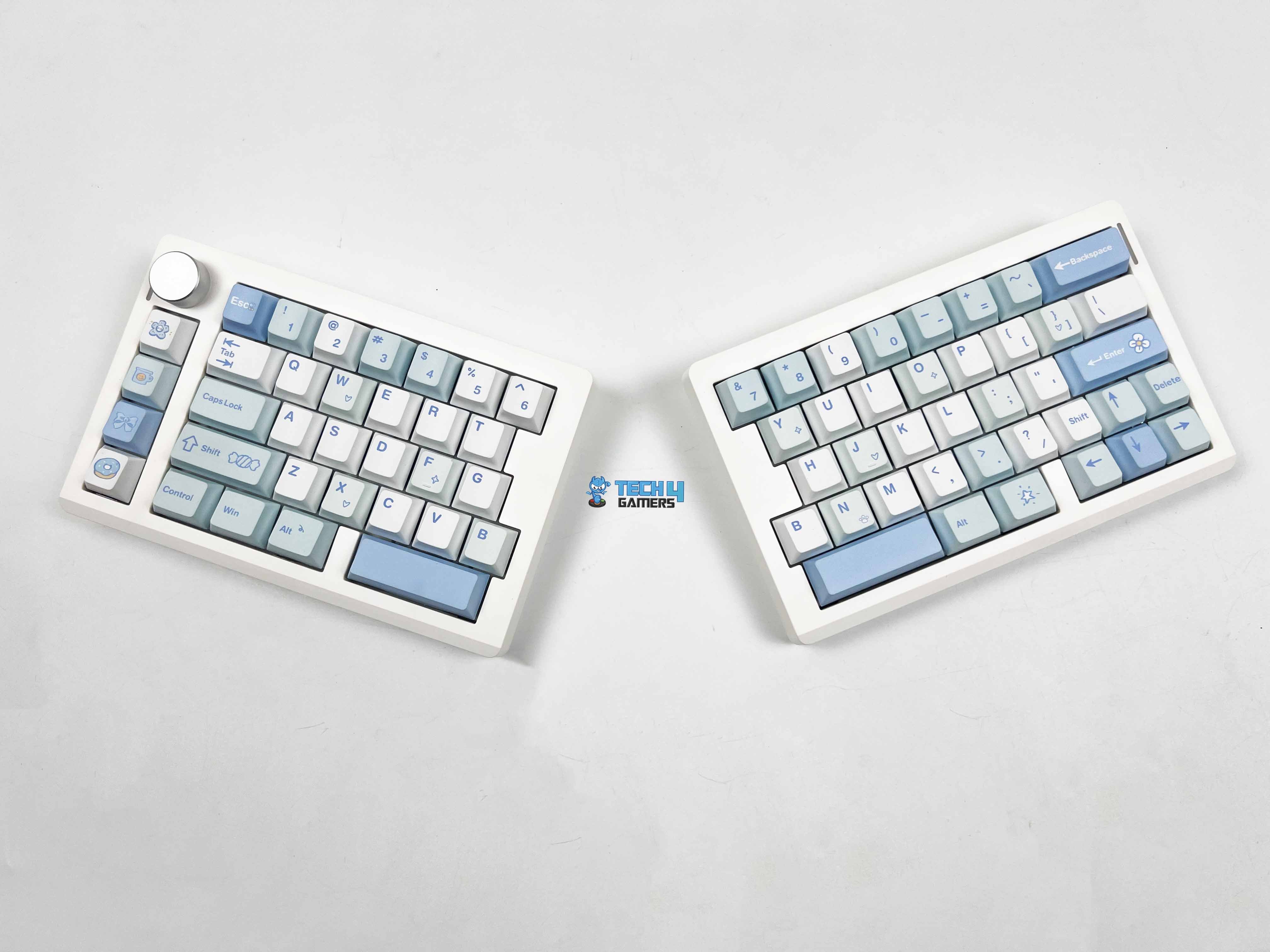
Split
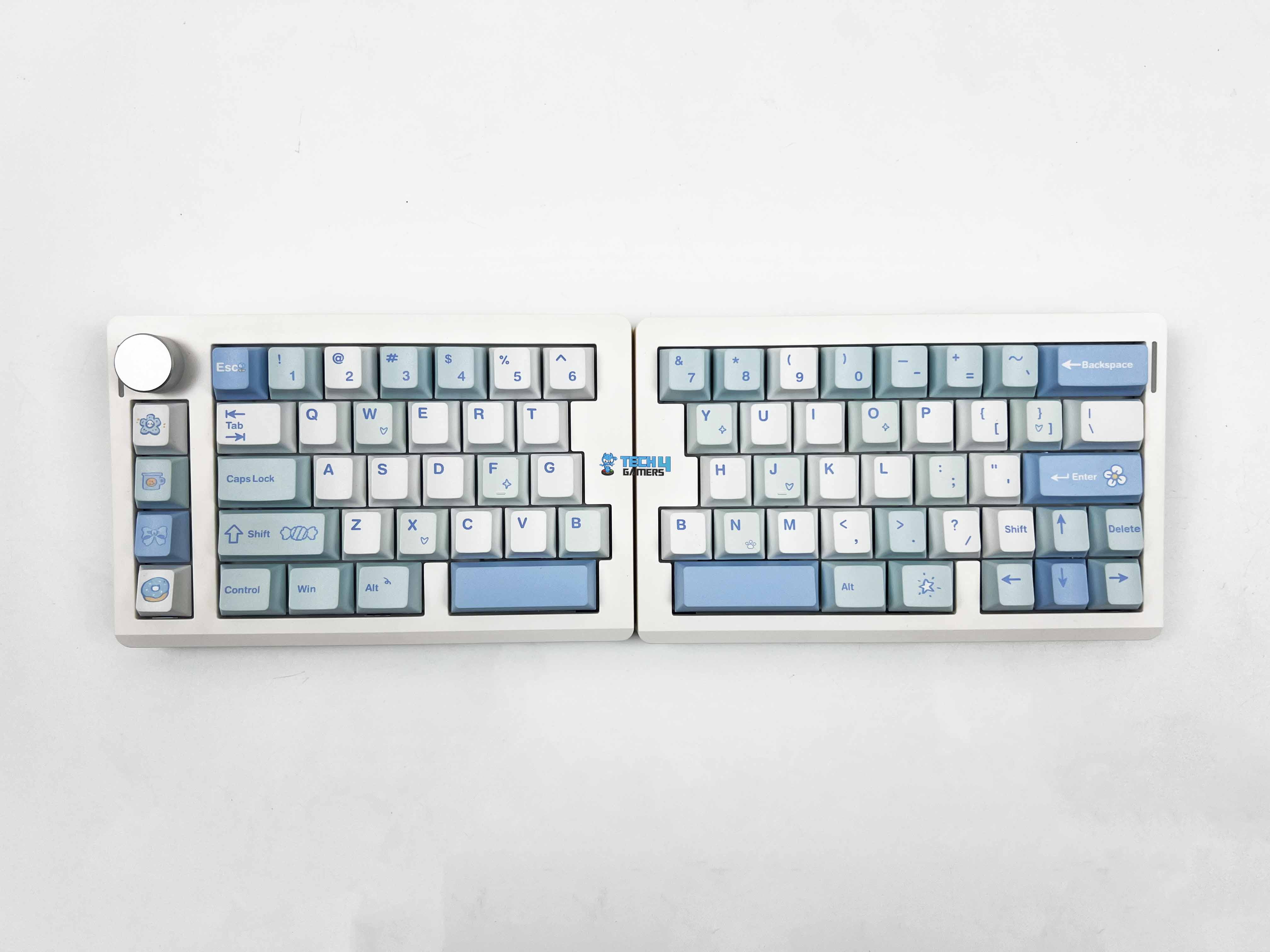
Epomaker offers it in two color options. There’s a black version, and then there’s the white-blue variant. The unit I have for review is the white-blue one. The black model keeps things toned down. The keycaps come in different shades of gray. It feels like the safer choice if you’re using it in an office, or anywhere you don’t want your keyboard drawing attention. The white-blue version goes in a completely different direction.
The base is white, and the keycaps mix cyan and light blue tones. Some keys have small printed icons. Little shapes like stars, candy-like symbols, and hearts. That is playful graphic detail. It’s subtle, but you notice it when you’re close. I think it fits really well on a clean desk setup, especially if you’re already using lighter peripherals or pastel accents. It gives the keyboard a lighter and more fun personality.
Layout
Layout
The Epomaker Split70 uses a 70% layout, but it doesn’t feel like a typical 70% keyboard once you start typing. The split changes how your hands approach the keys. Your left and right hands sit more naturally apart, and that alone makes the layout feel different. Most of the primary keys are where you expect them to be, such as letters, numbers, and modifiers. The adjustment period is short if you’ve used compact boards before.
If you’re coming from a full-size keyboard, you’ll need a brief adjustment period. You’ll reach for keys that aren’t there, but it’s completely normal. The right side is where things feel the tightest. The arrow keys are squeezed into the corner, right next to the smaller Shift. I hit the wrong key a few times early on. It gets better with time, but it never entirely disappears. You’re always a bit more aware of that cluster. Lastly, there’s no dedicated function row, which is expected at this size.
Knob
Knob
The rotary knob is located at the top corner of the left half. It’s easy to reach. You don’t have to move your whole hand to use it. The knob itself feels solid. It has a slight resistance when you turn it. Each step feels defined. You can make small volume changes without overshooting. Pressing the knob gives a clean click. With a few customizations, the same spin can control screen brightness or cycle through multimedia functions.
Underside
Underside
Each half of the Epomaker Split70 has four rubber feet placed near the corners. The front height measures around 2.1 cm. You feel that when you rest your hands on the keys. It’s not overly tall, so your wrists don’t end up bent at an awkward angle. I was able to type for long stretches without needing a wrist rest. The typing angle sits at about 7 degrees. It’s a fixed angle, since there’s no kickstand on this keyboard. The angle felt natural right away, especially when the halves were slightly angled outward.
Build Quality
Build Quality
Picking up the Split70 for the first time, the weight stands out. At around 890 grams, it feels heavier than it looks. That weight is split between the two halves. In terms of size, each half stays relatively compact. Together, the lengths are roughly 18.4 cm on the left and 18.8 cm on the right. The width is about 11.8 cm, and the height is close to 4 cm at the tallest point. The casing itself feels solid. I tried twisting each half slightly to see if it flexed. You really have to push to notice anything, and even then, it’s minimal.
Keycaps
Keycaps
The Epomaker Split70 uses Cherry profile keycaps. The height feels familiar. Your fingers don’t need time to adjust, especially if you’ve used standard mechanical keyboards before. Moving between rows feels natural. These are PBT keycaps, and the texture gives that away. There’s a light grain to the surface. The legends are printed using dye-sublimation.
They look clean and sharp, even on the lighter keys of the white-blue version. Color-wise, the white-blue variant looks better in person than in photos. The cyan and light blue tones are soft on the eyes. If you enjoy swapping keycaps and hot-swapping switches, you might also find our list of the best custom gaming keyboards of 2025 helpful.
RGB Lighting
RGB Lighting
1 of 2
RGB Lighting
RGB Lighting in Dark
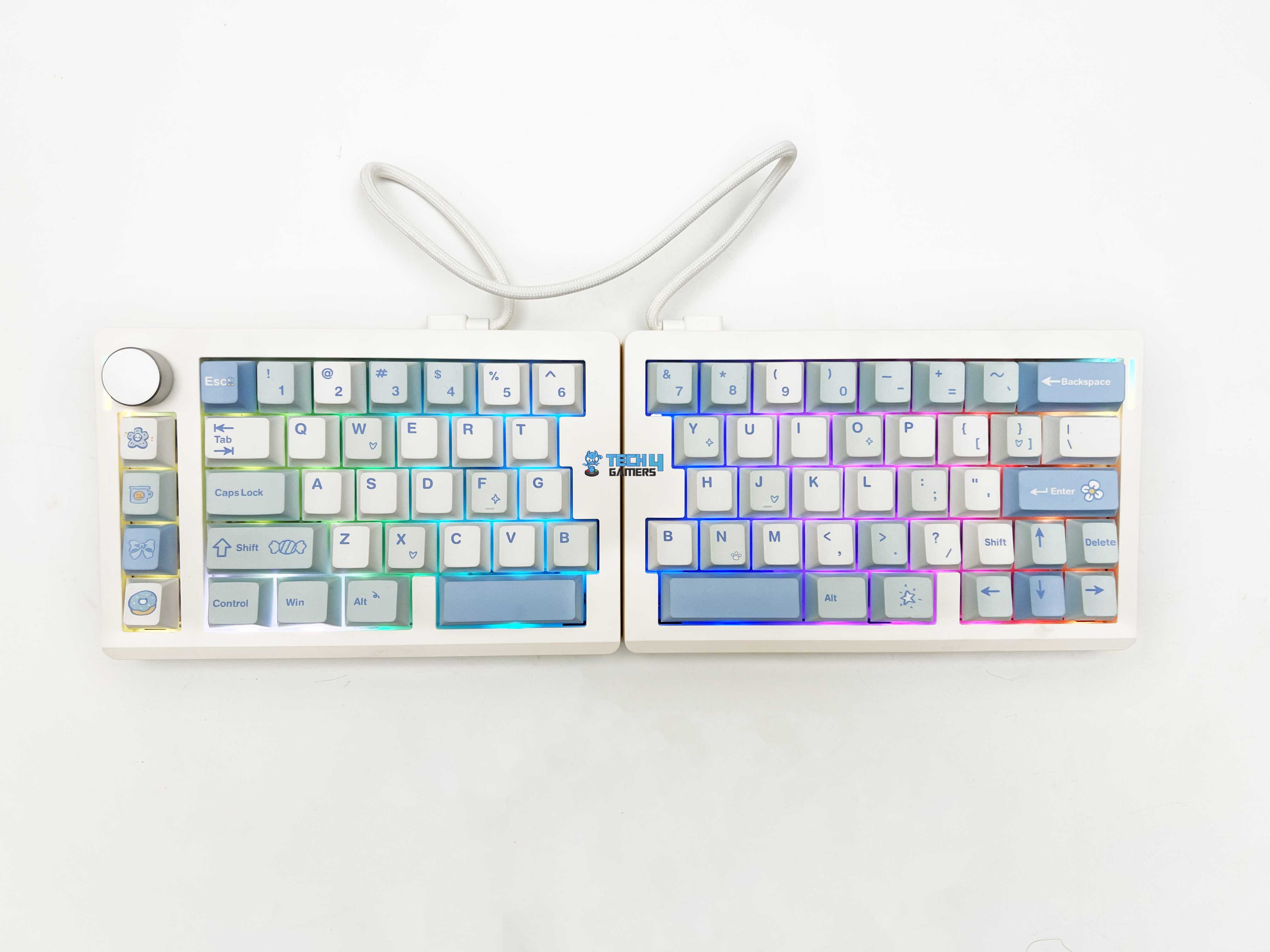
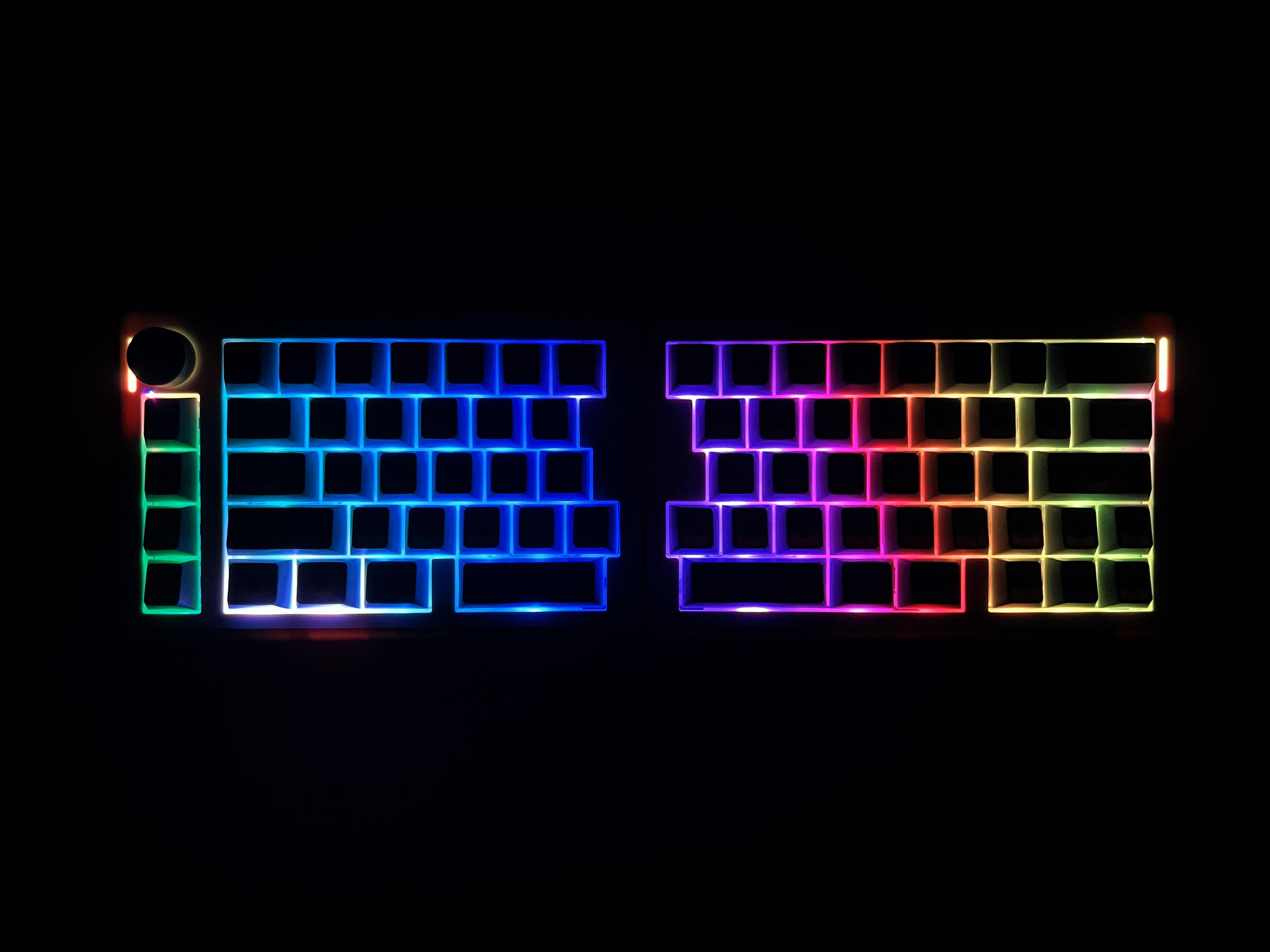
The Split70 features per-key RGB lighting with south-facing LEDs. The lighting is on the lower side of the switch, keeping the glow even and avoiding harsh hotspots under the legends. On the white-blue version, the lighting is clearly visible. The lighter keycaps reflect the colors softly across the keyboard. Light distribution is consistent across both halves. There are no keys that look noticeably dimmer. You can control RGB directly from the keyboard without opening software.
Switches
Switches
1 of 2
Switches
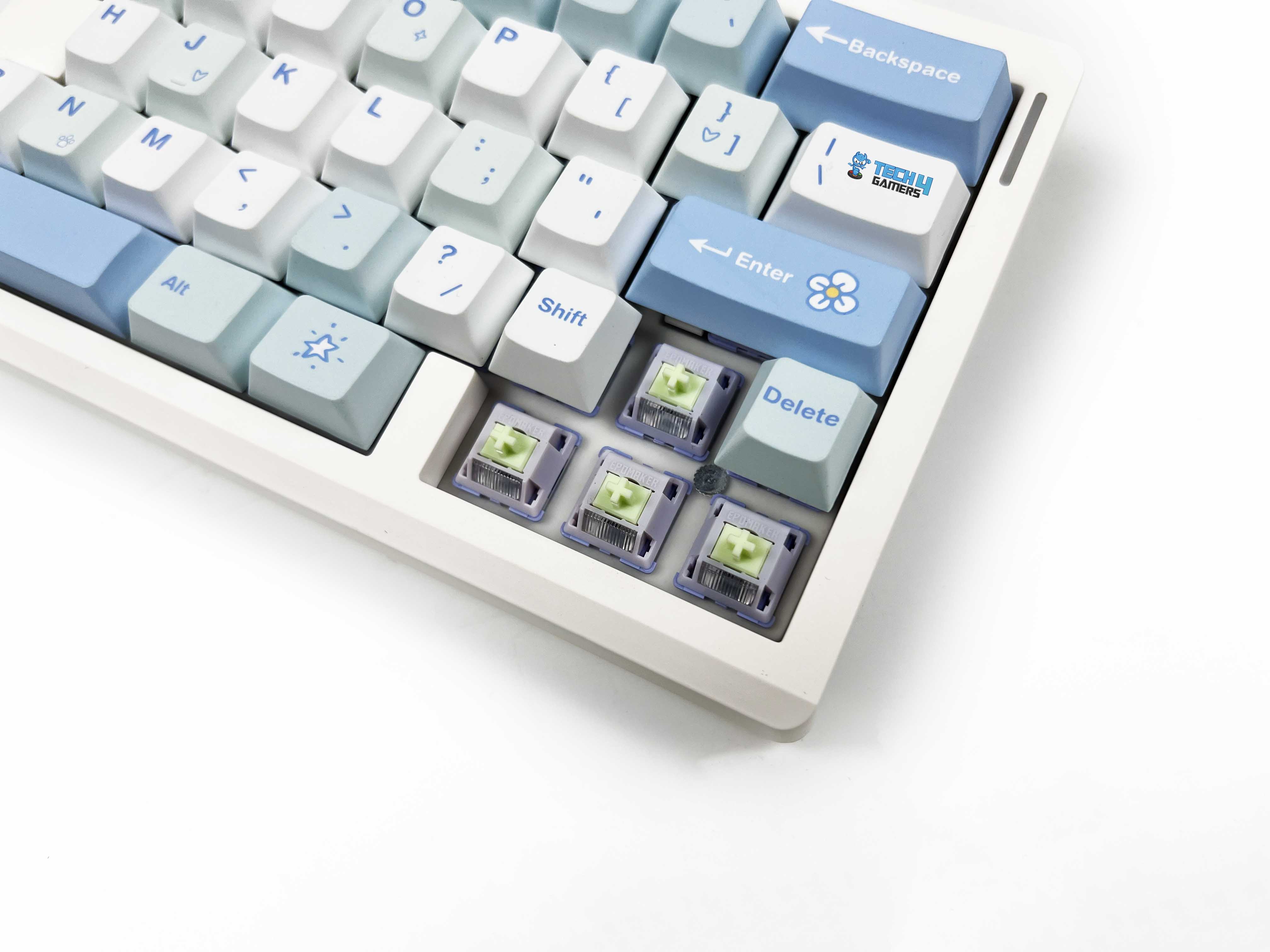
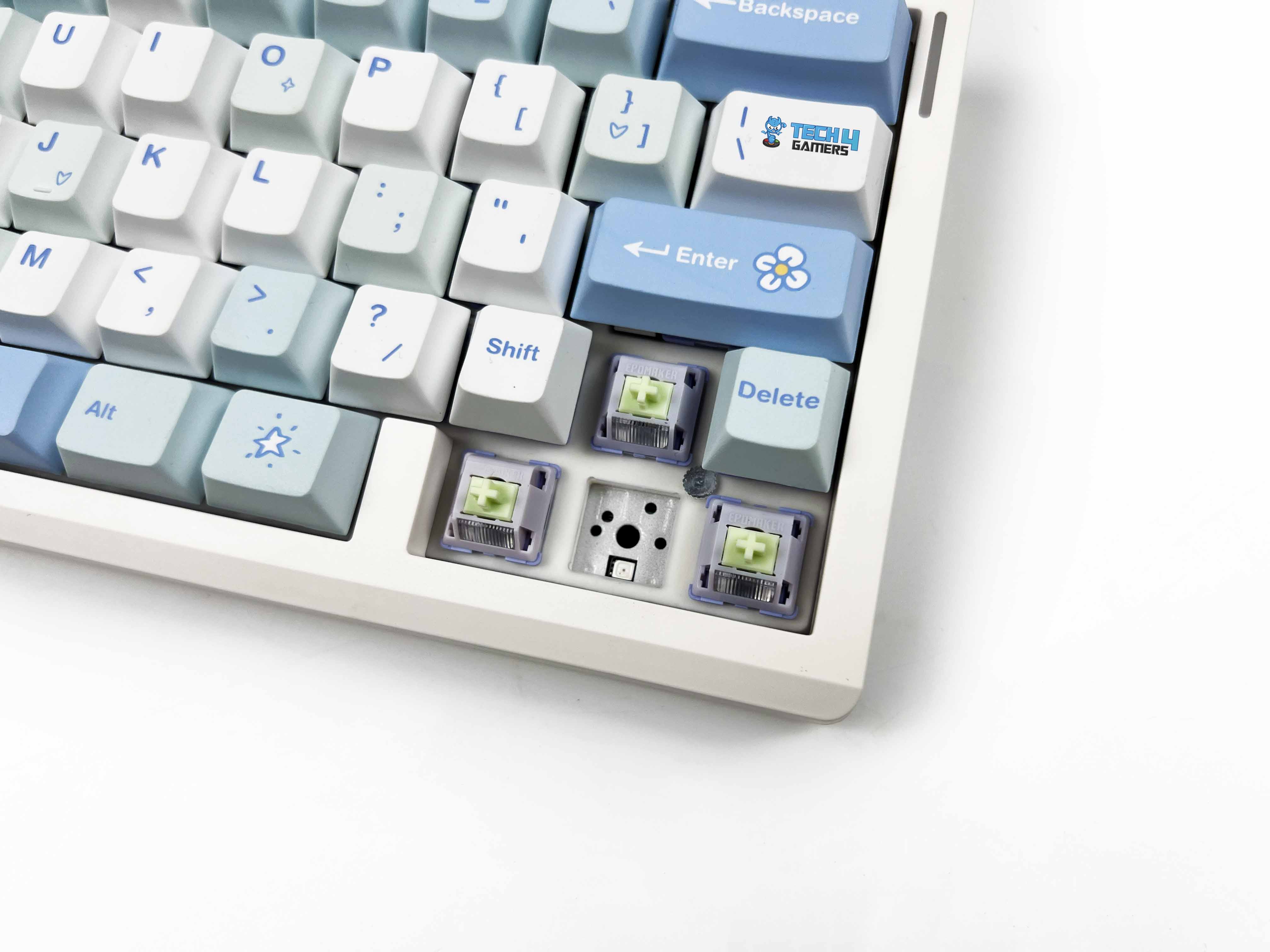
5-pin Hot-swap Socket
The Epomaker Split70 comes only with Wisteria Linear V2 switches. These are 5-pin linear switches and come factory-lubricated. You can feel that smoothness from the first press. There’s no scratchy feedback when moving slowly through a keystroke. The trigger force is approximately 45 grams. It feels light enough for fast typing. Bottoming out occurs around 62 grams, so there’s still some resistance when you press all the way down. That balance worked well for long writing sessions.
My fingers didn’t feel worn out after using it at the end of the day. Pre-travel is about 2.0 mm, with total travel coming in around 3.6 mm. In real use, that translates to quick key registration without feeling shallow. The factory lube keeps things controlled, and the keyboard doesn’t amplify noise unpleasantly. Rated lifespan is around 50 million keypresses. That’s not something you feel day to day, but it’s good to know these switches aren’t built for short-term use. Lastly, these switches are fully hot-swappable.
Connectivity
Connectivity
1 of 2
Connectivity
Braided USB-C Cable
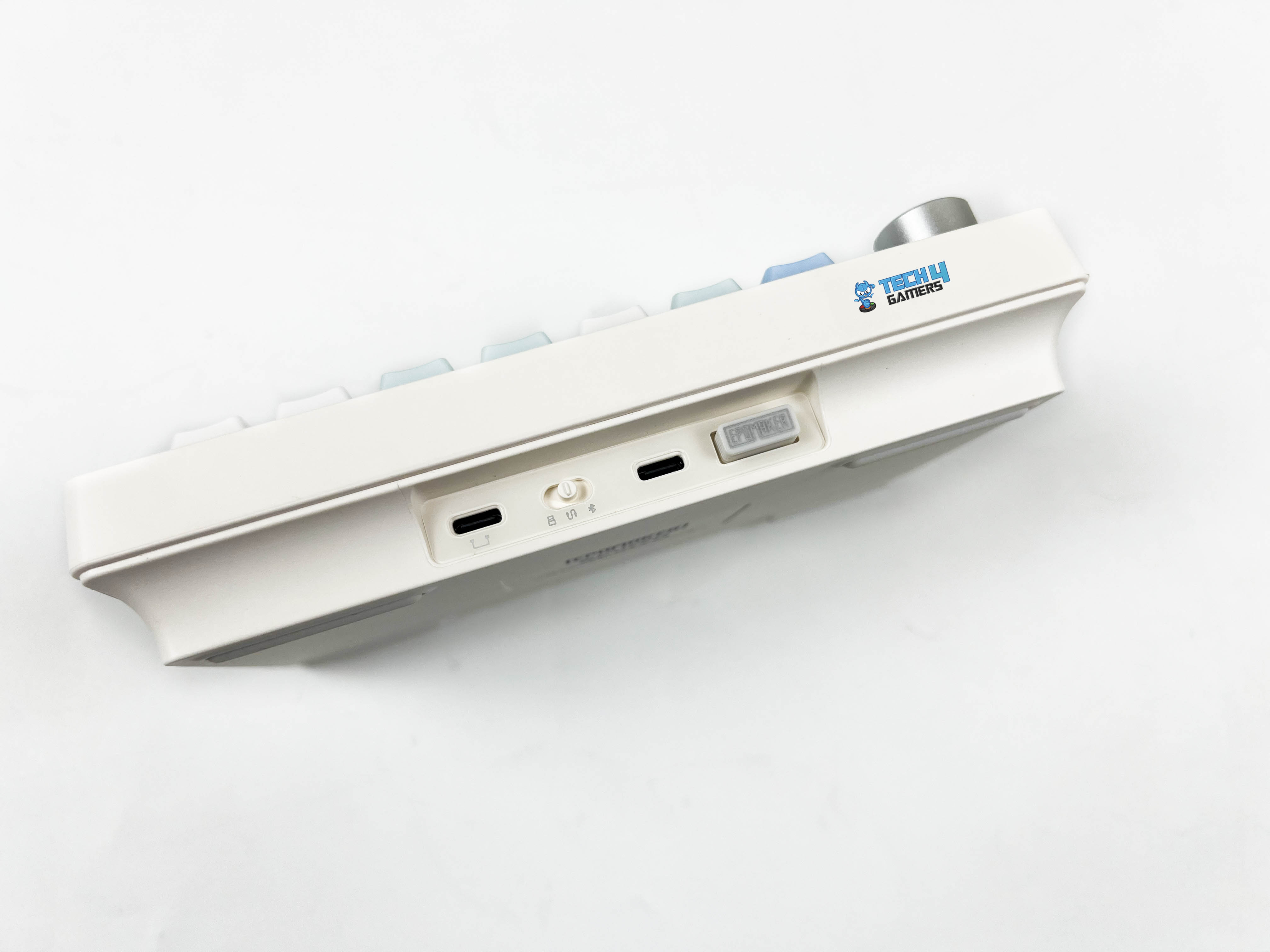
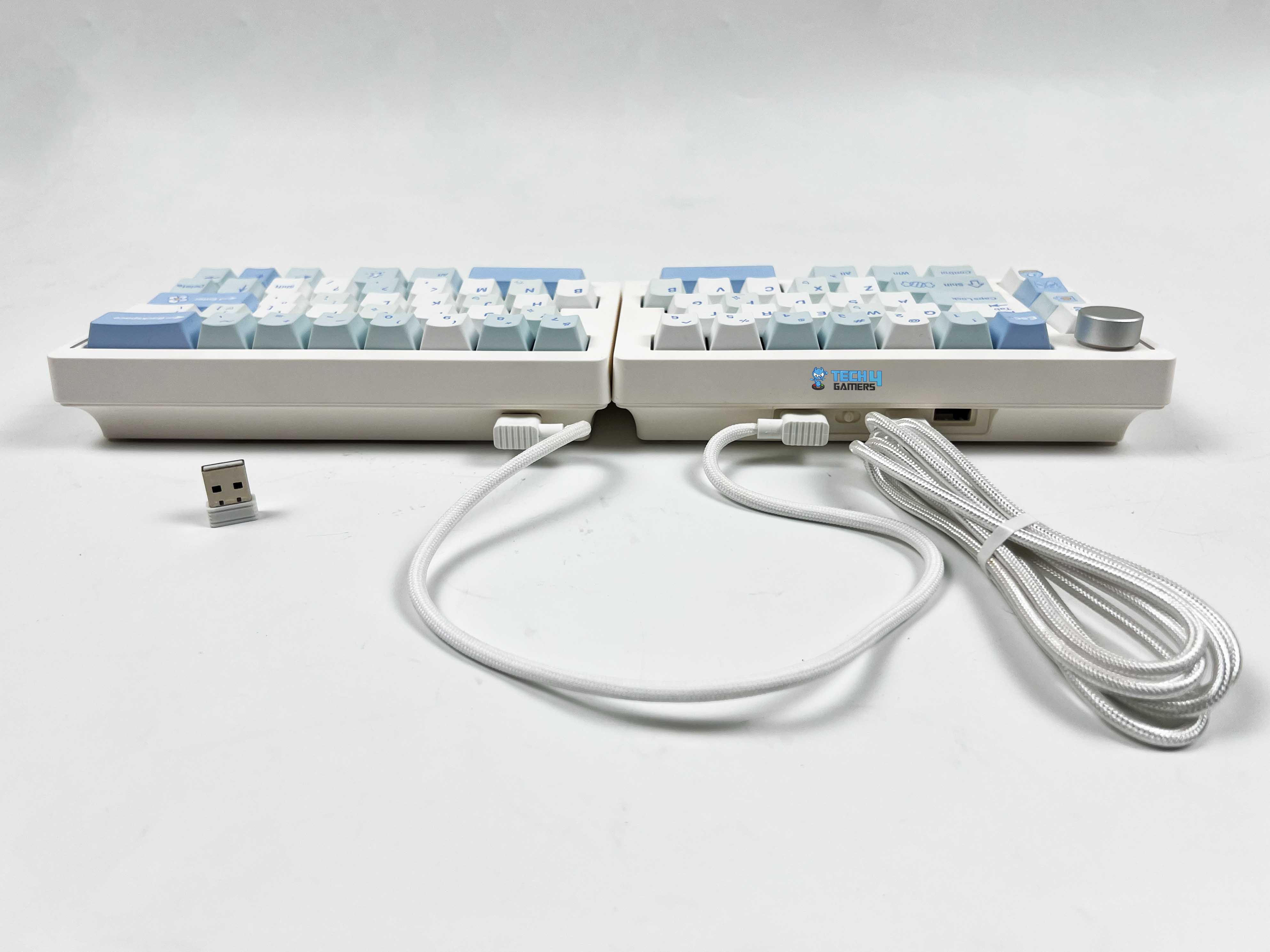
The Epomaker Split70 gives you three ways to connect. You get 2.4GHz wireless, Bluetooth 5.0, and a standard wired option. I ended up using all three at different points, depending on what I was doing. Wired mode uses a USB-C connection and is located on the left half of the keyboard. You keep the switch in the middle, plug the cable in, and that’s it. Moreover, Bluetooth is where this keyboard starts to feel like a multi-device. You can pair it with up to 3 Bluetooth devices simultaneously.
Switching between them is done directly from the keyboard. It felt smooth, as I didn’t have to re-pair each time. Once set up, it just remembers the devices. The 2.4GHz wireless mode sits somewhere between wired and Bluetooth. It uses a USB receiver and connects after switching modes. The keyboard isn’t truly wireless between the two halves. You still need a USB-C cable to link the left and right sides. So even in Bluetooth or 2.4 GHz mode, the halves still rely on that wired connection.
Typing Experience
Using the Epomaker Split70 feels different from a regular keyboard. The case is ABS plastic, and the plate is PC. It doesn’t feel flimsy, but there’s a subtle give thanks to the gasket-mount design. You can feel a little cushioning with each press, even though the keyboard doesn’t flex like some thinner boards. A lot of this comes from the layered sound-dampening setup. There are five layers under the keys, including a sandwiched latex layer, an IXPE switch pad, a PET sound-enhancement layer, a bottom sponge, and silicone.
Together, these layers reduce sharp shocks and hollow noise, giving the keyboard a quieter, more rounded sound when typing. The effect is noticeable, since you feel a sense of softness under your fingers. Each stroke lands with a soft, muted thock, while the plate-mounted stabilizers keep bigger keys like the spacebar and enter from rattling. Sound-wise, the switches stay on the quieter side. It’s a calm, creamy sound rather than a high-pitched click.
Performance
Edges
Gaming on the Epomaker Split70 feels consistent. The linear switches register presses without much resistance, and the actuation point is predictable. Moving from left to right feels natural, though at first it might throw off your rhythm if you’re used to a single-piece board. Responsiveness is solid across all connection modes. Wired and 2.4G wireless run at a 1000Hz polling rate, while Bluetooth drops to 125Hz. That translates into roughly 3ms latency for wired, 5ms for 2.4G, and 15ms for Bluetooth.
For fast typing or gaming, the wired and 2.4G modes feel almost instant, and even Bluetooth is usable for casual tasks. Anti-ghosting is supported, with full N-Key rollover, so multiple simultaneous key presses are registered without issues. The left half can double as a gaming pad, which is handy if you like one-handed gaming setups. On the flip side, the magnetic connection between the halves is more symbolic than functional. It holds them together, but it’s not strong enough.
Battery Life
The Split70 has a 3000 mAh battery that holds up surprisingly well for a split wireless board. With the backlight on, you can expect around 11 hours of continuous use. By switching off the RGB lighting, it stretches to roughly 260 hours, which can be pretty handy if you mostly type in a bright room or don’t care much for RGB. During my testing, I was able to reach close to these claimed battery numbers. If you want to keep track of how much battery juice is left, there’s a built-in battery check.
Hold FN+B, and the number row lights up to show the charge in 10 percent increments. For instance, if keys 1 to 6 light up, that’s 60% battery. A fully lit row means the battery is fully charged. The keyboard also manages power when idle. The backlight shuts off after about five minutes if you haven’t touched a key, and it goes into a deeper sleep after half an hour. You can wake it up by pressing any key. It then reconnects and lights up again. Lastly, a flashing FN key indicates a low battery.
Software
Software
1 of 9
Basic Keys
Media Keys
Macro Keys
Layer Keys
Special Keys
Lighting Keys
Macros
Layout Settings
Backlight
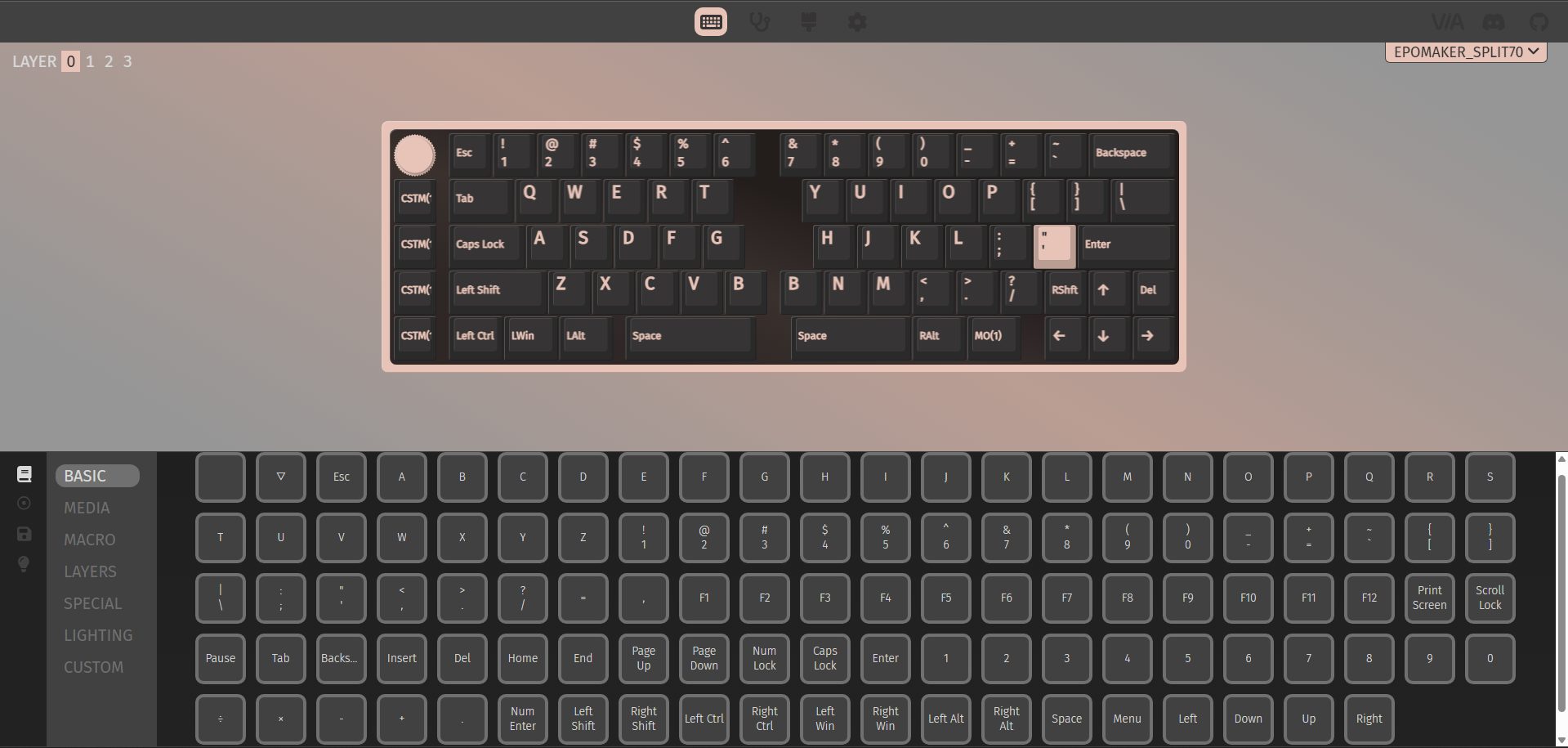
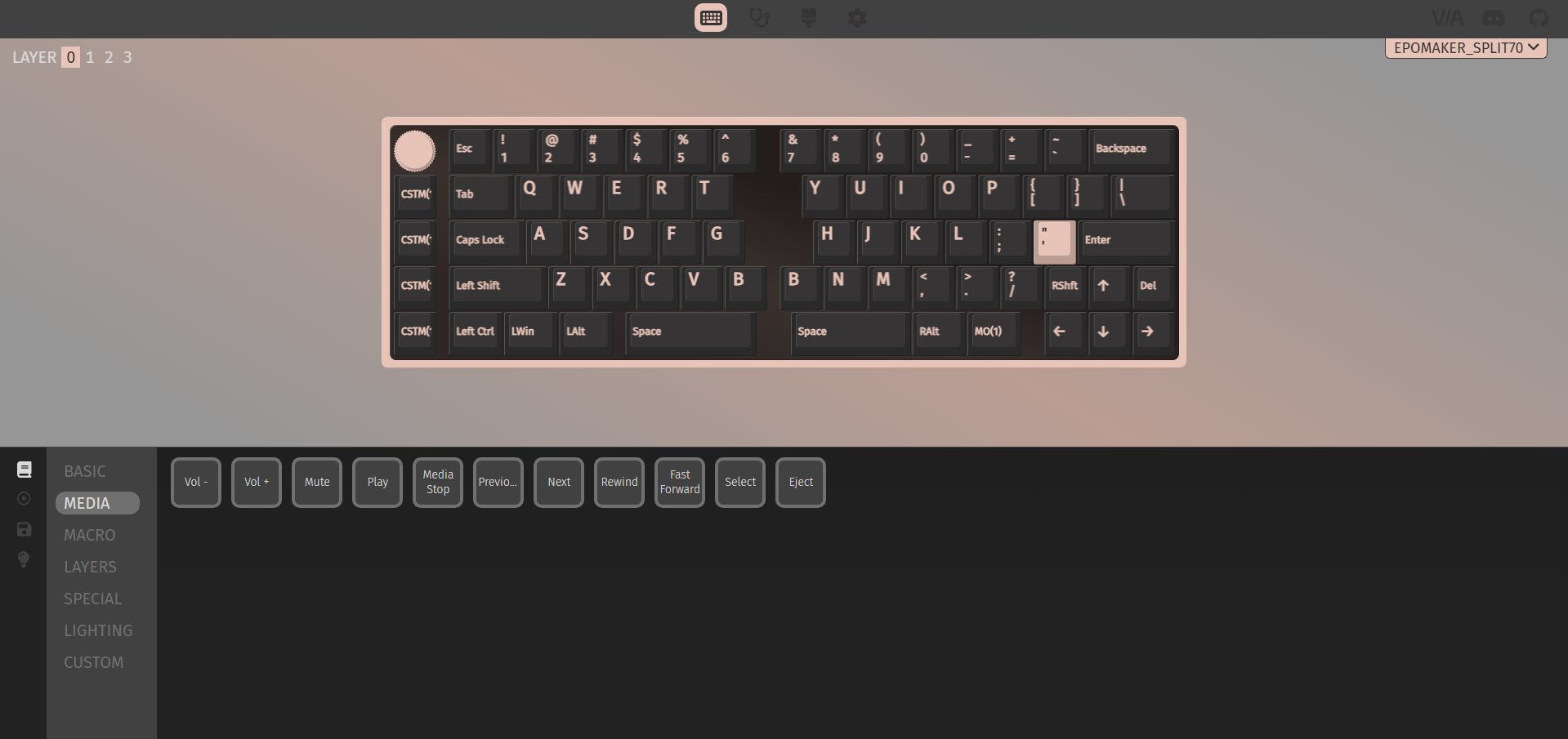
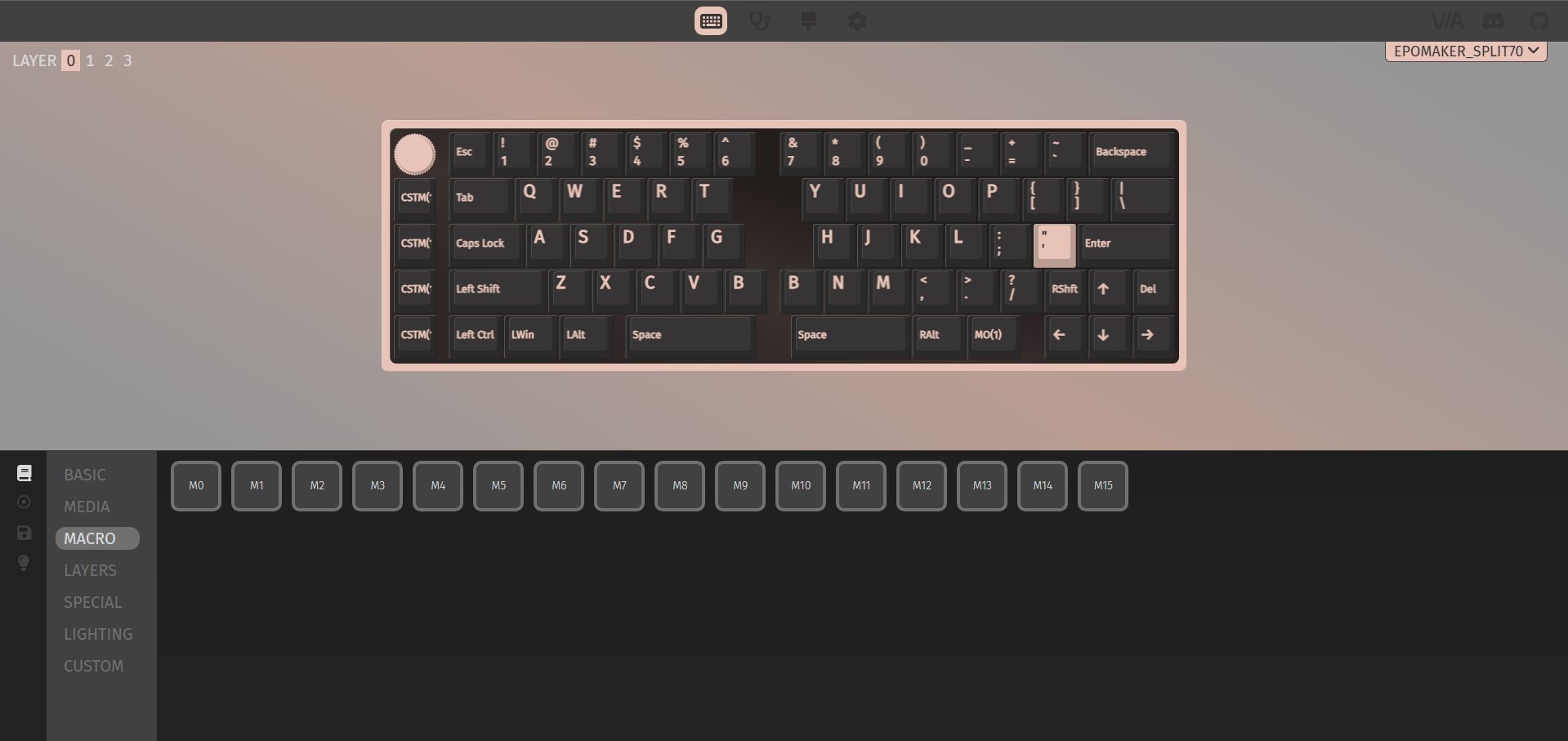
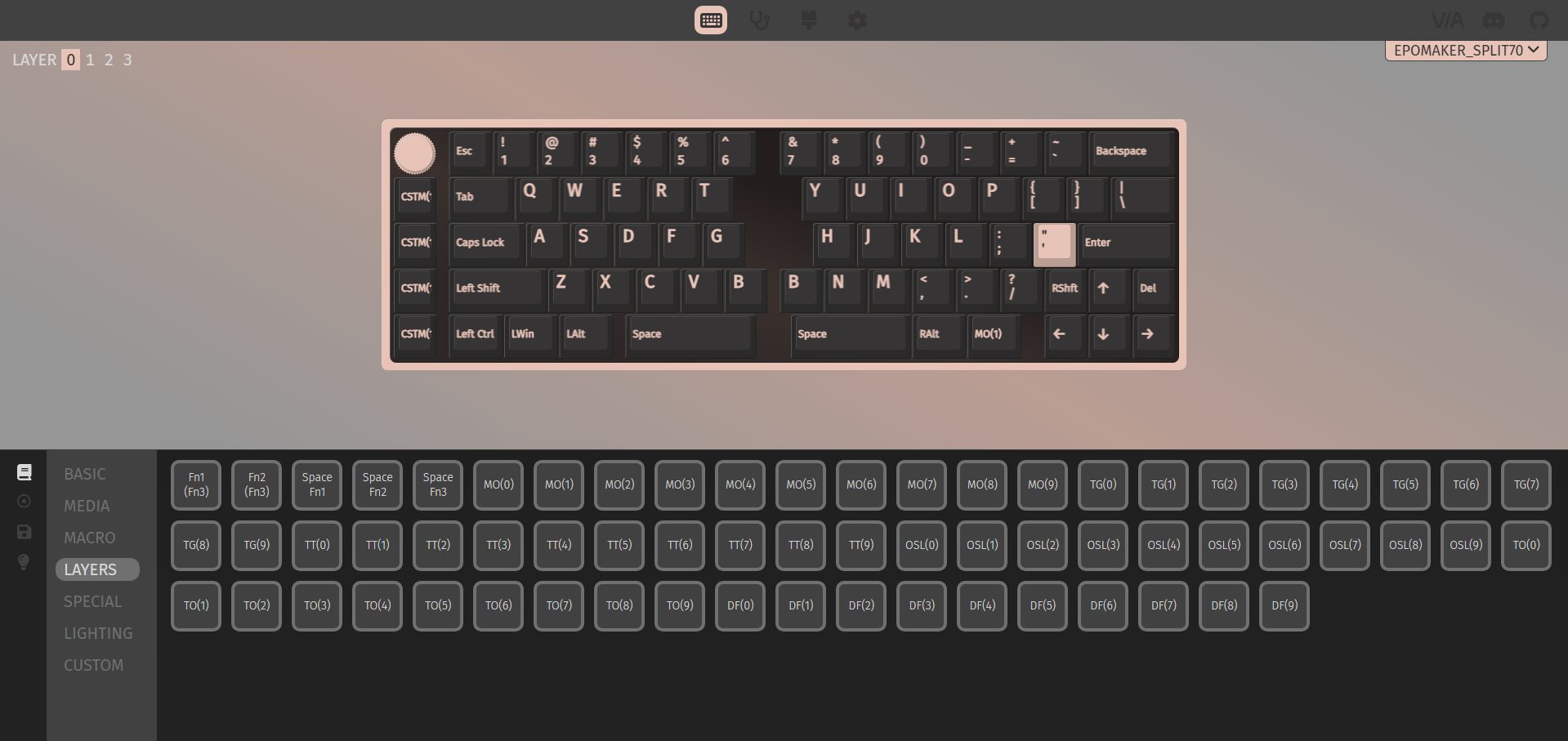
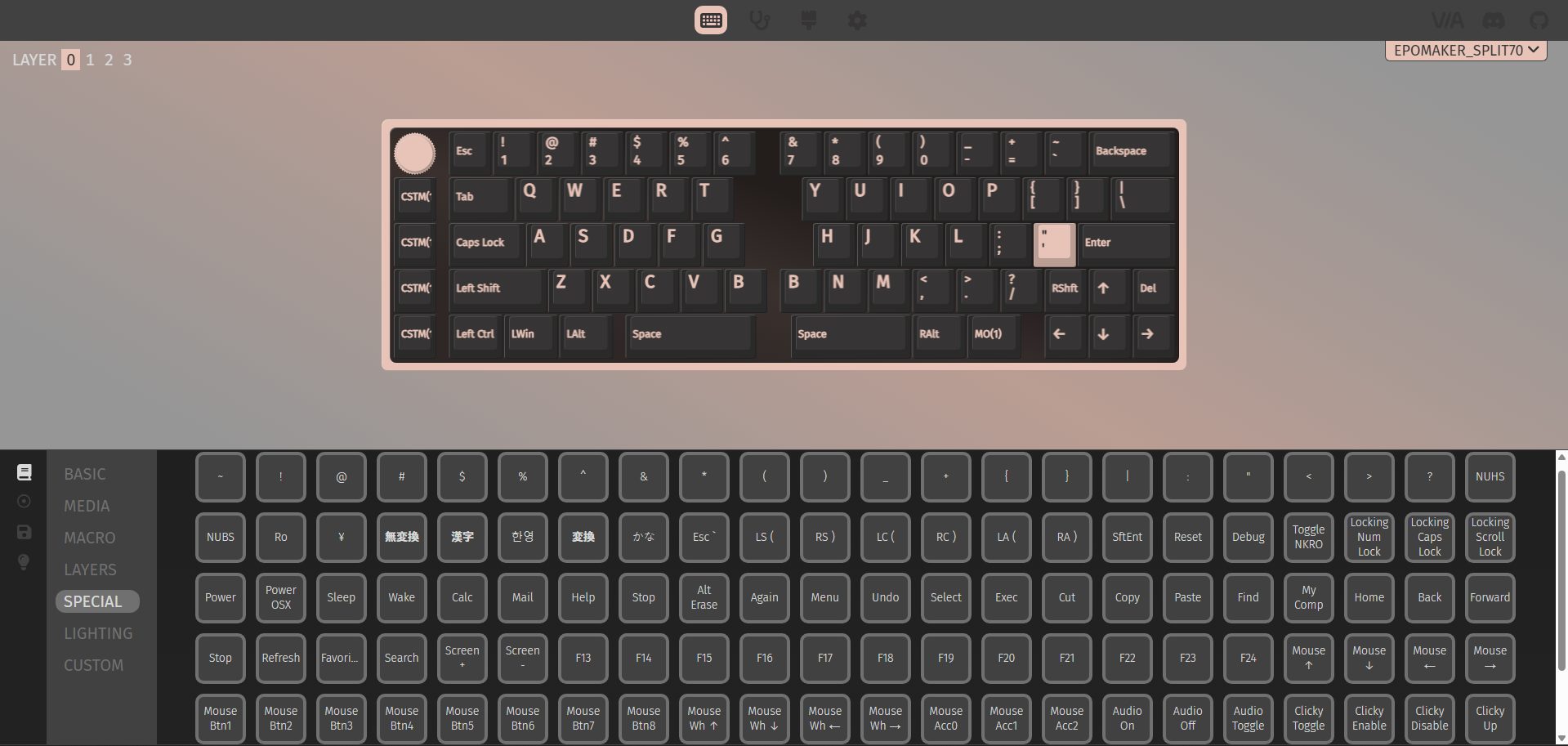
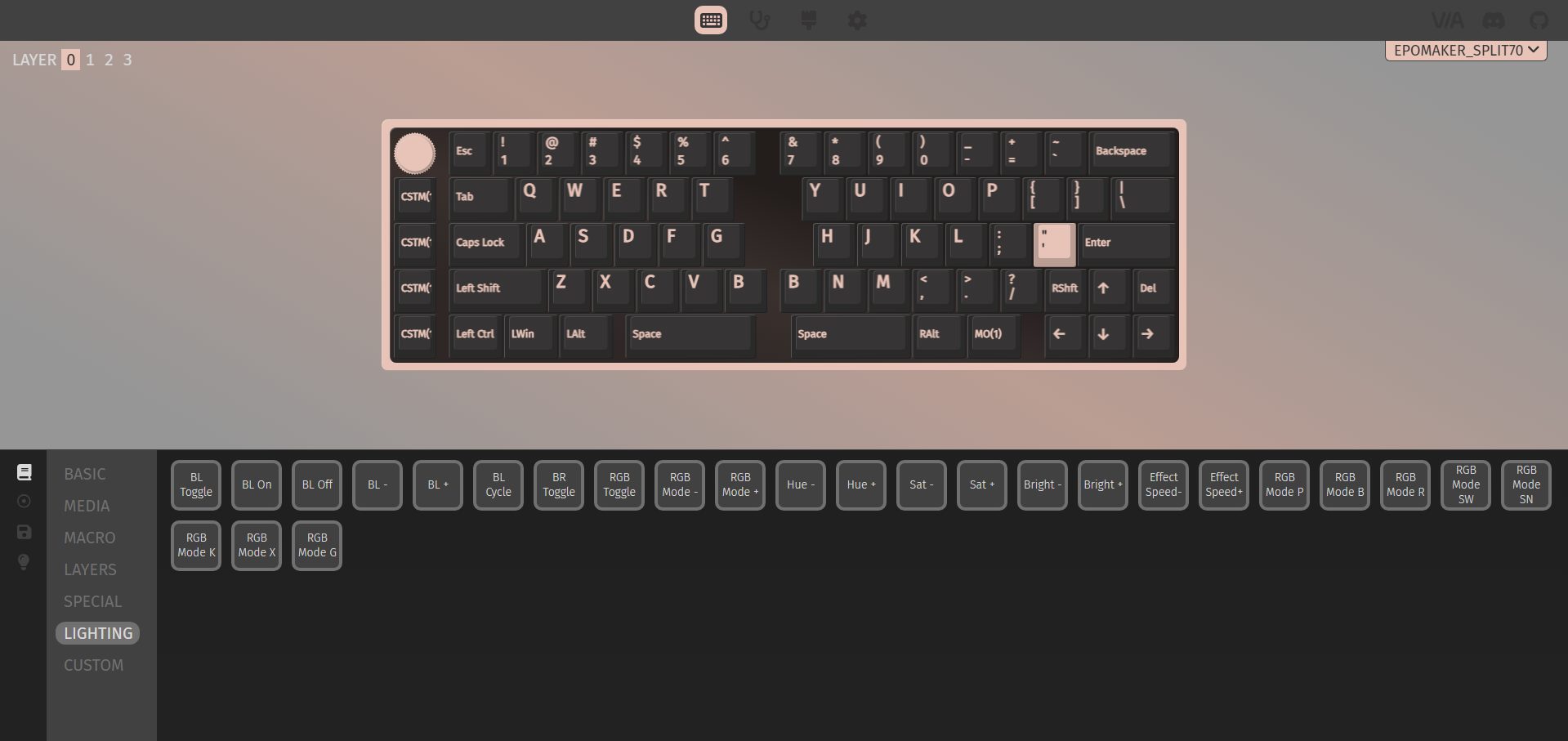
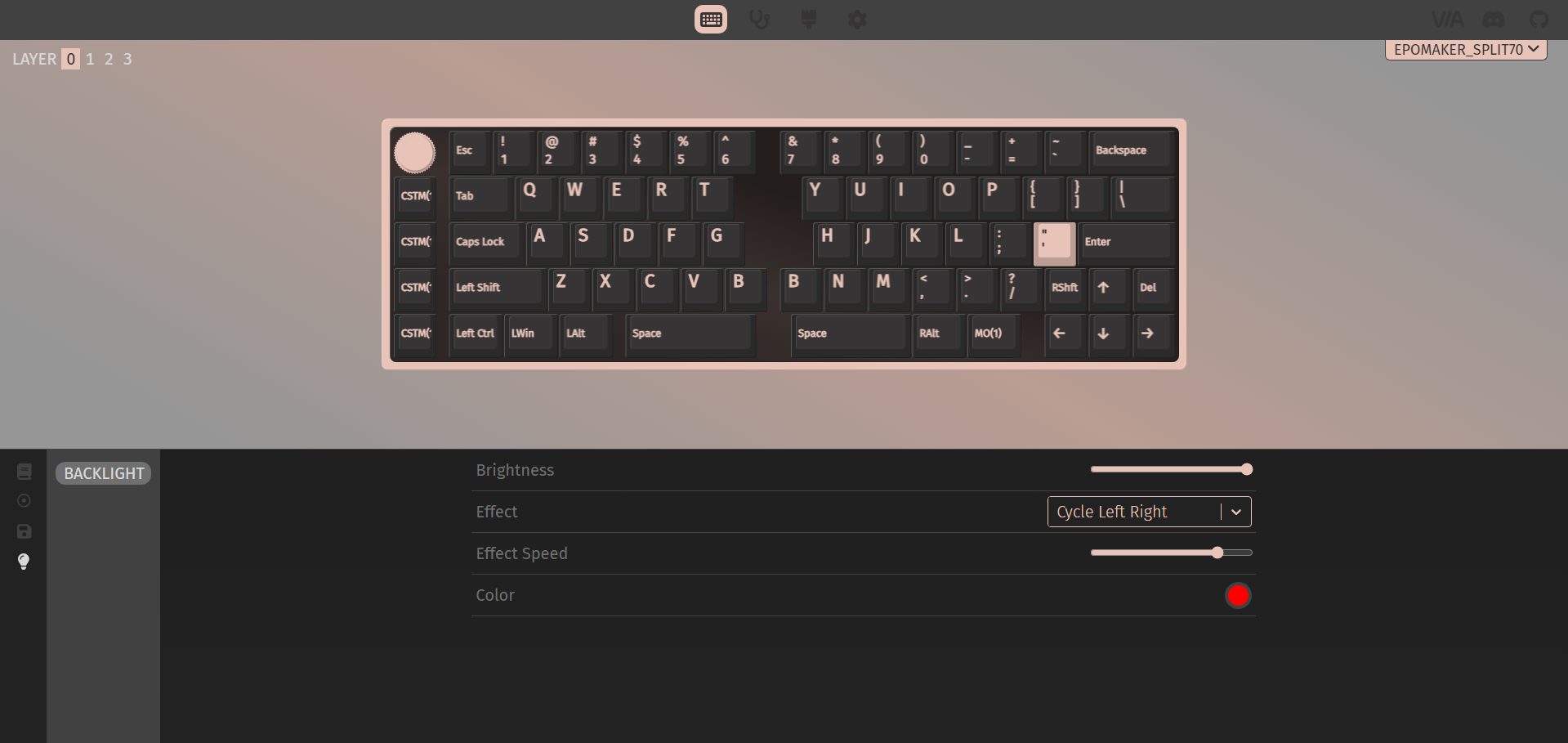
The Epomaker Split70 works with VIA if you want to dive into customization. You can remap basic, media, and special keys, as well as the lighting controls, to other existing keys. This helps make up for the keys that aren’t physically present. On the left side, there are some custom keys with icons printed on them. Out of the box, they support undo, cut, copy, and paste.
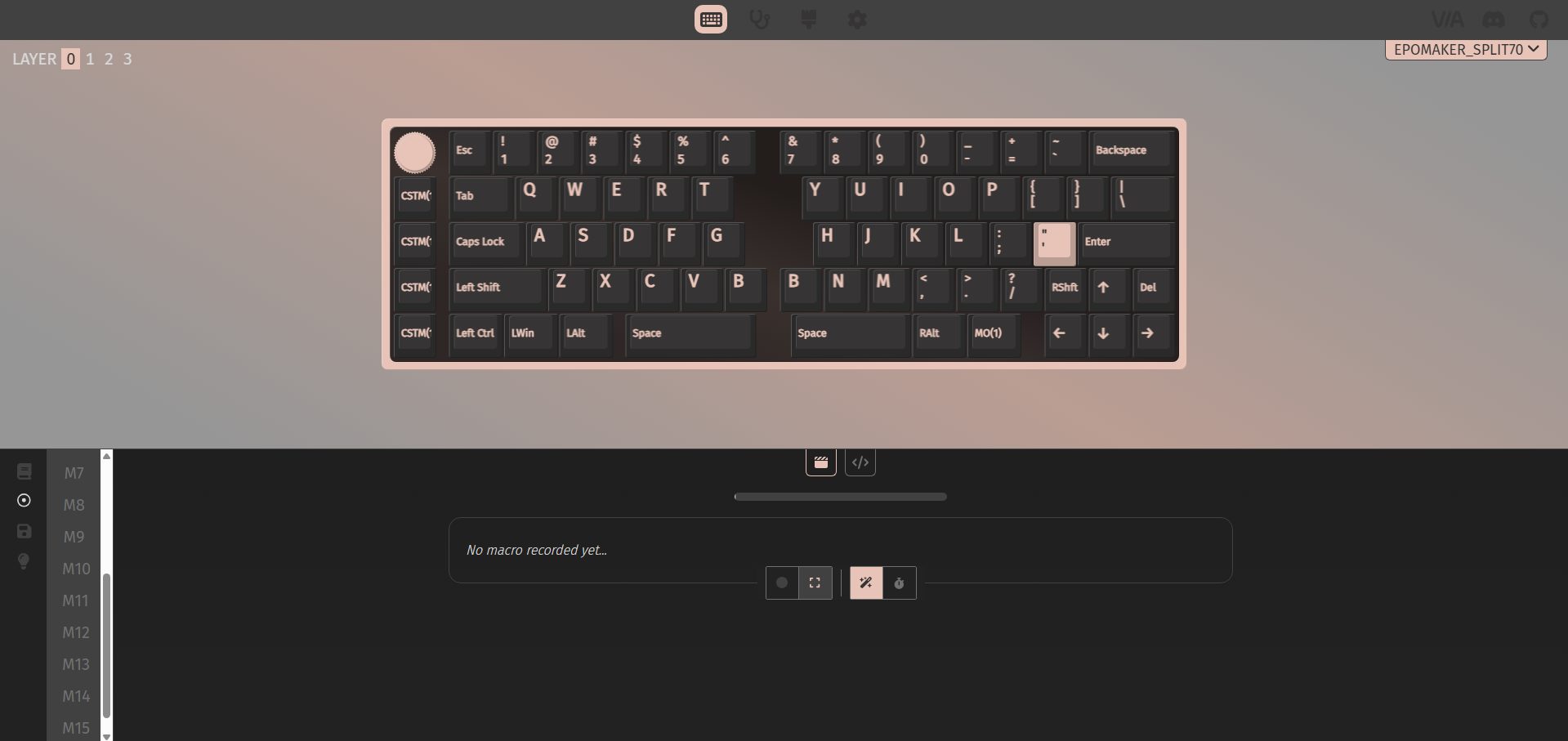
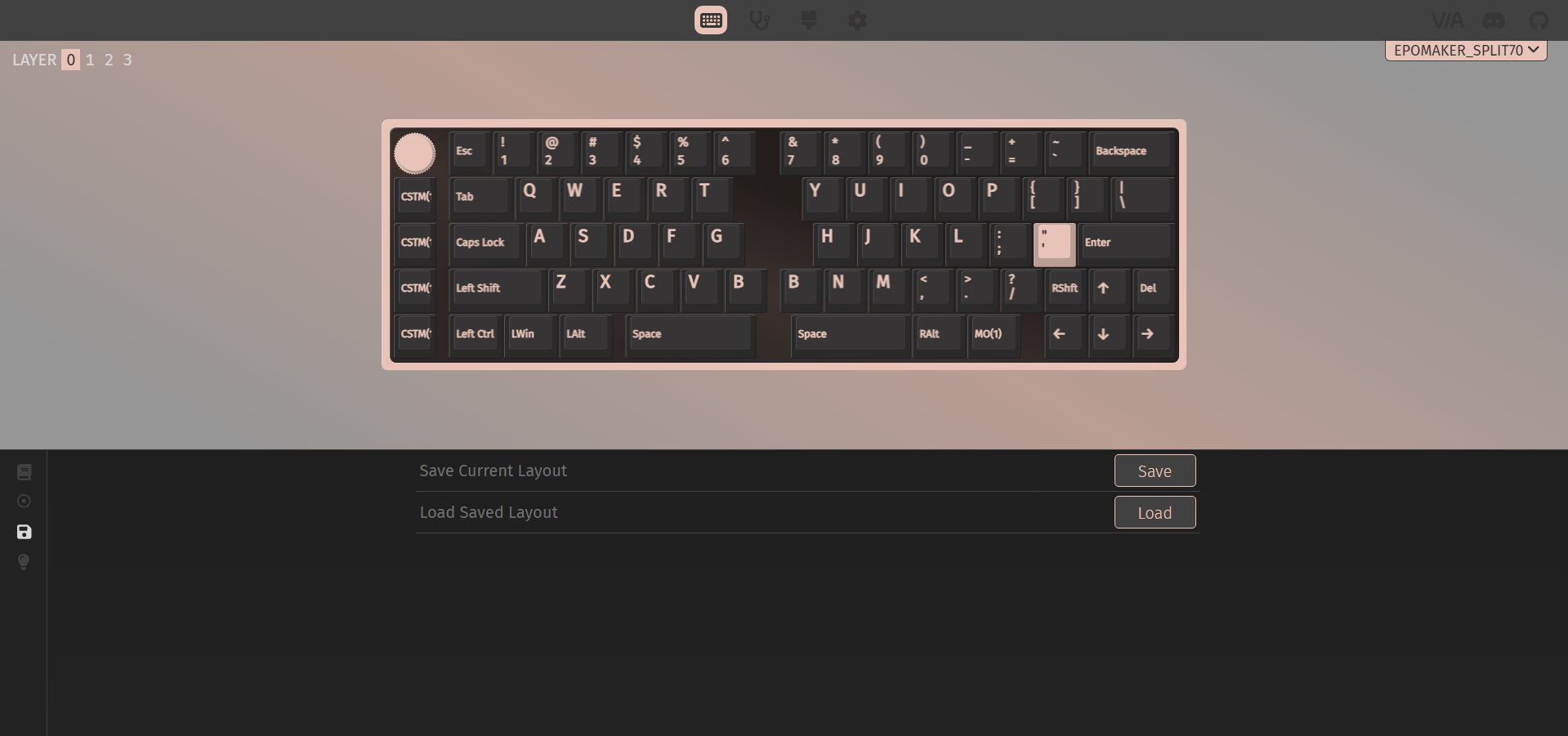
But with VIA, you can assign multiple custom actions to them, giving you a lot of flexibility. You can also set up to 15 macros and save up to four different layouts. The backlight is fully adjustable through the software, too. You can tweak brightness, pick different effects, adjust their speed, and change colors. The real-time layout display makes it easy to see what you’re doing as you tweak things, so you don’t have to guess whether a key or macro is set correctly.
Should You Buy it?
Buy it if
✅ You want a split layout: It gives you the benefits of a split keyboard that feels approachable after a short adjustment period, especially if you’re coming from a compact design.
✅ You prefer flexibility in how you use your keyboard: Tri-mode connectivity lets you switch between wired, 2.4GHz, and Bluetooth without thinking too much about it. The left half even doubles as a compact gaming pad, which is practical once you try it.
Don’t buy it if
❌ You prefer traditional layouts: The compact split design means some keys are missing by default. While remapping covers most gaps, it still requires adjustment and a bit of patience upfront.
❌ You prefer a strong magnetic alignment: The magnetic link between the two halves feels more like a convenience feature than a dependable connection. It works, but it’s not something you’d want to rely on during frequent repositioning.
Final Verdict
The Epomaker Split70 leaves a bit of a mixed impression, but in a way that’s easy to understand once you spend some time with it. The keyboard’s split design takes a little getting used to. You notice it more in the beginning, but once you settle in, the layout feels functional. It is aimed at users who like tinkering with their PC setup and want to try a slightly unconventional layout. As for value, it sits in the mid-to-upper range. At $119.99, if you’re willing to adapt to the split design, the Split70 is worth considering. For a broader look at how it compares to other excellent keyboards out there, check out our best gaming keyboards of 2026.
Being a keyboard enthusiast, I specialize in reviewing, modding, and critiquing them for the people. If you’re a Razer fanboy, my only goal is to convert you to the dark side 😈.
I have taken the time to extensively test and review some of the most exciting custom boards and list the best ones available on the market. This list is relevant to those who love to tweak every detail of their keyboard, from switches to feel and sound. Many of you would agree that finding the right custom keyboard can completely elevate your experience regarding using keyboards.
Therefore, each keyboard on this list has been chosen based on its build quality, design, customization potential, and overall performance. In short, every keyboard nails down its fundamentals.
Why Trust Tech4Gamers
Huzaifa Haroon is our keyboard expert with years of experience in building and testing custom keyboards.
130+ peripherals tested and reviewed by our team of hardware experts (Tech4Gamers Team).
500+ hours spent testing different peripherals for our reviews.
At Tech4Gamers, ensuring you get reliable information is our priority. That’s why every hardware round-up undergoes a meticulous review process by our team of experts and editors. Each review is carefully examined against our strict editorial guidelines, guaranteeing you trustworthy insights you can depend on.
Here is a comparison table to give you a quick overview of all the best custom gaming keyboards I recommend:
Keyboard
Lucky65 V2
Record Alice V2
Keychron K2 HE
Epomaker Shadow-X
Epomaker P75
Akko MU01
Looks
Award
Best Overall Custom Gaming Keyboard
Best Ergonomic Custom Gaming Keyboard
Best Magnetic Custom Gaming Keyboard
Best Value Custom Gaming Keyboard
Best Overall Wireless Gaming Keyboard
Best Typing Wireless Experience Gaming Keyboard
What We Liked
Excellent build paired with an appealing design, Produces a deep, resonant, and satisfying sound
Ergonomic design that is comfortable to type on, and the distinct clack and crisp feedback it produces
This is the list of the custom keyboards that I have chosen as the best options. These recommendations are centered around my personal experience with them and the customization features they offer.
Best Overall: Lucky65 V2
Best Ergonomic: Record Alice V2
Best Magnetic: Keychron K2 HE
Best Value: Epomaker Shadow-X
Best Stock: Epomaker P75
Best Aesthetics: Akko MU01
Lucky65 V2
Best Overall Custom Gaming Keyboard
Lucky65 V2 Pictures From Our Review
1 of 4
Lucky65 V2 (Image By Tech4Gamers)
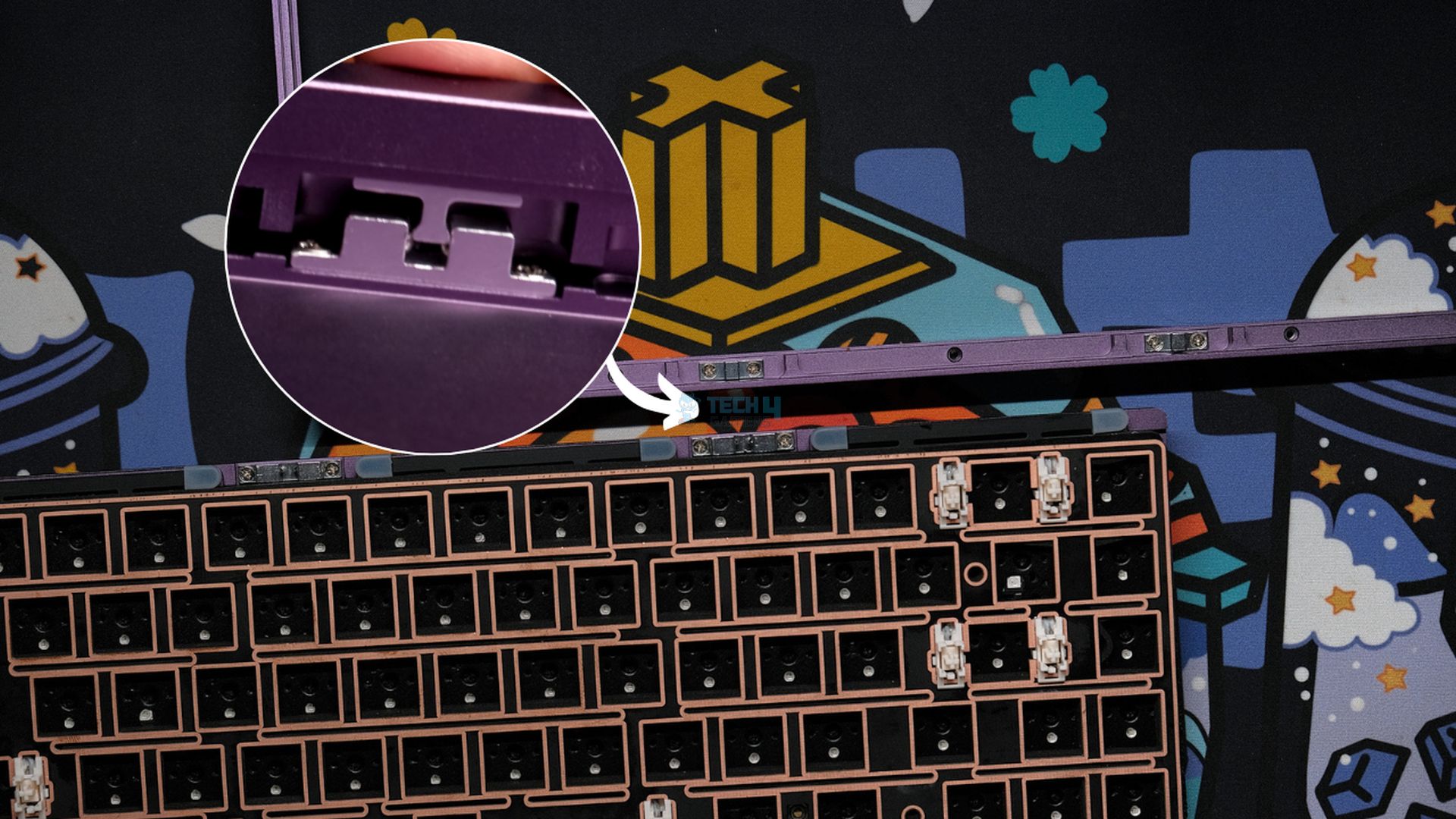
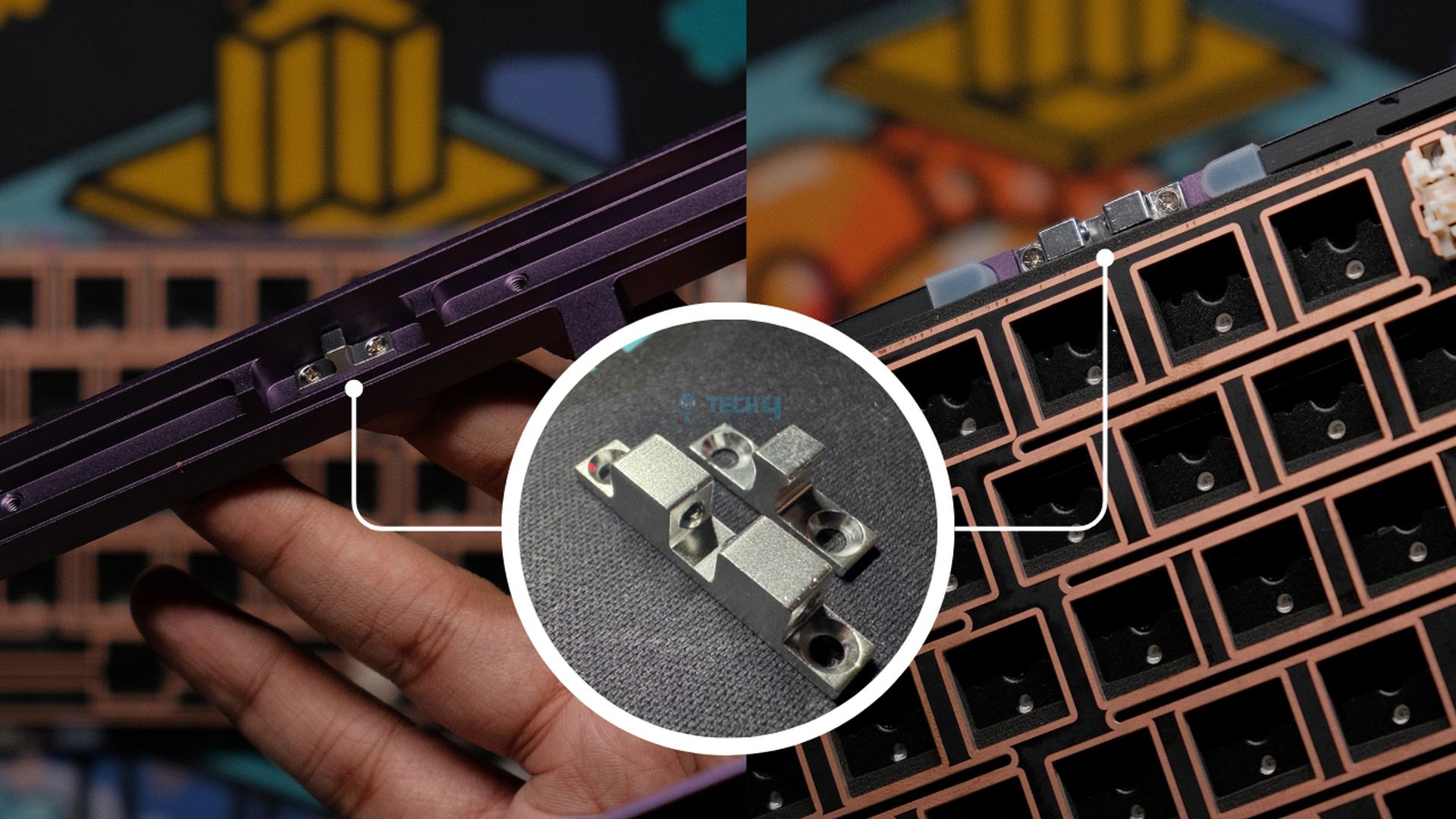
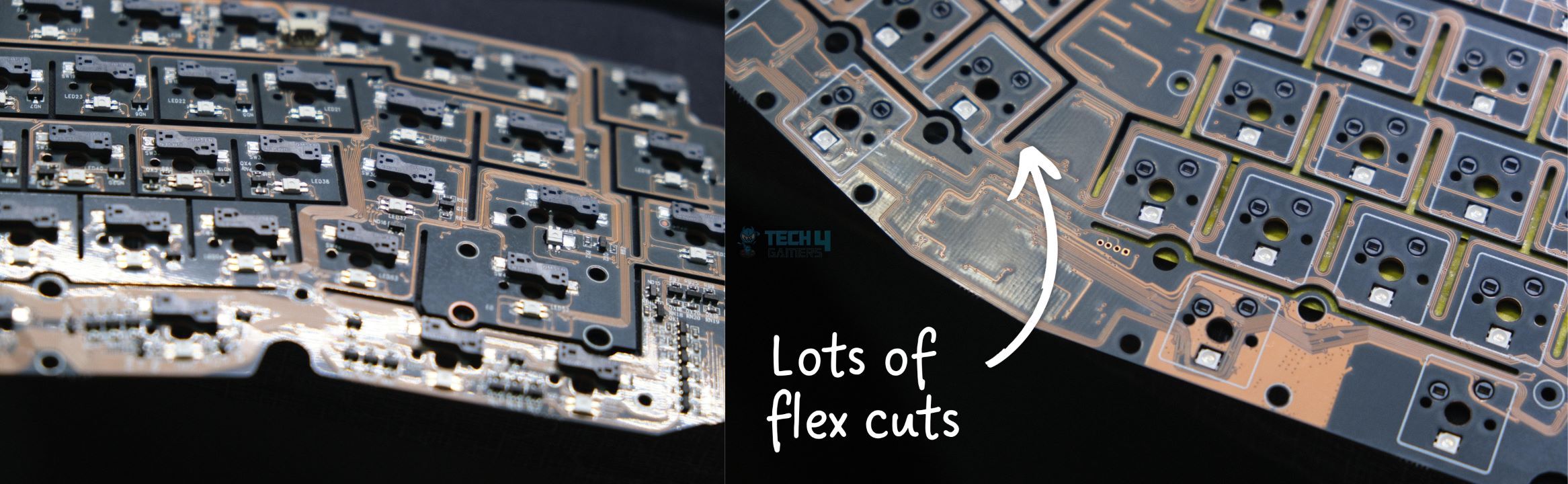
Case Material: CNC 6063 Aluminum | Surface Finish: Anodized or electrophoresis | Mounting Style: PCB gasket mount with silicone beans | Layout: ANSI, ISO | Switch Compatibility: Hot-swappable 5-pin sockets | Stabilizers | Plate-mounted stabilizers | Plate Material: FR4 with no flex cuts | Connectivity: Tri-mode | Battery Capacity: 3750mAh | PCB Features: 1.2mm thickness with flex cuts
Pros
Superb build
Attractive aesthetics
Rich sound signature
Advanced ball-catch mechanism
Equipped with calibrated stabilizers
Cons
Wireless latency inadequate for competitive gaming
The Lucky65 V2 is built around the solid foundation of its predecessor. This board combines excellent build quality, a deep, creamy sound, and perfectly tuned stabilizers, all at an incredibly affordable price point. The design is familiar yet refined, with smooth anodized surfaces, a hefty feel, upgrades like the textured ice crystal finish on the back, and a magnetic badge providing space for keeping the 2.4GHz dongle. Furthermore, the new ball-catch assembly makes customizing the keyboard effortless, as its design allows for endless customization possibilities.
You can try out different configurations with foam, switches, and keycaps without separating everything. Also, you can easily customize key remapping and macro tweaking, which is possible thanks to QMK/VIA support. As this keyboard comes with no switches and keycaps, I have tried different builds on it, which I also recommend you experiment with. I have tried a stock build, using top-notch linears like Gateron Lunar Probes with XDA Honeymilk keycaps and a more modded configuration by using premium GMK keycaps and SWK Neon switches
Here’s what I said about the Lucky65 V2 in my hands-on review:
Lucky65 V2 is the best budget custom keyboard out there, bar none. It does 99% of what even its higher-priced competitors, like the ND75, do for less. With the same great build quality, sound, stabs, and performance as its predecessor, the Lucky65 V2 is yet another home run for Weikav. Now, with the ball-catch assembly and VIA support, there are no real complaints left anymore.
✅Buy It If
You want a custom keyboard that is excellent at the fundamentals: This board is a reliable choice for those looking for a high-quality custom keyboard that performs well in both basic functions and advanced features.
You want straightforward customization: Customizing your board has never been easier, thanks to the new ball-catch assembly. You can effortlessly experiment and customize your configuration to your liking without any unnecessary trouble.
❌Don't Buy It If
You require more features than just simplicity: The sleek and streamlined design of the Lucky65 V2 does not include a knob or screen, prioritizing a clean and minimalist look. Alternative options may be worth considering if these extra features are important to your workflow or personal preference.
You have extremely low latency requirements for competitive gaming: The keyboard’s wireless connection may have a higher latency than ideal for competitive play, affecting its responsiveness during gaming.
What Makes it the Best Overall Custom Gaming Keyboard?
Due to its unique ball-catch assembly, the Lucky65 V2 is simple to customize into many configurations. From changing switches to trying out different foam mods to tweak the sound profile, the keyboard is easy to disassemble. Because of this, it is my number one pick for the best overall custom gaming keyboard.
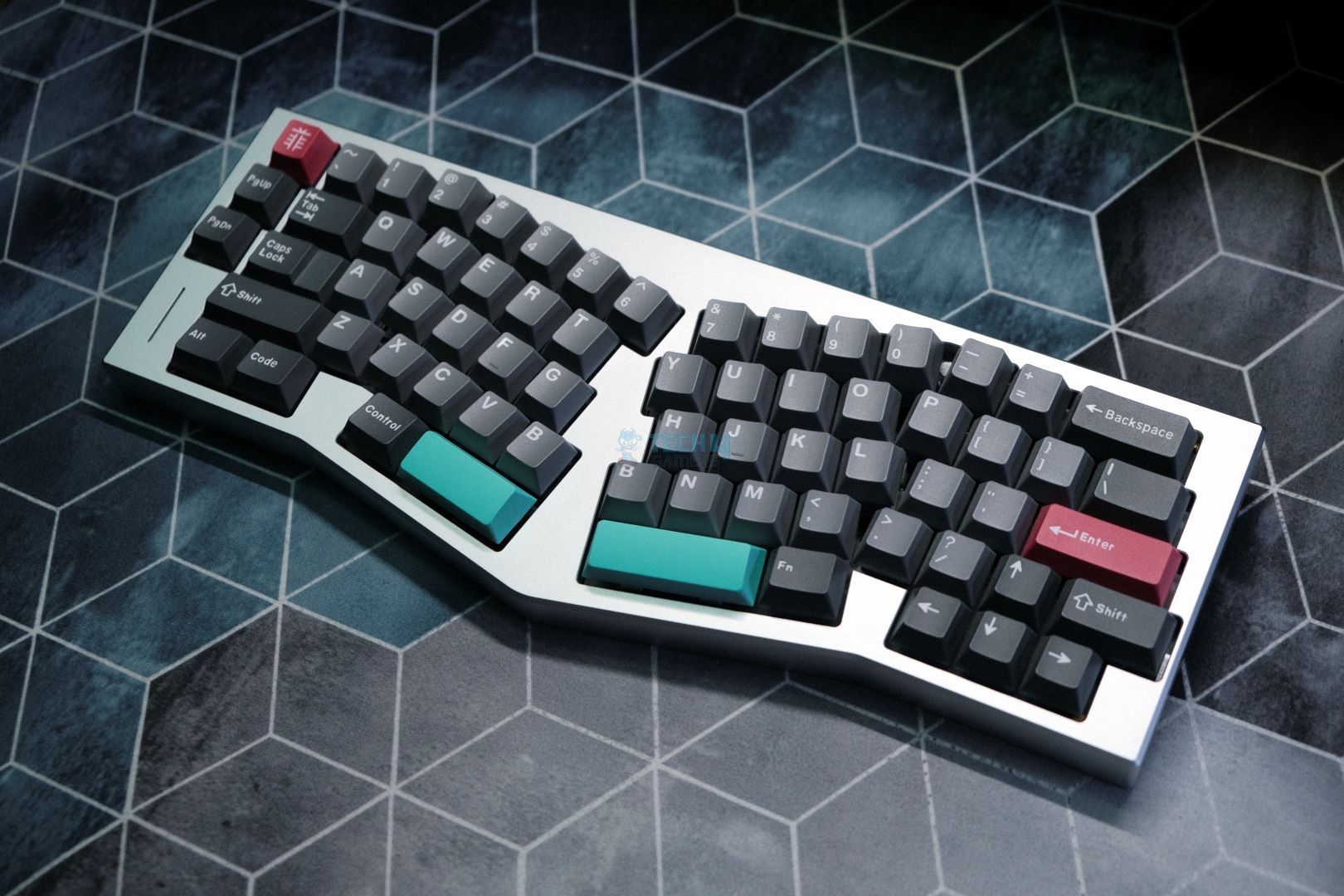
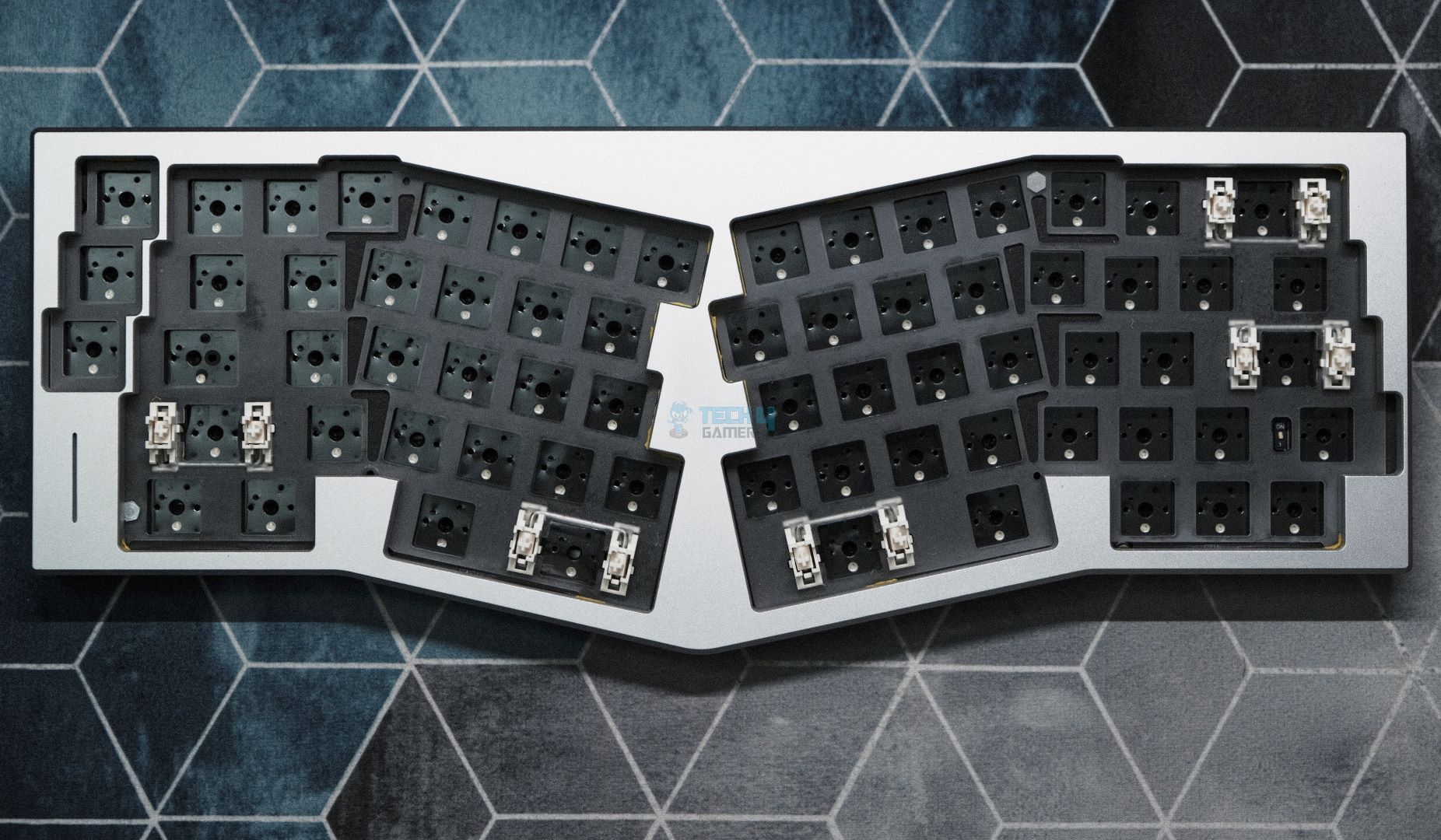
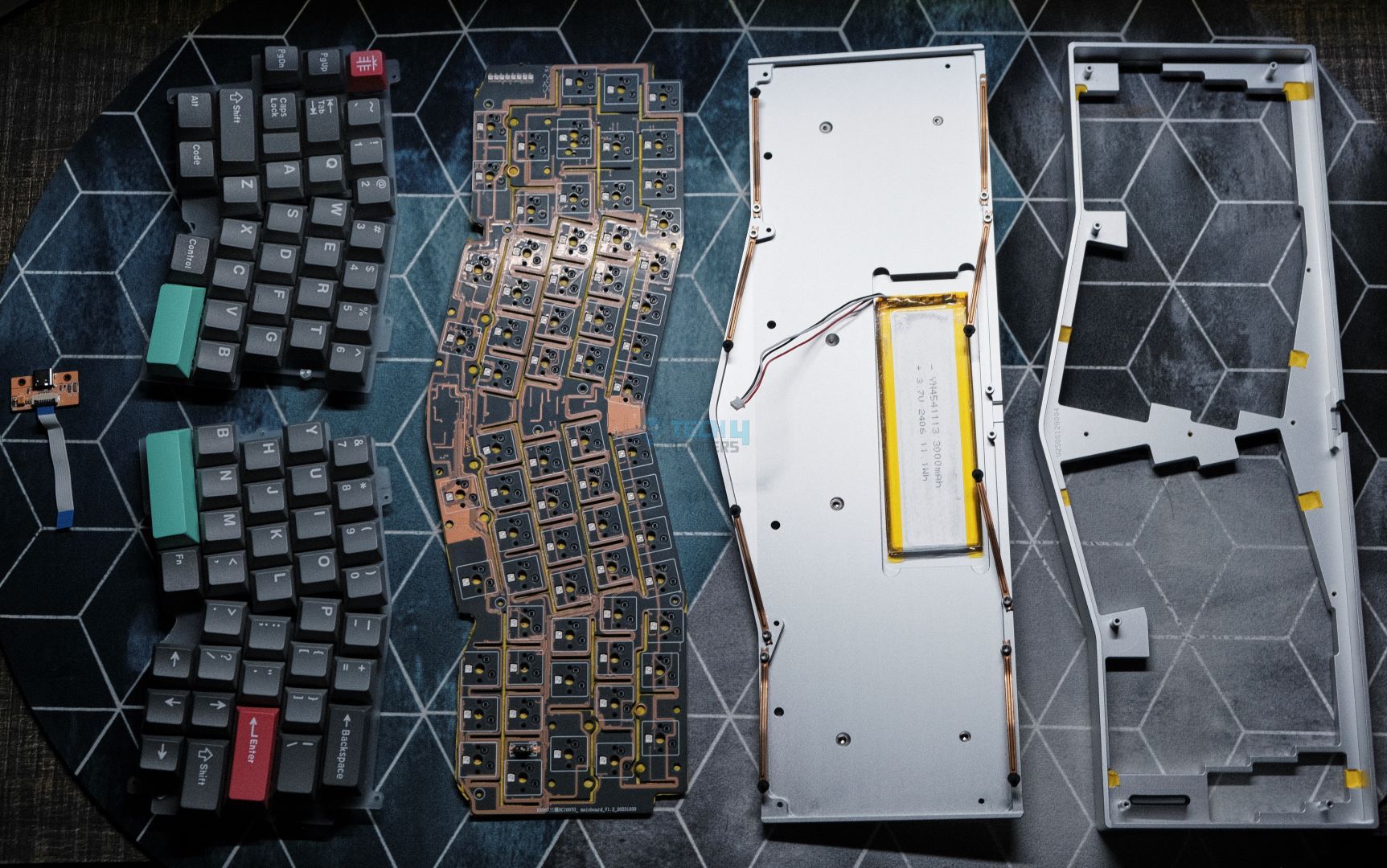
The Record Alice V2 has a unique clack sound because it is leaf spring mounted. Together with its polycarbonate plate and 1.2mm PCB, it provides a satisfying typing experience. It’s designed in the popular Alice layout, which includes split and angled keys that follow the natural curve of your hands, making long typing sessions much more comfortable.
Moreover, it comes with south-facing hot-swap sockets, standard plate-mount stabilizers (with support for screw-in stabs if you want to modify further), and VIA compatibility that lets you rebind keys, set macros, and tweak layers. Lastly, it comes with thoughtful details like per-key RGB (albeit with fixed effects) and a host of foam layers to deliver a deep, satisfying thock.
This is how I summed up his review of the Record Alice V2:
The Record Alice is a great custom keyboard that opts for a clacky sound signature in the world of thock. The leaf-spring mounting, mixed with the 1.2mm PCB and polycarb plate, allows for a bouncy typing experience. Whether you’re an enthusiast looking for extras like PCB-mount stabs and VIA support or just a competitive gamer wanting to type better, this keyboard has you covered at an affordable price.
✅Buy It If
You want an ergonomic keyboard: This board is designed to enhance your typing comfort, potentially improving both speed and ergonomics over time.
You love a distinct clacky sound: If you prefer a crisp, clacky feedback that stands out from the typical deep, foam-reliant keyboards, this one delivers a unique sound signature.
❌Don't Buy It If
You’re not willing to adapt to an Alice-style layout: The learning curve for an Alice-style design can take days or even weeks to get used to, so if you prefer a traditional layout, you might want to look elsewhere.
You prefer originals over clones: If you’re reluctant to support clone designs and would rather invest in a genuine keyboard, this may not be the best match for your preferences.
What Makes it the Best Ergonomic Custom Gaming Keyboard?
Its ergonomic design and customization capabilities make the Record Alice V2 the best ergonomic custom gaming keyboard. Every keypress feels bouncy and tactile, relieving fatigue and conforming to your hand’s natural position. In addition, the board’s modular design allows for the use of various switch types, keycaps, and foams that can customize the tactile and sound experience to your specific preference.
The Keychron K2 HE is an outstanding custom keyboard that combines hall-effect technology with a magnetic switching experience. This board provides a sleek and professional design with a clean, understated aesthetic accented with subtle wooden details. It is built with a sturdy aluminum frame and designed to feel premium while remaining strong enough.
Because of VIA compatibility, remapping and customizing your keys and macros and fine-tuning your keys to your heart’s content is super easy. Moreover, its dynamic actuation points, which can be adjusted via software, and features like Rapid Trigger and SOCD clearing offer plenty of scope for customization that allows you to tweak the performance to suit your playing style.
I summarized the Keychron K2 HE this way in his review:
The K2 HE strikes a balance between enthusiast-grade features and a mainstream-friendly approach, all at a reasonable price. Its striking design complements a robust build, creating a versatile keyboard that caters equally to gamers and professionals.
✅Buy It If
You value both design and build quality: Not only does the K2 HE has a sleek appearance, but its solid build also enhances your entire setup while delivering top-notch performance.
You’re aiming for a competitive edge: The K2 HE has impressive responsiveness in performance thanks to its advanced Rapid Trigger and SOCD clearing features.
❌Don't Buy It If
You demand fully customizable RGB lighting: For those who enjoy personalized RGB customization through software, the K2 HE may fall short as it only provides a limited selection of 23 preset modes.
You want a fully customizable hall-effect keyboard: The K2 HE may not meet the needs of those who are looking to change its magnetic switches after purchasing it, as it does not offer any alternative at this time.
What Makes it the Best Magnetic Custom Gaming Keyboard?
The Keychron K2 HE earned the best magnetic custom gaming keyboard title due to its innovative Hall effect switching mechanism. Its Magnetic switches offer adjustable dynamic actuation points that can be easily adjusted to your preference, unlike mechanical keyboards, which have set ones. This makes it ideal for gaming and a smooth typing experience.
Editor`s Note
I’ve experimented with several builds on this keyboard because it lacks switches and keycaps, and I recommend you do the same. I’ve tested with a stock build that used high-quality linears like Gateron Lunar Probes with MT3 Susuwatari keycaps and a more modified configuration that used HMX Xinhai switches and premium GMK Modern Dolch keycaps.
– Huzaifa Haroon
Want to check more magnetic options? Here is our another tested comparison:
Even before taking a closer look, the Epomaker Shadow X gives a premium feel from the top, which is finished in what resembles anodized aluminum. This is paired with a black plastic bottom, giving it a two-tone appearance. It’s heavy, robust, and feels like a quality product. It has a 70% layout that ditches the traditional function row in favor of a more modern FRL TKL design.
Moreover, this board is fully hot-swapped and comes with 5-pin south-facing sockets, making it easy to swap out switches. The screen on the device isn’t just for looks; it displays information such as the battery level and connection status. Users can personalize their screens with self-uploaded GIFs too. Moreover, the knob on the top right corner gives you the option to change connection modes which is cool.
After thorough testing, I came to this conclusion on the Epomaker Shadow-X:
The Epomaker Shadow X is one of the best budget keyboards out there that nails all the fundamentals with its own unique take on the genre. While the knob switch might be gimmicky, the screen serves as a useful tool on top of being a great aesthetic piece. The switches, keycaps and stabilizers are all best in class, but it’s the build quality that impresses the most.
✅Buy It If
You want a practical screen: If you’re after a keyboard screen that goes beyond being a mere gimmick and actually offers practical usefulness, this board delivers.
You love a thocky sound: If a deep, satisfying sound with flawless stabilizers right out of the box is what you’re after, this keyboard ensures a satisfactory auditory experience.
❌Don't Buy It If
You need a compact layout with function keys: If you prefer a design with compact layout and can’t work without dedicated function keys, this keyboard might not meet your needs.
QMK/VIA compatibility is a must: If you require customization through QMK/VIA and aren’t willing to work with less intuitive, Chinese-designed software, you might want to explore other choices.
What Makes it the Best Value Custom Gaming Keyboard?
The Epomaker Shadow X is the best-value custom gaming keyboard because it comes with features typically found in much more expensive boards. It has a premium build and extras like the built-in screen and connection mode knob. Furthermore, the board’s hot-swap capability and comprehensive software support enable you to customize it exactly how you like it.
Performance: 8.5/10
Build Quality: 8.5/10
Design: 8/10
Typing Experience: 9/10
Epomaker P75
Best Stock Custom Gaming Keyboard
Epomaker P75 Pictures From Our Review
1 of 4
Epomaker P75 (Image By Tech4Gamers)
Stabilizer
Switch
Layout: 75% | Number of Keys: 81 keys + 1 knob | Case Material: CNC Aluminum with Anodized finish | Plate Material: PC | Stabilizers: Pre-lubed Plate-mounted | Mounting Structure: Gasket Mount | Battery: 4000mAh | Polling Rate: 1000Hz for wired and 2.4G, 125Hz for Bluetooth | KeyboardDimensions: 324.2 x 135.6 x 45.3mm
The Epomaker P75’s fully CNC machined aluminum body feels like a tank from the moment you pick it up. Its minimalistic design, featuring a matte finish with evenly chamfered edges and rounded corners, delivers a clean aesthetic. It’s hot-swap friendly with south-facing RGB, and the entire board is gasket-mounted using silicone beans for that extra cushioned feel.
It uses a polycarbonate plate and a 1.2mm PCB, both with no flex cuts. The P75 offers a deep, creamy sound and a wonderful typing experience. Additionally, the P75 comes with high-quality doubleshot PBT Cherry profile keycaps that feel superb to type on. Moreover, many switch-type options give you ample room to experiment and find the ideal typing profile.
Here are the thoughts on this keyboard from its review:
Epomaker P75 is an excellent keyboard with best-in-class build quality that speaks to its premium nature. The acoustics are heavenly, the typing experience is refined, and the design is mature enough to look good on any desk. With a decent software experience and solid wireless performance, there is nothing this keyboard can’t do. For the price, it doesn’t get any better.
✅Buy It If
You’re looking for a smooth, creamy sound: Not only does this keyboard provide a satisfyingly thocky sound and flawless stabilizers straight from the box and its gasket provides a delightful typing experience.
You appreciate sleek, minimalist designs: With a sleek, understated design, the P75 blends well with any space.[/su_spoiler
❌Don't Buy It If
You need a competitive gaming edge: For those seeking speedy responsiveness in competitive gaming, this keyboard may not meet your performance needs.
You prefer advanced customization: This keyboard may not meet the expectations of users who heavily depend on QMK/VIA support and require extensive software customization.
What Makes it the Best Stock Custom Gaming Keyboard?
What sets the Epomaker P75 apart as the best stock custom gaming keyboard is the balance of its build quality and performance. It is made of solid aluminum, has refined acoustics, and provides a great typing experience, all at a fair price. It provides that satisfying, classic thump while also being mod-friendly, so if you want to customize the sound, you can swap out the switches or foam or do whatever else you want.
Performance: 9/10
Build Quality: 9.5/10
Design: 9/10
Typing Experience: 9.5/10
Akko MU01
Best Looking Custom Gaming Keyboard
Akko MU01 Pictures From Our Review
1 of 4
Akko MU01 (Image By Tech4Gamers)
Switch
Gasket Mount
Wireless Switch
Switch Options: Akko Rosewood | Connection Modes: Wired (USB-C), Bluetooth 5.0, and Wireless (2.4GHz) | Hot-Swappable: Yes, 5-pin south-facing sockets | Key Rollover: N-Key Rollover supported | Macro Support: Akko Macro V1.0 | Case Material: Walnut wood | Keycaps: PBT material, MOA profile, dye-sub legends | Dimensions: 327 x 125.3 x 36.7 mm | Weight: ~850g
The Akko MU01 is one of those eye-popping keyboards. It has a bold design choice, but it is also aesthetically pleasing. Unlike other typical plastic keyboards, this keyboard is made of walnut wood, which gives it an unmatched finish. Additionally, it has a remarkable gentle fragrance. Beyond its stunning aesthetic, the MU01 offers an incredible typing experience.
Moreover, it is accompanied by impressive, thocky sound and amazingly tuned stabilizers. The board features a 65% fully hot-swap layout, allowing you to experiment with different switch configurations. The MU01 is truly stunning to look at due to its unique design, and the gasket mount, along with several layers of foam to reduce sound, lets it combine performance with unreal aesthetics.
Here's how I concluded the Akko MU01 after reviewing it:
The Akko MU01 is a fantastic prebuilt that hits the nail on all of the important things while having the novelty of being made out of wood. It looks—and weirdly, smells—beautiful but the typing experience is what seals the deal.
✅Buy It If
You’re craving a wooden keyboard: The MU01 is a compelling option for those searching for a standout wooden keyboard, surpassing all others in quality and uniqueness.
You’re a fan of Japanese culture: With its wooden build and beautiful keycaps, the MU01 represents the true spirit of Japanese design. This keyboard is a must-have for those who appreciate incorporating cultural elements on their desk.
❌Don't Buy It If
The wooden look doesn’t appeal to you: For those not interested in the wooden look, there are other budget boards that can provide comparable performance and quality, possibly at a lower price. Therefore, the MU01 may not be as appealing to you.
You need QMK/VIA support: For users looking for customization options using QMK/VIA without having to depend on other programs, the MU01 may not be able to meet this requirement.
What Makes it the Best Aesthetics Custom Gaming Keyboard?
The design elements of Akko MU01 make it the best aesthetic custom keyboard. Compared to the thousands of plastic and generic keyboards available in the market, this one stands out thanks to its walnut wood, which gives this a whole new touch. This intricate detailing and crafting makes it look as if it is a piece of art in itself.
Performance: 9/10
Build Quality: 9/10
Design: 9.5/10
Typing Experience: 9/10
Important Keyboard Terms
It's often said that learning the technical terms of different tech is always good. The same holds true for modifying keyboards. Therefore, I will share some important keyboard terms with you.
Hot-Swap Capability: This refers to the ability to customize the keyboard's feel by replacing switches with other types without soldering.
Keycaps and Profiles: Each key is covered with keycaps, which may be made of ABS or PBT. Their material and the profile, which can be Cherry, OEM, or SA, determine their appearance and feel.
Layout: The design or layout of a keyboard defines how much space it will take up on your desk and how it will function. The layout ranges from full size to TKL to even more compact sizes of 75%, 65%, and 60%.
Mounting Styles: The mounting style can greatly affect a keyboard's overall feel and sound. Various methods, such as gasket, plate, or tray mount, make a difference.
How We Tested These Keyboards
Since everyone’s preferences differ, we don’t simply hand out scores. Rather, we present our thorough verdicts, and then you can choose which keyboard best fits your style.
Sound Profile: Sound is an essential part of the typing experience. We recorded each keyboard’s sound to assess noise levels, capturing everything from the deep thock of a heavy key press to the crisp click of more responsive switches. Every detail, from the keycap's design to the switch and even the materials used in the build, contributes to the production of a unique sound.
Input Lag/Latency: For every gamer, responsiveness is paramount. Therefore, we tested each keyboard, measuring how fast it registers the keystroke and communicates that to your computer. By optimizing polling rates and testing latency-reduction modes, we made sure that every key press, in addition to being fast, was also well registered.
Switches: Every switch was evaluated for tactile feedback, noise, and overall performance. For several days, we gamed and worked on the keyboards, which helped us understand in a practical manner the pre-travel, operating force, total travel distance, and actuation force of every switch type and the complex details of its features.
FAQs
Is hot swappable worth it?
Definitely! With hot-swappable keyboards, switches can be effortlessly replaced without any soldering, which means users can play around with various feels and sounds. This feature is perfect for custom enthusiasts.
Why are 75 keyboards so popular?
75% of keyboards usually strike the right balance between compactness and functionality. They have a separate navigation cluster, which helps to include the most essential keys while saving space when compared to full-sized boards. This makes this type of keyboard the best one for gamers and working people who prefer keyboards with little compromise on features.
Why is Keychron so popular?
Keychron has become a favorite brand because of the combination of good style, quality, and low prices. Their keyboards come with sleek looks and are compatible with Mac and Windows, which adds to the value. This strong selling point makes Keychron a popular brand among casual users and even keyboard enthusiasts.
Currently serving as a News Reporter at Tech4Gamers, I have the privilege of combining my love for gaming with the art of storytelling. My role involves crafting engaging narratives that keep our audience abreast of the latest developments in the gaming world.
Story Highlight
Shroud says Arc Raiders has the potential to be bigger than Fortnite.
He already says the only titles that come close are Valorant and Apex Legends.
This statement is absurd, considering Fortnite is free-to-play and Arc Raiders is a paid title, and there’s a vast difference in player numbers for both.
Arc Raiders has taken the gaming world by storm, surpassing the likes of Call of Duty and Battlefield this year and becoming the highest-rated multiplayer title of this decade. While the extraction shooter continues to grow, it has gained the favor of fans and one popular streamer who had a hot take regarding the title.
In his latest stream, Shroud discussed Arc Raiders, calling it the biggest game since Fortnite and having the potential to surpass Battle Royale. This opinion has raised many eyebrows, as there is still a considerable difference between these two games that may never get covered.
Why it matters: The multiplayer genre is a venture where many fail, and hardly a few titles succeed, and fortunately, Arc Raiders was one of the latter ones. However, a comparison to Fortnite is still impossible, considering it has more than 10X the player base.
Surviving the Drop with the Right Arc Raiders Items
While there is some truth to the claim that Arc Raiders is next in line after Apex Legends and Valorant, the main verdict is false. Success in an extraction shooter often comes down to preparation and gear; players who want to skip the grind and jump straight into high-tier expeditions frequently look for ways to find Arc Raiders items for sale to bolster their loadouts. This shortcut allows them to focus on the high-stakes gameplay rather than the initial resource crawl.
“This game is definitely the biggest game since Fortnite… I think this game’s bigger than both of those games, and WILL be bigger as time goes on”
Here’s what Shroud had to say about Arc Raiders, comparing it to other titles:
This game is definitely the biggest game since Fortnite for sure. The only other game I can think of along the way is maybe like VALORANT and Apex. But I think this game is bigger than both those games and will be bigger as time goes on.
While there is some truth to the claim that Arc Raiders is next in line after Apex Legends and Valorant, the main verdict is false.
Arc Raiders is a paid title, whereas Fortnite is free-to-play, which is one of the reasons Fortnite is so popular and successful.
Still, we can’t undermine Embark’s success as Arc Raiders managed to retain nearly 90% of its player count, a feat quite impossible for most titles to achieve. Now nearing 10 million copies sold, the extraction shooter has no plans to slow down and will definitely grow in the coming years.
What are your thoughts on Shroud’s statement? Do you agree with his take or not? Let us know in the comments below, or at the official Tech4Gamers Forums.
Currently serving as a News Reporter at Tech4Gamers, I have the privilege of combining my love for gaming with the art of storytelling. My role involves crafting engaging narratives that keep our audience abreast of the latest developments in the gaming world.
Story Highlight
The Steam hardware survey shows that 1080p still dominates, with more than half of users using this display configuration.
1440p has gained a healthy traction, becoming the second most used configuration.
Stats for next year will be hindered by increased hardware prices, which will force gamers to resort to budget builds.
Steam’s hardware survey for November 2025 is out, and it reveals some interesting metrics. Specifically for the display side, most users still game on the 1080p resolution, which is considered to be the sweet spot.
On the other hand, 1440p is slowly gaining a bit of traction and is considered the next big jump for gamers.
Why it matters: With hardware becoming expensive and the latest games becoming increasingly demanding, it is understandable why gamers would want to stick to 1080p resolution, as it offers decent visuals while still being performance-friendly.
Steam Had 132 Million Users As Of 2021, Figures Likely More Than 150 Million By Now
Here’s a list of all the resolution stats from the Steam Hardware Survey, along with their increases/decreases from November 2025 to the previous year.
Resolution
Nov 2024 Share
Nov 2025 Share
Change
1920×1080
55.98%
52.83%
−3.15%
2560×1440
19.75%
20.79%
+1.04%
2560×1600
4.62%
5.20%
+0.58%
3840×2160
4.21%
4.83%
+0.62%
3440×1440
2.51%
3.06%
+0.55%
1366×768
2.90%
2.40%
−0.50%
As seen above, 52.83% of gamers still use 1080p resolution, and while the count has dropped by 3.15%, it still represents more than half of Steam’s user base. 1440p is now gaining traction, with the percentage rising to 20.79% as of November 2025.
4k resolution accounts for only 4.21% of the market, with a slight 0.62% gain over the past year.
For the future, expect this progress to stall as hardware prices are about to increase rapidly due to the AI boom. RAM prices have quadrupled this year, and 2026 will see further increases; similarly, GPU prices will rise, with the RTX 5090 expected to cost $5000 next year.
As older hardware like DDR4 builds is expected to come back into fashion next year, many users will resort to 1080p resolution to compensate for the lack of hardware.
As Tech4Gamers’ Founder and Editor-in-Chief, I bring over 13 years of PC Hardware Reviewing and 8+ years of IT Project Management experience. Certified in Google IT Support , my focus is on providing honest product reviews and analysis and fostering a strong gaming community with 130k+ members in PPG.
Story Highlight
ASUS will raise prices on select products starting January 5, 2026, citing rising DRAM and NAND memory costs driven by AI demand.
Most ASUS devices are likely to be affected, including desktops, laptops, phones, Mini-PCs, and ROG Ally, as memory supply shifts toward servers and AI hardware.
ASUS says the increase is necessary to maintain supply stability and product quality, but has not disclosed how much prices will rise.
Following the lead of the rest of the industry, albeit with last-minute notice, ASUS announced that starting January 5, 2026, it will raise the price of “certain product combinations” due to the DRAM memory.
Logically, it’s reasonable to assume that any product or component from the company that uses any type of memory will increase in price. So, prepare for price hikes on desktops, laptops, Mini-PCs, mobile phones, and even their ROG Ally handheld consoles.
Essentially, any device or product with memory will increase in price, and yes, you already know why. If you don’t, the quick summary is that there’s a global shortage of DRAM, the memory used in the chips that power RAM modules. The reason? Artificial intelligence.
Not only has all the DRAM been shifted to the server business, which is much more lucrative for DRAM manufacturers like Crucial, who abandoned the consumer market to focus solely on making DRAM for servers and AI, but DRAM production has also been diverted to manufacture HBM, the memory used by all of NVIDIA’s AI GPUs, memory that is even more expensive (and generates more profit).
ASUS isn’t only raising prices due to DRAM or RAM issues; they’re also raising prices because of NAND flash memory. In an attempt to increase profits, or rather, to alleviate the DRAM market shortage, manufacturers like Samsung have converted their NAND flash memory production lines to DRAM production.
This means producing less NAND flash memory, exacerbating the current situation and driving prices up. These data centers require not just an NVIDIA chip to function, but a complete system with its CPU, motherboard, ample RAM, and SSD storage.
Asus Plans Price Hikes On All Memory-equipped Products
ASUS released a statement indicating that the rapid adoption of AI is putting upward pressure on global supply chains. And yes, it all centers on the increased costs of DRAM and NAND memory that ASUS is experiencing. The company only says it will raise the prices of some of its “product combinations.” But logic dictates that anything using either type of memory, or both, will see price increases. ASUS also didn’t announce by how much the prices would rise. For reference, Dell announced a 20% price increase across its entire product range.
After carefully evaluating market conditions, supply stability, and product quality commitments, ASUS remains focused on providing its customers with industry-leading technology and R&D capabilities. As a result, ASUS plans to implement strategic price adjustments across certain product lines starting January 5, 2026. This decision is a necessary response to ongoing cost pressures and rising supply costs, with the aim of ensuring stable supply, maintaining product quality and service standards, and continuing to support the broader ecosystem.