I’ve previously worked for eXputer as a Senior News Writer for several years. Now with Tech4Gamers, I love to devoutly keep up with the latest gaming and entertainment industries. I have a Bachelor’s Degree in Computer Science and years of experience reporting on games and breaking exclusive stories. Besides my passion for gaming journalism, I love spending my leisure time farming away in Stardew Valley. VGC, IGN, GameSpot, Game Rant, TheGamer, GamingBolt, The Verge, NME, Metro, Dot Esports, GameByte, Kotaku Australia, PC Gamer, and more have cited my articles.
Story Highlight
NVIDIA is reportedly bringing back the RTX 3060 in Q1 2026 amid the memory and GPU crisis.
The current-gen RTX 50 series stock has started running short around the globe due to DRAM shortages.
The RTX 3060 remains one of the most popular GPUs but was discontinued back in 2024.
The memory crisis that began in H2 2025 has not only shot up the price of RAM kits from various vendors, but it is also directly affecting the price and stock of current-gen GPUs worldwide. The Japanese and German suppliers have started running short of high-end units entirely.
New rumors reveal that Nvidia is now being forced to bring back one of the most popular cards in the gaming scene from two generations ago. The RTX 3060, which was originally discontinued in 2024, is making a comeback to retail shelves starting from Q1 2026.
Why it matters: The return of the RTX 3060 to retail shelves could help alleviate the GPU apocalypse that began due to the DRAM shortage. However, producing RTX 3060 only makes sense if the cards are sold at appealing deals.
Popular Nvidia hardware insider claims the RTX 3060 is returning to retail shelves.
The reliable industry insider @hongxing2020 on Twitter claims that Nvidia has informed partners that production lines for RTX 3060 will open soon. However, it’s unclear whether both the 12 GB and 8 GB models will be produced or only one for now.
The RTX 5060 Ti 16 GB is already rumored to be discontinued soon, and the base 5060 variant is also costly to produce due to higher DRAM prices. So, Nvidia is being forced to bring back the 3060 to keep the retail shelves full of its xx60 GPUs.
The RTX xx60 lineup is specifically popular among gamers for its budget-friendly and mass-consumption appeal. The RTX 3060 and 4060 often compete for the top spot on Steam every month, for example.
The RTX 3060 was the most popular GPU on Steam in December 2025.
However, bringing back the RTX 3060 would only make sense in 2026 if the GPUs are sold at attractive pricing, as the GPU is unable to fully keep up with modern AAA gaming’s system requirements.
Do you think Nvidia’s decision to bring RTX 3060 back to retail shelves will help with the ensuing memory and GPU shortages? Let us know your thoughts in the comments below, or join the discussion on the Tech4Gamers forum.
Currently serving as a News Reporter at Tech4Gamers, I have the privilege of combining my love for gaming with the art of storytelling. My role involves crafting engaging narratives that keep our audience abreast of the latest developments in the gaming world.
Story Highlight
Star Wars: Genesis completely redefines the vanilla Starfield experience by becoming an open-world Star Wars RPG game.
The mod reskins the base game and introduces new storylines, gameplay changes, and more.
This entire project is being made by a single person and is close to completion.
Starfield failed to be the ambitious RPG that Bethesda had promised fans; it turned out to be a lacklustre experience, with few gameplay details and an underwhelming open world that felt mostly barren.
While Bethesda is working hard behind the scenes to redeem itself in a Cyberpunk 2077 fashion, one modder has already beaten them to it. Star Wars: Genesis is a 100GB mod that completely revamps the vanilla Starfield experience, turning it into a full-fledged open-world Star Wars experience that fans have yearned for.
Why it matters: The power of modding makes playing video games so interesting because it fills in the gaps left by developers and delivers the end product that fans actually want.
Star Wars: Genesis changes every faction, vehicle, planet, and city to make it feel like players are actually in the Star Wars universe. However, this mod isn’t just a reskin but a revamp of the entire gameplay experience.
New storylines have been introduced, adhering to the Star Wars lore alongside new soundtracks and an expanded role-playing system in general. Additionally, this mod has improved the visuals too by upgrading the vanilla environmental lighting and textures.
Surprisingly, only a single person is working on this project and has been doing so for nearly two years, and it is slowly coming to a close. The mod’s official website states that Lightsabers are finally coming to the game in a new update planned for later in January.
The Starfield melee experience was terrible, and before Lightsabers were introduced, new mods for better close combat were needed, which was loads of work.
Lightsaber Coming In The Next Update
A massive Starfield update is planned soon, and Bethesda plans on debuting a second expansion for the game alongside a PS5 and a Switch 2 port. Only time will tell if that update can hold its own against Star Wars: Genesis.
At Tech4Gamers.com, I cover the latest news and rumours in the gaming industry, from new game releases to hidden gems and video game leaks. Furthermore, I occasionally write tech articles about video game consoles, providing insights into the hardware and software that powers our gaming experiences.
Story Highlight
Portable monitors are ideal for travelers or those in shared housing who lack a dedicated TV.
Works with 1080p, 1440p, and 4K; 1440p is a great middle-ground for monitors.
Look for a built-in HDMI port and a size that balances screen real estate with portability.
The PlayStation 5 has been around long enough that most of us know what it does well: fast load times, breathtaking visuals, and a steady stream of great games. What has changed since launch, though, is how and where people play.
Not everyone has a dedicated TV anymore, and more players are gaming from dorm rooms, shared apartments, hotels, or wherever life takes them.
That’s where portable monitors come into the picture. They’re slim, easy to set up, and surprisingly practical if you don’t want to rely on a shared TV. But are they actually worth using with a PS5? Short answer: yes, if you know what to expect.
Let’s break it down.
PS5 Display Output
Before you even think about using a portable monitor, it helps to know what the PS5 can push out.
The PlayStation 5 supports 1080p, 1440p, and 4K resolutions, with refresh rates going up to 120Hz in supported games. Not every title takes full advantage of that, though.
In reality, most games still aim for either 60fps with better visuals or higher frame rates with reduced detail.
Sony also added official 1440p support, which is great news for monitor users. It means you’re no longer forced to choose between 1080p and 4K if your screen sits somewhere in the middle.
As for ports, the PS5 keeps things simple:
One HDMI output
USB-C ports on the front
USB-A ports on the back
That HDMI port is the key, and if your portable monitor has an HDMI input, you’re already halfway there.
Why a Portable Monitor Makes Sense for PS5
Using a portable PS5 monitor isn’t about chasing the best specs possible. It’s about flexibility. And honestly, that’s the main reason people go this route.
You Can Play Anywhere
If you travel, live in a shared space, or just don’t always have access to a TV, a portable monitor feels like a cheat code. Toss it in a backpack, plug it in, and you’ve got a personal gaming setup wherever there’s a power outlet.
No More Fighting Over the TV
This alone sells the idea for a lot of players. Someone else wants to watch a show? No problem. A portable monitor lets you keep gaming without negotiating screen time.
It’s Better Than You’d Expect
Modern portable monitors are way better than they used to be. Many offer solid color, decent brightness, and smooth performance at 60Hz, which is still the sweet spot for most PS5 games.
If you’re the kind of gamer who’s always looking a generation ahead, you’ve probably already thought about what comes after the PS5. Picking up a solid display now can save you trouble later, too.
A good gaming monitor for PS5 won’t magically future-proof everything, but it does mean you won’t be scrambling to upgrade your screen the moment Sony drops its next console.
Built-In Audio Helps
Most portable monitors come with speakers. They’re not amazing, but they’re good enough in a pinch. And if you’re using a headset plugged into the controller, you’re covered anyway.
Input Lag Isn’t a Dealbreaker
For casual and even semi-competitive play, input lag on a decent portable monitor is usually fine. You’re not getting esports-level performance, but you’re also not dealing with noticeable delays.
What to Look for in a Portable Monitor for PS5
Not all portable monitors are created equal, and some are a better fit for consoles than others.
Here’s what actually matters:
HDMI input – This is non-negotiable. USB-C-only displays won’t work unless they explicitly support HDMI.
Resolution support – 1080p is perfectly fine. 1440p is a nice bonus. 4K is cool, but not necessary on smaller screens.
Refresh rate – 60Hz is enough for most games. 120Hz is nice if you play shooters that support it.
Power options – Some monitors need a wall plug, others can run off USB-C. Think about where you’ll be using it.
Size and weight – Bigger screens are nicer, but portability drops fast once you go too large.
If you’re buying one mainly for PS5, prioritize reliability over flashy features.
How to Connect a PS5 to a Portable Monitor
Setup is straightforward and doesn’t require any weird adapters.
Plug an HDMI cable into the PS5 and the monitor
Power the monitor using USB-C or its wall adapter
Switch the monitor input to HDMI
Go into PS5 display settings and match the resolution and refresh rate to what the monitor supports
That’s it. If the screen turns on and shows the PS5 menu, you’re good to go.
If you already have a big TV and never leave home, probably not. But if you value flexibility, travel often, or just want your own screen without rearranging the living room, a portable monitor makes a lot of sense.
It’s not about replacing a full gaming TV. It’s about having a reliable backup that lets you keep playing, no matter where you are. And for a lot of console gamers, that trade-off is absolutely worth it.
As Tech4Gamers’ Founder and Editor-in-Chief, I bring over 13 years of PC Hardware Reviewing and 8+ years of IT Project Management experience. Certified in Google IT Support , my focus is on providing honest product reviews and analysis and fostering a strong gaming community with 130k+ members in PPG.
Huzaifa Haroon
Being a keyboard enthusiast, I specialize in reviewing, modding, and critiquing them for the people. If you’re a Razer fanboy, my only goal is to convert you to the dark side 😈.
Gaming, especially online gaming, requires precision and patience to be competitive. In such instances, gaming-focused or generally high-quality peripherals help a lot as they are made to be responsive to your regular budget. One of the most important peripherals is the keyboard itself. As there are many options out there, I have simplified the whole process for you by compiling a list of keyboards that I found ideal for competitive or casual gaming.
The list features different kinds of keyboards, from premium wireless to budget-oriented. I have put in all to help a wider audience and not just a niche category.
Why Trust Tech4Gamers
Huzaifa Haroon is our keyboard expert with years of experience in building and testing custom keyboards.
130+ peripherals tested and reviewed by our team of hardware experts (Tech4Gamers Team).
500+ hours spent testing different peripherals for our reviews.
At Tech4Gamers, ensuring you get reliable information is our priority. That’s why every hardware round-up undergoes a meticulous review process by our team of experts and editors. Each review is carefully examined against our strict editorial guidelines, guaranteeing you trustworthy insights you can depend on.
Right here is the comparison table that gives an overview of the keyboards I chose for gaming:
Keyboard
Keychron K2 HE
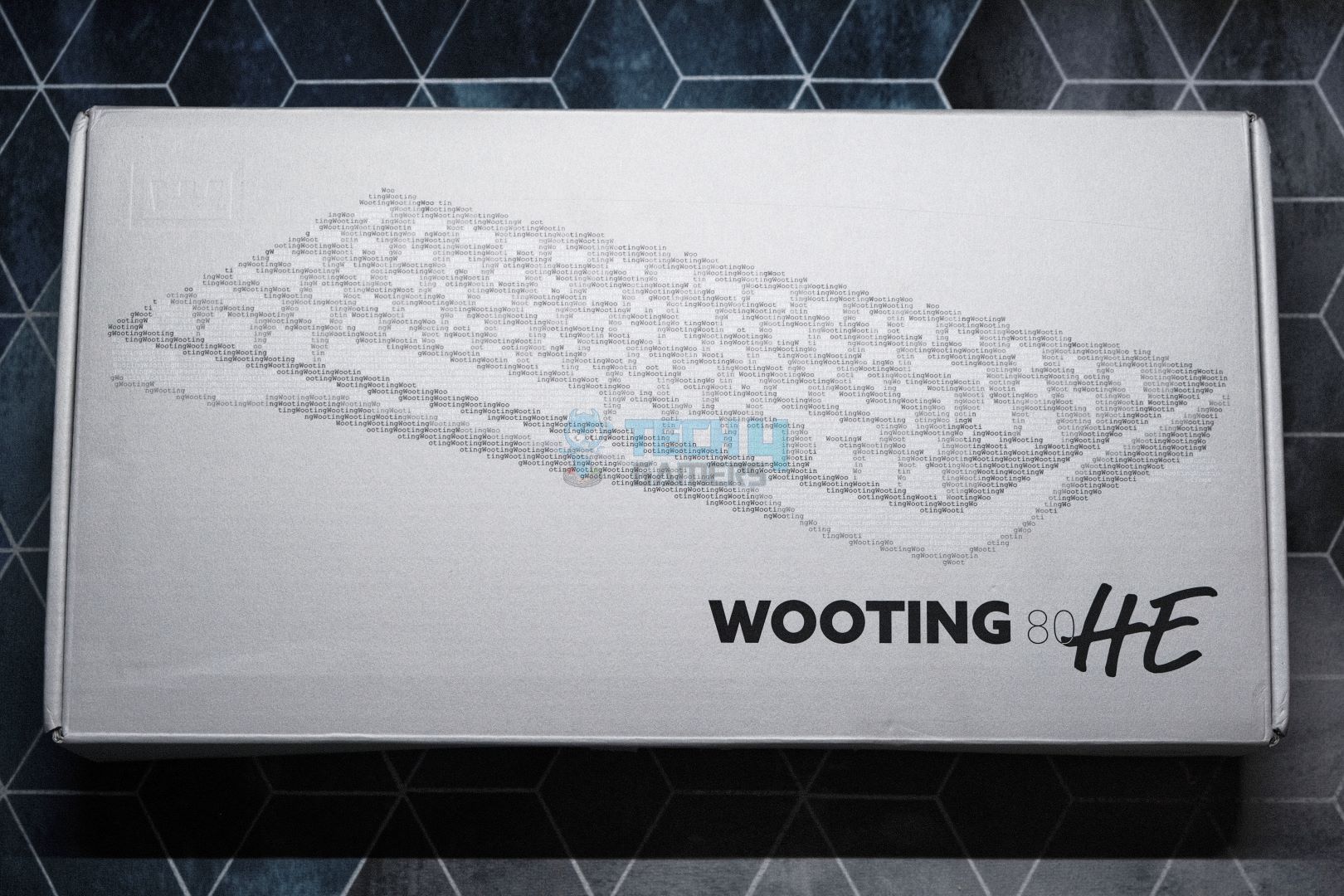
Wooting 80HE
Lucky65 V2
Epomaker P75
Tecware Spectre 75
Akko MU01
Looks
Award
Best Overall Gaming Keyboard
Best Magnetic Gaming Keyboard
Best Custom Gaming Keyboard
Best Wireless Gaming Keyboard
Best Value Gaming Keyboard
Best Typing Experience Gaming Keyboard
What We Liked
Impresssive design with wooden accents, magnetic switches, doubleshot keycaps, pre-lubed stabs
Extra LED Bar, Pleasing typing experience, Switches are hot-swappable, Great software, Height adjustment
Rich and satisfying sound, screwless design, good battery timing, ball-catch assembly
Minimalistic design, Solid build quality, Feels extremely good while typing, Wireless performance is good
Robust and premium build, customizable display, pleasant typing experience
Unique wooden chassis with gasket mount, beautiful keycaps, tactile feel, good wireless performance
What We Disliked
Not modification friendly, Doesn't support magnetic switches other than its own
Here is the list of keyboards that I found perfect for gaming after my thorough testing:
Best Overall:Keychron K2 HE
Best Magnetic:Wooting 80HE
Best Custom:Lucky65 V2
Best Wireless:Epomaker P75
Best Value:Tecware Spectre 75
Best Typing:Akko MU01
For better understanding, we have also included recorded videos to share the typing experience and sound profiles of each keyboard. We have attached these personally tested videos of each keyboard under their respective recommendation section.
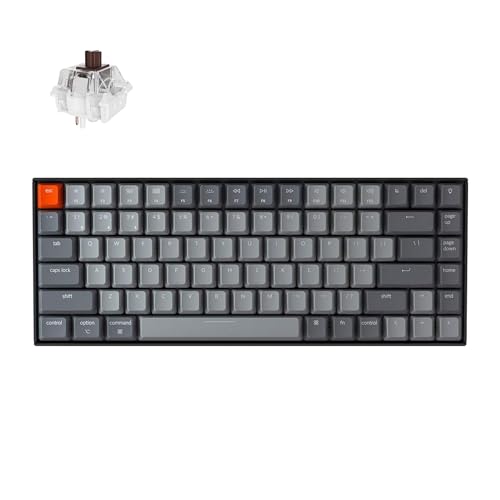
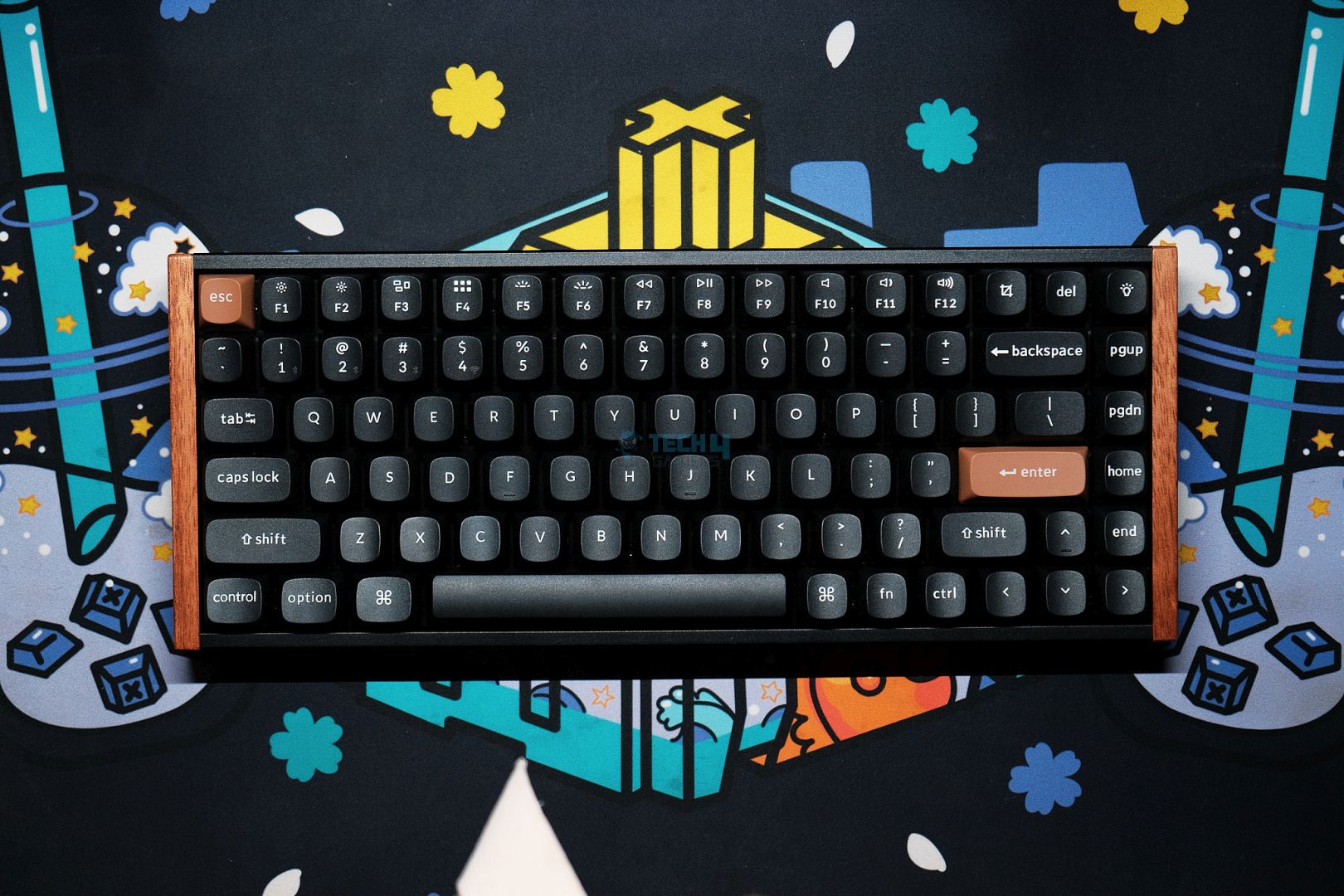
The Keychron K2 HE is one of the best 75% keyboards, boasting a striking design and the necessary features. Firstly, I liked the overall build quality and the wooden accents on its sides, which complement the keyboard’s appearance. Besides the looks, the keyboard supports wireless functionality via Bluetooth and 2.4 GHz radio signals. To further enhance the wireless experience, the keyboard also features a 4000mAh cell that can keep it running for days, as per our testing.
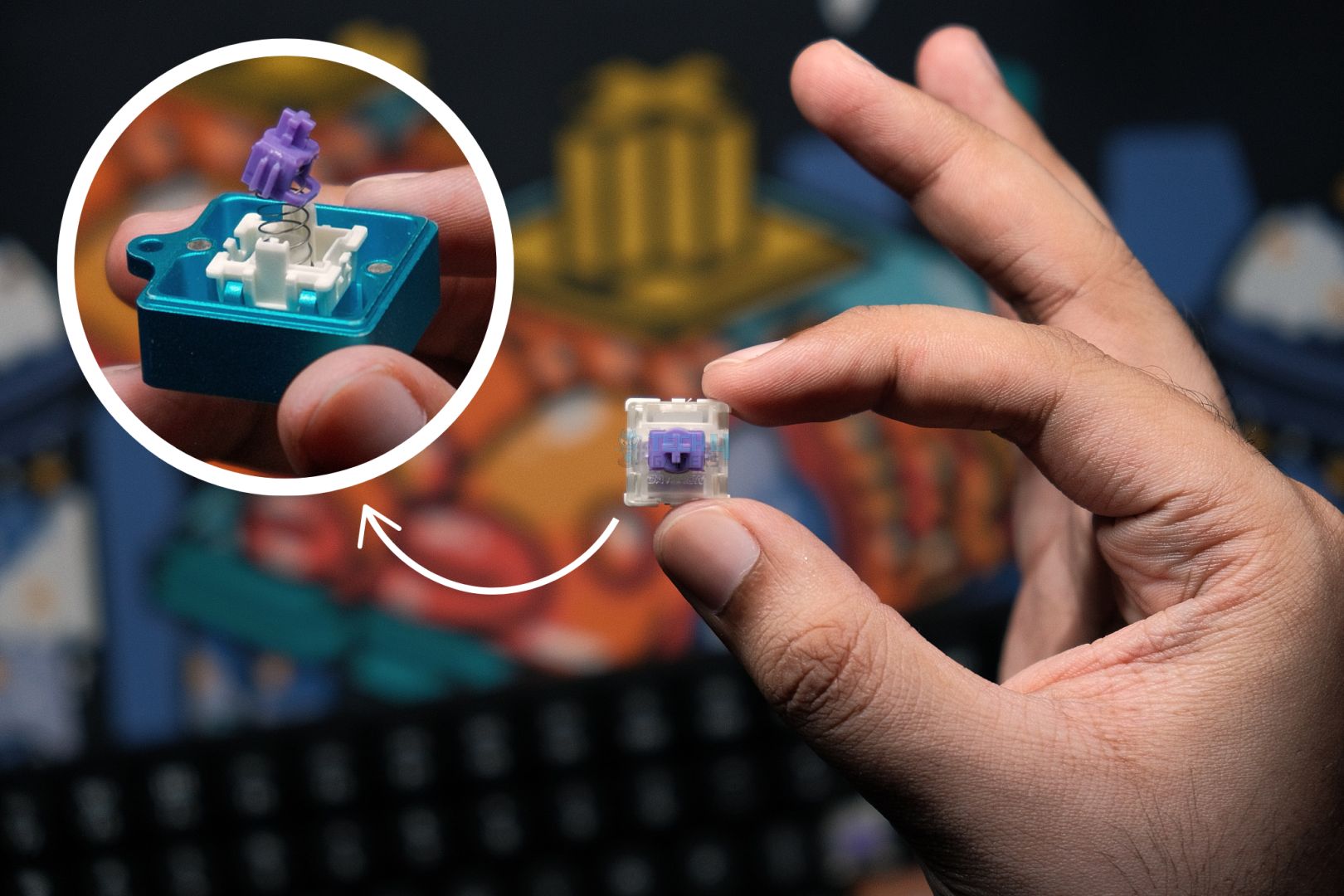
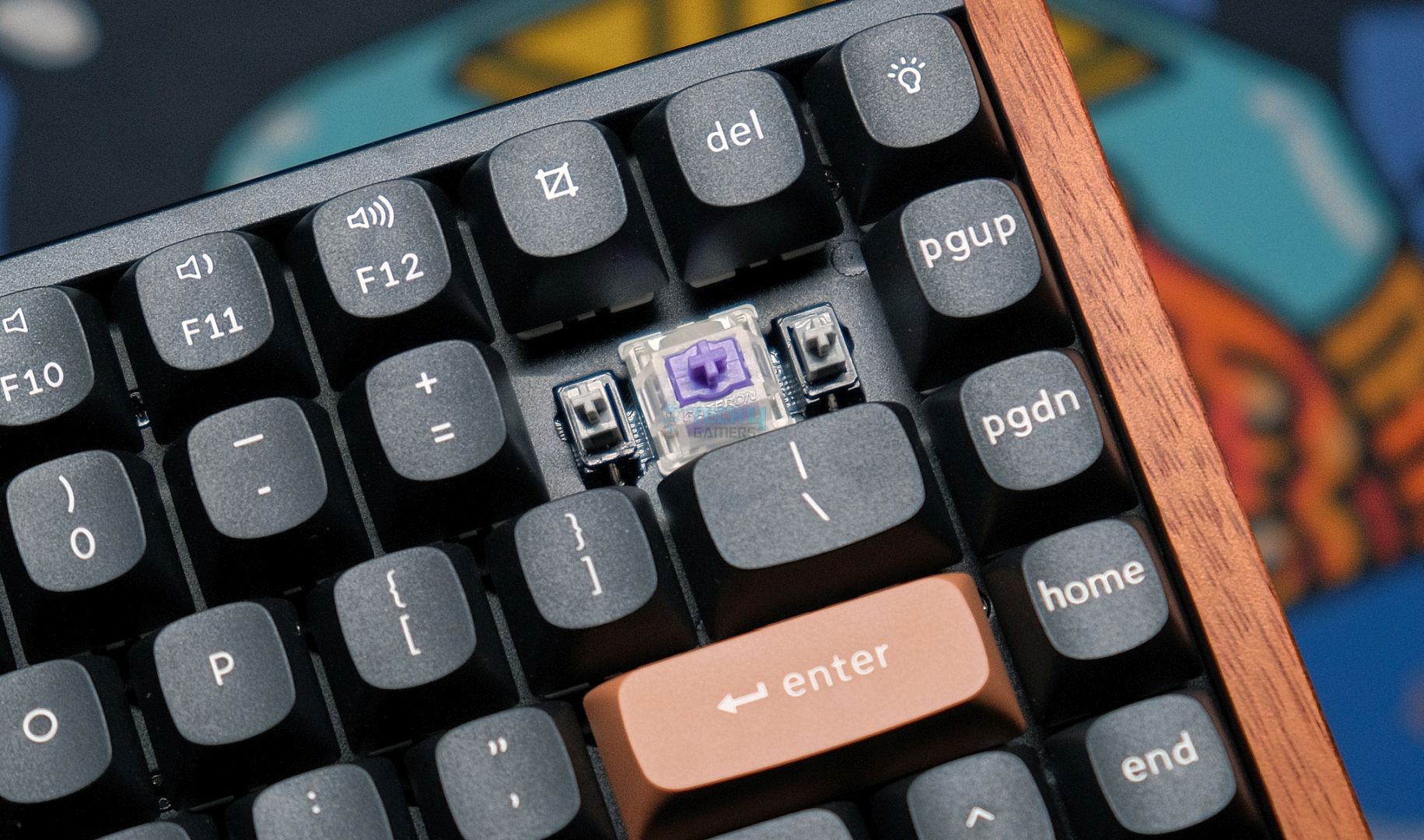
Now, moving to the gaming side of things, the keyboard doesn’t disappoint as we get Gateron Nebula linear switches. They come under the Hall-effect switch type and feature a dynamic actuation point that can be customized anywhere from 0.2 to 3.8 mm with the dedicated software. This can help a wider audience of gamers, as everyone prefers different travel distances for their keyboard keys. Similarly, the inclusion of pre-calibrated stabilizers, Rapid Trigger support, and SOCD clearing makes the whole gaming and casual use experience more refined.
This is how we defined the overall K2 HE keyboard in our dedicated review:
The K2 HE strikes a balance between enthusiast-grade features and a mainstream-friendly approach, all at a reasonable price. Its striking design complements a robust build, creating a versatile keyboard that caters equally to gamers and professionals.
✅Buy It If
You want a solid keyboard overall: The Keychron K2 HE offers a sleek design and sturdy build quality that feels premium and can easily enhance the look of your whole setup.
You’re after a keyboard full of features: The Keychron K2 HE comes with impressive features like SOCD clearing, Rapid Trigger, and Dynamic actuation point support that can give you an edge in gaming.
❌Don't Buy It If
You prefer to attach a custom coiled cable: If you’re looking forward to attaching a custom coiled cable with this keyboard all the time, then it might create an inconvenience. Mostly because of the weird USB port placement on the keyboard.
You’re more into custom modifications: The Keychron K2 HE, unfortunately, doesn’t support many modifications and also doesn’t support 3rd party magnetic switches while being a hot-swappable keyboard. So, if you’re a custom modification enthusiast, this keyboard isn’t for you.
What Makes it the Best Overall Gaming Keyboard?
The Keychron K2 HE makes its place in the list with its features and great build quality. The keyboard allows the users to play with its customizable switches and make full use of the rapid trigger support as well as SOCD clearing to have the best chance at winning, especially in competitive games, even in its wireless mode, where the average latency is 5.6 ms. All this makes it the best overall gaming keyboard.
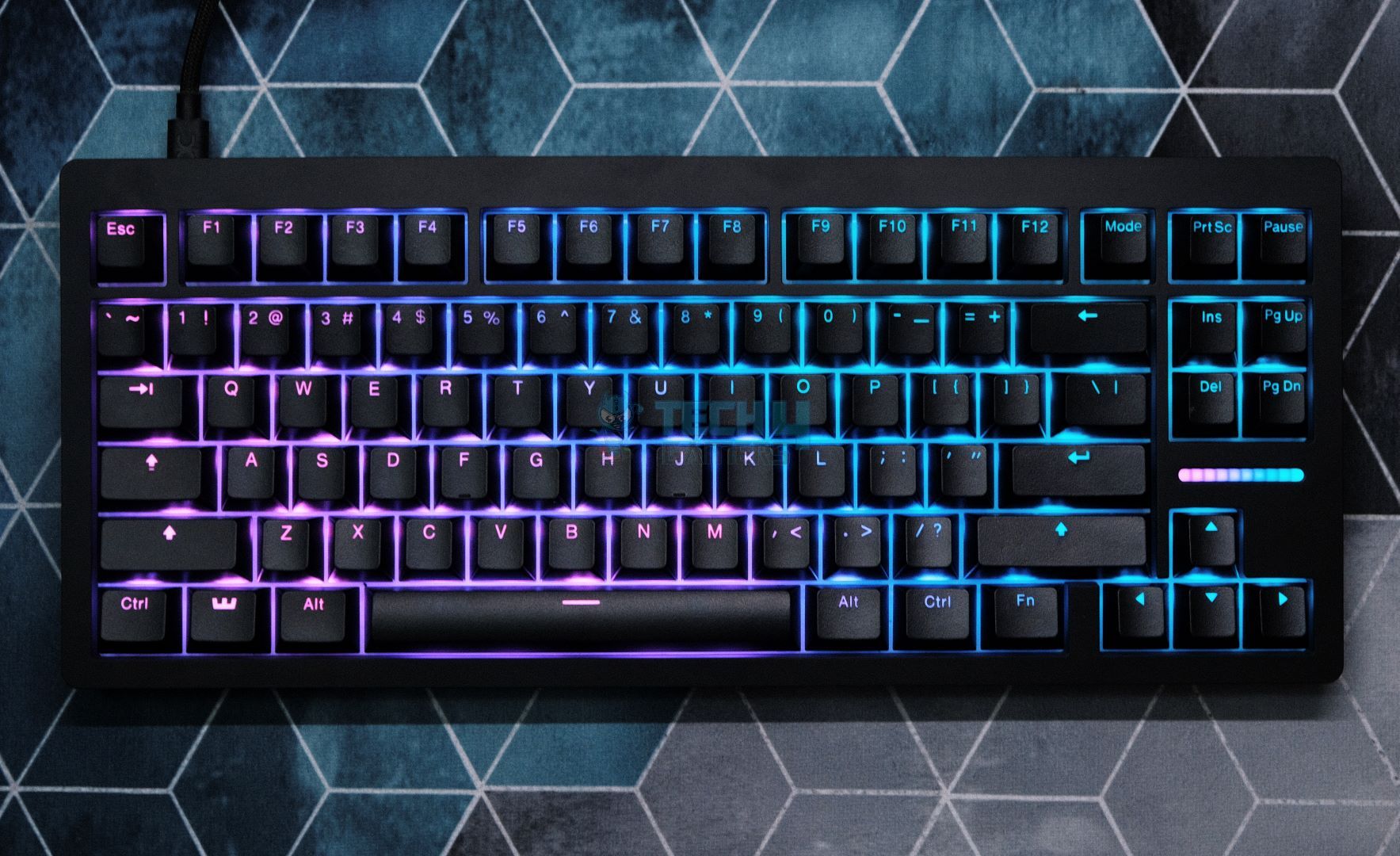
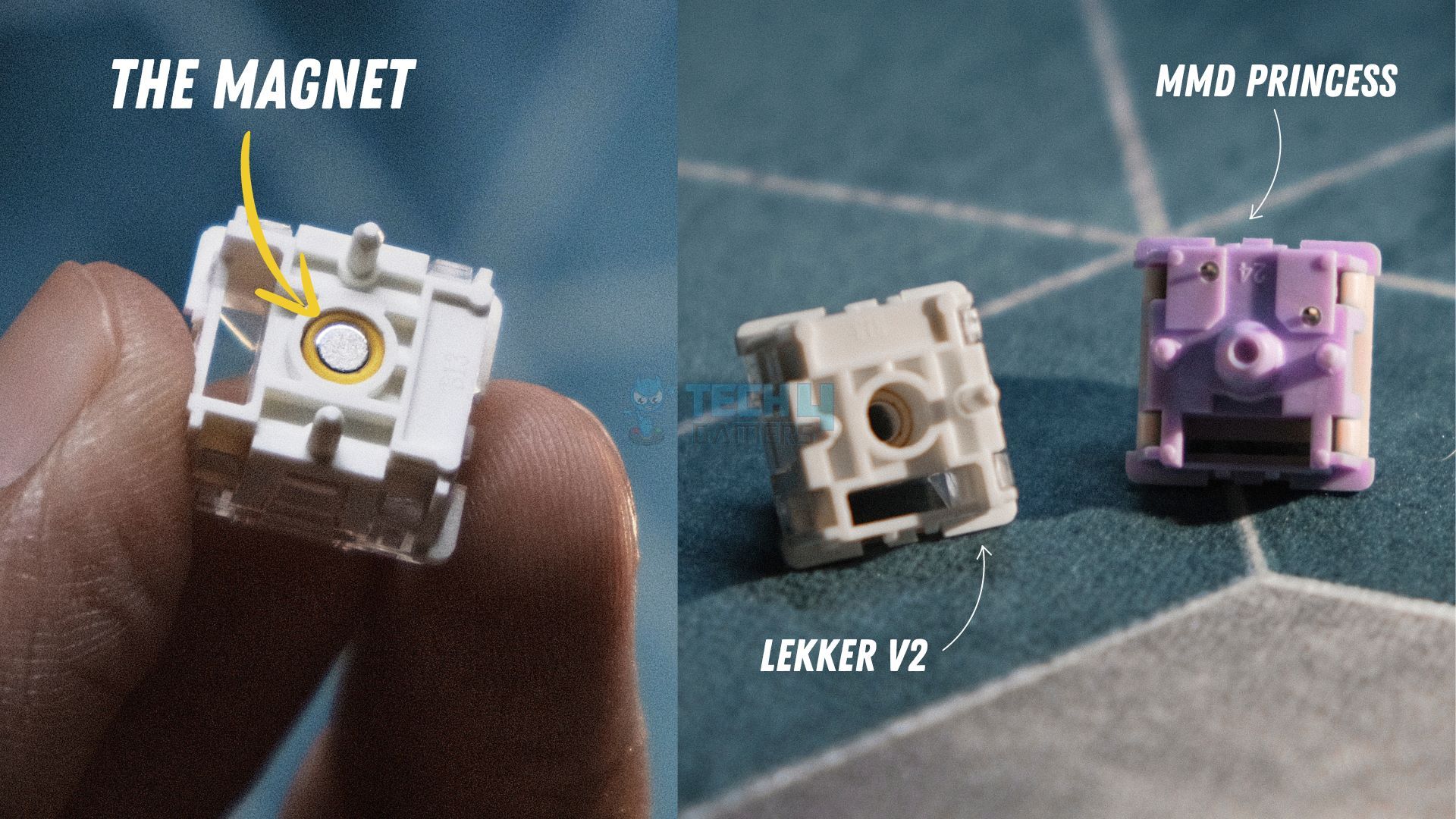
The best magnetic gaming keyboard has to be the Wooting 80HE. It comes in a very simplistic design that gives it a classy look, coupled with the translucent Doubleshot keycaps. Coming over to functionality, I can clearly feel the newer switches, which are the Lekker L60 on this keyboard. The new switches stay mostly on the thocky sound side and aren’t very loud. The overall silent profile of the switches does help it stay on the speedy side, which can be beneficial on the gaming side. To take things to a new level, Wooting’s Wootility software is also one of a kind that leaves no box unchecked in providing a very polished user experience.
What’s more interesting about this keyboard are its features; it’s loaded with extras like Rapid Trigger, Snappy Tappy & Rappy Snappy, and Mod Tap & Dynamic Keystroke. All these fancy names aren’t just gimmicks, as we found them quite useful after our testing. However, they do require some practice to get the hang of each of them, especially for gaming. For example, for Dynamic keystrokes, you have to remember which key will be registered at the set actuation points. Also, despite the somewhat premium price, the keyboard isn’t wireless, which seems like a missed opportunity.
This is how I described the Wooting 80HE after we were done testing it in-depth:
Apart from bleeding-edge performance, the Wooting 80HE builds upon the legacy of its predecessor by improving in all the areas in which the original fell short. The new Lekker V2 switches paired with factory lubed screw-in stabilizers significantly upgrade the stock sound. And the gasket mount allows for a soft and thocky typing experience that only acts as a cherry on top of the world-class gaming keyboard the Wooting 80HE already is.
✅Buy It If
You want a polished customization experience: If you’re looking for a premium-level polished software experience, then getting a Wooting keyboard is worth it. Simply because its Wootility software sports a plethora of options for customization and runs smoothly.
You want superior gaming performance: The Wooting 80HE is preferred for gaming more than for a refined and pleasing typing experience, as the mushy feeling profile of its switches throws it more on the speed side.
❌Don't Buy It If
You don’t want a wired keyboard: If you’re not going to settle for a keyboard that is somewhat expensive and is also limited to just being a wired keyboard, then the Wooting 80HE should be a clear skip for you.
What Makes It The Best Magnetic Gaming Keyboard?
The Wooting 80HE packs a great punch of different features and overall excellent aesthetics with its appealing RGB effects coupled with the minimalistic design. Moreover, the hot-swappable capability that supports 3rd party magnetic switches, unlike the Keychron K2 HE, which lacks this, is a great bonus. Despite the wireless connectivity and simply due to the bundle of other features, it is hard to beat the Wooting HE when it comes to being the best magnetic gaming keyboard.
Want to explore more magnetic options? Make sure to check this round-up:
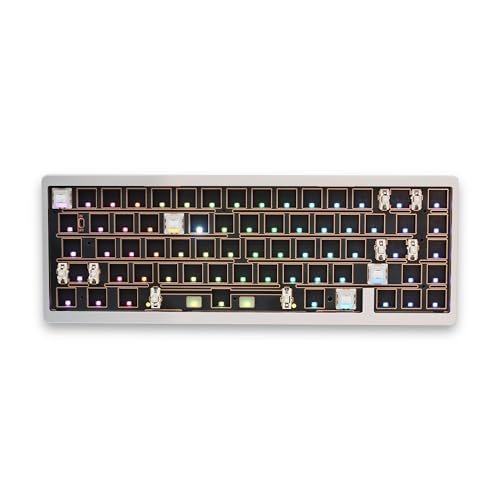
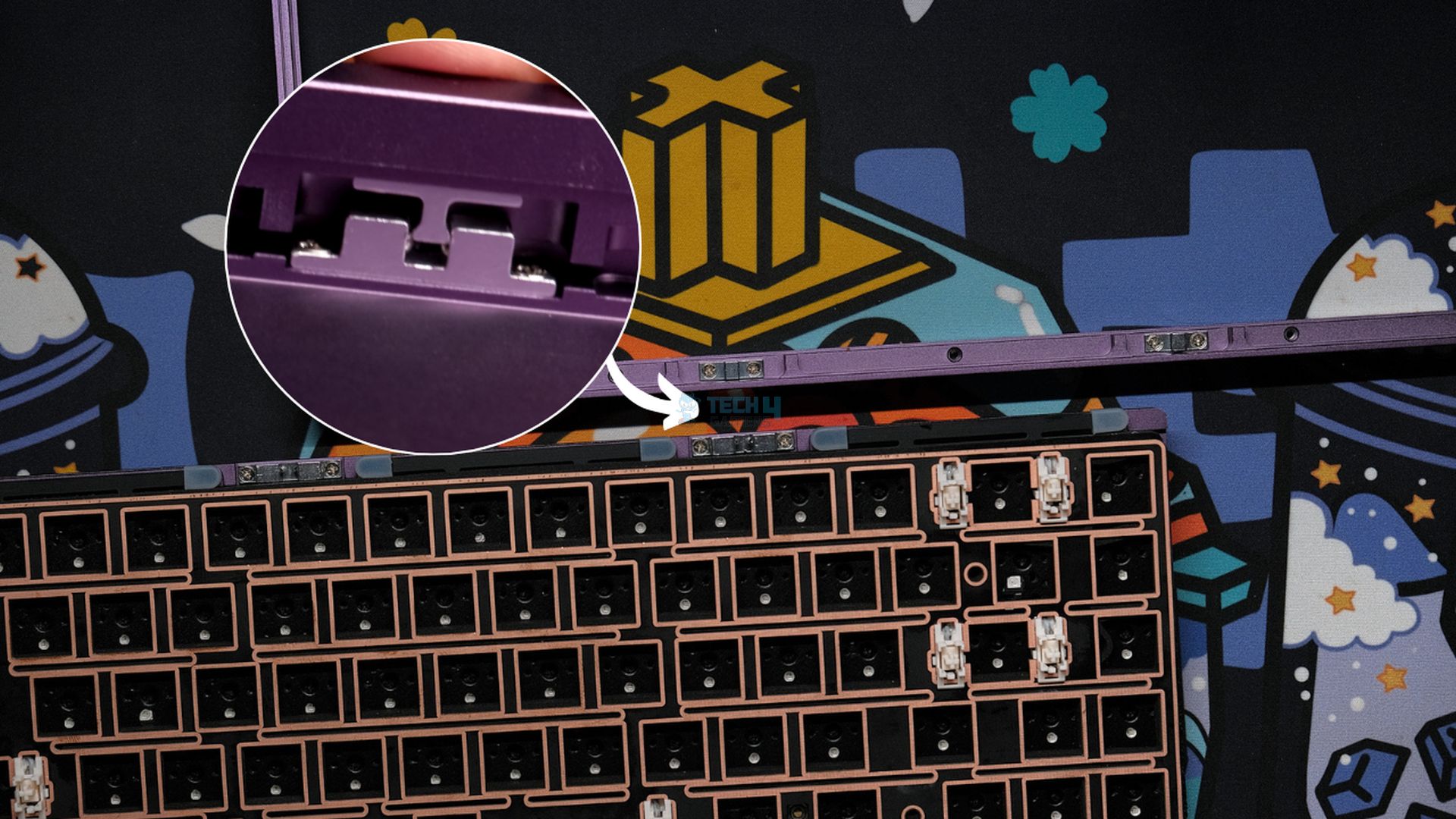
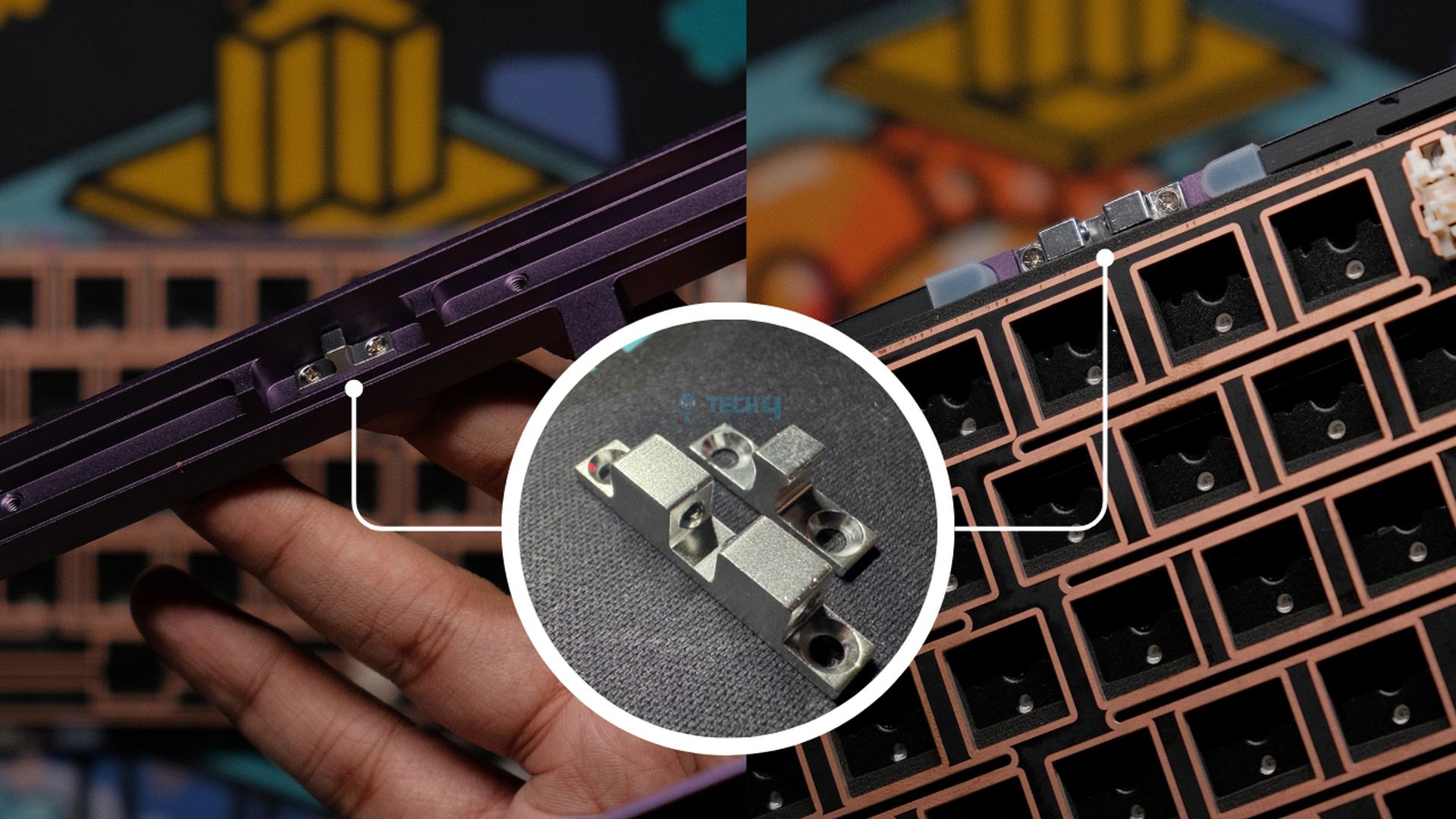
The Lucky65 V2 is like a dream come true for keyboard enthusiast who loves to tinker a lot and make their keyboards as per their liking. Simply due to the fact that it’s a barebone keyboard that needs to be built first, much like a LEGO set. The keyboard now features an FR4 plate, coupled with the factory-lubed and tuned stabilizers, which creates a fuller and deeper sound. What’s more interesting is the completely screw-less design now that the Ball-Catch structure is in place. This ensures that the modding process stays as convenient as possible.
Similarly, the keyboard also features a 3750mAh cell and support for Bluetooth & 2.4 GHz radio that enables its wireless functionality. While everything sounds great about the keyboard, the software side can be a bit tricky for the casuals. However, if you’re an enthusiast, then you definitely won’t mind digging a little bit to get the VIA working for key mapping and other customizations.
This is our final verdict on the keyboard after reviewing it:
Lucky65 V2 is the best budget custom keyboard out there, bar none. It does 99% of what even its higher-priced competitors, like the ND75, do for less. With the same great build quality, sound, stabs, and performance as its predecessor, the Lucky65 V2 is yet another home run for Weikav. Now, with the ball-catch assembly and VIA support, there are no real complaints left anymore.
✅Buy It If
You want simple and clean software experience: If you don’t want to mess around with different proprietary software and want to stick to one that’s clean and easy to use, then Lucky65 V2 is a decent choice as it has support for VIA/QMK.
You want customization on the go: The Lucky65 V2 incorporates a screwless design with a ball-catch structure. This makes the customization process smooth and hassle-free.
❌Don't Buy It If
You want to play competitive with wireless mode: The Lucky65 V2’s wireless mode latency isn’t as impressive and could prove to be problematic if you’re playing competitive. So better to explore other options for such a use case scenario.
What Makes It the Best Custom Gaming Keyboard?
The Lucky65 V2 offers so much while being not-so-expensive like the Wooting 80HE. The keyboard’s unique screw-less design gives it a competitive edge in providing a hassle-free modding and tweaking experience to the user. All this, with the solid performance and sound capabilities, makes it the best custom gaming keyboard.
I tested a lot of different custom keyboards for this guide, and if you want to check more options, I highly suggest you give this guide a read:
Layout: 75% | Number of Keys: 81 keys + 1 knob | Case Material: CNC Aluminum with Anodized finish | Plate Material: PC | Stabilizers: Pre-lubed Plate-mounted | Mounting Structure: Gasket Mount | Battery: 4000mAh | Polling Rate: 1000Hz for wired and 2.4G, 125Hz for Bluetooth | KeyboardDimensions: 324.2 x 135.6 x 45.3mm
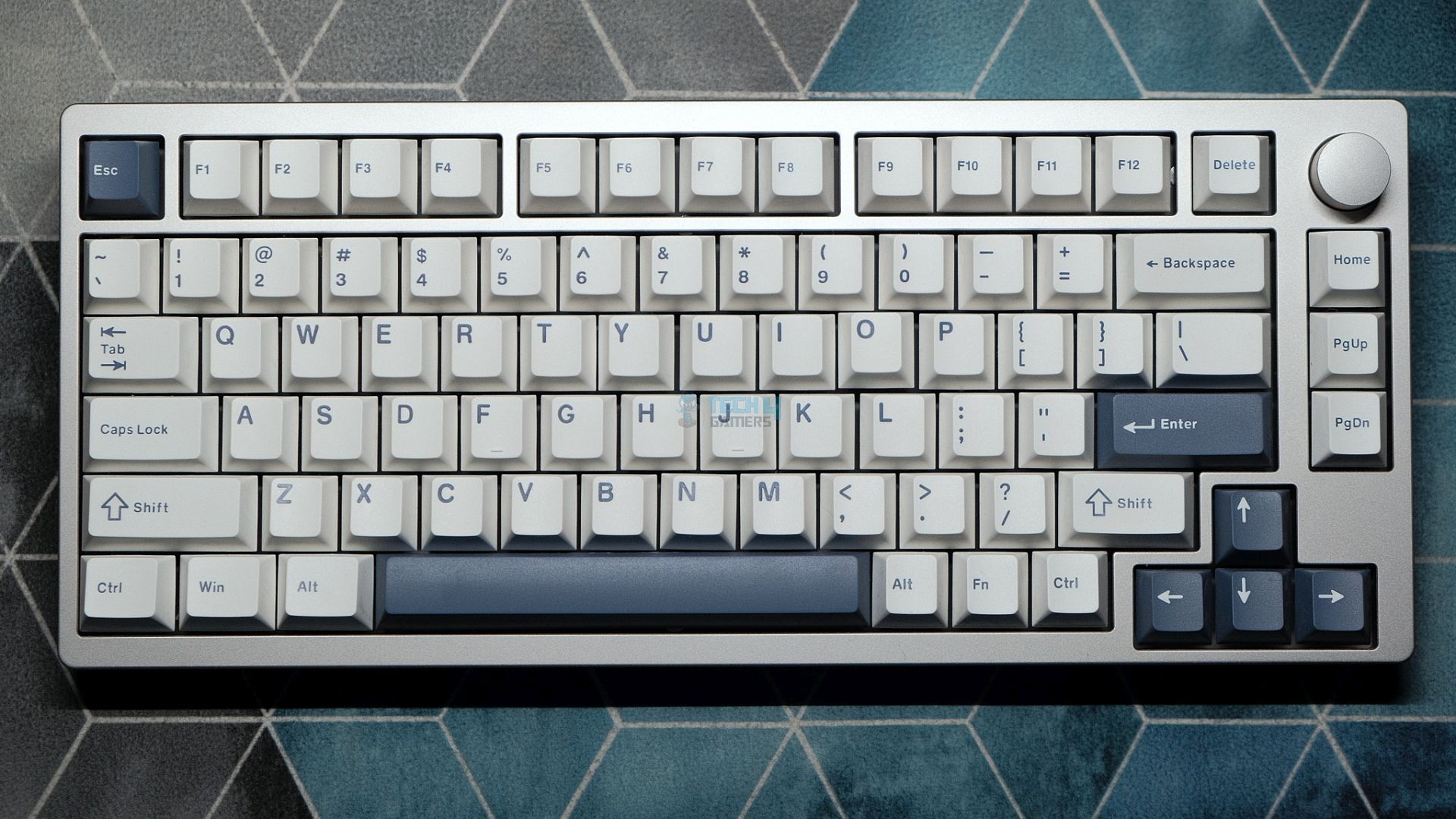
If you hate cables and want a clean, simple look, I suggest you go with the Epomaker P75. Its 75% layout style allows it to look a lot more unique than most keyboards. Especially with the knob and slightly spaced arrow keys on the right side. Other than the build quality, the keyboard is also flexible in terms of switch type, as you can choose from the offered Epomaker Zebra, Epomaker Wisteria linear, and Wisteria tactiles. We tested the Zebra linears and liked their creamy, deep sound that also feels superb while typing.
Moreover, the Doubleshot PBT Cherry profile keycaps and thought-out typing angle also played their part in offering a pleasant typing & gaming experience. And the story still continues, as the keyboard also comes with factory-lubed stabilizers to eliminate any unwanted rattling or ticking noise. Also, the last thing that I liked about it is its big 4000mAh cell and strong wireless performance, thanks to the 2.4 GHz radio and Bluetooth 5.0. It managed to keep latency under 10ms, so competitive gaming is very much possible.
Because of such great features, it also received our Editor’s Choice award, and here’s what we think about it after reviewing it:
Epomaker P75 is an excellent keyboard with best-in-class build quality that speaks to its premium nature. The acoustics are heavenly, the typing experience is refined, and the design is mature enough to look good on any desk. With a decent software experience and solid wireless performance, there is nothing this keyboard can’t do. For the price, it doesn’t get any better.
✅Buy It If
You’re looking for a budget wireless gaming keyboard: The Epomaker P75 keeps the latency under 10ms during the wireless mode with 2.4 GHz radio. So if you’re looking for a budget wireless gaming keyboard, this is the one.
You want a pleasant, creamy sound: The P75 comes with pre-lubed stabilizers and a solid gasket, which contributes to the rattle-free and creamy sound.
❌Don't Buy It If
You want VIA/QMK compatibility: The P75 is not compatible with VIA/QMK, nor does it come with a proprietary application. Instead, Epomaker has gone with an online website that you can use to customize the keyboard.
What Makes It the Best Wireless Gaming Keyboard?
The typing experience is solid on the Epomaker P75, and its wireless in-game is great as well. Moreover, the pre-lubed stabilizers and solid gasket also contribute to its smooth and ticking-free user experience. Overall, I can definitely call the keyboard the best wireless gaming keyboard.
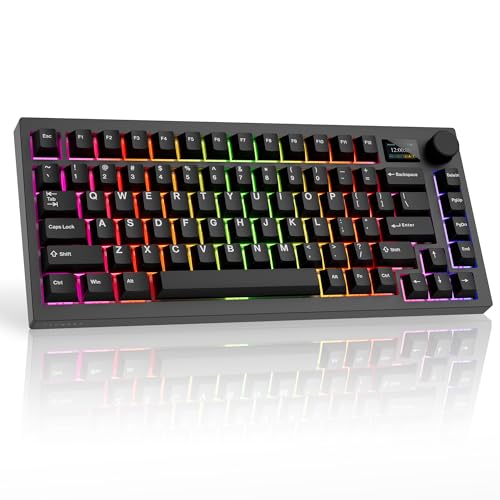
The Tecware Spectre 75 is a great budget motherboard that offers all the essentials, as well as some extras that aren’t just a gimmick. Firstly, the board encompasses clean aesthetics with a matte finish and no distractions on the keyboard whatsoever. After that, the Spectre 75 comes with proprietary Candy Red linear or Cocoa Browns tactile switches that are pre-lubed like the installed stabilizers. We get no wobble or rattling noise; however, it does end up making a less thocky but deep and satisfying sound upon usage.
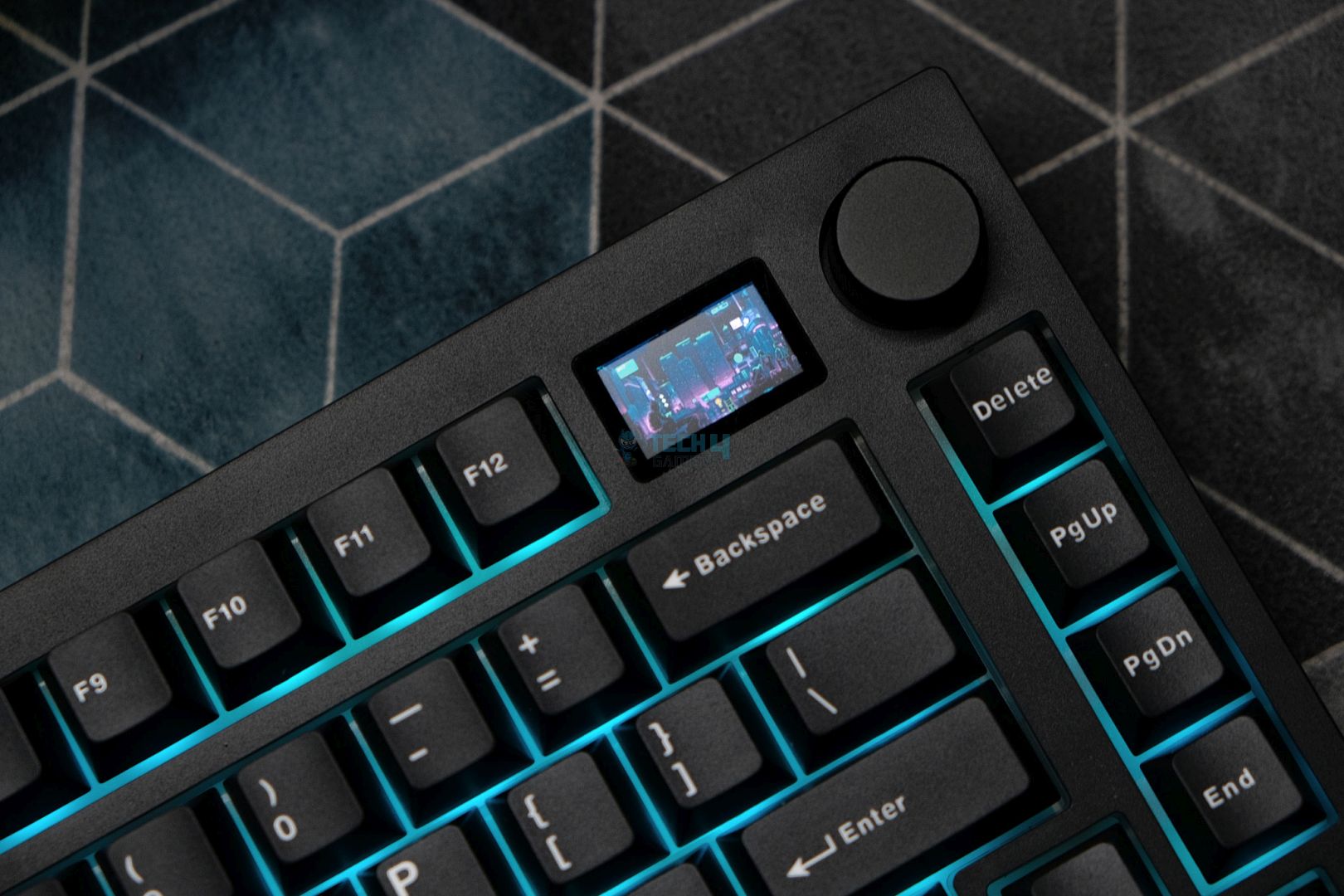
Another thing that makes it a solid-value gaming keyboard is the inclusion of a 1.14″ display right parallel to the volume knob. Now, the cool thing about it is its implementation, as it’s not used as a gimmick but can come in handy. The display can be controlled via the volume as well as the proprietary software to set and choose from different videos/gifs or time & computer stats to be displayed. Despite having a display and loads of RGB lights, the keyboard ends up providing a full day’s worth of usage in wireless mode, thanks to its 4000mAh cell.
This is how we spoke about the Tecware Spectre 75 after our review:
The Tecware Spectre 75 is a fantastic budget keyboard with no apparent flaws, as long as you’re willing to pay for it. The build quality matches well with the simple design, but the inclusion of a screen and volume knob diversify the package nicely. Not only does the company nail the basics, but the superb implementation of the screen transforms it from a gimmick to a genuine feature. This is the best budget plastic prebuilt out right now.
✅Buy It If
You want value: If you’re looking for maximum value, then the Spectre 75 is a great option to pick, as it offers pretty decent performance and extraordinary features like a useful display for a not-so-extra price.
You want clean aesthetics: The Spectre 75 skips on the way to much fancy aesthetics and offers a cleaner and classy look with its matte finish and minimal distractions.
❌Don't Buy It If
You don’t want to deal with proprietary software: If you simply don’t want to install another proprietary software on your computer and would prefer something compatible with QMK/VIA, then this keyboard isn’t for you.
What Makes It the Best Value Gaming Keyboard?
The Spectre 75 already comes under the budget keyboard category. And the stuff it’s packing inside of it truly shows how great of a value deal this keyboard is. It ranges from solid typing performance to long-lasting battery and a dedicated screen that comes in handy for stats and other fun stuff like a custom video or GIF. These things don’t come for free, and where most keyboards don’t offer such extras, this keyboard surely takes the best value gaming keyboard crown by offering those.
Performance: 8.5/10
Build Quality: 8.5/10
Design: 8/10
Typing Experience: 8/10
Akko MU01
Best Typing Experience Gaming Keyboard
Akko MU01 Pictures From Our Review
1 of 4
Akko MU01 (Image By Tech4Gamers)
Switch
Gasket Mount
Wireless Switch
Switch Options: Akko Rosewood | Connection Modes: Wired (USB-C), Bluetooth 5.0, and Wireless (2.4GHz) | Hot-Swappable: Yes, 5-pin south-facing sockets | Key Rollover: N-Key Rollover supported | Macro Support: Akko Macro V1.0 | Case Material: Walnut wood | Keycaps: PBT material, MOA profile, dye-sub legends | Dimensions: 327 x 125.3 x 36.7 mm | Weight: ~850g
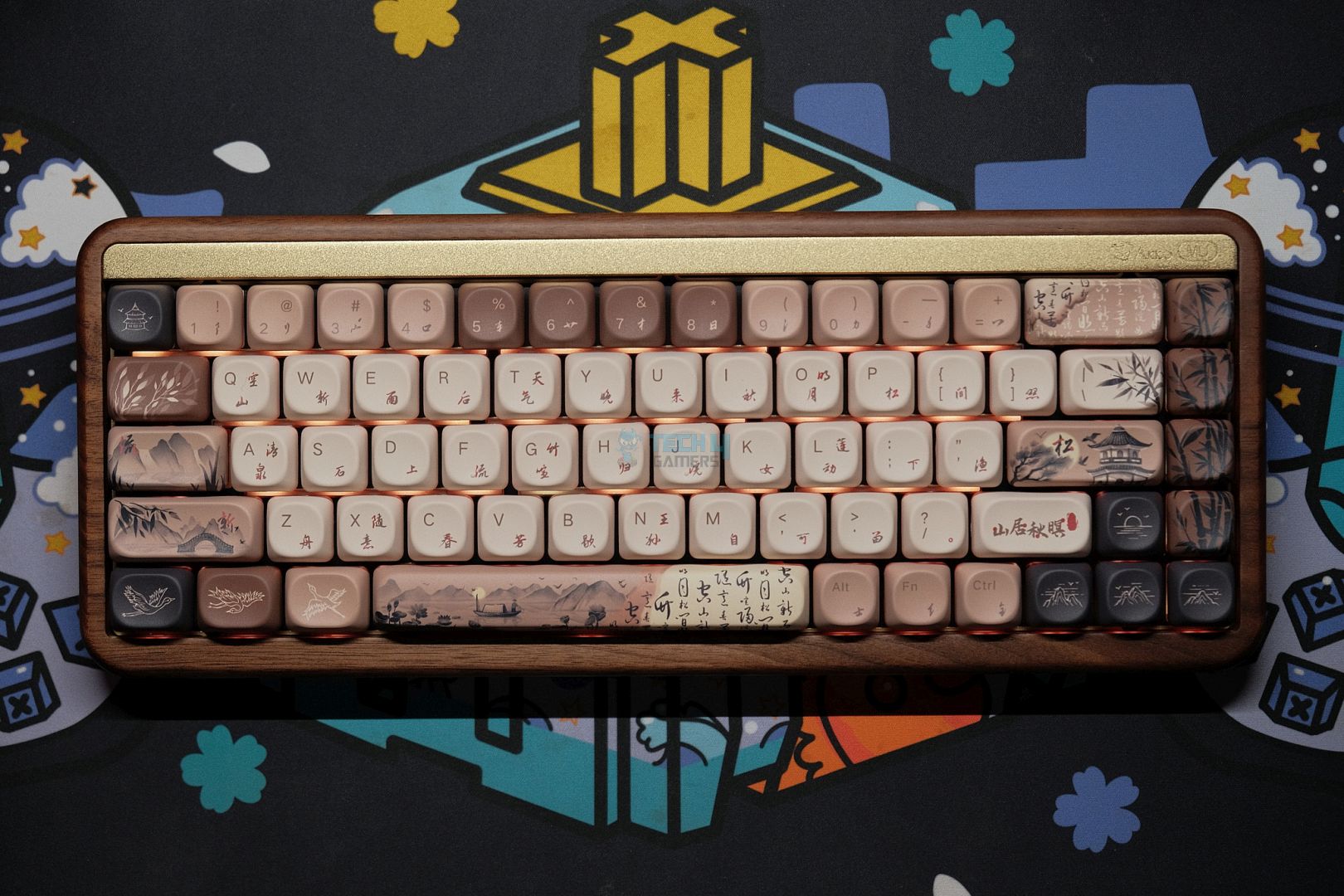
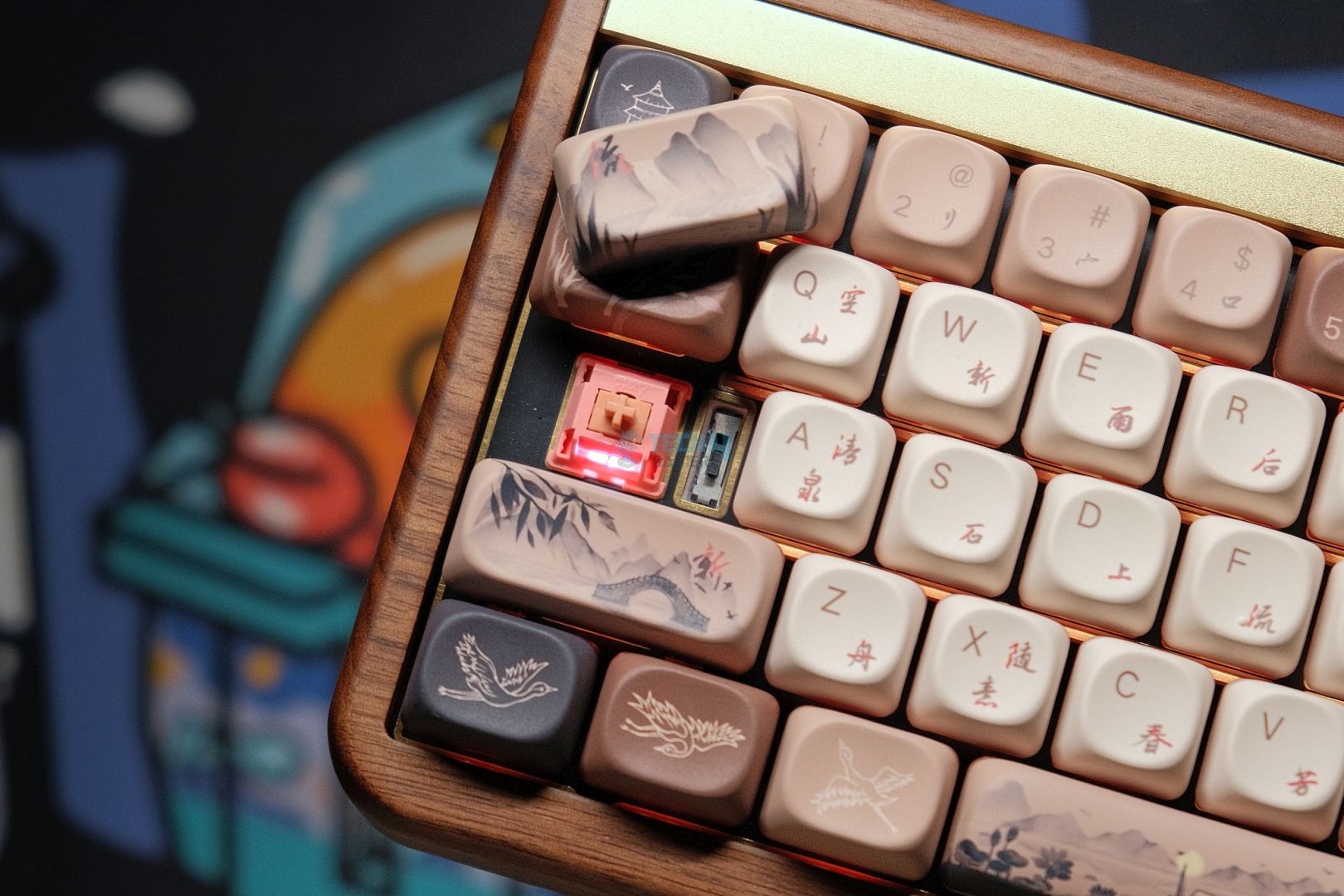
If you’re in for a treat for the eyes kind of keyboard that also exhibits excellent typing experience qualities, then the Akko MU01 is the one to pick. The first highlighting feature that you can easily notice at first glance is its build quality and material. The keyboard’s chassis is made out of walnut wood that has a subtle yet uplifting scent. Secondly, the Japanese artwork on the MOA profile keycaps further improves the aesthetic appeal of the keyboard.
Thirdly, when it comes to the fundamentals, it didn’t disappoint us at all, as the Akko Rosewood switches that it features work great. Not only do they work flawlessly, but they also create a thocky sound. Moreover, they feel remarkably smooth when typing, partially thanks to the pre-lubed stabilizers they use. Lastly, the keyboard also sports wireless functionality, which is the cherry on top. However, the dim RGB lights seem like the only flaw to me.
Here’s how I summarized the MU01 in my dedicated review:
The Akko MU01 is a fantastic prebuilt that hits the nail on all of the important things while having the novelty of being made out of wood. It looks—and weirdly, smells—beautiful but the typing experience is what seals the deal. A thocky sound signature with perfect stabs and some gorgeous keycaps that make up for an awesome keyboard all around, for both gaming and professional work.
✅Buy It If
You want a less noisy keyboard: If you’re someone who likes to have a keyboard that is not very clicky and can create smooth, thocky, and deep sound, then the Akko MU01 is a great match for your preference.
You’re a Japanese culture admirer: The Akko MU01’s unique and artistic approach that features the Japanese culture is like a treat for those who love stuff related to this specific culture.
❌Don't Buy It If
You’re looking for a minimalistic design: If you’re not fond of overly done keyboards in terms of aesthetics and prefer clean and simplistic designs, then this keyboard isn’t for you, as it’s fully dipped into custom Japanese culture artwork.
What Makes It the Best Typing-Experience Gaming Keyboard?
The Akko MU01 is truly a one-of-a-kind keyboard that stands out not only because of its unique aesthetics but also the build quality as well as the phenomenal typing experience. All credit goes to the spectacular Rosewood switches, coupled with the pre-lubed stabs and proper gasket mount. They all collectively contribute to delivering a heavenly typing experience, hence calling it the best typing experience gaming keyboard.
Performance: 9/10
Build Quality: 9/10
Design: 10/10
Typing Experience: 9.5/10
Important Keyboard Terms
I felt like I should clarify some important terms related to keyboards, which would help you understand reviews and make better buying decisions.
Switch Type: A keyboard features a lot of switches; each switch is responsible for different functions on the screen when pressed. Now, these switches also come in different varieties, like hall-effect switches, mechanical switches, and optical switches. They all are different from each other and sound and feel completely different.
Latency: The time the keyboard takes for the key to actually register on the computer once it’s pressed is called latency. The lower the latency, the better the response during gaming, as well as general typing.
Keyboard Layout: It simply means how the keys are arranged on the keyboard. There are several famous keyboard layouts, such as ANSI, ISO, and JIS. Also, when it comes to compact size, we have 60%, 75%, TKL, and 40%.
Hot-Swappable Sockets: This is a feature that many keyboards offer, which allows users to swap their keyboard’s switches as they are not soldered to the PCB.
Polling Rate: This is the frequency at which the keyboard is reporting total keypresses to the computer. It is measured in Hz, where 1,000Hz equals a 1ms response time.
How We Tested These Keyboards
We take a decent bit of time to thoroughly test each keyboard that we put on the recommendation list. This is to ensure you get the best keyboard experience, whether you’re a gamer, typist, or a mix of both, like us.
Features: Firstly, we looked at the overall build quality of the keyboard; then, we moved over to the other characteristics of it. Such as what size category it belongs to, whether it’s a TKL, 60%, 75%, or something else. Moving forward, we also considered its price and the switches it features. Moreover, things like polling rate, keycap material, software support, responsiveness, and positioning of the ports were also considered. Also, we can’t forget the RGB light customization in our testing, can we?
Keystrokes: We also tested each key on the keyboard individually to make up our mind on the overall performance. This helped us determine whether the keyboard has optimal travel distance and actuation force for fun gaming experiences and extensive typing sessions.
Typing Experience: We also tested the keyboards for longer typing sessions by monitoring their switch response and pre-travel distances for speed and comfort. Similarly, we also factored in key spacing and tried to find how the keyboards feel when used for extensive use sessions.
FAQs
Are gaming keyboards actually worth it?
This is one of the most asked questions, and the answer varies from person to person. If you’re someone who can benefit from even the tinniest improvement for your game, then yes, as gaming keyboards do show a better response and overall performance.
Are wireless gaming keyboards bad for gaming?
It used to be a thing of the past because of the bad latency. Since now we have pretty fast wireless signal receivers in keyboards that have taken down the latency by a lot. Though they do cost more than a wired edition, it’s all personal preference and budget in the end.
Is a compact keyboard better for gaming?
Now, this again varies from person to person; however, if we look at it from a practical point of view. The compact keyboards make more sense as they leave a lot of space for mouse movements, which is needed during competitive games like CS2.
At Tech4Gamers, I take on the role of Hardware Reviewer with pride. My responsibilities involve a thorough examination of essential hardware components like motherboards, graphics cards, processors, PC cases, and CPU coolers, among others, focusing on their complexities and functionalities.
Dr. Usman Saleem
At Tech4Gamers, I’m the PC Hardware Specialist, primarily contributing to the “Best-Ofs” section. I provide thoughtful buying advice based on thorough testing and personal expertise. I also review hardware products and games to keep things fresh.
AMD has delivered another punch to Intel, launching its flagship batch of Ryzen 9000 series. While these CPUs don’t have vertically stacked 3D cache, there’s still plenty of cache under the hood, along with other architectural changes and the same impressive power efficiency. This guide focuses on the Ryzen 9 9900X, which we have also reviewed. So, if you’re looking to purchase it, here are the best motherboards to pair it with.
Why Trust Tech4Gamers
Usman Saleem is our hardware tester who loves to put all the latest GPUs, CPUs, RAM, and motherboards for a spin.
40+ motherboards tested and reviewed by our team of hardware experts (Tech4Gamers Team).
800+ hours spent testing different motherboards for our reviews.
At Tech4Gamers, ensuring you get reliable information is our priority. That’s why every hardware round-up undergoes a meticulous review process by our team of experts and editors. Each review is carefully examined against our strict editorial guidelines, guaranteeing you trustworthy insights you can depend on.
Here is a comparison table for our top selections.
Motherboard
MSI MAG X870E Tomahawk WiFi
MSI MAG B850 Tomahawk Max WiFi
ASRock X870E Taichi Lite
ASRock X870 Steel Legend WiFi
Looks
Award
Best Overall Motherboard
Best Value Motherboard For Ryzen 9 9900X
Best Overclocking Motherboard For Ryzen 9 9900X
Best White Motherboard for Ryzen 9 9900X
What We Liked
Effective 14+2+1 phase VRM design, Good looks, Decently cooled VRM
VRM thermal solution is effectiv,e Price is good, 5G LAN, WiFi7 & BT 5.4
High-end 24+2+1 phase VRM, Competitively priced, Has two PCIe Gen5 x16 slots
The power delivery is good enough, Good pricing, Has two USB4 ports
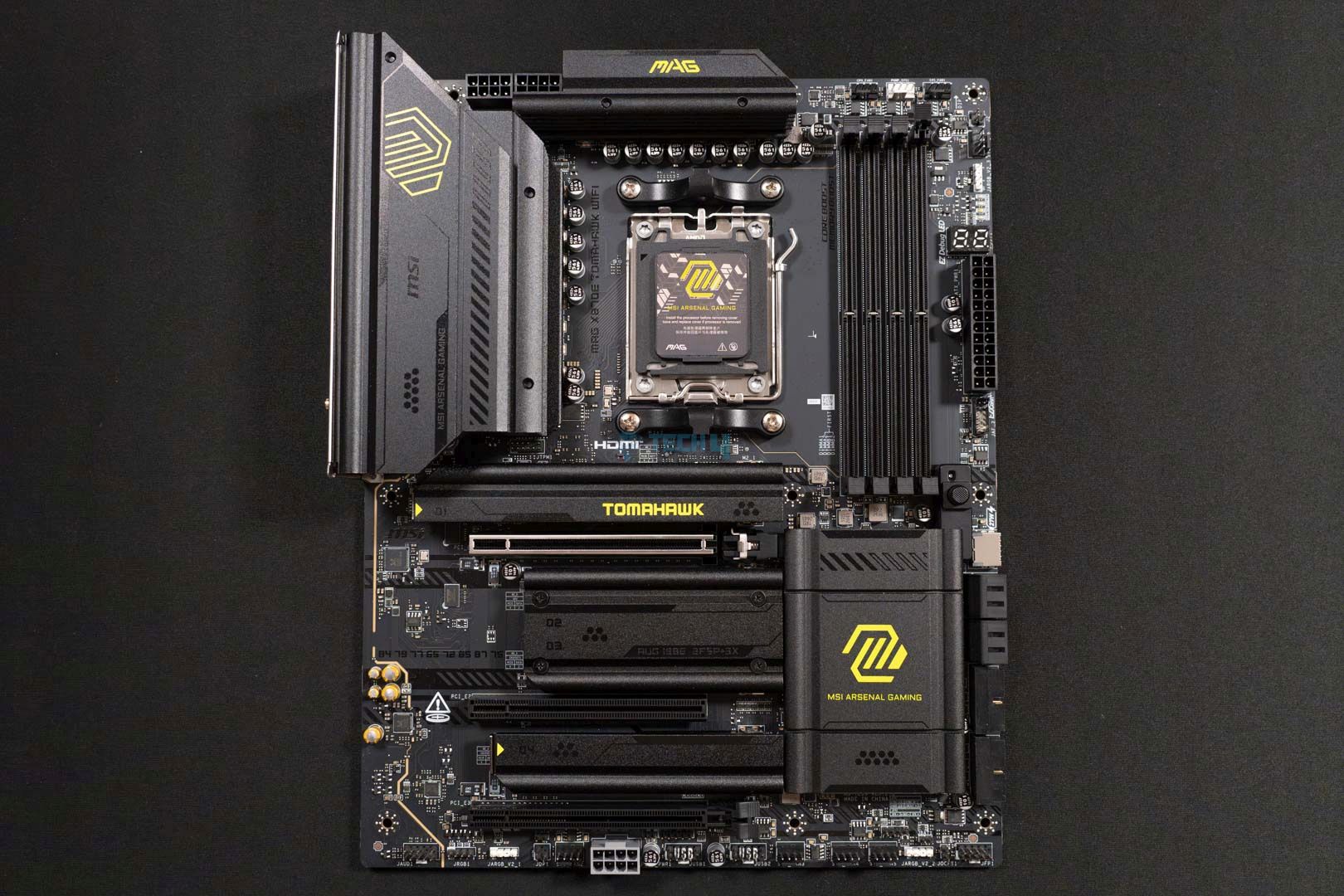
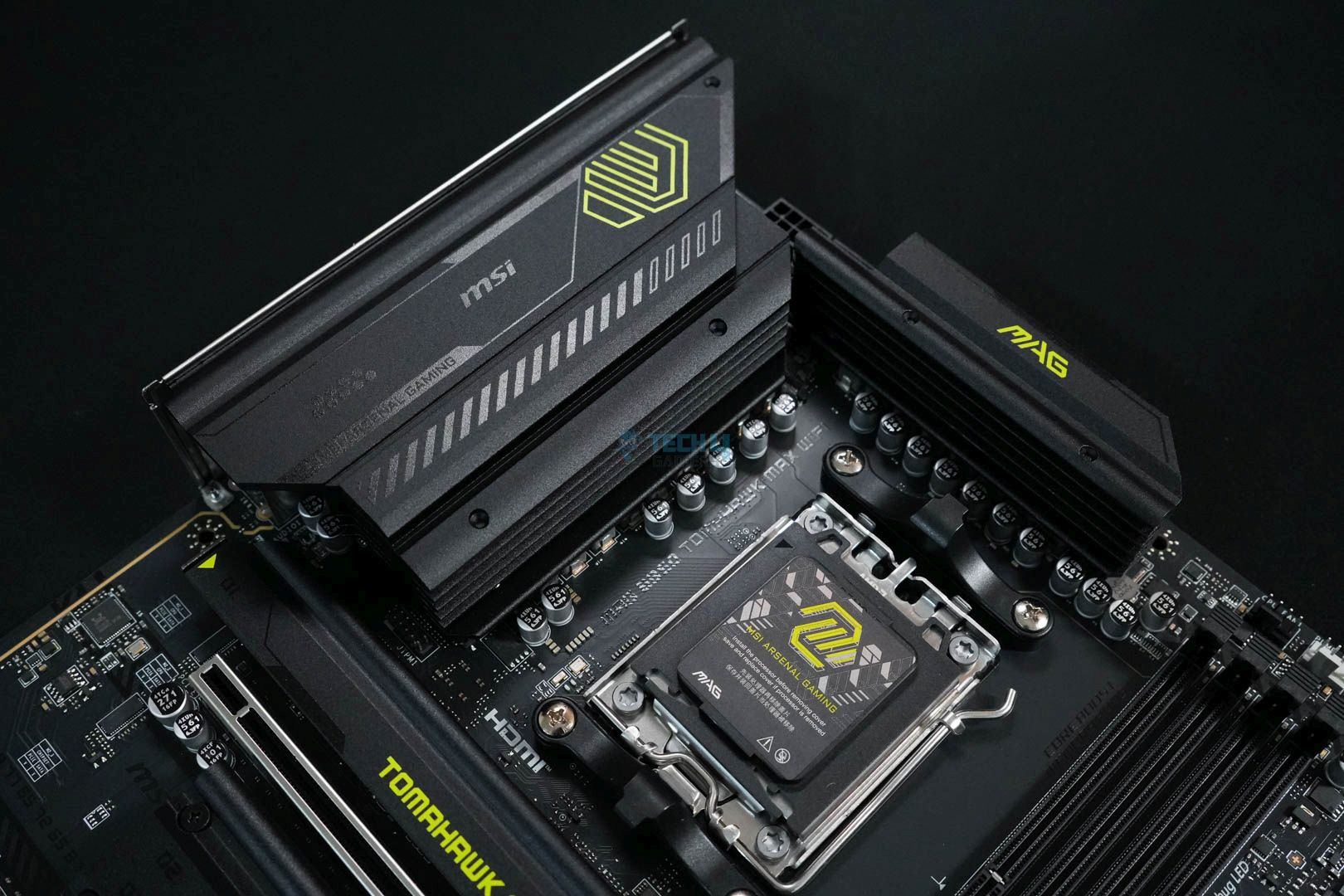
Let’s start with something suitable for pretty much every situation. For such a scenario, I would recommend you get the MSI MAG X870E Tomahawk WiFi for your Ryzen 9 9900X CPU. I liked how this motherboard focuses more on the performance side than aesthetics. Though it still comes with a pretty neat design to look at, minus the RGB integration. When I put the motherboard to the test, it managed pretty decent numbers—2304 points to be exact—in Cinebench 2024. Also, as far as the VRM temps go, they were pretty solid too (57 °C) in our stress test run.
What makes this motherboard more worthy is the inclusion of MSI’s AI features, such as the MSI AI LAN manager, which lowers the ping automatically. I personally like such quirks, as they help in separating the components and give them an edge over the other. Similarly, I also liked the plethora of I/O this board offers, including a USB4 port for swift data transfers. Moreover, you can also use all four M.2 slots at their full potential because of the extra PCIe lanes, unlike the X870’s iteration. Lastly, I would say that the integrated EZ Debug & Digit Debug LEDs are a welcome feature to make troubleshooting a breeze.
Here you can read about how we concluded the review of this motherboard:
The MSI MAG X870E Tomahawk WiFi is an impressive addition to MSI’s X870E arsenal. It prioritizes performance over looks, with a minimalistic design but solid numbers across all our tests. Its VRM setup (14+2+1 DRPS with 80A SPS for VCore) should handle any AM5 CPU (but don’t expect serious overclocking). Additionally, the I/O (5G LAN, WiFi 7, dual Gen 5 M.2, and more) and EZ-DIY features make this an overall solid option for $299.
✅Buy It If
You’re looking for the best overall mid-range board: If you want an all-rounder motherboard in the mid-range segment, then this board is the one. It delivers impressive performance, comes with USB4, MSI AI & EZ DIY features, and PCIe Gen5 M.2 slots with no bandwidth restrictions for a decent price of $299.
❌Don't Buy It If
You want to do overclocking: If you’re looking for a motherboard to do heavy overclocking with, then this isn’t the one, as the 14+2+1 phase VRM configuration can only do so much.
What Makes It The Best Overall Motherboard For Ryzen 9 9900X?
The MSI MAG X870E Tomahawk WiFi is a great example of an impressive all-rounder motherboard. It offers excellent performance and a good amount of I/O options, including the latest USB4, two PCIe Gen5, and two Gen4 M.2 slots. More so, it also comes with AI features to deal with the terrible ping automatically. Considering all of this, you can easily call it the best overall motherboard for Ryzen 9 9900X.
Performance: 8.5/10
Value: 9/10
Features: 9/10
Design: 9/10
MSI MAG B850 Tomahawk Max WiFi
Best Value Motherboard For Ryzen 9 9900X
MSI MAG B850 Tomahawk Max WiFi Pictures From Our Review
1 of 3
Motherboard Design (Image credit: Tech4Gamers)
Top Design (Image credit: Tech4Gamers)
VRM Cover (Image credit: Tech4Gamers)
Chipset: AMD B850 | Memory: DDR5-8400 (OC) | VRM: 14+2+1 | Video Outputs: 1x HDMI 2.1 port | RGB Lighting: No | Network: 1x Realtek 8126VB 5G LAN, AMD WiFi 7, Bluetooth 5.4 | Storage: 4x M.2, 4x SATA | USB Ports: 10x Rear, 9x Front
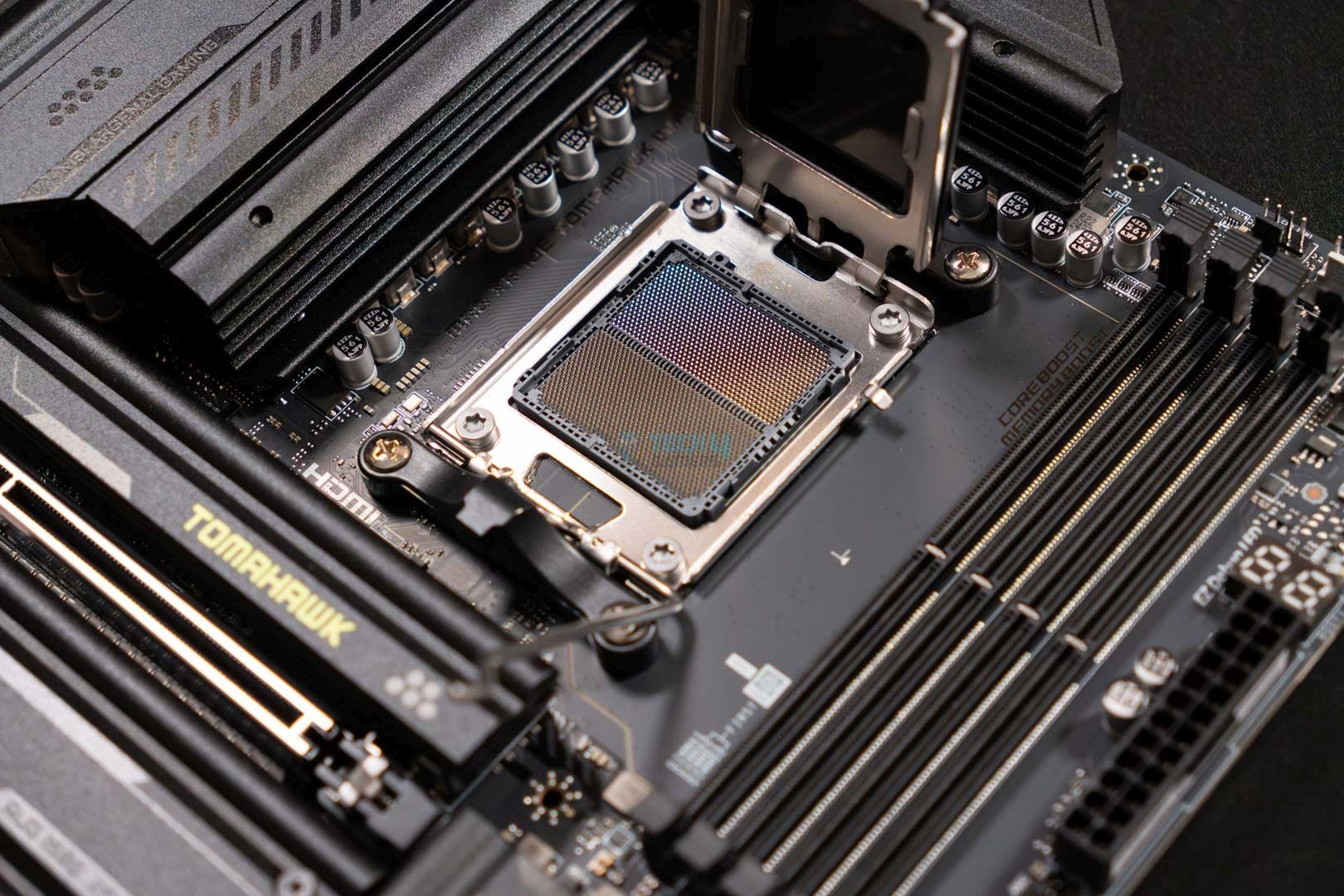
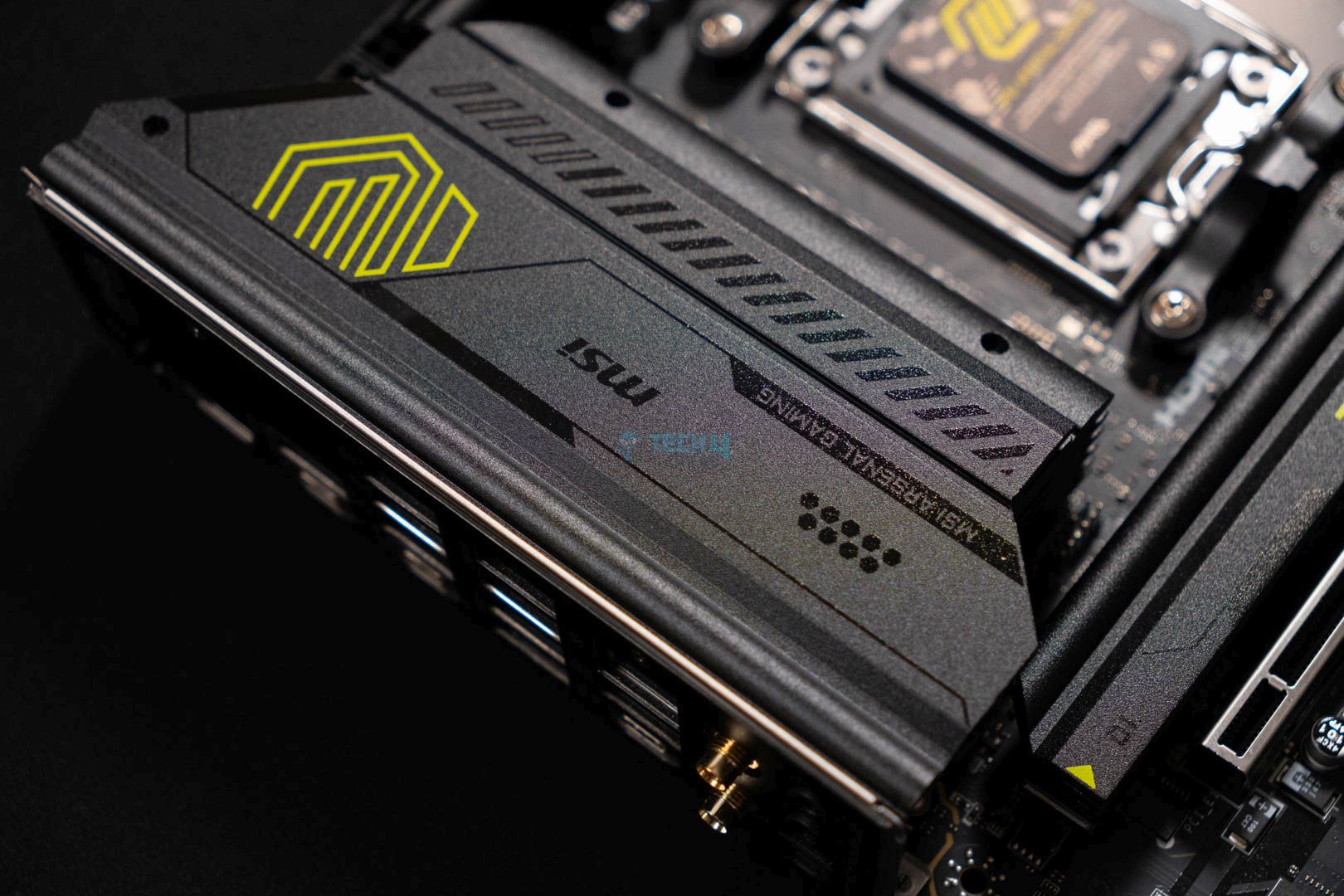
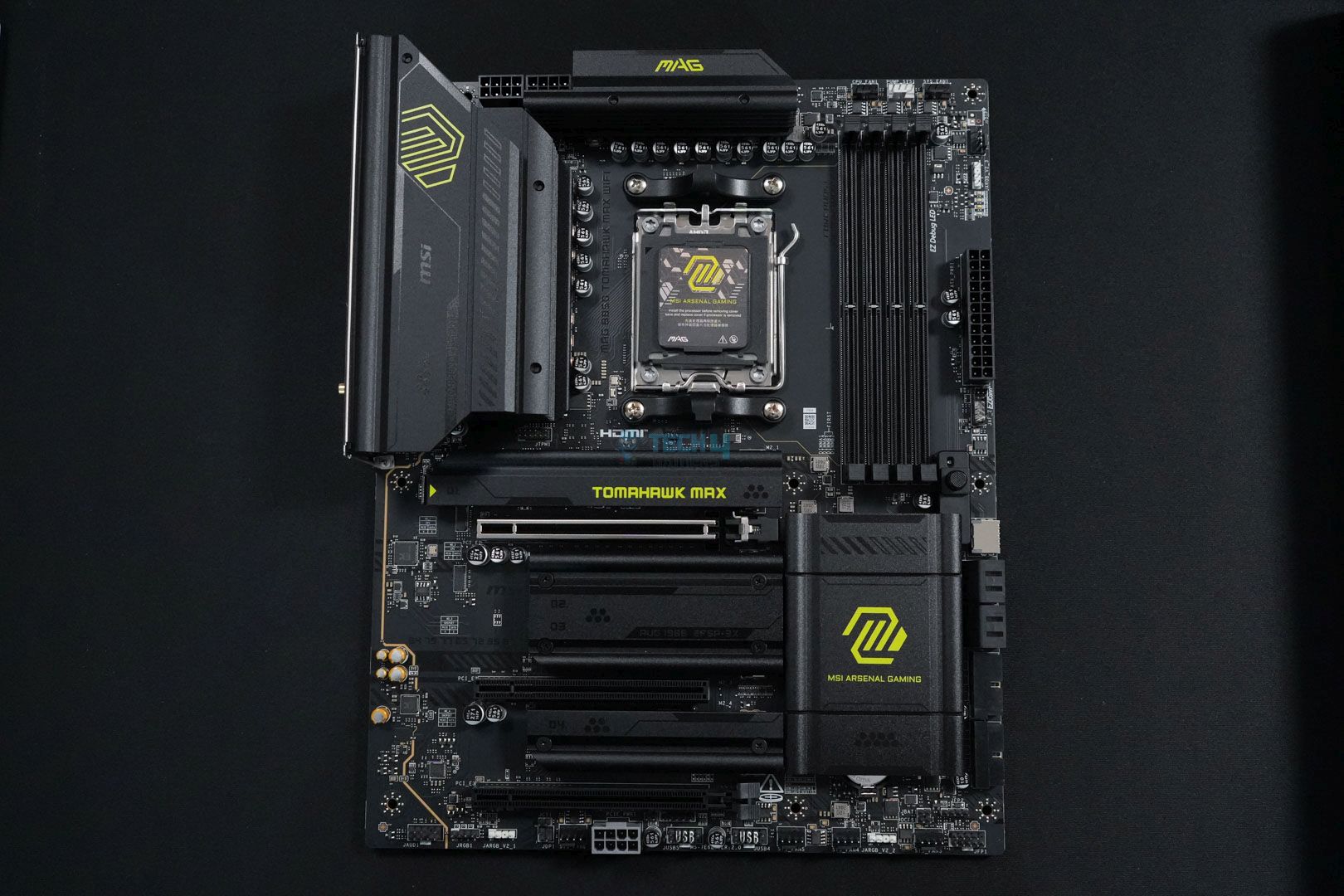
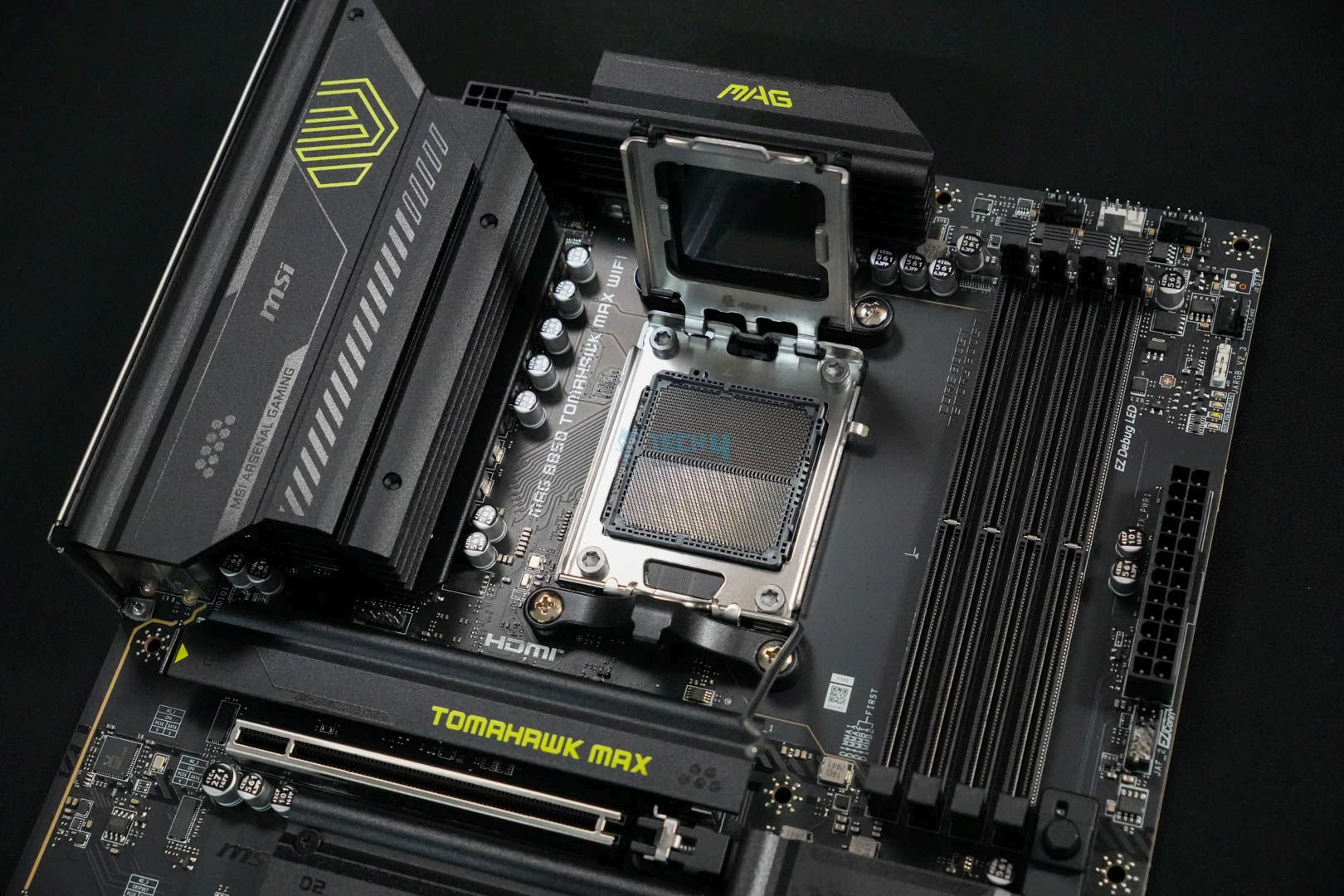
Now, at the second number, let me suggest the best value motherboard, the MSI MAG B850 Tomahawk Max WiFi. Many reasons advocate for the motherboard’s best value characteristics, one of which is its solid performance, thanks to the 14+2+1 phase VRM design. This enables the motherboard to hit new highs, coupled with the support for up to 8400+ MT/s memory speed. According to our testing, the motherboard secured 2303 points, which leaves it in third place among all the B850 boards. Do note, this is the result of the Cinebench 2024 benchmark.
Just like the performance, we liked the thermal solution for the power delivery on this board as well. Simply because it’s brilliant, too, and we couldn’t get it past 58 °C after stressing the VRMs for 30 minutes straight. What makes this board a great value are its the rest of its offerings, such as the EZ DIY mechanism for easy building. Similarly, we liked the fact that it doesn’t sacrifice any core features or number of connectivity options. It still comes with four M.2 slots, two of which are PCIe Gen5. All these account for a really great value in our eyes, especially for a processor such as the Ryzen 9 9900X.
We put the board to the test; we liked it, and this is how we summarize the review:
The MSI MAG B850 Tomahawk Max WiFi is an excellent mid-ranger and a great option for stepping onto the latest platform with your Ryzen 9000 CPU. It has a decent 14+2+1 DRPS design with 14x 80A SPS for the CPU, enough for even the AM5 big dogs. 5G LAN, WiFi 7, dual Gen 5 M.2 slots, PCIe 5.0 x16, and EZ-DIY are the highlights on the board. The lack of RGB and dual-sided thermal pads for the Gen 5 M.2 slot are disappointments.
✅Buy It If
You’re looking to use a lot of stuff: If you’re looking for a motherboard that can power a lot of USB-powered devices or RGB fans. Then this board allows you to do that, as it comes equipped with an external PCIe connector, allowing it to deliver 252W easily.
You want a decent price-to-performance ratio: If you want a motherboard that not only performs good, but also isn’t exorbitantly priced, then this is the right pick.
❌Don't Buy It If
You could really use a USB4 port: This motherboard doesn’t come with any USB4 ports, so you’re limited to the likes of USB3.2. If you can’t work with those, skip this board.
What Makes It The Best Value Motherboard For Ryzen 9 9900X?
The MSI MAG B850 Tomahawk Max WiFi brings a lot of useful stuff to justify its price. For instance, it has a decent build quality with its 8-layer server-grade PCB. On top of that, the available VRMs let it deliver a likable performance result. Additionally, the plenty of USB and storage ports alongside the good aesthetics make it the best value motherboard for Ryzen 9 9900X.
Performance: 8/10
Value: 9.5/10
Features: 8.5/10
Design: 9/10
ASRock X870E Taichi Lite
Best Overclocking Motherboard For Ryzen 9 9900X
ASRock X870E Taichi Lite Pictures From Our Review
1 of 3
ASRock X870E Taichi Lite - Main Design (Image credit: Tech4Gamers)
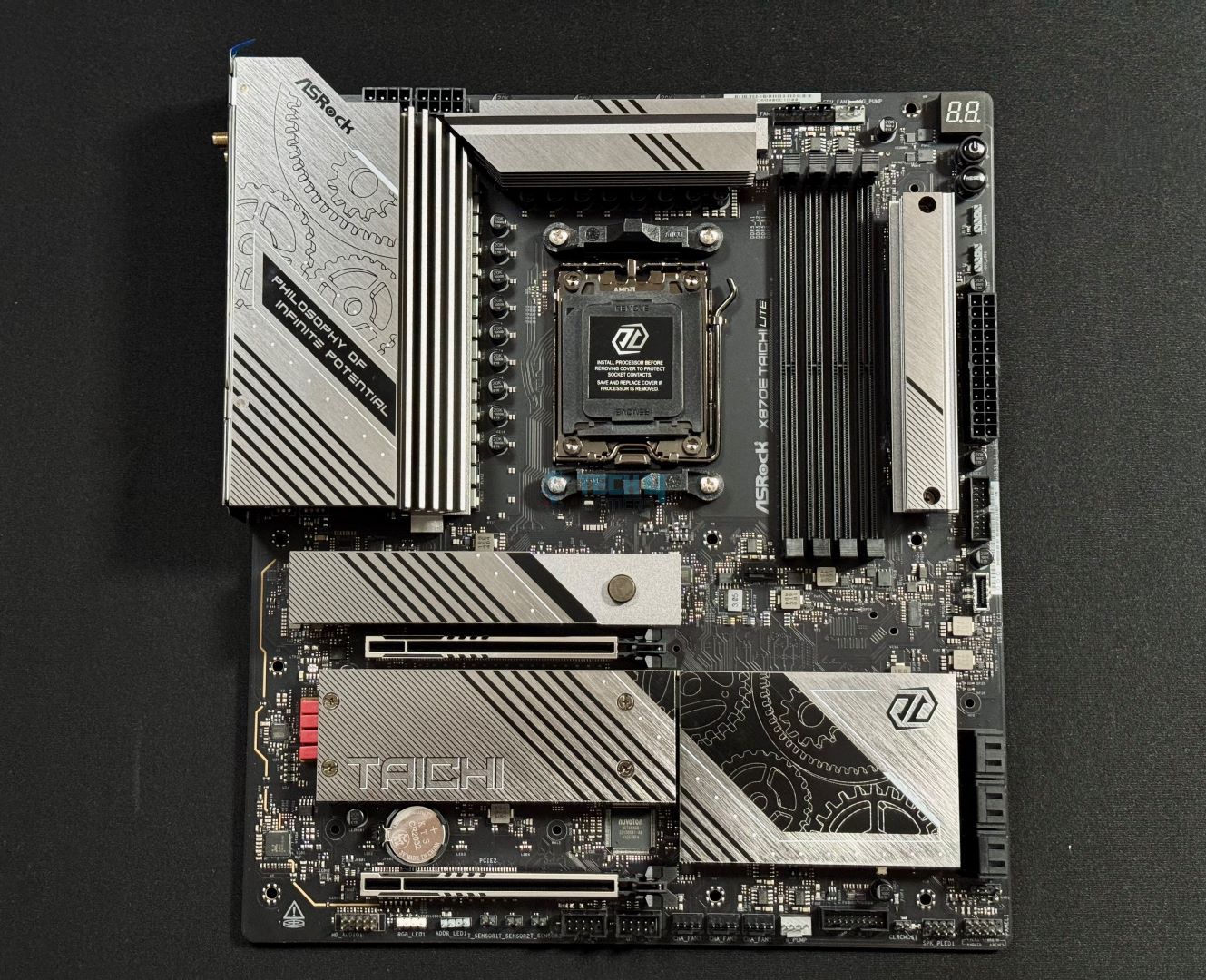
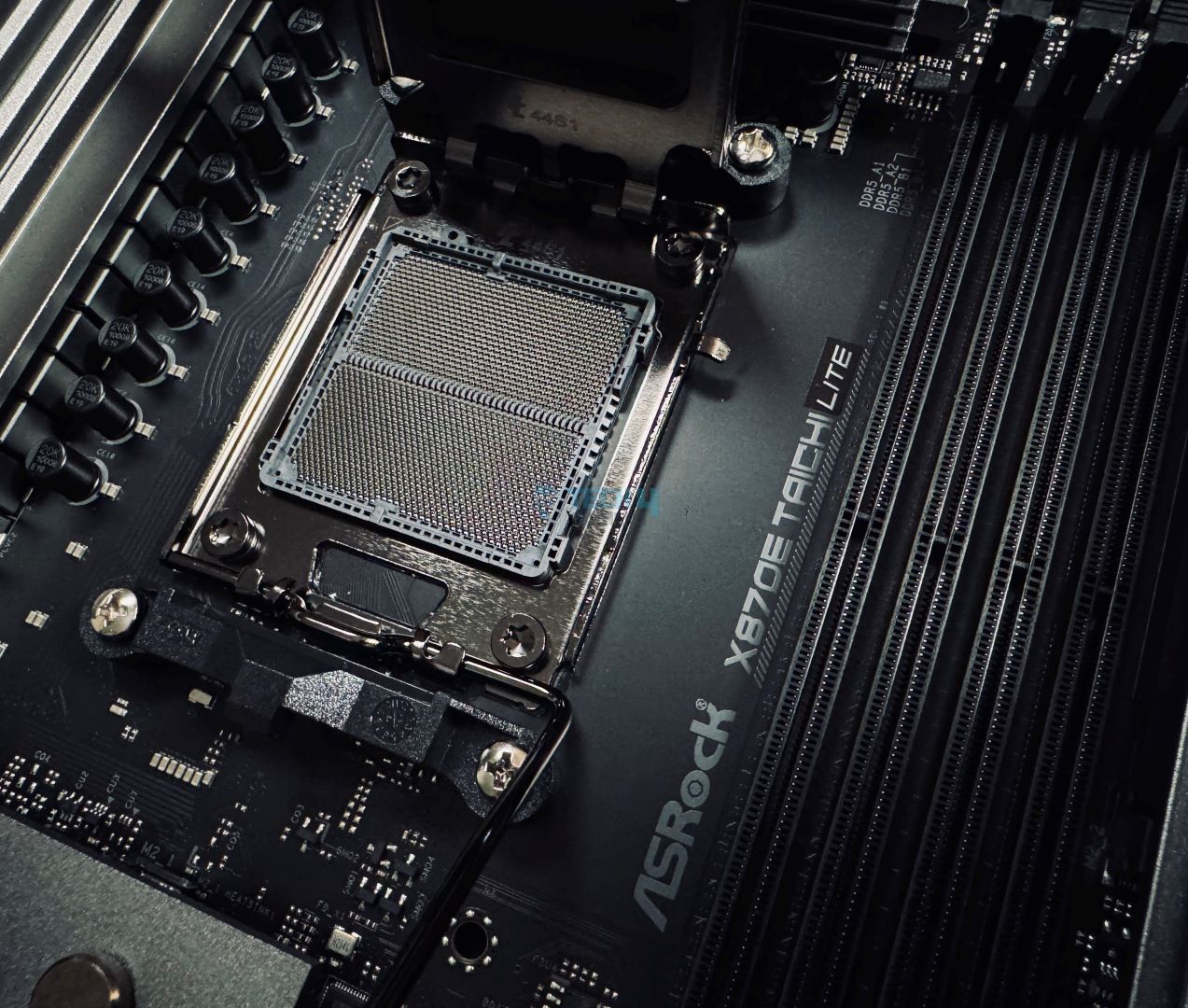
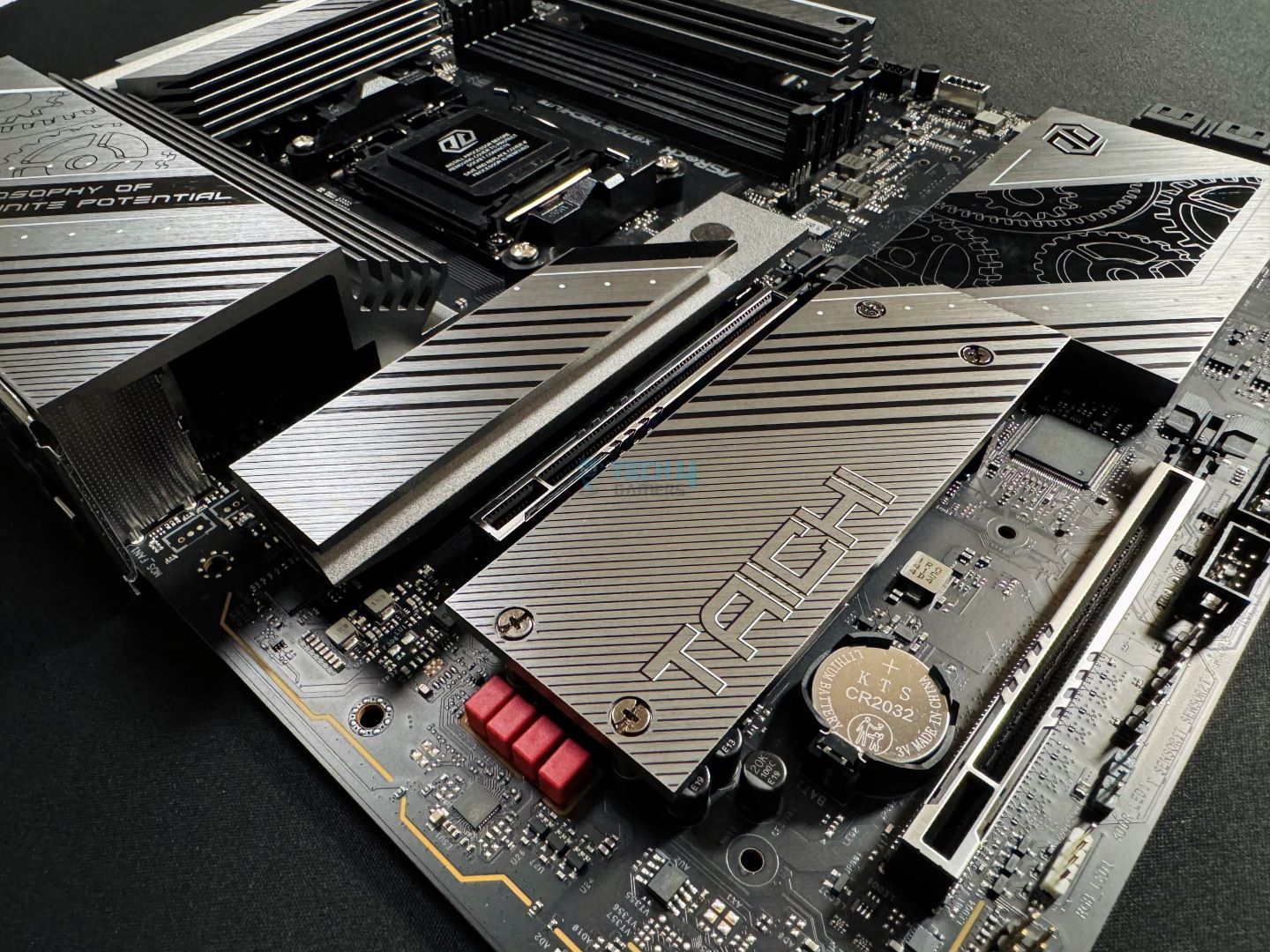
For those who are adamant about finding a motherboard that is both great in terms of pricing as well as overclocking, I would suggest picking an ASRock X870E Taichi Lite, primarily because of its core specifications. I like that this board costs around $399, and manages to offer a quite sturdy 24+2+1 phase VRM design with 20K long-lasting black capacitors. This enabled the motherboard to deliver remarkable performance with 2308 points in Cinebench 2024 during my dedicated review. Mind you, it placed second right behind the X870E GODLIKE, which is a very expensive motherboard.
I was also impressed by the cooling capability of its thermal solution, which kept the VRM temps right under 54°C. Besides the performance stuff, the motherboard comes with a very appealing design with a black and gray color combination. I like how ASRock always nails the design section, even in the budget to mid-range segments, with their incomparable artworks. While everything looks perfect until now, the only downside I see is the inclusion of only one Gen5 M.2 slot, as the rest of the three are Gen4. Nevertheless, you do get 6x SATA ports and a big enough I/O section that includes 2x USB4 ports. Similarly, I liked the fact that this board features not one but three thermistor cables. So you can keep an external check on your components while overclocking.
This is what my team and I were left to say about the motherboard after review:
The ASRock X870E Taichi Lite is a $399 powerhouse with a VRM setup (24+2+1, 110A SPS for VCore and SoC) that can compete with enthusiast-class boards. That’s not its only attraction; the board has a fascinating design, multiple handy features, and excellent connectivity options, with USB4 and WiFi 7 being the icing on the cake. Circling back to the price, this is a great option among X870E boards.
✅Buy It If
You want an OC-capable board at a reasonable price: If you’re looking for a motherboard that offers enthusiast-level OC potential, then this ASRock X870E Taichi Lite is the one. It comes with a 24+2+1 phase VRM design for $399.
You want an I/O of modern standard: If you prefer to have the latest I/O stuff, then you can go with this board as it offers two USB4 ports, Wi-Fi 7, and many other USB3.2 Gen2 & Gen2x2 ports.
❌Don't Buy It If
Your PC case lacks support for E-ATX boards: If you have a PC chassis that can’t accommodate an E-ATX board, then skip this board if swapping the case is not feasible.
What Makes It The Best Overclocking Motherboard For Ryzen 9 9900X?
With such a powerful 24+2+1 phase power delivery system and an equally premium build quality. The motherboard on top of those offers plenty of connectivity options as well as two PCIe Gen5 x16 slots. What’s more, the board comes packed with a pretty solid audio codec. All these are enough to consider it as the best overclocking motherboard for Ryzen 9 9900X.
Performance: 9.5/10
Value: 9/10
Features: 9/10
Design: 10/10
ASRock X870 Steel Legend WiFi
Best White Motherboard For Ryzen 9 9900X
ASRock X870 Steel Legend WiFi Pictures From Our Review
1 of 3
ASRock X870 Steel Legend WiFi design. (Image By Tech4Gamers)
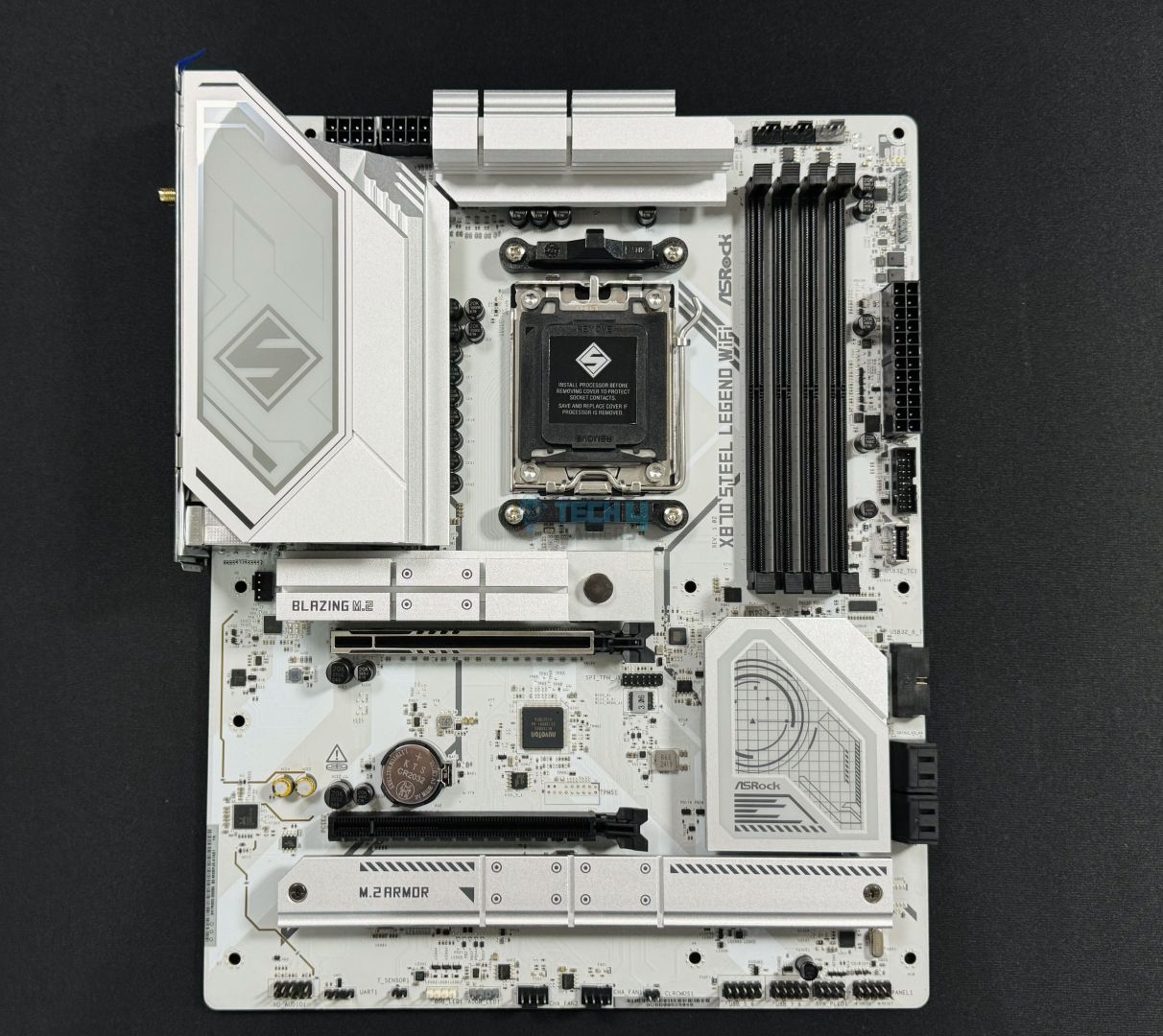
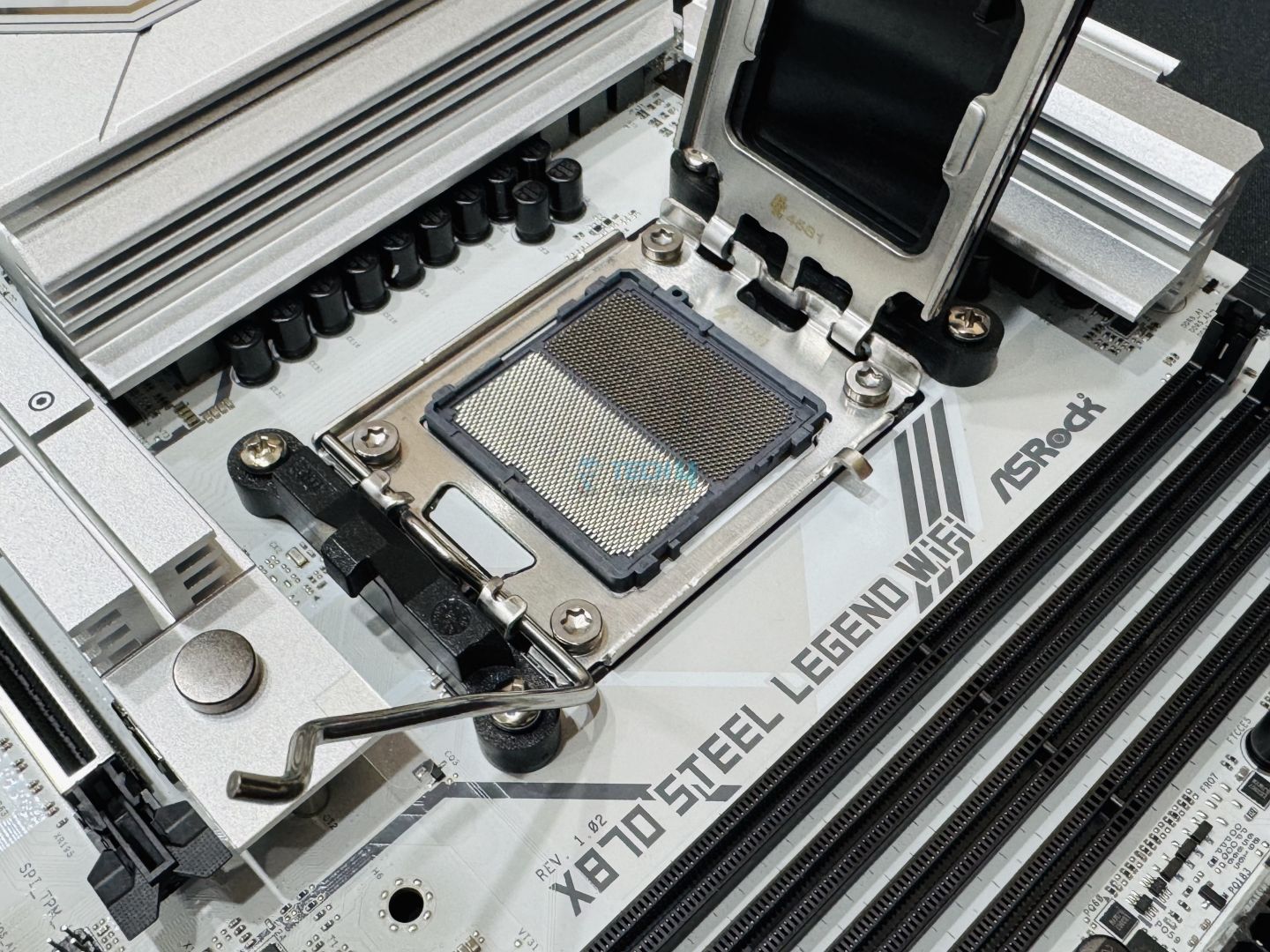
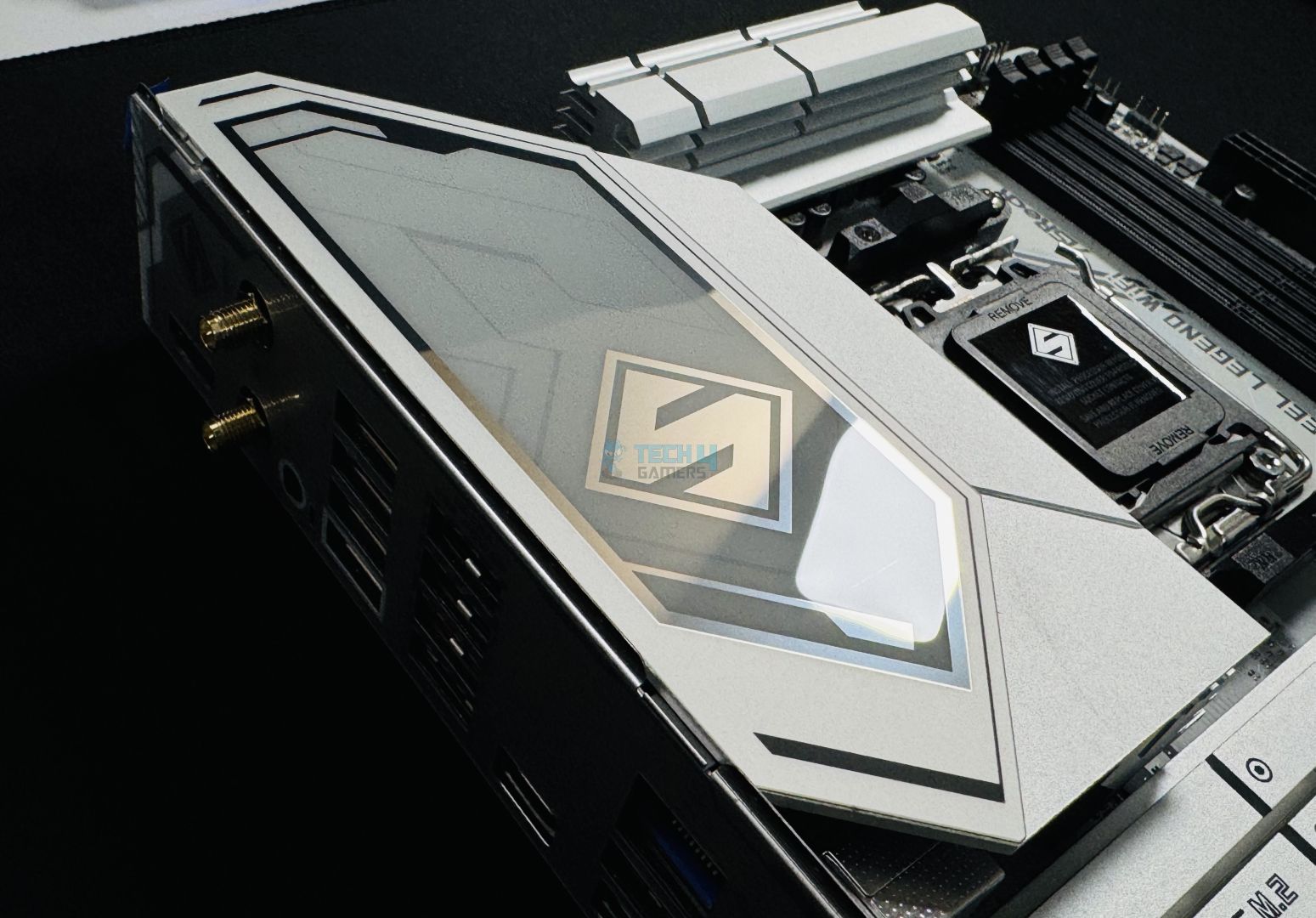
In the end, let’s also take a look at the motherboard is one of the best-looking ones, primarily because of its white aesthetics. The ASRock X870 Steel Legend WiFi isn’t just all about looks, as it also offers good performance. Like the X870E Tomahawk, this one also features a 14+2+1 phase VRM design that also served it in achieving 2303 points in Cinebench 2024. I was thoroughly impressed by the results during my dedicated review of this motherboard. Moreover, on the VRM temperature side, while 64°C isn’t the lowest number on our list, it falls within the safe temp limits.
As far as PCIe slots go, the board has three PCIe x4 slots, and one of them is PCIe Gen5 while the other two are Gen4. Impressively enough, there are two USB4 ports, which you don’t see much in this $200-$260 budget. The motherboard is equipped with WiFi7 on the wireless side but features a 2.5G LAN on the wired one. This is a little underwhelming, though nothing too big of a deal.
The board gets the job done pretty well, and this is what we say about it:
The ASRock X870 Steel Legend looks great, is priced fairly, and has enough connectivity for most users. It features a 14+2+1 VRM setup (80A SPS for VCore + SOC), which means you can comfortably run even the most demanding Ryzen CPUs on it. It also provides some convenient features like the toolless M.2 heatsink removal and anti-drop screws. Most of all, though, it’s a great board for getting onto the latest platform without breaking the bank.
✅Buy It If
You want the latest I/O on a budget: The ASRock X870 Steel Legend WiFi is equipped with the latest I/O, such as two USB4 ports, WiFi 7, PCIe Gen5 x16 and x4 slots. So, if you’re looking for a board with the latest I/O that doesn’t cost too much, then this is the one.
You want a board with white aesthetics: If you’re looking to build a white-themed PC, but don’t want to overspend, this is the best white motherboard you can buy.
❌Don't Buy It If
You want troubleshooting convenience: This motherboard lacks troubleshooting features such as debug and digit debug LEDs, so if that’s a must for you, skip this board.
What Makes It The Best White Motherboard For Ryzen 9 9900X?
The ASRock X870 Steel Legend WiFi makes sure that you get the best white aesthetics and serviceable performance while being relatively cheap. Moreover, the subtle touch of RGB on the bottom side further enhances its visual appeal, and the plethora of connectivity ports keeps it pretty useful. With a mix of all those features and looks, this is the best white motherboard for Ryzen 9 9900X.
Performance: 8/10
Value: 9/10
Features: 8.5/10
Design: 9.5/10
Motherboard Choices That Just Missed The List
The four motherboards we narrowed down to were after much testing, but that doesn’t mean there weren’t other strong contenders. Here are a couple of boards that only just missed out:
Gigabyte B650 Aorus Elite AX Ice: An excellent option for white builds, but we were let down by the Audio codec, which is advertised as “HiFi audio,” but isn’t adequate for high-end HiFi headphones, as tested by us.
Asus TUF Gaming X670E-PLUS WiFi: This motherboard was a solid performer, but we weren’t quite satisfied with the VRM temperatures while testing it with the Ryzen 9 9900X.
Key Terms To Look For When Buying A Motherboard
Buying a motherboard can be a bit confusing, especially if you are not aware of what all the different terms mean – here are some quick definitions to get you up to speed:
VRM: A Voltage Regulatory Module (or VRM) converts power for the CPU to make sure it gets the right amount.
Chipset: It acts as the motherboard’s traffic controller, managing data between components.
Socket: It is where the CPU sits and connects to the motherboard.
DIMM Slot: It holds the RAM sticks, giving your system memory.
PCIe Slot: This is where you plug in graphics cards and other expansion cards.
Heatsink: A heatsink helps keep your VRMs, SSDs, and other components cool by dissipating heat.
Form Factor: The size and shape of the motherboard, mostly Mini-ITX, MicroATX, ATX, and e-ATX.
How We Tested These Motherboards
The Ryzen 9 9900X Installed
My team and I have been hard at work to test a huge number of different motherboards for the Ryzen 9000 series processors. Throughout our testing, we focused the most on these aspects:
Chipset: The 9900X is a high-end CPU. As such, it is only fair to get a high-end chipset motherboard that offers great connectivity and performance for it. That’s why most of our picks use the X670e boards.
VRM Design: Of course, we did not compromise on the VRM structure at all. I made sure that every board I recommended offered excellent power design to deliver rock-solid power.
Features: I also scrutinized based on several other features like connectivity, storage, audio, networking, debug LEDs, and more.
Value: We can never ignore the price tag. That’s why my motherboard picks offer the right balance between a great set of features, top-tier performance, and relatively good pricing.
FAQs
Which chipset does the Ryzen 9 9900X support?
The Ryzen 9900X supports AMD’s 600- and 800-series chipset of motherboards.
Is it worth getting the 9900X over 7950X?
Yes, the Ryzen 9 9900X is a great choice over the 7950X as it performs phenomenally across the board.
Can I use DDR4 RAM for Ryzen 9 9900X?
No, AMD has completely shifted to DDR5 RAM from the Ryzen 7000 series. That’s why you can only use DDR5 RAM on a Ryzen 9 9900X build.
At T4G, my task is to cover the latest news around the gaming globe ASAP and with the utmost precision. I adore all the games and respect all the devs behind the amazing games that we get all year. So, whether it’s a PC or a Console game, I got it all covered.
Story Highlight
AMD now holds most of the gaming CPU share on Steam as Intel drops to a new low.
Team Red now holds a 45% share, but Intel still has 55%, down from 80% 5 years ago.
X3D chips have dominated the market, and Intel doesn’t have anything to compete.
Gaming market dynamics have changed abruptly. Just a few years ago, no one would have expected to buy AMD as their default CPU option, which has now become a reality. Intel still leads, but AMD is catching up and could soon surpass it.
According to the latest Steam Hardware Survey, AMD now holds almost 45% of the CPU share on Steam, while Intel has fallen to around 55%. For context, just a few years ago, Intel used to lead the market with over 80% of the share.
Why it matters: AMD is now the definitive chip maker as it provides better value and a lot of options for each category and each type of user; therefore, it has become dominant and could overtake Intel soon.
AMD’s Steam CPU market share has grown abruptly in the last few years
To be exact, AMD holds 44.42%, while Intel owns 55.58% of the CPU share on Steam. In just the last month, AMD saw a 4% increase in its share, which shows that gamers now prefer it over Intel.
There are multiple reasons for Intel’s downfall, but primarily for gaming, AMD’s X3D chips have been a game-changer and don’t have much competition. The former also keeps changing its chipsets, which hinders a proper upgrade path.
Team Red also dominated on Amazon as the best-selling CPUs
Furthermore, the Arrow Lake CPUs couldn’t gain popularity either, as they are too expensive and feature much worse gaming performance than their AMD counterparts, so things aren’t looking too good for Intel.
Also, if we head over to Amazon, the top-sellers list is dominated by AMD, and there are hardly any Intel offerings. Even with the rising DRAM prices, people are heading back to AM4, which is increasing older-gen AMD CPU sales.
What are your thoughts on gamers abandoning Intel for AMD? Let us know your opinions in the comments or join the discussion at the official Tech4Gamers Forum.
I’ve previously worked for eXputer as a Senior News Writer for several years. Now with Tech4Gamers, I love to devoutly keep up with the latest gaming and entertainment industries. I have a Bachelor’s Degree in Computer Science and years of experience reporting on games and breaking exclusive stories. Besides my passion for gaming journalism, I love spending my leisure time farming away in Stardew Valley. VGC, IGN, GameSpot, Game Rant, TheGamer, GamingBolt, The Verge, NME, Metro, Dot Esports, GameByte, Kotaku Australia, PC Gamer, and more have cited my articles.
Story Highlight
German sellers are being forced to limit or stop selling RTX 50 Series GPUs as stock runs out.
The distributors are unable to deliver high-end cards and have to place limits on the ones they have left.
A similar stock shortage was observed in Japan a week ago, prompting retailers to ration cards.
The memory shortage is directly affecting the GPU market, driving up GPU prices as stock dwindles. Nvidia has also previously expressed its intention to limit production of its RTX 50 series this year, worsening the situation worldwide.
This apocalypse is now forcing German distributors to limit the sale of more affordable RTX 50 cards to 5 units per model, while they are running out of high-end variants entirely.
Why it matters: Stores in multiple regions around the globe have already started running out of RTX 50 Series inventory. Retailers are having to ration supplies as orders continue getting canceled.
German suppliers are being forced to either limit or stop the supply of RTX 50 Series cards.
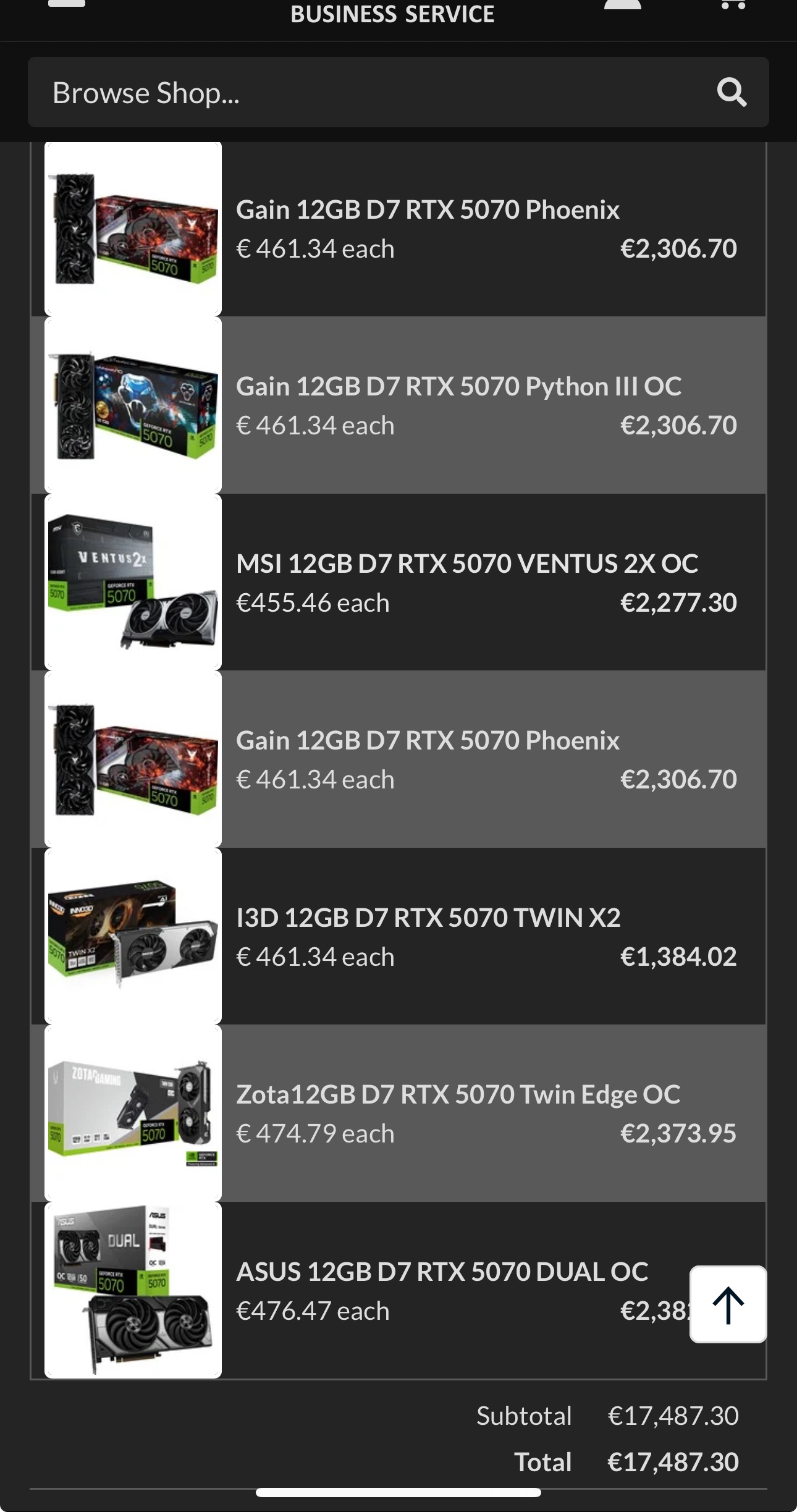
As reported by a European computer parts seller on Reddit, a German distributor reached out to the OP, claiming they’re unable to sell any cards for the RTX 5070Ti, 5080, and 5090 models.
This resulted in the supplier canceling existing orders and any placed after 30 December. The OP predicts that GPUs will soon become very expensive, which aligns with a multitude of industry reports over the past few weeks.
German Suppliers Are Running Out Of RTX 50 Series GPUs.
1 of 2
Retailer RTX 5070 orders
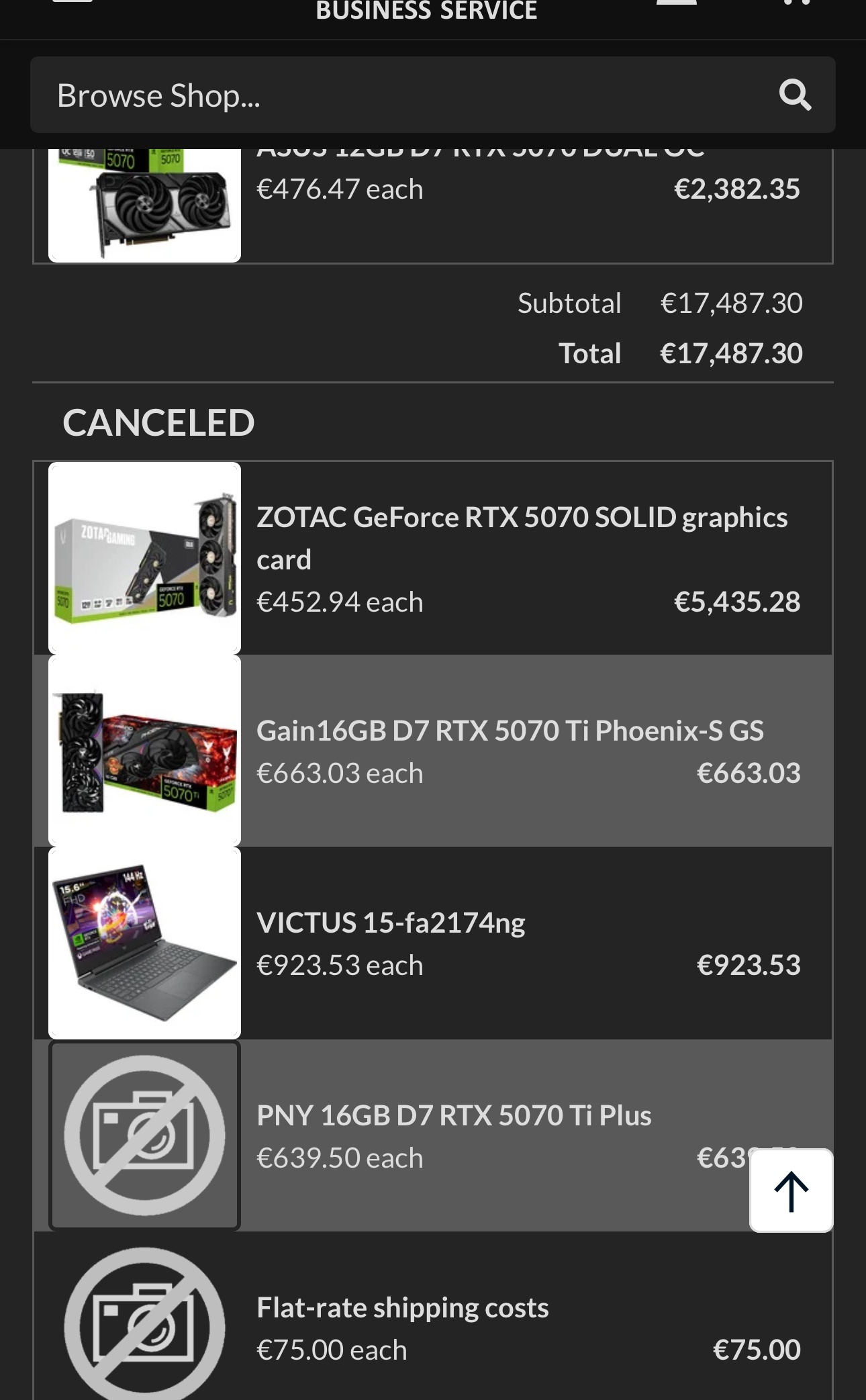
All the canceled RTX 50 Series GPU orders due to a lack of stock.
Amazon Business is also reportedly limiting the quantity of GPUs that can be ordered at once. However, the high-end cards still appear to be in stock on online retailer sites for us consumers for the time being.
For those not in the know, Japanese retailers were also rationing their stocks after a similar situation played out last week. So, this shortage will likely worsen internationally, with Nvidia’s decision to limit the production of the RTX 50 series not helping the case.
Do you think the RTX 50 series GPU inventory situation will continue to worsen worldwide? Are there no viable industry solutions in sight? Let us know your thoughts in the comments below, or join the discussion on the Tech4Gamers forum.
I’ve previously worked for eXputer as a Senior News Writer for several years. Now with Tech4Gamers, I love to devoutly keep up with the latest gaming and entertainment industries. I have a Bachelor’s Degree in Computer Science and years of experience reporting on games and breaking exclusive stories. Besides my passion for gaming journalism, I love spending my leisure time farming away in Stardew Valley. VGC, IGN, GameSpot, Game Rant, TheGamer, GamingBolt, The Verge, NME, Metro, Dot Esports, GameByte, Kotaku Australia, PC Gamer, and more have cited my articles.
Story Highlight
New benchmark leaks have revealed MSI’s RTX 5090 Lightning Z GPU, which is likely to be revealed soon.
It comes with 32 GB of memory, dual 12V-2×6 connectors, and an extreme 40-phase VRAM design.
The GPU scored a record-breaking 53,207 on 3DMark Time Spy, with additional photo and score leaks on HWBOT.
MSI’s ultra-premium Lightning lineup often pushes the boundaries beyond what’s considered possible. So, fans have been patiently awaiting the Lightning variant of the RTX 5090, even as the high-end GPU market gets more expensive by the day due to a memory shortage.
New benchmark leaks have now revealed the brand’s magnum opus. A recent 3DMark Time Spy entry by user Dr. Antoine shows an MSI RTX 5090 GPU hitting a record-breaking 53,207 score. Testing by other HWBOT users also showed the GPU’s PCB and other unique features.
Why it matters: Some sort of embargo has been lifted, allowing users to post record-breaking scores of MSI’s RTX 5090 Lightning ahead of the official announcement. The GPU comes with impressive specs, as expected from MSI’s Lightning lineup.
MSI RTX 5090 Lightning
1 of 2
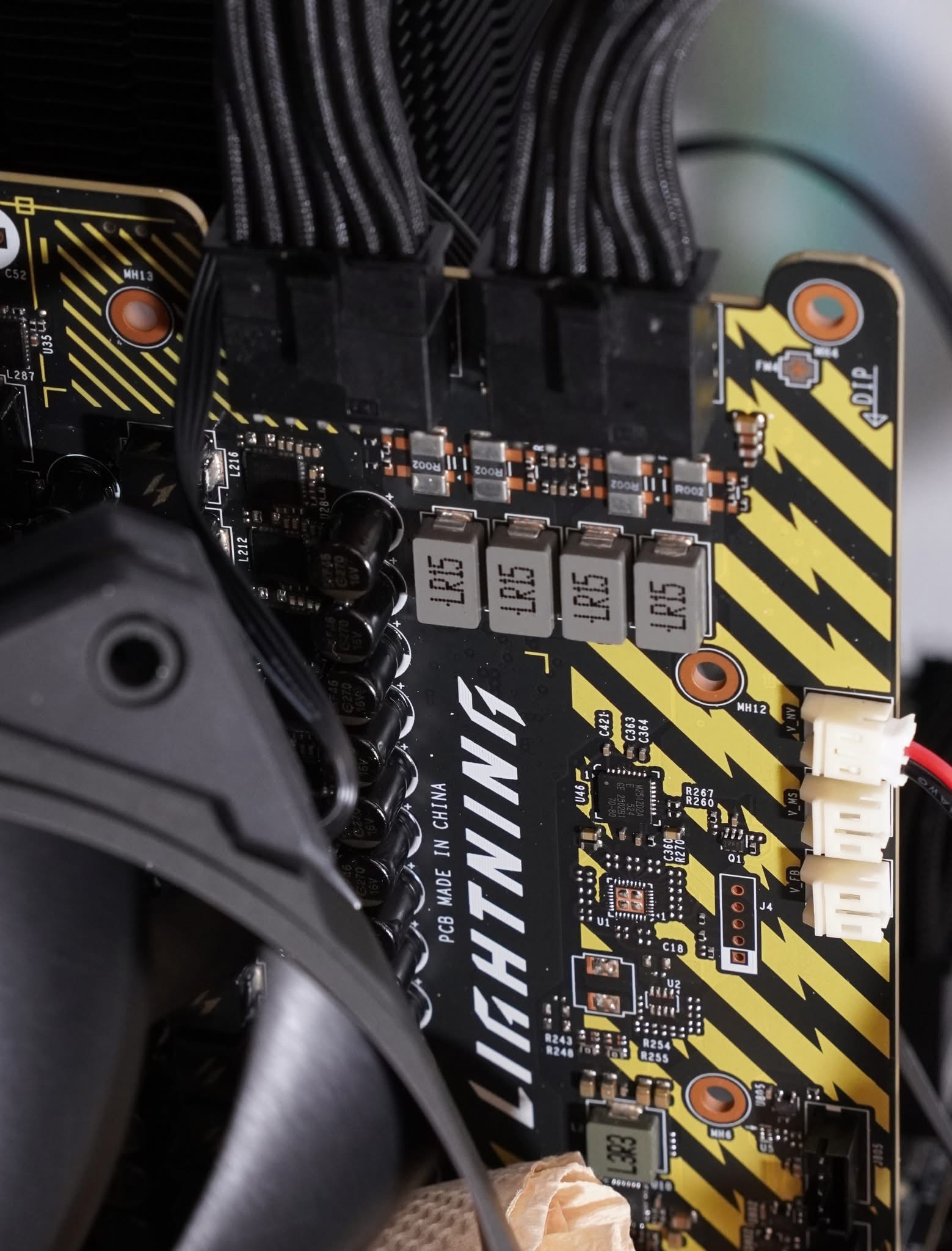
The GPU comes with a 40-phase VRAM power design.
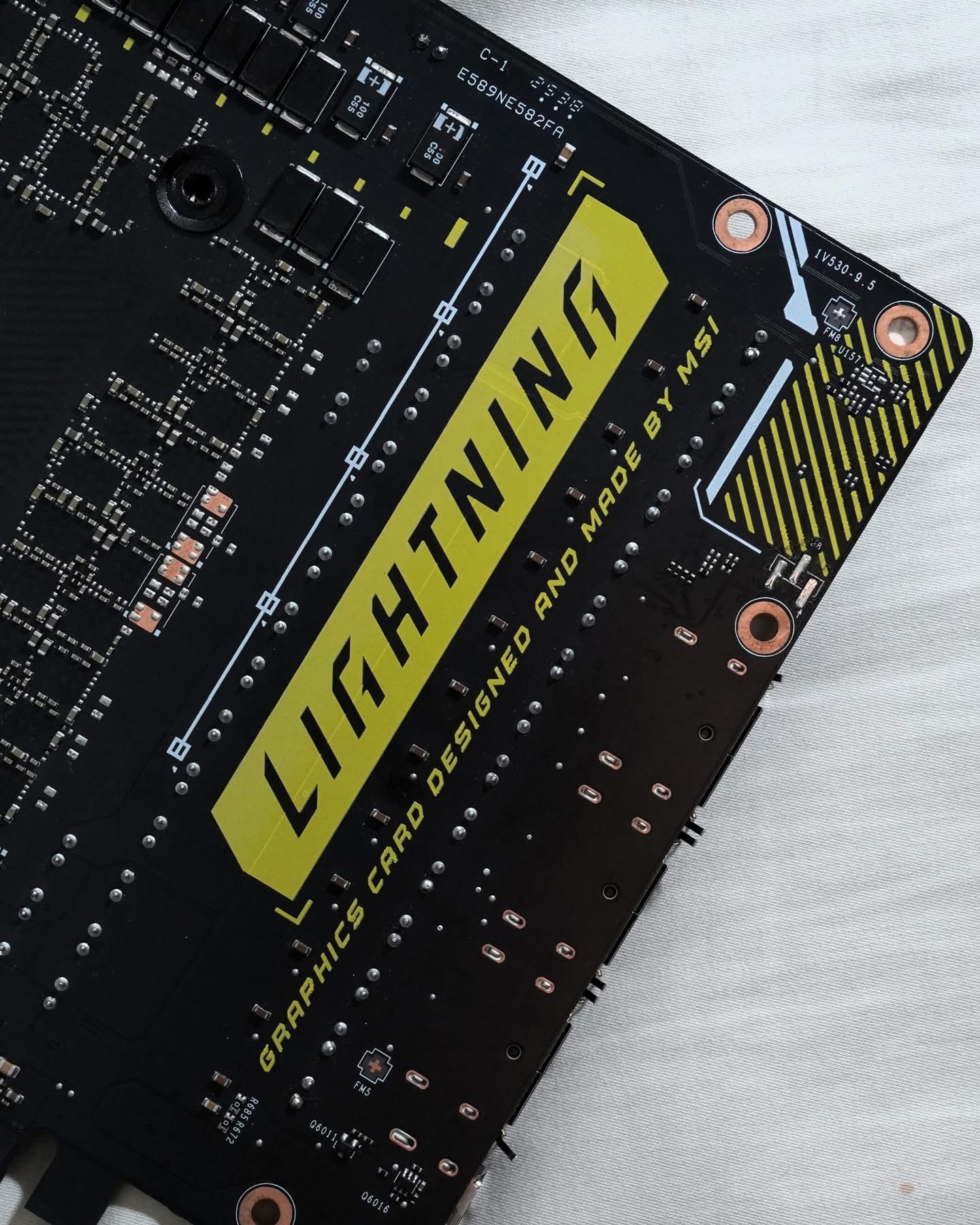
Close-up of the 5090 Lightning Z GPU's PCB.
MSI’s RTX 5090 Lightning Z boasts dual 12V-2×6 connectors and an extreme 40-phase VRAM power design. The images of the GPU’s PCB were uploaded by HWBOT users nv1diafan and oc_windforce, who achieved record-shattering 59,438 and 58,786 points, respectively.
MSI’s RTX 5090 Lightning variant was specifically used for these benchmarks because the latter user also commented, ‘Comeback! MSI GeForce RTX 5090 Lightning’ in their results.
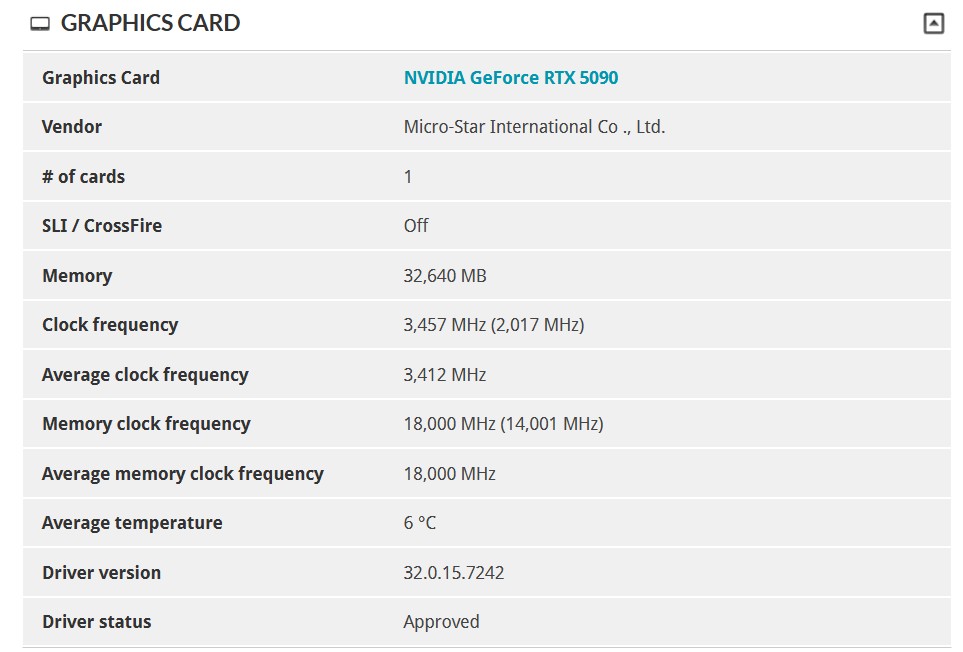
The 3DMark scores were achieved using an Intel Core i9-14900KF system and an ASUS ROG Maximum Z790 Apex. The GPU reached a 3,457 MHz GPU clock, 32,640 MB VRAM, and an 18k MHz memory clock. In other words, the memory was overclocked up to 36 Gbps.
MSI RTX 5090 Lightning Benchmarks.
1 of 2
The GPU achieved a record-breaking 53,207 score on 3DMark.
The GPU was overclocked to 36 Gbps.
Additionally, MSI is also preparing to reveal its Lightning Z GPU. A recent teaser showed a weather forecast, with a thunderstorm expected on January 5, the first day of CES 2026.
MSI likely plans to announce the RTX 5090 Lightning Z GPU on January 5.
It’s worth noting that these benchmark scores are only possible using exotic cooling solutions like liquid nitrogen, which was presumably used during the aforementioned testing since the recorded temperature was only 6°C.
Regardless, MSI is still expected to dominate the high-end GPU market with its upcoming Lightning Z 5090 model.
Do you think the RTX 5090 Lightning Z GPU will shatter the expectations of the community, or are these benchmark scores not indicative of everyday experience? Let us know your thoughts in the comments below, or join the discussion on the Tech4Gamers forum.
Lead the comparison and blog writing teams at Tech4Gamers.
Oversee teams with a keen eye for detail and precision.
Ensure hands-on writing, with benchmarks and testing as guiding principles.
Guarantee the delivery of the best possible results in concise yet impactful tech tales.
Story Highlight
Community modders often fix PC-specific issues faster than official patches
Studios quietly adopt mod solutions without formal credit or compensation
Players now look to community patches as a first response to broken PC launches
The growing reliance on unpaid labor raises ethical and long-term concerns
PC players have learned a quiet habit over the years. When a new release stutters, crashes, or runs like it skipped optimization day, they do not wait for the next official patch. They open a mod page, scroll past the comments, and download a fix made by someone who had the same problem and refused to live with it.
That reality has become so normal that it barely raises eyebrows anymore. Community modders are still fixing PC games before the studios that shipped them, and in many cases, they are doing it better.
The Pattern Players Know Too Well
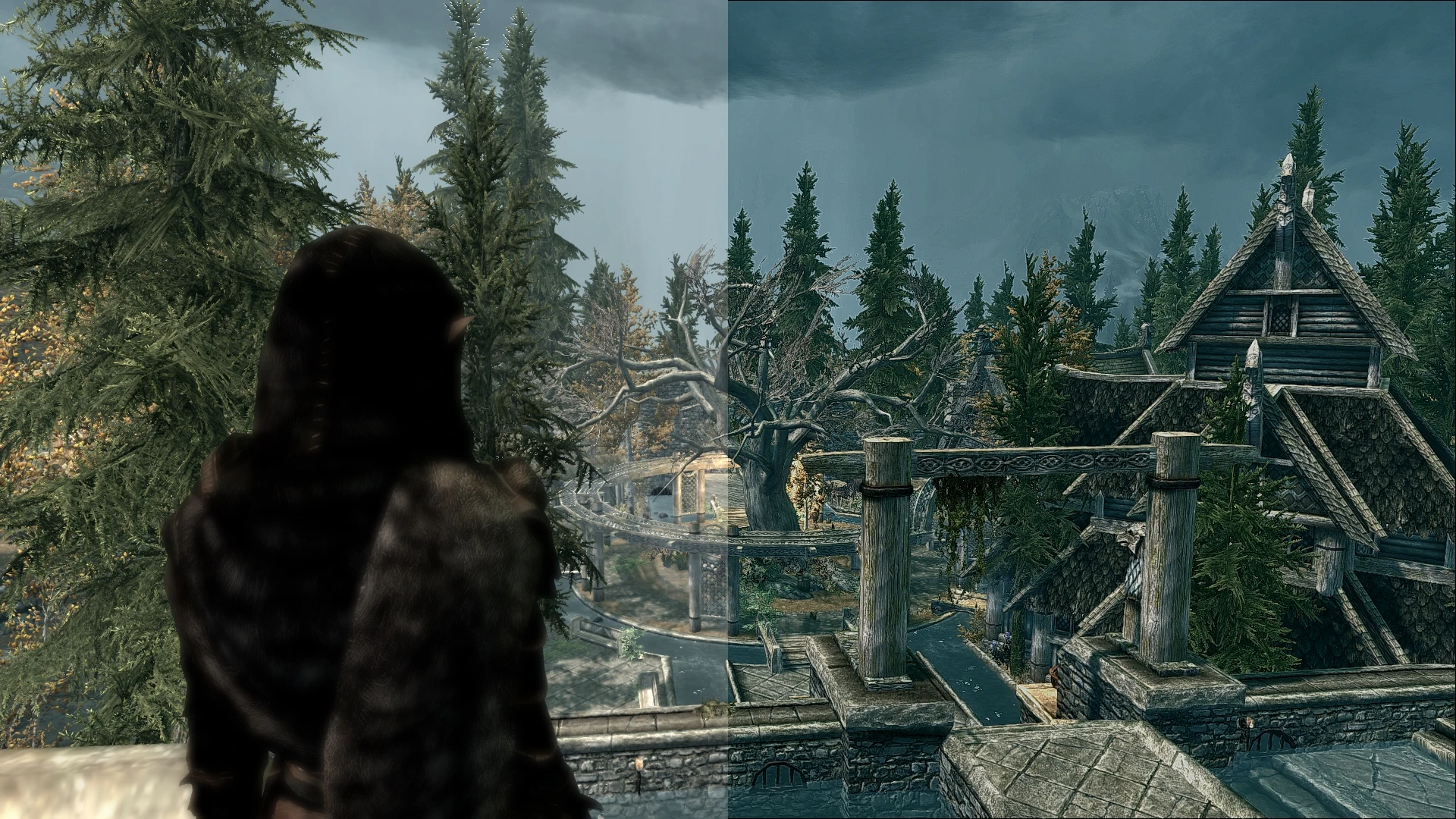
Skyrim ENB Before and After – Image Credits (NexusMods)
The pattern is familiar. A major PC release lands with uneven performance, shader stutter, broken ultrawide support, or memory issues. The studio acknowledges the problem, promises a patch, and goes quiet for a few weeks. Meanwhile, a modder uploads a community patch that cleans up frame pacing, removes unnecessary checks, or tweaks engine behavior in ways that immediately improve the experience.
This has happened across genres and budgets. From open-world RPGs to big-name action games, PC-focused fixes often appear first on community hubs. Some studios eventually roll out similar changes, sometimes months later, sometimes quietly folded into a larger update without direct acknowledgment.
What makes this moment different is scale. Community patches are no longer niche tweaks for edge cases. They are becoming essential downloads for thousands of players, often recommended before official updates even arrive. This cycle played out clearly during The Last of Us Part I PC launch, where fans were fixing performance issues long before official patches arrived.
Why Modders Move Faster Than Studios
Whiterun Before and After – Image Credits (NexusMods)
Speed is not magic here. It is structured. We have seen this with community-made Witcher 3 ray tracing fixes, which delivered smoother performance without waiting for a major studio overhaul.
Most studios ship games across multiple platforms at once. Any fix has to pass certification, maintain console parity, and avoid breaking builds that are already locked for release windows. That process is slow by design.
Modders live in a different world. They are PC-first, sometimes PC-only. They do not worry about console memory budgets or cross-platform consistency. If a fix improves performance on a specific CPU architecture or graphics driver, that is good enough. There is no approval chain, no publisher sign-off, and no marketing beat to hit.
Motivation matters too. Modders fix problems because they want the game to work on their own machines. There is no quarterly deadline or roadmap pressure. When something is broken, they dig until it is not.
Studios Are Quietly Following Their Lead
Nexus Mods Homepage – Image Credits (NexusMods)
One of the more uncomfortable trends is how often official patches resemble earlier community fixes. Players notice when the same configuration flags, memory tweaks, or engine changes show up later in official updates. Sometimes studios credit the community. Often, they do not.
From a business perspective, it makes sense. If a fix works, adopt it. From an ethical perspective, it gets murky. These fixes represent hours of unpaid labor, reverse engineering, and testing. They improve commercial products that continue to generate revenue.
The lack of formal recognition or compensation has started to frustrate parts of the modding community. What was once a passion-driven hobby now feels, to some, like unpaid support work filling gaps left by billion-dollar studios. Most of these fixes appear first on Nexus Mods, where PC players have learned to look before waiting on official updates.
Why Players Trust Modders More Right Now
Human presets Gale & Wyll – Image Credits (NexusMods)
Trust is earned through results. Players care less about who ships the fix and more about whether the game runs smoothly tonight.
Community patches often arrive faster, target specific PC pain points, and include detailed explanations of the changes they make. Modders tend to document their work clearly, respond to feedback, and iterate quickly when something breaks.
Official patches, by contrast, are often bundled with unrelated changes, vague notes, and longer wait times. When a mod consistently delivers better performance with fewer side effects, players notice and adjust their expectations.
This shift has real consequences. Mods are extending game lifespans, stabilizing releases long after official support has ended, and in some cases, becoming the definitive way to play on PC. Few games prove this better than Skyrim’s modding ecosystem, which continues to evolve more than a decade after release.
The Risks Studios Cannot Ignore
Cicero – Before and After – Image Credits (NexusMods)
This does not mean mods are a perfect solution. Community fixes are unofficial by nature. They can introduce security risks, compatibility issues, or instability, especially when combined with other mods.
Studios also cannot rely on modders to fix systemic problems. Console certification, accessibility standards, and long-term support obligations still sit squarely on the developer’s shoulders. A mod that improves performance for one subset of players might break another configuration entirely.
There is also a legal gray area. Mods often rely on reverse engineering or undocumented engine behavior. Studios adopting those fixes wholesale can expose themselves to risks they would rather avoid.
Why Official Mod Support Needs to Be the Baseline
GDC Vault Homepage – Image Credits (GDCVault)
The lesson here is not that modders should replace developers. It is that studios should meet them halfway. Many of these lessons are already discussed openly in developer talks at GDC, where studios acknowledge how community experimentation feeds back into engine development.
Official mod support, clear documentation, and open tooling make community fixes safer, faster, and more sustainable. When developers embrace modding early, they gain a feedback loop that improves engines, exposes bottlenecks, and surfaces PC-specific issues before launch.
Studios that treat modders as partners rather than free labor tend to see longer-lasting communities and healthier PC ecosystems. The technology already exists. The cultural shift is lagging.
Where This Leaves PC Gaming
This trend is not going away. As PC hardware becomes more diverse and engines more complex, community expertise will only grow in value. The question is whether studios acknowledge that reality or continue to benefit from it quietly.
For players, the takeaway is simple. The modding community remains one of the strongest forces in PC gaming, not just for creativity, but for basic functionality. For studios, the message is harder to ignore each year. If your most reliable PC fixes come from outside your payroll, something in the process needs to change.
The future of PC gaming will still be shaped by passionate individuals tearing engines apart at night. The difference will be whether the industry finally decides to recognize them.
At T4G, my task is to cover the latest news around the gaming globe ASAP and with the utmost precision. I adore all the games and respect all the devs behind the amazing games that we get all year. So, whether it’s a PC or a Console game, I got it all covered.
Story Highlight
Hollow Knight Silksong won two awards at the Steam Awards, including the GOTY.
It is the first awards event that isn’t completely swept by Clair Obscur: Expedition 33.
Steam Awards marked yet another dominant display for indie titles in 2025.
We observed a notable trend in gaming awards in 2025; Clair Obscur: Expedition 33 ended up sweeping almost everything clean. However, in the Steam Awards 2025, it has been beaten by another title that dominated last year.
Hollow Knight Silksong has won the Game of the Year award at the Steam Awards, beating Expedition 33, Arc Raiders, Dispatch, and Kingdom Come Deliverance 2. It also bagged the award for ‘Best Game You Suck At’.
Why it matters: Steam Awards have yet again been another demonstration of how indie titles are on a roll and completely dominating the industry by introducing innovation and leaving most AAA titles far behind.
Silksong bagged the GOTY award at the Steam Awards over Expedition 33 and others
Hollow Knight won 2 awards, while Expedition 33 managed to get a single accolade for the best soundtrack. Other winners include Silent Hill f for outstanding visuals, Arc Raiders for most innovative gameplay, and Dispatch for the best story.
Hades 2 also received the award for the best game on Steam. Notably, this is another indie clean sweep, with hardly any big-budget games marking a win. That shows how much the industry has changed over the years.
That isn’t to say that AAA games have become downright bad. There have been decent releases like Death Stranding 2, Ghost of Yotei, and KCD2, but they all were outshone by the indie goodness in 2025.
What are your thoughts on Hollow Knight Silksong bagging the GOTY award in the Steam Awards 2025? Let us know your opinions in the comments or join the discussion at the official Tech4Gamers Forum.
I’ve been the Journalist & Editorial Writer at Tech4Gamers since July 2022. I spearhead our hardware coverage, including overclocking GPUs, benchmarking CPUs, reviewing peripherals, and fine-tuning custom PC builds for every budget. Daily, I report on breaking gaming news, from major launches and studio updates to the latest industry trends, ensuring our community stays informed. Beyond news briefs, I write in-depth feature articles on gaming culture and emerging technologies. And by collaborating closely with the editorial team on content planning, SEO strategy, and our publishing calendar, I help us consistently hit our traffic and engagement targets.
The Womier WD75 leans hard into something you don’t see very often at this price, which is real wood. That’s the whole hook here, and it’s the reason this keyboard stands out in a market of plastic and aluminum boards. Womier has built a bit of a reputation around bold designs and heavy RGB. Getting started with the WD75, I expected something interesting and a little different. I can say that this keyboard occupies an unusual yet appealing position after spending time with it on my desk.
Why Trust Tech4Gamers
Abdul Hannan is our peripherals expert who has been testing different mice, keyboards, headphones, microphones, and more for years.
130+ peripherals tested and reviewed by our team of hardware experts (Tech4Gamers Team).
500+ hours spent testing different peripherals for our reviews.
At Tech4Gamers, ensuring you get reliable information is our priority. That’s why every hardware round-up undergoes a meticulous review process by our team of experts and editors. Each review is carefully examined against our strict editorial guidelines, guaranteeing you trustworthy insights you can depend on.
Key Takeaways
The Womier WD75 is a compact 75% keyboard that delivers smooth, consistent keystrokes and versatile tri-mode connectivity, while keeping a clean, understated look on your desk.
You should buy the Womier WD75 if you want something that looks different on your desk, want customization through VIA support, don’t want to think about charging often, and care about the thocky sound profile out of the box.
You should skip the Womier WD75 if you prefer lighter keyboards, travel often, rely on adjustable typing angles, prefer softer or heavily cushioned keycaps, and dislike extravagant RGB lighting.
The Womier WD75 sets itself apart from just about any other keyboard in its price range by leaning into its real walnut wood case rather than the usual plastic or aluminum cases you see everywhere, giving it a distinctive aesthetic that most competitors don’t offer. Unlike its predecessor, the V2 version refined the internal layout, rounded the edges more smoothly, and deepened the walnut tone, making it feel slightly more premium in the hand and on the desk.
Packaging & Unboxing
Packaging & Unboxing
1 of 3
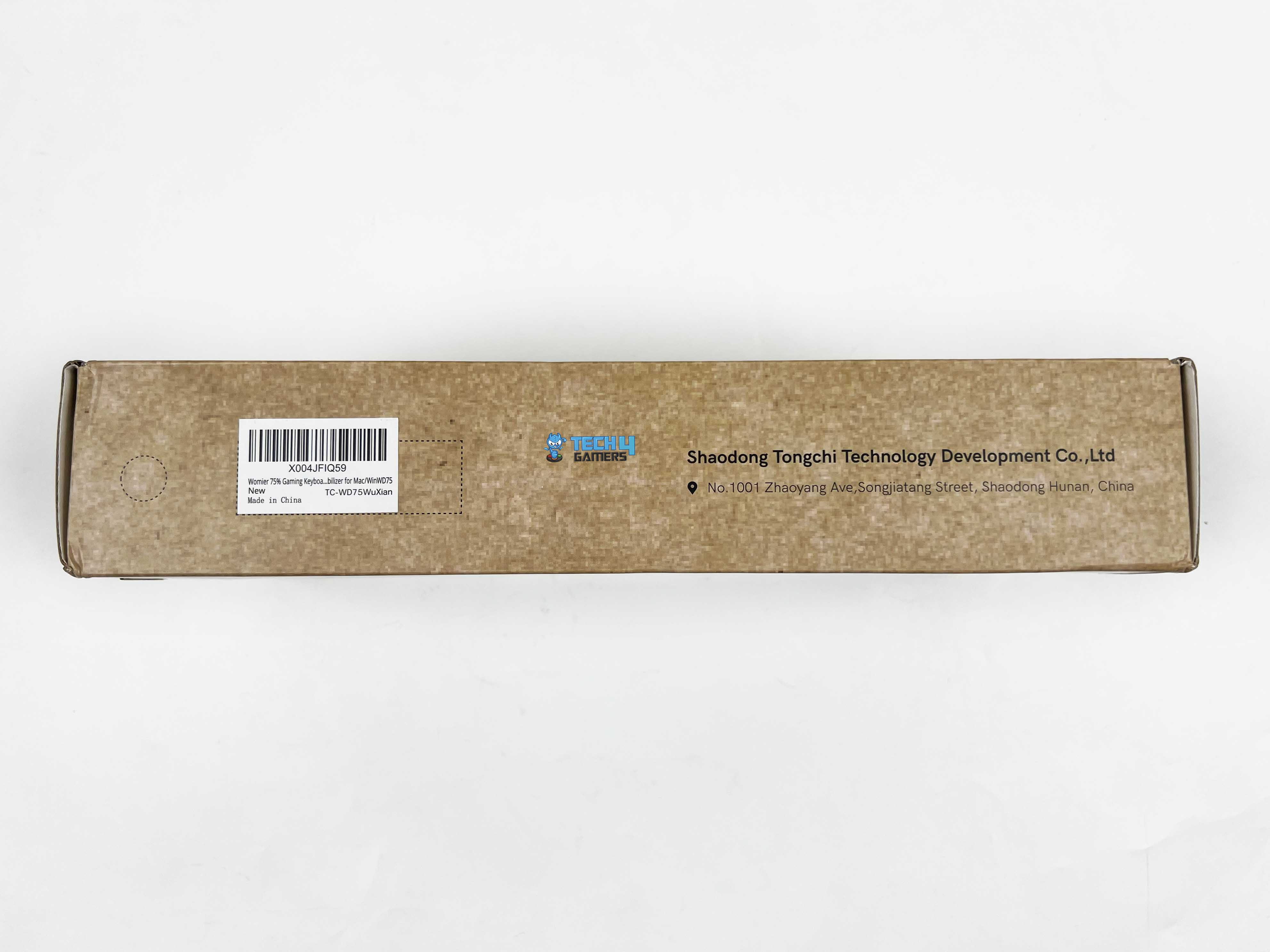
Frontside of the Box
Topside of the Box
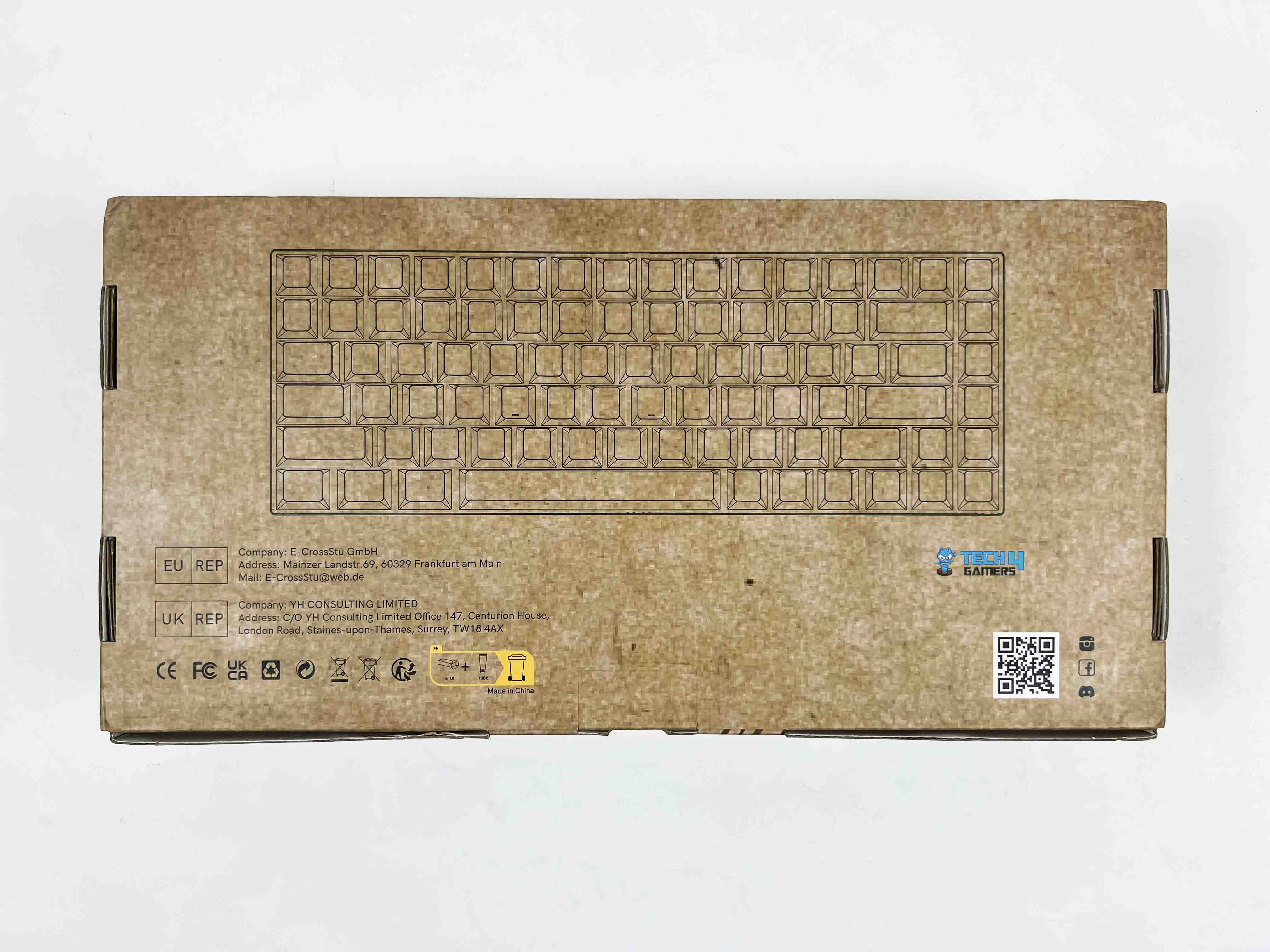
Backside of the Box
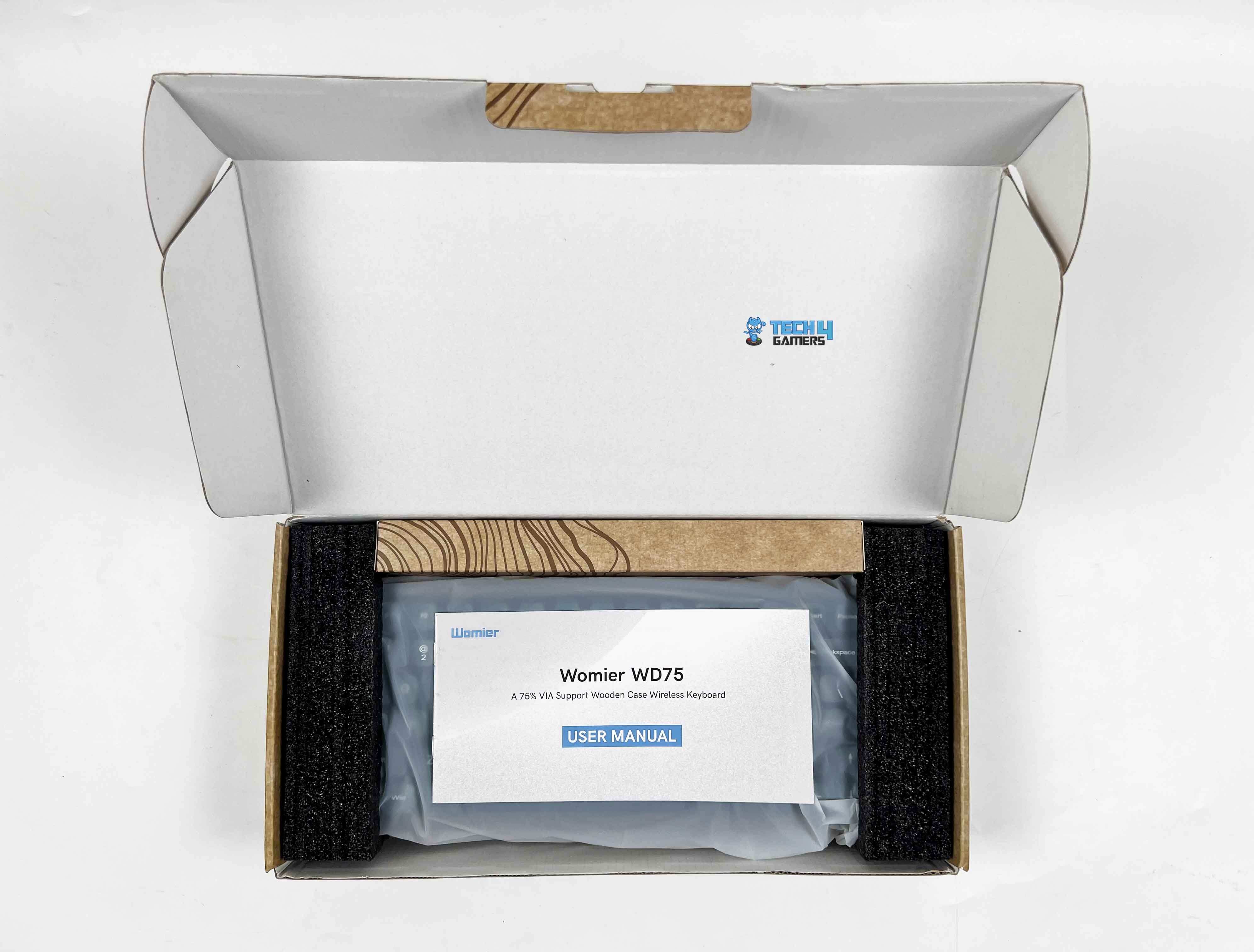
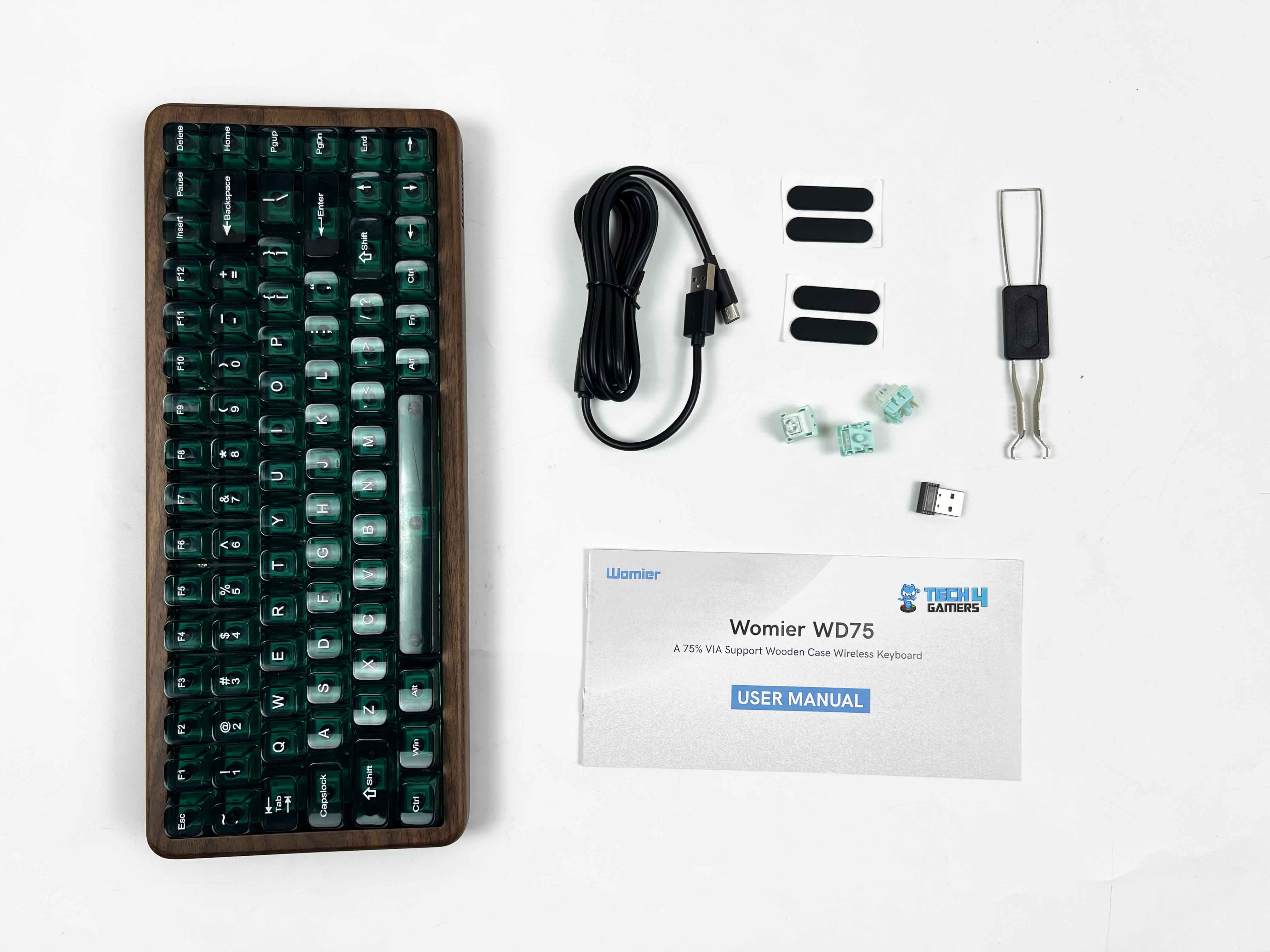
You get a plain cardboard box with Womier’s branding on it and the keyboard’s model name on the front. The box itself feels sturdy enough in hand. Inside, the keyboard is wrapped in a plastic sleeve and secured with foam on both sides. Another cardboard box is placed at the top of the keyboard and contains all the accessories. Here is the list of everything that you’ll find inside the box:
Unboxing
1 of 2
Unboxing
Box Contents
Womier WD75 Keyboard
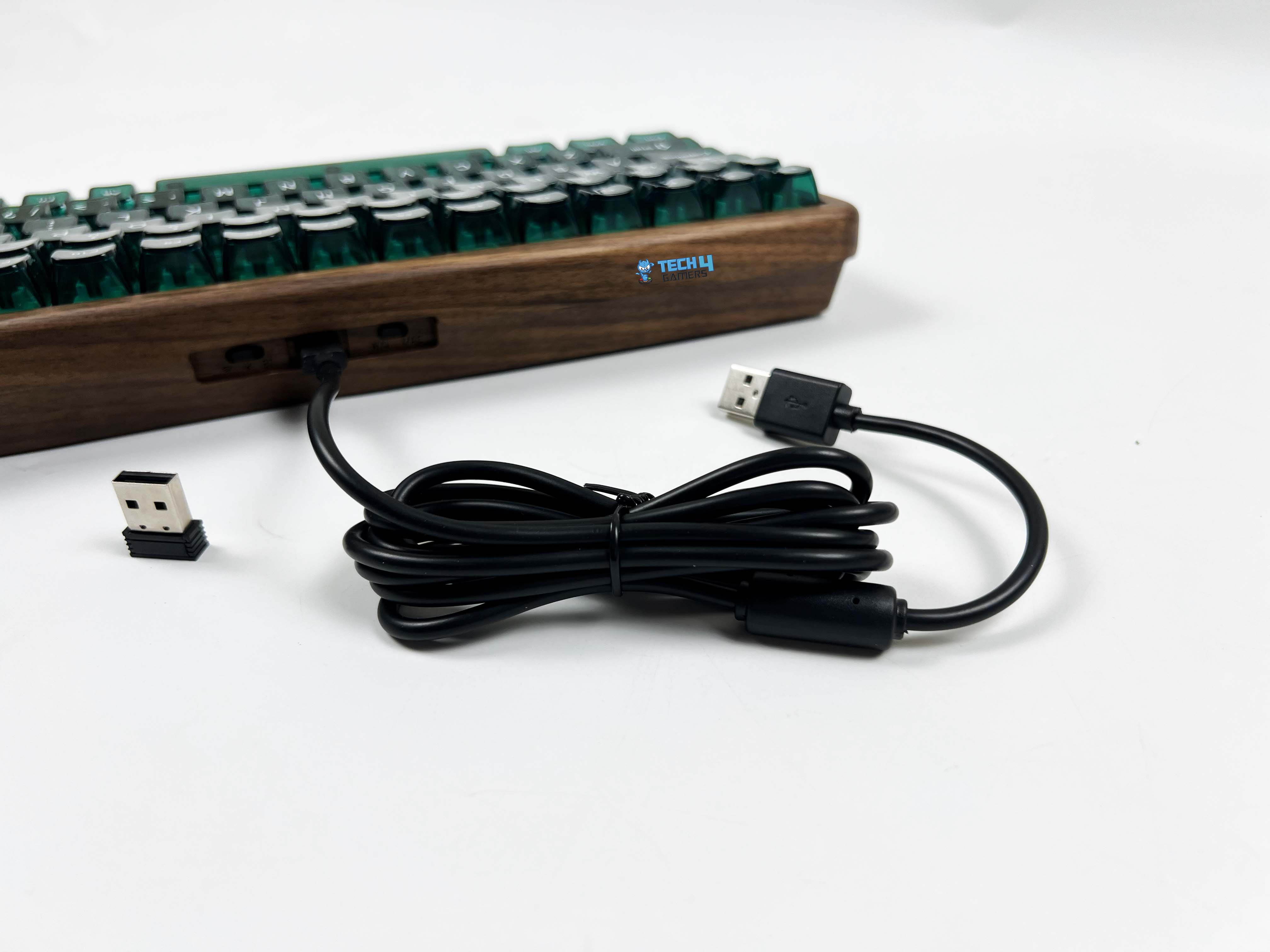
USB-A to USB Type-C Cable
2-in-1 Keycap & Switch Puller
3 Extra Stock Switches
User Manual
Design
Design
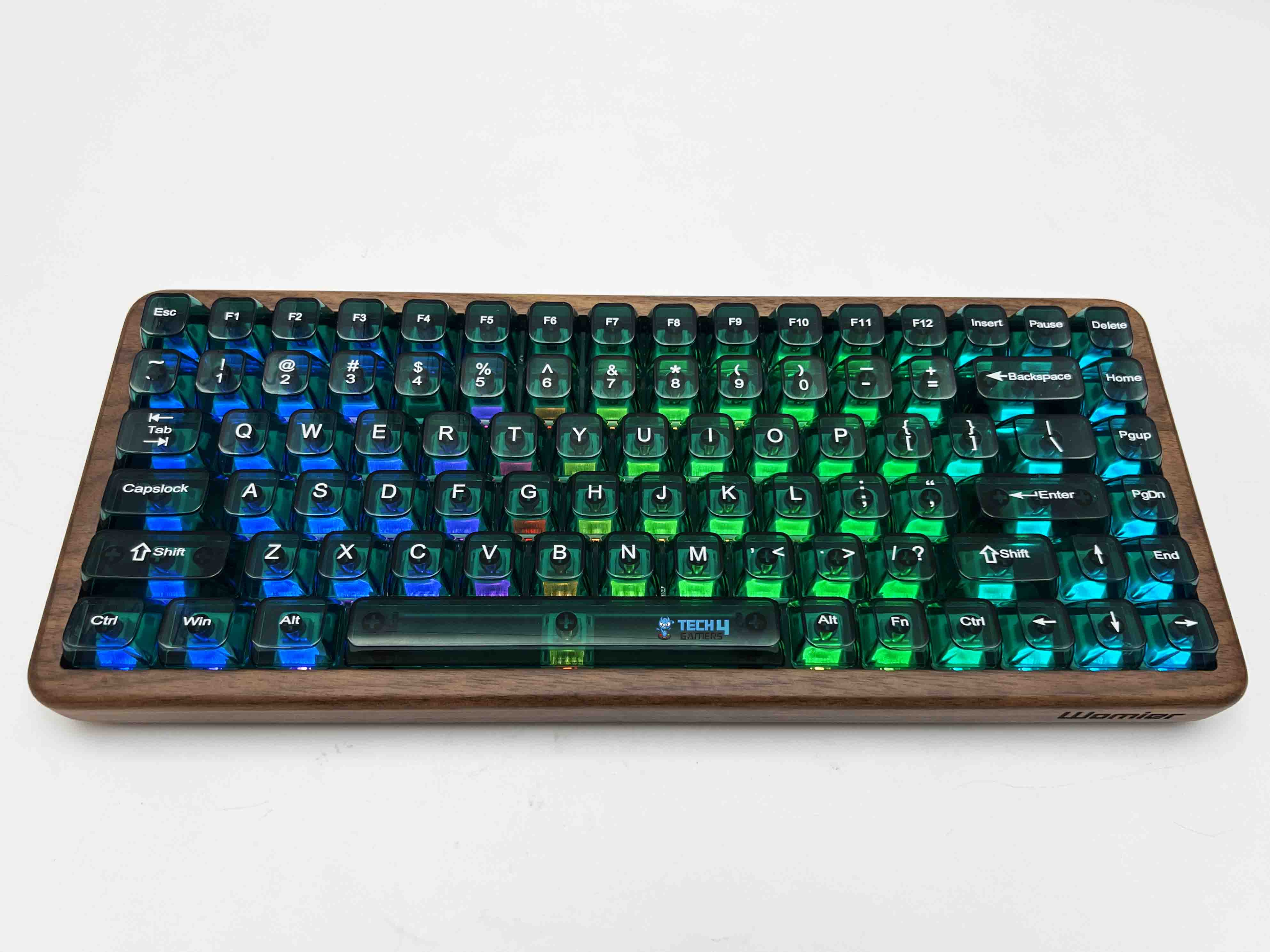
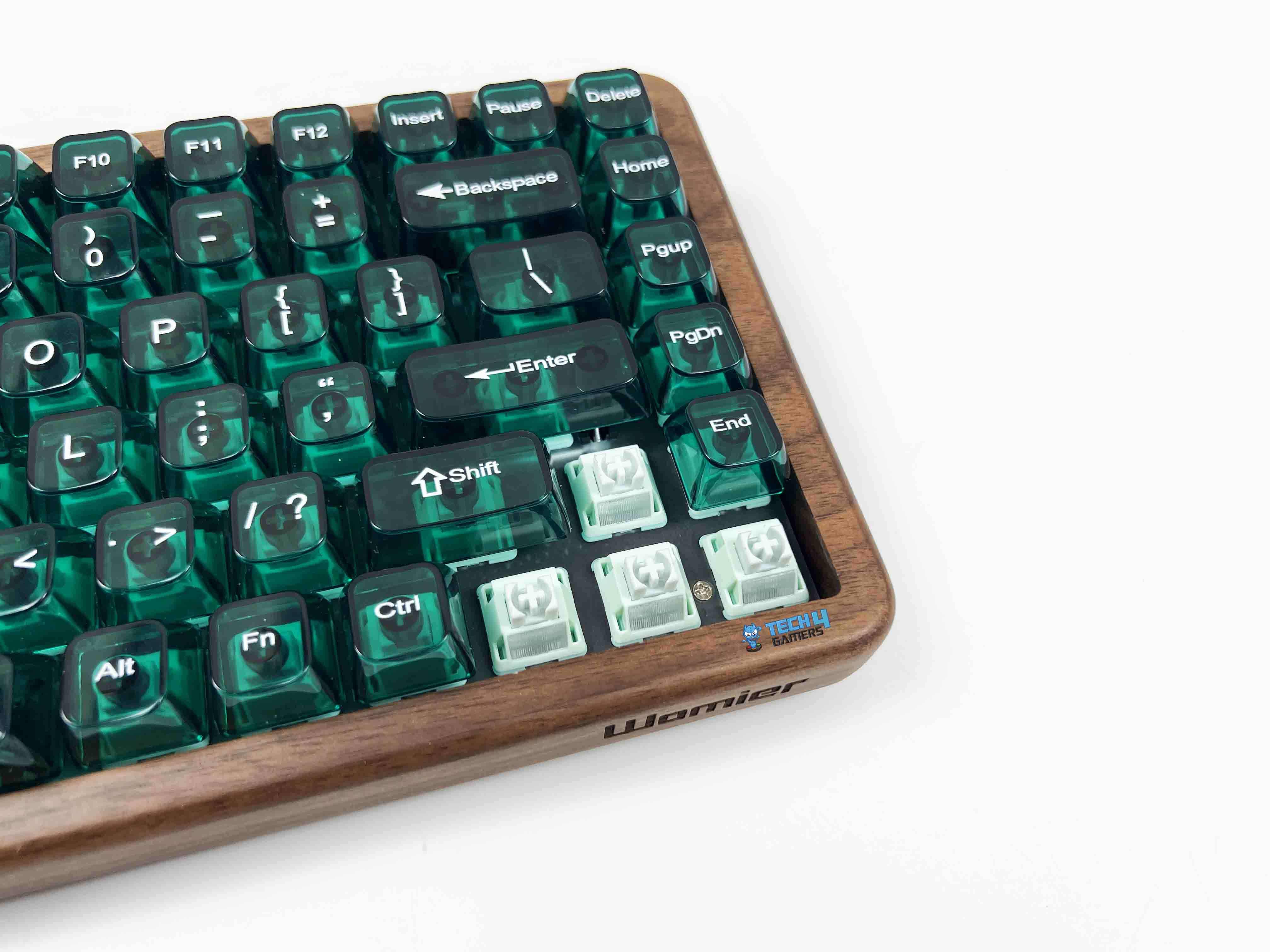
The design of the Womier WD75 is its USP. You notice the wooden case right away. It doesn’t look like a printed texture or a thin veneer. It’s real wood, and you can tell as soon as you touch it. The finish is smooth. When I first took it out of the box, there was a faint, delightful smell from the finish. It feels like a piece of furniture that happened to be a keyboard. Visually, the WD75 sits closer to the enthusiast side than anything gamer-focused.
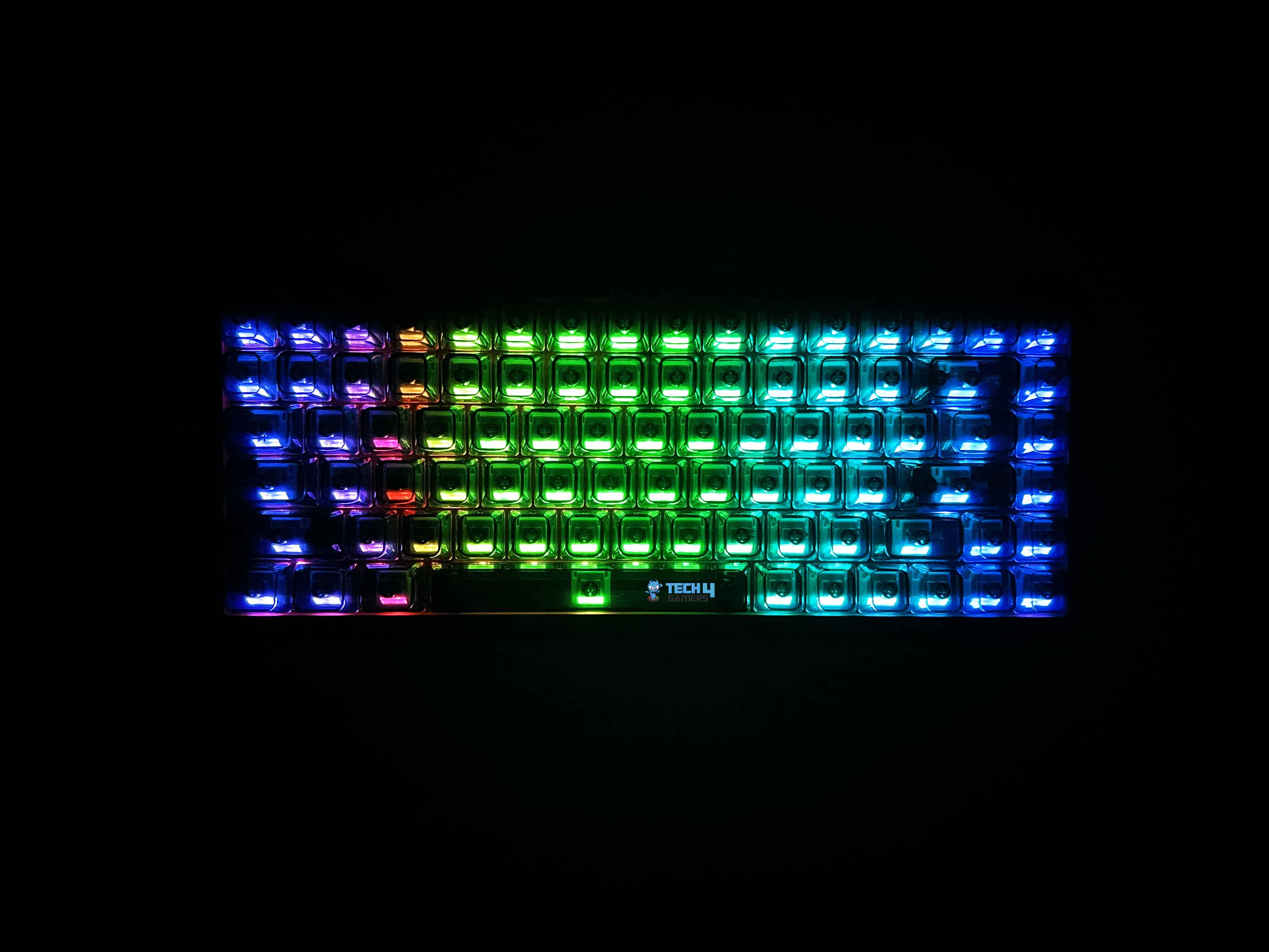
The wood gives it a distinct appearance, and Womier doesn’t pile on extra design elements. The case lines are clean, and the edges are properly finished. There’s no awkward tapering, and the keyboard looks balanced even when viewed from a specific angle. Even with the keyboard turned off, the design still looks great. You don’t get that empty, lifeless look some RGB-heavy boards have when their lighting is off.
Layout
Layout
The Womier WD75 uses a fairly standard compact ANSI 75% layout with 82 keys. It keeps the function row and arrow keys without taking up as much desk space as a full-size board, and it’s tighter than a typical TKL. That means there’s less room between the arrow cluster and the main keys, which took me a little time getting used to. I kept pressing the wrong key a few times at first, since I mostly use full-size keyboards.
The arrow keys themselves get comfortable enough once you adjust. They’re close to the main keys, but not uncomfortably so. If you’re moving from a full-size keyboard, there’s a short learning curve. Even the right-side navigation cluster, such as Page Up, Page Down, Home, and End keys, feels different from what you’d expect, but it’s usable once your muscle memory catches up. The function row is easy to reach, though a few keys require the FN layer for extra actions.
Underside
Underside
Flipping the WD75 over, the underside feels simple but solid. There’s nothing extravagant here. The keyboard sits flat on my desk, and the foot pads grip well enough that it doesn’t slide around during regular usage. There are four foot pads in each corner. One thing to note is that foot pads can come loose after some usage. Therefore, the Womier was generous enough to include extra foot pads in the box if that happens, so it’s an easy fix.
The typing angle is fixed since there are no kickstands. It sits at a relatively shallow angle by default, but I found it comfortable for long typing sessions without feeling steep. There’s no branding or labelling at all on the bottom. It’s just a clean, uninterrupted wooden surface. Cleaning is easy, too. The flat underside means dust doesn’t get trapped in awkward corners, and the wood surface wipes down easily.
Build Quality
Build Quality
You feel the weight as soon as you pick up the Womier WD75. At just under a kilo, it has that reassuring density and settled feel that keeps it planted on the desk. It doesn’t shift when you start typing with a bit more force. It holds its shape even when pressed down. Notably, firm pressure around the center doesn’t cause any visible dip. There’s no soft spot where the chassis gives in or rebounds. It feels stable across the surface.
The weight feels evenly spread rather than concentrated in one area. Looking ahead, nothing about the build quality raises red flags. The materials appear to be durable for rigorous daily use. As long as it’s treated like a regular desk keyboard and not tossed into a bag every day, the build appears to be capable of lasting a long time. If you’re used to low-profile boards, this one sits higher and feels more substantial at 324 x 132 x 48mm.
Keycaps
Keycaps
My Womier WD75 came with the green translucent keycaps. The surface feels smooth under your fingers, almost glassy. There’s a lightness to them that you notice when you first rest your hands on the keyboard. Thickness is on the moderate side. The sculpting is subtle, so your fingers don’t have to adjust much as they move between rows. Legends are white and printed directly onto the keycaps. They look sharp at normal viewing distance, and their alignment is mostly on point.
The white contrast works well against the translucent green caps. Notably, Womier offers other keycap options. There’s a Retro set at the same price that has black keycaps on top, changing the whole mood of the board. It looks more work-focused, though I personally find it a bit lifeless compared to the green set. In addition, the Ukiyoe set is the one that fits the keyboard the best. The artwork and tones sit well with the wooden theme, and it feels like a more intentional pairing.
RGB Lighting
RGB Lighting
1 of 2
RGB Lighting
RGB Lighting in Dark
The Womier WD75 uses south-facing LEDs, which heavily influence how the lighting looks more than you might expect. Instead of the light coming straight up toward the top edge of the keycaps, the LEDs sit closer to the front of each switch. The keycaps light up more evenly, especially on the bottom half of each key. Even when the keyboard is powered off, you can still see hints of it through the translucent keycaps.
The RGB lighting works well with the MDA profile keycaps. At full brightness, the RGB gets plenty strong, and it does somewhat strain your eyes when you look down. The light seems a bit blown out. Because it doesn’t get blocked by the keycaps as much. In a dark room, the keyboard becomes visually apparent. It glows, overpowering the desk. On the other hand, in a brighter room, the RGB tones down a bit naturally but remains visible, just less dramatic.
Switches
Switches
1 of 2
Switches
Switch Housing
The Womier WD75 comes fitted with Womier’s Mint Blizzard linear switches, and after spending time on them, I get what they were aiming for. These are factory-lubed. The keypress is smooth from top to bottom. There is no sudden resistance near the end of the keystroke. They’re light as well. Actuation sits around the low-40s in force, and bottoming out is around 50. During longer typing sessions, this adds up in a good way. My hands felt relaxed even after a few hours of writing.
The spring is a long, single-stage design, which gives each keypress a steady push back up. Pre-travel is 2.0±0.2mm, and the full travel stops just short of 4 mm. All the main switch parts are POM, such as the stem, top housing, and bottom housing. These switches also include an LED diffuser that helps evenly distribute the RGB light. Light spreads cleanly across each key. It’s a small detail, but noticeable once you start cycling through lighting modes.
Connectivity
Connectivity
1 of 2
Connectivity
USB Cable
You can use Womier WD75 via wired, 2.4GHz wireless, or Bluetooth. I used all three connection modes, mostly to see if any of them felt like a weak link, and none did. Wired mode is as straightforward as it gets. Plug the USB-C cable in, and you’re good to go. The cable itself is pretty basic with no braiding. It does the job, but it’s not something you’d want to keep on a clean desk setup. If you’re picky about cables, you’ll probably swap it out.
The keyboard has a physical switch for changing modes. Slide it over to 2.4GHz, and pairing is done directly from the keyboard by holding the FN+4 combo for 3 seconds. Bluetooth works in a similar way. You can connect it to up to 3 devices by holding FN+1, 2, or 3 for 3 seconds. When you start the pairing process, the indicator light starts blinking, indicating it’s ready to connect. There’s also a switch for flipping between Windows and macOS, and it is compatible with Linux, iOS, and Android as well.
Typing Experience
A lot of the Womier WD75’s typing experience comes down to how it’s built on the inside. Womier uses multiple layers of foam inside the case. The plate is made from polycarbonate, and there are no flex cuts. The mounting style is a tray mount. Paired with the PC plate, the result is a solid, consistent feel. The PCB is FR4 with a thickness of 1.2mm. It supports both 3-pin and 5-pin switches and is hot-swappable. Starting from the wooden shell, there’s insulation film and case foam to reduce hollow noise.
Above that sits an acoustic pad, followed by an IXPE layer under the switches. Then there’s plate foam between the plate and PCB. Together, they smooth out sharp edges in the sound. What you end up with is a sound profile that leans toward the soft, rounded thocky. There’s no sharp echo bouncing back at you, even when typing fast. Moreover, stabilizers come pre-lubed. Larger keys feel steady, and there is no rattling during everyday use.
Performance
Edges
In day-to-day use, the Womier WD75 performs exactly how you’d want a keyboard to perform. Fast key presses register the same way every time, whether I’m typing quickly or tapping keys in short bursts. Fortunately, there were no input issues during use, and you can easily press multiple keys at once. Thanks to the full n-key rollover support. I didn’t run into ghosting issues, even when I deliberately tried to. In FPS games, responsiveness feels excellent.
Movement inputs come through instantly, without any delay. During overtime rounds in Valorant, my hands stayed comfortable, which matters more than speed after several hours. Wireless performance held up well, too. I didn’t notice any delay between pressing a key and seeing it on screen. Bluetooth is a bit slower in terms of responsiveness, but for writing, browsing, and general use, it stayed reliable. I never had to reconnect mid-session.
Battery Life
The Womier WD75 comes with an 8000mAh battery, which is pretty massive for a 75% keyboard. In actual usage, I didn’t have to think about charging it very often. Even with RGB on, it easily lasted through several days of typing and general use. When the backlight was off, the drain slowed further, making it easy to go a week or more without plugging it in. Charging itself is straightforward through the included USB-C cable. You can keep using the keyboard while it’s plugged in.
Software
On the software side, the WD75 V2 relies on VIA. There’s no separate app to install, and no background software running all the time. You open the VIA web interface, connect the board, and you’re set for customization. It feels better to adjust the keyboard with it rather than manage it through a flashy control panel. Key remapping is immediate. You click a key, assign a new function, and it’s done.
Layers work the same way. I used them primarily for media controls and a few shortcuts. Macros are there too, and they behave exactly how you’d expect once you’ve set them up along with RGB control. Nothing felt buried behind menus, and I didn’t find myself going to figure out where a specific setting is. Once your layout is set, you don’t really need to open VIA again. Lastly, you can set up to 5 layouts for different scenarios.
Should You Buy it?
Buy it if
✅ You want something that looks different on your desk: The real walnut wood case gives the WD75 a more furniture-like presence than the usual metal or plastic keyboards.
✅ You care about sound and feel out of the box: The layered foam setup, PC plate, and factory-lubed switches create a controlled, muted typing sound without needing immediate mods.
Don’t Buy it if
❌ You prefer lighter keyboards or travel often: The wooden case adds weight, and at nearly a kilo, it’s heavier than many 75% wireless boards
❌ You rely on adjustable typing angles: There are no kickstands, so you’re locked into the default angle. If you like fine-tuning keyboard height, this may bother you.
Final Verdict
After spending enough time with the Womier WD75, it’s clear what kind of keyboard Womier was aiming for. This isn’t a keyboard that tries to impress you in the first five minutes. It grows on you the more you actually use it. At $99.99, if you’re after a solid-value keyboard that feels solid and sounds controlled, the WD75 makes a strong case for itself through day-to-day use rather than spec-sheet flexing.
You’re getting solid materials, excellent out-of-the-box performance, and a feature set that’s usually bundled at a higher price. If you’re curious how it compares to keyboards with more gaming‑centric layouts or magnetic features, our best gaming keyboards and best magnetic gaming keyboards lists are great places to explore other options.
At T4G, my task is to cover the latest news around the gaming globe ASAP and with the utmost precision. I adore all the games and respect all the devs behind the amazing games that we get all year. So, whether it’s a PC or a Console game, I got it all covered.
Story Highlight
Resident Evil Requiem is seven weeks away, launching in February 2026.
The title has already achieved a massive milestone, reaching 4 million wishlists on Steam.
It has now become one of the most-wishlisted games on Steam of all time.
Resident Evil Requiem is all set to release in just a couple of months, and is one of the year’s most anticipated releases. The return of Leon was so massive that the title has already achieved a record that is poised for massive success.
Less than 2 months till its launch, Resident Evil Requiem has become one of Steam’s most wishlisted games, with 4 million wishlists. This shows how massive Capcom’s horror franchise is and the impact it has on the genre.
Why it matters: This number puts Requiem among the highest ever wishlisted games on Steam, and means that the success is already guaranteed, which could mark another great year for Capcom.
Requiem is now one of the most wishlisted games on Steam ever
Requiem has marked 4 million wishlists, which is a major milestone that highlights the franchise’s legendary status. The hype for the title was already through the roof, but it got multiplied with the introduction of Leon.
The title is gearing up to be great with the first time two characters offering totally opposite dynamics. The developers stated that playing with Leon and Grace would be very different experiences, as the latter is their most scaredy protagonist.
The game is set to release in just a couple of months
Nonetheless, if there were any doubts that Resident Evil Requiem wouldn’t be a commercial success, those have been cleared now. 2026 will be a huge year for gaming and will be kick-started by Capcom’s blockbuster title.
What are your thoughts on Resident Evil Requiem reaching a whopping 4 million wishlists? Let us know your opinions in the comments or join the discussion at the official Tech4Gamers Forum.