



Besides the performance, the aesthetics, cooling, and lighting effects are equally crucial for a nice-looking PC setup. Corsair RAM kits are among the best in the industry in terms of essential aspects like CAS Latency, Frequency, and more. I resorted to the Corsair iCUE software to change the color of my Corsair RAM and other accessories like the keyboard.
- Easily manage and control the RGB of all your PC components using Corsair’s iCUE software, even if they are from another manufacturer.
- iCUE allows users to monitor several components’ temperatures, voltage ratings, and fan speeds.
- It offers multiple preset murals, effects, and static colors while allowing color customization.
Choosing Presets
The software comes loaded with presets for a quick color change. The Temperature preset is fantastic for monitoring the temperature. You can dedicate a particular color to when your component’s temperature reaches a certain point.
For instance, when my RAM’s temperature exceeds 80°C, it will automatically change color to Red; thus, I can take measures to control overheating during video editing or overclocking.
- Get iCUE: Download the iCUE software from Corsair’s website > Launch once installed.
- Select Lighting: Select the RAM > Click Hardware Lighting on the left pane to customize your RAM lighting.
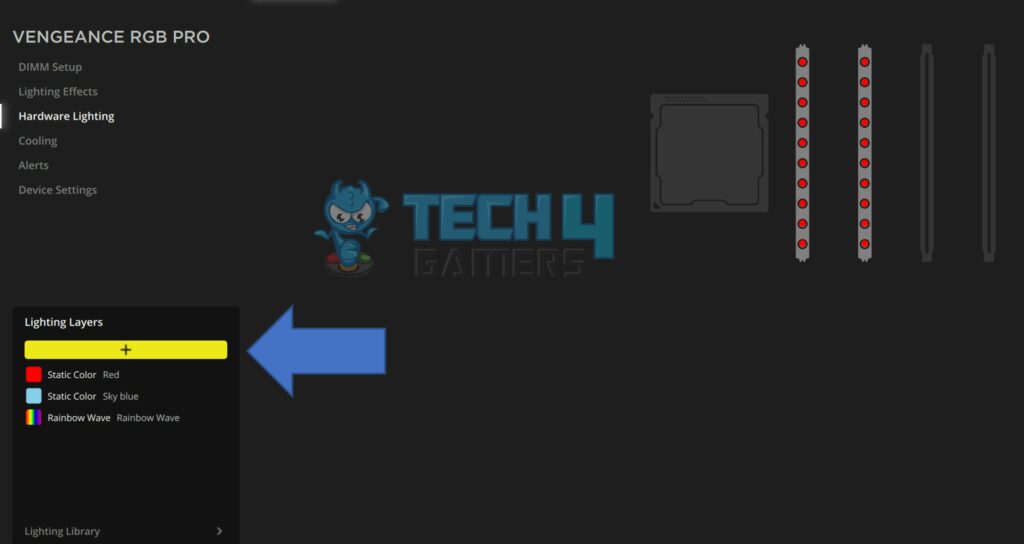
Customizing Corsair RAM Lighting (Image By Tech4Gamers) - Open Presets: Under Lighting Layers, click the + icon to view multiple lighting presets. I like the Color Shift preset at medium speed. You can also customize the colors in any preset.
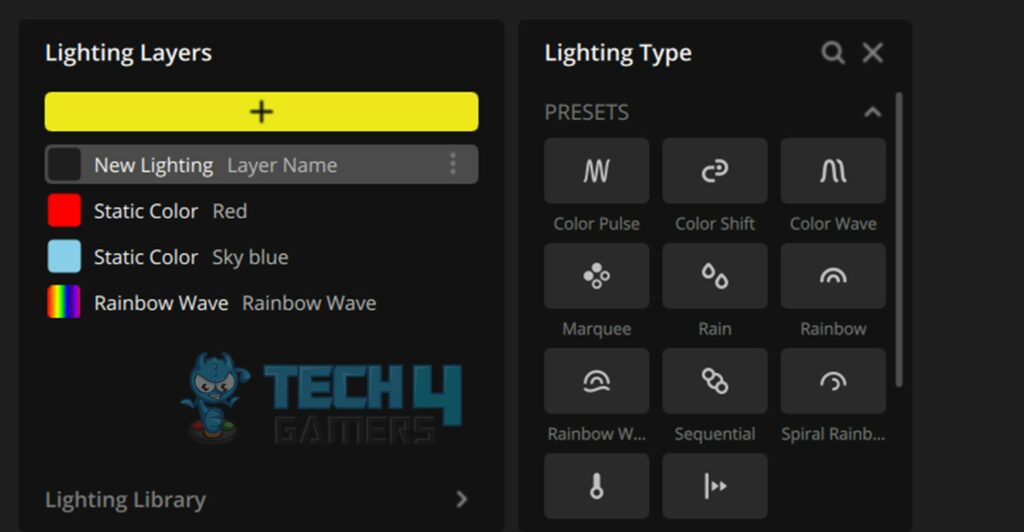
Color Presets And Layers (Image By Tech4Gamers)


Customized Lighting
With a wide array of colors, you can pick multiple combinations for your Corsair RAM to match the aesthetics of your RGB gaming room.
- Choose The RAM Stick: For custom static lighting colors, hit the + icon > Static Color > In the Quick Lighting Zone, select the RAM stick to customize. Highlight All to pick all the connected RAMs.
- Pick Color: Click on the color box to see an RGB wheel with preset colors and the option to select any custom colors.
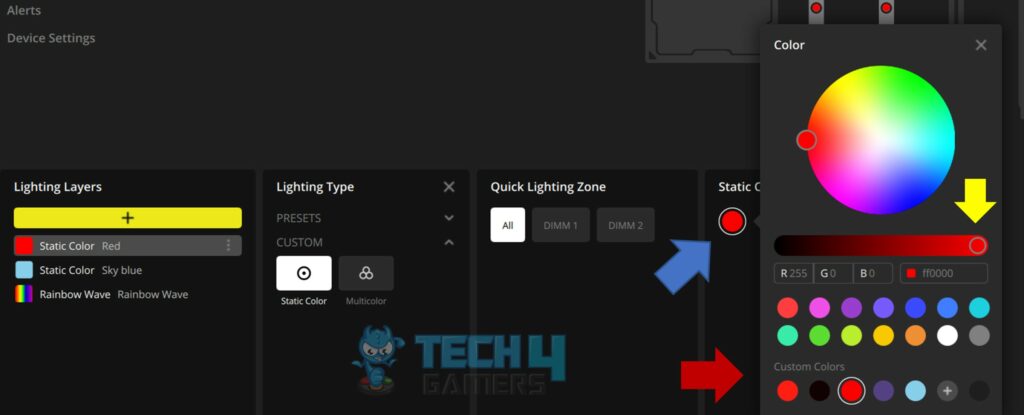
Changing RAM Color On RGB Scale (Image By Tech4Gamers) - Apply Changes: Save the settings once finalized. This is how my Corsair Vengeance RGB Pro DDR4 3200MHz looked after the customization.


Last Words
I found iCUE very user-friendly and easy-to-navigate software that allowed me to manage different aspects of my PC components for customization and maintaining health. Moreover, the whole process barely took me five minutes.
Unlike a few software where you need to restart your PC or the software every time to apply the changes, Corsair’s iCUE saved me from that hassle. So, if you plan on buying Corsair RAM for its RGB capabilities, I recommend utilizing this tool for efficient customization.
Frequently Asked Questions
Corsair’s iCUE software can control the RGB of Corsair’s products and other components. So, if you own an ASUS motherboard and GPU and have Corsair RAM, you can change the lighting of the motherboard and graphics card with iCUE.
Having the software open in the background shouldn’t affect your gaming performance much unless you have minimal RAM and a slow processor.
If you don’t want to use Corsair’s iCUE software, you can try using the free OpenRGB software to control and manage your RGB settings.
More About Changing Component Colors:
- How To Change The Color Of Your Keyboard
- How To Change RGB On AMD Wraith Prism Cooler?
- How To Change MageGee Keyboard Color?
- Guide: How To Change Alienware Keyboard Color?
- Explained: How To Change Color On RedThunder Keyboard?
Thank you! Please share your positive feedback. 🔋
How could we improve this post? Please Help us. 😔

[Editor-in-Chief]
Sajjad Hussain is the Founder and Editor-in-Chief of Tech4Gamers.com. Apart from the Tech and Gaming scene, Sajjad is a Seasonal banker who has delivered multi-million dollar projects as an IT Project Manager and works as a freelancer to provide professional services to corporate giants and emerging startups in the IT space.
Majored in Computer Science
13+ years of Experience as a PC Hardware Reviewer.
8+ years of Experience as an IT Project Manager in the Corporate Sector.
Certified in Google IT Support Specialization.
Admin of PPG, the largest local Community of gamers with 130k+ members.
Sajjad is a passionate and knowledgeable individual with many skills and experience in the tech industry and the gaming community. He is committed to providing honest, in-depth product reviews and analysis and building and maintaining a strong gaming community.