

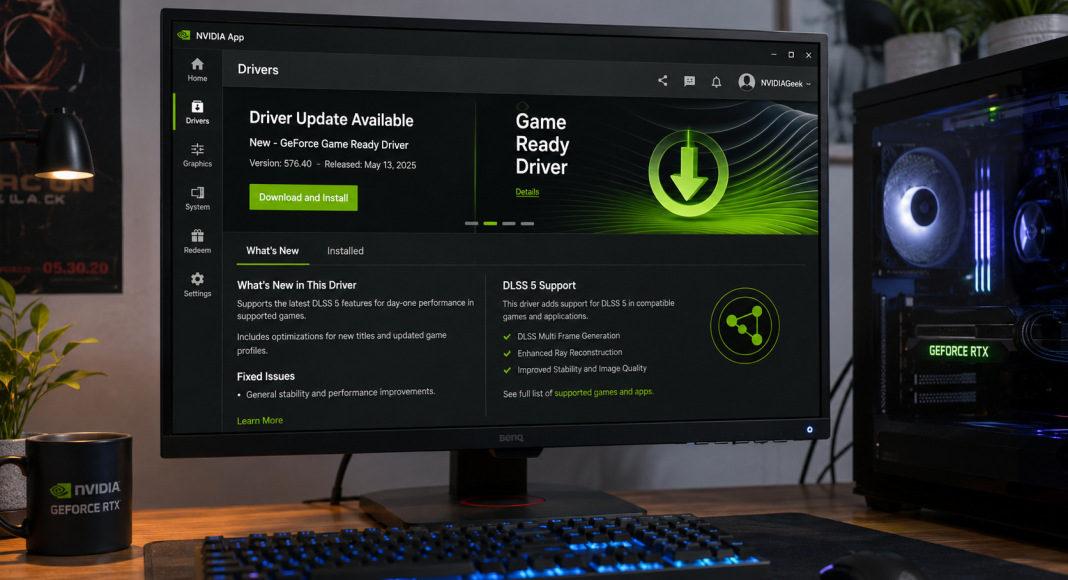


DLSS 5 is not an officially supported public release, so any “leaked DLSS 5” setup should be treated as experimental modding, not a normal driver feature. The appeal is clear: early neural rendering tests show what NVIDIA’s next image-reconstruction work might look like, but the tradeoff can be crashes, artifacts, anti-cheat risk, and heavy performance loss.
Quick takeaway: If you want to test the leaked DLSS 5 build, use a single-player game, back up the original files, and avoid any title with anti-cheat. DX12 games are usually the cleaner path through a DLSS 5 Swapper-style DLL replacement. DX9 and Vulkan games need a feeder or wrapper approach, which is more fragile and more likely to create visual bugs.
Warning: Do not treat leaked DLL files as safe. A DLL can execute code inside the game process, and modded injection can trigger anti-cheat systems. This guide explains the workflow and risks, but it does not endorse downloading leaked binaries or using them in multiplayer games.

Before You Start: Requirements and Safety Checks
You need:
- A Windows PC with an NVIDIA RTX GPU
- A game you can test offline
- A clean backup of the game folder
- A way to restore original DLL files
- The leaked DLSS 5 DLL files, if you choose to use them
- A DX12 swapper or older-API feeder tool from a source you trust
- Optional tools: OptiScaler, ReShade, or RenoDX, depending on the game
Before you commit, understand the risk. DLSS mods usually work by replacing or injecting DLL files such as NVIDIA’s upscaling libraries. That means the modded file loads inside the game process. If the DLL is malicious, corrupted, or simply incompatible, it can break the game, trip security tools, or cause system instability.
There is also the performance question. Tech4Gamers has already covered a case where a DLSS 5 performance hit was severe enough to cut frame rate heavily on an RTX 5070 Ti in Control. That does not mean every game behaves the same way, but it is a useful reminder: neural rendering is not “free FPS.”

Step 1: Identify the Game’s Graphics API
Start by confirming whether the game uses DirectX 12, DirectX 11, DirectX 9, or Vulkan.
- Check the in-game graphics menu. Some games list DX11, DX12, or Vulkan as selectable launch options.
- Check the game executable folder. Files like dxgi.dll, d3d12.dll, d3d9.dll, or Vulkan layer files can hint at the API path.
- Check PCGamingWiki or the game’s launcher settings. Many games document their supported renderers.
- Choose the newest supported API when possible. DX12 is usually the most straightforward option for DLSS injection because modern DLSS support is already built around newer rendering pipelines.
If the game already has DLSS support, a swapper workflow is usually cleaner. If the game has no DLSS support, especially on DX9 or Vulkan, you are relying on a feeder or wrapper to create the conditions DLSS expects.
Step 2: Use a DLSS 5 Swapper Workflow for DX12 Games
DX12 is the easier path because many modern games already include NVIDIA DLSS hooks. A swapper-style setup usually replaces the existing DLSS DLL with the leaked build.
DX12 installation steps
- Back up the game folder.
Copy the full game directory or at least the original NVIDIA DLL files. You need a clean rollback path. - Disable existing graphics mods.
Remove ReShade, RenoDX, OptiScaler, custom sharpening tools, and other DLL-based mods for the first test. Add them back later only if DLSS 5 works alone. - Find the game executable folder.
This is usually where the main .exe file lives. Some games store DLSS files in a separate bin, plugins, or streamline folder. - Locate the current DLSS DLL.
Look for files such as nvngx_dlss.dll for Super Resolution or related NVIDIA DLLs for Frame Generation. Do not delete them yet. - Rename the original DLL.
For example, rename nvngx_dlss.dll to nvngx_dlss.dll.backup. This keeps the original file available if the mod fails. - Place the leaked DLSS 5 DLL in the same folder.
Use the exact filename expected by the game. If the game expects nvngx_dlss.dll, the replacement file usually needs that same name. - Launch the game in offline or single-player mode.
Avoid multiplayer, online leaderboards, and anti-cheat-protected modes. This is where people get careless, and it is not worth the account risk. - Enable DLSS in the graphics menu.
Start with Quality mode before trying Balanced, Performance, or Frame Generation options. - Test one repeatable scene.
Use the same save point, camera path, or benchmark run. Watch frame rate, frame pacing, image stability, and input latency. - Rollback if the game crashes or looks wrong.
Delete the leaked DLL and restore the renamed original file.
DX12 does not guarantee success. Some games package DLSS through NVIDIA Streamline or use custom integration logic, so a simple DLL swap may fail. If the game does not expose DLSS after the swap, the engine may be checking version support or loading DLSS from another folder.
Step 3: Use a DLSS 5 Feeder Workflow for DX9 and Vulkan Games
Older APIs are harder because they were not built around DLSS. DLSS depends on more than the final frame; it benefits from motion vectors, depth data, exposure information, and stable frame history. A feeder or wrapper tries to pass enough information to the neural renderer so it can reconstruct the image.
VideoCardz reported that DLSS 5 neural rendering can now run through OptiScaler, which matters because OptiScaler is commonly used as a translation layer for upscaling experiments. Still, this setup is more fragile than native DX12 support.

DX9 and Vulkan installation steps
- Confirm the game API first.
DX9 and Vulkan need different wrapper files. Do not guess. - Back up the executable folder.
Older games often load DLLs directly from the same folder as the .exe, so one wrong file can stop the game from launching. - Install the feeder or wrapper files.
For DX9, this may involve a d3d9.dll wrapper. For Vulkan, it may involve a Vulkan layer or loader configuration. Follow the tool’s exact file placement rules. - Place the DLSS 5 DLL where the feeder expects it.
Some tools load DLSS from the game folder. Others use a dedicated subfolder. Match the feeder documentation. - Disable ReShade and RenoDX for the first launch.
ReShade, RenoDX, and feeder tools can all hook into the rendering path. Running everything at once makes troubleshooting painful. - Configure the feeder settings.
Set the input resolution, output resolution, sharpening, motion-vector mode, and API backend if the tool exposes those options. - Launch the game and open the feeder overlay.
Confirm that the wrapper has loaded and that DLSS is being called. If the overlay does not appear, the injection path probably failed. - Test image stability before chasing FPS.
Move the camera slowly, then quickly. Watch thin lines, foliage, UI text, particles, and reflective surfaces. - Add other mods back one at a time.
If ReShade or RenoDX is needed for HDR, color grading, or post-processing, reintroduce it after the DLSS path works.
DX9 is usually the roughest case. Vulkan can be cleaner in some games, but Vulkan layer conflicts are common. If the game already has unstable mod support, DLSS 5 feeding can push it over the edge.
RTX 40-Series vs RTX 50-Series: What Performance Should You Expect?
The leaked build is not a polished public release, so exact performance depends on the game, resolution, render path, and mod stack. Still, the hardware pattern is fairly easy to understand.
| Hardware | What to expect | Practical advice | |—|—|—| | RTX 50-series | Better chance of handling neural rendering features, but still not guaranteed smooth performance | Test at Quality mode first and compare native, DLSS, and Frame Generation separately | | RTX 40-series | May run some features through wrappers, but overhead can be high | Use lower internal resolutions carefully and watch latency | | Older RTX cards | Compatibility is less predictable | Do not expect stable Frame Generation or clean neural rendering results |
Native rendering spends GPU time drawing the game frame through the normal pipeline. Neural rendering adds an inference step, which means the GPU also has to process model-based reconstruction. If the neural pass is too expensive, the image may look different or sharper, but the game can still feel worse.
Frame Generation can hide some frame-rate loss by inserting generated frames, but it does not fix every problem. If base frame rate is low or frame pacing is uneven, generated frames can make motion look smoother while controls still feel delayed.
Common Visual Artifacts and What They Mean
Unofficial DLSS 5 tests have produced dramatic results in some games. XDA Developers covered a Super Mario Odyssey experiment where the leaked build created an uncanny visual result, which is exactly why you should judge image stability, not only screenshots.
Watch for:
- Ghosting: trails behind moving characters or objects
- Smearing: soft motion during camera pans
- Shimmering: unstable thin lines, fences, wires, grass, or hair
- UI corruption: distorted HUD text or menus
- Texture hallucination: details that look “invented” rather than reconstructed
- Flickering exposure: brightness changes between frames
- Broken particles: sparks, smoke, rain, and reflections behaving strangely
If you see these problems, reduce sharpening first. Then test a higher input resolution. If the issue continues, disable Frame Generation and test Super Resolution alone.
Troubleshooting DLSS 5 Mod Problems
The game does not launch
Likely cause: Wrong DLL name, wrong folder, blocked file, or incompatible wrapper.
Fix: Restore the original DLL, launch the game clean, then reinstall the mod one file at a time.
The DLSS option does not appear
Likely cause: The game is loading DLSS from another location or does not expose DLSS without native integration.
Fix: Search for duplicate DLSS DLLs in the install folder. For DX9 or Vulkan, confirm that the feeder overlay actually loads.
Anti-cheat blocks the game
Likely cause: DLL injection or file replacement is being detected.
Fix: Stop. Restore the original files and do not use leaked DLSS builds in anti-cheat-protected modes.
The image looks worse than native rendering
Likely cause: Bad motion data, low input resolution, excessive sharpening, or API wrapper limits.
Fix: Use Quality mode, disable sharpening, turn off Frame Generation, and compare against native rendering in the same scene.
Performance drops too much
Likely cause: Neural rendering overhead is higher than the GPU headroom available.
Fix: Lower the output target, test without other post-processing mods, or revert to the official DLSS build. There is already a broader debate around whether players want upscaling at all, and Tech4Gamers has covered how some players reject DLSS when the tradeoffs feel too visible.
Should You Install the Leaked DLSS 5 Build?
Install it only if you are comfortable treating the game as a test bench. DX12 games with existing DLSS support are the safest place to experiment. DX9 and Vulkan setups can work through feeder tools, but they are much more sensitive to wrapper conflicts, missing motion data, and visual artifacts.
For most players, the better default is to wait for official NVIDIA support. For modders, the practical approach is simple: back up everything, test offline, change one variable at a time, and judge the result by motion clarity and frame pacing — not by one good screenshot.
Thank you! Please share your positive feedback. 🔋
How could we improve this post? Please Help us. 😔

[Comparisons Expert]
Shehryar Khan, a seasoned PC hardware expert, brings over five years of extensive experience and a deep passion for the world of technology. With a love for building PCs and a genuine enthusiasm for exploring the latest advancements in components, his expertise shines through his work and dedication towards this field. Currently, Shehryar is rocking a custom loop setup for his built.
Get In Touch: shehryar@tech4gamers.com