
 Threads
Worth It?
Review Summary
The Xastra ASTRA LZ360 is a high-performance 360mm all-in-one liquid cooler that distinguishes itself with a retro-arcade aesthetic featuring a bright, pixel-matrix display across both the pump and the radiator fans. The cooler also offers chart-topping thermal performance on AMD; however, it comes at a cost of a louder acoustic footprint.
Hours Tested: 6
Overall
-
Cooling - 9.2/10
9.2/10
-
Noise - 8.2/10
8.2/10
-
Build Quality - 9/10
9/10
-
Aesthetics - 9/10
9/10
-
Value - 8.5/10
8.5/10
Pros
- Pixel Matrix Display on Radiator & Block
- Daisy-Chained 28mm Fans
- Futuristic Fan Aesthetics
- Good Build Quality
- Tons of Built-in Presets
- Customizable Pixels
- Centralized Hub Control
- Top-Tier Performance on AMD
- Easy Installation
Cons
- Strict Ecosystem Lock-In.
- Mandatory Hub Requirement.
- Software does not report RPM readings.

Xastra is a relatively new brand in the market, having officially debuted in 2024. Headquartered in Shenzhen, China, they manufacture PC cooling products, including air coolers, liquid coolers, fans, and cases. They also recently made a significant push at Comptex 2026, catching the attention of many aesthetic builders and enthusiasts.
They have sent us their liquid cooler for testing: the Astra LZ360 ARGB in the black option. The Astra series currently serves as Xastra’s signature line of All-in-One (AIO) liquid CPU coolers. This cooler is equipped with a 16×16 LED display on the block and also a 28×8 LED display on the fans. Unlike traditional LCD coolers, this cooler takes a different approach: it features a retro-pixel screen, and each pixel can be customiszd to showcase your creativity and controlled via its software.
The pump utilizes a ceramic bearing capable of hitting 3000 RPM, coupled with an oxygen-free copper plate. However, we would have to see how this cooler performs in actual stress tests on our beefy AMD Ryzen 9 9950X system.
Let’s talk about the specifications:
| Specification | Details |
| Socket Compatibility (Intel) | Intel LGA1851 / 1700 / 1200 / 115X |
| Socket Compatibility (AMD) | AMD AM5 / AM4 |
| Radiator Dimension | 394 x 120 x 27 mm (LxWxH) |
| Radiator Material | Aluminum |
| Tube Material | Rubber |
| Tube Length | 400 mm |
| Water Block Dimension | 70 x 70 x 65 mm (LxWxH) |
| Cold Plate Material | Oxygen-free Copper |
| Pump Current | 0.35 A |
| Pump Speed | 600 ~ 3000 ±10% RPM |
| Pump Bearing | Ceramic Bearing |
| Pump Noise Level | ≤28 dB(A) |
| Pump Connector | 4-Pin + 9-Pin |
| Included Fans | 3 |
| Fan Bearing Type | FDB Bearing |
| Fan Dimension | 124 x 120 x 28 mm (LxWxH) |
| Fan Connector | 9-Pin |
| Fan Speed | 800 – 2200 ±10% RPM |
| Fan Airflow | 74.76 CFM |
| Fan Air Pressure | 3.72 mmH2O |
| Fan Noise | ≤33.9 dB(A) |
| Fan Rated Voltage | 12 VDC |
| Fan Rated Current | 0.65 A |
| LED Type | Addressable RGB LED |
| LED Connector | 9-Pin (for Controller) |
| LED Rated Voltage | 5 VDC |
What Makes ASTRA LZ360 ARGB BK AIR Different?
Astra LZ360 has a few notable differences from other liquid coolers on the market that might intrigue users. It has the display on the block, but it might not be what you would think; instead of opting for a high-resolution IPS LCD screen, Xastra went in a completely different direction. This cooler features a Retro Pixel Screen. On the block, it features a customizable 16×16 addressable LED pixel matrix, letting you showcase your pixelated art, text, or temperatures and creating a retro-cinematic aesthetic.
Well, not just the block; the three included 120mm fans aren’t just standard fans; they each have their own dedicated 28×8 LED pixel matrix screen built into the side frame. Nice!
What About The Availability & Pricing?
This Cooler is available in 240mm and 360mm variants and in white and black. However, we do not have the official MSRP numbers; currently, street pricing puts the 360mm variant at around $185-$200 and the 240mm variant at approximately $150-$165.
Keep in mind the exact price can vary depending on the retailer and regional availability. The exact warranty period isn’t prominently advertised, but it typically ranges from 1 to 3 years depending on the model.
Packaging
Let’s take a look at the packaging!
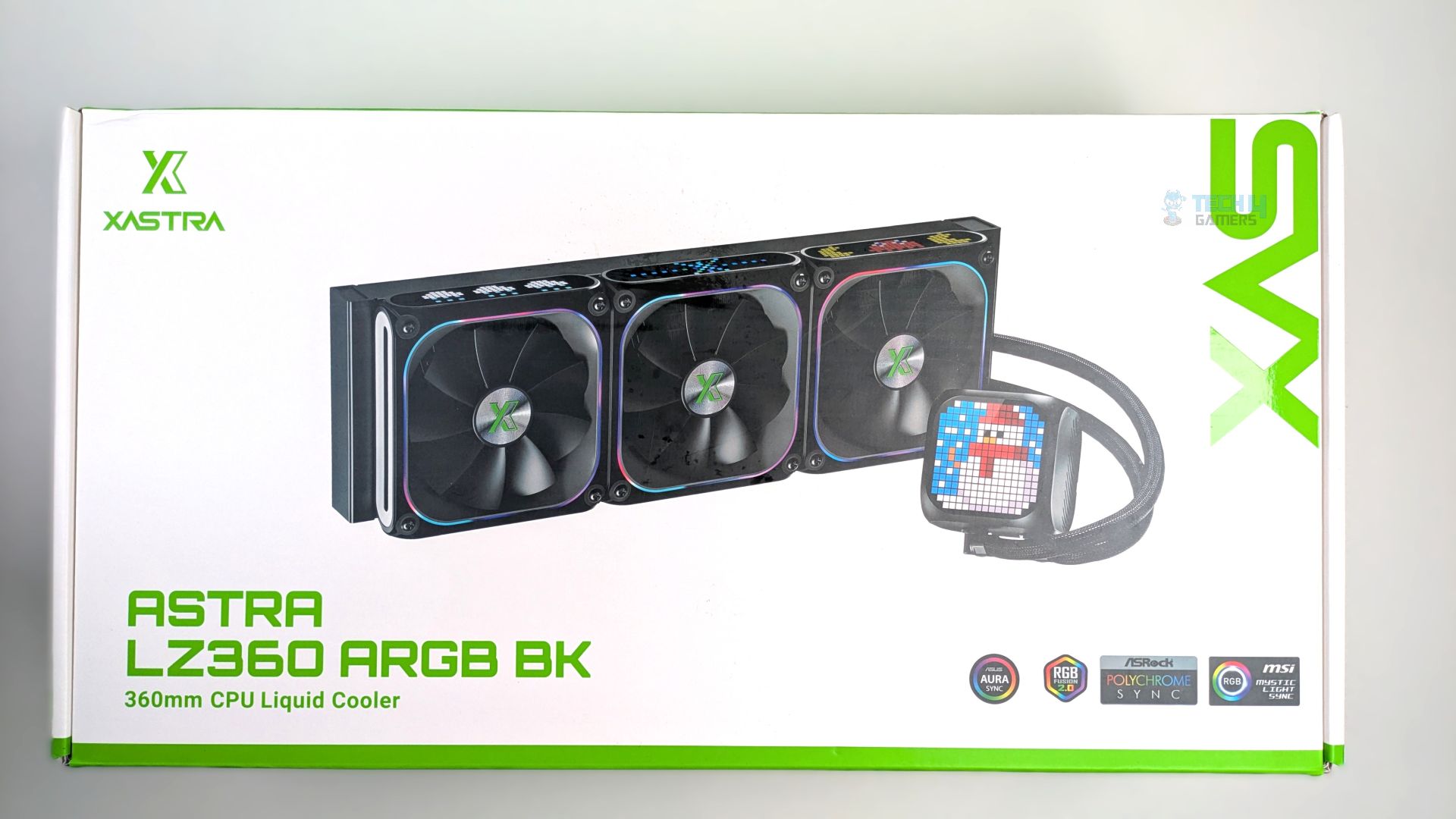
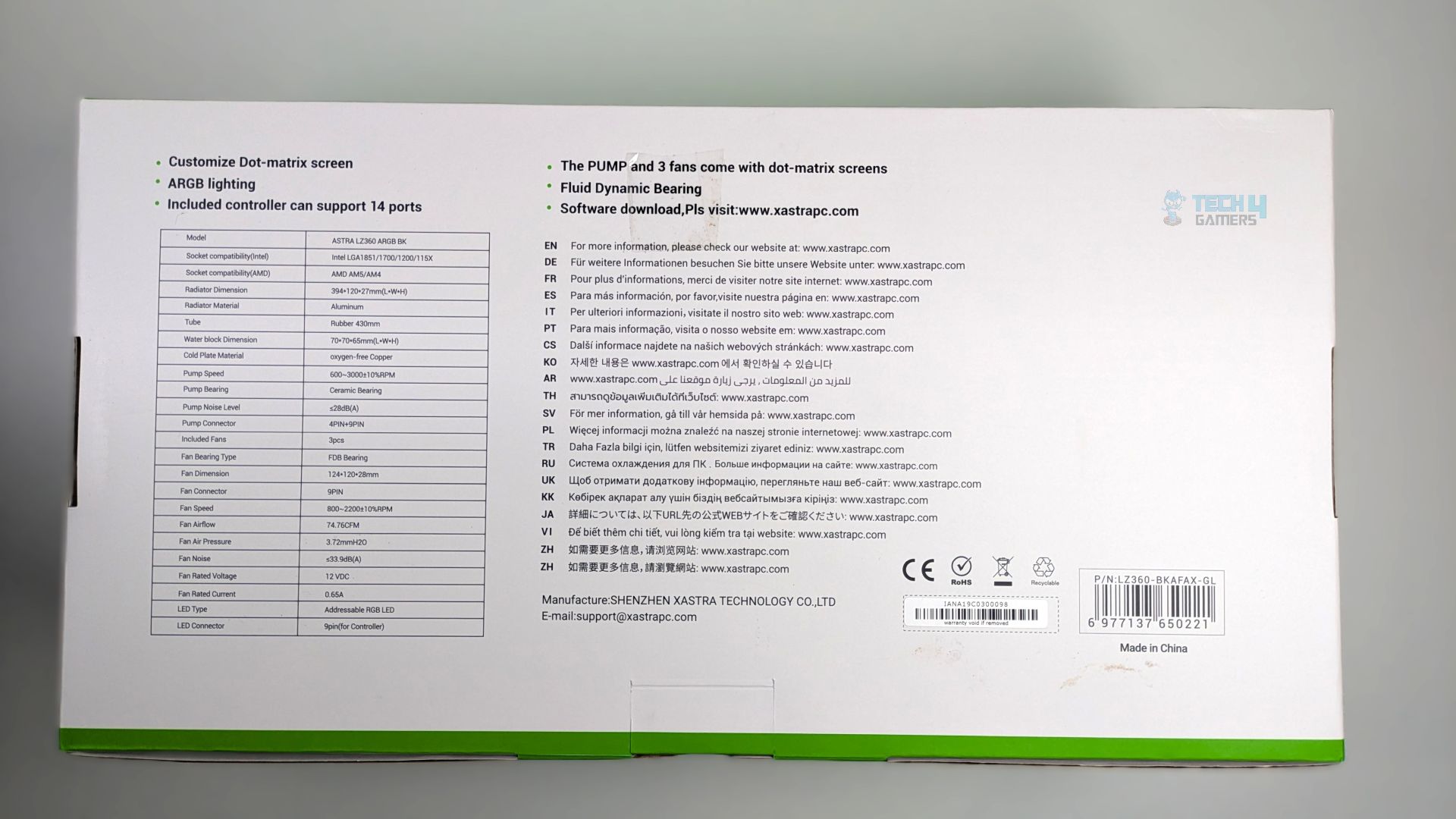
The front of the box shows a clear render of the Astra LZ360 BK liquid cooler, with a label at the bottom-right corner indicating compatibility with major motherboard lighting ecosystems from brands such as Gigabyte, ASUS, MSI, and ASRock. The outer uses standard cardboard.
The back panel of the packaging highlights key product features, including the customizable dot-matrix screen on the pump, the fans, and the cooler specifications.
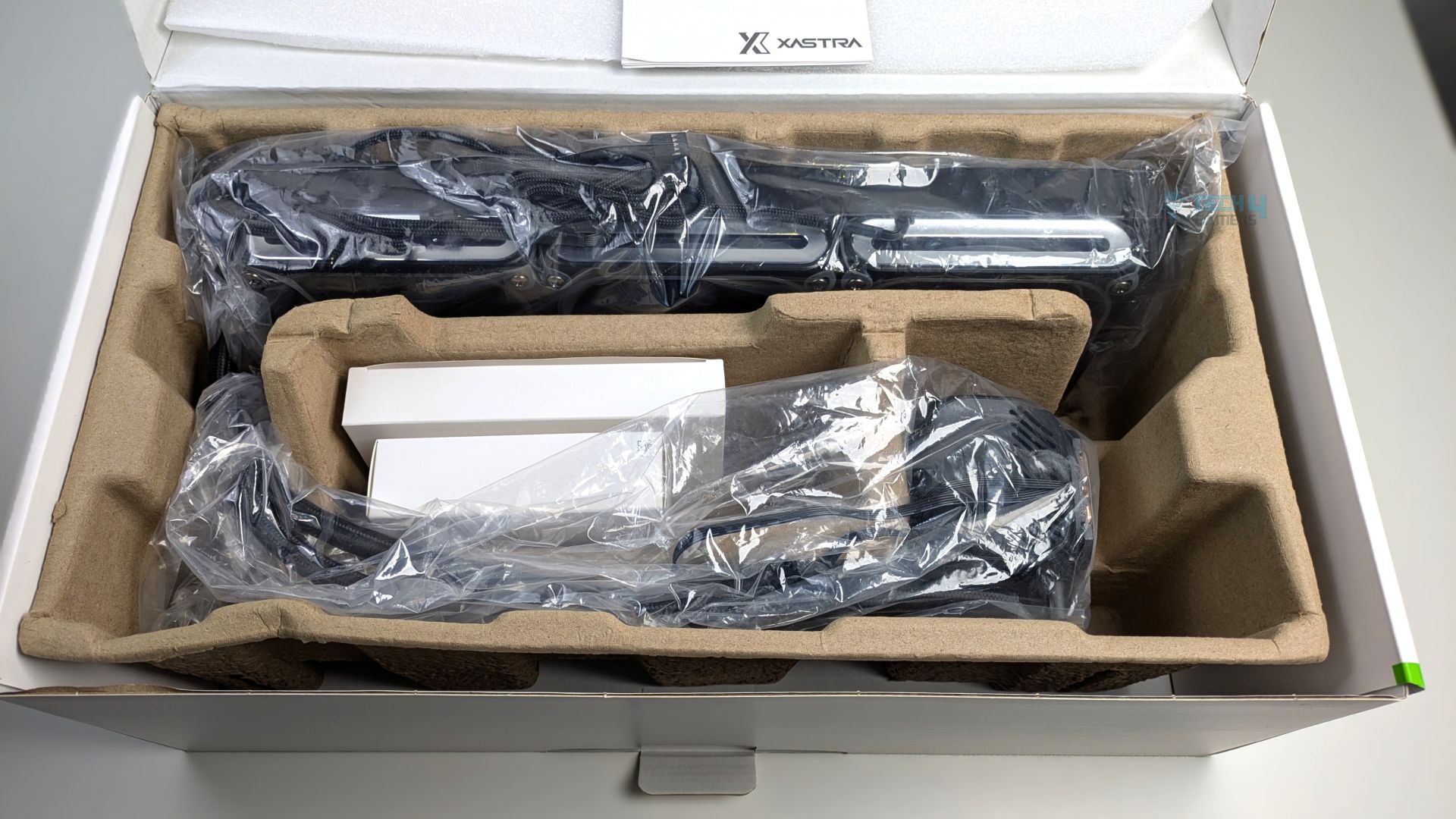
Upon opening, the user manual rests on top of the protective packaging; the internal components are protected by a standard cardboard tray covered in clear plastic bags.
The accessory and other small accessories are also tucked into separate white boxes. It is not the best packaging we have ever seen: extra foam would have been better, as we noticed the pump block was not properly tucked into a compartment. Also, the egg-carton tray feels very weak. Overall, the packaging is standard and similar to what you will also see in cheap liquid coolers.
ASTRA LZ360 Box Contents
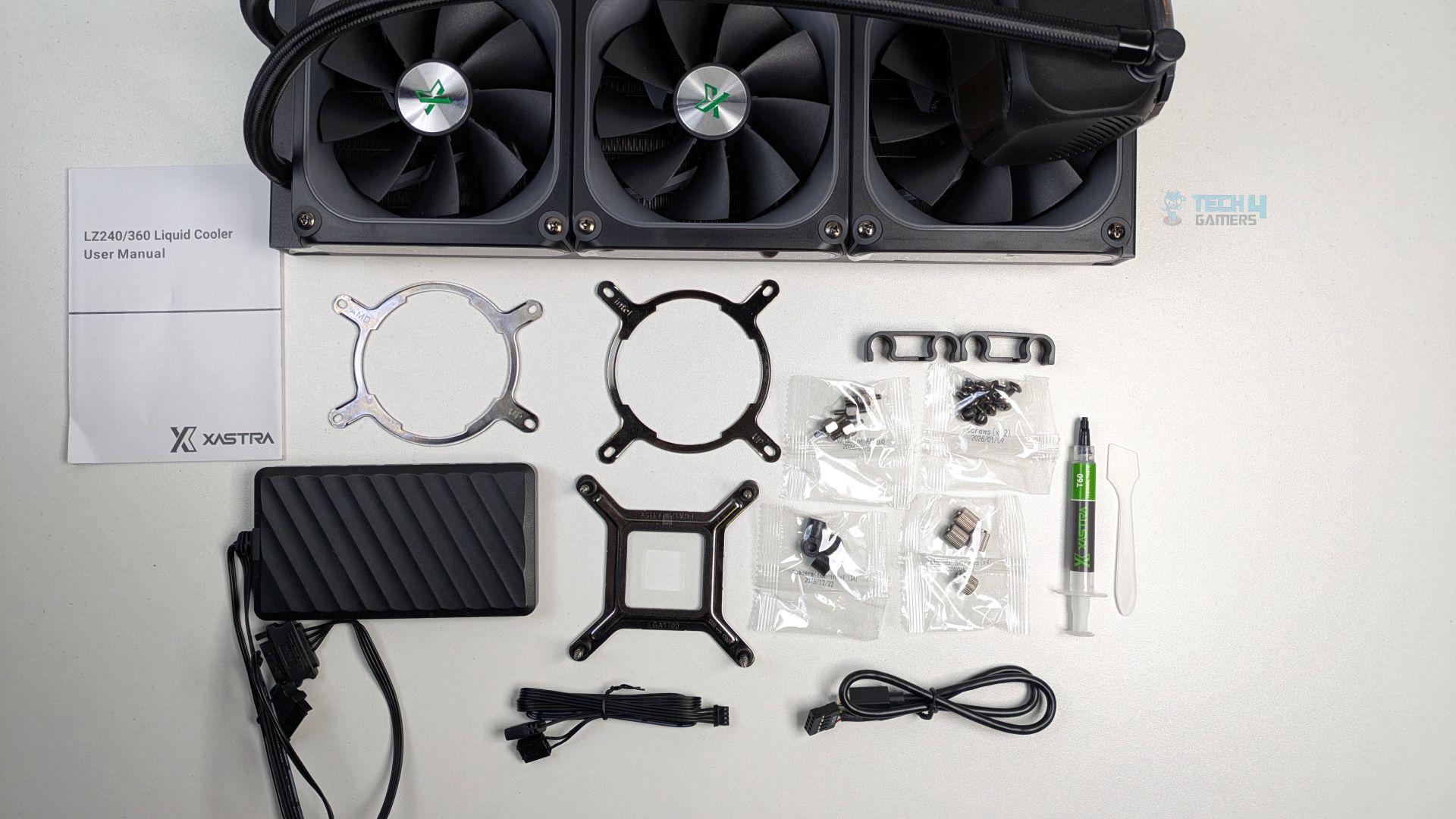
Since the ring mounting arm is not installed on the block, Xastra has provided two ring mounting arms for installation on each Intel and AMD platform. All the necessary accessories are also included, such as spacers, bolts, a radiator, thumb screws, and cables for connection to the controller; it’s not a typical controller hub with PWM connectors or ARGB 5V sockets. It’s a 14-port control hub with 14 individual proprietary 9-pin headers available.
Here is the list of accessories:
| Quantity | Accessory |
| 1x | Intel Backplate Supports Intel LGA1851 / 1700 / 1200 / 115X |
| 1x | Intel Mounting Arm Supports Intel LGA1851 / 1700 / 1200 / 115X |
| 1x | AMD Mounting Arm for AM4/AM5 |
| 4x | Intel Spacers |
| 4x | Thumb Screws |
| 4x | AMD Bolts |
| 1x | Xastra T60 Thermal Paste |
| 1x | Spatula |
| 12x | Radiator Screws |
| 2x | Tube Clips |
| 1x | User Guide |
| 1x | Controller Hub |
| 1x | USB Cable |
| 1x | ARGB and PWM Cable |
| 1x | Dual Sided Self-Adhesive Tape |
Close Look At The Radiator and Assembly
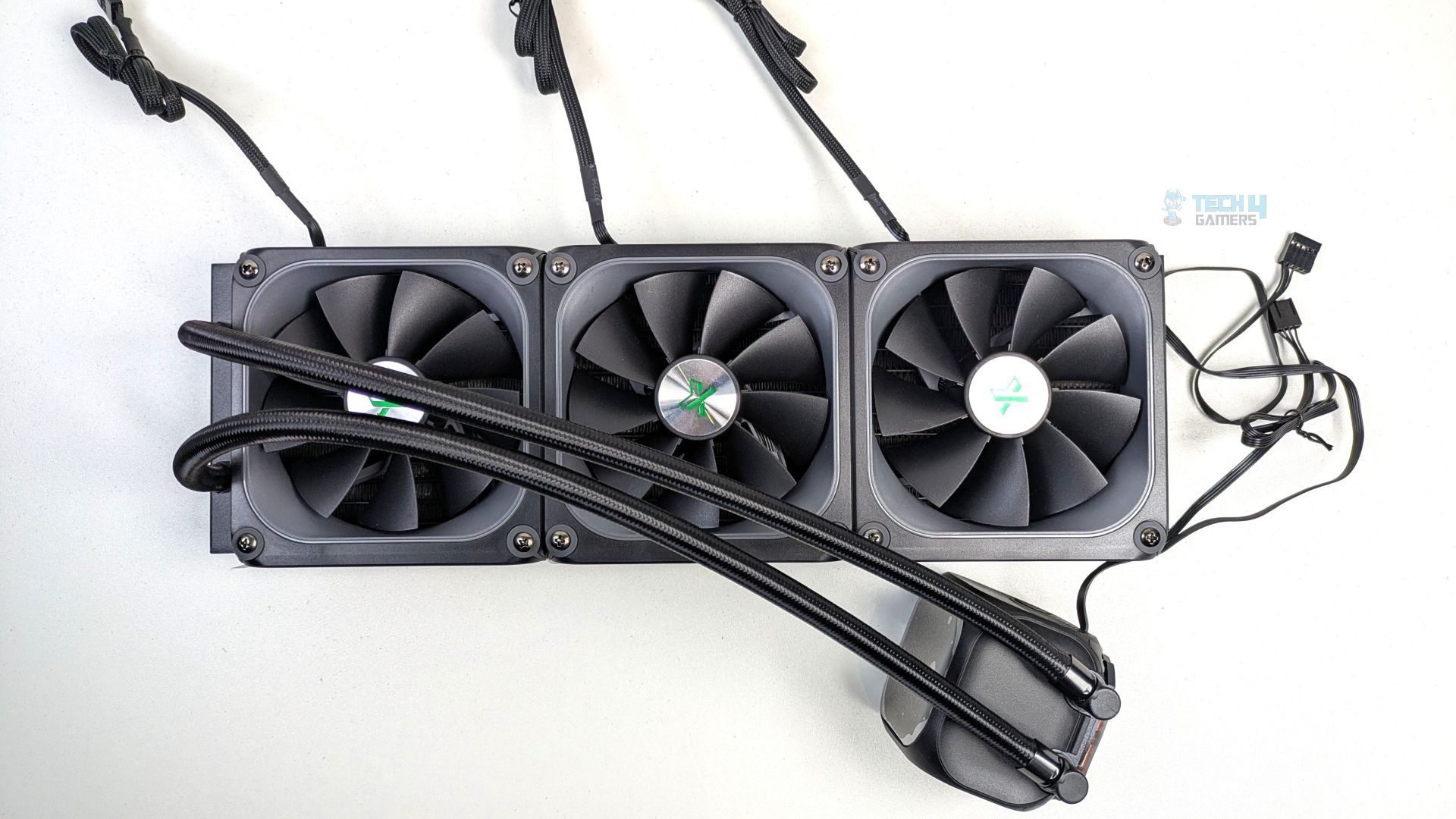
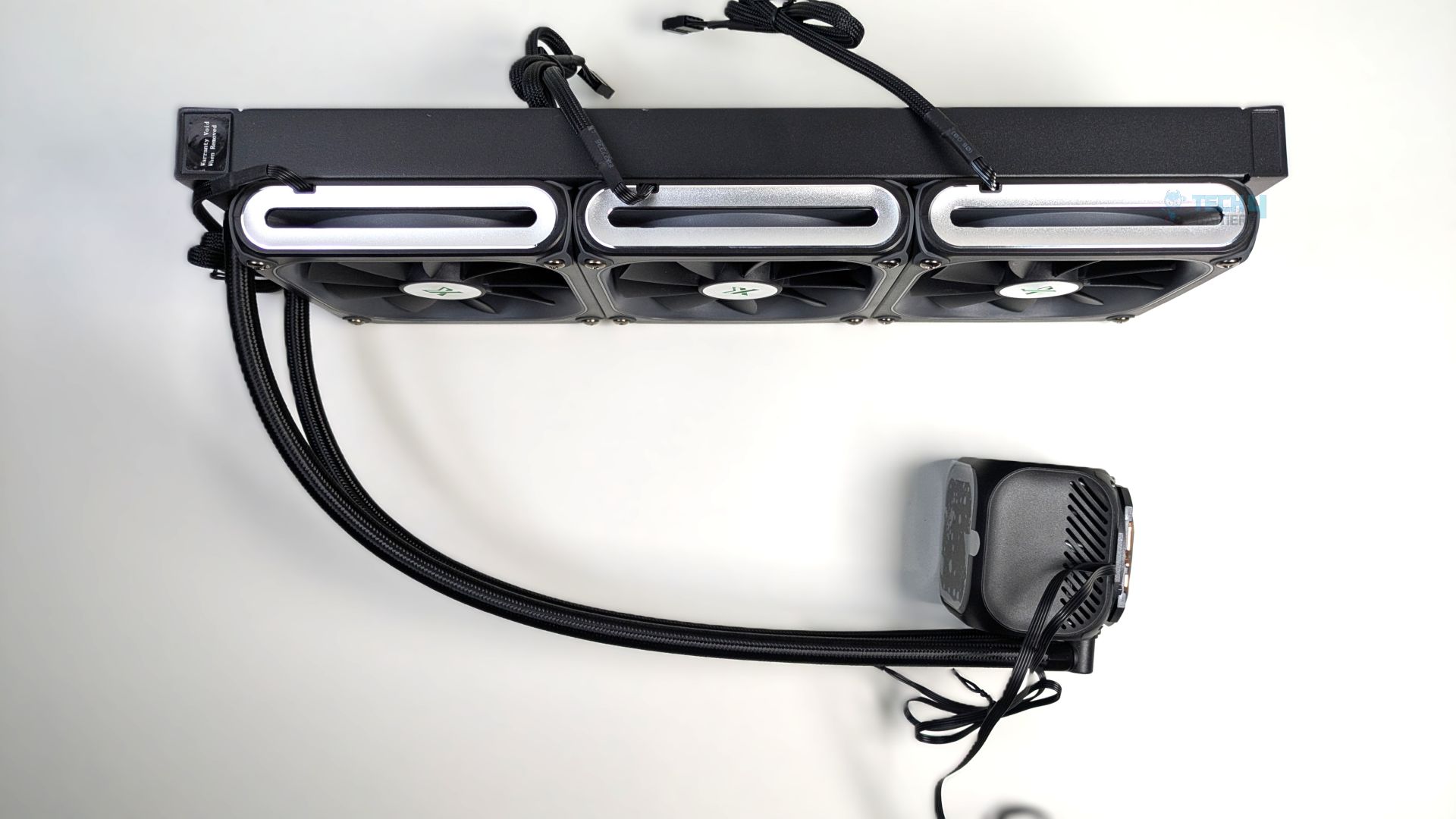
Now it’s time to look at what the cooler holds for us. The first thing you will notice is that three 120mm fans come pre-installed on a radiator out of the box, which is neat and standard practice nowadays for liquid coolers. We can notice the clean cable management setup here, as the entire fan cluster outputs only a single, sleeved proprietary 9-pin cable rather than a nest of individual PWM and ARGB wires. If one fan fails, it’s gonna be a very complicated situation.
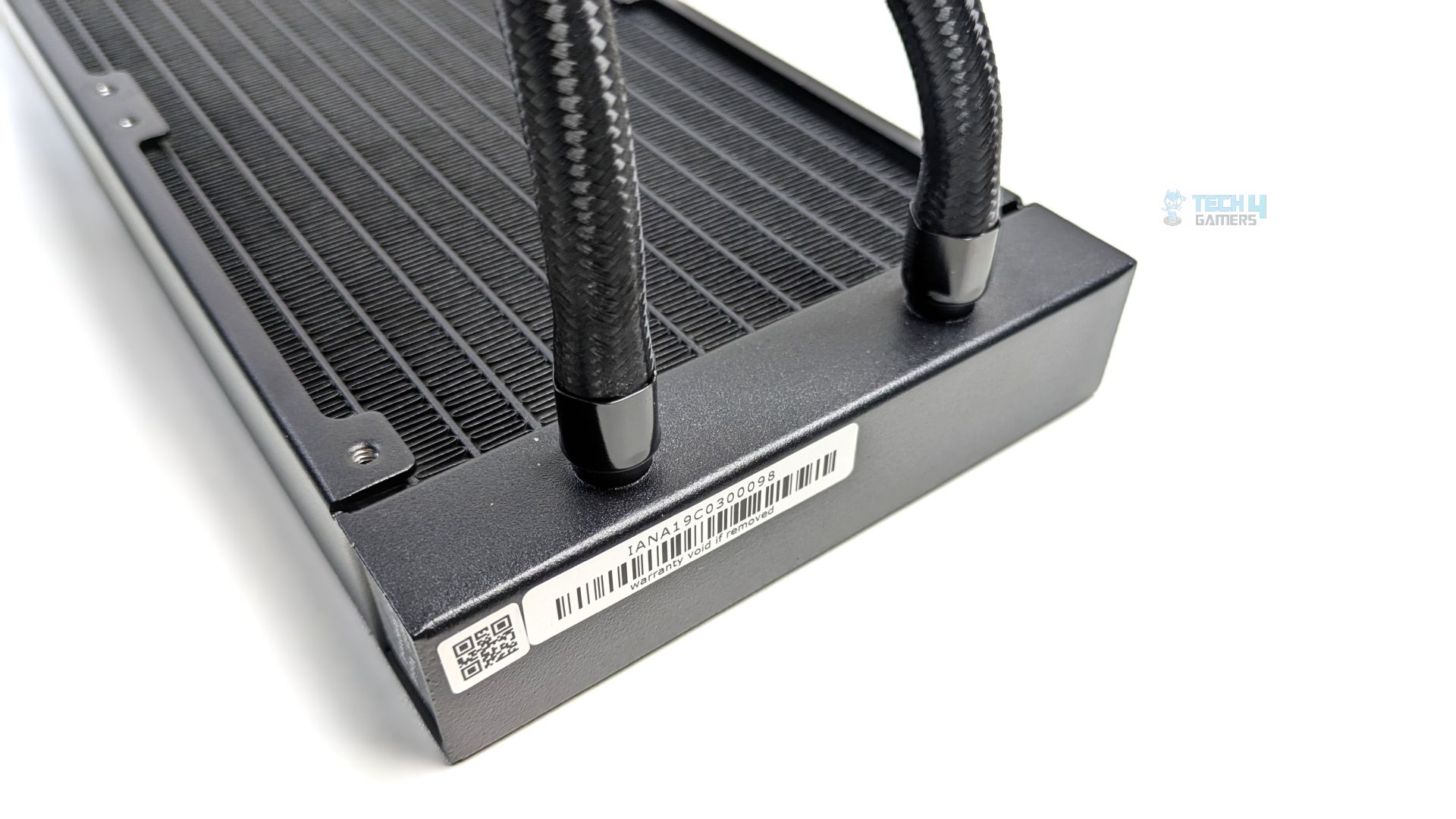
It’s a standard-sized radiator utilizing a high-density aluminium fin array with 12 coolant channels and features 20 FPI (Fins per inch), though it’s 27 mm thick, which is normal; you will find it even on cheaper options.
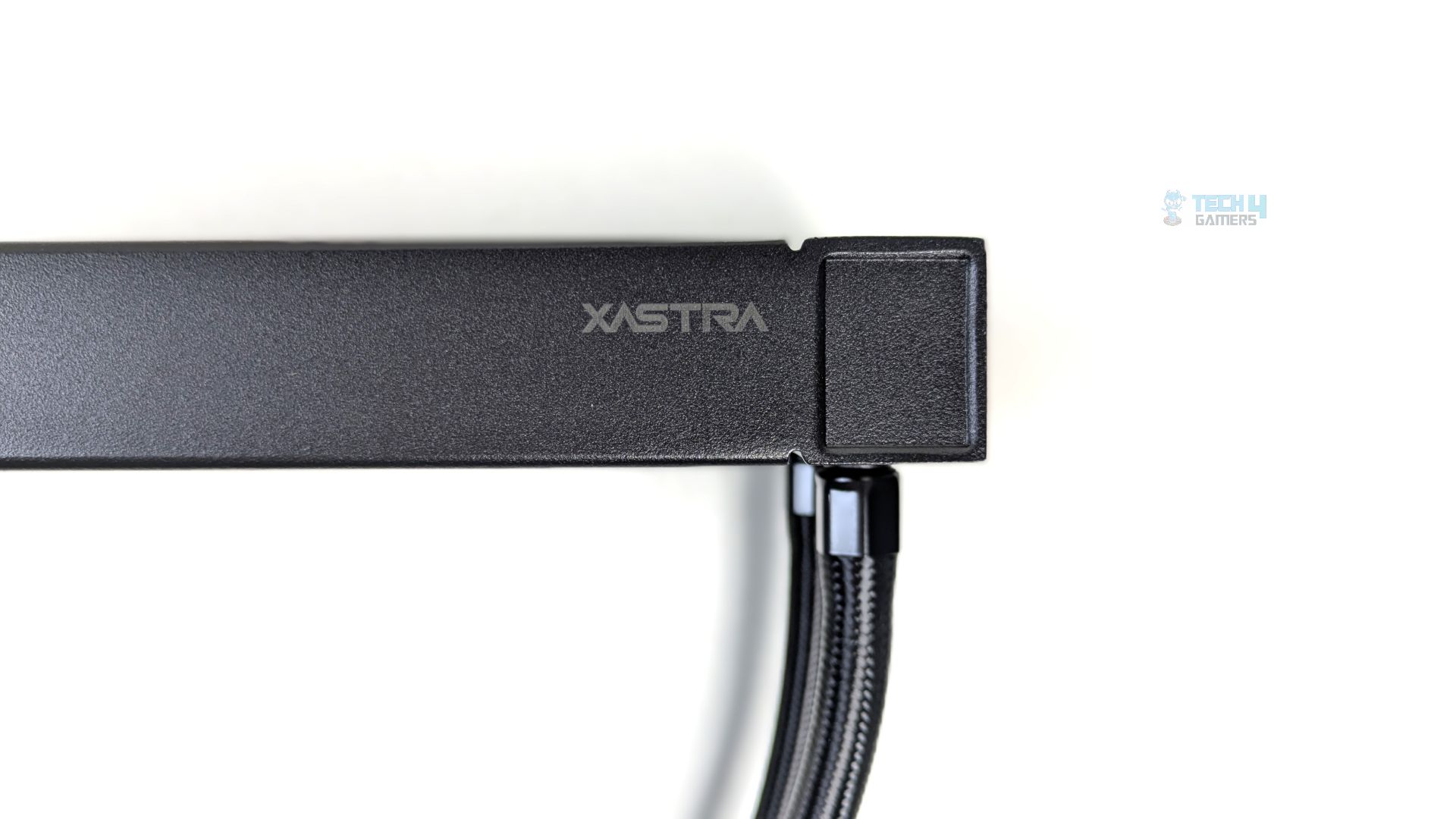
A subtle, dark grey XASTRA logo can also be seen on the radiator frame’s side panel; the tubing is fully sleeved in dense black nylon braiding and secured with black metal collars. The tube length is 400 mm, which is typical.
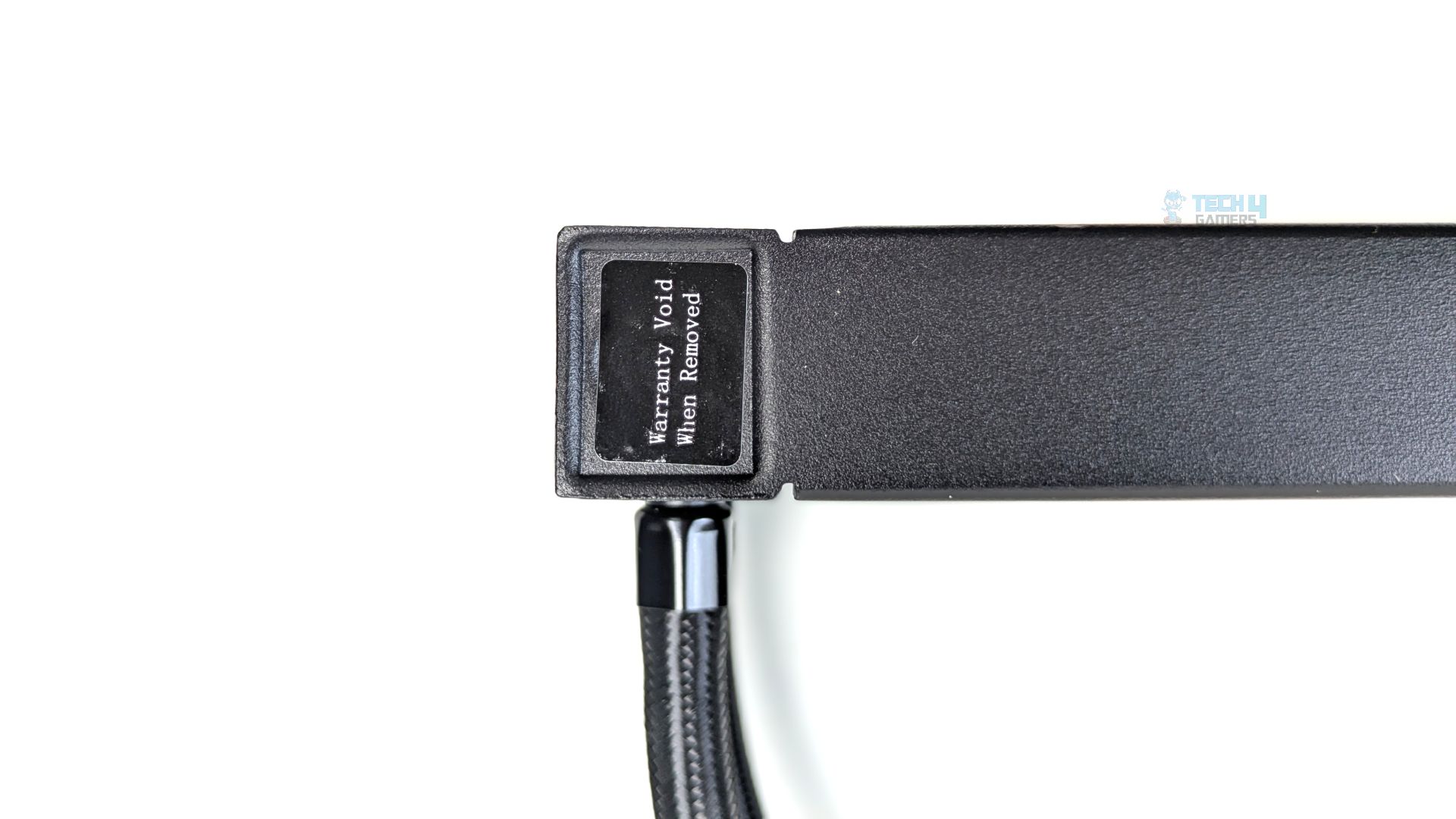
On the rear side, you can see the water-filling port with a sticker that reads ‘Warranty Void when removed.’ So far, the radiator is standard-sized, and there is nothing extraordinary about it.
Pump Design / Housing
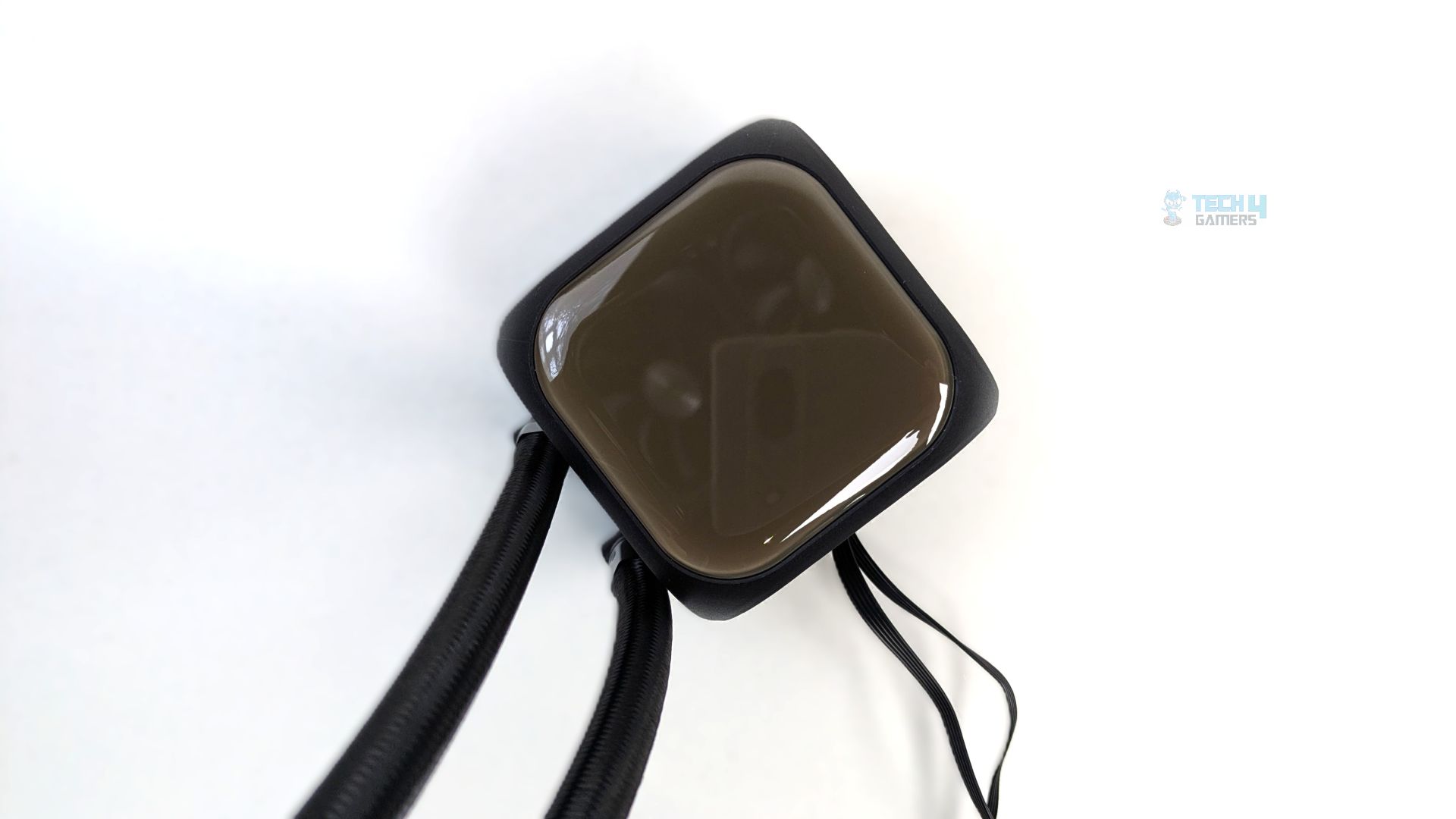
The top of the pump features a rounded, square, glossy, tinted surface. It is different from a standard IPS LCD screen you might see, as beneath the surface lies a 16×16 LED matrix. The dark tint hides it when the system is powered off, and the LED is housed in matte black plastic. The sleeved rubber tubes connect to the side of the pump block via 90-degree fittings.
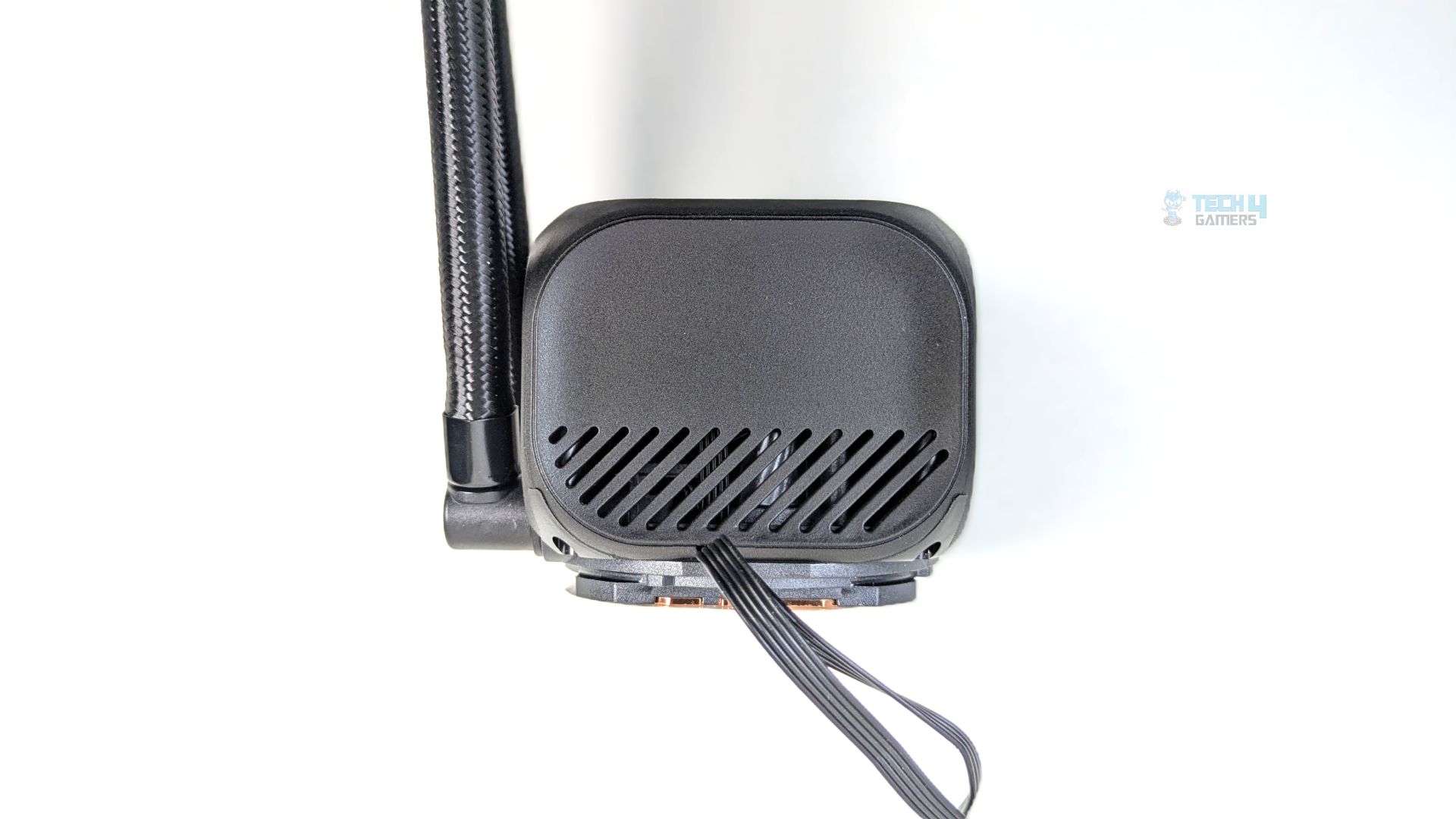
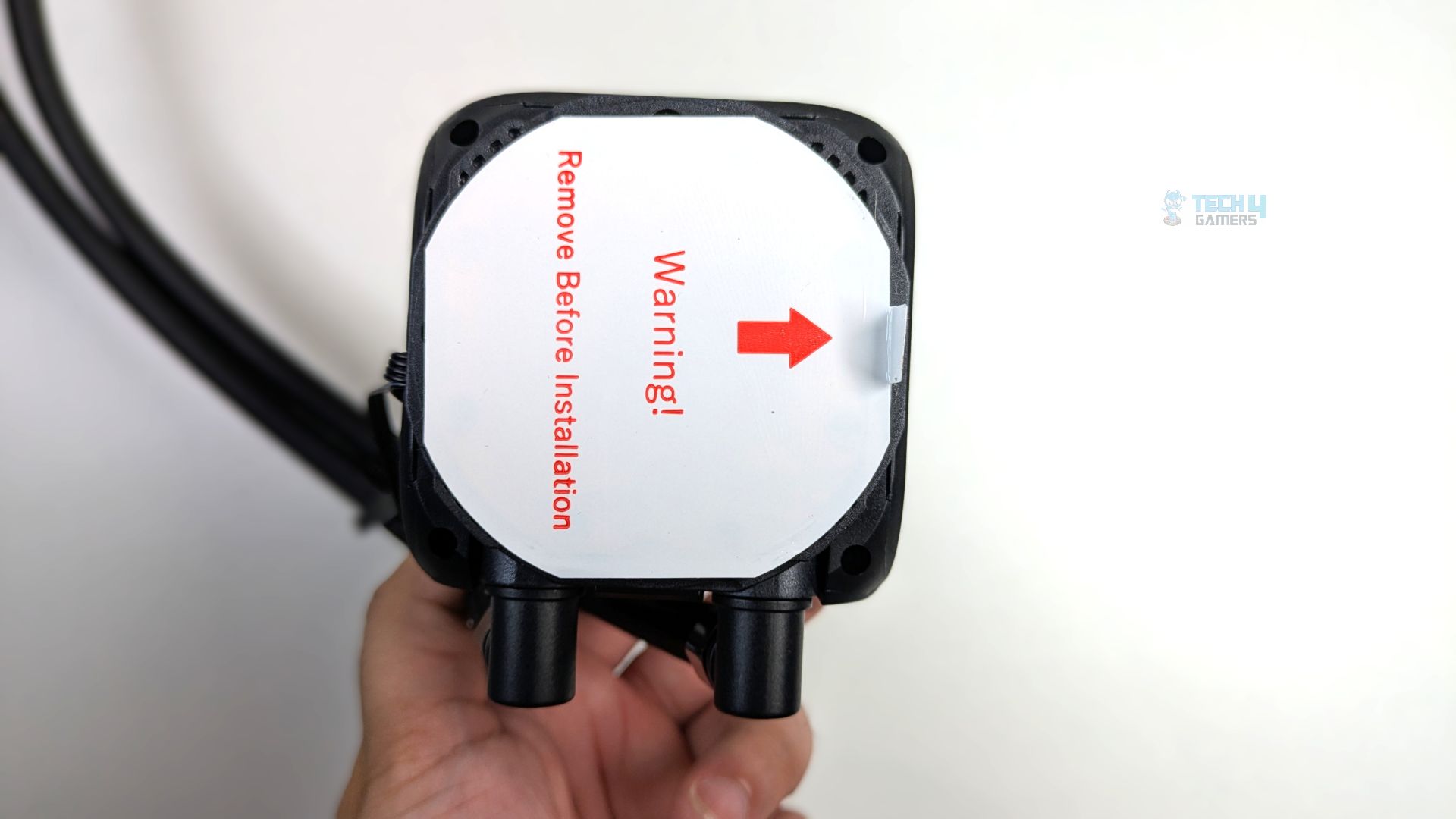
There are also ventilation cut-outs on the side of the pump; it likely helps dissipate heat from the high-speed ceramic pump motor and the LED matrix PCB. The underside reveals the large oxygen-free copper cold plate. By the way, there is no pre-applied thermal paste.
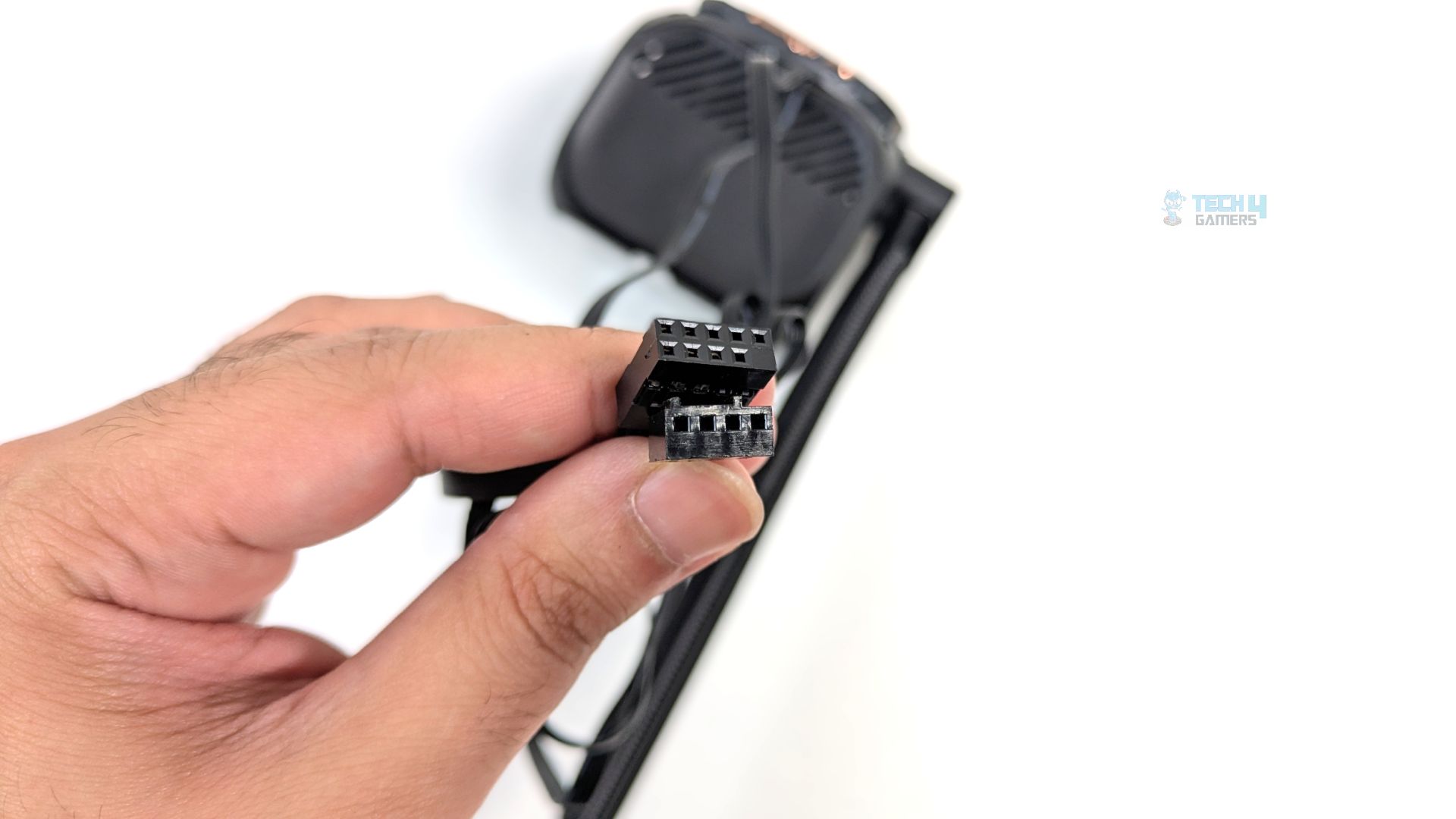
As for connectivity, you get two connectors on the bottom surface of the block: a 9-pin USB connector powering the 16×16-pixel matrix screen, which plugs directly into the provided controller hub, and a standard 4-pin PWM connector powering the pump.
Fans
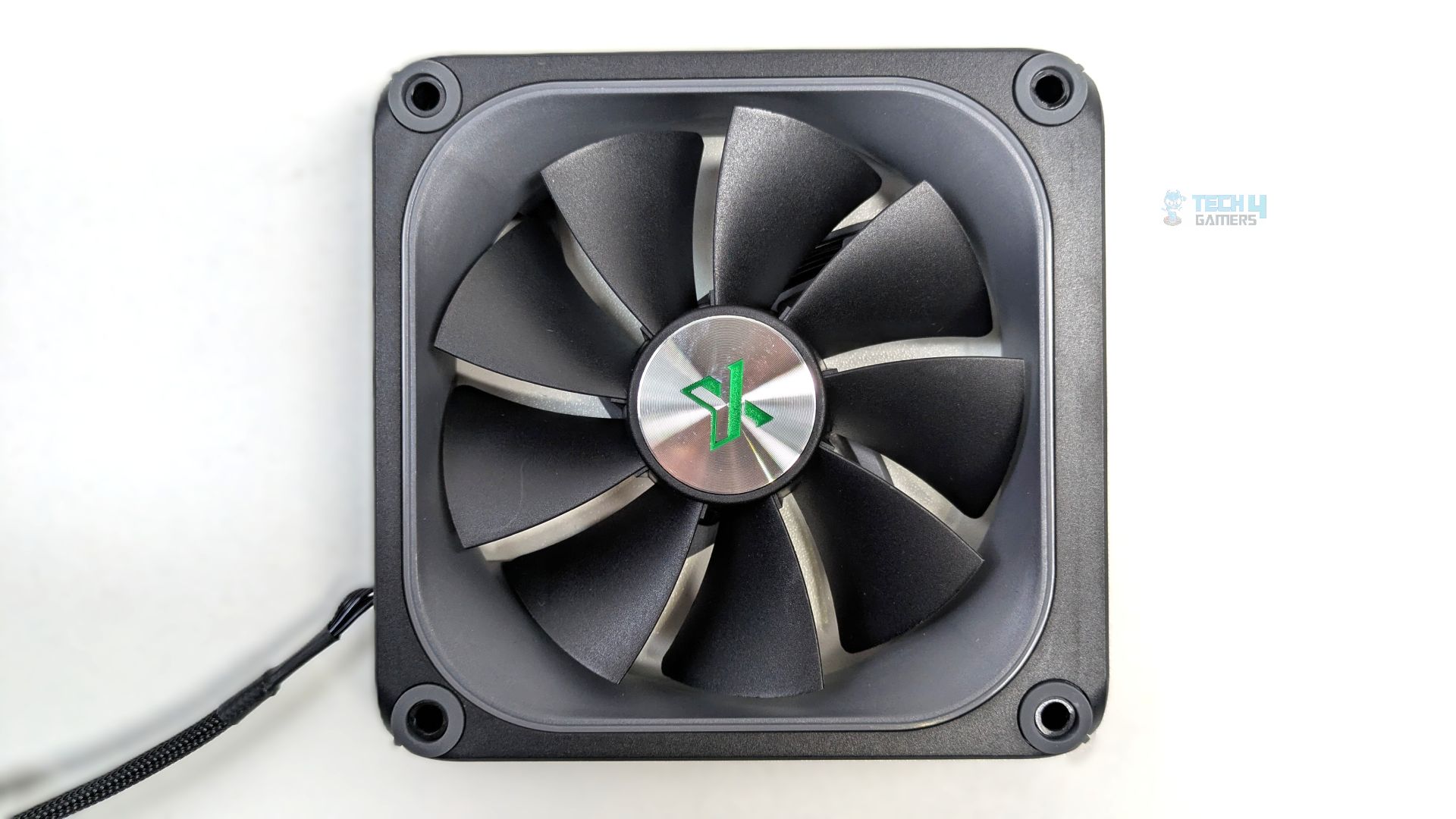
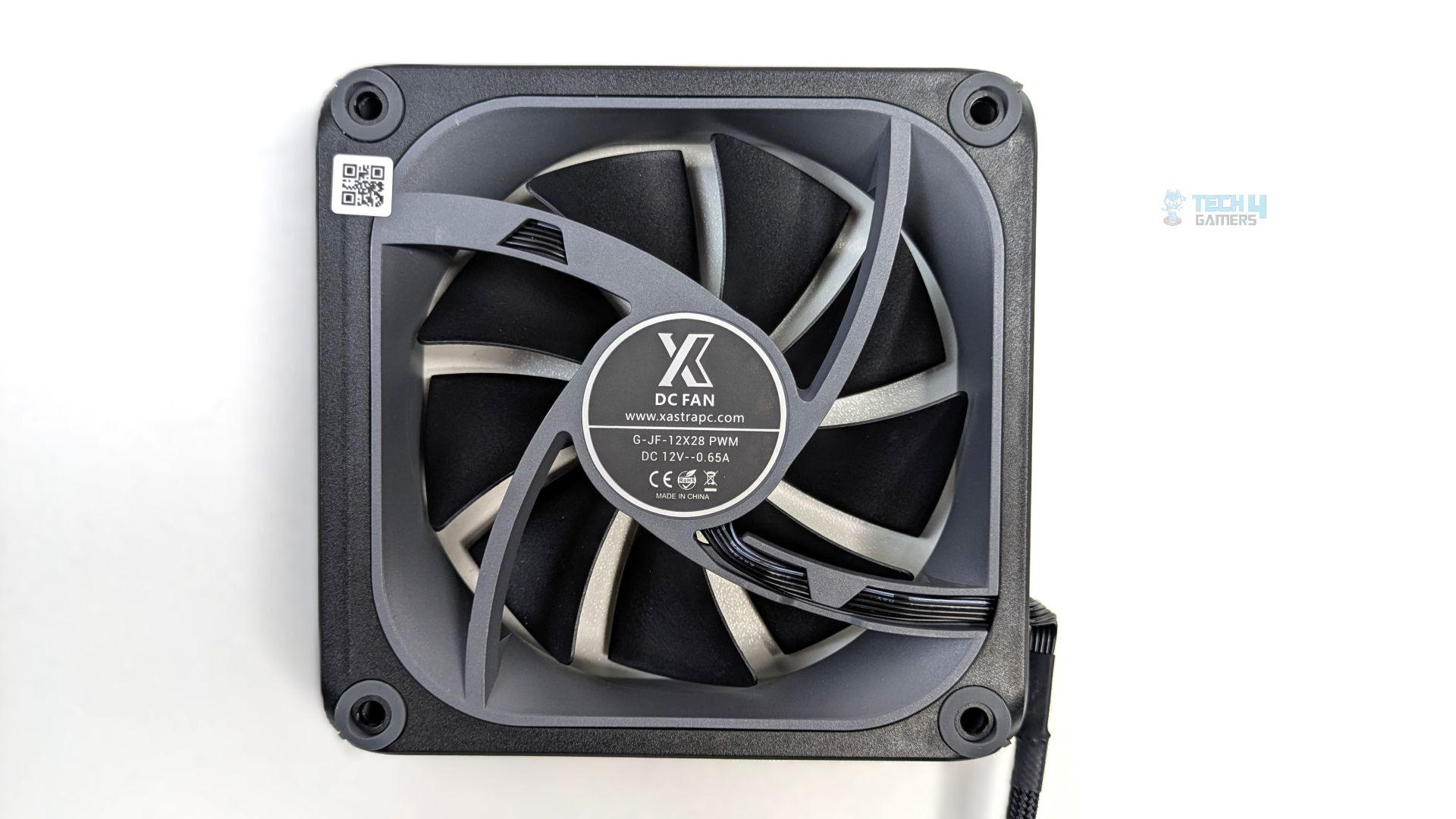
Now they have put some serious work into the fans, utilising the 9-blade configuration; the aggressive curvature of the blades is evident here, likely designed to build high static pressure. The centre of the hub is a circular brushed-metal sticker with the Xastra logo stamped right in the middle. Each of the four mounting corners contains integrated anti-vibration rubber grommets. Now this is exactly how the premium fan should be!
At the back of the frame, the label reveals the model of this fan, which is G-JF-12X28 PWM, and it operates at DC12V with a rated current of 0.65A. Under the hub, the fan uses an FDB (Fluid Dynamic Bearing). The fans are PWM-controlled with an RPM range of 800–2200 RPM, an airflow of 74.76 CFM, and an advertised noise level of <33.9 dB(A).
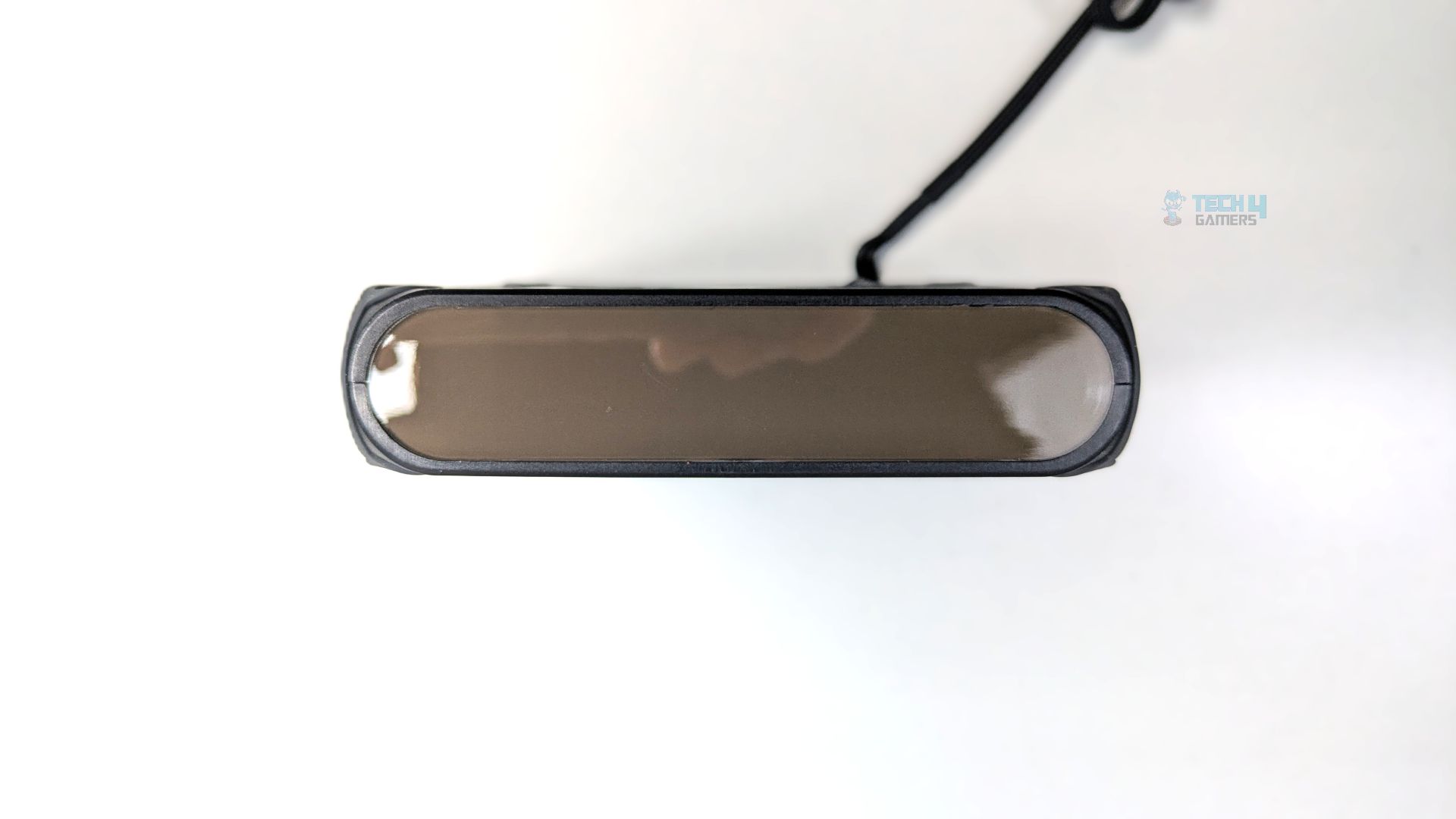
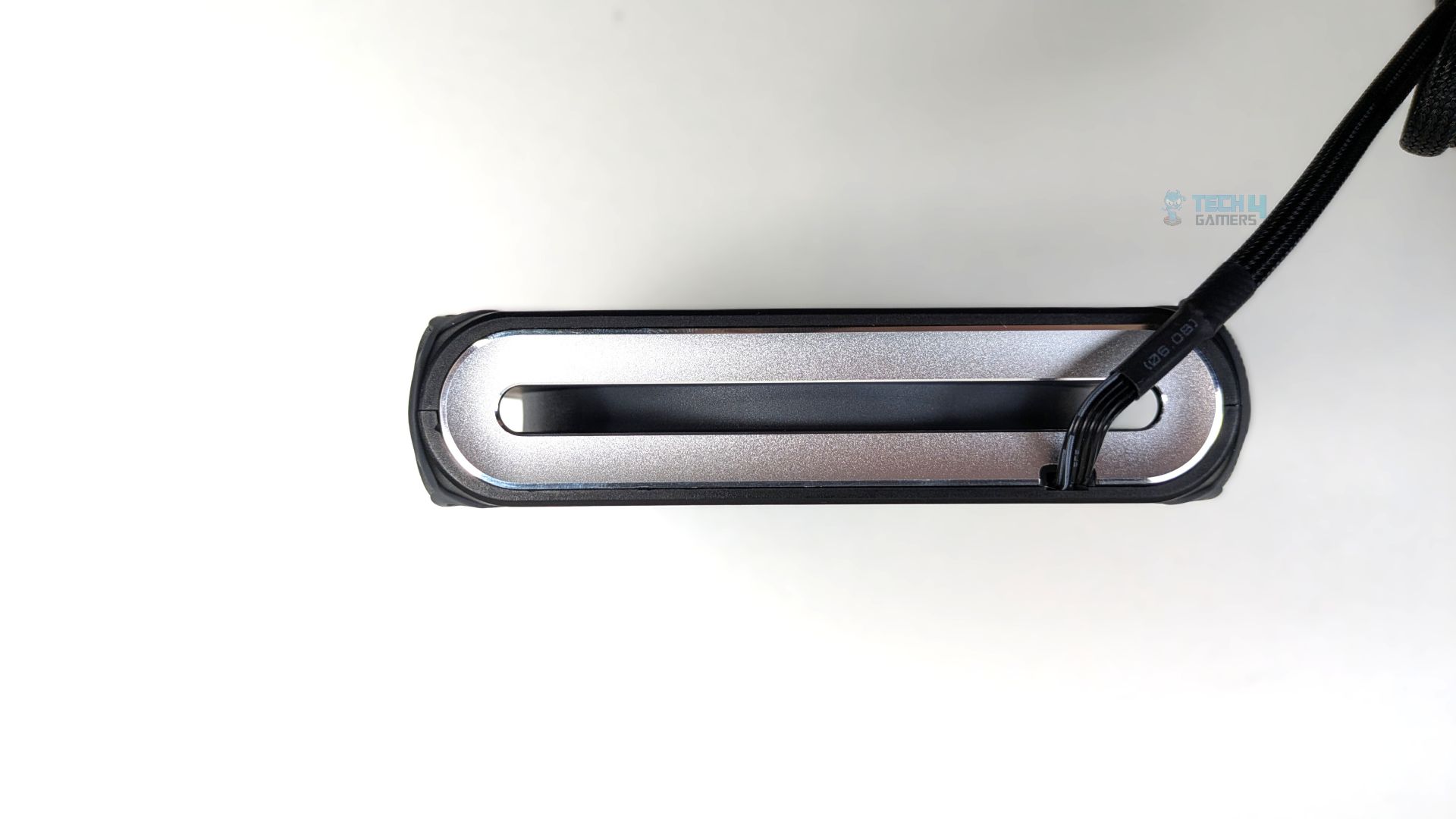
Looking at the fan’s side profile, one side reveals the 28×8 LED pixel matrix panel, which is dark-tinted; the other three sides feature a striking silver metallic pill-shaped outline, providing an elegant silver aesthetic. Another thing we need to highlight is that the frame is 28mm thick, which is 3mm more than a standard size.
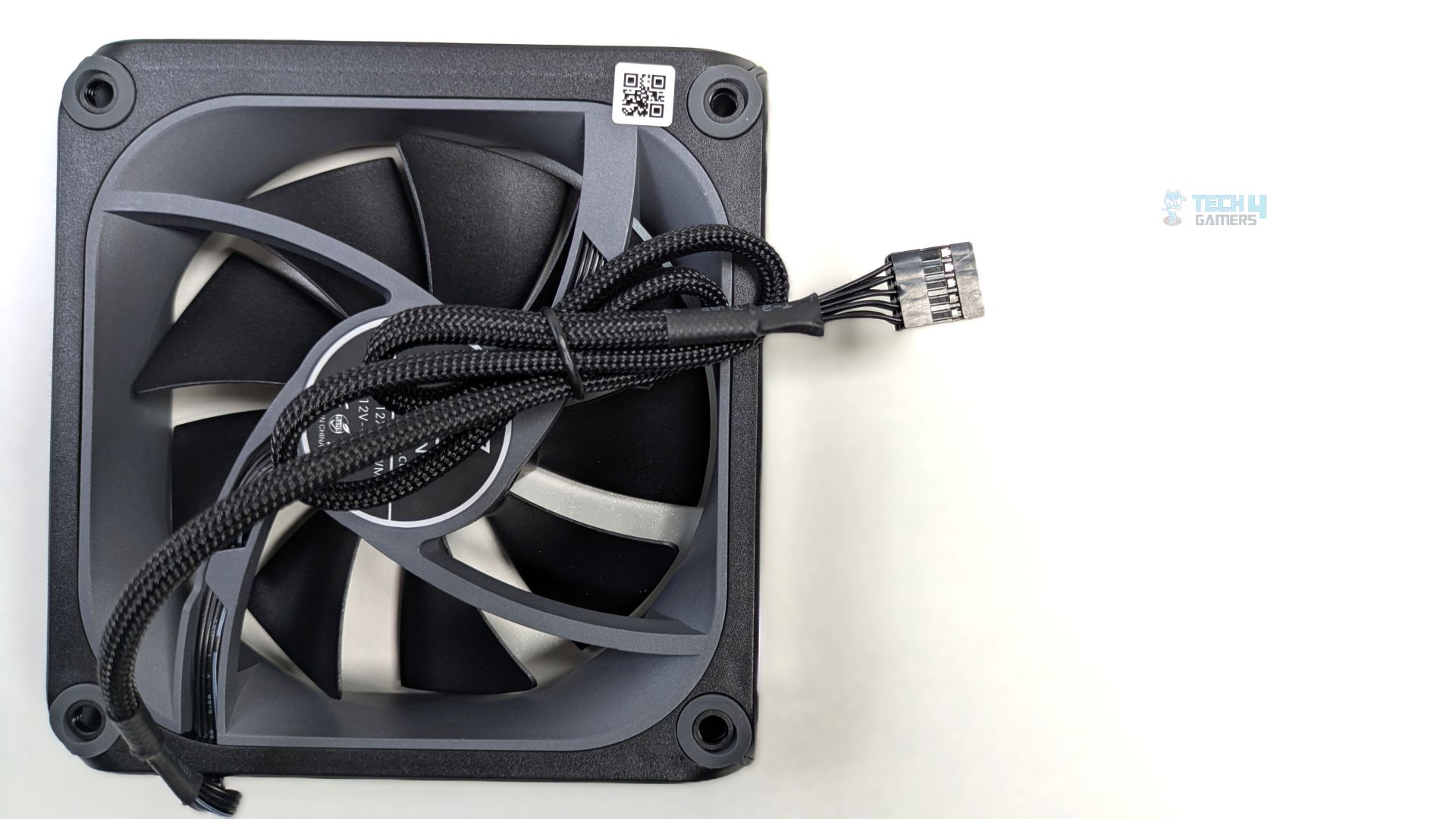
For connectivity, you have only a proprietary 9-pin cable; this single connector carries PWM motor power, ARGB signals, and power for the screen.
Installation (AMD)
We’re using the AMD platform, so our installation steps will only be provided for that.
Prepare the socket
First, you need to remove the motherboard stock retention brackets from your AM4/AM5 motherboards. Then, you must mount the (AMD) standoffs into the four exposed threads of the motherboard backplate. Once you have done that, take the AMD ring bracket from the accessory kit and slide it onto the block.
Now, apply the thermal paste to the CPU, and then install the block by using the four cylindrical nuts and secure it properly.
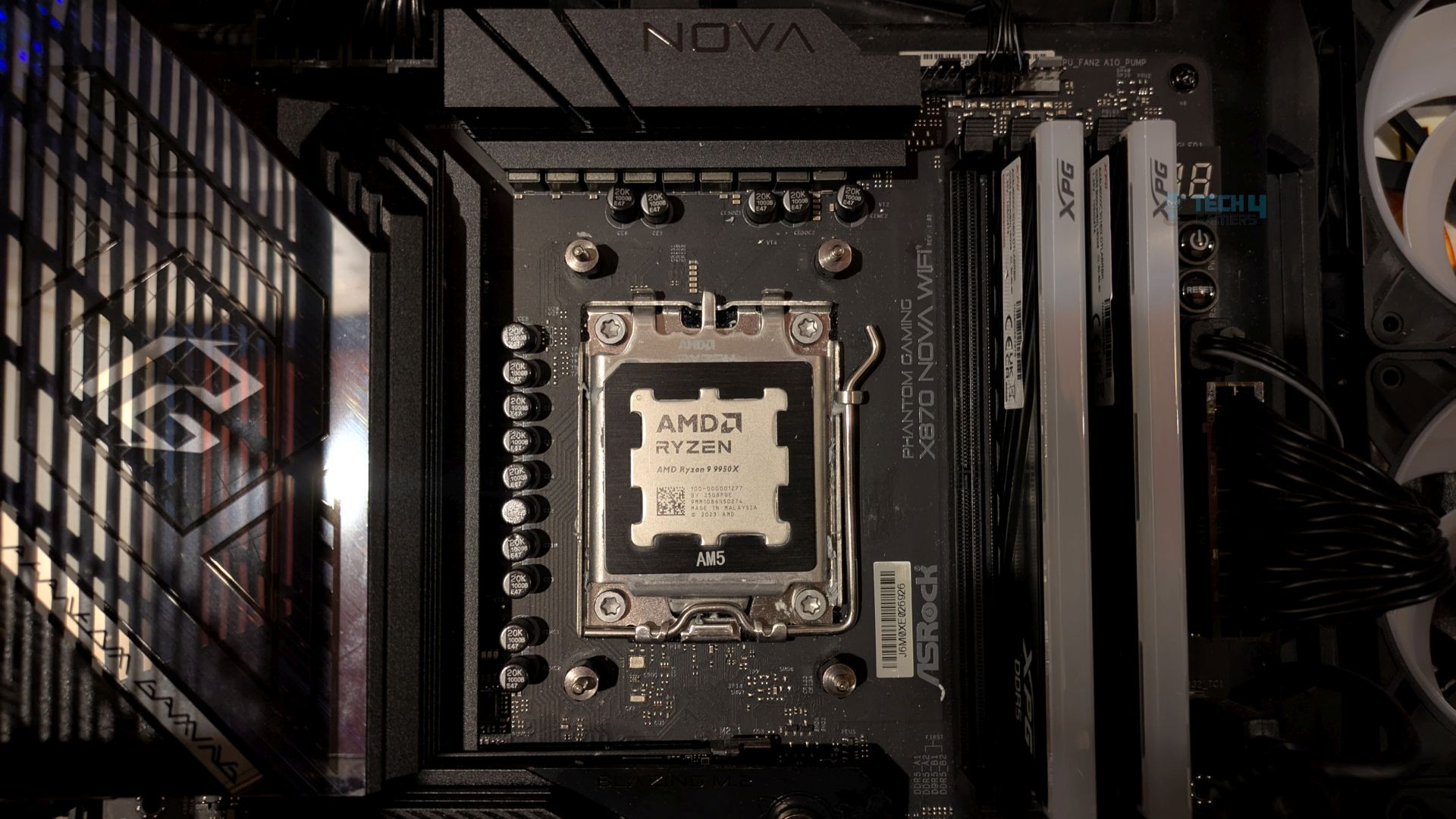
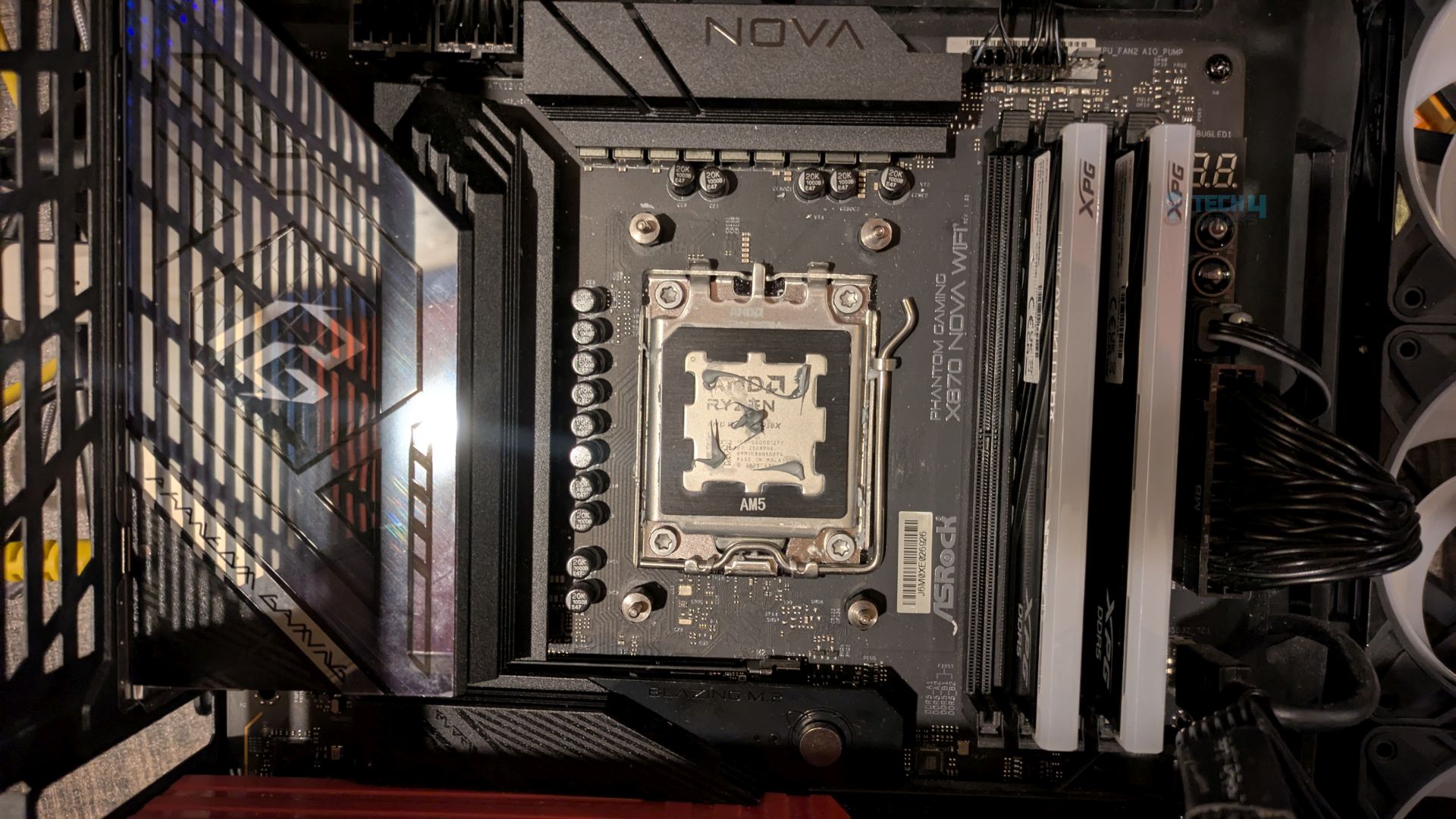
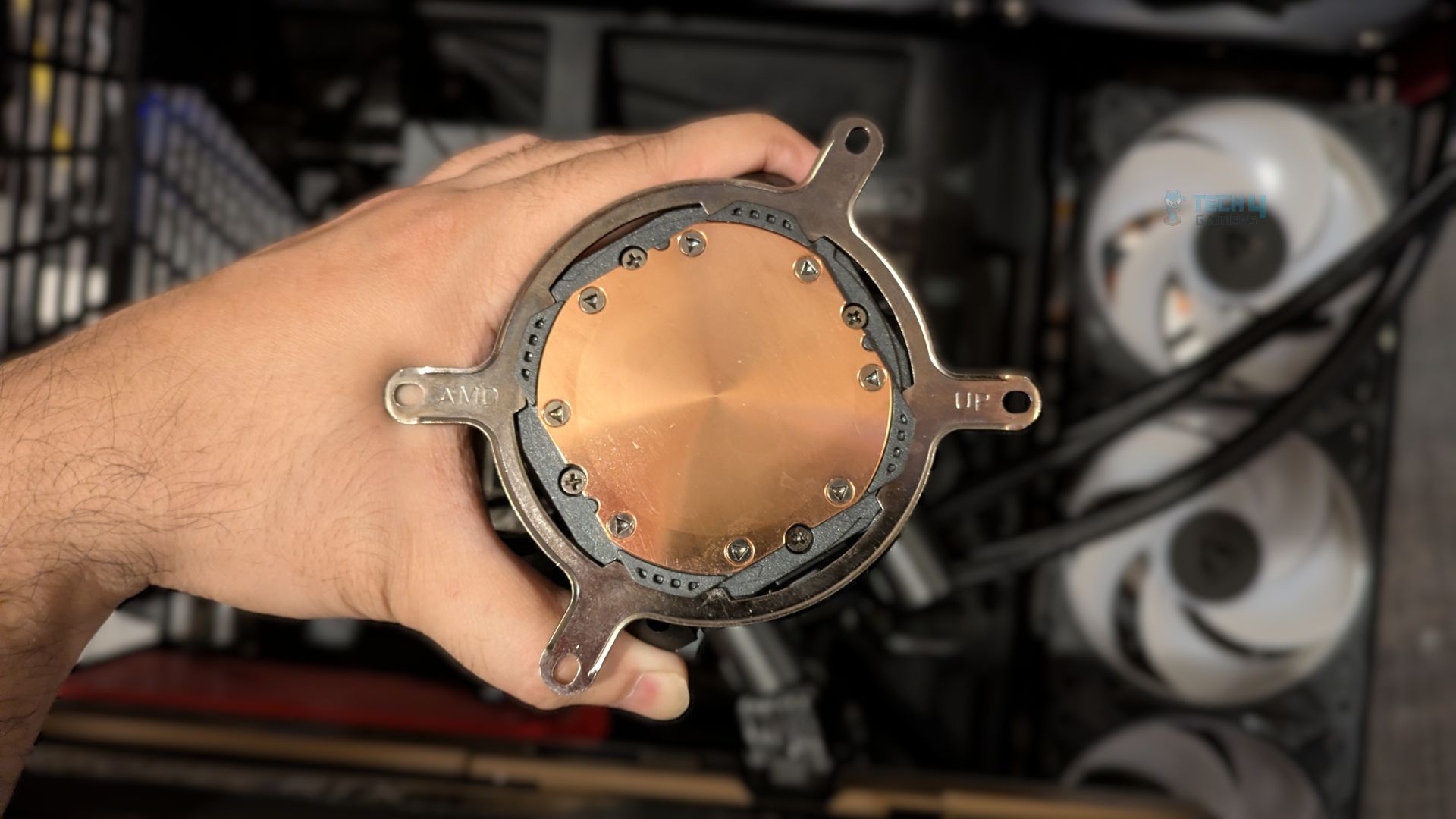
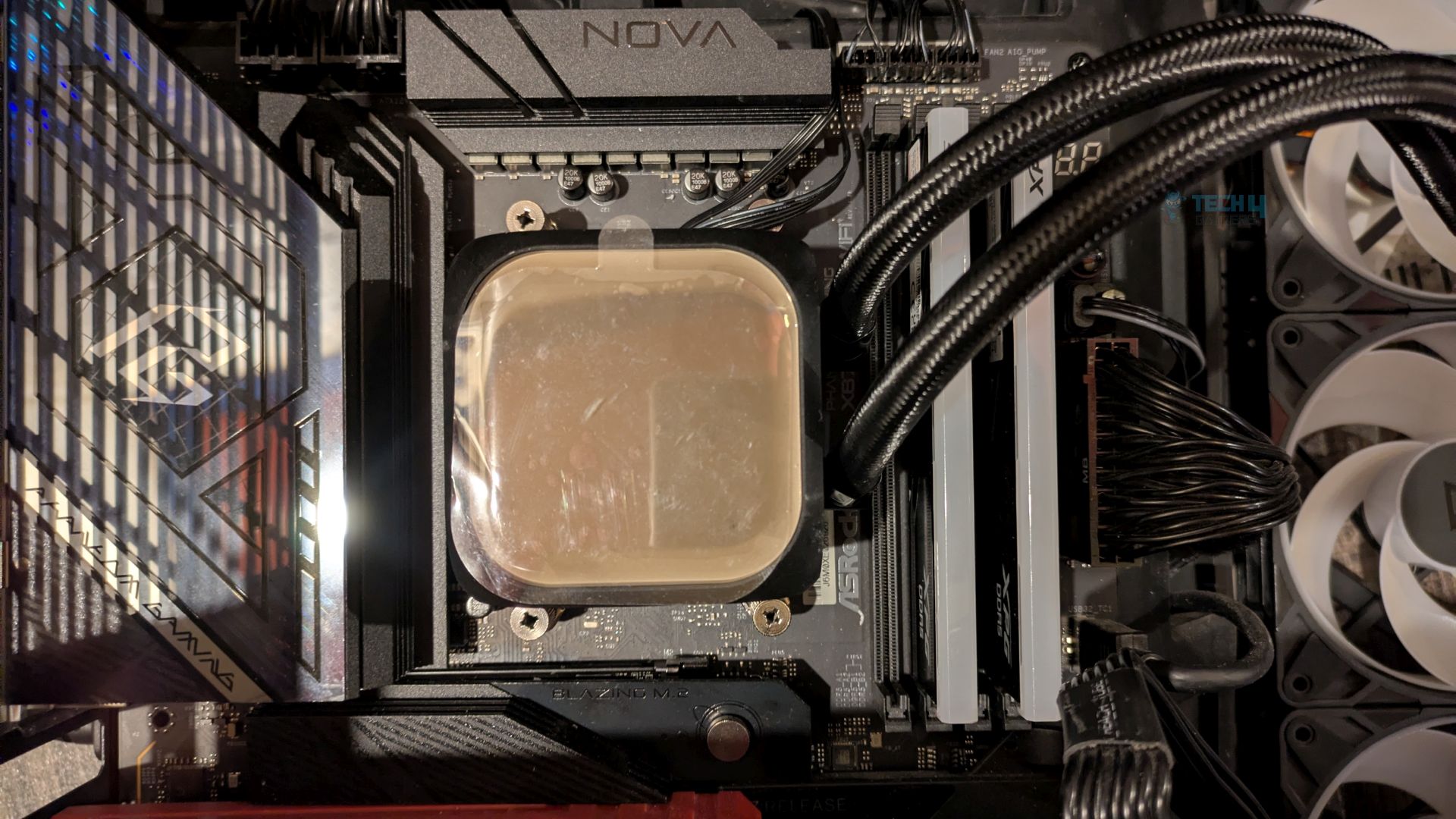
The installation process was straightforward.
Finished Looks
The completed installation of the cooler within the HYTE Y70 chassis is shown below. The unit is mounted at the top and configured for exhaust operation.
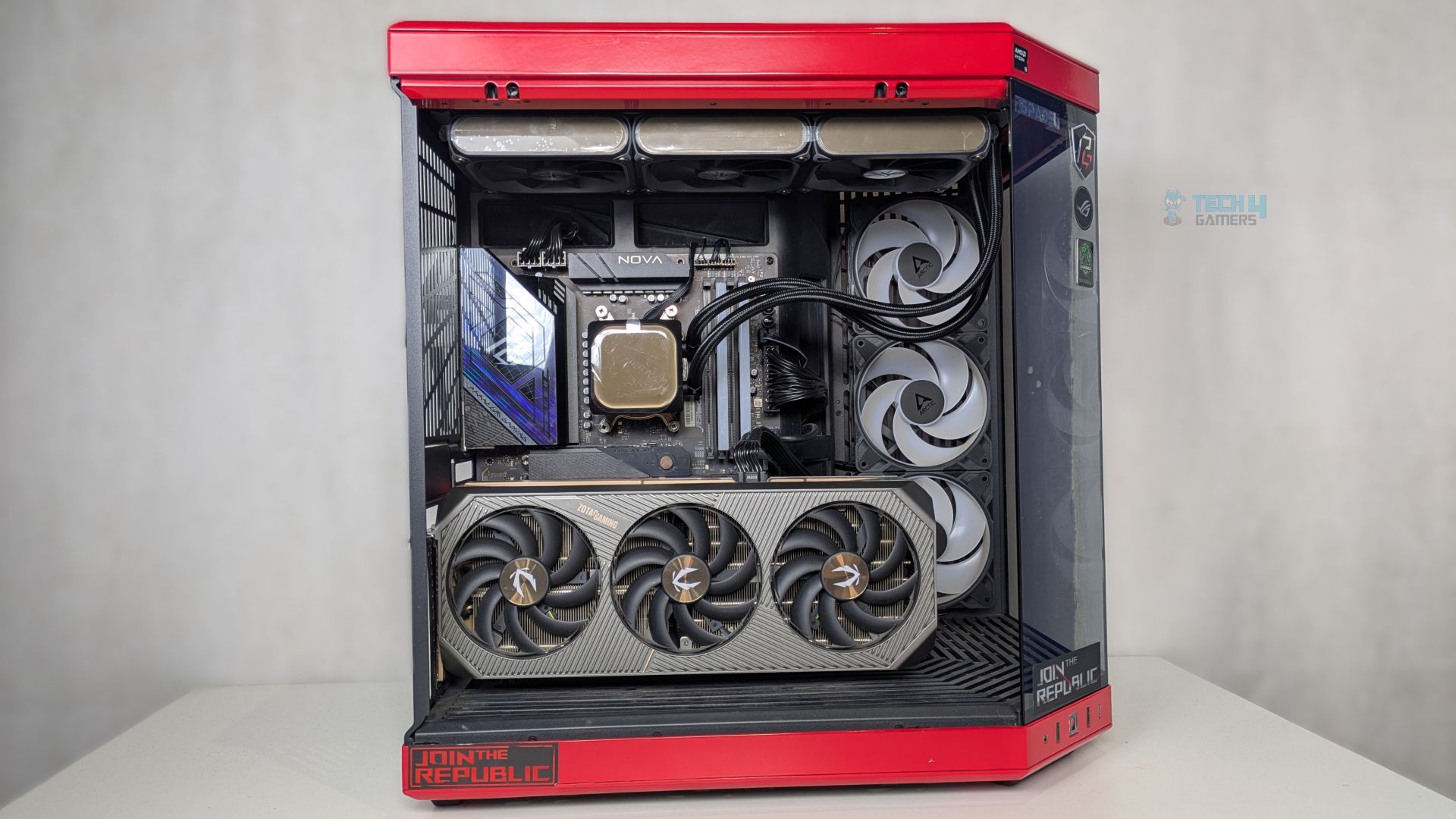
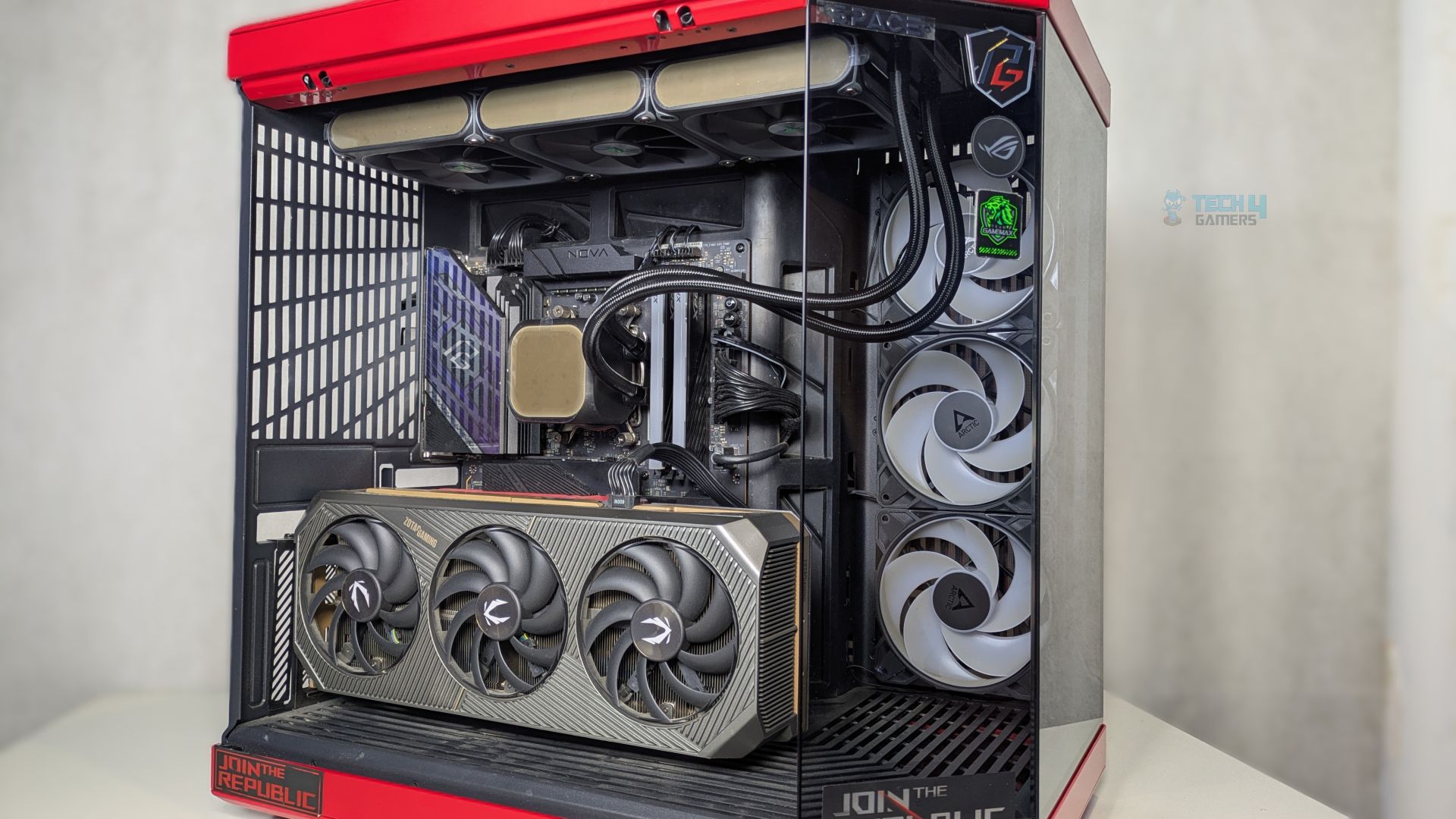
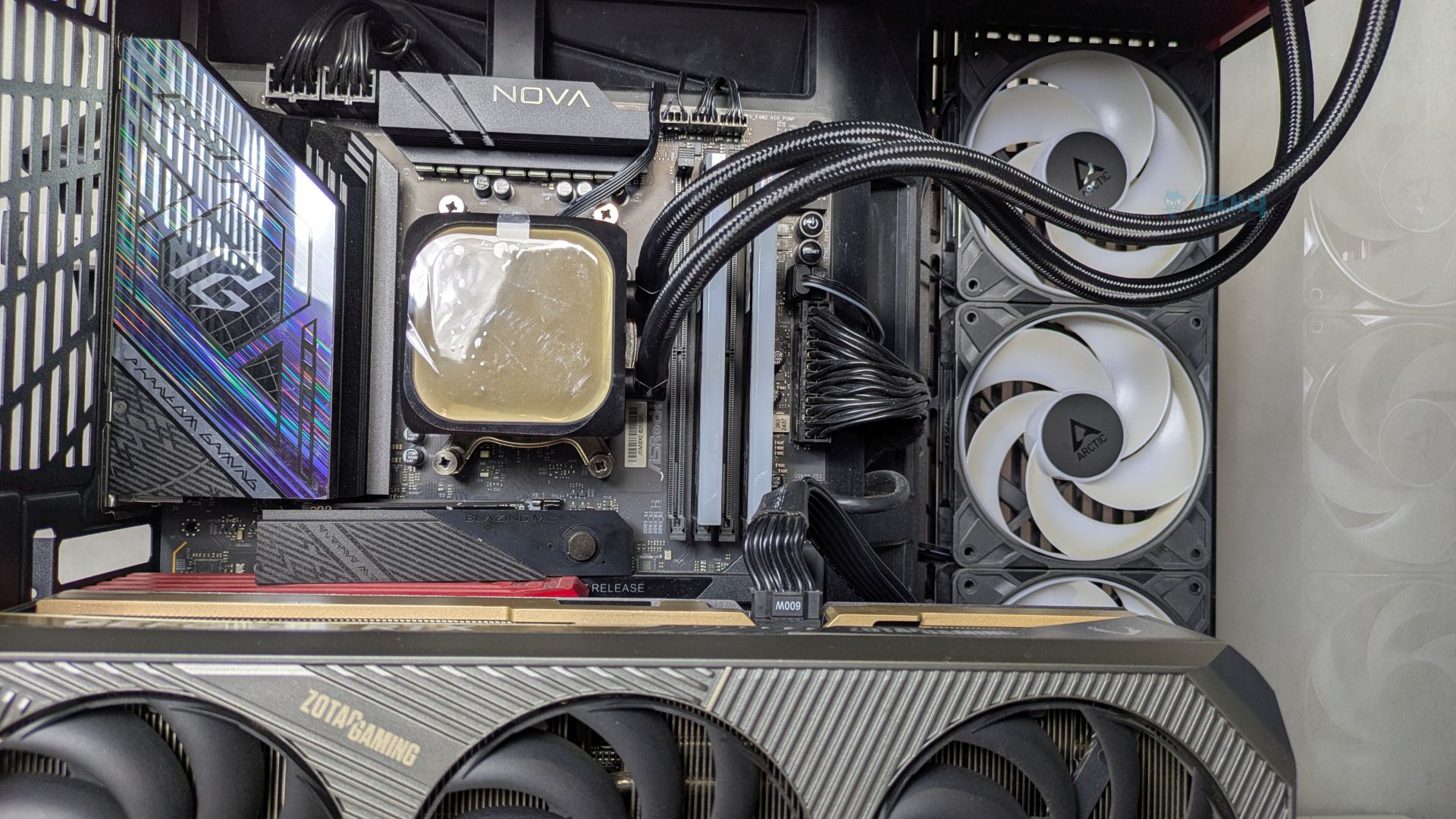
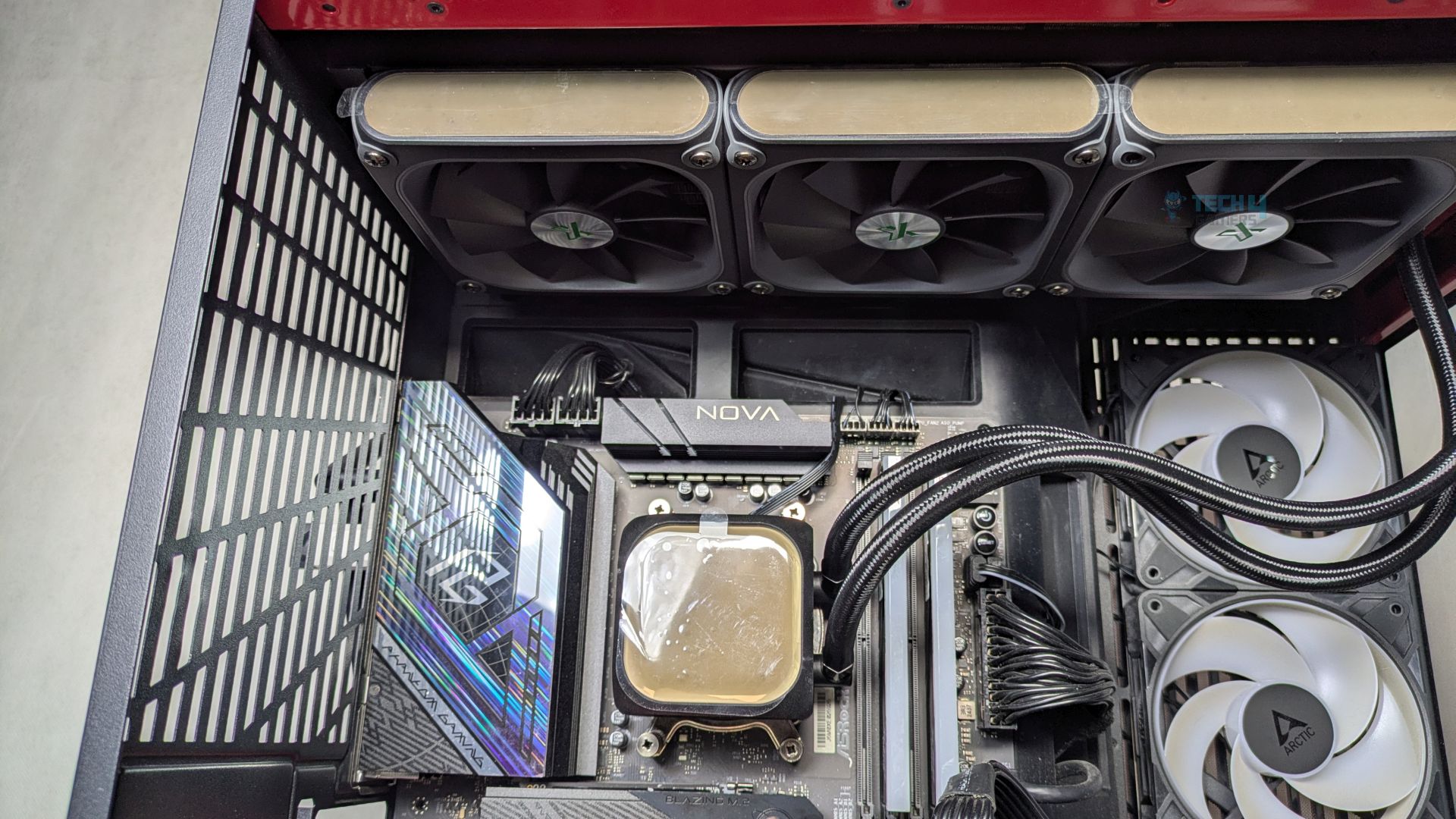
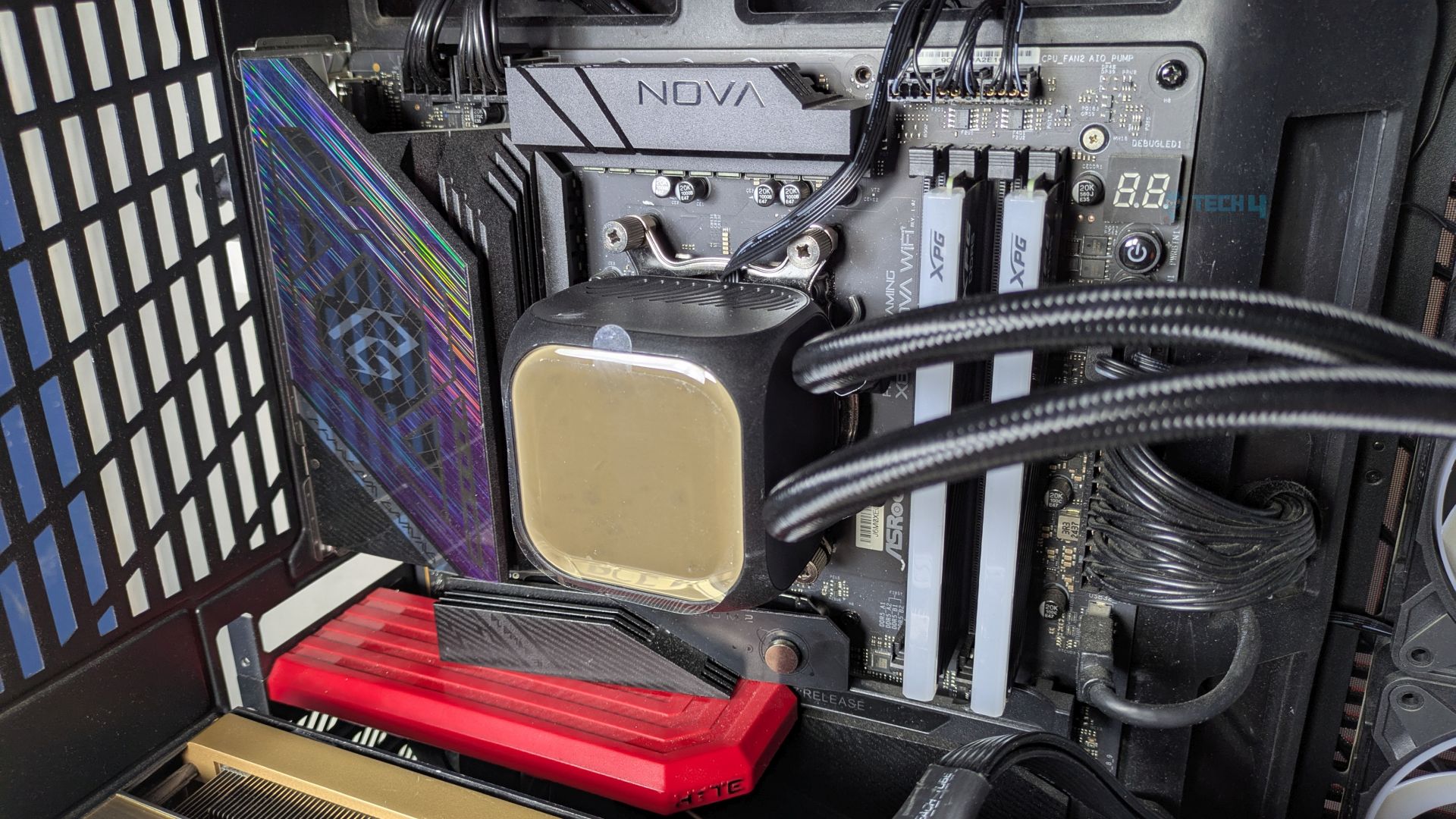
Matrix Display
Some shots of the Matrix Display.
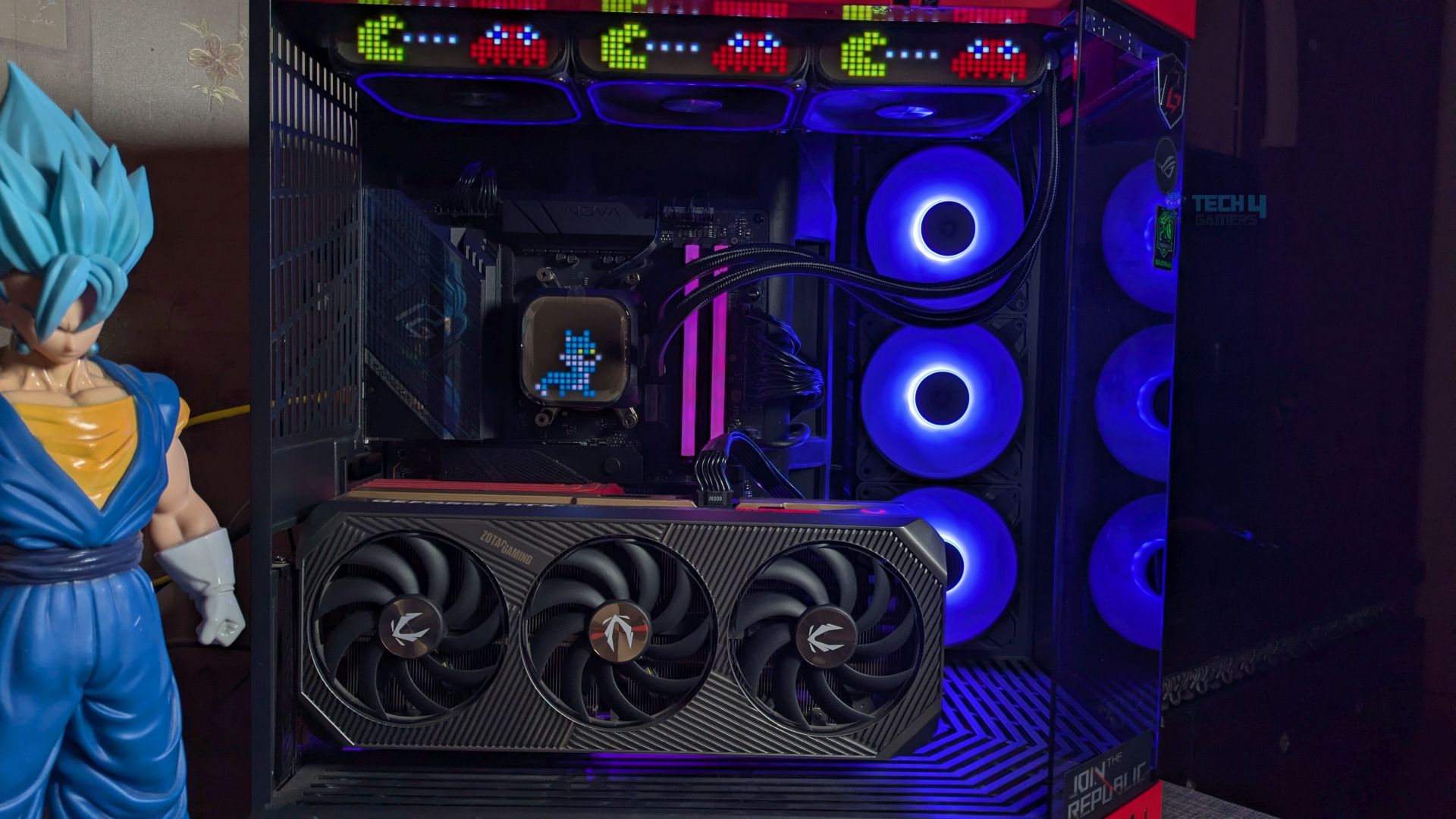
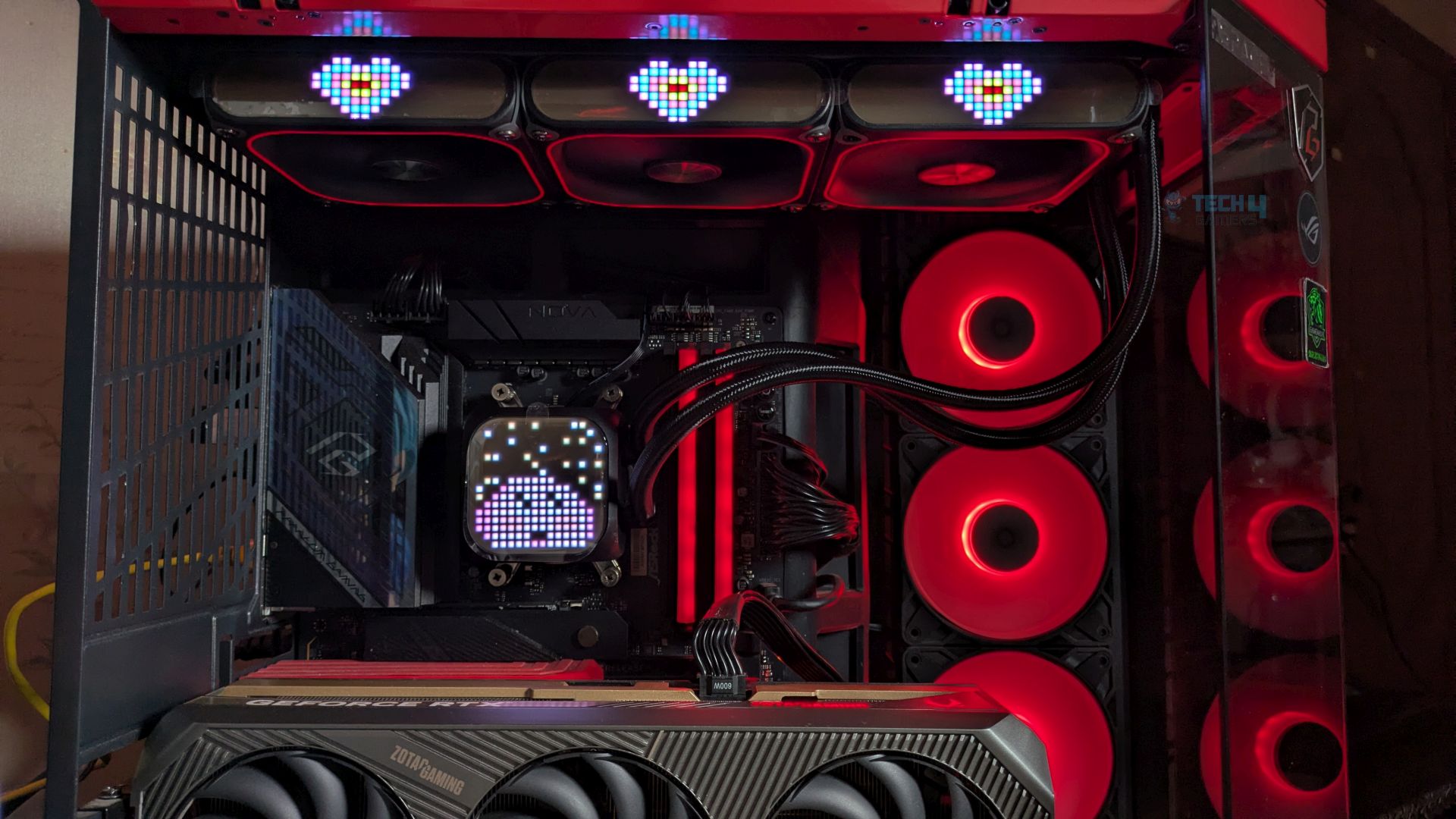
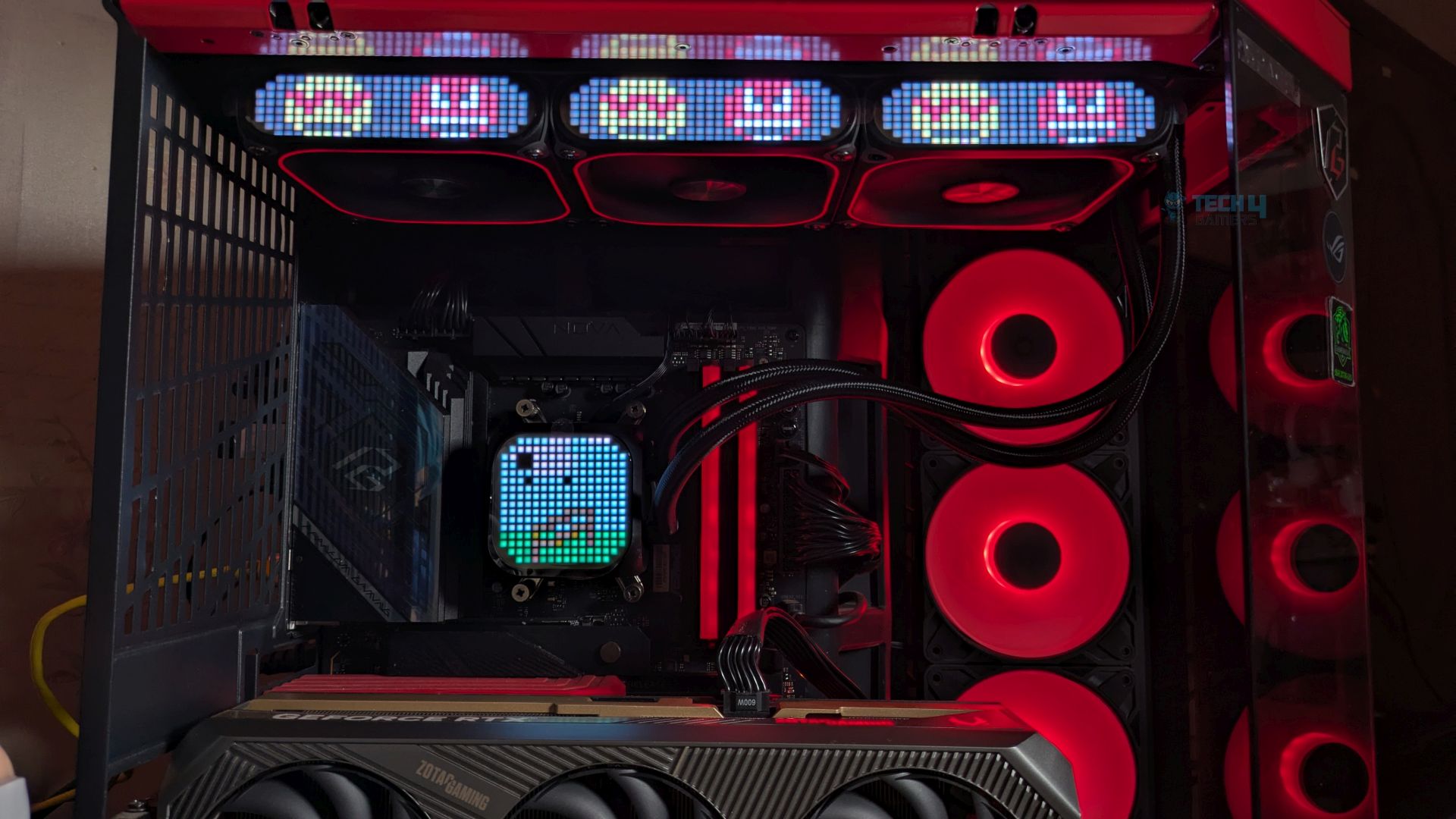
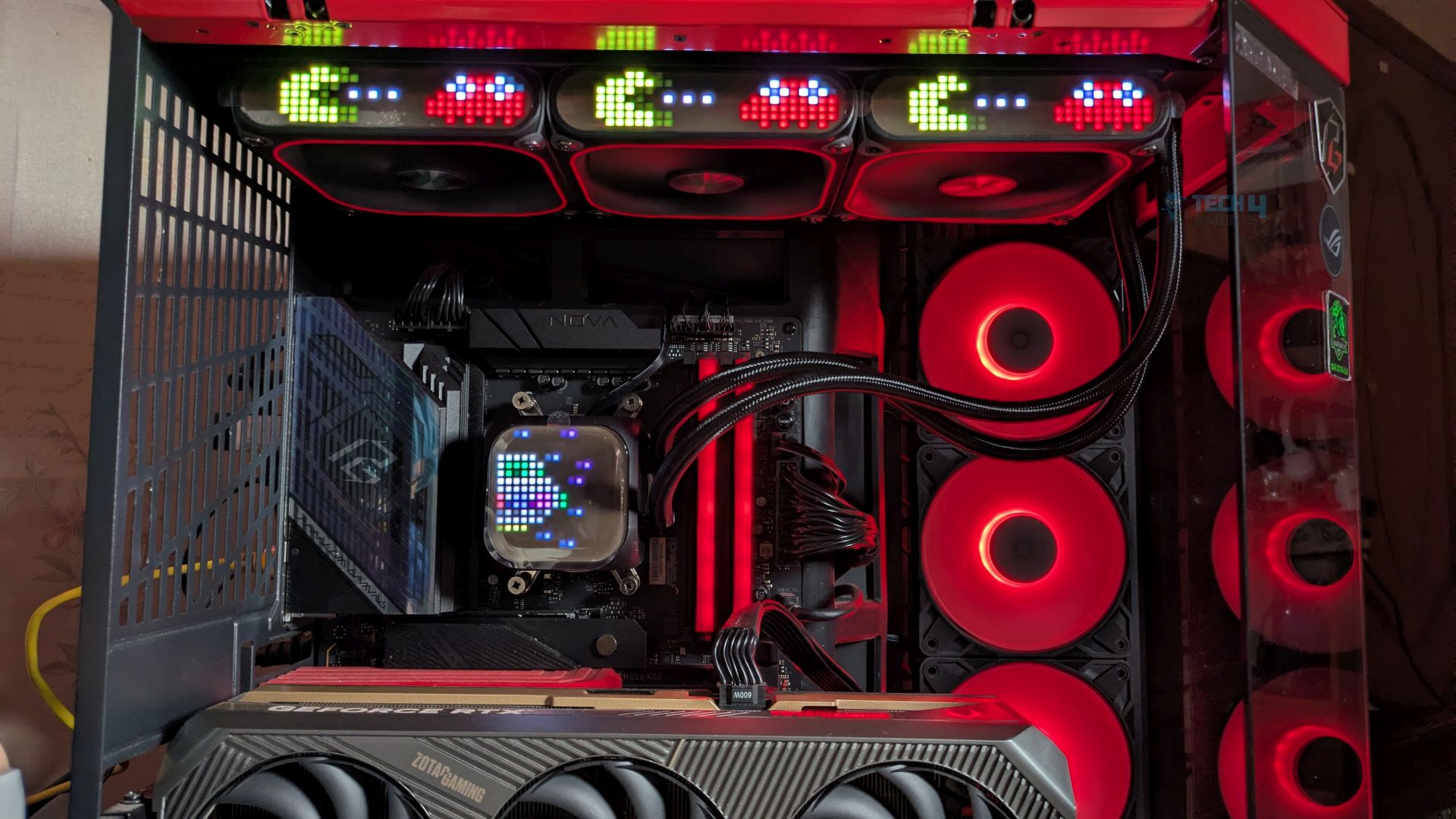
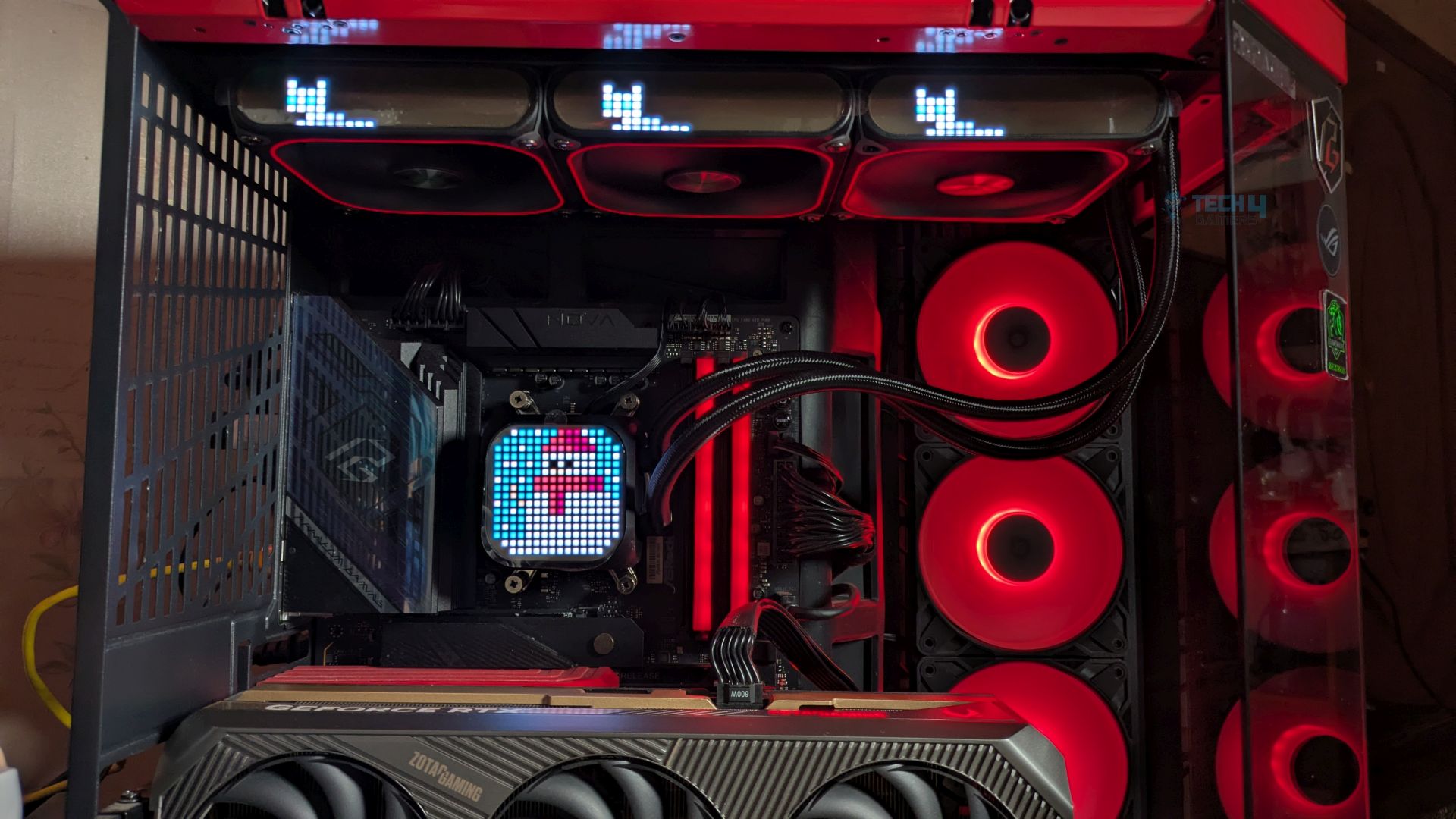
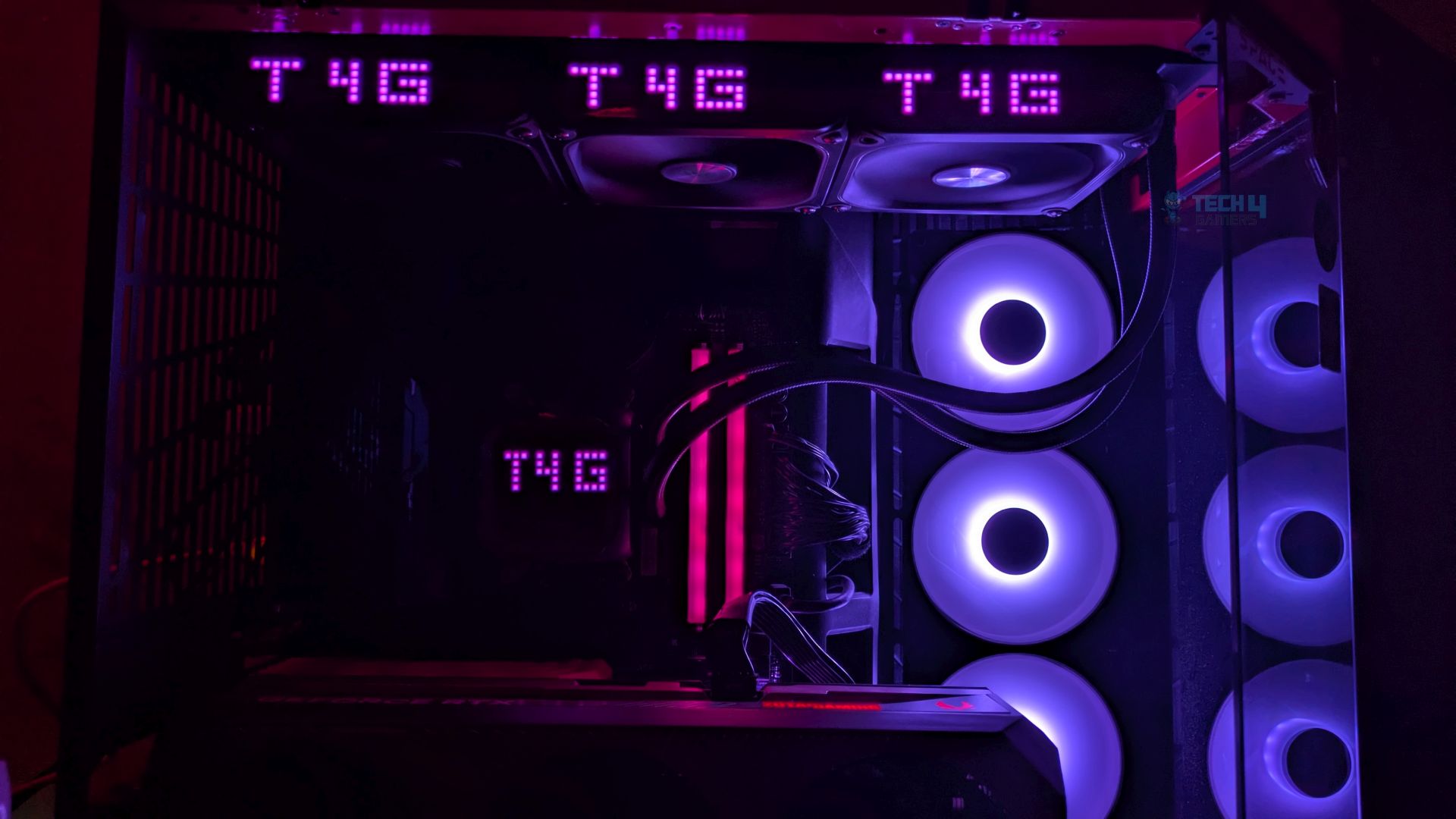
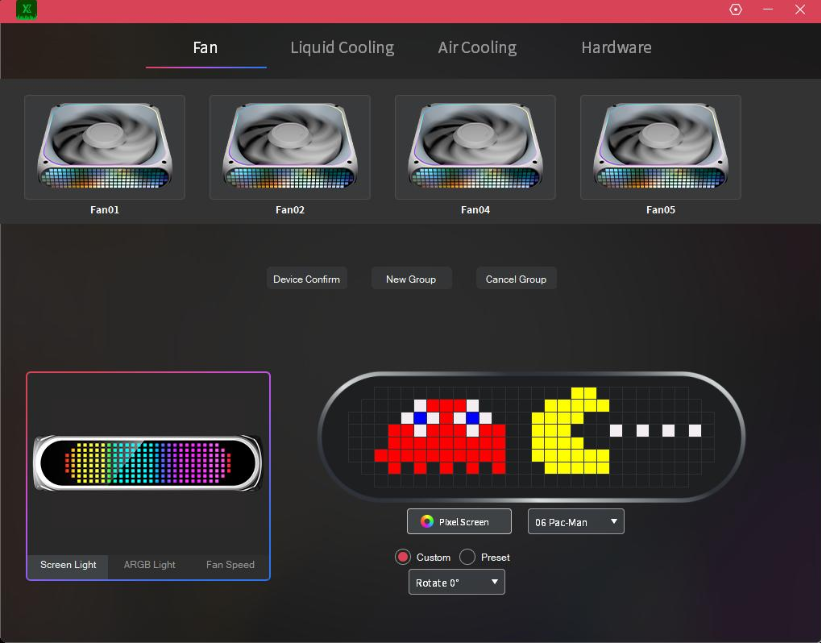
The screen easily handles a wide variety of retro sprites, as Xastra has included 20 built-in presets for blocks and 30 for fans. The software also allows independent control of the Matrix display on each fan and the ARGB. However, because the display utilises addressable ARGB LEDs rather than standard diodes, it can display the full 16.8 million-colour spectrum.
The LED feels slightly bright and saturated. We did not observe any colour bleeding; a bright white pixel next to a deep red, blue, or any other colour pixel remains sharply defined. Overall, the Xastra delivers strong display quality.
Software Overview
Xastra has developed the Matrix Creative Centre to control and manage fans’ RGB and speed levels, along with extensive built-in matrix display customisation, including real-time status monitoring.
To begin with, Xastra Matrix offers a selection of tabs on the front page; in my experience, the software does not feel so cluttered. It is responsive, clean, and straightforward, but I still have major concerns about its current performance and usability that need to be fixed.
- Fan: Freely managing fan group, while customizing matrix screen, ARGB lighting, and fan speed.
- Liquid Cooling: Support matrix display customization on the liquid cooler.
- Air Cooling: Support matrix display customization on the air cooler.
- Hardware: Display your system configuration and current system states.
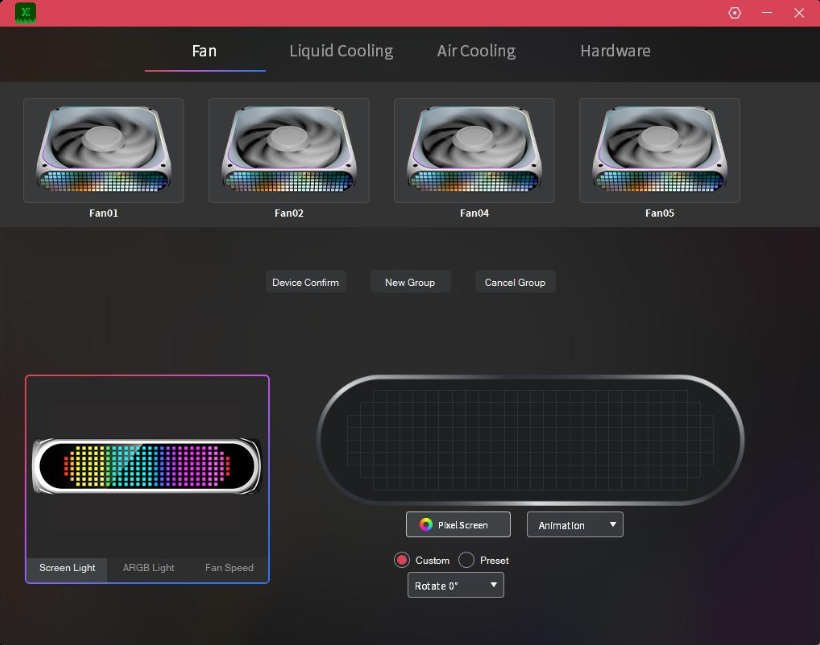
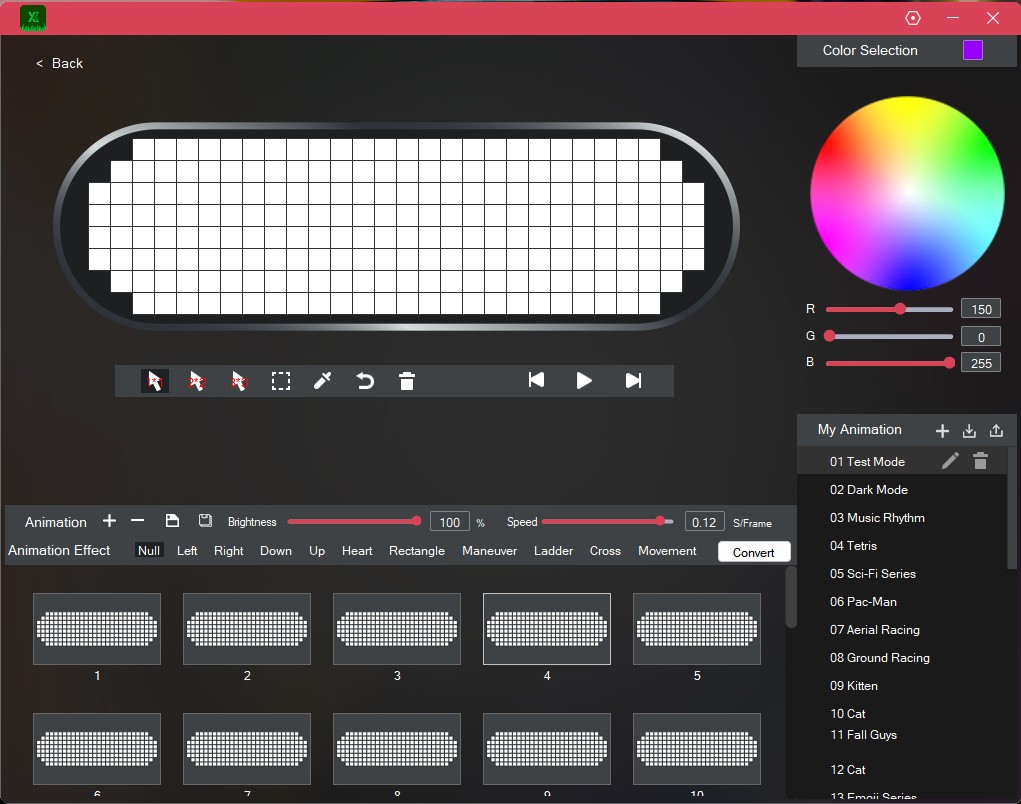
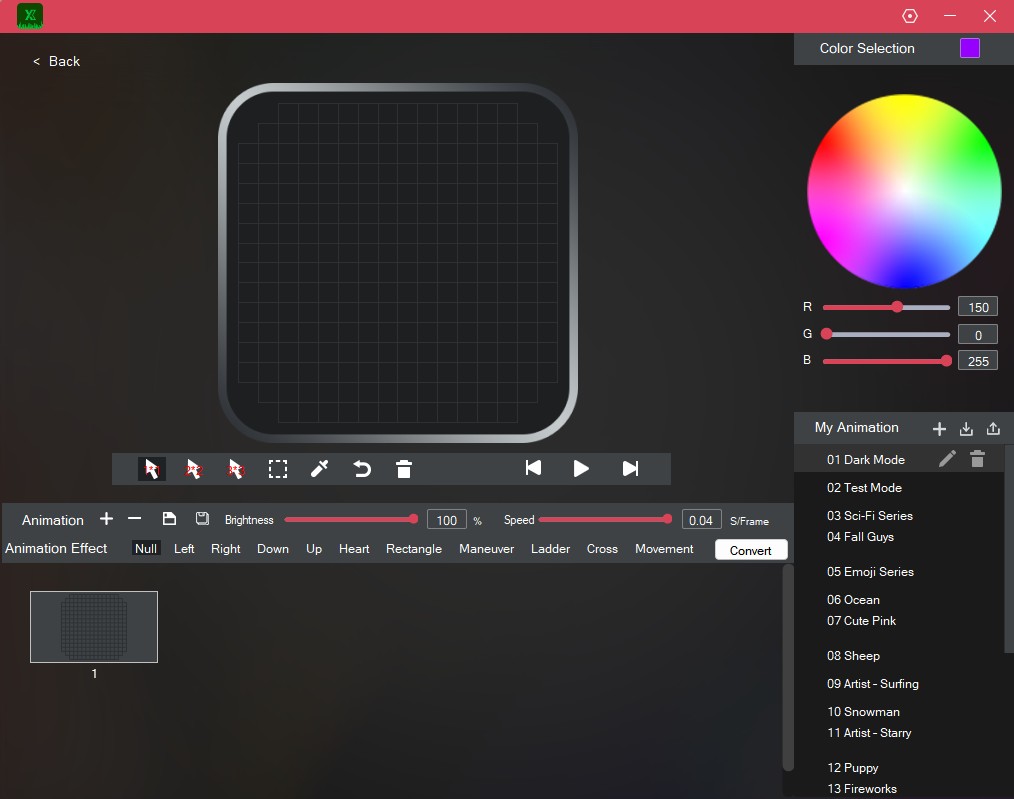
The software provides 30 built-in presets, from static to dynamic, for the fans, 20 presets for the CPU block with rotation options, real-time system information, and a drawing tool that allows users to showcase their creativity.
One of the major issues I have faced is that the software does not detect the fan RPM. I had to take apart all the connections and reseat every cable, hoping that would work, but it is either that the software needs to be updated or the controller’s firmware.
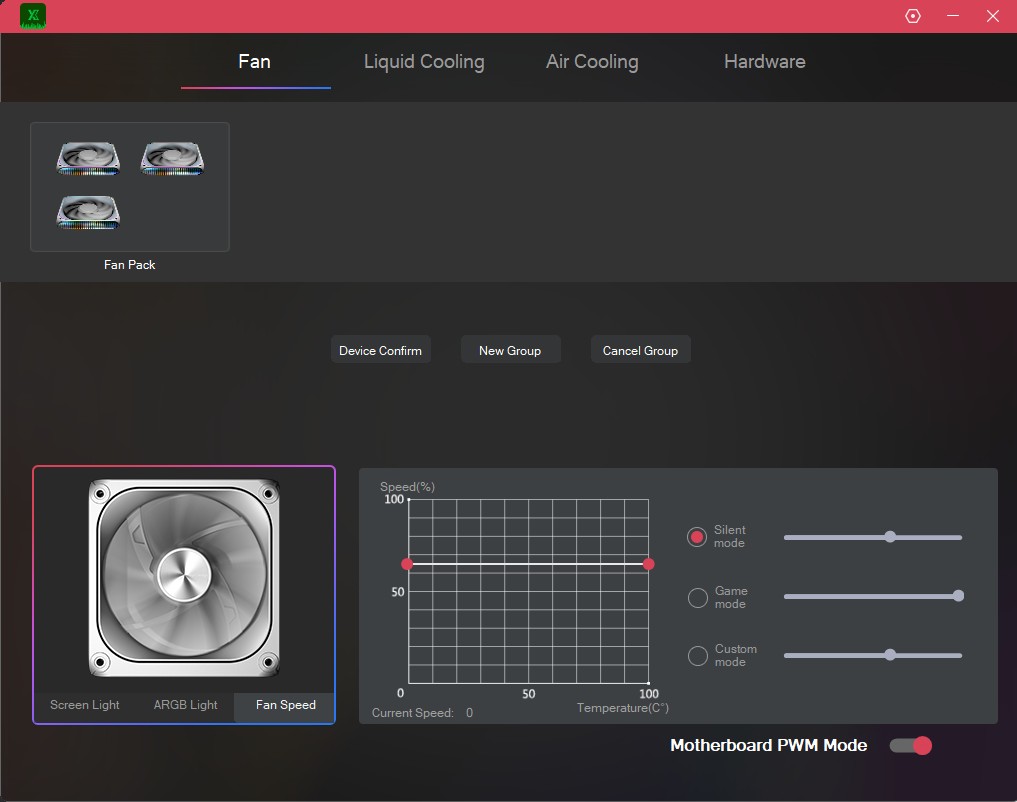
However, the software can enable the motherboard PWM mode, which allows the fan to work at BIOS-controlled speeds. It still won’t show the RPM numbers. Also, you have the silent mode, the game mode, and the custom mode; the silent mode sets the speed at 60% PWM static in our case. The fan control experience feels clunky and not smooth; this is the area that they need to improve.
Testing Methodology
CPU Configuration:
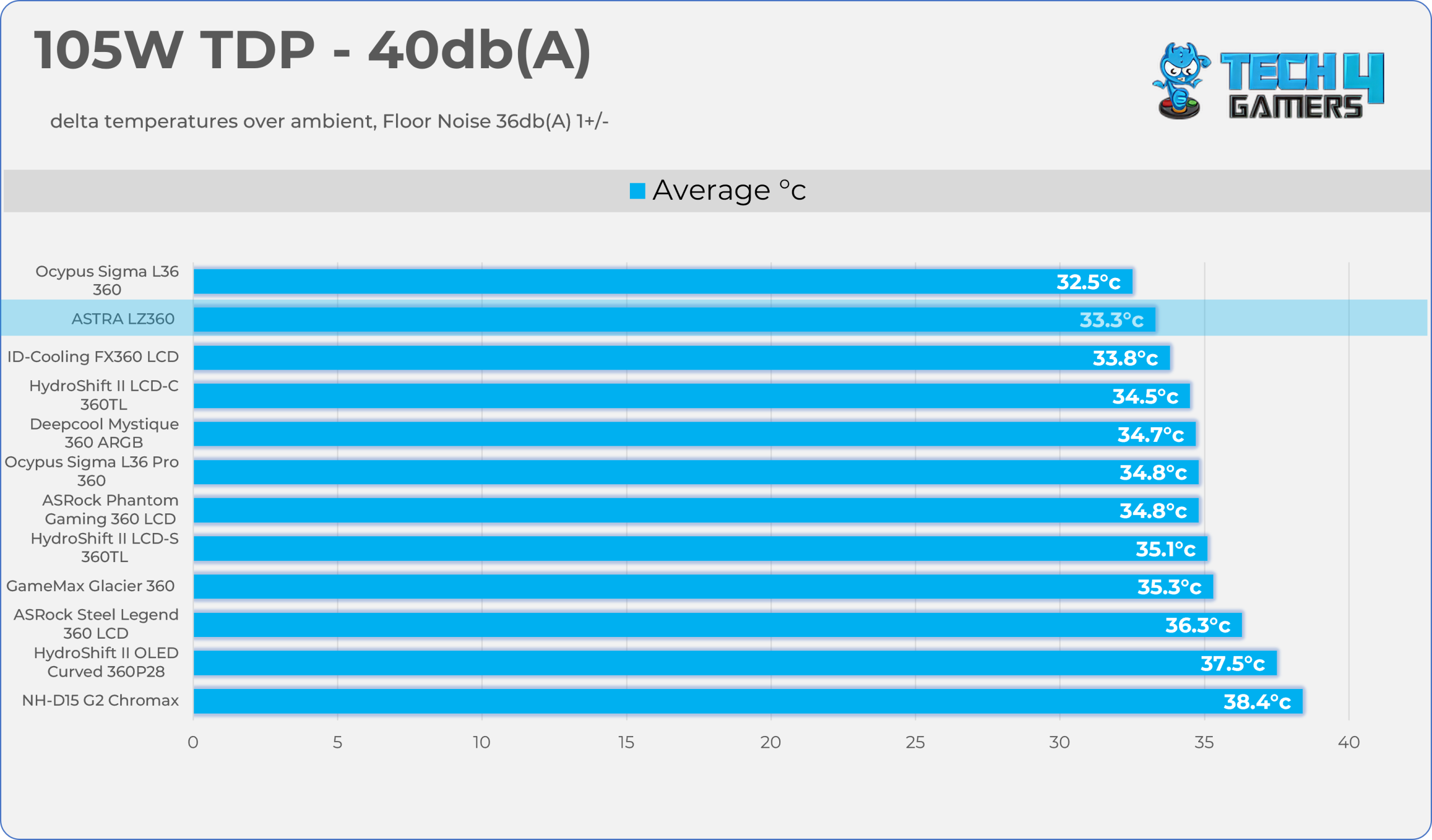
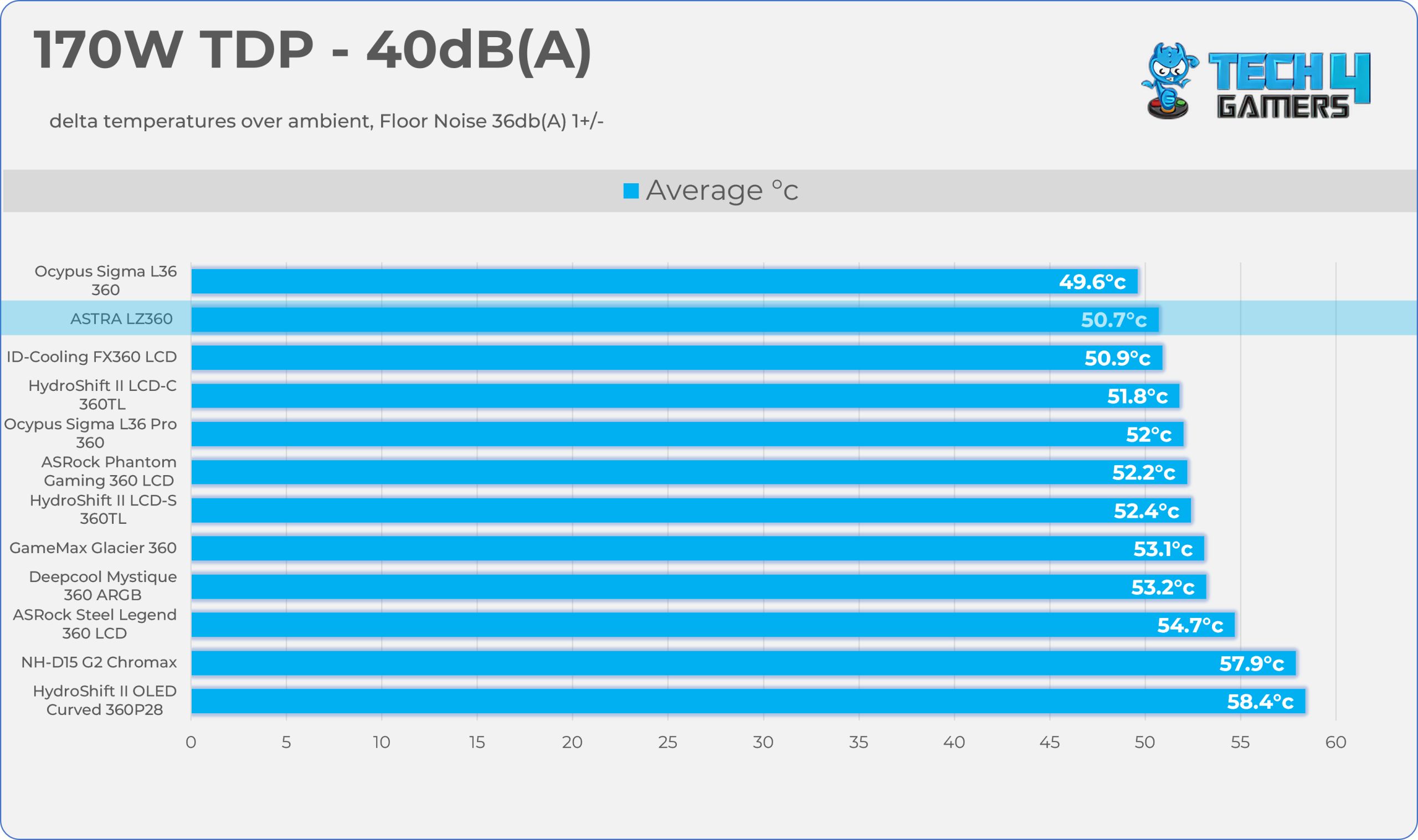
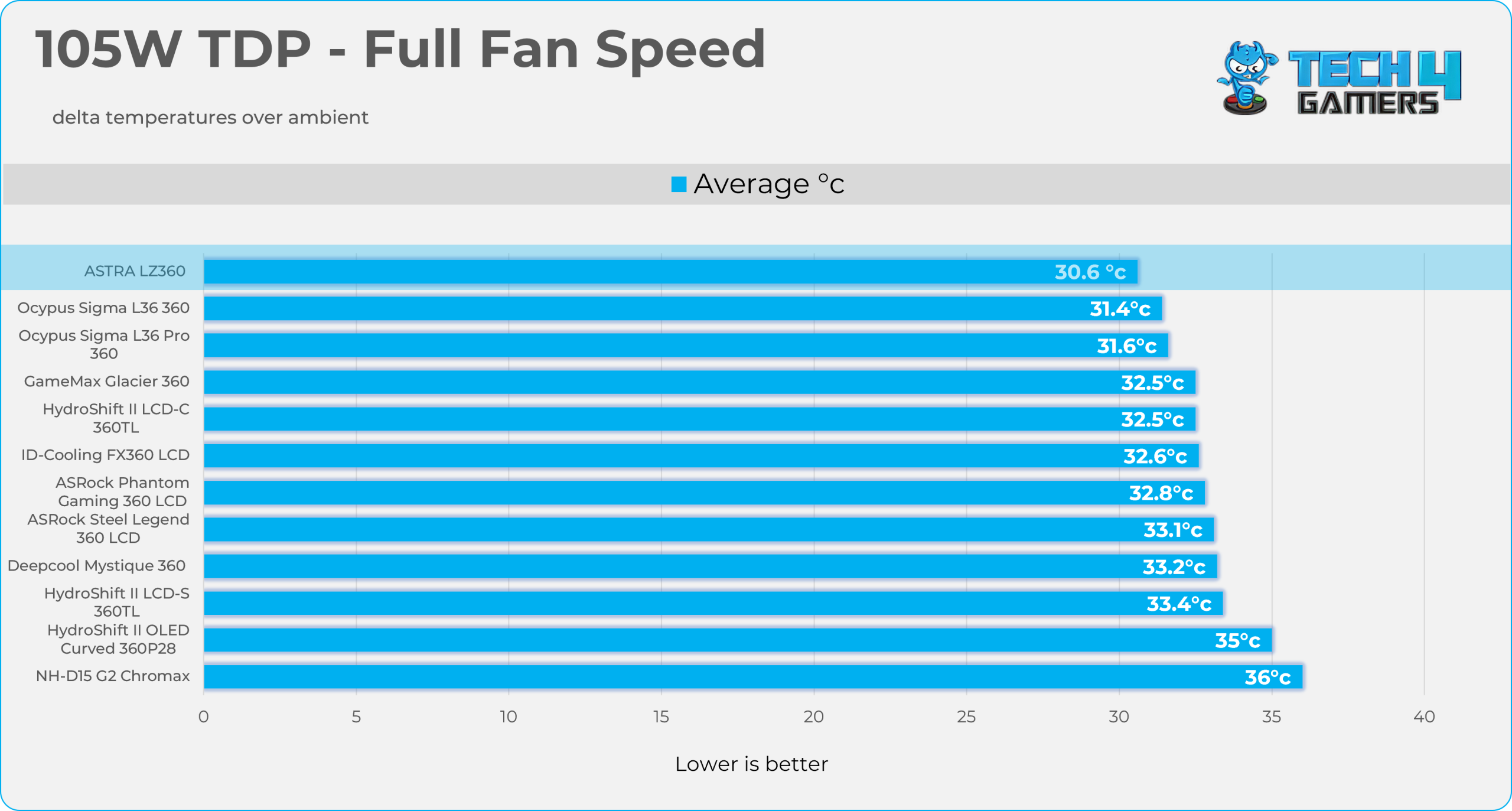
- We evaluate the cooler’s performance using three different benchmark methods. Noise-normalized testing is performed at 40dB(A) at the 105W TDP and 170W TDP (Stock) of the Ryzen 9 9950X. We then test the cooler’s performance at the maximum PWM speeds for both TDP configurations. After that, we unlock the power limits of the CPU to see how much cooler it can dissipate the heat in terms of watts at the maximum PWM Speeds.
Controlled Environment:
- We have eliminated the influence of ambient temperatures in our data, and all results are presented as deltas over the ambient conditions. The tests were done in a controlled environment with a room temperature of 25°C.
Preparing System:
- The Coolers are tested in realistic conditions. We don’t use the open bench system; instead, we have installed the cooler in our HYTE Y70 case, mounted at the top. We ensure the airflow is adequate in the case and that the case fans are running at the fixed PWM speeds.
- We are using ID-Cooling X45 thermal paste for all coolers.
Software:
- We have ensured that no other software is running on the computer that could influence the CPU load.
- We’ll be using the Cinebench R23 Loop for 20 minutes after the warm-up test has been completed. Each test has a 10-minute cool-down time.
Test Setup
Here is our test setup!
| Our Primary Test System |
|
|---|---|
| Processor | AMD Ryzen 9 9950X |
| Memory | XPG Lancer 32GB (16x2) 6000MT/s CL30 |
| Motherboard | ASRock X870 Phantom Gaming Nova WiFi (BIOS: 4.43v) |
| Thermal Paste | ID-Cooling X45 |
| Graphics Card | ZOTAC SOLID RTX 5080 , |
| Power Supply Unit | Super Flower LEADEX VII Platinum PRO 850W |
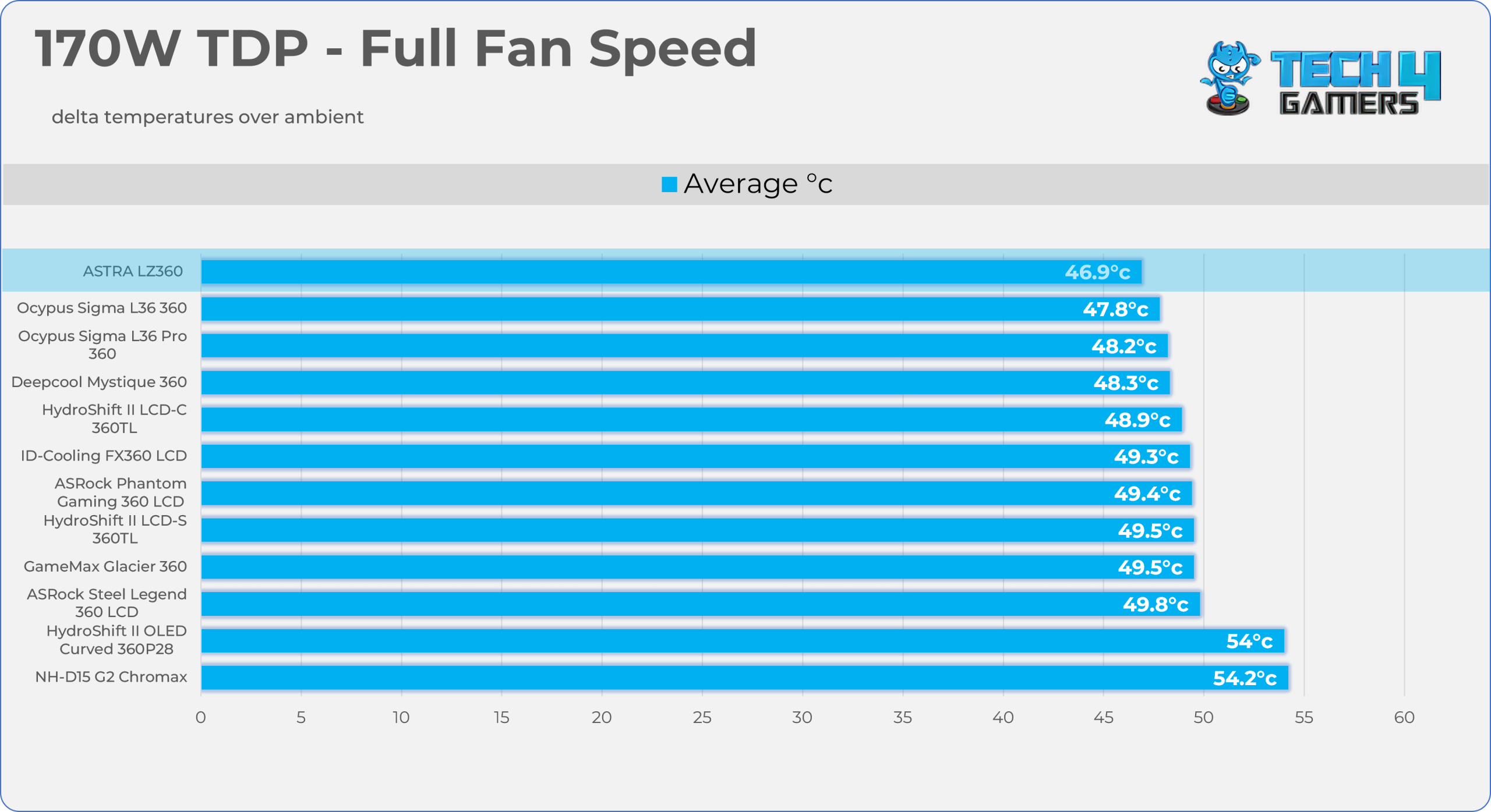
Test Results – Noise Normalized 40 dB(A)
Results at the fixed noise level of 40dB(A).
105W TDP
170W TDP
Test Results – Maximum Speed
Results at the Maximum PWM Speed.
105W TDP
170W TDP
Noise and RPM Readings
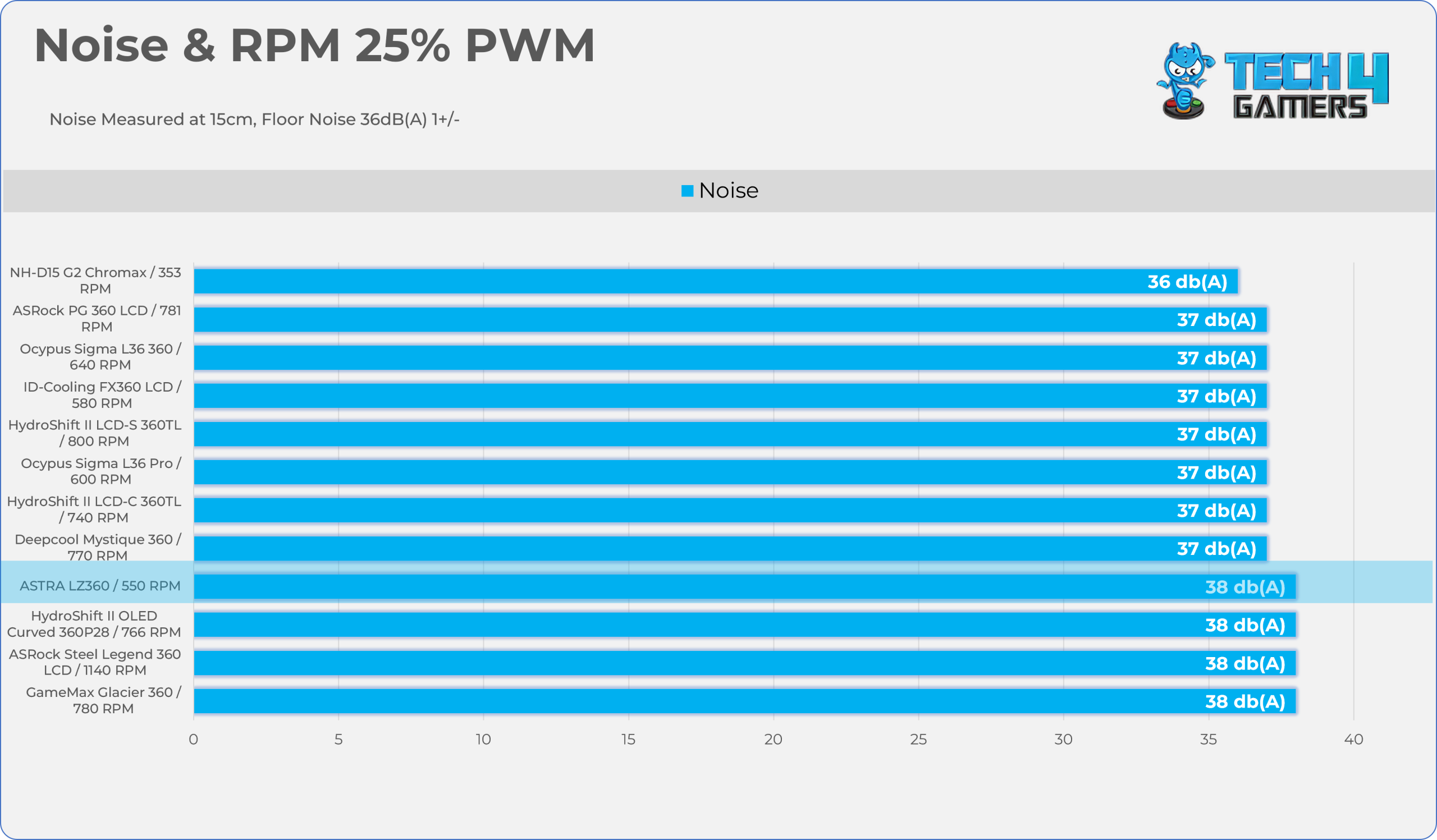
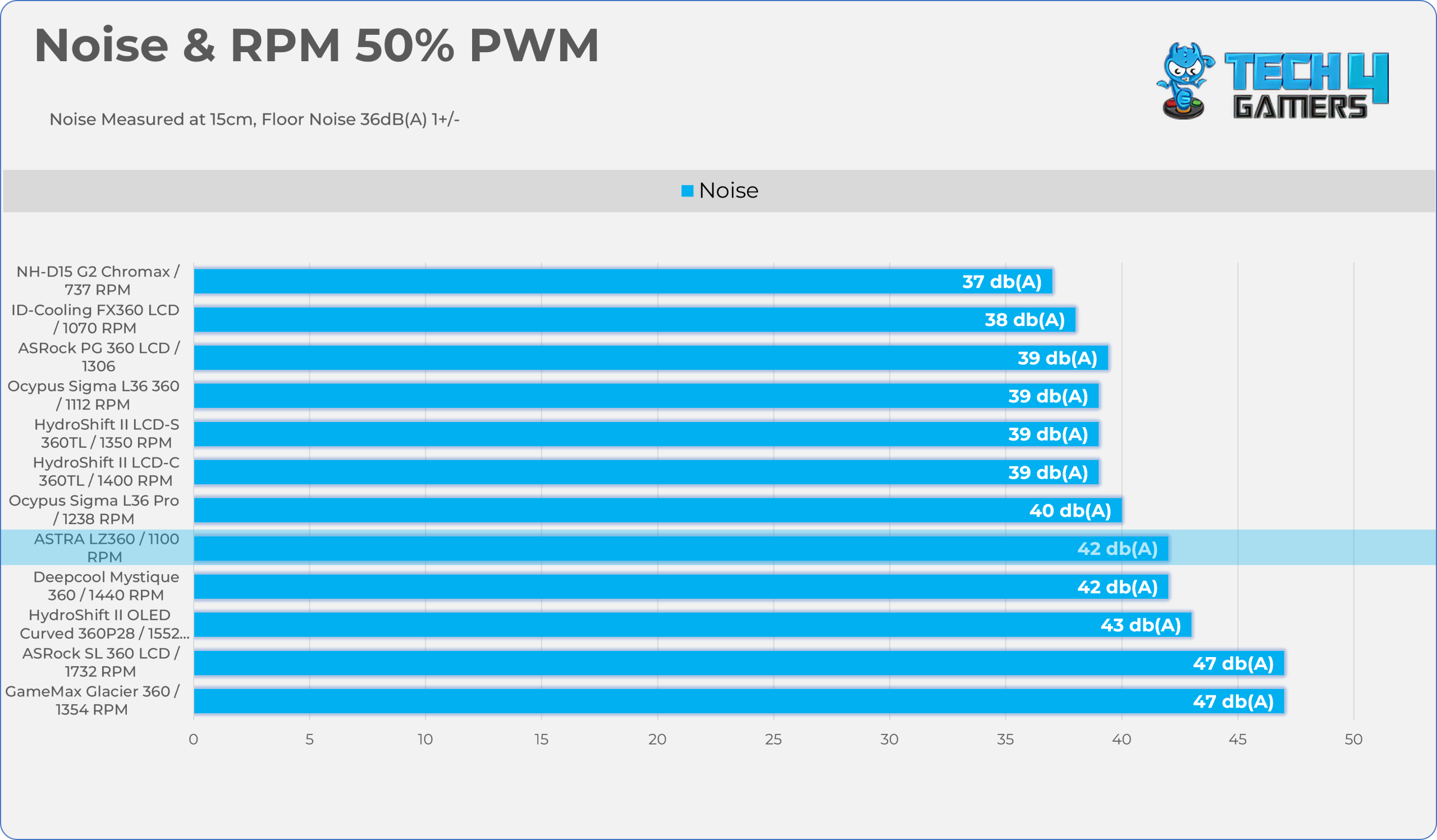
Let’s take a look at the Noise and RPM Readings. We conducted tests across four different PWM range levels.
25-50% PWM
75-100% PWM
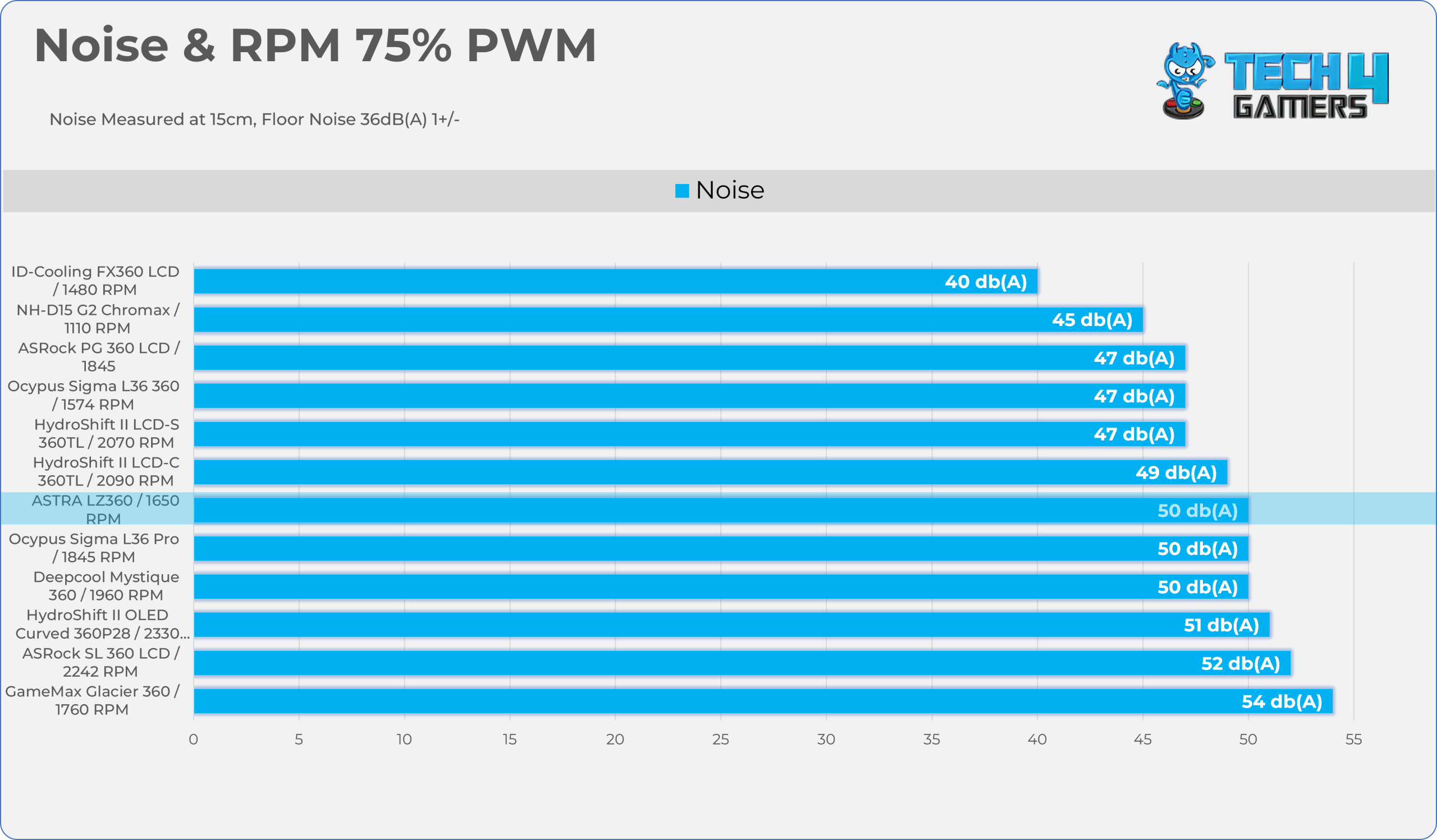
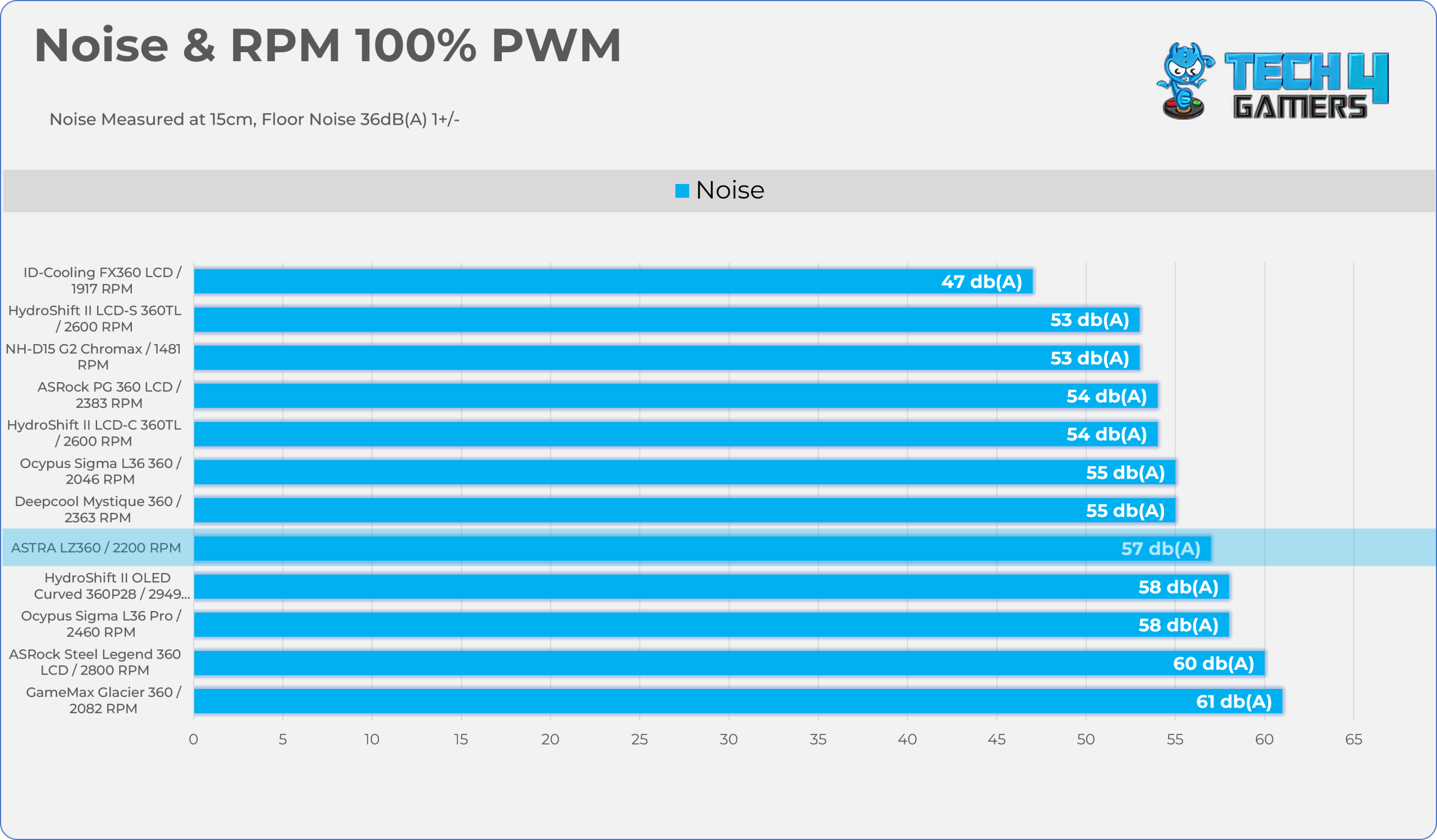
Here is the structured table illustrating fan noise levels at various PWM percentages. The Floor Noise Level is 36dB(A).
| PWM Level | RPM | Noise (dB(A)) |
| 25% | 550 | 38 |
| 50% | 1100 | 42 |
| 75% | 1650 | 50 |
| 100% | 2200 | 57 |
Should You Buy It?
Buy It If
✅ If You’re a PC Enthusiast Looking For Unique Visual Flair: This cooler brings something fresh to the market. It is vastly different from typical LCD coolers, thanks to its distinctive retro 16×16 LED matrix screen on the block and 28×8 screens on the fan frames. Furthermore, the software offers tons of creative customization, allowing users to play with individual pixels and dial in their desired look.
✅ If You Want Top-Tier Cooling Performance: We are incredibly impressed by its benchmarks. It is currently topping our charts for AMD, so if you need serious cooling, this is a cooler you should absolutely consider.
✅ If You Want to Avoid the Hassle of Managing Multiple Connectors: The radiator fans seamlessly daisy-chain together, combining all power, ARGB lighting, and PWM signals into a single, sleeved 9-pin cable.
Don’t Buy It If
❌ If You Want to Avoid Ecosystem Lock-in: The proprietary 9-pin connection might be a dealbreaker. It means you cannot easily swap the radiator fans for standard aftermarket options without entirely abandoning the included controller hub.
❌ If You Don’t Like Dealing with Control Hubs: While it successfully reduces the number of individual fan cables, you are still forced to mount the large 14-port controller somewhere in your chassis, which requires routing an additional SATA power cable and an internal USB 2.0 cable.
Final Thoughts
Cooling Performance And Noise
In conclusion, the Xastra Astra LZ360 delivered exceptional cooling performance on our AMD platform. It also dominates our charts at 105W and 170W TDP loads, taking the top spot even with the fans blasting at full speed. However, this top-tier performance comes at the cost of higher noise levels. At 100% PWM, the fan maxes out around 2200 RPM and generates a loud 57 dB(A). Still, it remains quieter than the loudest cooler on the chart, the GameMax Glacier 360, which peaks at 61 dB(A).
Build Quality / Design
The one major concern I do have is that this cooler is built around a locked ecosystem: Xastra severely restricts aftermarket modding and fan swapping by forcing power, PWM, and complex matrix data through proprietary 9-pin connectors to a central 14-port hub. On the bright side, you get less cable clutter and much cleaner cable management.
Another salient feature of this cooler is its fans (G-JF-12X28 PWM), which feature a 28mm thickness and support a 9-blade rotor. Speaking of its design, the fan frames are specifically designed for their panoramic matrix feature. The fans are loud, but not the loudest, and I have seen worse than that on this website. They have put some serious effort into the cooling.
However, we have no complaints about the mounting mechanism; it’s not effortless or as robust as the Lian Li or the ID-Cooling, but it’s still not complicated and gets the job done. The cooler utilizes the slide-on AMD ring bracket, four dual-sided standoffs that thread into the motherboard stock backplate, and four securing nuts, Voila. The installation is done.
Value
Without a doubt, Xastra delivers differently here; it provides value to builders who want visually striking cooling capabilities integrated with its ecosystem, but if you’re someone who wants absolute silent PC or a modder who prefers the open-source ecosystem, this cooler might not be for them. Nonetheless, the cooler does its job exceptionally well. We haven’t seen a fixed price for this cooler, but it hovers around $180-$200, while the 240mm variant is at least $30 cheaper.
Thank you! Please share your positive feedback. 🔋
How could we improve this post? Please Help us. 😔

Senior Hardware Reviewer at Tech4Gamers with over a decade of experience in the tech industry. My journey began in 2014 as a senior administrator for Pakistan’s largest gaming community forum. I specialize in testing and reviewing components like graphics cards, CPU coolers, and motherboards, while also sharing insights on overclocking and system optimization.
 Join Our Community