



After restarting a Windows computer, and no one logged in before the user, she may be locked out of the computer locally and by domain. Windows can lock a user out based on too many incorrect attempts to enter the correct password and corrupt files, while it can be fixed by reinstalling Windows or restarting the computer in Safe Mode.
- Windows can lock accounts if the user makes many wrong attempts to open the account.
- The reasons behind this error can be entering the incorrect password or corrupting Windows.
- The standard fixes for the issue include restarting, reinstalling Windows, and restarting in Safe mode.
The warning message is displayed in the below fashion:

Method Difficulty Rating
Rated: 7/10
Rated: 8/10
Rated: 6/10
Via Windows Directory/ Utilman.exe
Windows’s “Utilman.exe” command is typically associated with the Ease of Access utility. It doesn’t directly address user lockouts. However, if a system is compromised and an attacker replaces Utilman.exe with a malicious program, it can lead to security vulnerabilities. Ensuring the integrity of Utilman.exe and regularly monitoring system files can help maintain a secure Windows environment and prevent potential unauthorized access or manipulations that might contribute to user lockouts.
To solve the Windows user locked-out issue, I used the Utilman.exe file in the Windows Directory to resolve the issue, which is run through the command prompt available in the safe restart. This method worked out great when we used it on our systems. In addition, when posted online, this fix was also helpful to TenForums community users for resetting the password for a locked account. Perform the following steps:
- Go to CMD via Guide Menu: Press the Shift key while restarting your PC > From the next screen, go to Advanced Settings > Troubleshoot > Command Prompt
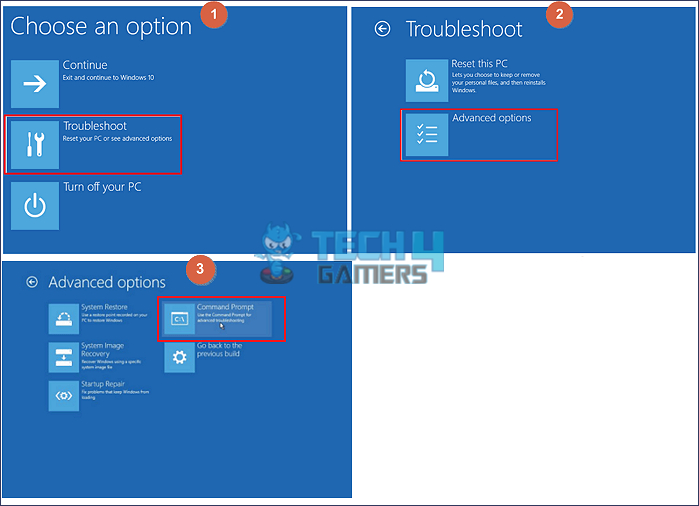
Starting Command prompt (Image Credits: Tech4Gamers) - cdsystem32 Command: Type the following command inside the command prompt:
cd system32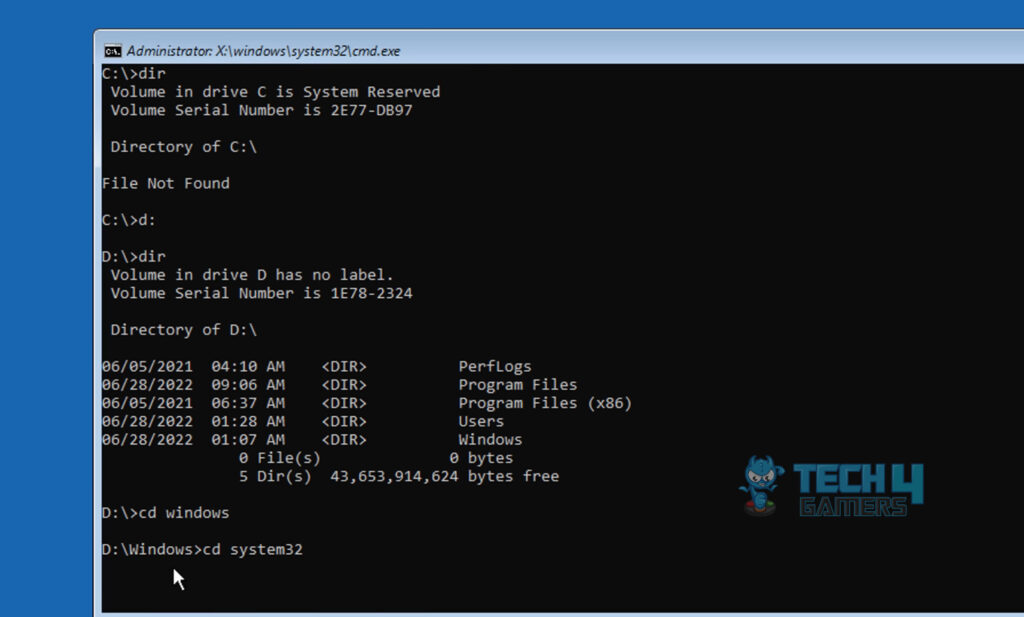
cd system32 Command (Image By Tech4Gamers) - ren Utilman.exe Command: Type and launch ren utilman.exe utilman1.exe > Run the command.
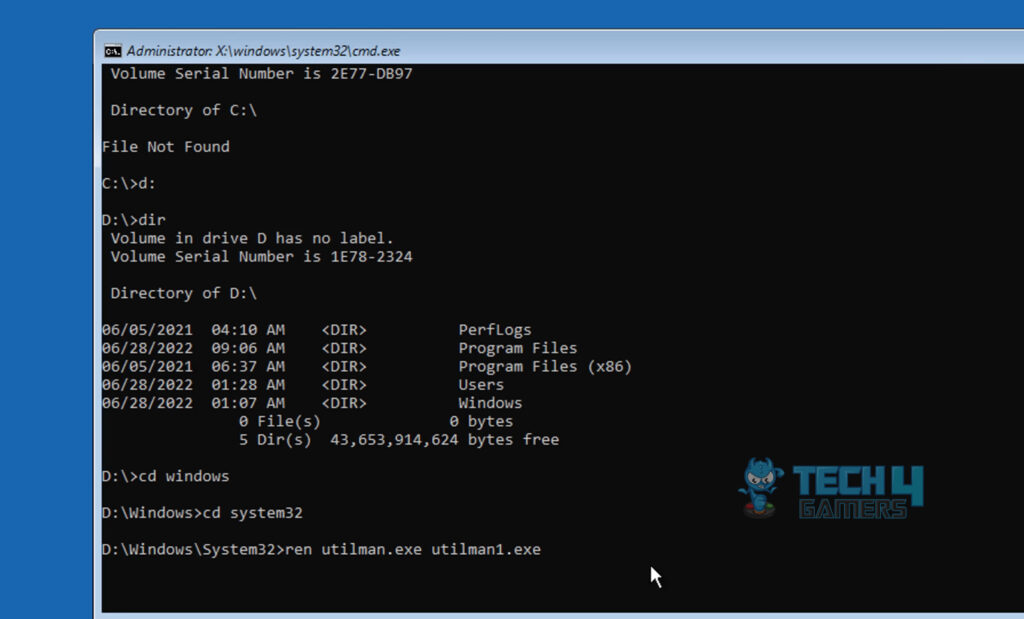
ren utilman.exe utilman1.exe (Image By Tech4Gamers) - Continue to Windows 10: Close the command prompt window > Click “Continue to Windows 10.”
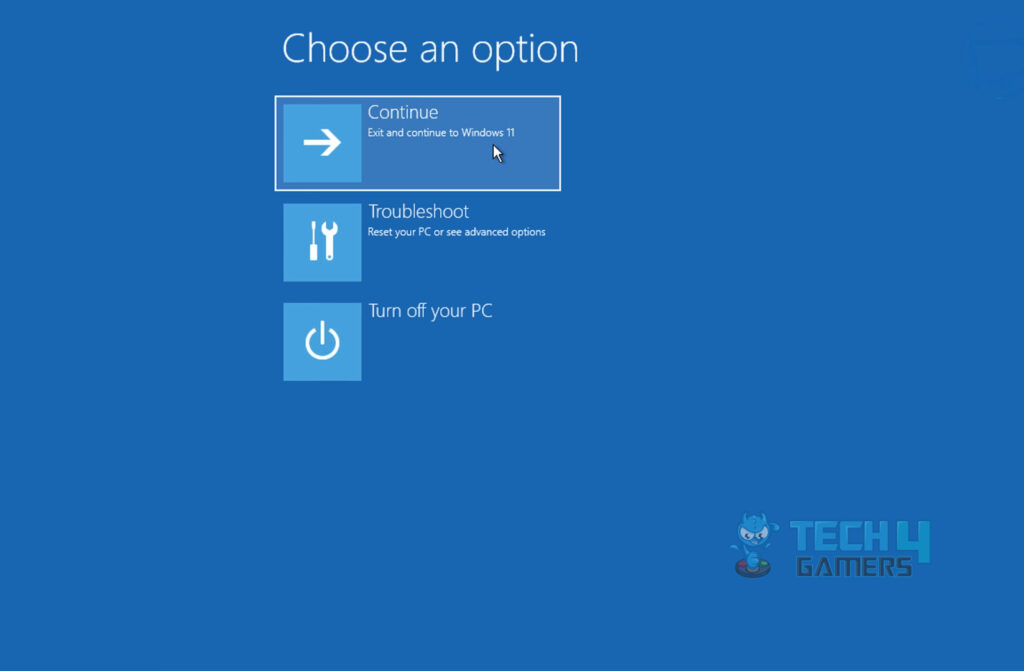
Continue To Windows 10 (Image By Tech4Gamers) - Check the error: Check if the system reset your password successfully.


Renaming The Executable Files
Renaming executable files in Windows, mainly when using methods like renaming Utilman.exe, can resolve user lockout issues. This process involves accessing the system in Safe Mode, renaming specific files, and subsequently resetting passwords or unlocking accounts. Users can bypass potential security vulnerabilities by altering the executable file names, ensuring a smoother login experience and preventing unnecessary account lockouts.
This method also helped me in solving my problem, which is the reason I am recommending this method, backed by my personal experience. Follow the steps below to implement the method:
- Repeat Steps: Repeat steps 1-5 from the (Utilman.exe) method above.
- Control Userpasswords2 Command: Next, type “control userpassword2” > press enter > A new window will pop open on the screen with the username on it
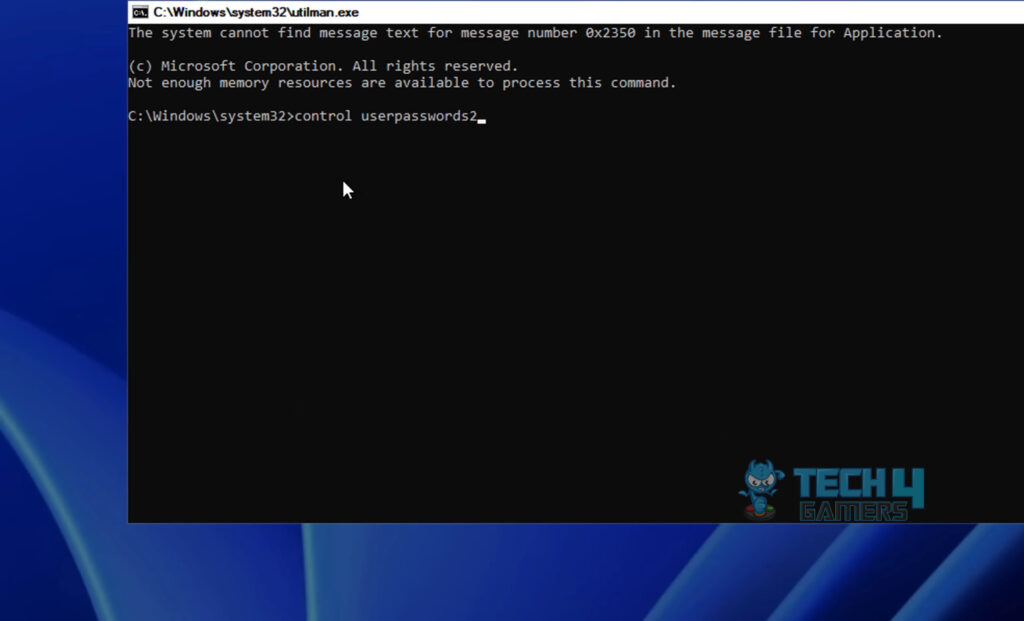
Control userpasswords2 Command (Image By Tech4Gamers) - Reset Password: Locate the option “Reset password” > Click on it
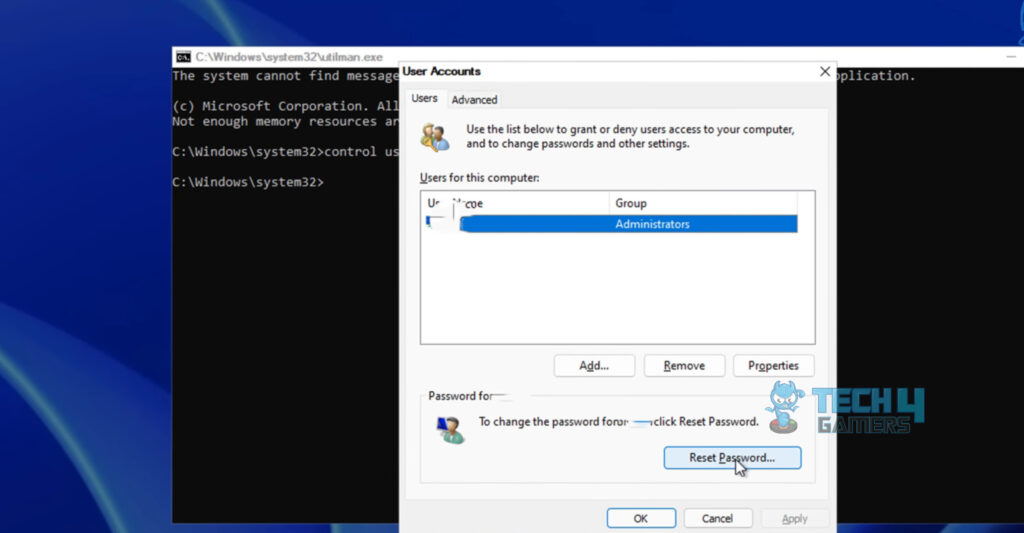
User Accounts Password reset (Image By Tech4Gamers) - Check Account Status: Type a new password in the resultant dialogue box > Type the newly set password > Check whether this will get you into your account.
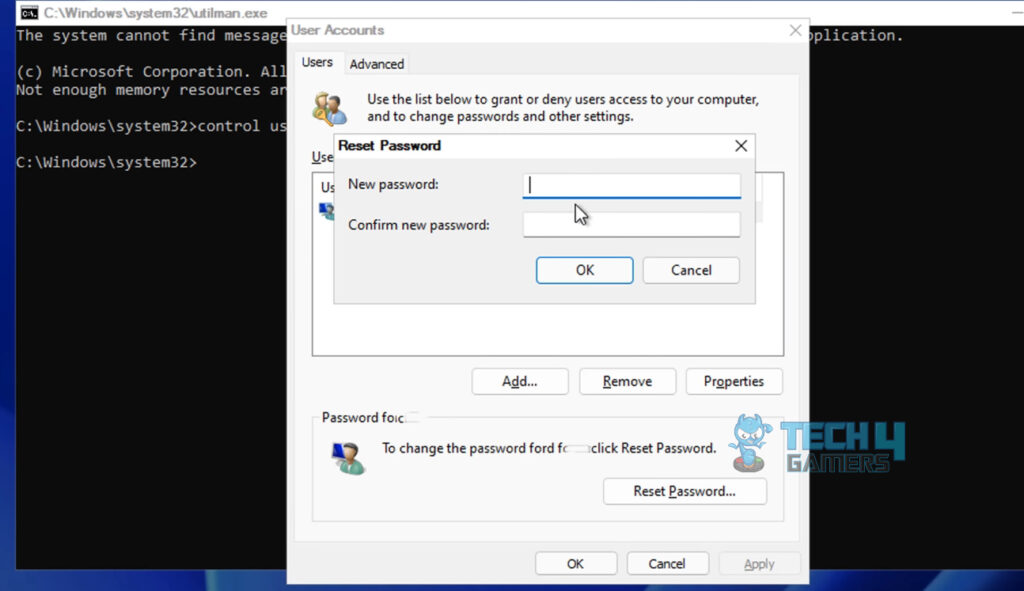
Reset Password (Image By Tech4Gamers)


Logging In Via Command Prompt
The “Netuser” command in Windows can also help prevent user lockouts by allowing administrators to reset account passwords or unlock user accounts. Using the appropriate syntax, administrators can efficiently manage user accounts and resolve issues related to password expiration or incorrect entries. This ensures a smoother user experience and reduces the likelihood of account lockouts in a Windows environment.
A method I used to eradicate the error from my system was logging into the system via Command Prompt. The command prompt is available in the Advanced settings panel under safe restart. Therefore, it can be accessed quickly, making this method vital. Our team tested this method for a PC throwing the same issue.
Another way to change the password is as follows:
- Open CMD: Open the Start menu > Search CMD in the search bar.
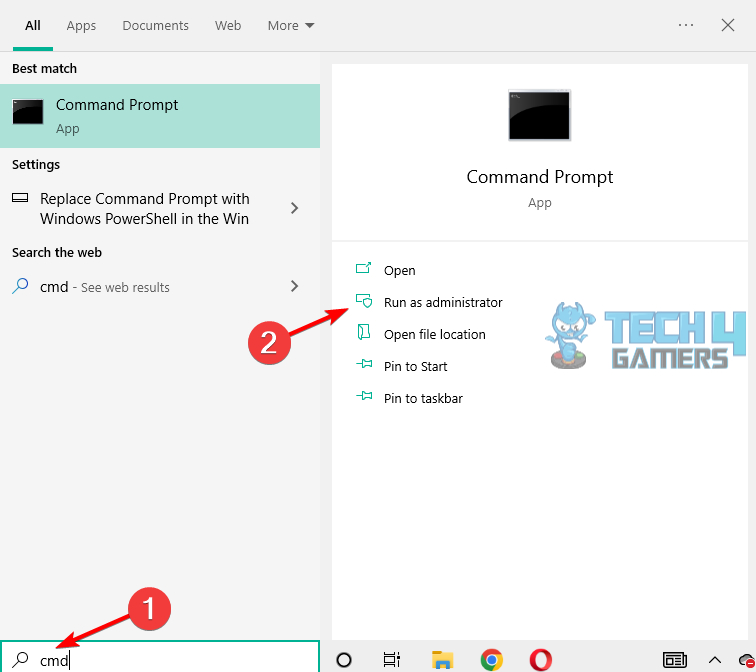
Run Command Prompt (Image Credits: Tech4Gamers) - Net user command: Type “net user” > press Enter.

Net User command (Image By Tech4Gamers) - Displaying Account credentials: This command will display your account name.
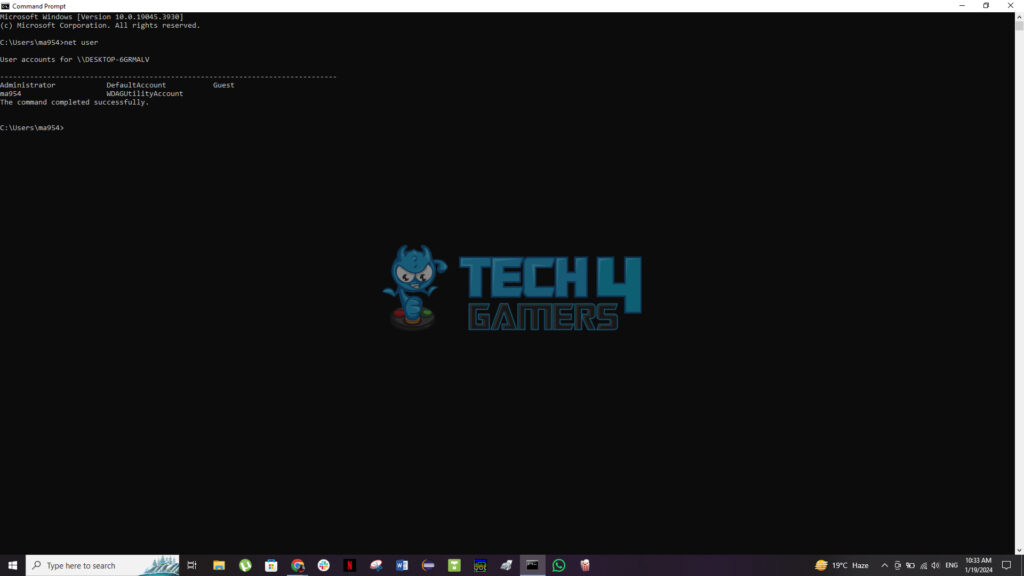
Account Details (Imqge By Tech4Gamers) - Set Account Passwords: Again, type “net user > *YOUR ACCOUNT NAME*.” > Press Enter > Set a new password for the account > Press Enter.


Conclusive Remarks
Every Windows user has been locked out of their computer at least once in their life. This article covers the issue of Windows users getting locked out of computers. The issue has caused trouble for a lot of users. The following tweet is an example of the issue faced by a user:
can’t wait to call IT tomorrow and tell them i’m locked out of my computer for the third time in the last three weeks
— mr secretary of the state (@samfrasersjello) February 12, 2024
The error is vastly reported on the Microsoft forums, where many users have complained about the error they are experiencing. Unfortunately, we are still expecting a response from the Microsoft technical team despite so many complaints.
@microsoft I am locked out of Windows and totally unable to get help. zero support. please explain how I can get back the use of my computer.
— meatypie (@josing) June 19, 2021
This error is mostly reported by Windows 8 and 10 users. This means that the new structure developed by Microsoft is not as secure as its predecessors. however, users can employ the steps mentioned in our guide to ensure the minimization of such issues in my opinion.
Relevant Articles:
- Windows Update Error 0x800f0922
- Your PC is At Risk Updating It Now [FIXED 2024]
- How To Remove Malware And Viruses From PC?
- FIXED: Windows 11 Error “No Such Interface Supported”
- Undoing Changes Made To Your Computer [16 FIXES]
Thank you! Please share your positive feedback. 🔋
How could we improve this post? Please Help us. 😔

[Errors Troubleshooting Expert]
Arsalan Shakil (aka GuyThatDoesEverything on YouTube) is a PC Tech Enthusiast and Electronic Geek. With over 10+ years of experience in Electronics, he then decided to explore Software Engineering to design embedded products and automate existing hardware solutions.
When he started tearing down old cameras to understand how they worked, he was shocked (literally, when he got zapped by a flash discharge capacitor), giving him the power (debatable) to fall in love with videography/photography. He also started making some fun videos that later became YouTube tech reviews.
Skills:
- 10+ years of experience in Electronics design, embedded solutions, and prototyping
- Majored in Software Engineering
- Research paper publication in IEEE for Embedded Military Uniform & LoRa WAN wireless technology
- Specialized in IoT Solutions
- PC Enthusiast & PC Modder
In his local region, he’s known to expose cheap PSU brands, often claiming fake certification or false claims on the box. He’s a true nerd and needed some friends in his life. Then he met some guys who work at Tech4Gamers, and they also came out to be equal nerds who suggested he join Tech4Gamers as a Hardware Expert.