
 Threads

Smooth Tracking, Sensible Compromises!
Review Summary
The Obsbot Meet Flip is a compact 4K webcam that stands out with its foldable design, which doubles as a physical privacy cover. Weighing just 37.7g, it’s easy to carry around and supports 4K recording at 30 FPS and 1080p at 60 FPS. Its 1/2-inch CMOS sensor, PDAF autofocus, and extensive image controls through Obsbot Center make it a suitable option for everyday calls and content creation. The built-in dual-microphone system also offers several audio modes, although it doesn’t replace a dedicated microphone. While 4K recording is limited to 30 FPS and digital zoom has its limitations, the Meet Flip offers a good balance of image quality and privacy features.
Hours Tested: 2 Weeks

Overall
-
Video - 9/10
9/10
-
Audio - 8/10
8/10
-
Design - 9/10
9/10
-
Build Quality - 8.5/10
8.5/10
Pros
- Compact and lightweight folding design
- Integrated physical privacy cover
- Impressive 4K video recording
- Extensive image customization options
- Multiple audio modes and AI noise reduction
Cons
- No motorized pan or tilt functionality
- No 4K60 recording option
- Digital zoom can reduce image detail
- Microphone quality could be better


I’ve had the opportunity to review quite a few Obsbot webcams over the years, and I’ve always enjoyed having their products on my desk. I’ve worked with several models from the company’s Tiny lineup, including the Tiny 3, Tiny 2, and Tiny SE, as well as other models like the Meet 2. Most of these webcams have had their own approach to design and functionality, so it’s been interesting to see how Obsbot has developed its products over time. I’m also thankful the company keeps sending its webcams over for review.
Among the models I’ve tested, the Obsbot Meet 2 is probably the closest comparison to the new Meet Flip. Both follow a compact webcam design, although the Meet Flip takes things in a slightly different direction with its folding mechanism. I’ll be looking at its design and build quality, with particular attention to the folding mechanism and how well it works as a physical privacy cover. After that, I’ll take a closer look at the built-in microphones and Obsbot Center software to see how they perform during everyday use.
Key Takeaways
- The Obsbot Meet Flip is a compact 4K webcam with a clever folding design that doubles as a physical privacy cover. It delivers sharp image quality and a lightweight build that makes it easy to carry around.
- You should buy the Obsbot Meet Flip if you want a webcam that’s easy to set up, offers flexible camera adjustments, and lets you keep your lens covered when it’s not in use.
- You should skip the Obsbot Meet Flip if you need 4K recording at 60 FPS, plan to use the built-in microphones for content creation, want motorized AI tracking, or regularly rely on high digital zoom levels.
Here are the technical specifications:
| Size | 41.6 × 36.9 × 31.9mm / 1.6 × 1.5 × 1.3in (Working State)
41.6 × 44.9 × 18.8mm / 1.6 × 1.8 × 0.7in (Off State) |
| Weight | 37.7g |
| Sensor | 1/2” CMOS |
| Effective Pixels | 48M |
| Aperture | ƒ/1.8 |
| Video Resolution | Support up to 4K@30fps/1080p@60fps |
| MJPEG | 3840×2160@ [30 29.97 25 24 20 15],
1920×1080@ [60 59.94 50 30 29.97 25 24 20 15], 1280×720@ [60 59.94 50 30 29.97 25 24 20 15] |
| YUV | 640×480@[30 25 24 20 15],
640×360@[30 25 24 20 15] |
| Zoom | 4x Digital Zoom |
| FOV(D) | 79.1° (4:3), 72° (16:9) |
| Focus Method | AF (PDAF) /MF |
| Focus Distance | 10cm → ∞ |
| HDR | Support |
| Exposure Compensation | ±3 EV |
| ISO | 100~6400 |
| Shutter | 1/12800~1/30s |
| White Balance | 2000~10000K |
| Built-in Audio Input | Intelligent Dual-Mic System (1 Omni-directional + 1 Directional Mics) |
| Audio Modes | Directional Mode, Dual-Directional Mode, Smart Omni Mode, and Pure Audio Mode |
| Power Interface | 5V/0.4A, and USB Type-C Connection |
| Data Port | USB 2.0, and USB Type-C Connection |
What Makes the Obsbot Meet Flip Different?
What makes the Obsbot Meet Flip different from most conventional webcams is its folding design. Instead of relying on a detachable privacy cover or a small sliding shutter, it uses its own camera housing to physically cover the lens. You can simply fold it shut when you’re finished with a meeting, and the camera enters sleep mode. It’s a straightforward approach, but one that feels more practical than keeping track of a separate privacy accessory. The integrated stand is another part of this design.
Packaging & Unboxing
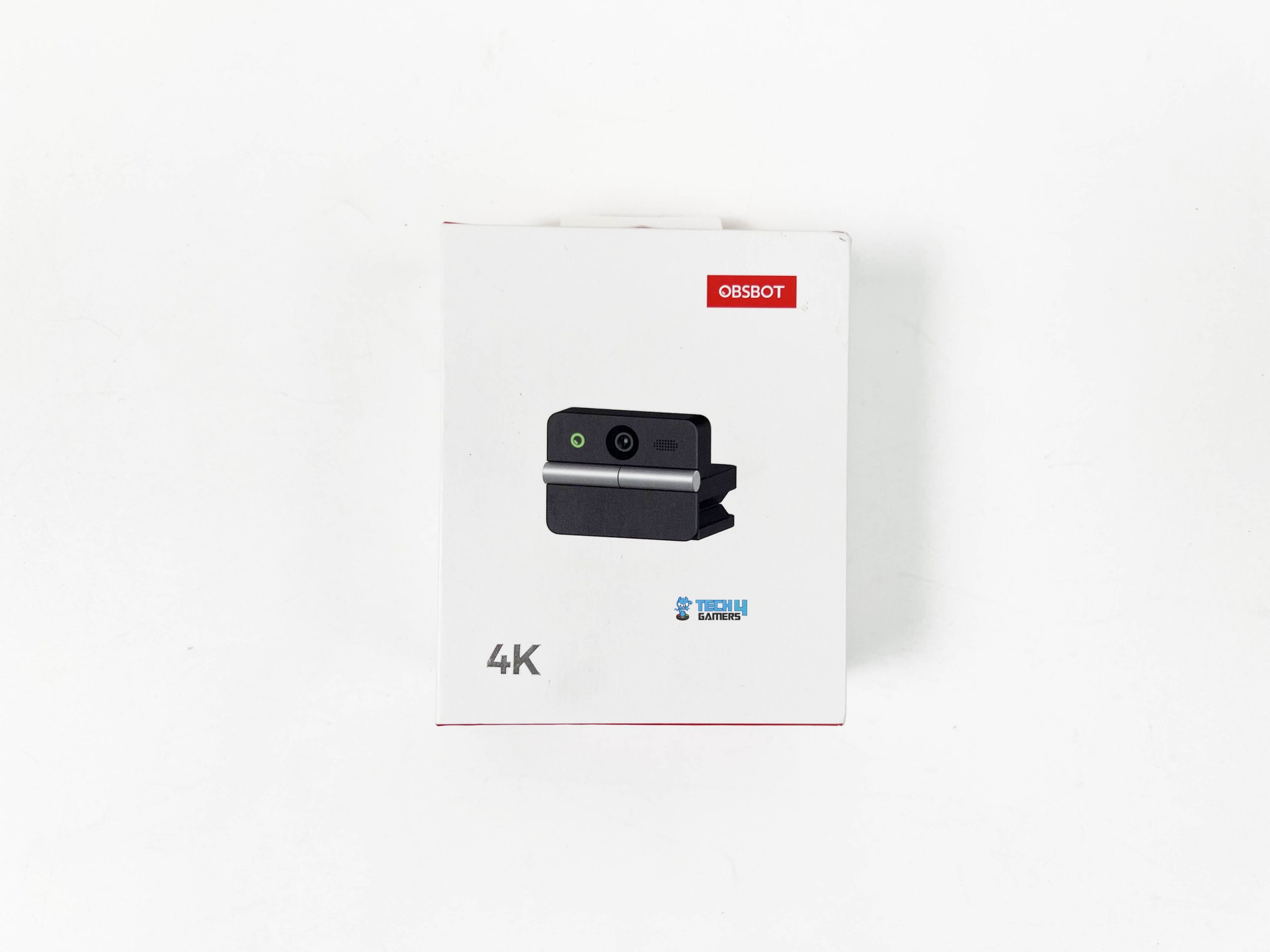
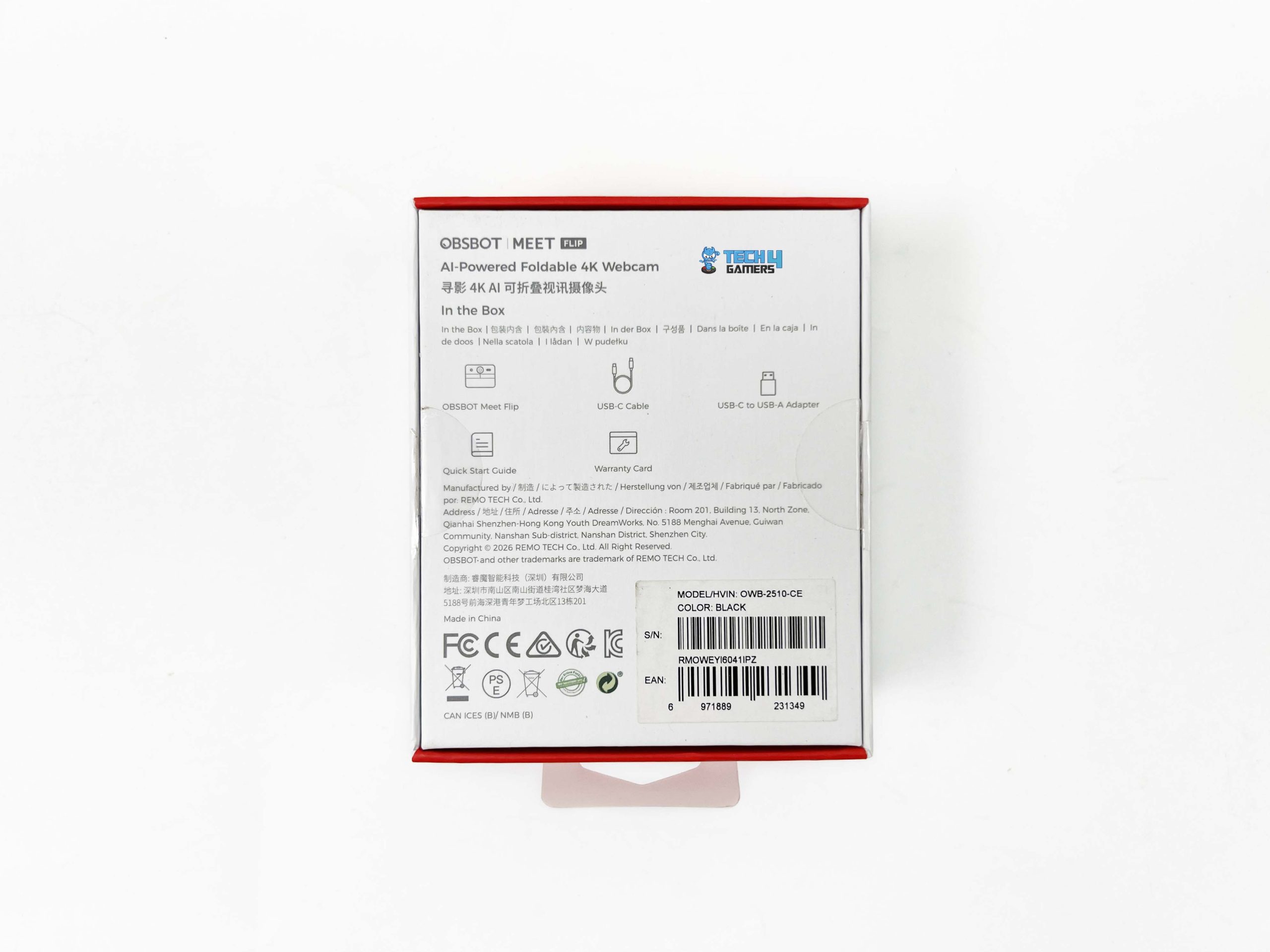
The Obsbot Meet Flip arrives in the company’s usual retail packaging, with a red-and-white color scheme. The front of the box features an image of the webcam, along with Obsbot’s branding in the top-right corner. The sides have the model name printed on them, while the back provides manufacturer information and lists what’s inside. When you open the package, you’ll find a Quick Start Guide on top. Once you remove it, you’ll find the Meet Flip sitting in a dedicated cutout inside the cardboard packaging.
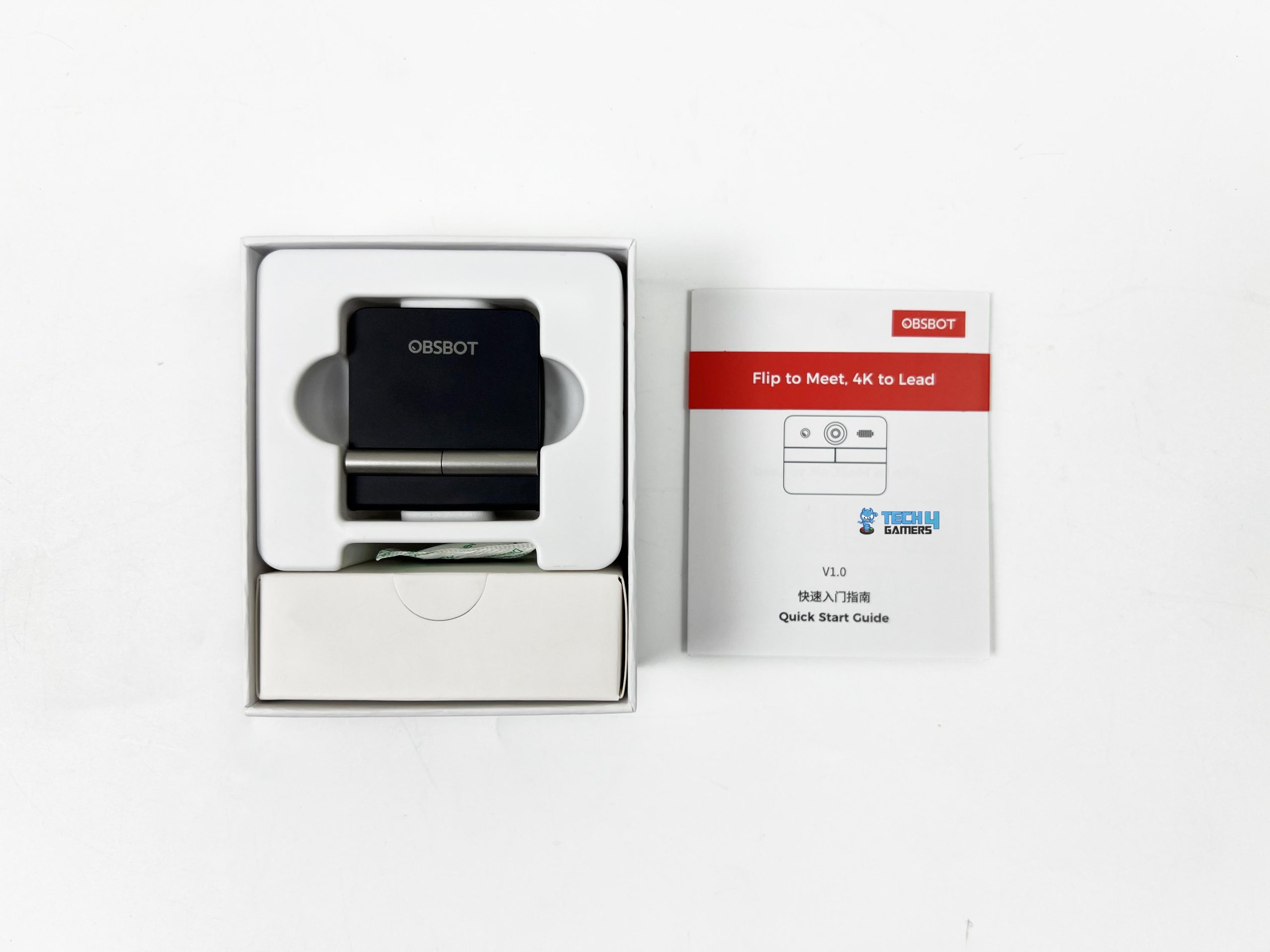
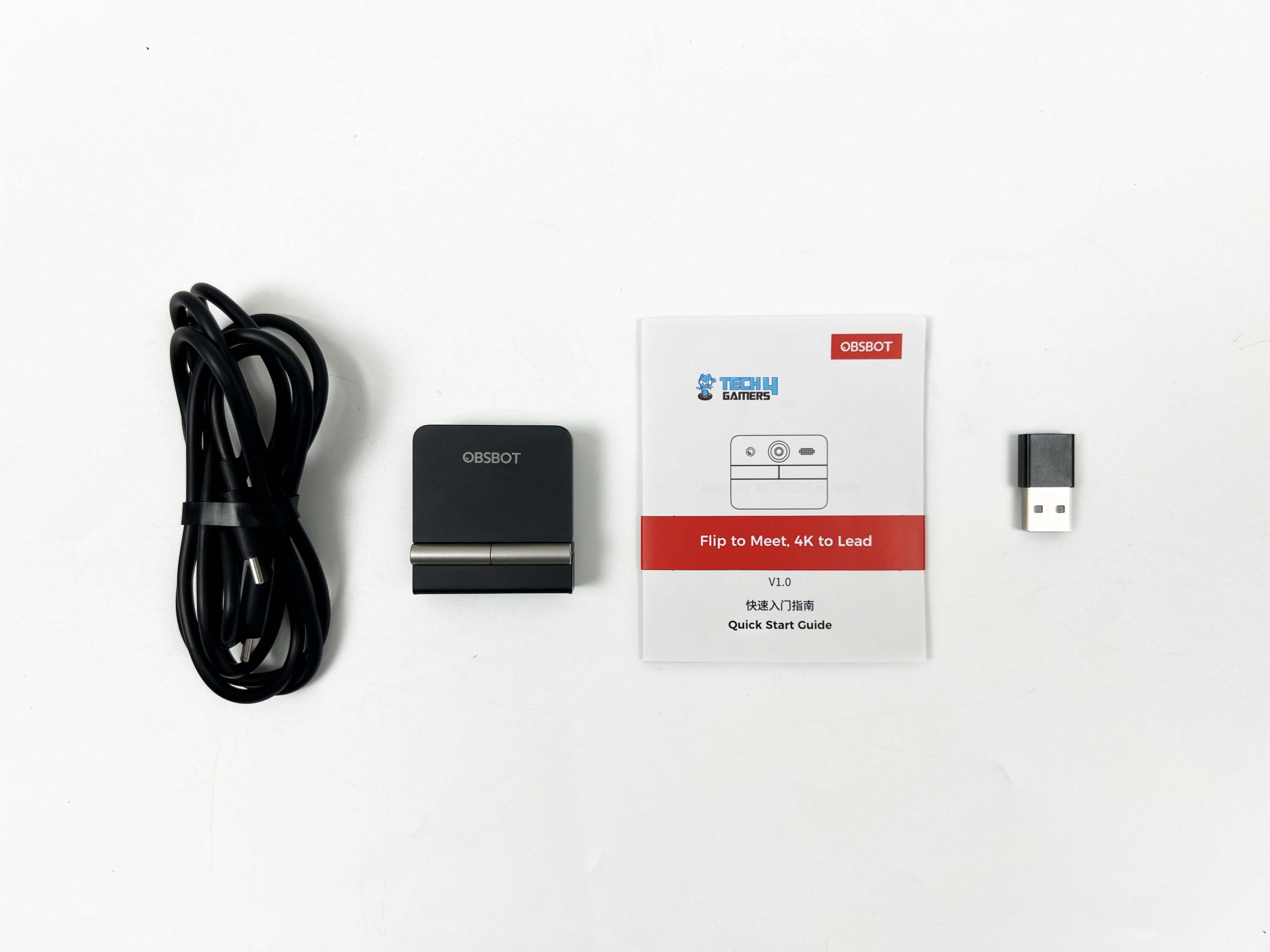
The webcam is held securely in place, so it doesn’t move around inside the box. A separate accessory box sits underneath the webcam. As for the included accessories, Obsbot includes a USB-C to USB-C cable to connect the webcam to your PC. You also get a USB-C to USB-A adapter, which is useful if your system doesn’t have an available USB-C port. It’s a straightforward accessory bundle, but it covers basic connectivity without forcing you to buy an extra adapter.
Design

The Obsbot Meet Flip measures 41.6 × 36.9 × 31.9 mm when open and 41.6 × 44.9 × 18.8 mm when folded. It weighs just 37.7 grams, making it exceptionally lightweight. Looking at the front, the lens sits in the centre of the camera housing. A circular frame surrounds it, making it the most noticeable front feature. The camera indicator is positioned to the left of the lens, while the intelligent dual-microphone system sits on the opposite side. The microphone openings are subtle, so they don’t disrupt the overall look.
It comes in black color, and the overall appearance is fairly minimal. The camera housing is rectangular with slightly rounded corners, while the lower section forms part of the folding stand. The exterior has a clean finish. This gives the Meet Flip a professional appearance that should fit comfortably into most desk setups. It doesn’t look particularly distracting when placed above a screen. Its small footprint means it won’t draw much attention away from the rest of your setup.
Privacy & Flip Mechanism

The defining feature of the Obsbot Meet Flip is its folding mechanism. Most webcams rely on a small sliding shutter or a removable lens cap for privacy. Obsbot takes a slightly different route. The Meet Flip uses its own folding body as a physical lens cover. When you’re finished with a meeting, you can simply fold the camera housing down over the lower section. The lens is then covered without adjusting a separate shutter. I quite like this approach because it feels like a natural part of using the webcam.
You don’t have to look for a tiny switch or remember whether you’ve closed the privacy cover. Just fold the camera down, and the lens is physically hidden. It’s also obvious when the webcam is closed. You can see the camera folded away, rather than relying on an indicator or a setting in your video-calling application. The folding action itself is straightforward. You lift the camera section when you want to use the webcam, then fold it back down when you’re done.
Mounting & Adjustability

The Obsbot Meet Flip is primarily designed to sit on top of a monitor or laptop display. Its compact footprint means it doesn’t take up much space along the upper bezel. It also doesn’t look particularly awkward once positioned above the screen. The low weight helps because the display doesn’t have to support a heavy camera hanging over its edge. Its integrated mount suits the usual desktop setup, where you place the webcam above your monitor and adjust it until you’re satisfied with the framing.
The same general approach works with a laptop display. Consider display thickness with any webcam mount. Thin laptop screens and thicker desktop monitors can have quite different mounting surfaces. The Meet Flip’s folding construction keeps the mounting section relatively compact, so it doesn’t look like a large clamp sitting over the display. Once mounted, the camera also looks fairly neat rather than dominating the top edge of the screen. It also feels properly balanced once mounted.
Build Quality

The Obsbot Meet Flip has a lightweight plastic construction, which makes sense given its focus on portability. It’s lightweight, but that doesn’t mean it feels cheaply made. The housing sections fit together neatly. No obvious gaps or rough edges detract from the overall construction. It’s a fairly simple design, but the execution feels well put together. The plastic body also feels sufficiently solid for everyday use. Despite its lightweight construction, the webcam doesn’t feel like it will flex or fall apart with normal handling.
I wouldn’t describe it as fragile, which matters for a product built around a folding mechanism. You can pick it up, open it, and adjust its position without feeling like you need to handle it with excessive care. Thankfully, the hinge feels reassuring during use. It provides enough resistance when opening and closing the camera, without being so stiff that adjusting it becomes uncomfortable. I can comfortably see myself opening and closing the Meet Flip several times a day without feeling concerned about putting too much stress on the mechanism.
Connectivity

The Obsbot Meet Flip takes a fairly straightforward approach to connectivity. It uses a USB-C connection and works straight out of the box, so you don’t need to install a dedicated driver. The USB-C port sits on the back of the camera body. I prefer this placement because the cable connects from behind rather than sticking out from either side of the webcam. It’s also a standard connection, so you aren’t tied to a proprietary cable if you ever need a replacement. The underside also features a standard UNC 1/4-20 mounting interface.
This lets you attach the Meet Flip to a compatible tripod instead of placing it directly on top of your monitor. Obsbot also advertises three shooting orientations: Landscape, Portrait, and Upside-Down. These options give you more flexibility when positioning the camera, particularly if you plan to use it for vertical content or have a mounting setup that requires an inverted position. You can use a compatible third-party tripod or Obsbot’s optional Extendable Tripod to experiment with these different placements.
Obsbot Center Software

If you want to get more control over the Meet Flip, Obsbot offers its Center application for Windows and macOS. This is where you’ll find the more advanced settings. You can still use the webcam through Windows Camera or your preferred video-calling app without it, but the software gives you a much wider range of customizations. When you first open Obsbot Center, you’ll find two interface modes: Lite and Pro. Lite mode is for users who want access to the most common controls without dealing with too many settings.
Pro mode opens up more detailed controls and gives you greater freedom to adjust the camera manually. When you turn it on, you’ll first see the Preview screen. It displays the live feed from the Meet Flip, with a few of the camera controls arranged around the preview window. Starting from the bottom-left corner, you’ll find the resolution and frame-rate settings. It supports up to 4K at 30 FPS. You can also switch to 1080p or 720p at up to 60 FPS. You can also rotate or flip the image if the camera is mounted in a different orientation.
You’ll also find AI Auto Framing. Rather than keeping the camera’s framing fixed, the software can automatically adjust the crop to keep the subject in view. The Meet Flip doesn’t have a motorized camera head, so this isn’t physical tracking. It uses digital cropping to change the framing within the camera’s image. It can also recognise supported hand gestures, allowing you to toggle AI Auto Framing or adjust the zoom. You can enable the feature through Obsbot Center and use the supported gestures to trigger the corresponding camera action.
Image Settings
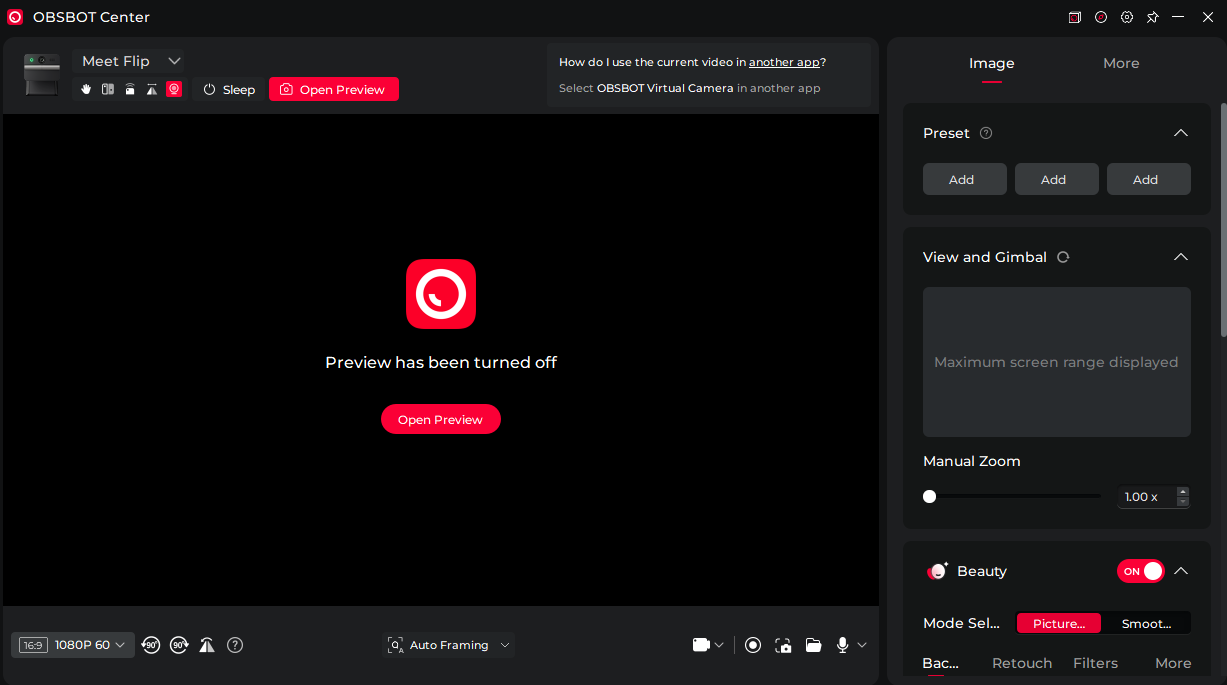
The Image Settings section gives you more detailed control over how the Meet Flip looks on camera. One of the first options lets you create and save up to three presets. You can configure the camera’s view and zoom to suit a particular setup, then save those adjustments for later use. You can also adjust the zoom manually instead of relying entirely on the automatic framing. The software also includes a Beauty section. This is mainly intended for users who want to change their appearance on camera.
The basic options include background blur and background replacement. You can blur the area behind you if you’d rather not show your surroundings, or replace it with another background. The Retouch section provides more direct appearance adjustments. You can change your skin tone and use options such as Smooth and Clarify to alter how your face appears in the video. These controls are fairly straightforward, although I’d keep them subtle if you’re aiming for a natural-looking camera image.
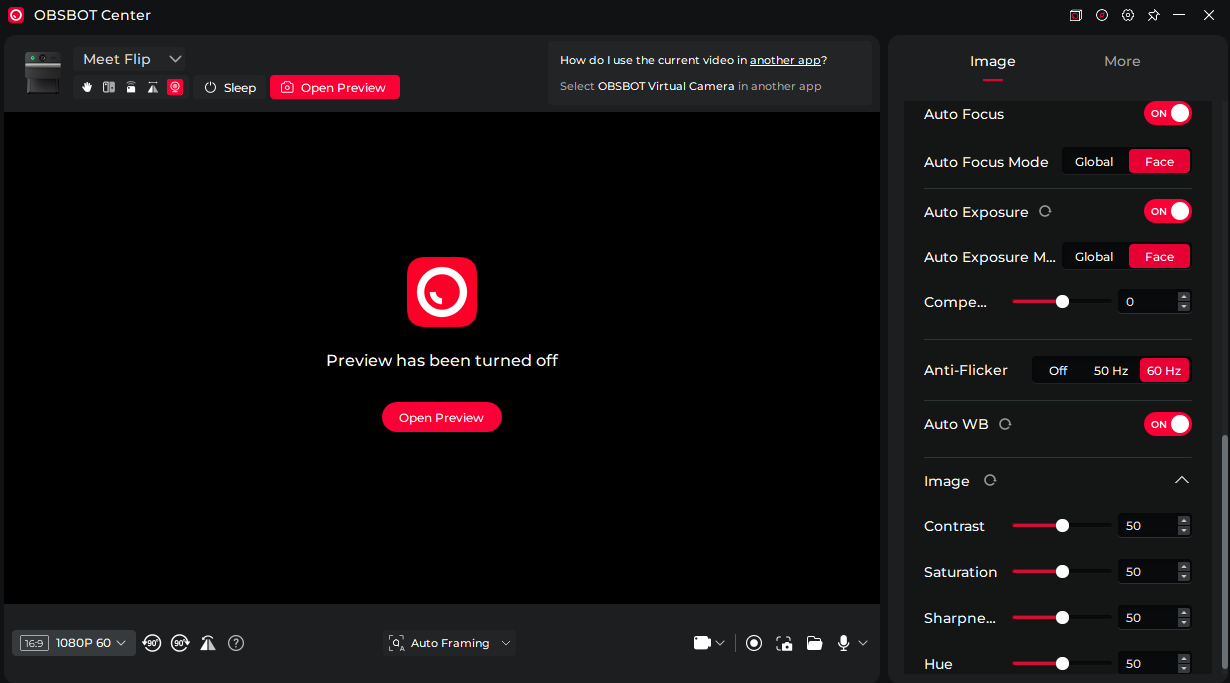
The Filters section is separate and lets you apply different visual filters to the camera feed. Eye Tracking is another option available within the software. If you want more direct control over the camera output, Obsbot Center also provides image adjustments. HDR is available here and can be switched on or off. You can also choose an autofocus mode. It offers Global and Face options. Autofocus can also be disabled if you prefer to control the focus manually. Exposure has a similar option. You can enable or disable it.
When you do the latter, you can control settings such as ISO and shutter speed. It also has an anti-flicker setting to deal with flickering caused by artificial lighting. You can also adjust how the footage looks with a range of image adjustments. You can work with contrast, saturation, hue, and sharpness. Explore these controls if the default image doesn’t match your lighting or personal preference. A slightly warmer or cooler white balance can change how skin tones look, while contrast and saturation adjustments affect the footage’s overall look.
Image Quality
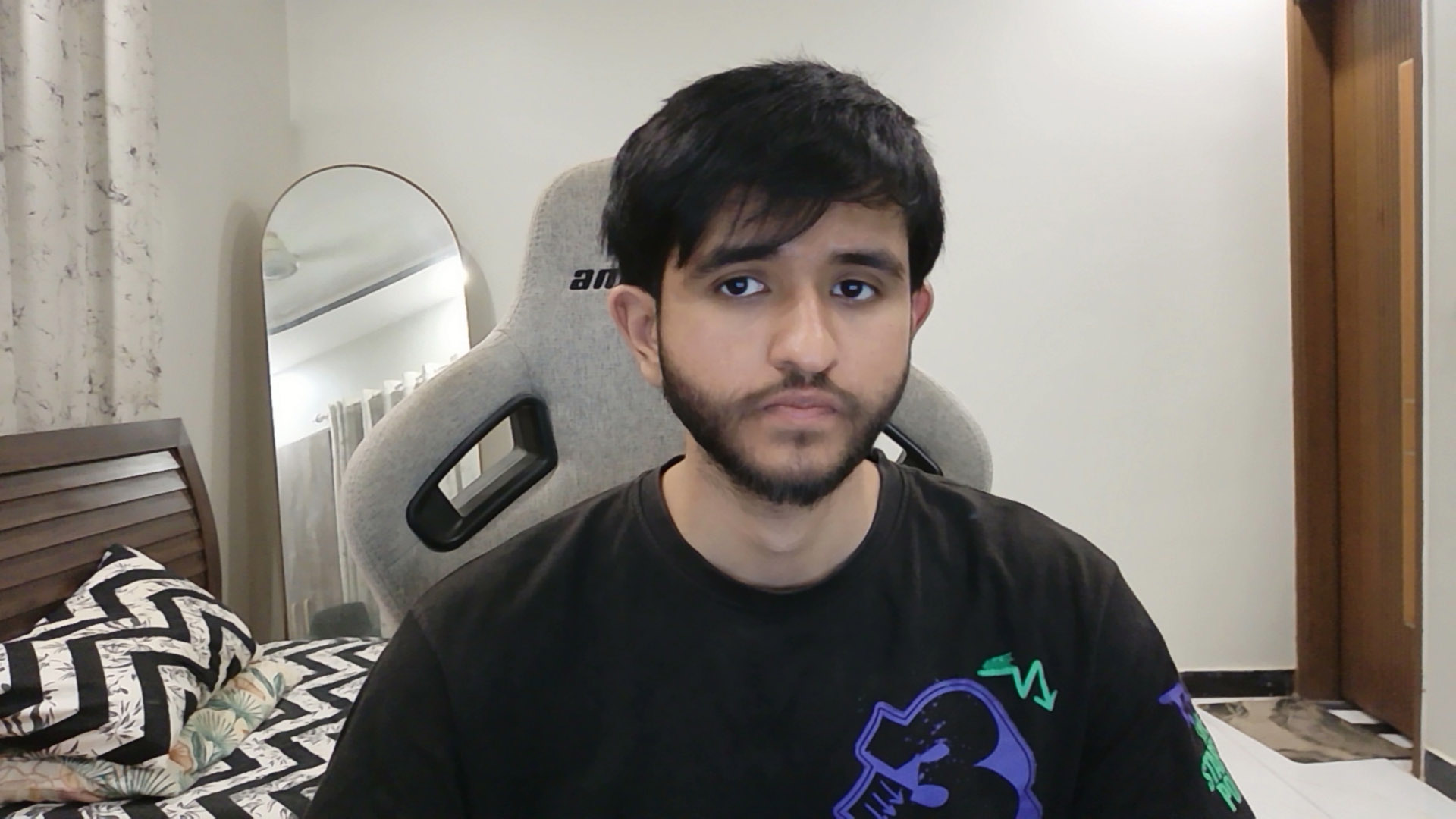
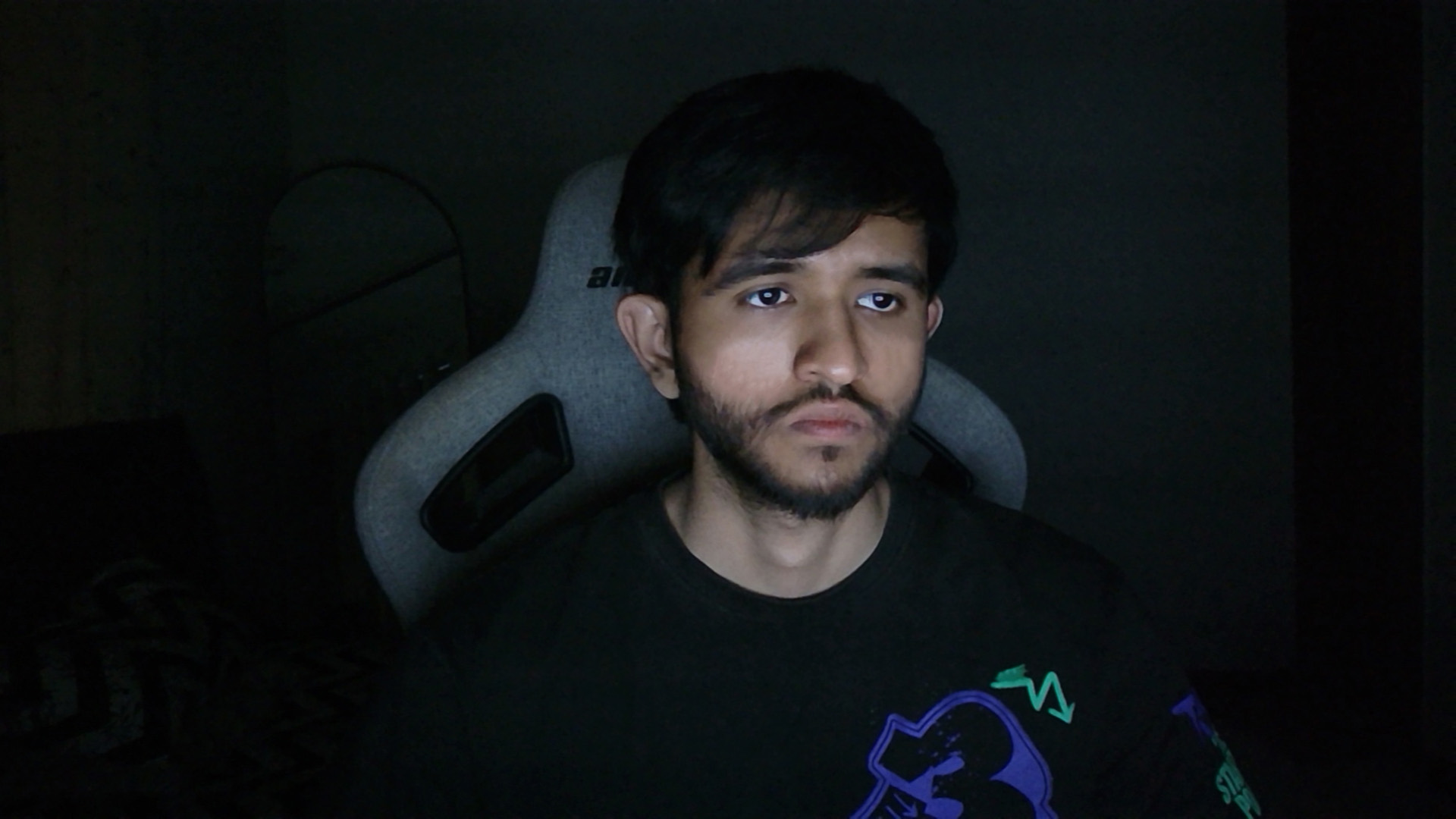
Image quality is one of the most important aspects of any webcam, and I’m quite happy with what the Obsbot Meet Flip delivers here. The footage looks very good, with a level of detail that you’d expect from a 4K webcam. The image looks sharp and well-defined, and facial details stay clear without looking overly processed. Whether you’re using it for a video call or recording content, overall image quality is one of this webcam’s stronger points.
A lot of this comes down to the camera hardware. The Meet Flip uses a 1/2-inch CMOS sensor with 48 million effective pixels and an f/1.8 aperture. The sensor size and lens specifications give the camera a solid foundation for capturing detailed footage. The f/1.8 aperture is worth mentioning because it lets plenty of light reach the sensor. Of course, the final image still depends on the lighting around you, but these specifications are encouraging for a webcam in this category.
The Meet Flip supports video recording at up to 4K resolution at 30 FPS. I tested it mostly at this setting, and the footage looks sharp with plenty of visible detail. The higher resolution is particularly useful if you’re recording content that might be edited or cropped later. You have more pixels to work with, so you don’t lose as much detail when you make small framing adjustments. I also tested the webcam at 1080p and 60 FPS. While 4K at 30 FPS prioritises detail, 1080p at 60 FPS provides smoother motion.
Microphone Quality
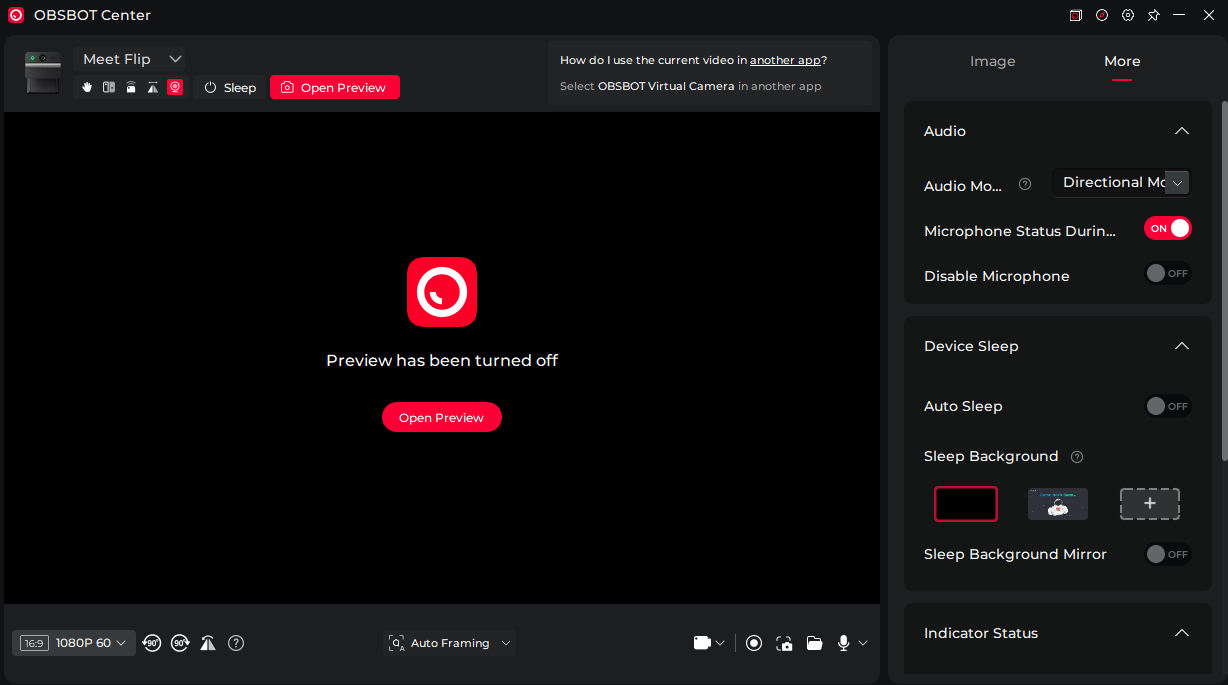
The Obsbot Meet Flip features an intelligent dual-microphone system, and its overall audio quality is decent. The built-in microphones capture your voice clearly, with a sound that is more than good enough for everyday video calls and casual recordings. Of course, a dedicated microphone will still deliver better audio quality, but for a webcam, the Meet Flip performs adequately. Obsbot Center also offers four different audio modes, which you can switch between depending on your recording environment.
Pure Audio Mode provides a more natural audio output without additional processing. Smart Omni Mode is designed to capture sound from a wider area, which is useful when multiple people are speaking. Direction Mode focuses on sound coming from the front of the webcam, making it suitable for regular desk setups. Finally, Dual Direction Mode captures voices from two different directions, which can be useful during conversations involving two people. You can choose the mode that suits your setup.
There’s also AI noise reduction, which is designed to reduce unwanted background sounds. This can be useful if you’re recording in a room where you occasionally hear traffic or other background noise. The different audio modes offer flexibility, but I’d still use a dedicated microphone when voice quality is a priority. A webcam microphone is convenient for meetings, but it isn’t necessarily a replacement for a proper desktop microphone when recording a review or voice-over.
Should You Buy It?
Buy it if
✅ You want a compact 4K webcam: The Obsbot Meet Flip supports 4K recording at 30 FPS and 1080p at 60 FPS. Its 1/2-inch CMOS sensor delivers sharp footage, while PDAF autofocus keeps your image in focus during regular use.
✅ You frequently travel with your webcam: Weighing just 37.7 grams, the Meet Flip is exceptionally lightweight. Its compact folded design makes it convenient to carry in a laptop bag or backpack.
Don’t Buy it if
❌ You want motorized camera tracking: The Meet Flip relies on digital cropping for AI Auto Framing. It doesn’t have a motorized gimbal that physically follows your movements.
❌ You need 4K recording at 60 FPS: The Meet Flip is limited to 4K at 30 FPS. If you specifically want 4K60 recording, you’ll need to consider another webcam.
Final Verdict
The Obsbot Meet Flip is an interesting addition to the company’s webcam lineup. I’ve reviewed quite a few Obsbot cameras over the years, and this one takes a slightly different approach. It is a very capable webcam. I appreciate the direction the company has taken with this model. The Meet Flip doesn’t rely on a complicated design to stand out. Its physical privacy cover and compact form are what make it interesting, and the camera performance gives it a solid foundation beyond that.
At US$119, I think the Obsbot Meet Flip offers good value for what it brings to the table. You’re getting a 4K webcam with a folding privacy mechanism, a compact design, and plenty of image controls through Obsbot Center. The price also feels reasonable considering its portability and overall camera performance. If you’re looking for a portable 4K webcam with a built-in privacy mechanism, the Obsbot Meet Flip is certainly worth considering.
Thank you! Please share your positive feedback. 🔋
How could we improve this post? Please Help us. 😔

[Hardware Reviewer & Editor]
After many years of exploiting various pieces of hardware, Abdul Hannan now serves as an editor at Tech4Gamers. He’s been in the PC hardware reviewing industry for almost a decade, and his staff of passionate geeks and reviewers is second to none.
Abdul Hannan is constantly seeking new methods, you will always see him running into New Computer Courses to improve the performance of his computer components since he is an ardent overclocker. He is well-known for providing the most extensive and unbiased analysis of the newest and greatest hardware for PC gaming, including everything from GPUs to PSUs.
 Join Our Community