
 Threads
Wood Changes Everything?
Review Summary
The Womier WD75 is a well-priced 75% mechanical keyboard with its real walnut wood case and solid out-of-the-box performance. It offers a stable typing experience, controlled sound, tri-mode connectivity, and long battery life, all provided in a design that feels more like desk furniture than a gaming accessory. While it’s heavier than most 75% keyboards and skips adjustable feet, it delivers decent value for users who appreciate aesthetics, don’t mind a fixed typing angle, and are open to customization down the line.
Hours Tested: 1 Week

Overall
-
Design - 9.5/10
9.5/10
-
Build Quality - 9.5/10
9.5/10
-
Typing Experience - 9/10
9/10
-
Performance - 9/10
9/10
Pros
- Solid build with no flex
- Distinctive Walnut wood case
- VIA support
- Pleasant sound profile
- Long battery life
Cons
- USB-C cable feels basic
- Fixed typing angle
- Key spacing takes a bit of adjustment
- A bit heavier than most 75% keyboards
- RGB lighting can be extravagant sometimes


The Womier WD75 leans hard into something you don’t see very often at this price, which is real wood. That’s the whole hook here, and it’s the reason this keyboard stands out in a market of plastic and aluminum boards. Womier has built a bit of a reputation around bold designs and heavy RGB. Getting started with the WD75, I expected something interesting and a little different. I can say that this keyboard occupies an unusual yet appealing position after spending time with it on my desk.
Key Takeaways
- The Womier WD75 is a compact 75% keyboard that delivers smooth, consistent keystrokes and versatile tri-mode connectivity, while keeping a clean, understated look on your desk.
- You should buy the Womier WD75 if you want something that looks different on your desk, want customization through VIA support, don’t want to think about charging often, and care about the thocky sound profile out of the box.
- You should skip the Womier WD75 if you prefer lighter keyboards, travel often, rely on adjustable typing angles, prefer softer or heavily cushioned keycaps, and dislike extravagant RGB lighting.
Here are the technical specifications:
| Model | Womier WD75 V2 |
| Total Keys | 82 keys |
| Layout | ANSI 75% |
| Keycap | MDA profile PC keycaps |
| Case Material | Walnut Wood |
| Connection Types | Wired/2.4GHz Wireless/Bluetooth |
| Switches | Womier POM Mint Blizzard Switch |
| Backlight LEDs | South-facing |
| Plate | PC material, no flex cuts |
| Mounting Style | Tray Mount |
| PCB | 1.2mm, FR4 material, full RGB, hotswap, non-flex-cut, 3/5 pin switches compatible |
| Firmware Compatibility | VIA |
| N-key Rollover | Yes |
| Battery Capacity | 8000 mAh |
| Polling Rate | 1000Hz (Wired) |
| Interface | USB Type-C |
| Operating System | Windows, Mac, Linux, iOS, Android |
| Keyboard Weight | 980±20g |
| Dimensions | 324*132*48mm |
What Makes Womier WD75 Different?
The Womier WD75 sets itself apart from just about any other keyboard in its price range by leaning into its real walnut wood case rather than the usual plastic or aluminum cases you see everywhere, giving it a distinctive aesthetic that most competitors don’t offer. Unlike its predecessor, the V2 version refined the internal layout, rounded the edges more smoothly, and deepened the walnut tone, making it feel slightly more premium in the hand and on the desk.
Packaging & Unboxing
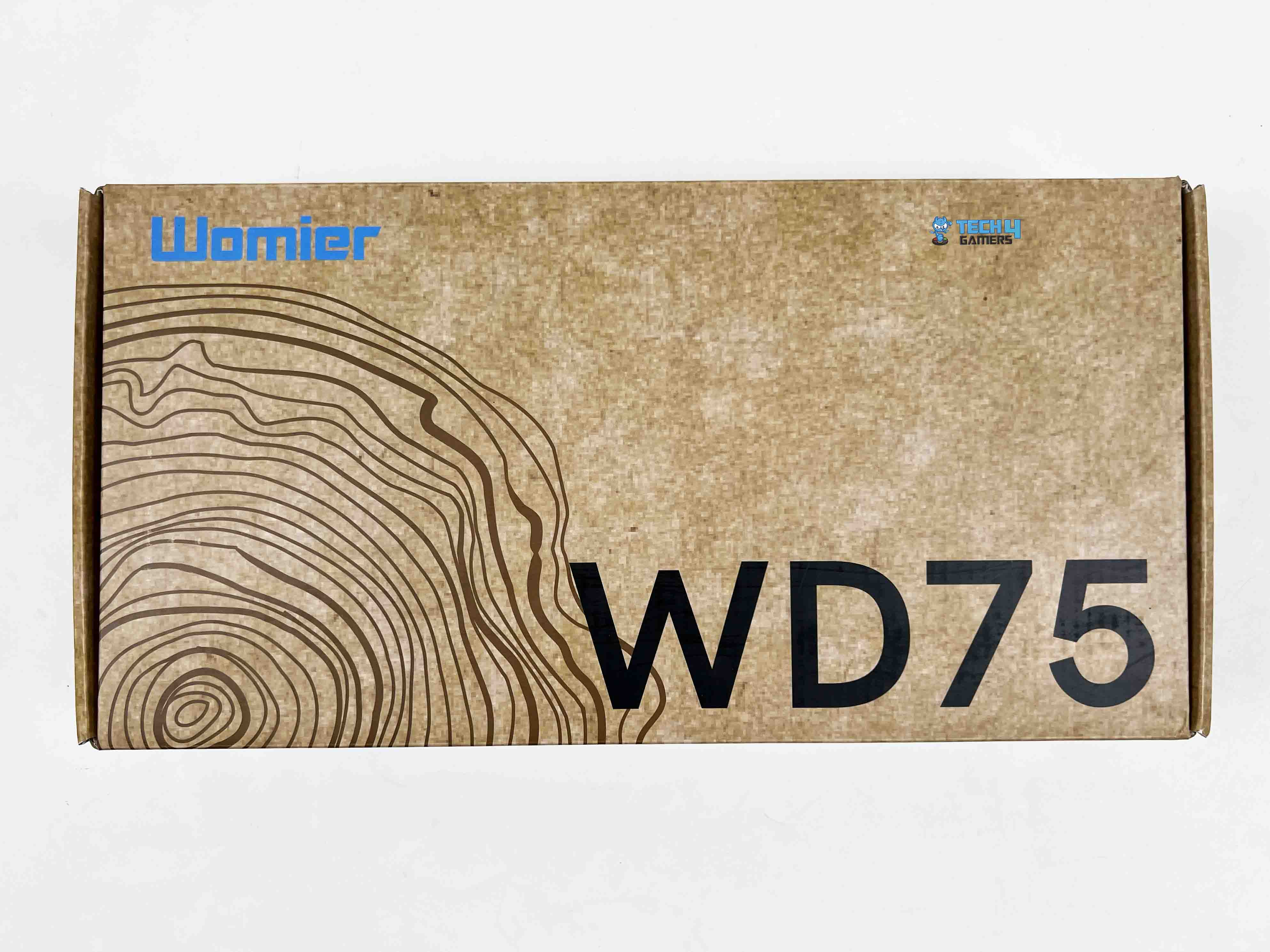
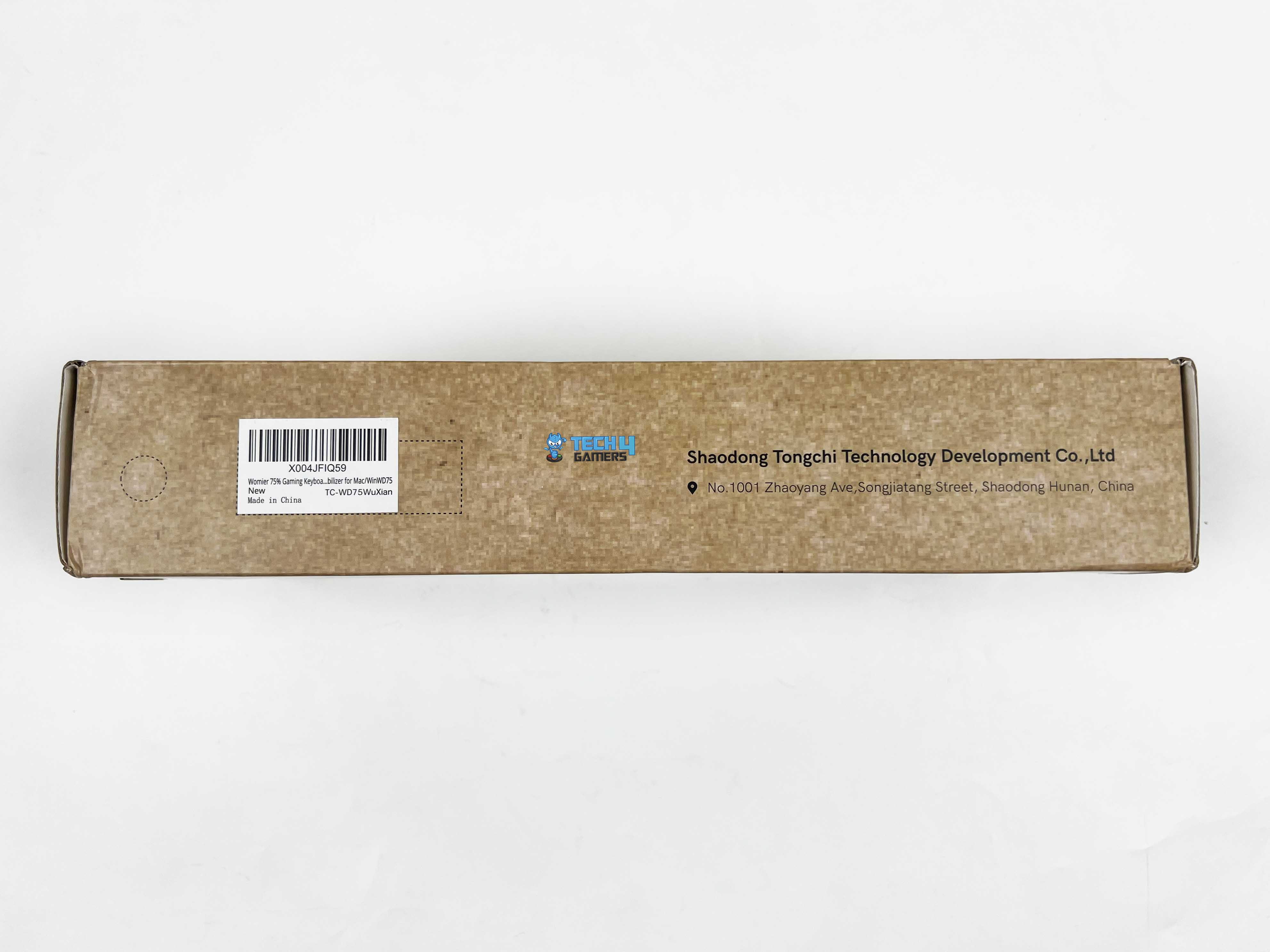
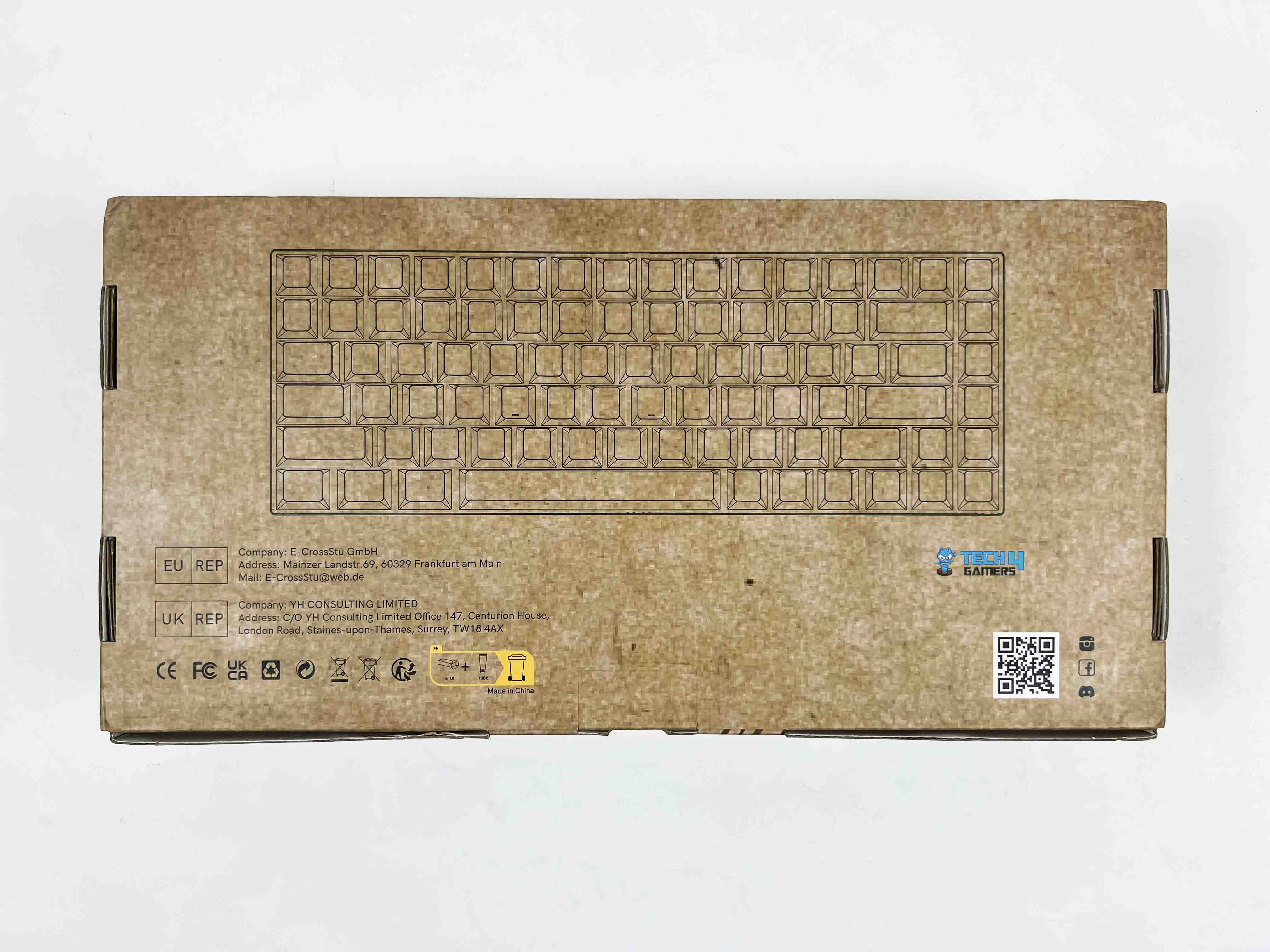
You get a plain cardboard box with Womier’s branding on it and the keyboard’s model name on the front. The box itself feels sturdy enough in hand. Inside, the keyboard is wrapped in a plastic sleeve and secured with foam on both sides. Another cardboard box is placed at the top of the keyboard and contains all the accessories. Here is the list of everything that you’ll find inside the box:

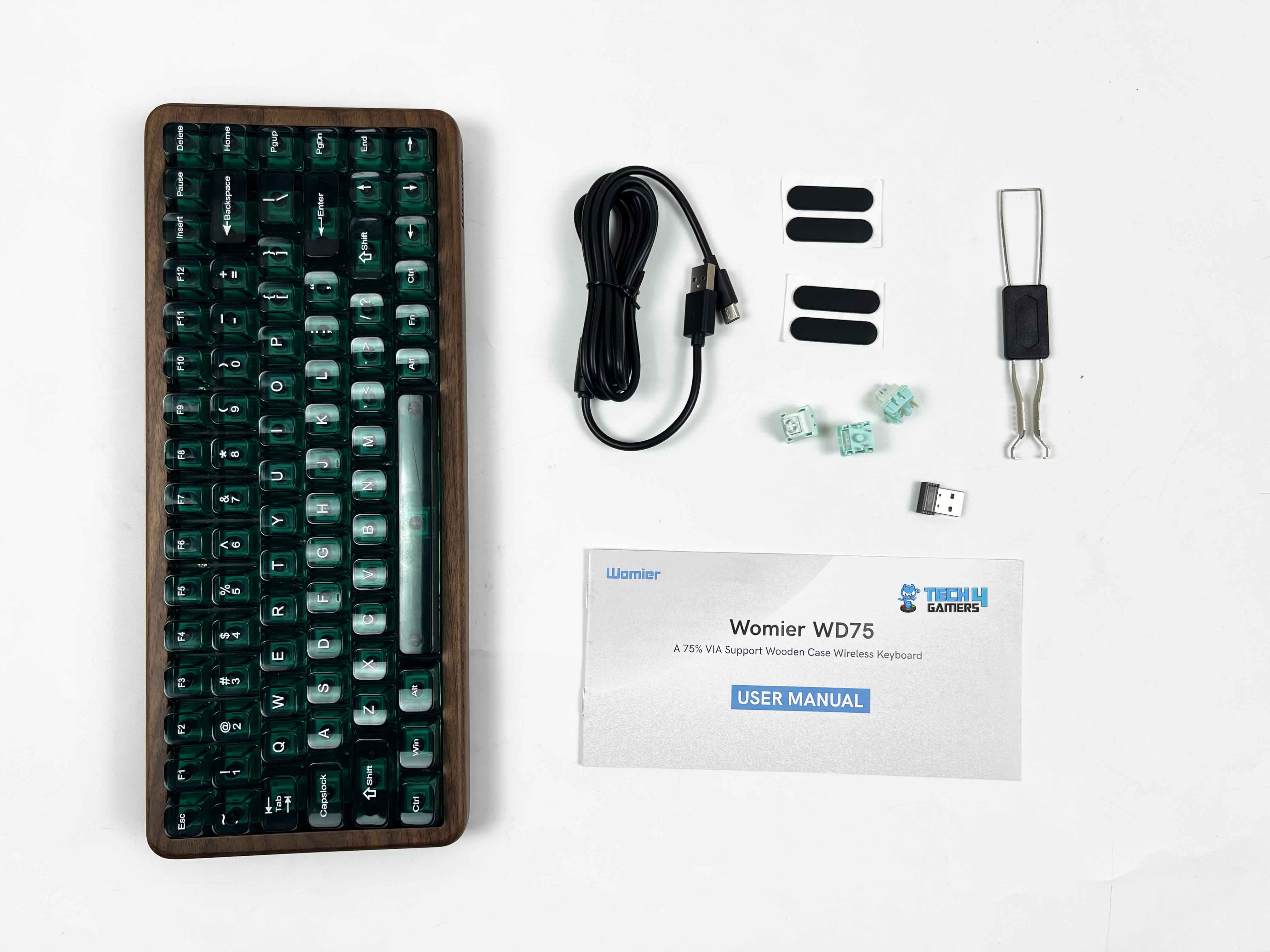
- Womier WD75 Keyboard
- USB-A to USB Type-C Cable
- 2-in-1 Keycap & Switch Puller
- 3 Extra Stock Switches
- User Manual
Design
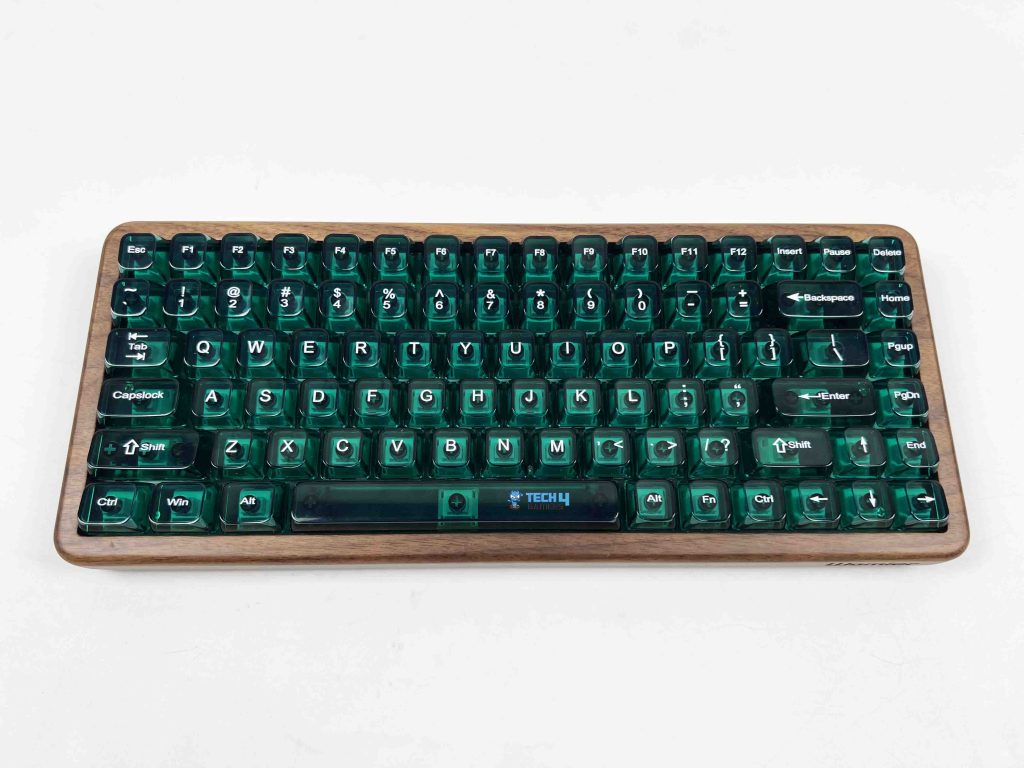
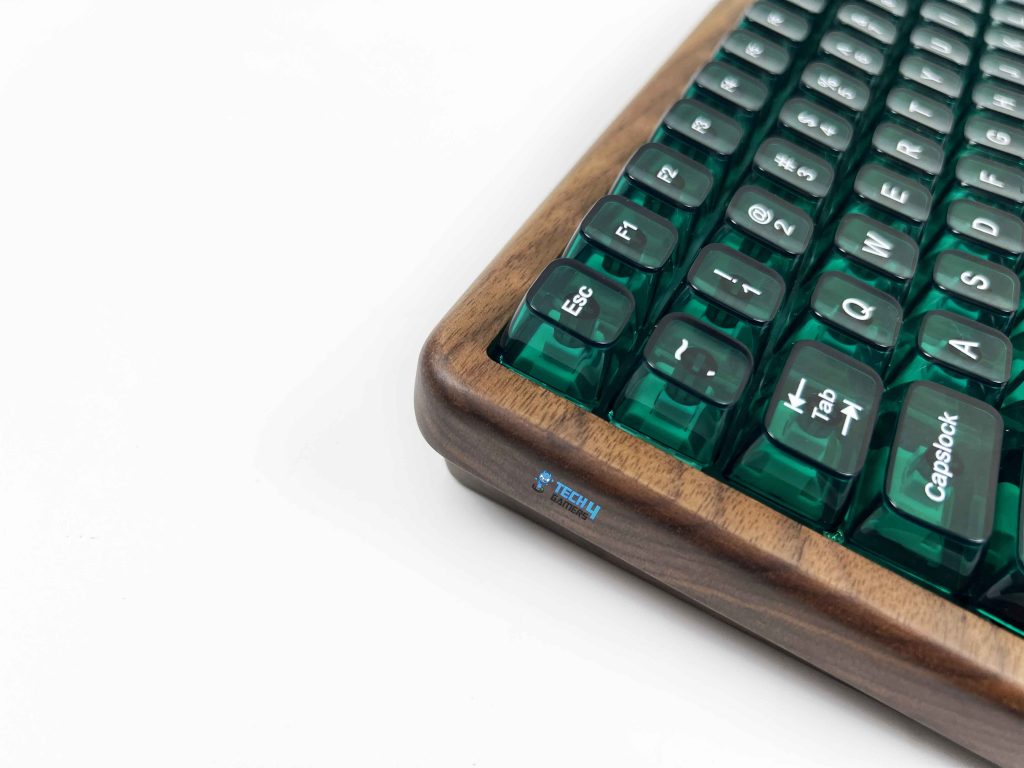
The design of the Womier WD75 is its USP. You notice the wooden case right away. It doesn’t look like a printed texture or a thin veneer. It’s real wood, and you can tell as soon as you touch it. The finish is smooth. When I first took it out of the box, there was a faint, delightful smell from the finish. It feels like a piece of furniture that happened to be a keyboard. Visually, the WD75 sits closer to the enthusiast side than anything gamer-focused.
The wood gives it a distinct appearance, and Womier doesn’t pile on extra design elements. The case lines are clean, and the edges are properly finished. There’s no awkward tapering, and the keyboard looks balanced even when viewed from a specific angle. Even with the keyboard turned off, the design still looks great. You don’t get that empty, lifeless look some RGB-heavy boards have when their lighting is off.
Layout
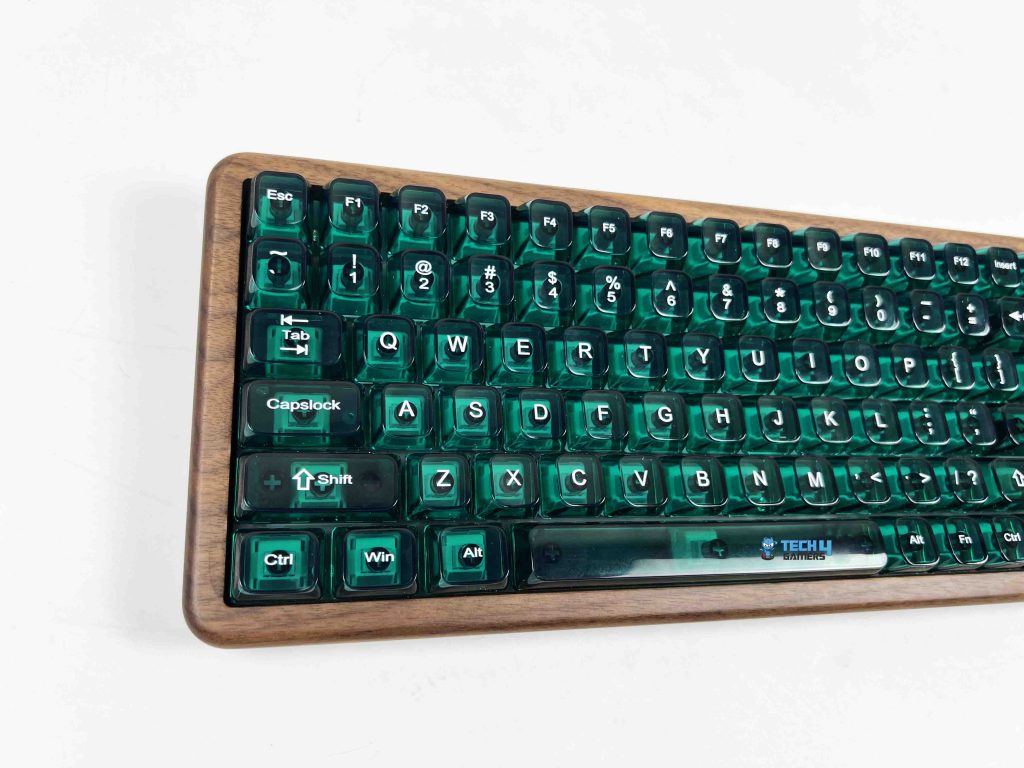
The Womier WD75 uses a fairly standard compact ANSI 75% layout with 82 keys. It keeps the function row and arrow keys without taking up as much desk space as a full-size board, and it’s tighter than a typical TKL. That means there’s less room between the arrow cluster and the main keys, which took me a little time getting used to. I kept pressing the wrong key a few times at first, since I mostly use full-size keyboards.
The arrow keys themselves get comfortable enough once you adjust. They’re close to the main keys, but not uncomfortably so. If you’re moving from a full-size keyboard, there’s a short learning curve. Even the right-side navigation cluster, such as Page Up, Page Down, Home, and End keys, feels different from what you’d expect, but it’s usable once your muscle memory catches up. The function row is easy to reach, though a few keys require the FN layer for extra actions.
Underside
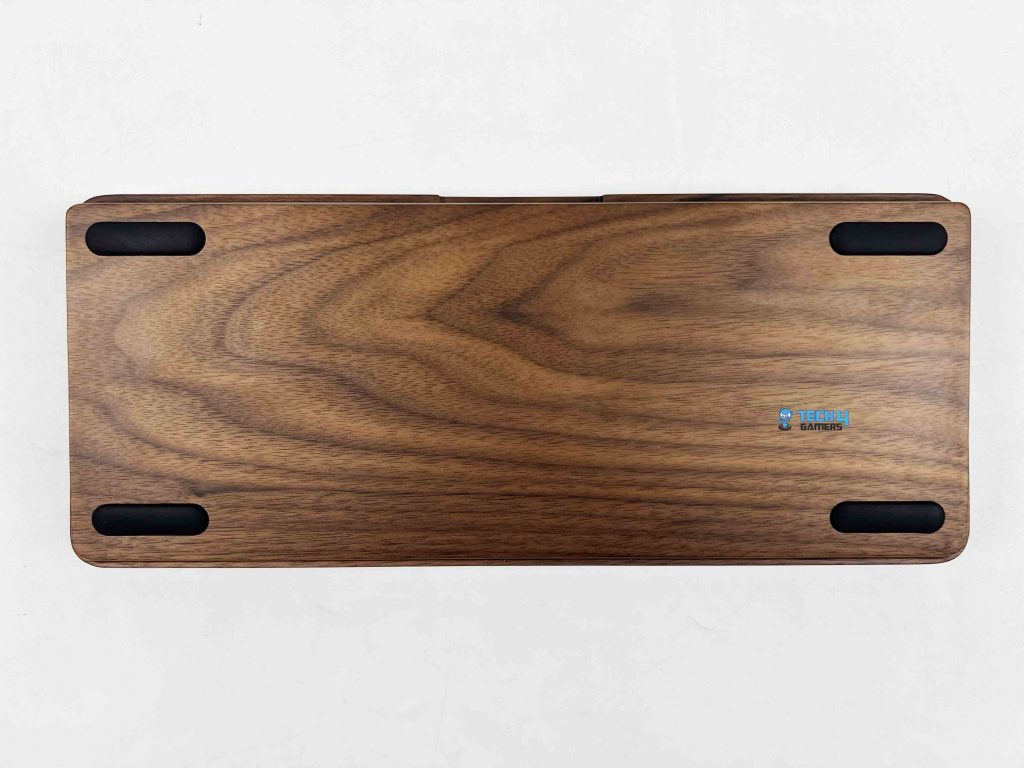
Flipping the WD75 over, the underside feels simple but solid. There’s nothing extravagant here. The keyboard sits flat on my desk, and the foot pads grip well enough that it doesn’t slide around during regular usage. There are four foot pads in each corner. One thing to note is that foot pads can come loose after some usage. Therefore, the Womier was generous enough to include extra foot pads in the box if that happens, so it’s an easy fix.
The typing angle is fixed since there are no kickstands. It sits at a relatively shallow angle by default, but I found it comfortable for long typing sessions without feeling steep. There’s no branding or labelling at all on the bottom. It’s just a clean, uninterrupted wooden surface. Cleaning is easy, too. The flat underside means dust doesn’t get trapped in awkward corners, and the wood surface wipes down easily.
Build Quality
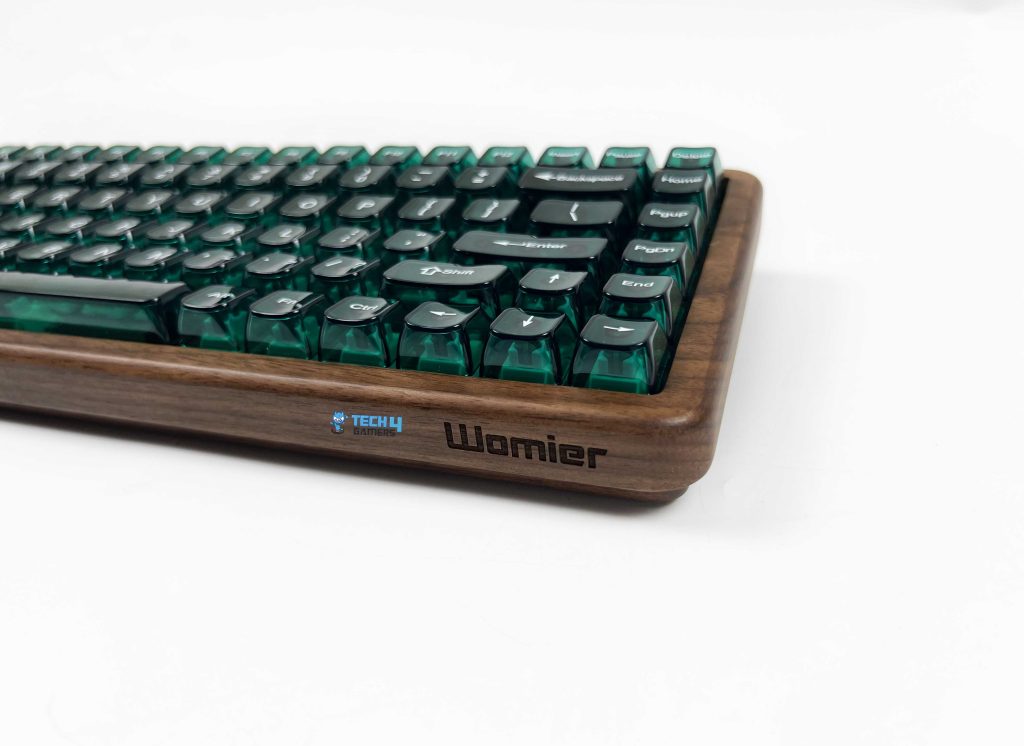
You feel the weight as soon as you pick up the Womier WD75. At just under a kilo, it has that reassuring density and settled feel that keeps it planted on the desk. It doesn’t shift when you start typing with a bit more force. It holds its shape even when pressed down. Notably, firm pressure around the center doesn’t cause any visible dip. There’s no soft spot where the chassis gives in or rebounds. It feels stable across the surface.
The weight feels evenly spread rather than concentrated in one area. Looking ahead, nothing about the build quality raises red flags. The materials appear to be durable for rigorous daily use. As long as it’s treated like a regular desk keyboard and not tossed into a bag every day, the build appears to be capable of lasting a long time. If you’re used to low-profile boards, this one sits higher and feels more substantial at 324 x 132 x 48mm.
Keycaps
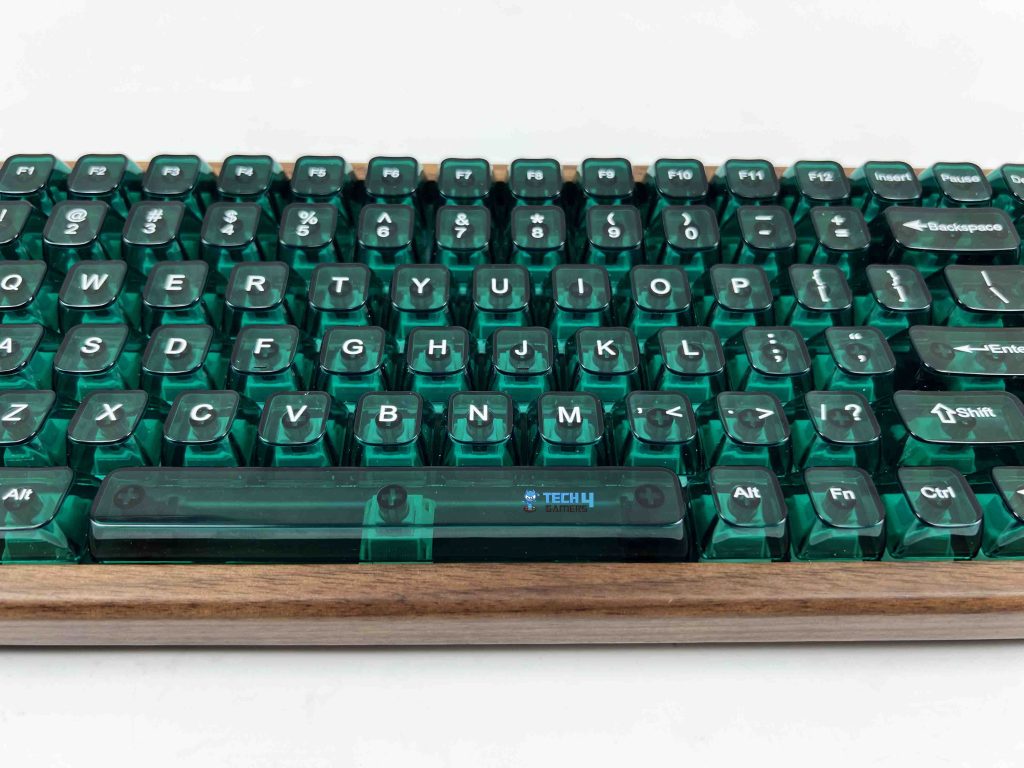
My Womier WD75 came with the green translucent keycaps. The surface feels smooth under your fingers, almost glassy. There’s a lightness to them that you notice when you first rest your hands on the keyboard. Thickness is on the moderate side. The sculpting is subtle, so your fingers don’t have to adjust much as they move between rows. Legends are white and printed directly onto the keycaps. They look sharp at normal viewing distance, and their alignment is mostly on point.
The white contrast works well against the translucent green caps. Notably, Womier offers other keycap options. There’s a Retro set at the same price that has black keycaps on top, changing the whole mood of the board. It looks more work-focused, though I personally find it a bit lifeless compared to the green set. In addition, the Ukiyoe set is the one that fits the keyboard the best. The artwork and tones sit well with the wooden theme, and it feels like a more intentional pairing.
RGB Lighting
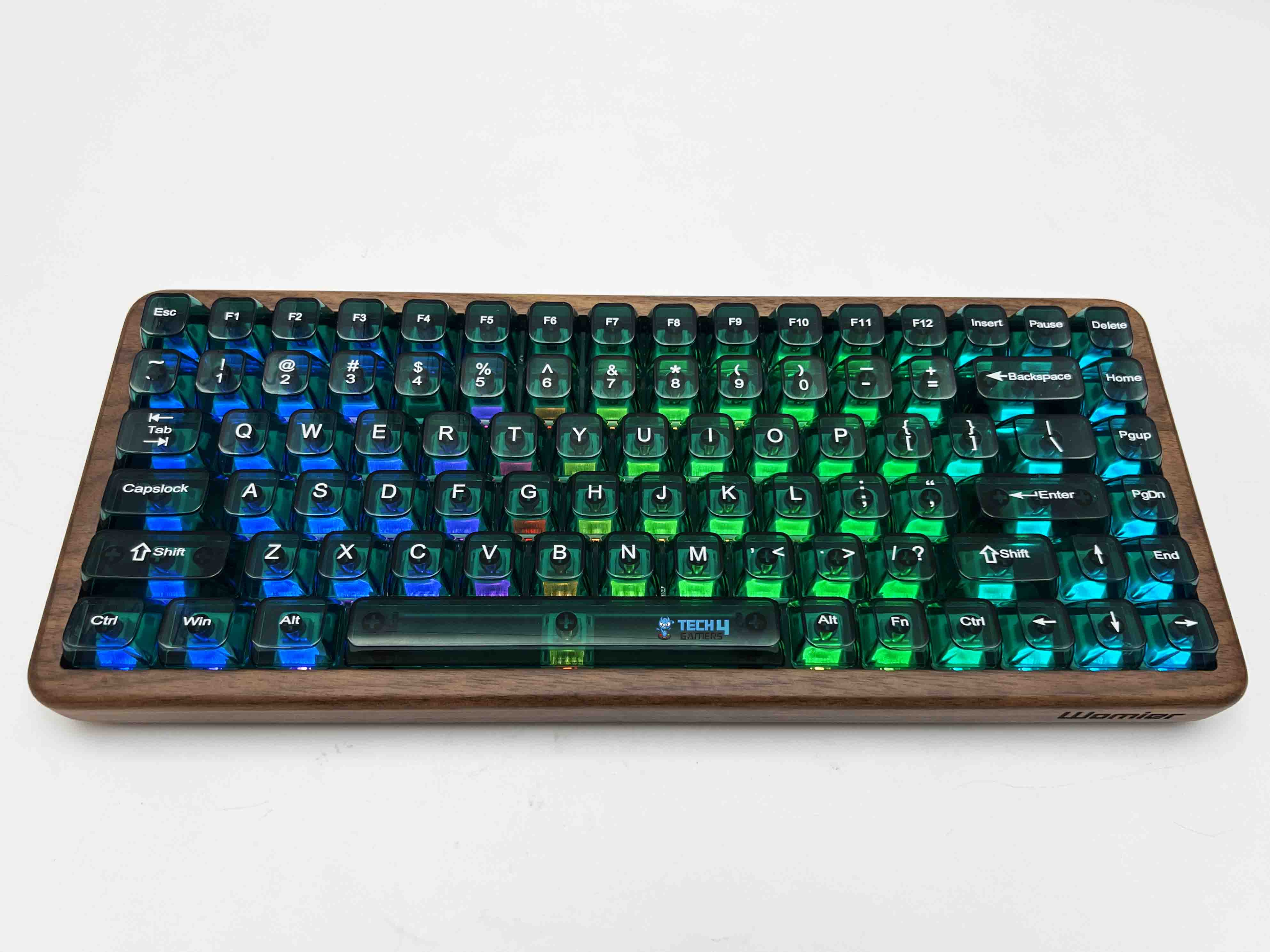
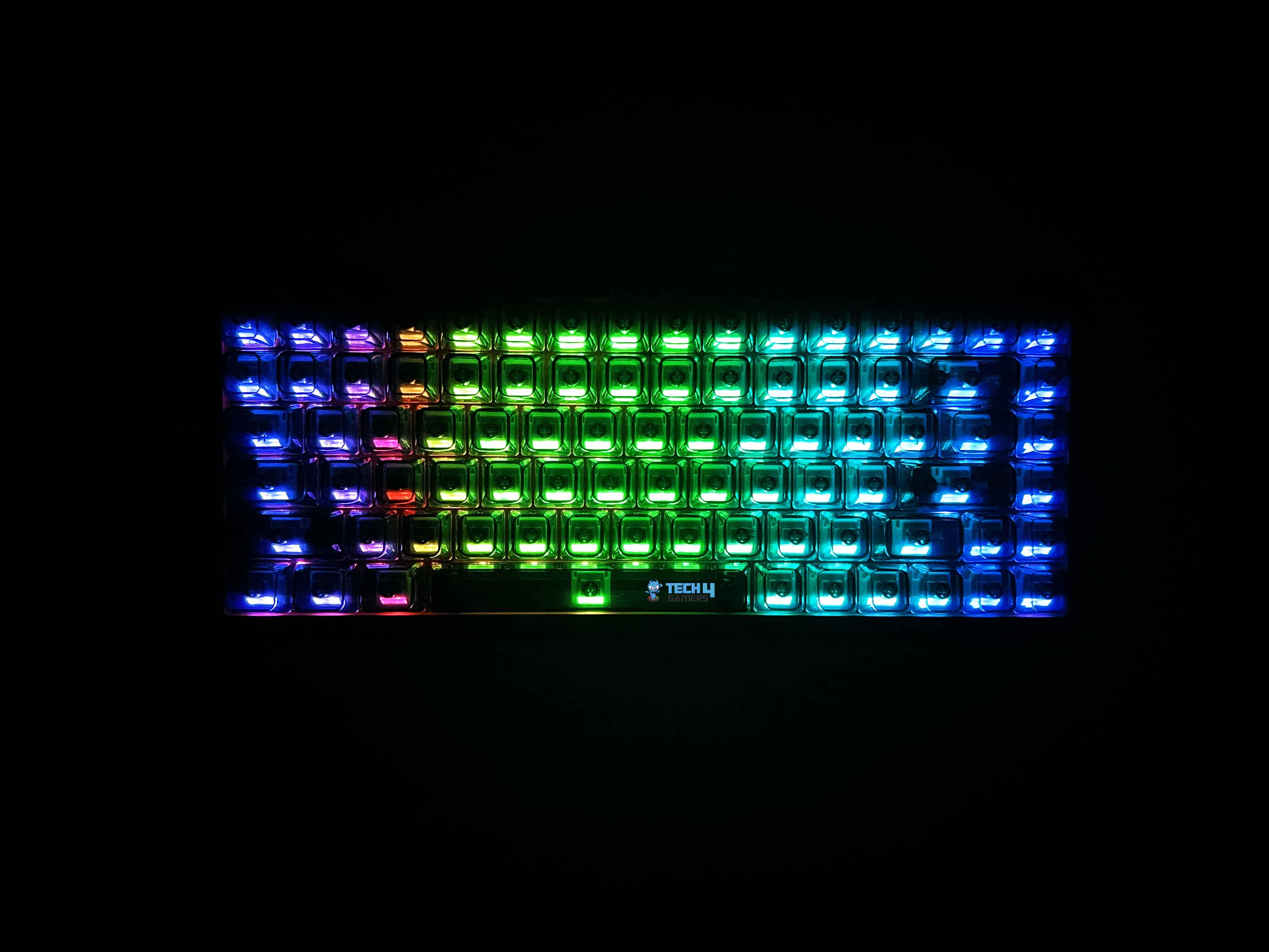
The Womier WD75 uses south-facing LEDs, which heavily influence how the lighting looks more than you might expect. Instead of the light coming straight up toward the top edge of the keycaps, the LEDs sit closer to the front of each switch. The keycaps light up more evenly, especially on the bottom half of each key. Even when the keyboard is powered off, you can still see hints of it through the translucent keycaps.
The RGB lighting works well with the MDA profile keycaps. At full brightness, the RGB gets plenty strong, and it does somewhat strain your eyes when you look down. The light seems a bit blown out. Because it doesn’t get blocked by the keycaps as much. In a dark room, the keyboard becomes visually apparent. It glows, overpowering the desk. On the other hand, in a brighter room, the RGB tones down a bit naturally but remains visible, just less dramatic.
Switches
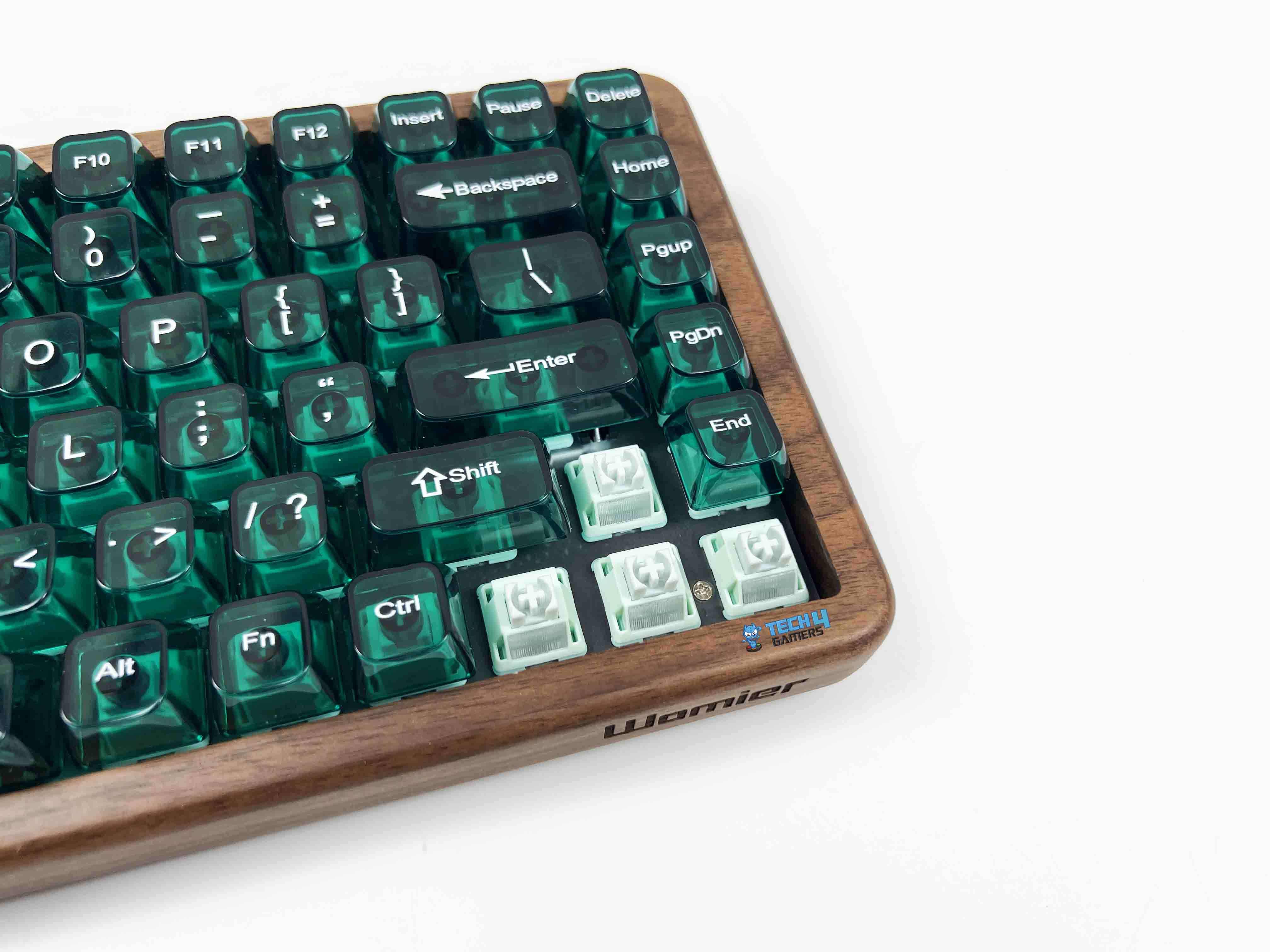
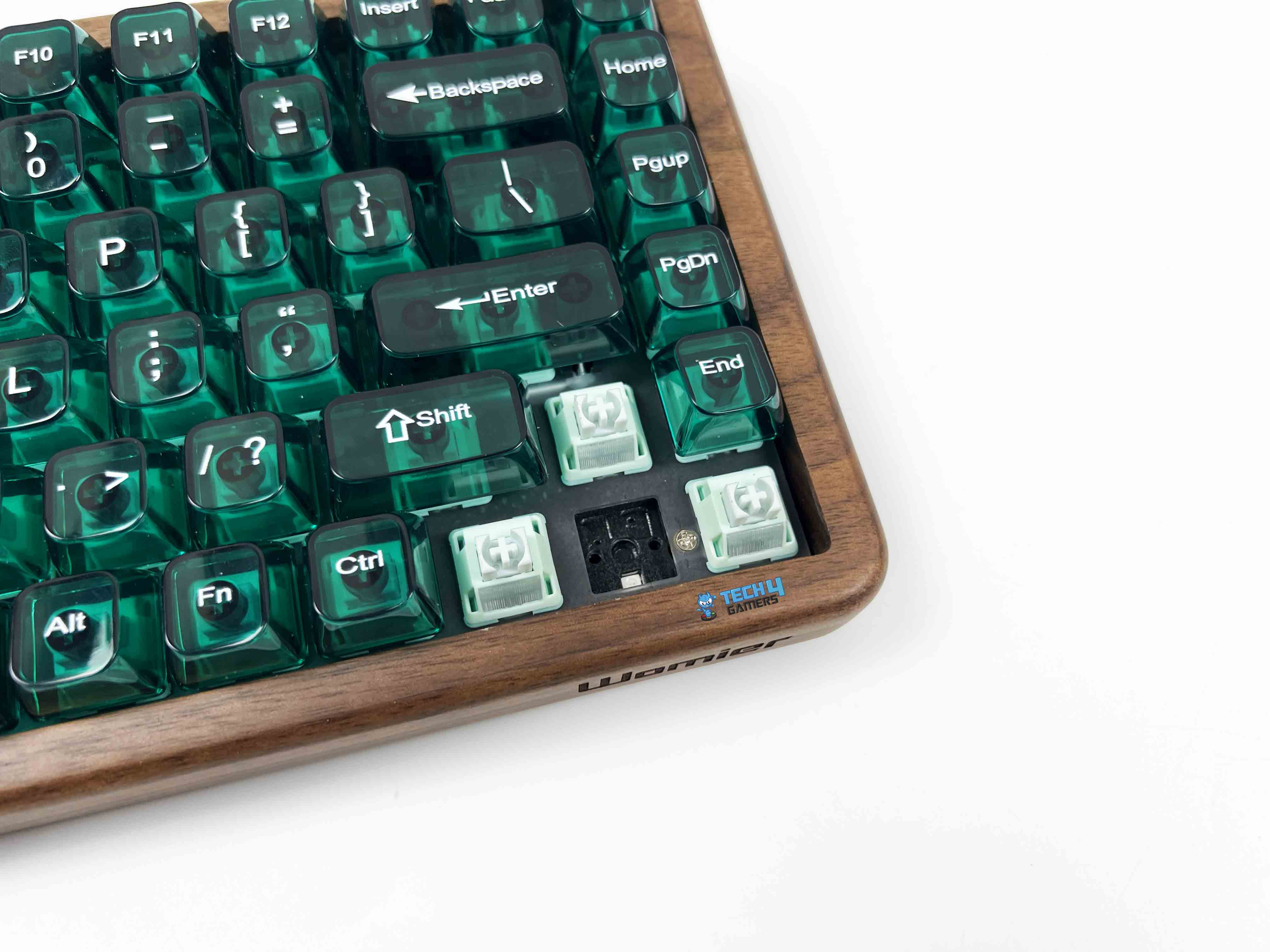
The Womier WD75 comes fitted with Womier’s Mint Blizzard linear switches, and after spending time on them, I get what they were aiming for. These are factory-lubed. The keypress is smooth from top to bottom. There is no sudden resistance near the end of the keystroke. They’re light as well. Actuation sits around the low-40s in force, and bottoming out is around 50. During longer typing sessions, this adds up in a good way. My hands felt relaxed even after a few hours of writing.
The spring is a long, single-stage design, which gives each keypress a steady push back up. Pre-travel is 2.0±0.2mm, and the full travel stops just short of 4 mm. All the main switch parts are POM, such as the stem, top housing, and bottom housing. These switches also include an LED diffuser that helps evenly distribute the RGB light. Light spreads cleanly across each key. It’s a small detail, but noticeable once you start cycling through lighting modes.
Connectivity
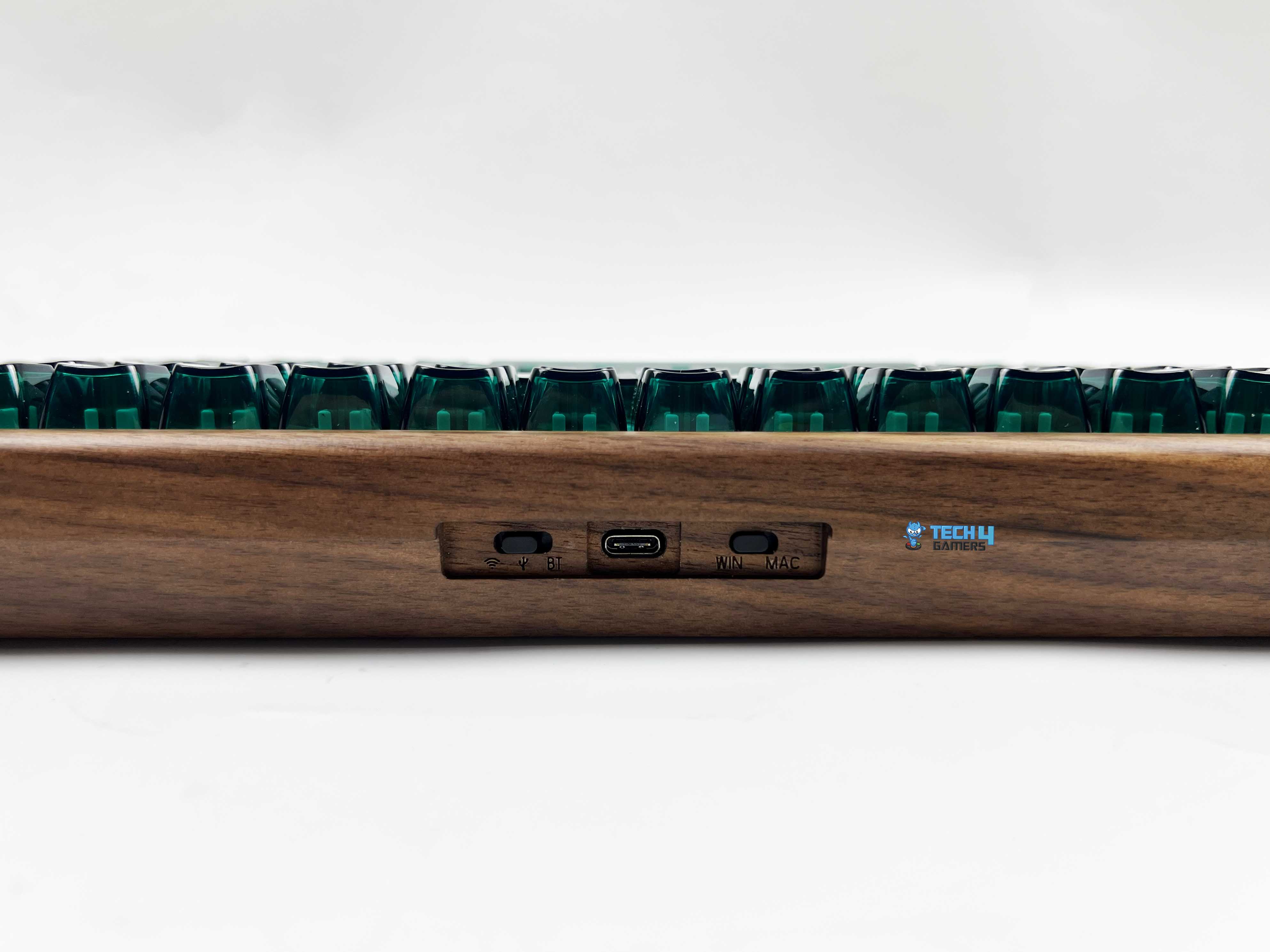
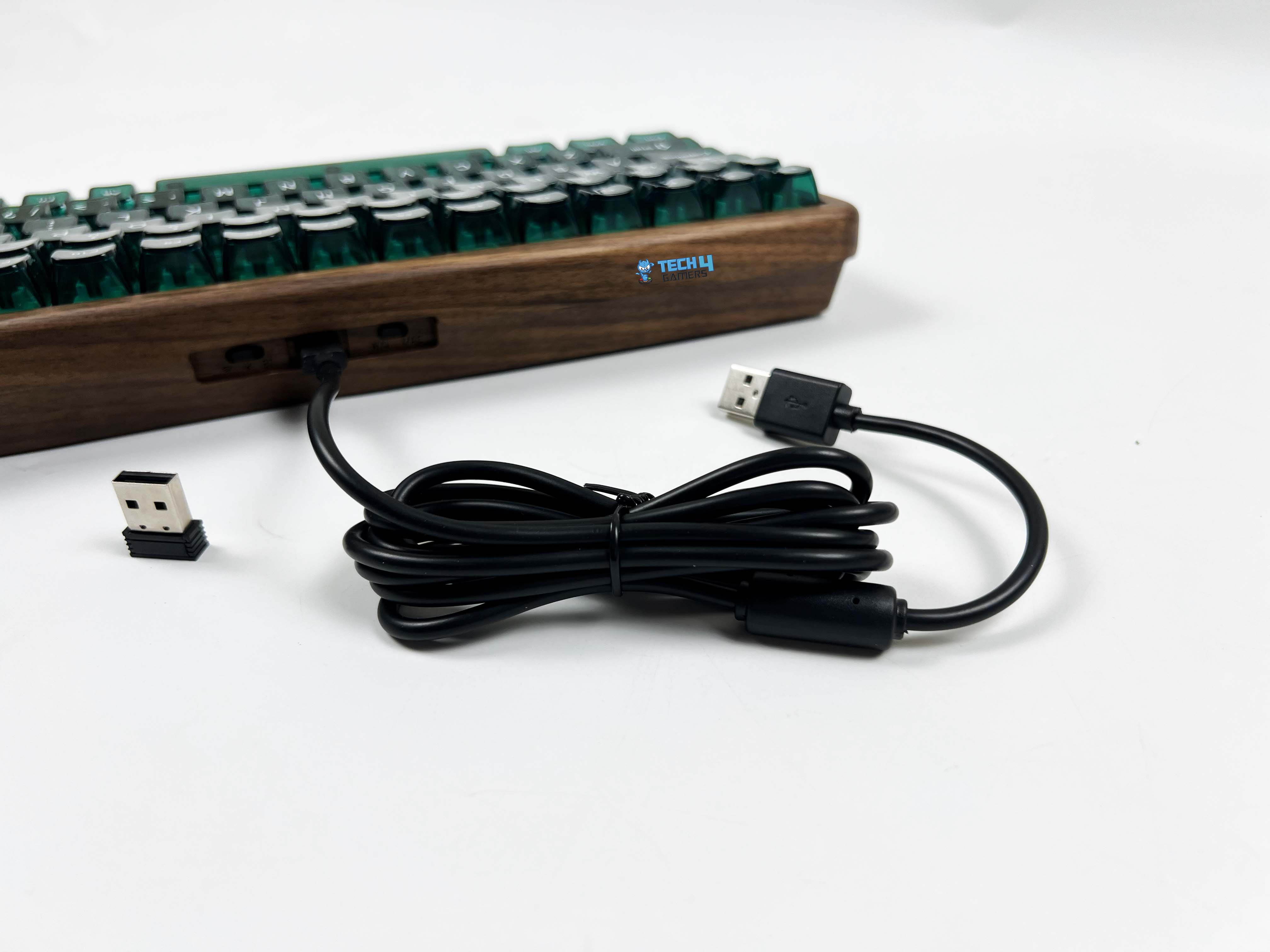
You can use Womier WD75 via wired, 2.4GHz wireless, or Bluetooth. I used all three connection modes, mostly to see if any of them felt like a weak link, and none did. Wired mode is as straightforward as it gets. Plug the USB-C cable in, and you’re good to go. The cable itself is pretty basic with no braiding. It does the job, but it’s not something you’d want to keep on a clean desk setup. If you’re picky about cables, you’ll probably swap it out.
The keyboard has a physical switch for changing modes. Slide it over to 2.4GHz, and pairing is done directly from the keyboard by holding the FN+4 combo for 3 seconds. Bluetooth works in a similar way. You can connect it to up to 3 devices by holding FN+1, 2, or 3 for 3 seconds. When you start the pairing process, the indicator light starts blinking, indicating it’s ready to connect. There’s also a switch for flipping between Windows and macOS, and it is compatible with Linux, iOS, and Android as well.
Typing Experience
A lot of the Womier WD75’s typing experience comes down to how it’s built on the inside. Womier uses multiple layers of foam inside the case. The plate is made from polycarbonate, and there are no flex cuts. The mounting style is a tray mount. Paired with the PC plate, the result is a solid, consistent feel. The PCB is FR4 with a thickness of 1.2mm. It supports both 3-pin and 5-pin switches and is hot-swappable. Starting from the wooden shell, there’s insulation film and case foam to reduce hollow noise.
Above that sits an acoustic pad, followed by an IXPE layer under the switches. Then there’s plate foam between the plate and PCB. Together, they smooth out sharp edges in the sound. What you end up with is a sound profile that leans toward the soft, rounded thocky. There’s no sharp echo bouncing back at you, even when typing fast. Moreover, stabilizers come pre-lubed. Larger keys feel steady, and there is no rattling during everyday use.
Performance
In day-to-day use, the Womier WD75 performs exactly how you’d want a keyboard to perform. Fast key presses register the same way every time, whether I’m typing quickly or tapping keys in short bursts. Fortunately, there were no input issues during use, and you can easily press multiple keys at once. Thanks to the full n-key rollover support. I didn’t run into ghosting issues, even when I deliberately tried to. In FPS games, responsiveness feels excellent.
Movement inputs come through instantly, without any delay. During overtime rounds in Valorant, my hands stayed comfortable, which matters more than speed after several hours. Wireless performance held up well, too. I didn’t notice any delay between pressing a key and seeing it on screen. Bluetooth is a bit slower in terms of responsiveness, but for writing, browsing, and general use, it stayed reliable. I never had to reconnect mid-session.
Battery Life
The Womier WD75 comes with an 8000mAh battery, which is pretty massive for a 75% keyboard. In actual usage, I didn’t have to think about charging it very often. Even with RGB on, it easily lasted through several days of typing and general use. When the backlight was off, the drain slowed further, making it easy to go a week or more without plugging it in. Charging itself is straightforward through the included USB-C cable. You can keep using the keyboard while it’s plugged in.
Software
On the software side, the WD75 V2 relies on VIA. There’s no separate app to install, and no background software running all the time. You open the VIA web interface, connect the board, and you’re set for customization. It feels better to adjust the keyboard with it rather than manage it through a flashy control panel. Key remapping is immediate. You click a key, assign a new function, and it’s done.
Layers work the same way. I used them primarily for media controls and a few shortcuts. Macros are there too, and they behave exactly how you’d expect once you’ve set them up along with RGB control. Nothing felt buried behind menus, and I didn’t find myself going to figure out where a specific setting is. Once your layout is set, you don’t really need to open VIA again. Lastly, you can set up to 5 layouts for different scenarios.
Should You Buy it?
Buy it if
✅ You want something that looks different on your desk: The real walnut wood case gives the WD75 a more furniture-like presence than the usual metal or plastic keyboards.
✅ You care about sound and feel out of the box: The layered foam setup, PC plate, and factory-lubed switches create a controlled, muted typing sound without needing immediate mods.
Don’t Buy it if
❌ You prefer lighter keyboards or travel often: The wooden case adds weight, and at nearly a kilo, it’s heavier than many 75% wireless boards
❌ You rely on adjustable typing angles: There are no kickstands, so you’re locked into the default angle. If you like fine-tuning keyboard height, this may bother you.
Final Verdict
After spending enough time with the Womier WD75, it’s clear what kind of keyboard Womier was aiming for. This isn’t a keyboard that tries to impress you in the first five minutes. It grows on you the more you actually use it. At $99.99, if you’re after a solid-value keyboard that feels solid and sounds controlled, the WD75 makes a strong case for itself through day-to-day use rather than spec-sheet flexing.
You’re getting solid materials, excellent out-of-the-box performance, and a feature set that’s usually bundled at a higher price. If you’re curious how it compares to keyboards with more gaming‑centric layouts or magnetic features, our best gaming keyboards and best magnetic gaming keyboards lists are great places to explore other options.
Thank you! Please share your positive feedback. 🔋
How could we improve this post? Please Help us. 😔

[Hardware Reviewer & Editor]
After many years of exploiting various pieces of hardware, Abdul Hannan now serves as an editor at Tech4Gamers. He’s been in the PC hardware reviewing industry for almost a decade, and his staff of passionate geeks and reviewers is second to none.
Abdul Hannan is constantly seeking new methods, you will always see him running into New Computer Courses to improve the performance of his computer components since he is an ardent overclocker. He is well-known for providing the most extensive and unbiased analysis of the newest and greatest hardware for PC gaming, including everything from GPUs to PSUs.
 Join Our Community