
 Threads
Smooth Tracking, Sensible Compromises!
Review Summary
The Obsbot Tiny 3 Lite is a compact AI-powered webcam with a 4K sensor and a built-in pan-and-tilt gimbal that can follow you around the room. It keeps your face visible even in low light and offers smooth high-frame-rate recording up to 1080p120. Voice and gesture controls are also available, and the built-in mics deliver clear audio for calls or casual recordings. While it’s not as sharp or feature-packed as the Tiny 3, it provides a sweet spot for those who want smart tracking without paying flagship prices.
Hours Tested: 2 Days

Overall
-
Video - 9/10
9/10
-
Audio - 9/10
9/10
-
Software - 8.5/10
8.5/10
-
Design - 8/10
8/10
-
Value - 9/10
9/10
Pros
- Smooth pan-and-tilt tracking
- 4K video and high-frame-rate 1080p
- Reliable object, hand, and voice tracking
- Built-in mics sound outstanding
- Lightweight and compact design
Cons
- Smaller sensor struggles in low light
- No desk or whiteboard mode


Webcams have changed a lot over the past few years. Nowadays, they’re not just something you clip to your monitor for Zoom calls anymore. These days, people expect more. That’s where Obsbot comes in. The brand has been leaning hard into AI-driven webcams for a while now. The Obsbot Tiny 3 Lite is on the more affordable side of that lineup. It’s clearly meant to lower the entry point, not replace the Tiny 3, which I have recently reviewed.
A Lite label usually means fewer controls, trimmed-down specs, and some features leftout. Although performance doesn’t always drop in obvious ways. I’ve been using the Tiny 3 Lite for a while now by sitting at a desk, leaning back during calls, and standing up now and then. That’s what this review is all about. I’m not here to look only at specs or marketing claims, but to see how the Obsbot Tiny 3 Lite performs in real-world use.
Key Takeaways
- The Obsbot Tiny 3 Lite is a compact AI webcam that offers 4K capture with a built-in gimbal for smooth pan-and-tilt tracking. It’s a capable webcam for streaming, meetings, and casual recordings.
- You should buy the Obsbot Tiny 3 Lite if you want AI-powered tracking, need 4K or high-FPS video recording, value flexibility, and prefer a compact design.
- You should skip the Obsbot Tiny 3 Lite if you want the absolute best image quality, need extra specialized features, and rarely move on camera.
Here are the technical specifications:
| Size | 41mm x 41mm x 58mm |
| Weight | 73g |
| Image Sensor | 1/2” CMOS |
| Effective Pixels | 48 M |
| Aperture | ƒ/1.8 |
| FOV (D) | 79.1° (4:3), 72° (16:9) |
| FOV (H) | 66.9° |
| Equivalent Focal Length | 25mm |
| Minimum Focus Distance | 10cm |
| ISO Range | 100-6400 |
| Exposure Value | ±3EV |
| Digital Zoom | 1-4x |
| Focus Type | AF (PDAF) / MF |
| HDR | Support |
| Controllable Range | Pan: ±130°; Tilt: 32° (down) ~ -60° (up) |
| Mechanical Range | Pan: ±150°; Tilt: ±90° |
| Max Controllable Speed | 120°/s |
| Audio Input | 1 Omnidirectional+2 Directional Mics |
| Auxiliary Functions | Gesture Control, Voice Control, Voice Locator, Voice Tracking |
| Power | 5V/0.5A |
What Makes Obsbot Tiny 3 Lite Different?
The Obsbot Tiny 3 Lite differs from its predecessors by making the core idea of a motorized tracking webcam more accessible. It trims down sensor size and some advanced modes while keeping the essence of what made earlier models interesting. Compared with competitors’ fixed-lens webcams, the Tiny 3 Lite’s gimbal allows for more responsive framing. Moreover, its combination of gesture and voice controls adds an extra layer of interactivity that most standard webcams simply don’t offer.
Packaging & Unboxing
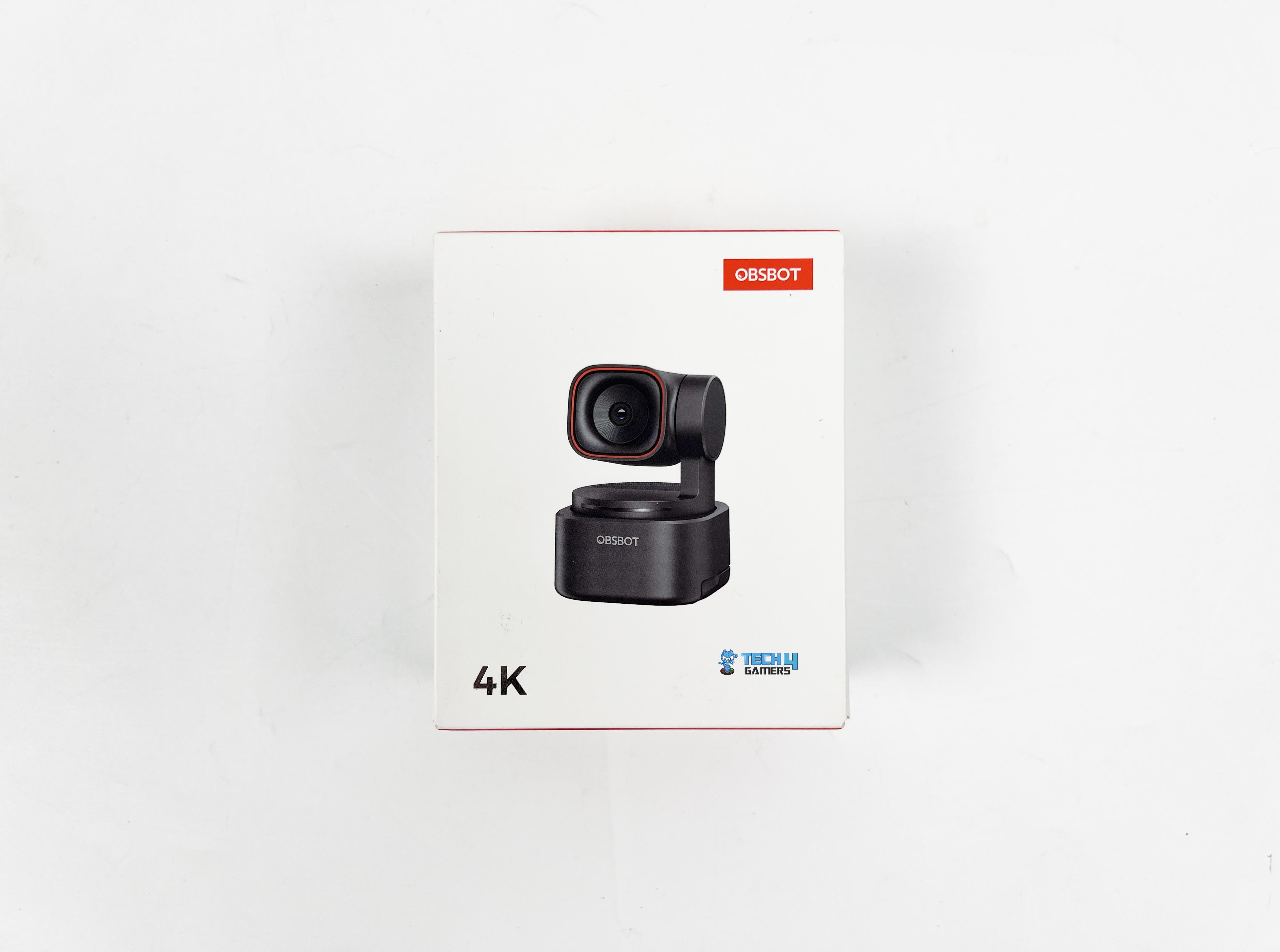
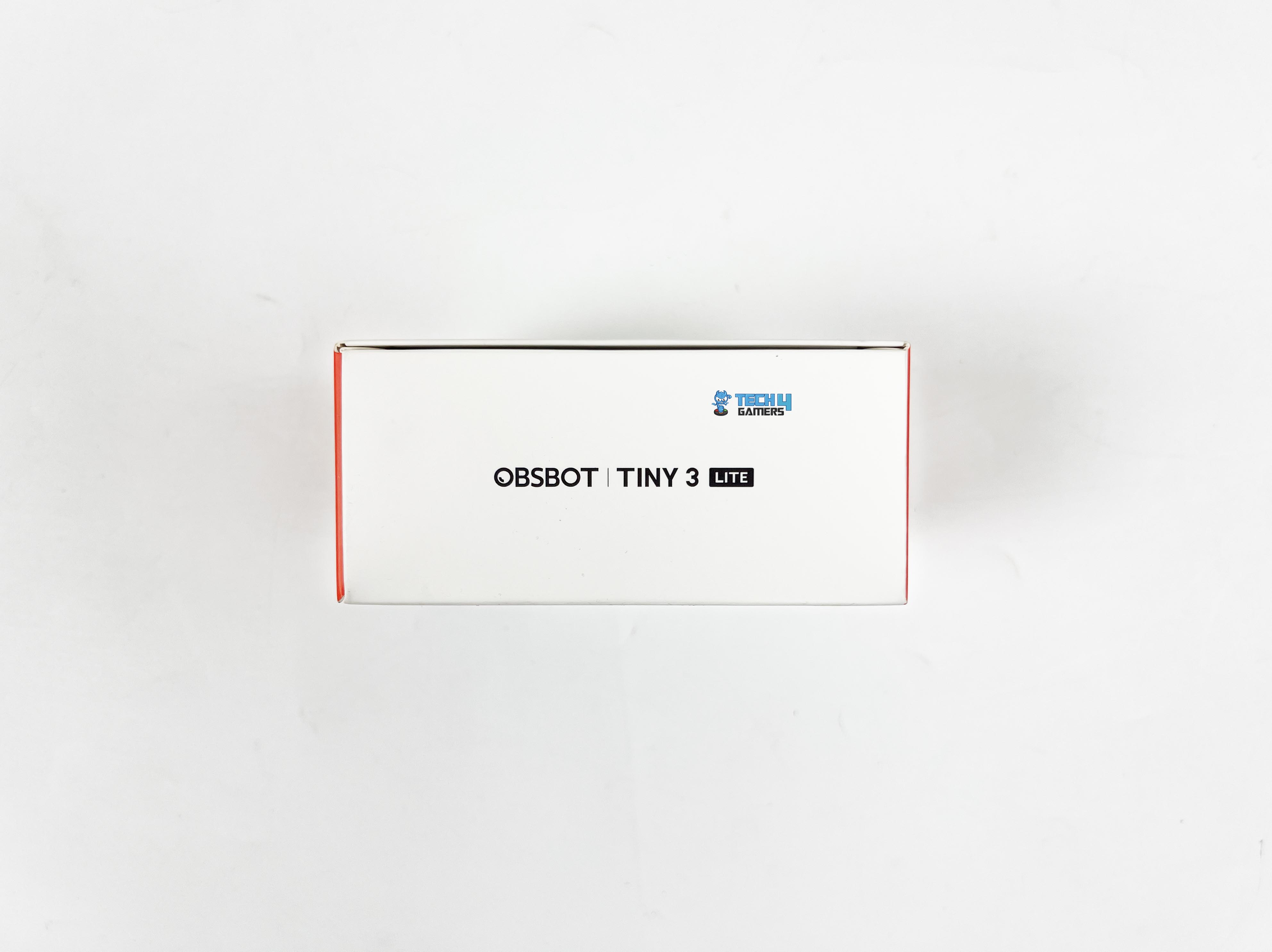
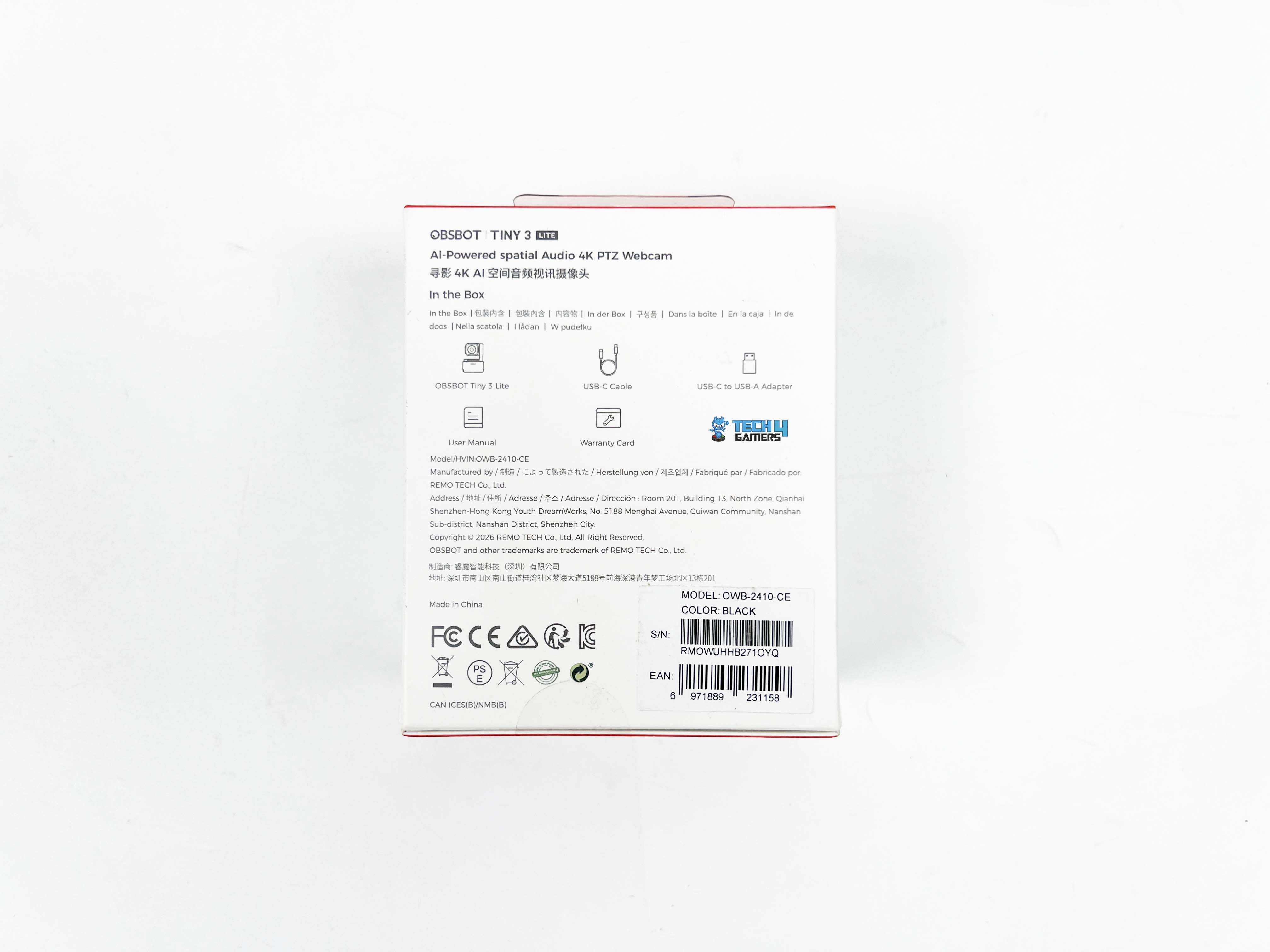
The Obsbot Tiny 3 Lite comes in a relatively compact box. On the front, there’s a photo of the webcam and a callout highlighting 4K recording. On the back, you’ll find the manufacturer information and a list of what’s included in the box. Along the sides, you’ll find the model name written.
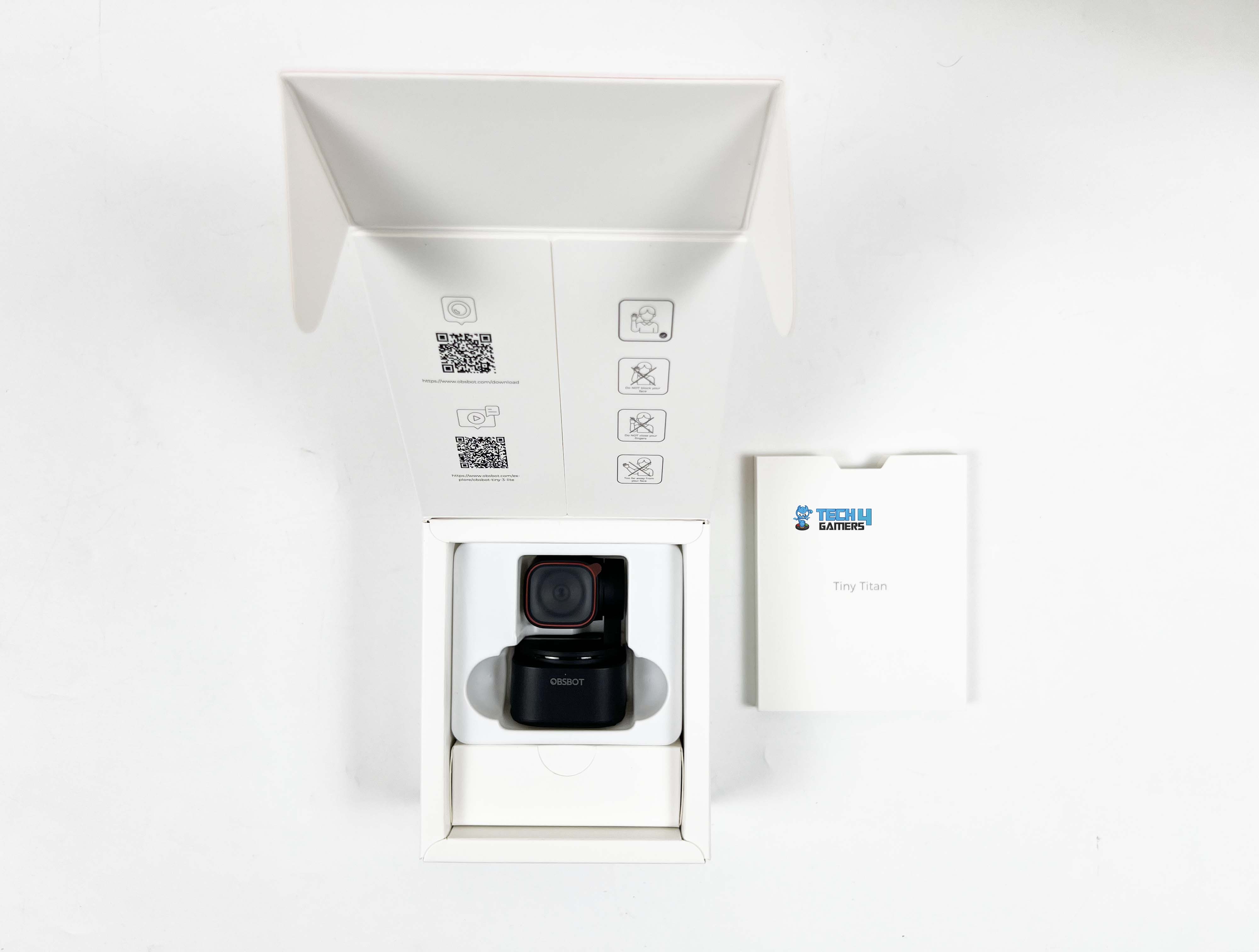
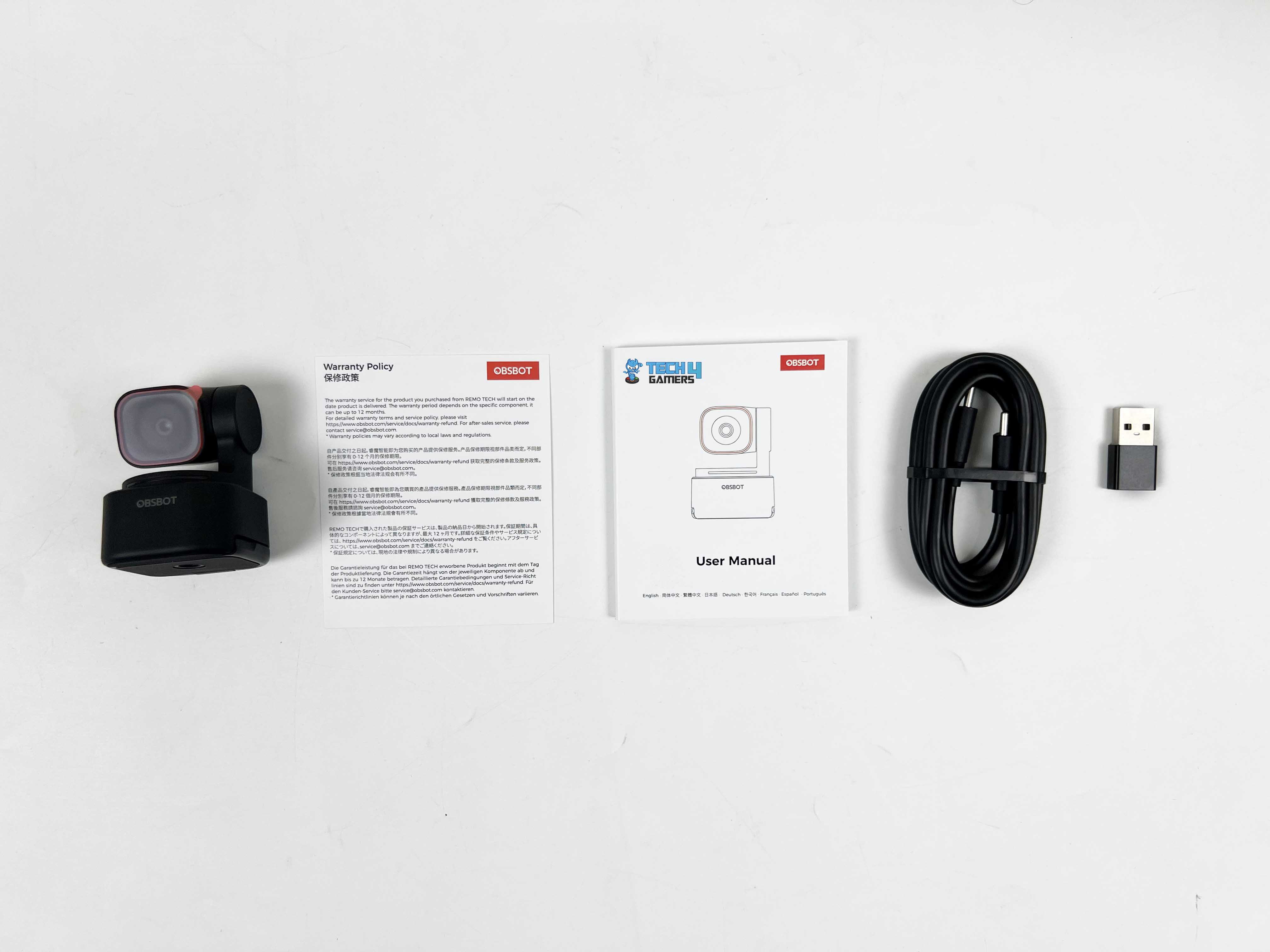
Opening the box, you’ll see a white cardboard sleeve containing the user manual and warranty card. Pulling that out, the webcam is placed behind that. Underneath the webcam, there’s a smaller box containing the USB-C cable and a USB-C to USB-A adapter. There’s no dedicated storage case included, unlike the Tiny 3, which is a bit of a bummer, but it’s understandable given the webcam’s price point.
Design
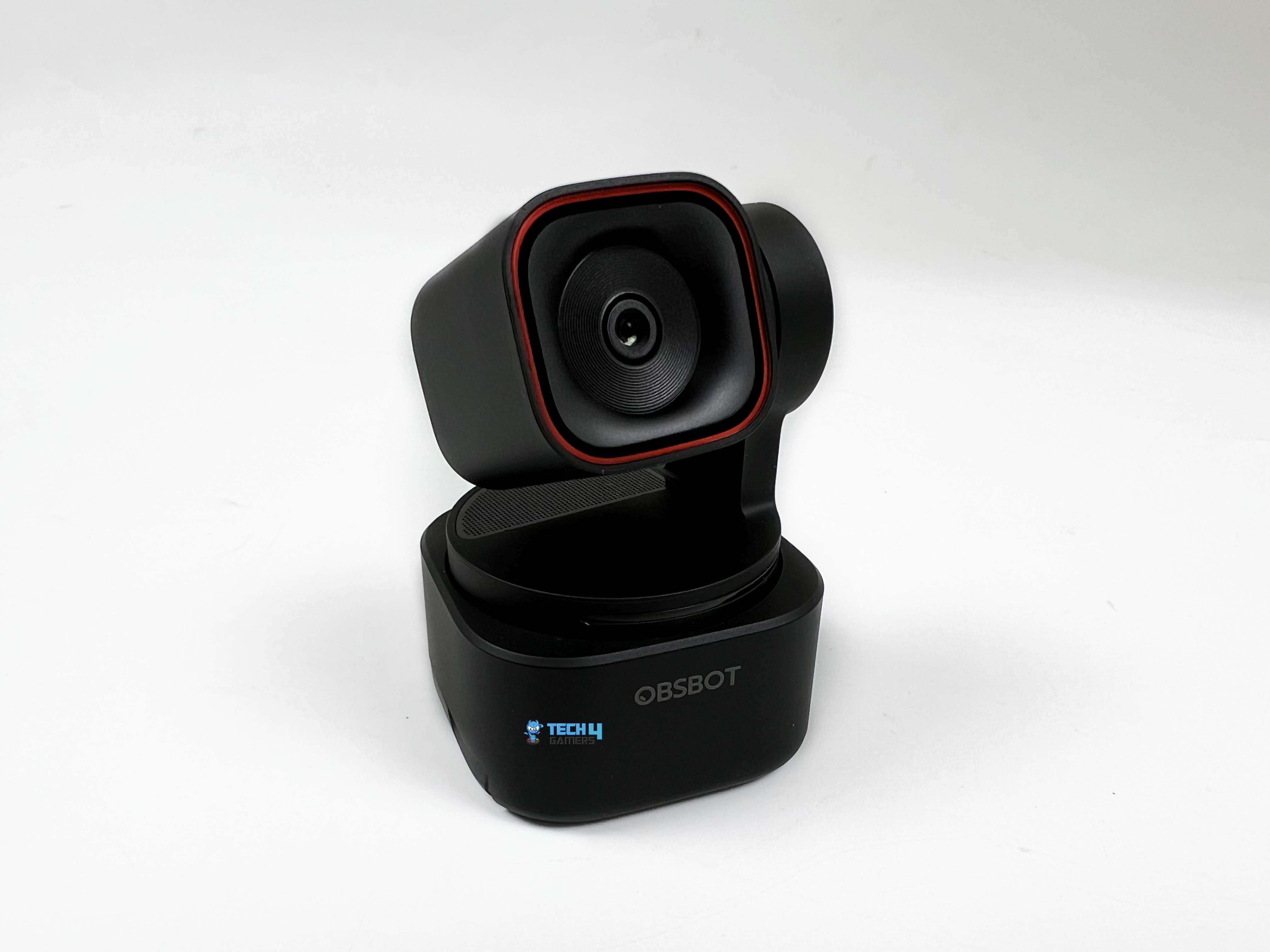
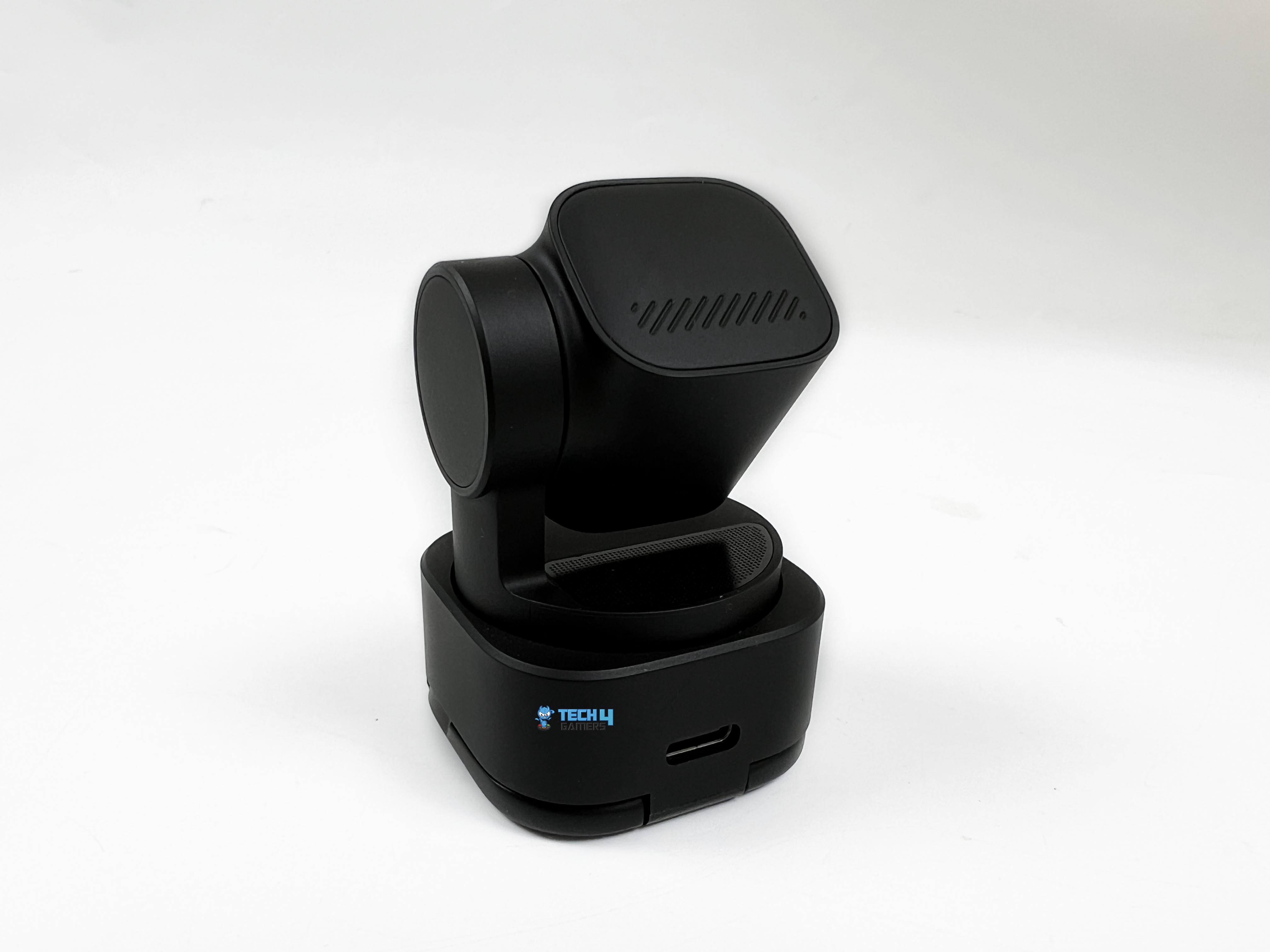
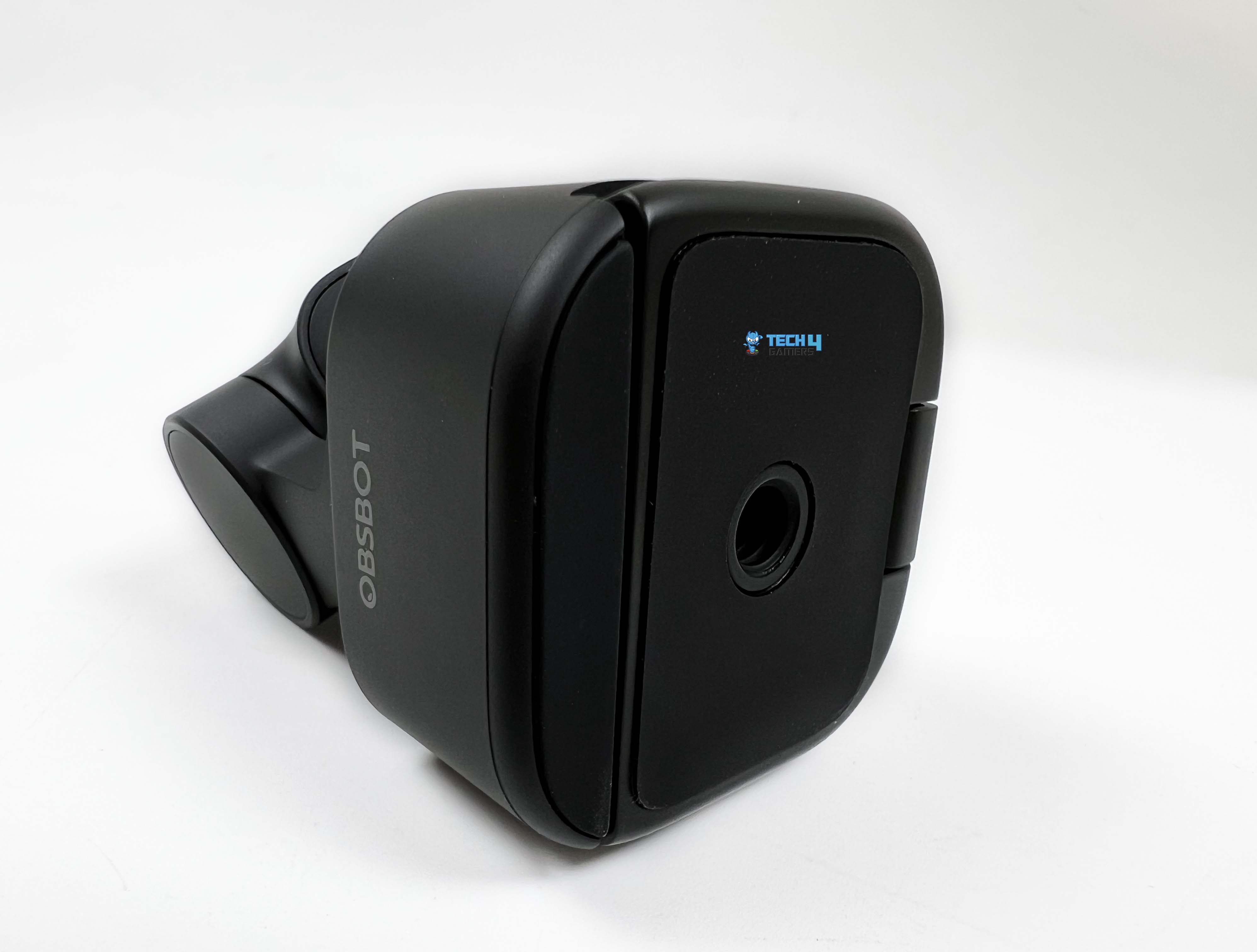
One thing that’s hard to miss once you place the Obsbot Tiny 3 Lite on a monitor is just how small it is. Even compared to older models, it feels trimmed down. If you’ve used the Tiny 2 before, this one takes up a bit less space at 41 by 41 by 58 millimeters. The Tiny 3 still wins the size contest, but the difference isn’t dramatic unless you’re measuring side by side. It uses the same basic layout Obsbot has been using for a while.
The whole thing is finished in black plastic, which is a step down from the darker metal used on the more expensive models. Although in day-to-day use, that distinction doesn’t feel significant. Once it’s on top of a monitor, it doesn’t look like the budget version by any means. If you don’t want it on a monitor, there’s a UNC 1/4-20 threaded mount underneath. That opens the possibility to attach it to tripods. Around the back, you’ll find a USB-C port.
There’s also a thin light strip along the front edge of the base. It changes color depending on what the camera is doing. The lighter weight is also noticeable. Compared to Tiny 2, it’s lighter, weighing 73 g rather than 91.4 g. This one feels noticeably easier to attach and reposition. Side by side, the difference is hard to miss. You feel it when mounting the camera, especially on thinner laptop lids where heavier webcams can feel top-heavy.
Setup

Setting up the Tiny 3 Lite is pretty straightforward, at least on the surface. It comes with an integrated folding stand, unlike the Tiny 3, which works well with most monitors and laptop screens. You simply flip the stand open, rest the camera on top of your display, and adjust the hinge until the base sits flat and feels secure. You need to be careful when setting it up, especially if your monitor has slim bezels or a curved back. If you prefer a more grounded setup, the camera can also sit directly on your desk.

This works particularly well for standing desks or when the monitor placement doesn’t give you ideal framing. Once placed, connecting the Tiny 3 Lite is as simple as plugging it in. The webcam supports both Windows and macOS, and it uses a standard USB connection. Obsbot includes a USB-C cable and a USB-A adapter if your system doesn’t have a USB-C port. After plugging it in, the camera is detected automatically. Just give the system a few moments to recognize the device, and it’s ready to go.
Software
Beyond basic controls, Obsbot Center is also where the Tiny 3 Lite starts to feel less like a plug-and-forget webcam and more like a controllable device. You can download it directly from Obsbot’s site. Install it like any other desktop app, and the camera shows up instantly the first time you plug it in. Once it’s detected, the software gives access to additional features. Digging a little deeper into Obsbot Center, you start to see where the real flexibility lies.
The software doesn’t lock you into auto mode unless you want it to. All the basic image controls are there, laid out plainly. Contrast and sharpness can be nudged up or down. Exposure has its own adjustable settings, with manual access to ISO and shutter speed. What stands out is how selective you can be. You can leave exposure on auto while taking control of white balance or keep focus locked while handling brightness.
It’s less about tweaking everything at once and more about fixing the one thing that looks off in your setting. There’s a simple on-screen control that lets you manually pan or tilt the lens, along with a zoom slider that responds accurately. Preset angles can be saved, too. Once set, switching between them takes a single click. Then there’s the AI side of things. Tracking options are right next to manual controls. You can let the camera follow you automatically, or you can turn it off and use it as a fixed webcam.
Image Quality

The Obsbot Tiny 3 Lite uses a 1/2-inch CMOS sensor, like the Tiny 2 Lite. It captures video using a 48MP sensor, which is smaller than the one in the Tiny 3 but larger than what you’d find in the budget Tiny SE. The webcam can record 4K at 30 frames per second or 1080p at 120 frames per second. High frame rates give motion a smoother feel, especially if your display can keep up. It can also record in slow motion at 1080p30. Slow-motion saves footage at a quarter speed, which is useful for short clips.
While using high frame rate or slow-motion mode, the webcam saves video and audio as separate files. It’s quite handy if you want to edit later. All of the aforementioned modes worked reliably in testing. Just note that all these modes require a decent system to handle the recording. Obsbot recommends a recent M1 Mac or a 10th-gen Intel i5 PC with at least 8GB of RAM. This feels generous on paper. However, I have noticed during my usage that when other apps are running, performance can dip.

In well-lit spaces, the webcam performs as you’d expect from an Obsbot webcam. My face came through clearly on video, with decent detail in hair strands and my Inter Miami t-shirt. Although it’s not as crisp as an Obsbot flagship camera. Fine edges, like individual beard hairs, can look a little soft. Zooming in too far quickly exposes the sensor’s limits, but at normal framing for calls or streaming, it’s entirely usable. Low-light performance is where the difference between the flagship and the lite model becomes noticeable.
If you rely mainly on a display light, noise starts coming in. Even smooth walls or consistent backgrounds show a grainy pattern. Faces and objects remain visible, but fine details blur more than in bright conditions. This isn’t unusual for a webcam at this size and price, but it does highlight how much the smaller sensor affects performance compared with the Tiny 3. The difference between them isn’t about one being bad and the other good, but more like good versus great. For most people, that “good” would be plenty enough.
Auxiliary Functions
The Tiny 3 Lite isn’t just a camera mounted to stream video. It also includes a set of auxiliary functions that respond to voice and gestures, which is a bit of a novelty compared with most webcams. You can tell it to track me to follow your movements, or unlock me to stop following. Zooming and preset angles can be controlled this way too, say zoom in closer or position two, and the camera responds. There’s even a sleep command to put it to sleep. These commands work reliably.
I didn’t have to repeat myself, and the camera usually picked up what I meant right away. Moreover, gestures are simple and intuitive. Raising an open hand toggles AI tracking on or off. Making an L with your thumb and index finger zooms in or out by a preset amount, and holding both hands up in a U shape lets you zoom by pushing in or pulling out. It’s all fairly consistent once you get the hang of it. What’s nice is that you don’t need Obsbot Center open for these to work.
Tracking Performance
One of the main reasons to choose a Tiny webcam over something like Obsbot’s Meet 2 is its physically rotating gimbal. The 2-axis gimbal lets the Tiny 3 Lite follow you around the room, not just stay static like most fixed webcams. This moving design has been a hallmark of the series for years, and honestly, it’s what makes these webcams feel a step above the rest. Even with other AI webcams on the market, few handle movement as naturally as it does. It can automatically keep you in frame in various ways.
You can choose a close-up of your face, your upper or lower body, or the full body. It can also follow your hands or lock onto a specific object you select in the software preview. The webcam can even follow you based on your voice using its built-in microphones. Unfortunately, a couple of features from the Tiny 3 didn’t make it into the Lite version. You won’t find the vertically flipped desk mode and the whiteboard mode. For most, these modes wouldn’t matter, but it’s worth knowing if this matters to you.
In day-to-day use, tracking feels reliable with a 79-degree diagonal field of view. I moved around the room, walked out of frame, and came back, and the camera tracked me again without any issue. Object tracking is similarly effective. You can select a specific item, and the Tiny 3 Lite will follow it smoothly. It’s not perfect for extremely fast movements. Even at 1080p120, if you move the camera quickly or move your hands wildly, it can’t keep up perfectly.
Audio Quality

The Obsbot Tiny 3 Lite’s microphone feels very much in line with what Obsbot has done with the Tiny 3. It has a similar audio system with one omnidirectional mic and two directional mics. The audio turned out to be better than I expected from a webcam in this category. Compared to most webcams, the gap is noticeable. Voices don’t come through flat or washed out, which is usually where built-in mics fall apart. When I listened back to test recordings, my voice sounded close to how it does in the room.
Although there’s a clear ceiling. Once you’re sitting farther back from the camera, your voice naturally loses some presence. It never quite reaches that close, broadcast-style sound you’d expect from a dedicated audio setup. For video calls and work meetings, that doesn’t really matter. You now get multiple audio modes inside the software, each tuned for a slightly different situation. There’s a pure option that records the microphones as-is, with no processing applied. Then there are modes that actively shape how sound is picked up.
This also directly ties into one of the more interesting features of the Tiny 3 series, which is voice-based tracking. The webcam responds well to the sound’s location. Obsbot also gives you a way around the distance issue. The Tiny 3 series works with the company’s VOX SE microphone system through the Obsbot Center software. You can pair up to two VOX SE microphones at once, keeping audio locked in at a consistent level even if you’re moving around the room. It’s not something everyone will use, but it’s a flexible option to have.
Should You Buy it?
Buy it if
✅ You want AI-powered tracking: The Obsbot Tiny 3 Lite can follow your face, body, and hands, making it far more interactive than a standard fixed webcam.
✅ You need 4K or high-FPS video: With 4K30 and 1080p120 recording, it’s capable of smooth, detailed video for streaming, content creation, or professional calls
Don’t buy it if
❌ You want the absolute best image quality: The smaller 1/2-inch sensor shows its limits in low light, producing some noise and softer detail than the Tiny 3.
❌ You need extra specialized features: Desk mode and whiteboard mode are missing here, so if you rely on these for presentations, you might feel restricted.
Final Verdict
The Tiny 3 pan-and-tilt system is the main draw, and it performs as you’d expect. The built-in microphones perform better than most webcams, so you don’t necessarily need to plug in anything else for everyday calls. Its smaller sensor shows its limits, especially in low light. Noise appears more than on the Tiny 3. Still, the camera does a decent job of keeping your face visible, even when the room isn’t doing it any favors. At its $199 asking price, the Tiny 3 Lite is in a pretty specific niche.
You’re paying for 4K capture paired with a built-in gimbal. If that combination matters to you, there aren’t many direct competitors that feel as complete. The Tiny 3 does edge it out with slightly cleaner image quality and a few extra tracking features, so if your budget stretches that far, it still feels like the better option despite its arguably steep price. However, the Lite variant holds its own as the more approachable entry point to Obsbot’s tracking-focused ecosystem without feeling like a stripped-down compromise.
Thank you! Please share your positive feedback. 🔋
How could we improve this post? Please Help us. 😔

[Hardware Reviewer & Editor]
After many years of exploiting various pieces of hardware, Abdul Hannan now serves as an editor at Tech4Gamers. He’s been in the PC hardware reviewing industry for almost a decade, and his staff of passionate geeks and reviewers is second to none.
Abdul Hannan is constantly seeking new methods, you will always see him running into New Computer Courses to improve the performance of his computer components since he is an ardent overclocker. He is well-known for providing the most extensive and unbiased analysis of the newest and greatest hardware for PC gaming, including everything from GPUs to PSUs.
 Join Our Community