


- Windows Auto HDR can outperform native HDR when games are poorly implemented.
- Most HDR problems stem from calibration and panel limits, not Windows itself.
- HDR400 monitors often deliver worse results than well-tuned SDR.
- A consistent setup process makes HDR predictable instead of frustrating.
PC gamers have spent years arguing about HDR as if it were a lost cause. We buy expensive monitors that promise jaw-dropping contrast, enable HDR in Windows, load into a game, and immediately wonder why everything looks flat or strangely washed out. After enough bad experiences, many players turn it off and decide that HDR on PC is fundamentally broken.
It is not. What is broken is how HDR is understood, explained, and configured. Once you grasp how Windows Auto HDR, calibration, and panel limitations actually interact, HDR stops feeling random and starts behaving like something you can control.
How We Got Here
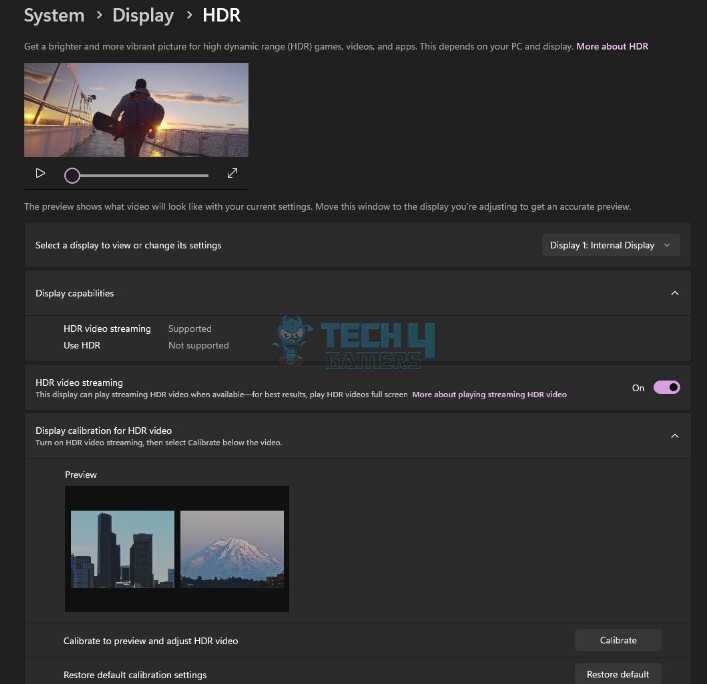
Microsoft rolled out Auto HDR with Windows 11 in late 2021 to bring HDR benefits to older SDR games that were never built for it. Instead of waiting for patches, Auto HDR expands brightness and contrast automatically, working behind the scenes.
A year later, Microsoft added the Windows HDR Calibration app, giving PC players real control over peak brightness and black levels instead of relying on factory defaults that rarely matched their displays.
At the same time, monitor makers pushed HDR certifications like HDR400, HDR600, and HDR1000 as quality markers, even though they said little about real contrast or gaming performance. Games followed suit with uneven HDR support, often tuned for consoles rather than Windows. HDR became widespread, but consistently good HDR remained hard to find.
Why HDR Confusion Refuses to Go Away

HDR should be thriving on PC right now. OLED and Mini-LED displays are increasingly affordable, GPUs handle HDR effortlessly, and modern engines are built with high dynamic range in mind. Yet many players still describe HDR as unreliable or actively worse than SDR.
A big reason is that Windows HDR defaults are poorly suited for most displays. Another is that Auto HDR sometimes looks better than native HDR, which feels backward if you assume native support should always win. Add in creators and reviewers testing on different panels with different calibration, and HDR impressions quickly become inconsistent and confusing.
PC gamers end up toggling HDR on and off with no clear rules, never quite sure when it is helping or hurting.
The Real Reasons HDR Looks Bad on PC
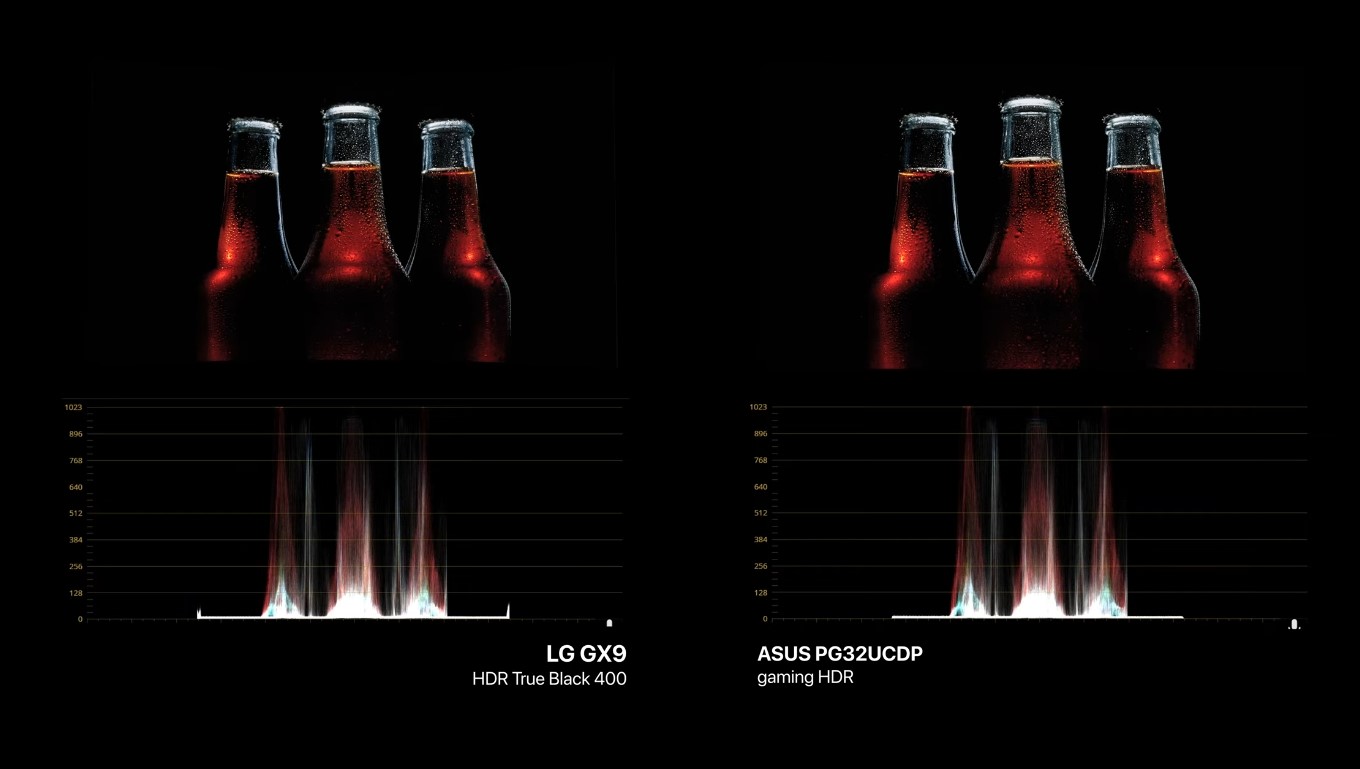
When HDR looks bad on PC, it is usually not one big failure. A few small problems are stacking up.
Peak brightness is the most common one. Windows often assumes a 1000-nit display, even when your monitor cannot get close. Highlights get tone-mapped beyond the panel’s limits, and the image loses contrast.
Paper white causes just as much trouble. It controls how bright midtones feel, and when it is off, the whole image suffers. Too high and highlights flatten. Too low and everything looks dim.
Display limitations matter too. Many HDR400 monitors lack proper local dimming, so the entire screen brightens at once. Blacks lift, contrast fades, and HDR can end up looking worse than SDR.
Finally, many PC games still assume console-style HDR tone mapping. Windows does things differently, and when those approaches clash, results vary from game to game.
Why Auto HDR Sometimes Looks Better

Auto HDR gets dismissed as “fake HDR,” but that label misses the point. Auto HDR does not invent new lighting detail. It expands the luminance information already present in an SDR image using consistent tone curves that respect your calibrated display limits.
In games with broken HDR sliders or crushed highlights, that consistency matters. Auto HDR follows Windows rules, while native HDR follows developer rules, and not every developer gets those rules right.
When native HDR is poorly implemented, Auto HDR can produce a cleaner, more natural image simply by avoiding bad tone mapping. When native HDR is done well, it still wins. The issue is not Auto HDR itself, but how uneven native HDR quality remains on PC.
Making HDR Predictable Instead of Frustrating
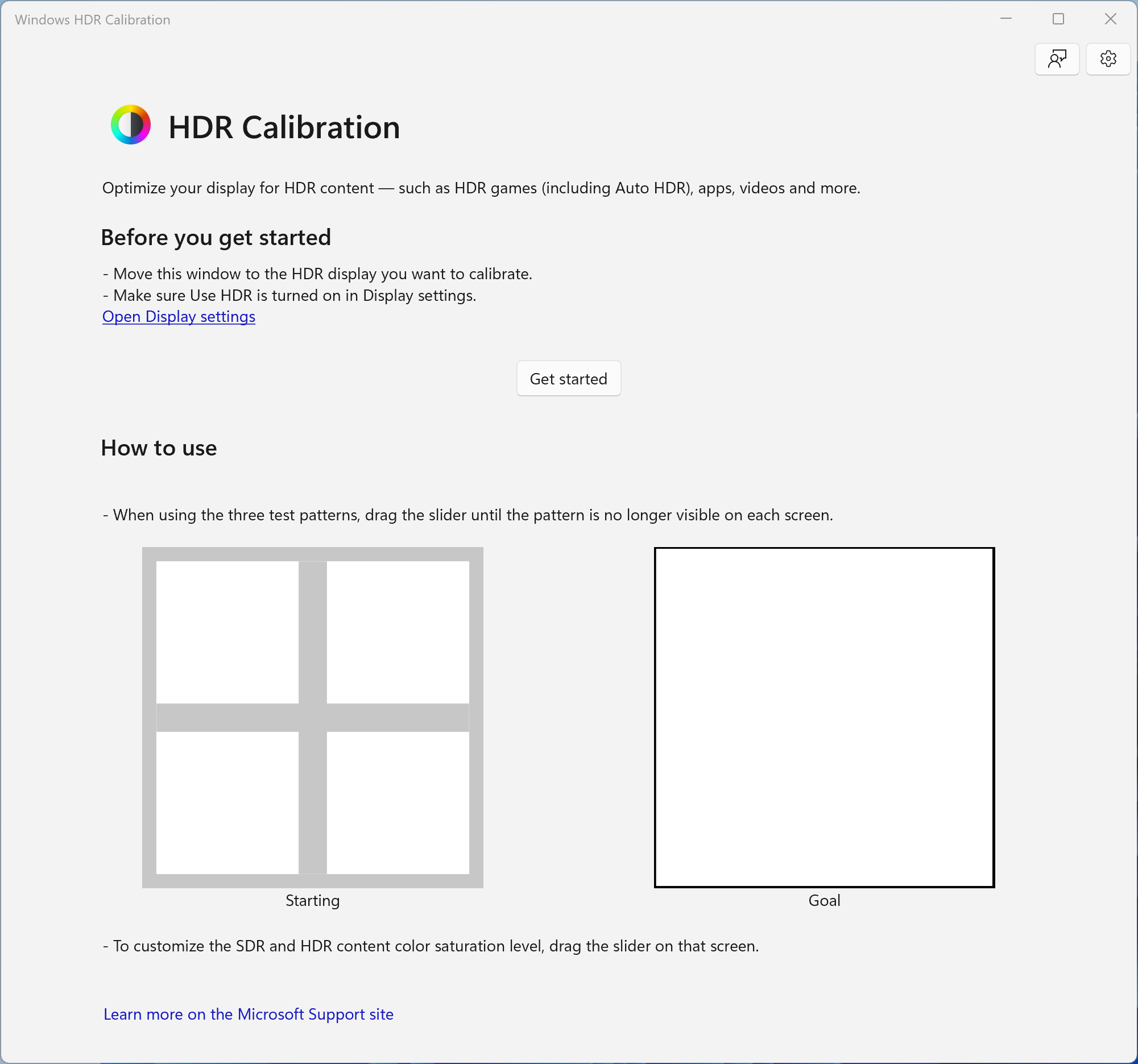
HDR gets easier once you stop treating it like a toggle and start treating it like a system. That begins with knowing your display’s real limits, especially peak brightness and whether it has local dimming.
The Windows HDR Calibration app handles most of the work. Set blacks until they just disappear, match max luminance to what your panel can actually reach, and avoid aggressive highlight clipping.
Paper white only needs a rough target. Around 200 nits works for OLED, while Mini-LED panels usually look better closer to 250 or 300.
With Auto HDR, less is more. Keep the intensity low, raise it until highlights pop without haloing, and compare it directly to native HDR in the same scene.
The Hard Truth About HDR400
For gaming, HDR400 often looks worse than SDR. Without local dimming, a display cannot control contrast, and HDR turns into a brightness trick rather than a visual upgrade. Blacks lift, highlights blur together, and the image loses depth.
This is not elitism. It is physics. If a panel cannot selectively control light, HDR has nowhere to go.
Where PC HDR Goes From Here
Auto HDR cannot fix bad art direction, and competitive players may still prefer SDR for clarity and consistency. HDR streaming also remains inconsistent across platforms.
Still, Windows HDR continues to improve quietly, and hardware keeps getting better. For PC gamers, the takeaway is simple. Stop chasing labels, stop trusting defaults, and learn your display. HDR on PC can look fantastic. You just have to understand the system instead of fighting it.
Thank you! Please share your positive feedback. 🔋
How could we improve this post? Please Help us. 😔

[Comparisons Expert]
Shehryar Khan, a seasoned PC hardware expert, brings over three years of extensive experience and a deep passion for the world of technology. With a love for building PCs and a genuine enthusiasm for exploring the latest advancements in components, his expertise shines through his work and dedication towards this field. Currently, Shehryar is rocking a custom loop setup for his built.
Get In Touch: shehryar@tech4gamers.com
 Join Our Community