
 Threads
The Best Low-Profile Keyboard?
Review Summary
The Corsair Vanguard Air 99 sits in that hybrid space where a gaming keyboard starts behaving more like a productivity tool. It’s not a simple keyboard, and that’s kind of the point here. It feels aimed at users who want a single board to handle gaming, work, and shortcuts, even if that extra functionality comes at a higher price and a bit of a learning curve with the layout.
Hours Tested: 2 Weeks

Overall
-
Design - 9/10
9/10
-
Build Quality - 9.5/10
9.5/10
-
Typing Experience - 9/10
9/10
-
Performance - 9.5/10
9.5/10
Pros
- Fast OPX optical switches
- 8,000Hz polling rate
- Tri-mode connectivity
- Solid build
- Web-based software
Cons
- A tight layout
- RGB and screen reduce battery faster
- A bit pricey


There’s been a noticeable shift in how keyboards are being positioned lately. It’s not as clean-cut as it used to be. Gaming keyboards aren’t just for games anymore, and the ones aimed at work don’t always stay in that lane either. You’ll see the same keyboard used for late-night gaming, then again the next morning for editing, spreadsheets, or whatever else is on the list. That overlap keeps growing, especially in the higher-end space.
Corsair seems pretty aware of that shift. Over the past few releases, like the Corsair Galleon 100 SD, there’s been a clear move toward adding features that go beyond just fast switches or flashy lighting. You start seeing things that lean more into workflow use. Controls that feel closer to what content creators would care about. It’s not a completely new direction, but it does feel more intentional now. That brings us to the Corsair Vanguard Air 99.
Key Takeaways
- The Corsair Vanguard Air 99 is a feature-packed low-profile keyboard that stands out with its Stream Deck-style keys, built-in display, and tri-mode connectivity, making it more than just a standard gaming keyboard.
-
You should buy the Corsair Vanguard Air 99 if you want a keyboard that goes beyond basic typing and gaming, like the idea of Stream Deck-style controls, and care about low-latency performance with a more premium feel.
- You should skip the Corsair Vanguard Air 99 if you prefer a simple keyboard, don’t plan to use the screen or extra shortcut keys, and want something more affordable without paying for features you may never use.
Here are the technical specifications:
| Media and Volume Controls | Yes |
| Keyboard Size | Compact Full size |
| Keyboard Report Rate | Up to 8,000Hz |
| Keyboard Layout | NA |
| Keyboard Color | Black/White |
| On Board Memory | 32MB |
| Onboard Profiles | 5 |
| Adjustable Height | Yes |
| Battery Type | Rechargeable Lithium-Ion Polymer |
| Battery Life | Up to 55 hours with KB lighting off, LCD screen at 20% brightness, or 29 hours with 20% LCD and KB lighting brightness |
| Wireless Connectivity | 8K SLIPSTREAM Wireless, BLE |
| Wired Connectivity | USB Type-A |
| Keyboard Matrix | 107 Keys |
| Media Keys | Dedicated Hotkeys, Volume Roller |
| Key Rollover | Full Key (NKRO) with 100% Anti-Ghosting |
| Macro Keys | 6 |
| Key Switches | Corsair OPX Low Profile |
| Keyboard Compatibility | PC, Mac, or XBOX One with USB 3.0 or 3.1 Type-A port | Windows 10 or macOS 10.15 |
| Weight | 0.928kg |
What Makes the Corsair Vanguard Air 99 Different?
Earlier models like the K100 Air were mostly focused on being extremely thin wireless gaming keyboards with a strong emphasis on speed and simplicity. This one still keeps that low-profile identity, but it adds a layer of functionality that changes how you interact with it. The inclusion of Stream Deck-style keys and the built-in screen pushes it into a different category altogether, closer to a hybrid tool than a traditional gaming keyboard.
Packaging & Unboxing
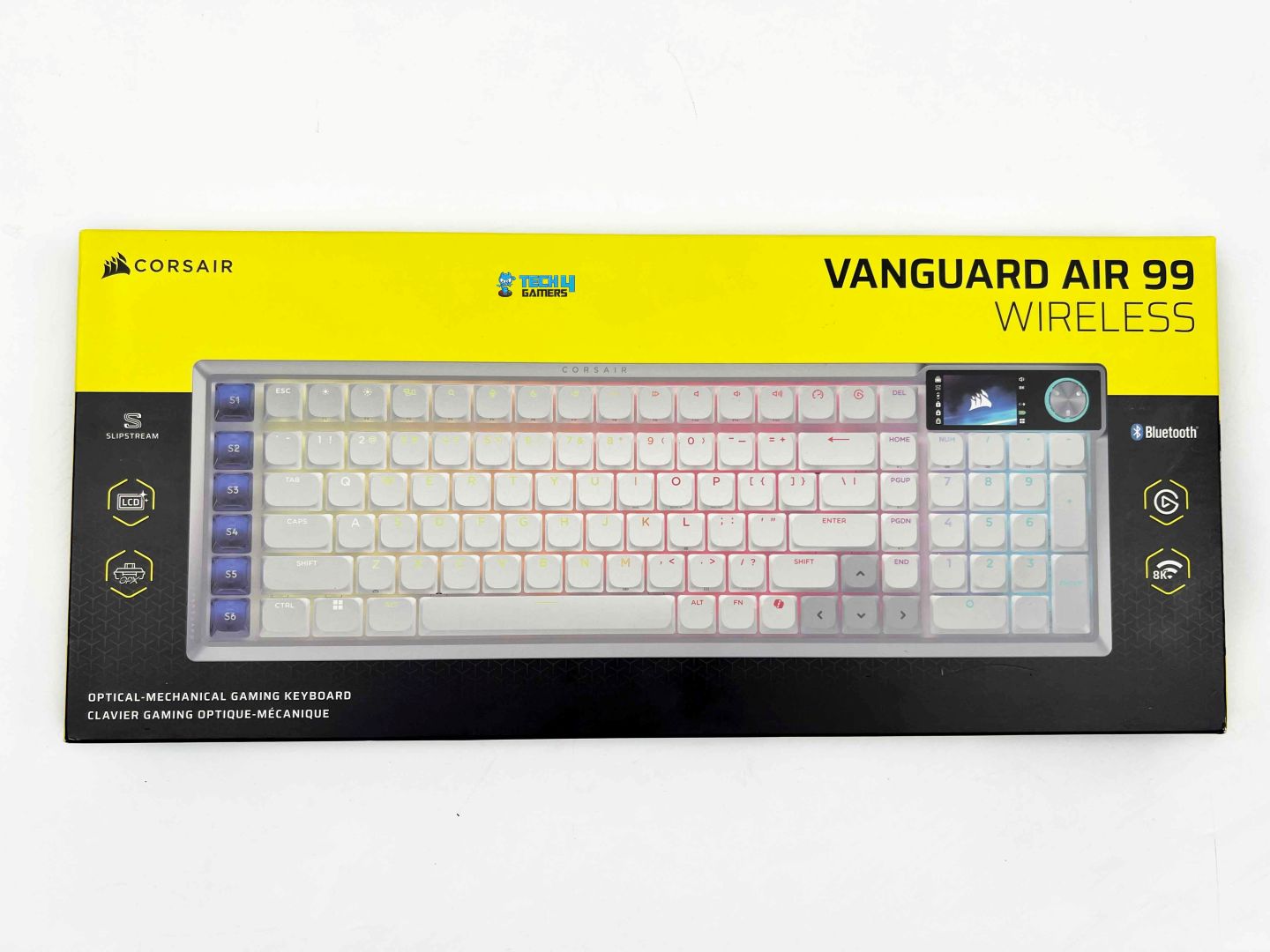
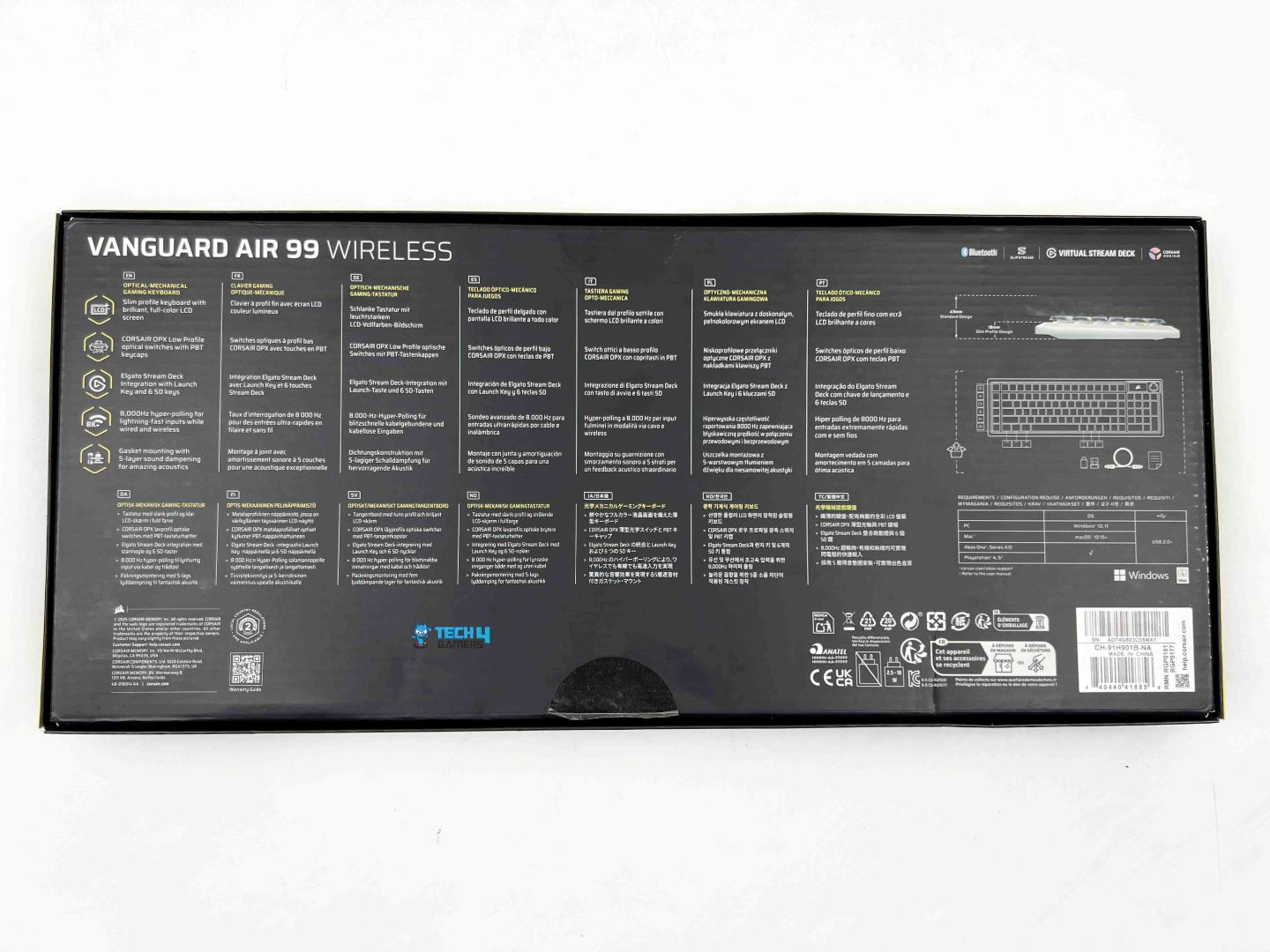
The Corsair Vanguard Air 99 packaging sticks to Corsair’s usual style. You get the black-and-yellow box, with a large image of the keyboard on the front. The model name sits up top alongside the Corsair logo. A breakdown of the features is printed in multiple languages on the back of the box. It’s all pretty familiar if you’ve purchased Corsair’s other products.
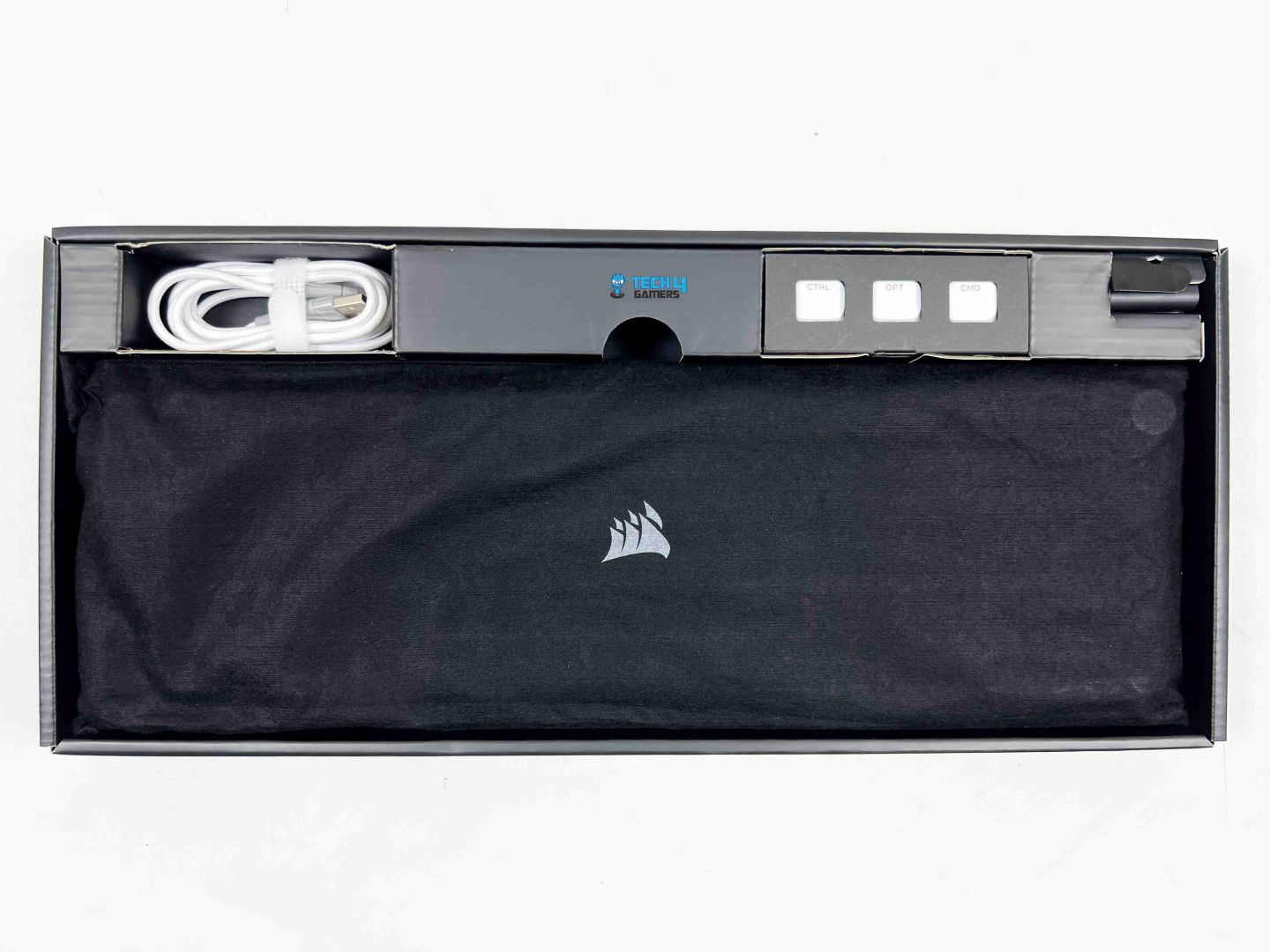
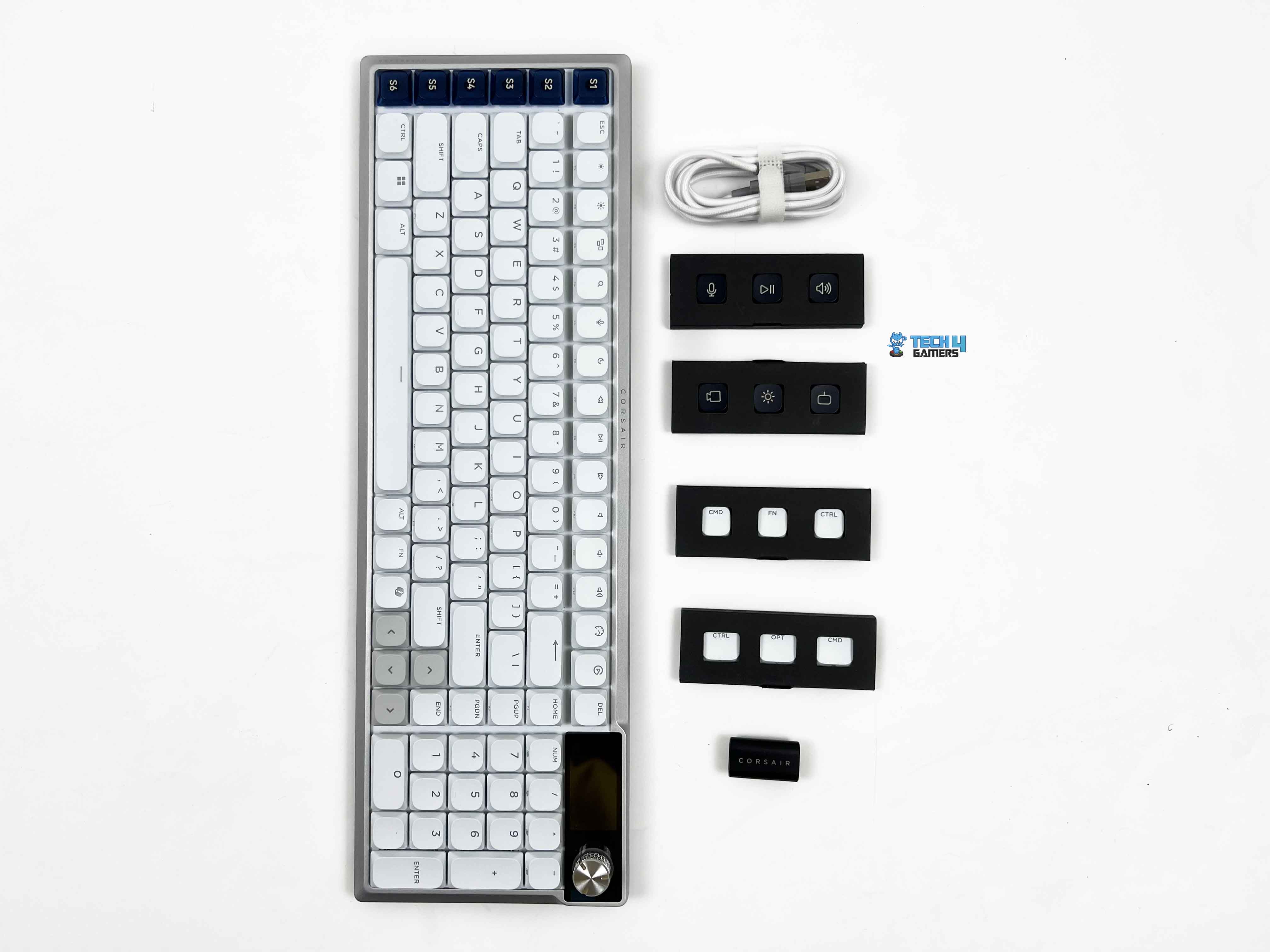
When you open the box, the Corsair Vanguard Air 99 is wrapped in a black cloth sleeve. Above the keyboard, Corsair has arranged the accessories into separate compartments. The extra keycaps come in their own small box, which is tucked into one section. The same goes for the USB Type-C to Type-A cable and the Type-C to Type-A adapter.
Design

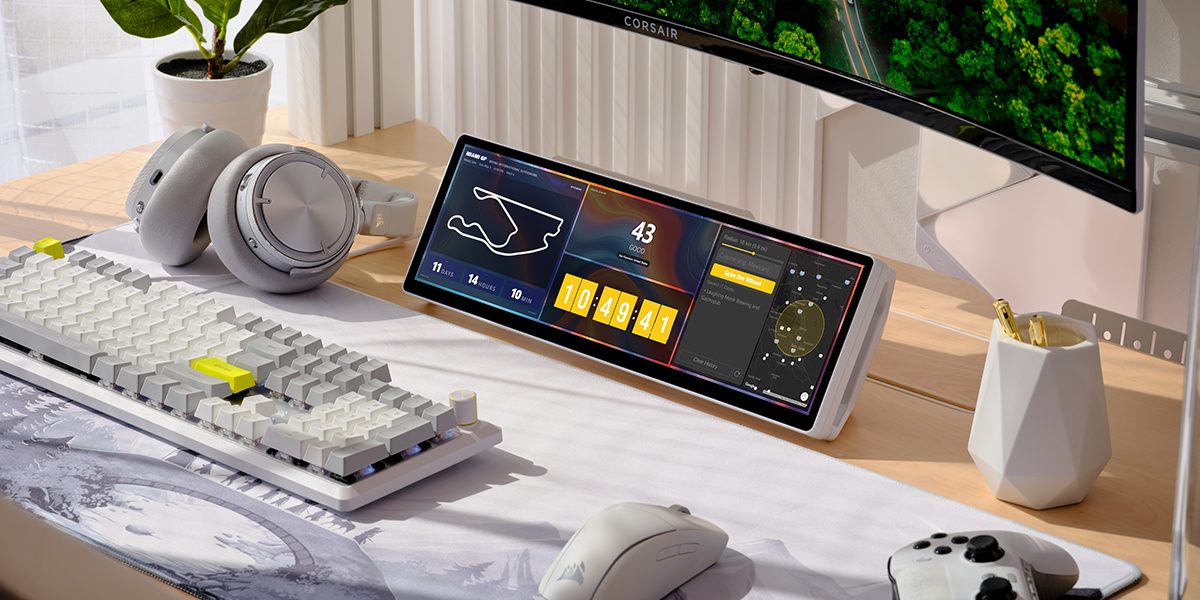
At a glance, the Corsair Vanguard Air 99 doesn’t look like a typical gaming keyboard, which is unusual for Corsair. The whole keyboard sits close to the desk. The review unit I’ve been using is the white variant. There’s also a black version. On my desk, it blends in almost immediately. I’ve got a few white peripherals already, so it didn’t feel out of place at all. It actually looks more like part of my setup.
One thing you’ll notice pretty quickly is the row of extra keys on the left side. There are six of them, separate from the main layout. These are Stream Deck-style keys, placed vertically along the edge. At first, they feel a bit unusual, especially if you’re used to a standard keyboard width. Your hand might drift there by mistake during the first few hours. After some time, though, they start to make sense.
Layout

The layout sits somewhere between familiar and slightly different. Corsair calls it a 99% layout, and that description fits. You’re basically getting a full-size experience, pulled into a tighter frame with 107 keys. The arrow keys are still in their usual inverted-T shape, which helps. They’re positioned a bit tighter against the rest of the keys, though. The numpad is as it is. If you use it often, it still works the way you expect.
The navigation keys are closer to the main cluster than usual. There’s no clear gap separating them as you’d find on a full-size board. Still, the key spacing is consistent, so there’s no awkward adjustment needed. It’s more about where your hand lands when you move over to it. In terms of size, it measures around 425mm in length and a bit under 138mm in width. Height stays low at just over 26mm, which ties back to that slim profile.
Rotary Dial

The rotary dial sits in the top-right corner of the keyboard. There’s a bit of weight to it when you turn it, which gives it a more controlled feel. You can adjust it with one finger without thinking about it. The rotation has defined steps. You can feel each notch as you turn it. It’s not completely smooth like a free-spinning dial. Personally, I prefer this kind of feedback. It makes small adjustments easier to control.
There’s also a clear, tactile click when you push it down. After a bit of use, it becomes second nature. By default, it’s set to control volume, which makes sense. That’s where it feels the most natural. I ended up using it quite often during regular use. Lowering volume during a call or bumping it up while watching something feels quicker this way than reaching for keyboard shortcuts.
Screen

The screen sits just off to the top right, right next to the rotary dial. At first, it feels like more of a visual extra than something you’d actually use. It’s a 1.9-inch IPS panel, and for its size, it’s fairly sharp. The resolution is 320 by 170, which doesn’t sound like much on paper, but in practice, it looks clean. The text is readable, and the small icons don’t blur. Colors come through nicely as well.
Brightness is decent. It’s rated around 350 nits, and indoors, that’s enough. Sitting at a desk with normal lighting, I didn’t have trouble seeing what was on the screen. Out of the box, it shows basic system and keyboard-related information. Things like battery level, connection status, and some feedback tied to the rotary dial. When you adjust the dial, the screen reacts, which is a nice touch.
Underside

Flipping the Corsair Vanguard Air 99 over reveals a simple underside. The bottom shell is plastic. Still, there’s a bit of rigidity to it, so it doesn’t flex when you press down. Once it’s on the desk, you don’t really think about the material anymore. At the bottom edge, there are two large rubber feet. The keyboard stays planted, even when you’re typing a bit harder. I didn’t notice any sliding during regular use.
Up top, there are two adjustable feet. You get a couple of height options, so you can adjust the typing angle to what feels comfortable. The hinges feel firm when you flip them out. They don’t feel loose, and they don’t collapse when you press down on the keyboard. I tried both positions for a while. The raised angle gives a more traditional typing feel. However, the flat position feels more natural here.
Build Quality

The first thing that stands out about the build quality is the frame. The aluminum isn’t spread across the entire top. It runs along the edges instead, with that cool, slightly dense feel you expect from metal. The rest of the body leans more on plastic. It blends in well with the aluminum edges. The weight sits at around 915g. That’s lighter than what you might expect when you hear anything about metal in the frame.
The slim, sculpted design also plays into that. It keeps the keyboard low and compact without feeling fragile. When you press down across the keyboard, especially in the center, there isn’t any noticeable flex. I tried putting pressure near the edges as well. It holds its shape without creaking or shifting. The overall assembly feels tight. There aren’t any uneven gaps or loose sections.
Keycaps

These are low-profile keycaps, so they sit flatter than what you’d get on a standard mechanical board. Your fingers don’t have to travel as far. On the unit I’ve been using, the keycaps are PBT double-shot. That’s the case for the NA and UK layouts. The material has a slightly more solid feel compared to typical ABS caps. Corsair does mention that other layout versions use ABS instead, which is worth keeping in mind depending on the region.
The legends are clean and well-defined. Since they’re double-shot, they won’t fade or wear off with use. Corsair also includes extra keycap sets in the box. There’s a set of six icon-based keycaps designed for the Stream Deck-style keys on the left. These give you a more visual way to identify shortcuts if you’re using those keys often. There’s also a separate set of Mac-specific keycaps. If you switch to macOS, you can swap those in.
RGB Lighting

The RGB lighting is pretty consistent with what you’d expect from a Corsair keyboard, but the way it comes through on this low-profile design feels a bit different. The lighting spreads across the surface more directly. You notice it more from the sides than from straight above. On the white variant, especially, the glow reflects off the lighter surface more softly. It doesn’t feel harsh, even at high brightness.
Each key is individually lit. That part is expected at this point. The lighting stays fairly even across the board, including the numpad and those extra side keys. The legends on the keycaps are clear when the RGB is on. Since these are shine-through caps, the light comes through cleanly. On the white version, it blends a bit more, so the effect feels less aggressive and more subtle overall.
Switches

The switches here are Corsair’s OPX low-profile optical switches. They use infrared-based actuation instead of traditional contact points. The input is registered using light rather than physical contact. You don’t really feel that in use, but the result is a very quick response when you press a key. The actuation point sits at around 1.5mm, with a total travel distance of 2.5mm. That shorter travel is noticeable right away.
There’s a light 45g actuation force behind each press. It doesn’t feel heavy, but it also doesn’t feel overly sensitive. After a bit of use, it settles into a rhythm that feels pretty natural for both typing and gaming. Corsair also rates these switches for up to 80 million keystrokes. It’s one of those durability claims that’s hard to verify in real time, but it does align with the keyboard’s more premium positioning.
Typing Experience
Typing on the Corsair Vanguard Air 99 feels different from most low-profile keyboards I’ve used. The gasket-mounted structure changes how each keypress lands. There’s a slight cushion and a bit more control when the key reaches the bottom. It takes the sharp edge off the impact. Corsair has built in a multi-layer sound-dampening setup inside the keyboard. It starts near the top with a PU plate foam layer. Then there’s foam positioned closer to the switches.
It is followed by a thin film layer beneath them. Below that, another dampening layer sits near the base, and a PET film layer rounds things off deeper inside the structure. It sounds a bit over-engineered when you list it out, but in use, it mostly shows up as reduced noise and a more muted bottom-out. There’s a low, contained sound when the keys bottom out. People often describe it as a thock, though here it feels more restrained than exaggerated.
Connectivity

Connectivity on the Corsair Vanguard Air 99 is built around a tri-mode setup. The wireless option is Corsair’s 2.4GHz Slipstream connection. It uses the included USB receiver, which plugs into a standard USB Type-A port. It feels stable, and more importantly, it doesn’t introduce any noticeable delay while typing or gaming. It behaves pretty much like a wired keyboard once you’re connected. Then there’s Bluetooth.
If you’re using a laptop or switching between devices, Bluetooth makes more sense. I used it occasionally with a secondary device, and it held up fine for casual use. Wired mode is handled via a detachable USB-C-to-USB-A cable. Once plugged in, the keyboard switches over instantly and starts charging. Switching between these modes happens directly on the keyboard, with a toggle switch on top.
Performance

Performance is where the Corsair Vanguard Air 99 starts to feel a bit more serious. Keypresses register the moment you press them. There’s no sense of delay when you’re hitting keys rapidly in-game. The keyboard can go up to 8000Hz, which means it’s checking for input frequently. In actual use, you don’t sit there and feel the high polling rate happening, but the overall input response does feel very tight.
That same level of responsiveness carries over to the optical switches. Corsair also includes FlashTap, which deals with overlapping key inputs. It’s mostly relevant for movement-heavy games. If you’re pressing opposing directions quickly, the keyboard resolves that input cleanly instead of getting confused. Movement feels more controlled during quick direction changes.
Battery Life
There’s a large 4170 mAh battery inside, and you can feel that Corsair is trying to balance features like the screen and RGB without draining it too quickly. In a more typical setup, with both the screen and keyboard lighting set to around 20% brightness, it lands around the 29-hour mark on 2.4GHz wireless. A few hours of work, some gaming at night, and it lasted a couple of days before I thought about charging.
If you turn off the keyboard lighting and keep the screen at a low brightness, the battery lasts much longer. Corsair rates it at around 55 hours in that setup at 2.4 GHz. A full charge takes a bit over five hours. That’s not particularly fast, but it’s not something you’re doing every day either. A quick 30-minute plug-in gives you roughly five hours of use. I ended up relying on that more than full charging cycles.
Web Hub
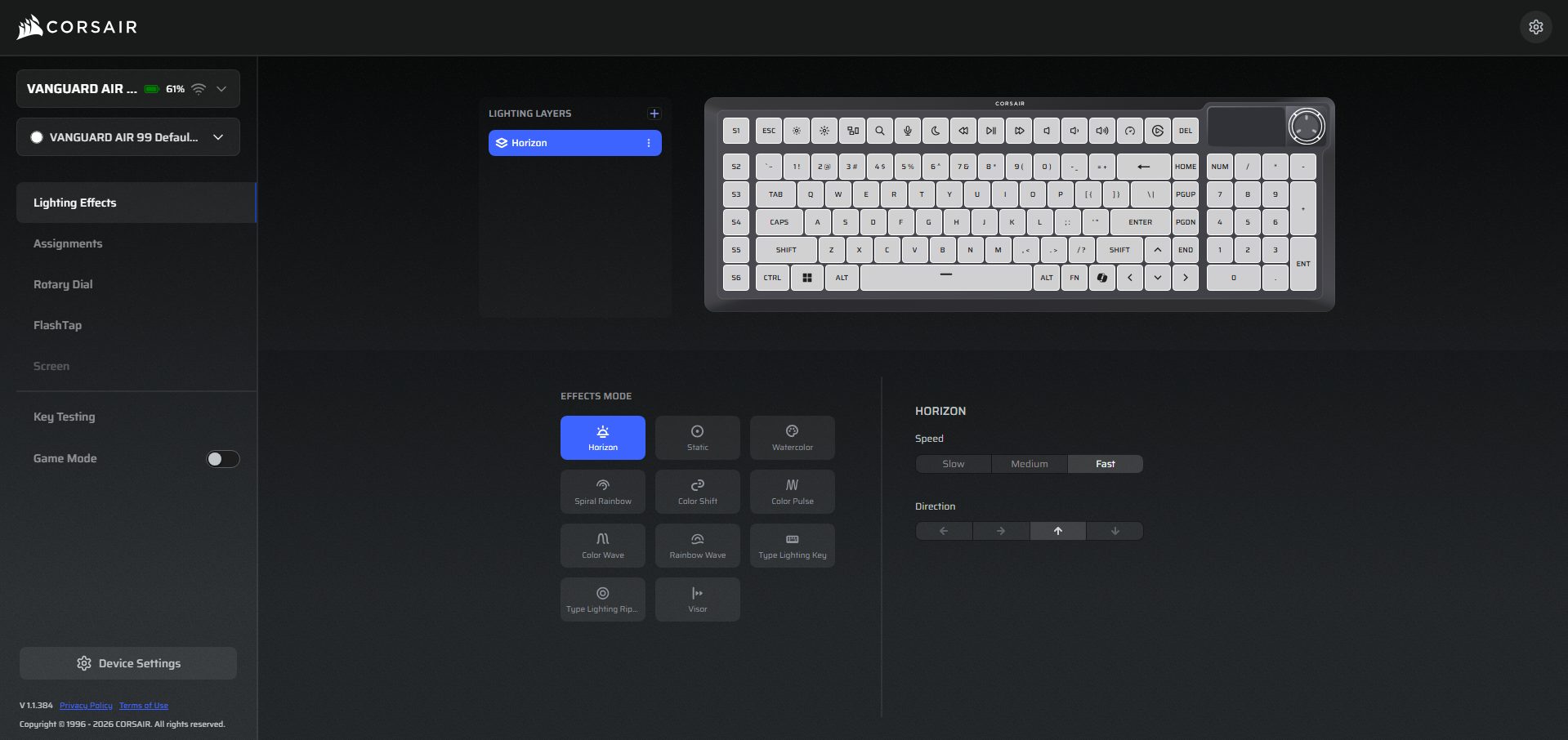
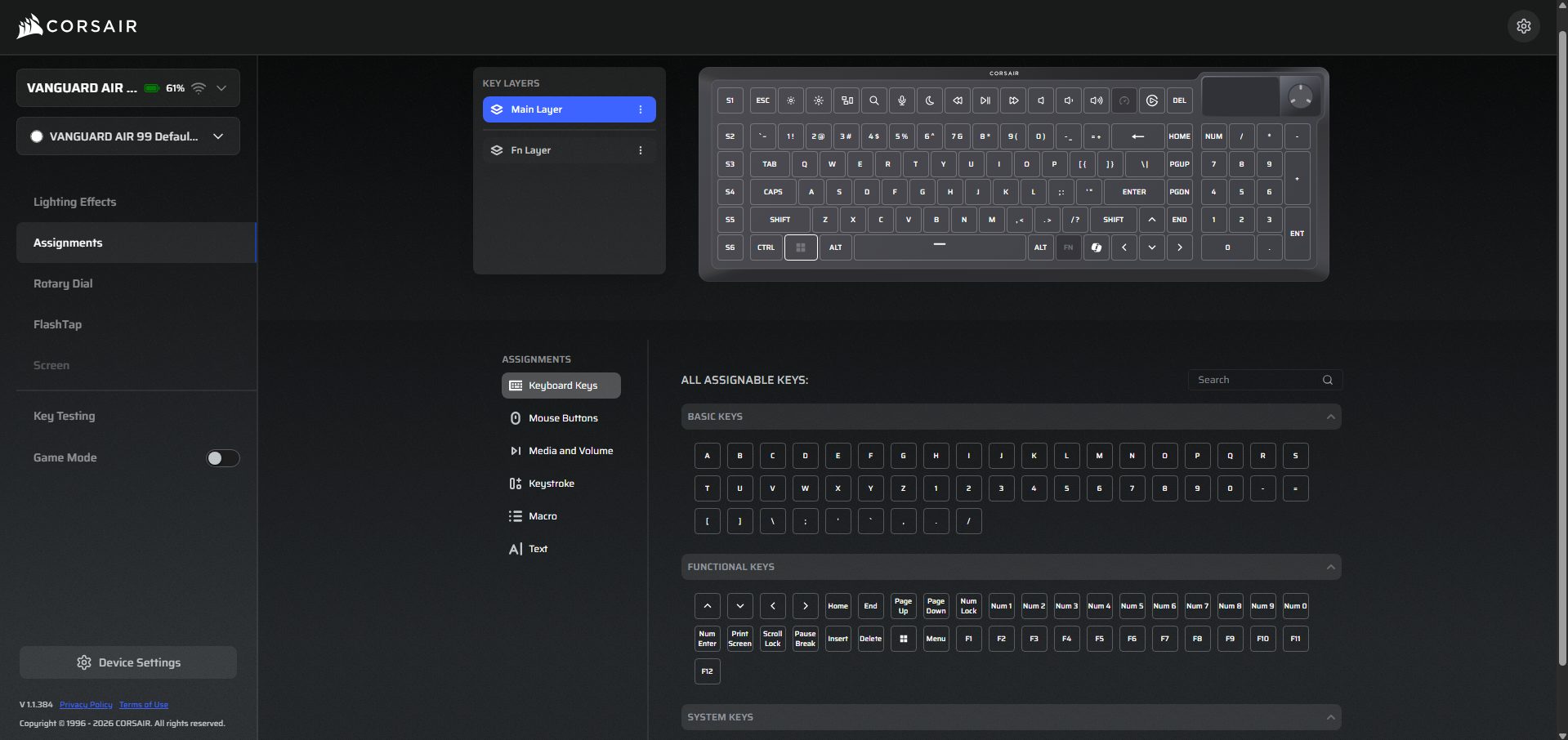
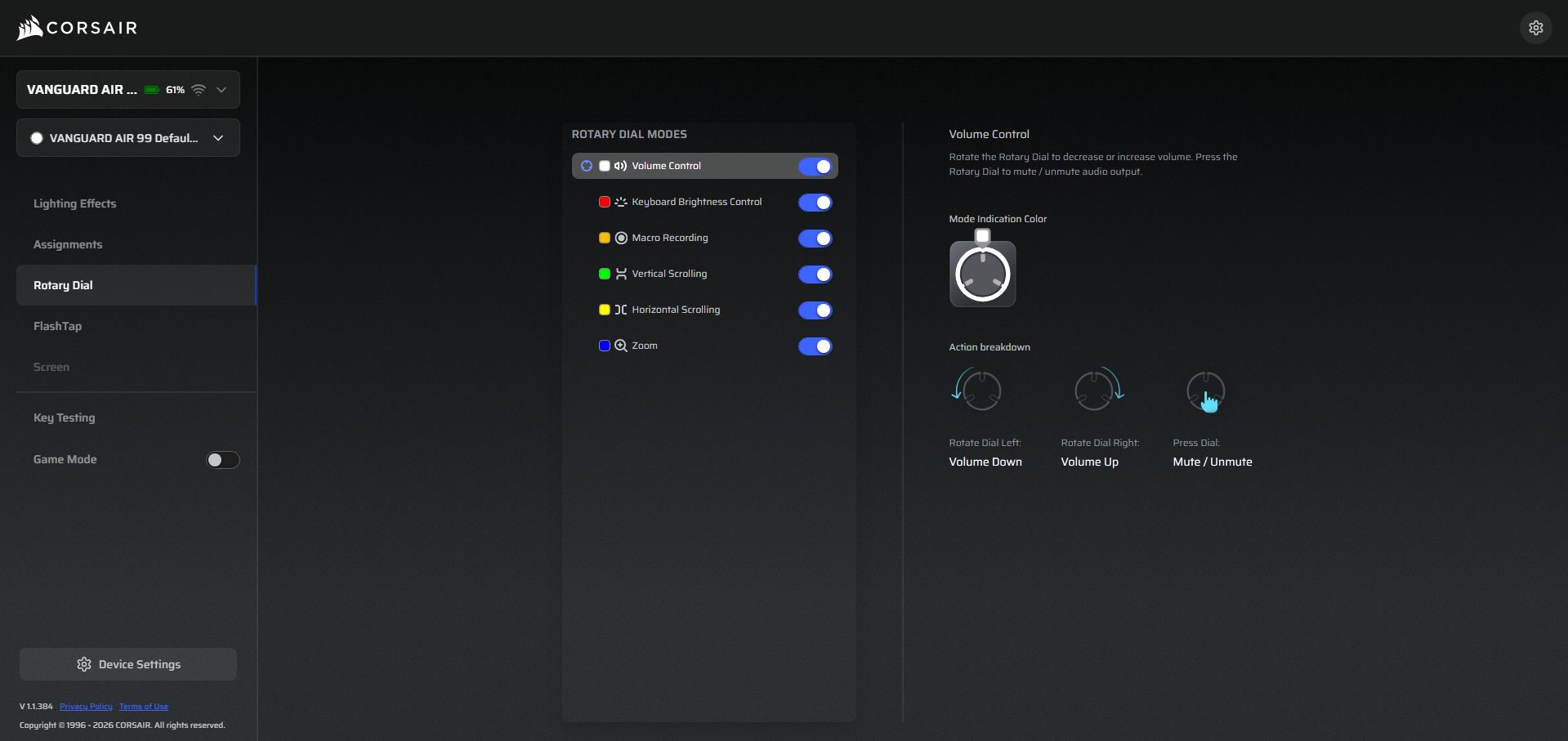
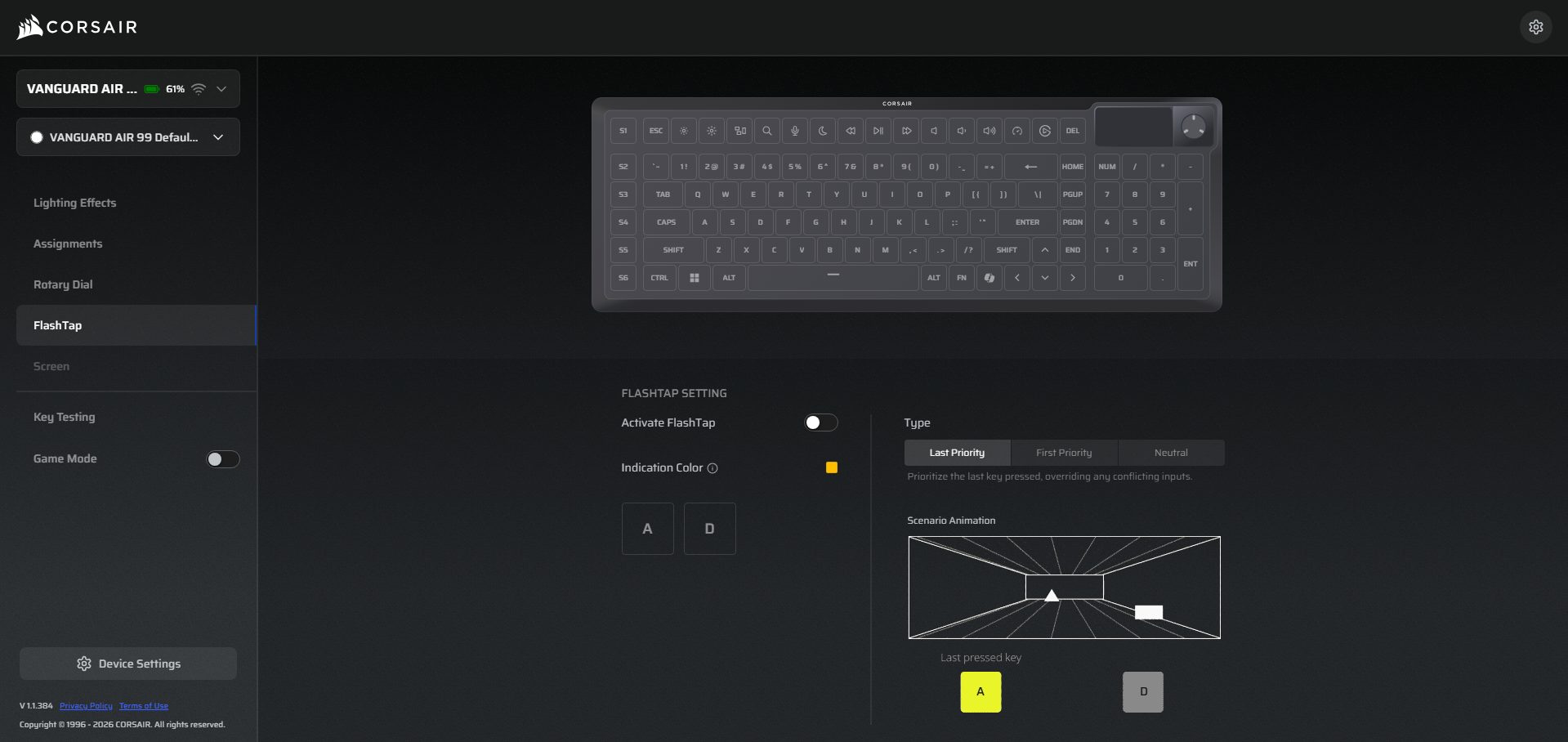
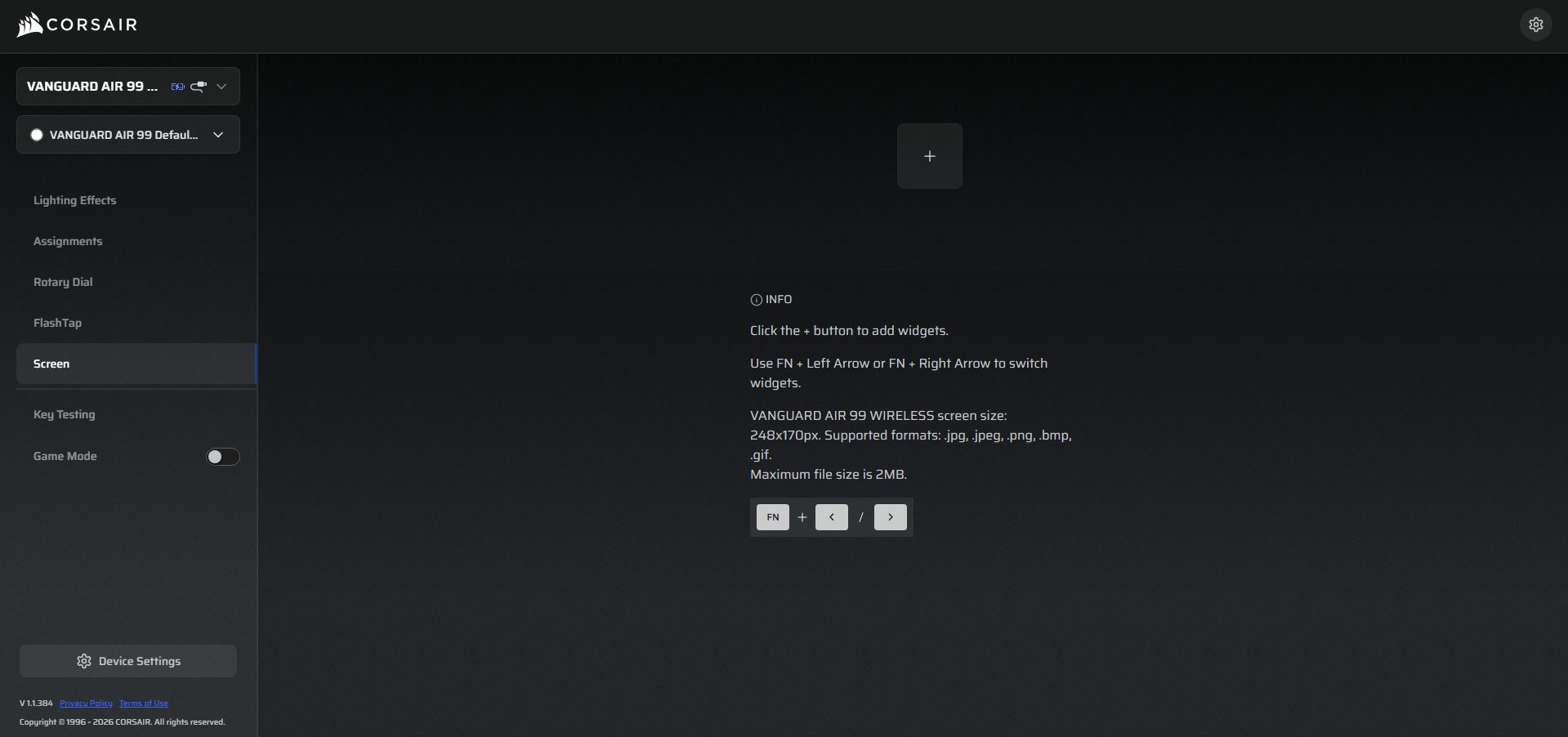
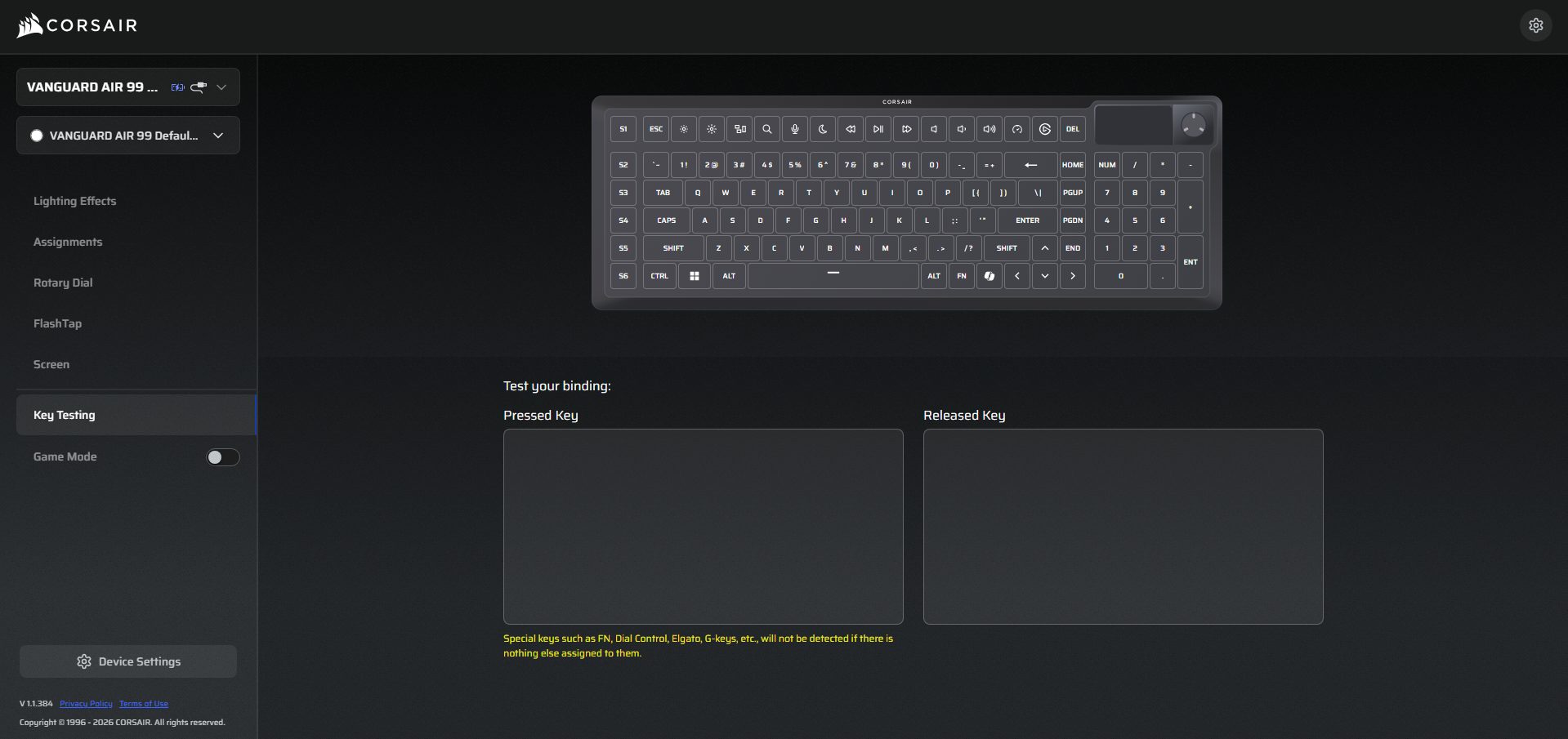
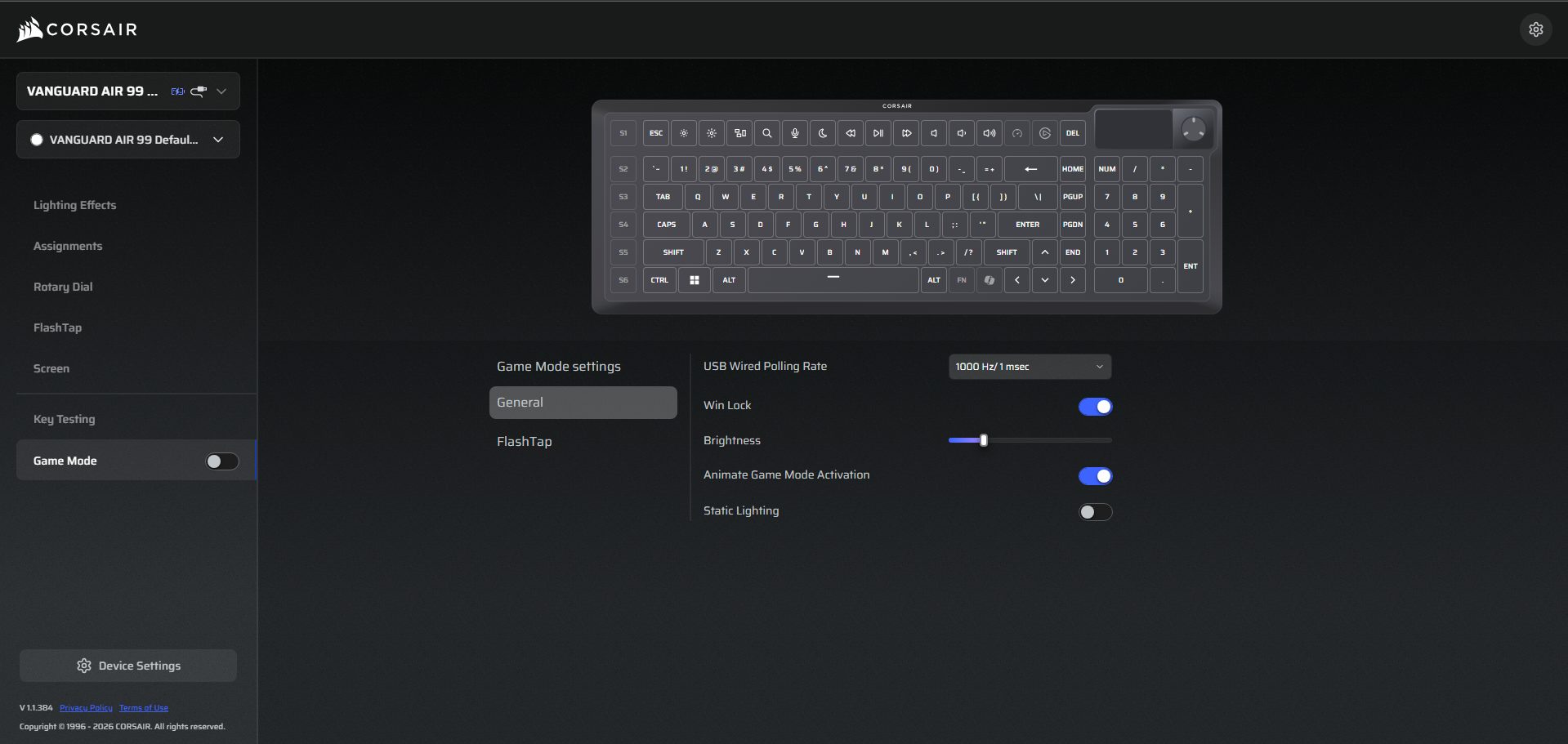
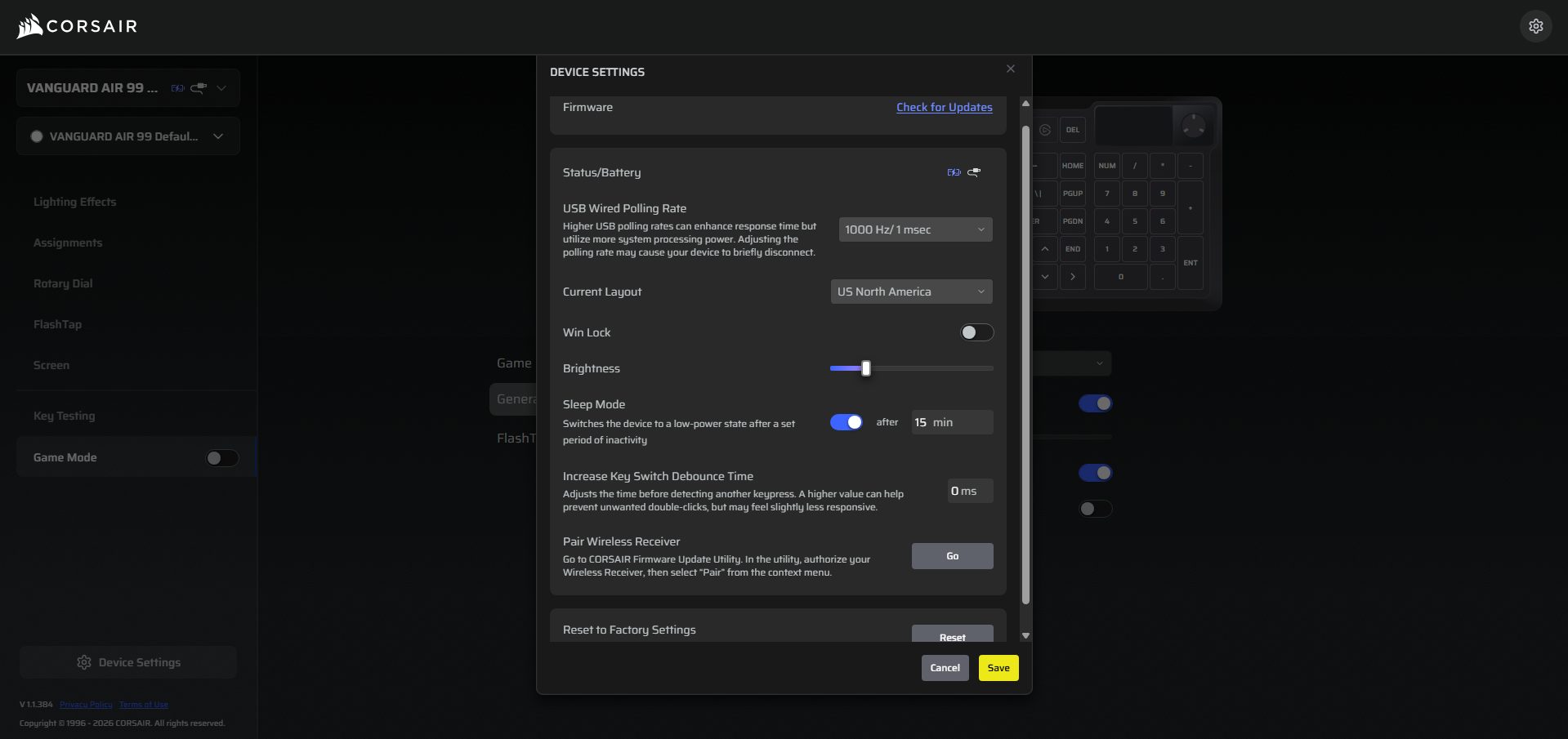
Instead of relying solely on a traditional desktop app, Corsair Vanguard Air 99 primarily uses a browser-based software for most controls. You open it in your browser, connect the keyboard, and that’s where everything shows up. Once you’re inside, the layout is fairly straightforward. There are separate sections for lighting, key assignments, the rotary dial, FlashTap, the screen, and game mode.
Each one sits in its own tab, so you don’t have to dig through long menus to find what you need. The keyboard supports up to 5 profiles. One of them is stored directly on the keyboard, while the others live inside the Web Hub. That onboard profile is useful if you’re plugging into a different system. The onboard memory is 32MB, where your saved settings, lighting, and configurations are stored.
Should You Buy it?
Buy it if
✅ You want a keyboard that does more than typing and gaming: The Vanguard Air 99 leans into that hybrid idea. The Stream Deck-style keys and screen actually add usable shortcuts once you set them up, especially if you jump between work and gaming often.
✅ You like fast, low-profile switches with a light, responsive feel: The OPX optical switches feel quick without being overly sensitive. Combined with the short travel distance, keypresses feel immediate.
Don’t Buy it if
❌ You just want a simple keyboard without extra features: If you’re not going to use the screen and Stream Deck keys, a lot of what you’re paying for ends up sitting unused.
❌ You prefer traditional full-size spacing and muscle memory layouts: The tighter 99% layout can take time to adjust to. It’s not messy, but it does shift a few keys closer than standard boards, which may feel slightly off at first.
Final Verdict
After spending a considerable amount of time with the Vanguard Air 99, it feels like a keyboard trying to sit in more than one space at once. Part gaming board, part productivity tool. In most cases, it actually manages to hold that balance. The price is what might make you pause at $259.99. It’s not a budget keyboard, and it doesn’t try to be. You’re paying for the combination of features, the build, and the flexibility it offers.
Whether that makes sense depends on how much you’ll actually use things like the SD keys or the screen. In the end, it feels like a keyboard built for people who switch between tasks throughout the day, whether gaming, working, or casual use. It’s not trying to be the most extreme option in any one category. It just aims to cover a lot of ground in a single setup, and for the most part, it does that well.
Thank you! Please share your positive feedback. 🔋
How could we improve this post? Please Help us. 😔

[Hardware Reviewer & Editor]
After many years of exploiting various pieces of hardware, Abdul Hannan now serves as an editor at Tech4Gamers. He’s been in the PC hardware reviewing industry for almost a decade, and his staff of passionate geeks and reviewers is second to none.
Abdul Hannan is constantly seeking new methods, you will always see him running into New Computer Courses to improve the performance of his computer components since he is an ardent overclocker. He is well-known for providing the most extensive and unbiased analysis of the newest and greatest hardware for PC gaming, including everything from GPUs to PSUs.
 Join Our Community